This guide walks through installing Cilium (a Kubernetes CNI powered by eBPF) on a cluster using the Cilium CLI. It covers creating a local example cluster with kind (optional), installing the cilium CLI, installing Cilium into the cluster, verifying the installation, and previewing the manifests that the CLI applies. Target audience: Kubernetes users who want to replace or install a CNI with Cilium and those validating Cilium deployments in local or cloud clusters.

Prerequisites

RequirementPurpose / Notes
Kubernetes cluster without a CNIThe cluster must not already have a CNI installed (kubelet nodes will otherwise report NotReady).
kubectl configuredkubectl must point to the target cluster context.
(Optional) kindUseful for local testing. The examples below show how to create a kind cluster with the default CNI disabled.
You can use any Kubernetes distribution (kind, Minikube, EKS, GKE, etc.). The important requirement for this demonstration is that the cluster must not have a CNI installed — otherwise kubelet nodes will report NotReady until a CNI is present.

1 — Create a kind cluster (example)

If you want to follow along locally, create a kind cluster and disable the default CNI so we can install Cilium manually. Save this example as kind.config:
kind: Cluster
apiVersion: kind.x-k8s.io/v1alpha4
name: tlv-cluster
networking:
  ipFamily: dual
  disableDefaultCNI: true
nodes:
  - role: control-plane
  - role: worker
  - role: worker
Create the cluster:
time kind create cluster --config kind.config
Switch kubectl context to the new cluster:
kubectl config use-context kind-tlv-cluster
Verify node status. Nodes will typically show NotReady until a CNI is installed:
kubectl get nodes
Example output:
NAME                         STATUS     ROLES           AGE   VERSION
tlv-cluster-control-plane    NotReady   control-plane   45s   v1.32.2
tlv-cluster-worker           NotReady   <none>          30s   v1.32.2
tlv-cluster-worker2          NotReady   <none>          30s   v1.32.2

2 — Install the Cilium CLI

Open the official Cilium Quick Installation page for the latest installation instructions: https://docs.cilium.io/en/stable/gettingstarted/quick-install/
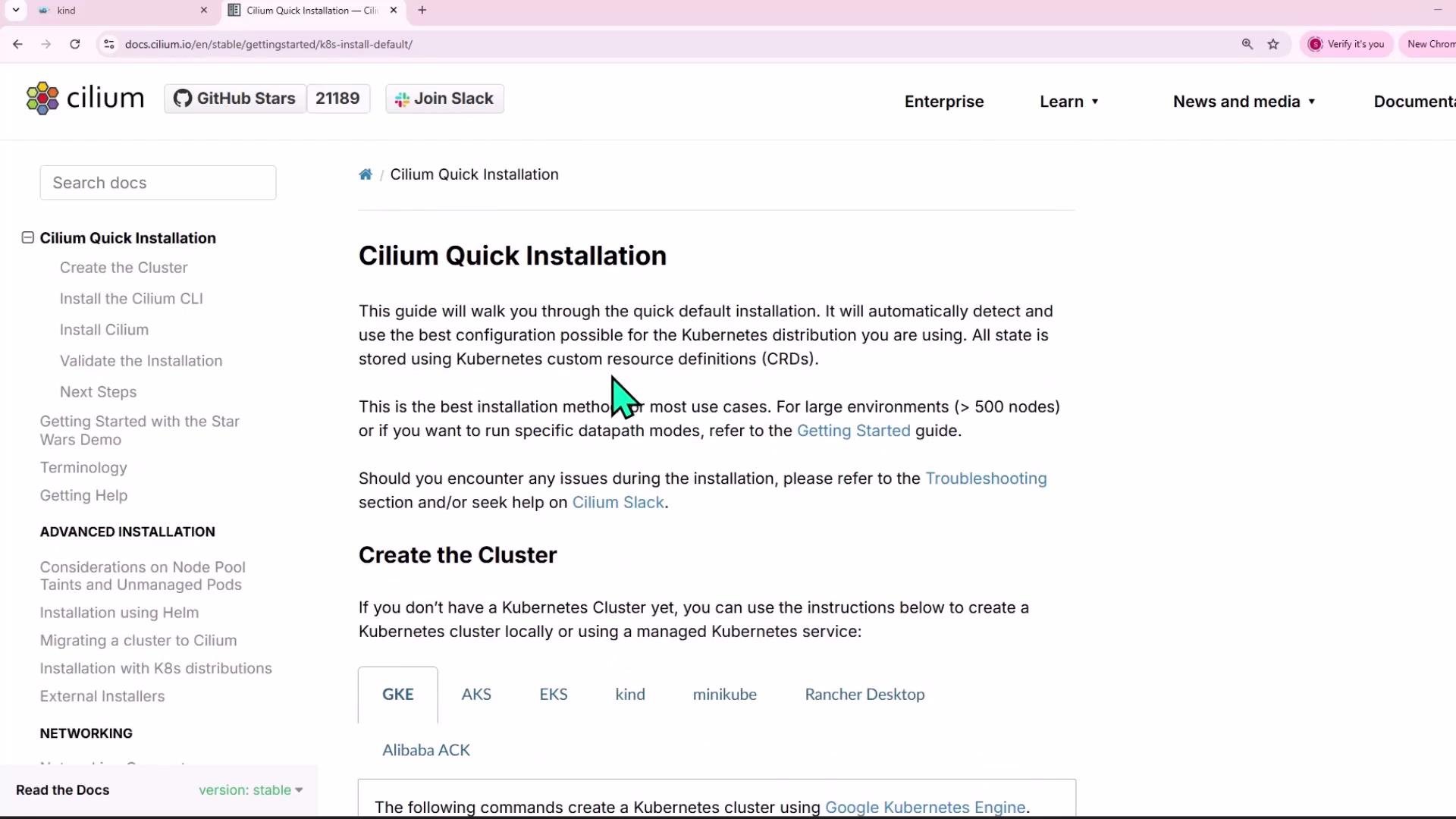
A browser screenshot of the Cilium documentation page titled "Cilium Quick Installation," showing installation instructions and a left-hand navigation menu. A green mouse cursor is visible pointing at the page text.
On a Linux host you can download and install the cilium CLI with the following script. It detects CPU architecture, validates the tarball checksum, and installs the binary to /usr/local/bin:
CILIUM_CLI_VERSION=$(curl -s https://raw.githubusercontent.com/cilium/cilium-cli/main/stable.txt)
CLI_ARCH=amd64
if [ "$(uname -m)" = "aarch64" ]; then CLI_ARCH=arm64; fi

curl -L --fail --remote-name-all https://github.com/cilium/cilium-cli/releases/download/${CILIUM_CLI_VERSION}/cilium-linux-${CLI_ARCH}.tar.gz{,.sha256sum}
sha256sum --check cilium-linux-${CLI_ARCH}.tar.gz.sha256sum
sudo tar xzvf cilium-linux-${CLI_ARCH}.tar.gz -C /usr/local/bin
rm cilium-linux-${CLI_ARCH}.tar.gz{,.sha256sum}
Confirm installation:
cilium version
Example output:
cilium-cli: v0.18.2 compiled with go1.24.0 on linux/amd64
cilium image (default): v1.17.0
cilium image (stable): v1.17.2
cilium image (running): unknown. Unable to obtain cilium version. Reason: release: not found
Note: the “cilium image (running)” field is unknown until Cilium is installed and running in the cluster.

3 — Install Cilium with the CLI

By default, the CLI installs into the current kubectl context. Install with:
cilium install
If you need custom settings, prepare a Helm values file (the CLI converts these into the Helm chart values) and pass it with --values. Example values.yaml (enable IPv6):
# Enable IPv6 support
ipv6:
  enabled: true
Install with the custom values:
cilium install --values values.yaml
The CLI auto-detects cluster type and existing components (for example, whether kube-proxy is installed). If kube-proxy is already present, the default behavior is to run Cilium alongside kube-proxy. To replace kube-proxy with Cilium’s eBPF-based proxy, enable the appropriate Helm value or use CLI options to enable kube-proxy replacement. A sample installer log (abridged):
Auto-detected Kubernetes kind: kind
Using Cilium version 1.17.0
Auto-detected cluster name: kind-tlv-cluster
Auto-detected kube-proxy has been installed

4 — Verify Cilium status

After install, verify the Cilium control plane, pods, and related components:
cilium status
Example output (abridged and formatted):
Cilium:              OK
Operator:            OK
Envoy DaemonSet:     OK
Hubble Relay:        disabled
ClusterMesh:         disabled

DaemonSet           cilium            Desired: 3, Ready: 3/3, Available: 3/3
DaemonSet           cilium-envoy      Desired: 3, Ready: 3/3, Available: 3/3
Deployment          cilium-operator   Desired: 1, Ready: 1/1, Available: 1/1

Containers:
  cilium            Running: 3
  cilium-envoy      Running: 3
  cilium-operator   Running: 1

Cluster Pods: 3/3 managed by Cilium
Helm chart version: 1.17.0
Image versions:
  cilium          quay.io/cilium/cilium:v1.17.0@sha256:...
  cilium-envoy    quay.io/cilium/cilium-envoy:v1.31.5@sha256:...
  cilium-operator quay.io/cilium/operator-generic:v1.17.0@sha256:...
This output confirms the Cilium DaemonSet and operator are running and ready across the nodes.
If you want Cilium to replace kube-proxy functionality with the eBPF-based proxy, enable the appropriate Helm values (or use the CLI options) to enable kube-proxy replacement. That is a configuration choice — by default the installer runs alongside kube-proxy when it detects kube-proxy is installed.

5 — Preview the manifests (dry run)

To inspect the raw Kubernetes manifests that the CLI will apply, run a dry run and capture the output:
cilium install --dry-run > cilium-dry-run.yaml
Open cilium-dry-run.yaml to review the generated resources (DaemonSets, Deployments, ConfigMaps, RBAC, etc.). Example excerpt (operator pod spec):
restartPolicy: Always
priorityClassName: system-cluster-critical
serviceAccountName: "cilium-operator"
automountServiceAccountToken: true
affinity:
  podAntiAffinity:
    requiredDuringSchedulingIgnoredDuringExecution:
    - labelSelector:
        matchLabels:
          io.cilium/app: operator
      topologyKey: kubernetes.io/hostname
nodeSelector:
  kubernetes.io/os: linux
tolerations:
  - operator: Exists
volumes:
  - name: cilium-config-path
    configMap:
      name: cilium-config
Reviewing manifests is recommended for audits, compliance, or to tailor Cilium to production environments.

Resources and next steps

Suggested next steps:
  • Review Helm values to enable production features (Hubble observability, ClusterMesh, etc.).
  • If replacing kube-proxy, test kube-proxy replacement settings in a staging cluster first.
  • Validate networking and policy behavior with sample workloads and network policies.
Table — Common cilium CLI commands
CommandPurpose
cilium installInstall Cilium into current kubectl context
cilium install —values values.yamlInstall with custom Helm values
cilium statusShow Cilium and component status
cilium install —dry-run > file.yamlPreview generated manifests without applying
You now have Cilium installed using the CLI. Adjust Helm values and CLI options based on your environment and production requirements.

Watch Video