In this guide you’ll learn how to enable and use Hubble (the observability component of Cilium) to inspect L3/L4 flows and, when L7 rules are present, HTTP request/response details inside a Kubernetes cluster. This walkthrough assumes you already have a three-node cluster with Cilium installed via Helm using default values.

1. Confirm cluster nodes

Run:
kubectl get nodes
Example output:
NAME                       STATUS   ROLES           AGE     VERSION
my-cluster-control-plane   Ready    control-plane   4d14h   v1.32.2
my-cluster-worker          Ready    <none>          4d14h   v1.32.2
my-cluster-worker2         Ready    <none>          4d14h   v1.32.2

2. Enable Hubble Relay and Hubble UI via Helm values

Hubble is bundled with Cilium, but Relay and UI are commonly disabled. To enable them, add the fields below to your Helm values.yaml. See Helm chart values docs for details: https://helm.sh/docs/topics/charts_values/
# Helm values excerpt (values.yaml)
relay:
  # Enable Hubble Relay (requires hubble.enabled=true)
  enabled: true
  # Roll out Hubble Relay pods automatically when configmap is updated.
  rollOutPods: false
ui:
  # Whether to enable the Hubble UI.
  enabled: true
  standalone:
    # When true, allow installing the Hubble UI only, without checking dependencies.
    enabled: false
After updating Helm values you must upgrade the release and restart the operator/agents so the new components are started and configuration is picked up.
Upgrade and restart:
helm upgrade cilium cilium/cilium -f values.yaml -n kube-system

kubectl -n kube-system rollout restart deployment/cilium-operator
kubectl -n kube-system rollout restart daemonset/cilium

3. Verify Hubble components are running

List pods and services in the kube-system namespace:
kubectl get pods -n kube-system
Example (relevant lines):
hubble-relay-59cc4d545b-g6g9v    1/1     Running   0          87s
hubble-ui-76d4965bb6-s8f6r       2/2     Running   0          87s
kubectl get svc -n kube-system
Example:
NAME          TYPE        CLUSTER-IP      PORT(S)
hubble-relay  ClusterIP   10.96.71.111    80/TCP
hubble-ui     ClusterIP   10.96.213.213   80/TCP
You can also check status with the Cilium CLI:
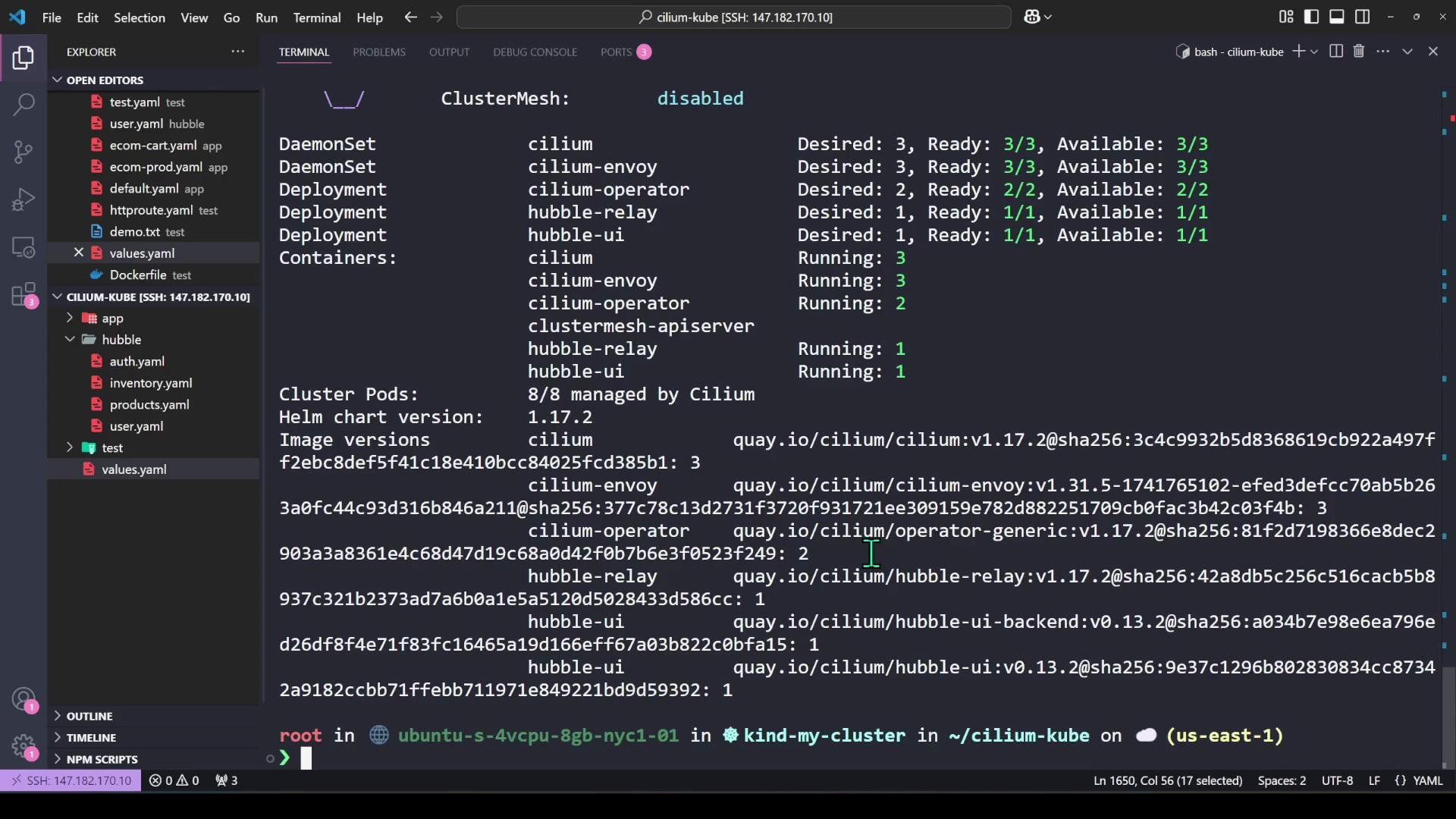
cilium status
Example (abridged):
Cilium:              OK
Operator:            OK
Envoy DaemonSet:     OK
Hubble Relay:        OK

Deployment        hubble-relay   Desired: 1, Ready: 1/1, Available: 1/1
Deployment        hubble-ui      Desired: 1, Ready: 1/1, Available: 1/1
A Visual Studio Code window with the Explorer open on the left and an integrated terminal on the right displaying Cilium cluster status (ClusterMesh: disabled), pod/container counts and image versions. The sidebar shows several YAML files and a remote SSH session indicator.

4. Deploy sample applications (generate traffic)

In this demo we use four simple services: ecom-auth, ecom-inventory, ecom-products, and ecom-user. From the hubble/ sample folder:
cd hubble/
kubectl apply -f .
Example apply output:
deployment.apps/ecom-auth created
service/ecom-auth-service created
deployment.apps/ecom-inventory created
service/ecom-inventory-service created
deployment.apps/ecom-products created
service/ecom-products-service created
deployment.apps/ecom-user created
service/ecom-user-service created
Verify deployments and services:
kubectl get deployment
kubectl get svc
Example outputs:
# Deployments
NAME            READY   UP-TO-DATE   AVAILABLE   AGE
ecom-auth       1/1     1            1           3m
ecom-inventory  1/1     1            1           3m
ecom-products   1/1     1            1           3m
ecom-user       1/1     1            1           3m
# Services
NAME                   TYPE        CLUSTER-IP     PORT(S)
ecom-auth-service      ClusterIP   10.96.159.11   3000/TCP
ecom-inventory-service ClusterIP   10.96.233.237  3000/TCP
ecom-products-service  ClusterIP   10.96.2.92     3000/TCP
ecom-user-service      ClusterIP   10.96.77.87    3000/TCP
Generate traffic by exec’ing into the auth pod and curling the user service:
kubectl get pods
kubectl exec -it ecom-auth-6dcb754fcb-v9rbc -- bash
# inside the pod:
curl ecom-user-service:3000
Example response:
{"method":"GET","path":"/"}

5. Install the Hubble CLI and connect to Hubble Relay

Install the Hubble CLI locally (pick the correct architecture). Example Linux script:
# Install Hubble CLI (Linux example)
HUBBLE_VERSION=$(curl -s https://raw.githubusercontent.com/cilium/hubble/master/stable.txt)
HUBBLE_ARCH=amd64
if [ "$(uname -m)" = "aarch64" ]; then HUBBLE_ARCH=arm64; fi

curl -L --fail -o hubble-linux-${HUBBLE_ARCH}.tar.gz \
  "https://github.com/cilium/hubble/releases/download/${HUBBLE_VERSION}/hubble-linux-${HUBBLE_ARCH}.tar.gz"
curl -L --fail -o hubble-linux-${HUBBLE_ARCH}.tar.gz.sha256sum \
  "https://github.com/cilium/hubble/releases/download/${HUBBLE_VERSION}/hubble-linux-${HUBBLE_ARCH}.tar.gz.sha256sum"

sha256sum --check hubble-linux-${HUBBLE_ARCH}.tar.gz.sha256sum

tar xzvf hubble-linux-${HUBBLE_ARCH}.tar.gz
sudo mv hubble /usr/local/bin/
rm hubble-linux-${HUBBLE_ARCH}.tar.gz hubble-linux-${HUBBLE_ARCH}.tar.gz.sha256sum
Set up a port-forward from your workstation to Hubble Relay so the local Hubble CLI can reach Relay:
kubectl -n kube-system port-forward service/hubble-relay 4245:80
Expected output:
Forwarding from 127.0.0.1:4245 -> 4245
Forwarding from [::1]:4245 -> 4245
(If you have the Cilium CLI installed you can also use cilium hubble port-forward.)

6. Observe flows with the Hubble CLI

The primary command is hubble observe. It supports powerful filters to narrow flows:
FilterUse case
—pod, —from-pod, —to-podShow flows for specific pod(s)
—from-label, —to-label, —namespaceFilter by labels or namespace
—port, —protocol (e.g., http)Focus on specific ports/protocols
-f / —followStream new flows in real time
—since, —last, —allControl time window / amount of flows
To observe all flows related to the user pod (both directions) and follow new flows:
hubble observe --pod default/ecom-user-55b49648b8-bwlsl -f
Sample flow output (abridged):
May 16 15:01:15.270: default/ecom-auth-6dcb754fcb-v9rbc:51246 (ID:28660) -> default/ecom-user-55b49648b8-bwlsl:3000 (ID:52953) to-endpoint FORWARDED (TCP Flags: SYN)
May 16 15:01:15.270: default/ecom-auth-6dcb754fcb-v9rbc:51246 (ID:28660) <- default/ecom-user-55b49648b8-bwlsl:3000 (ID:52953) to-endpoint FORWARDED (TCP Flags: SYN, ACK)
May 16 15:01:15.271: default/ecom-auth-6dcb754fcb-v9rbc:51246 (ID:28660) -> default/ecom-user-55b49648b8-bwlsl:3000 (ID:52953) to-endpoint FORWARDED (TCP Flags: ACK)
To show only HTTP L7 flows to the user pod:
hubble observe --to-pod default/ecom-user-55b49648b8-bwlsl --protocol http -f

7. Using Hubble to validate network policies (CiliumNetworkPolicy)

Example: allow only ecom-auth to contact ecom-user on port 3000, and restrict to HTTP GET at L7. Create user-policy.yaml:
apiVersion: "cilium.io/v2"
kind: CiliumNetworkPolicy
metadata:
  name: user-policy
spec:
  endpointSelector:
    matchLabels:
      app: ecom-user
  ingress:
  - fromEndpoints:
    - matchLabels:
        app: ecom-auth
    toPorts:
    - ports:
      - port: "3000"
        protocol: TCP
      rules:
        http:
        - method: GET
Apply the policy:
kubectl apply -f user-policy.yaml
Example output:
ciliumnetworkpolicy.cilium.io/user-policy created
Test connectivity:
  • From the allowed pod (ecom-auth):
kubectl exec -it ecom-auth-6dcb754fcb-v9rbc -- bash
curl ecom-user-service:3000     # returns {"method":"GET","path":"/"}
  • From a denied pod (ecom-products):
kubectl exec -it ecom-products-67474db564-q84cs -- bash
curl ecom-user-service:3000
# curl: (28) Failed to connect to ecom-user-service port 3000 after <timeout> ms: Couldn't connect to server
Hubble will include policy verdicts in the flow logs:
May 16 15:13:19.025: default/ecom-auth-... -> default/ecom-user-... policy-verdict:L3-L4 INGRESS ALLOWED (TCP Flags: SYN)
May 16 15:14:01.783: default/ecom-products-... <> default/ecom-user-... policy-verdict:none INGRESS DENIED (TCP Flags: SYN)
May 16 15:14:01.783: default/ecom-products-... <> default/ecom-user-... Policy denied DROPPED (TCP Flags: SYN)
Note: policy-verdict indicates whether traffic was allowed or denied and at which layer (L3/L4 vs. L7).
To capture and display L7 (HTTP) details in Hubble, include L7 rules (e.g., rules.http) in your CiliumNetworkPolicy. When an L7 rule is present, Hubble can report HTTP requests and responses alongside verdicts.
With the HTTP GET-only policy, Hubble can show HTTP-level details:
May 16 15:18:34.121: default/ecom-auth-... -> default/ecom-user-... http-request FORWARDED (HTTP/1.1 GET http://ecom-user-service:3000/)
May 16 15:18:34.125: default/ecom-auth-... <- default/ecom-user-... http-response FORWARDED (HTTP/1.1 200 5ms (GET http://ecom-user-service:3000/))
If a disallowed L7 method (e.g., POST) is attempted, the application may receive a 403 and Hubble will report the HTTP request/response and the policy-denied status:
# POST attempt from auth (policy allows only GET)
http-request FORWARDED (HTTP/1.1 POST http://ecom-user-service:3000/)
http-response DROPPED (HTTP/1.1 403)  # example: access denied

8. Hubble UI (visualize flows and service graphs)

Cilium includes a Hubble UI for visualizing service graphs, flows, and flow details. Start the UI helper:
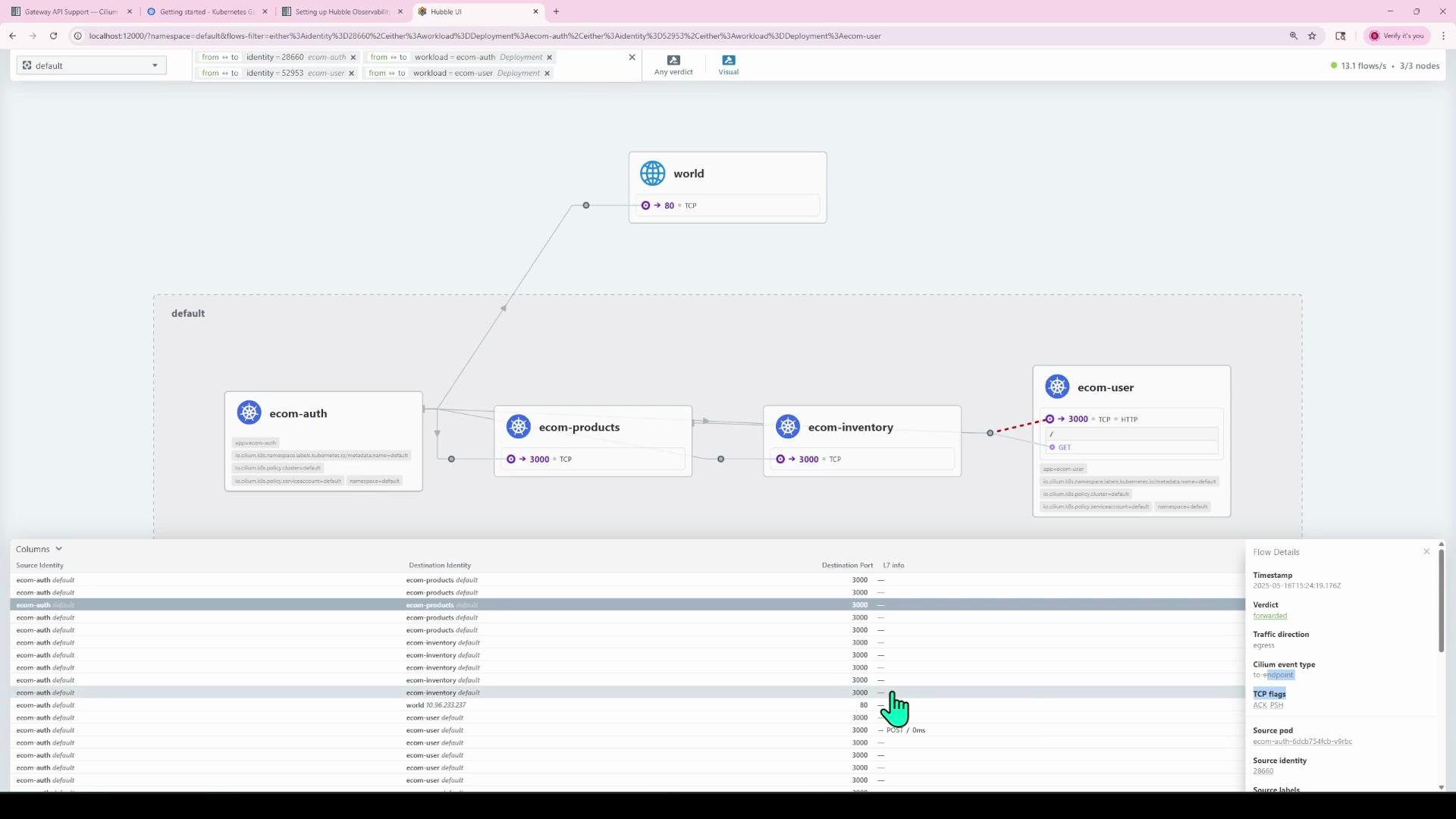
cilium hubble ui
This command typically sets up a port-forward and prints a local URL you can open in your browser. The UI shows an interactive service graph, a flows table, and detailed per-flow information such as timestamps, verdicts, TCP flags, and HTTP payload metadata.
A Hubble UI screenshot showing a Kubernetes service graph for the "default" namespace with nodes labeled ecom-auth, ecom-products, ecom-inventory, ecom-user and an external "world" node connected by traffic arrows. A flows table is visible at the bottom and a right-side panel displays flow details (timestamp, verdict, TCP flags, etc.).

Quick reference — useful commands

TaskCommand
Check nodeskubectl get nodes
Upgrade Cilium with valueshelm upgrade cilium cilium/cilium -f values.yaml -n kube-system
Restart Cilium operator & agentskubectl -n kube-system rollout restart deployment/cilium-operator and kubectl -n kube-system rollout restart daemonset/cilium
Verify Hubble podskubectl get pods -n kube-system
Port-forward Relaykubectl -n kube-system port-forward service/hubble-relay 4245:80
Stream flowshubble observe --pod <ns/pod> -f
Show only HTTP flowshubble observe --protocol http -f
Apply Cilium policykubectl apply -f user-policy.yaml
Start UI helpercilium hubble ui

Summary

  • Hubble (with Relay and UI) provides cluster-wide visibility into L3/L4 flows, and L7 HTTP details when policies include L7 rules.
  • Use hubble observe and its filters (--pod, --from-pod, --protocol, -f) to stream and inspect flows in real time.
  • Combine CiliumNetworkPolicy L7 rules with Hubble to validate application-layer access and troubleshoot policy-related denials.
  • The Hubble UI complements the CLI with a visual service graph and interactive flow inspection.

Watch Video

Practice Lab