This guide demonstrates how to enable and use the Cilium ingress controller on a Kubernetes cluster where Cilium was installed (for example via Helm) with the default values (ingress disabled by default). You’ll learn the required Cilium Helm values, how to enable the Cilium ingress controller, deploy example apps, create an Ingress resource using the Cilium ingress class, and validate routing.

Prerequisites

Quick cluster sanity check:
# kubectl get nodes
NAME                       STATUS   ROLES           AGE   VERSION
my-cluster-control-plane   Ready    control-plane   14m   v1.32.2
my-cluster-worker          Ready    <none>          14m   v1.32.2
my-cluster-worker2         Ready    <none>          14m   v1.32.2
Cilium’s ingress support requires one of two approaches. Choose either NodePort-based ingress or kube-proxy replacement plus L7 proxy. Below is a summary to compare the two options.
Resource / OptionUse case
nodePort.enabled: trueUse NodePort-based ingress if you prefer not to replace kube-proxy and want a simple, direct way to expose the Cilium ingress LoadBalancer through a node port.
kubeProxyReplacement: "strict" + l7proxy: trueUse kube-proxy replacement with Cilium’s L7 proxy if you want Cilium to replace kube-proxy functionality and handle load balancing at L7. This is more feature-rich but requires kube-proxy replacement.
Minimum required Helm values examples (pick one approach):
# Option A: enable NodePort-based ingress
nodePort:
  enabled: true
or
# Option B: enable kube-proxy replacement + L7 proxy
kubeProxyReplacement: "strict"   # or "true" depending on your Cilium version
l7proxy: true
If your environment is kind (or another local cluster without a cloud LB), provide a LoadBalancer implementation such as MetalLB so the Cilium ingress LoadBalancer can obtain an external IP.
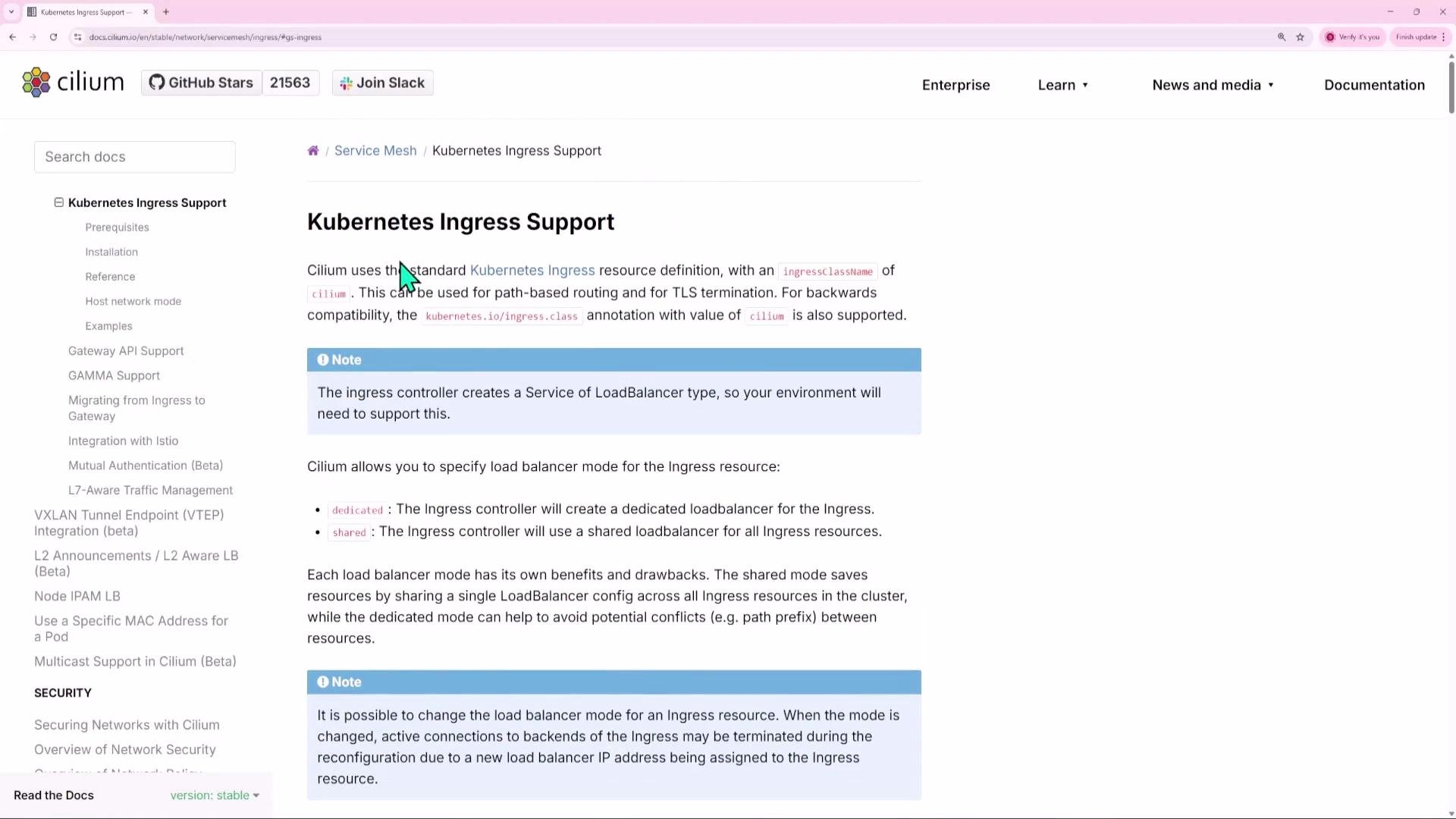
Cilium documentation reference:
A screenshot of the Cilium documentation webpage titled "Kubernetes Ingress Support," showing a left navigation menu and the main content explaining ingress/load balancer modes. The page includes highlighted note boxes, bullet points, and the Cilium logo/header at the top.

Enable the Cilium ingress controller

Add or update the ingress controller section in your values.yaml for the Cilium Helm chart:
ingressController:
  enabled: true
  default: true

  # Example ingress-related settings
  loadbalancerMode: shared   # supported values: shared, dedicated
  enforceHttps: true
  enableProxyProtocol: false
Notes on key fields:
  • loadbalancerMode: shared — multiple Ingress resources share a single Cilium-created LoadBalancer (cilium-ingress).
  • loadbalancerMode: dedicated — each Ingress gets its own LoadBalancer (separate external IP per Ingress).
  • enforceHttps: true — forces HTTP → HTTPS (308) redirection for TLS-enabled hosts.
Apply the Helm upgrade and restart Cilium components:
helm upgrade cilium cilium/cilium -f values.yaml -n kube-system

kubectl -n kube-system rollout restart deployment/cilium-operator
kubectl -n kube-system rollout restart ds/cilium
Verify the Cilium IngressClass has been created:
kubectl get ingressclass
NAME     CONTROLLER                     PARAMETERS   AGE
cilium   cilium.io/ingress-controller   <none>       2m53s

If using a local cluster (kind, minikube, etc.)

Local clusters often lack a cloud load balancer. Install MetalLB or another LoadBalancer provider and configure an address pool so the cilium-ingress LoadBalancer acquires an external IP address for testing.

Example application topology

For this demo we deploy three services and a default backend:
  • shopping.com
    • /products → ecom-products-service (port 3000)
    • /cart → ecom-carts-service (port 3000)
  • blogger.com
    • all paths → blog-service (port 3000)
  • default-backend-service (port 80) — catch-all for unmatched hosts/paths

Application manifests (Deployment + Service)

Save the following manifests in the working directory and apply them with kubectl apply -f .. ecom-products (deployment + service):
apiVersion: apps/v1
kind: Deployment
metadata:
  name: ecom-products
spec:
  selector:
    matchLabels:
      app: ecom-products
  template:
    metadata:
      labels:
        app: ecom-products
    spec:
      containers:
      - name: ecom-products
        image: sanjeevkt720/350-ecom-products

---
apiVersion: v1
kind: Service
metadata:
  name: ecom-products-service
spec:
  type: ClusterIP
  selector:
    app: ecom-products
  ports:
  - port: 3000
    targetPort: 3000
ecom-carts (deployment + service):
apiVersion: apps/v1
kind: Deployment
metadata:
  name: ecom-carts
spec:
  selector:
    matchLabels:
      app: ecom-carts
  template:
    metadata:
      labels:
        app: ecom-carts
    spec:
      containers:
      - name: ecom-carts
        image: sanjeevkt720/350-ecom-cart:v3

---
apiVersion: v1
kind: Service
metadata:
  name: ecom-carts-service
spec:
  type: ClusterIP
  selector:
    app: ecom-carts
  ports:
  - port: 3000
    targetPort: 3000
blog (deployment + service):
apiVersion: apps/v1
kind: Deployment
metadata:
  name: blog
spec:
  selector:
    matchLabels:
      app: blog
  template:
    metadata:
      labels:
        app: blog
    spec:
      containers:
      - name: blog
        image: sanjeevkt720/350-blog

---
apiVersion: v1
kind: Service
metadata:
  name: blog-service
spec:
  type: ClusterIP
  selector:
    app: blog
  ports:
  - port: 3000
    targetPort: 3000
default-backend (deployment + service):
apiVersion: apps/v1
kind: Deployment
metadata:
  name: default-backend
spec:
  selector:
    matchLabels:
      app: default-backend
  template:
    metadata:
      labels:
        app: default-backend
    spec:
      containers:
      - name: nginx
        image: nginx

---
apiVersion: v1
kind: Service
metadata:
  name: default-backend-service
spec:
  type: ClusterIP
  selector:
    app: default-backend
  ports:
  - port: 80
    targetPort: 80
Deploy the example apps:
kubectl apply -f .
Typical apply output (example):
deployment.apps/blog created
service/blog-service created
deployment.apps/default-backend created
service/default-backend-service created
deployment.apps/ecom-carts created
service/ecom-carts-service created
deployment.apps/ecom-products created
service/ecom-products-service created
Confirm deployments and services are ready:
kubectl get deploy
NAME               READY   UP-TO-DATE   AVAILABLE   AGE
blog               1/1     1            1           6m
default-backend    1/1     1            1           6m
ecom-carts         1/1     1            1           6m
ecom-products      1/1     1            1           6m

kubectl get svc
NAME                      TYPE        CLUSTER-IP       EXTERNAL-IP   PORT(S)
blog-service              ClusterIP   10.96.50.148     <none>        3000/TCP
default-backend-service   ClusterIP   10.96.149.234    <none>        80/TCP
ecom-carts-service        ClusterIP   10.96.2.237      <none>        3000/TCP
ecom-products-service     ClusterIP   10.96.155.189    <none>        3000/TCP

Ingress resource (Cilium ingress class)

Create ingress.yaml to define host/path routing and a default backend. The Ingress uses the Cilium ingress class:
apiVersion: networking.k8s.io/v1
kind: Ingress
metadata:
  name: ingress
spec:
  ingressClassName: cilium
  rules:
    - host: "shopping.com"
      http:
        paths:
          - pathType: Prefix
            path: "/products"
            backend:
              service:
                name: ecom-products-service
                port:
                  number: 3000
          - pathType: Prefix
            path: "/cart"
            backend:
              service:
                name: ecom-carts-service
                port:
                  number: 3000
    - host: "blogger.com"
      http:
        paths:
          - pathType: Prefix
            path: "/"
            backend:
              service:
                name: blog-service
                port:
                  number: 3000
  # Default catch-all rule (no host specified)
  # Matches any host/path not matched above
  defaultBackend:
    service:
      name: default-backend-service
      port:
        number: 80
Apply the Ingress:
kubectl apply -f ingress.yaml
Verify the Ingress and the Cilium LoadBalancer:
kubectl get ingress
NAME      CLASS    HOSTS                         ADDRESS         PORTS   AGE
ingress   cilium   shopping.com,blogger.com      172.19.255.91   80      16s

kubectl get svc -A
NAMESPACE    NAME                      TYPE           CLUSTER-IP       EXTERNAL-IP       PORT(S)
kube-system  cilium-ingress            LoadBalancer   10.96.73.78      172.19.255.91     80:31190/TCP,443:32649/TCP
The Ingress ADDRESS corresponds to the external IP assigned to the cilium-ingress LoadBalancer service.

DNS / hosts mapping for testing

For local testing, map the demo hostnames to the LoadBalancer IP (example /etc/hosts entries):
172.19.255.91 shopping.com
172.19.255.91 blogger.com
172.19.255.91 testing123.com

Testing the routes

Use curl (or a browser) to validate routing via the LoadBalancer IP:
# blogger.com -> blog service
curl -s blogger.com
# shopping.com -> products
curl -s shopping.com/products
# shopping.com -> cart
curl -s shopping.com/cart
# unmatched host -> default backend (nginx)
curl -s testing123.com
# <html> ... Welcome to nginx! ...</html>

Troubleshooting checklist

  • Confirm ingressClassName: cilium on the Ingress or that Cilium is set as the default IngressController.
  • Verify service names and ports referenced by the Ingress match the Services (kubectl get svc).
  • Check for typos in hostnames and paths (e.g., /card vs /cart).
  • Ensure the cilium-ingress Service has an external IP (install MetalLB in local environments if necessary).
  • Inspect Cilium logs if requests are not reaching the expected backend:
    • kubectl -n kube-system logs deployment/cilium-operator
    • kubectl -n kube-system logs ds/cilium

Shared vs dedicated LoadBalancer behavior

ModeBehavior
sharedA single cilium-ingress LoadBalancer service is created and multiple Ingress resources share the same external IP.
dedicatedCilium creates one LoadBalancer per Ingress resource; each Ingress receives its own external IP.

Conclusion

You have enabled the Cilium ingress controller, configured load balancer behavior, deployed demo applications, created an Ingress resource using the Cilium ingress class, and tested routing. For production or multi-environment use, consider DNS automation to point hostnames to the Cilium LoadBalancer external IP(s) and review TLS configuration and enforceHttps behavior.

Watch Video