

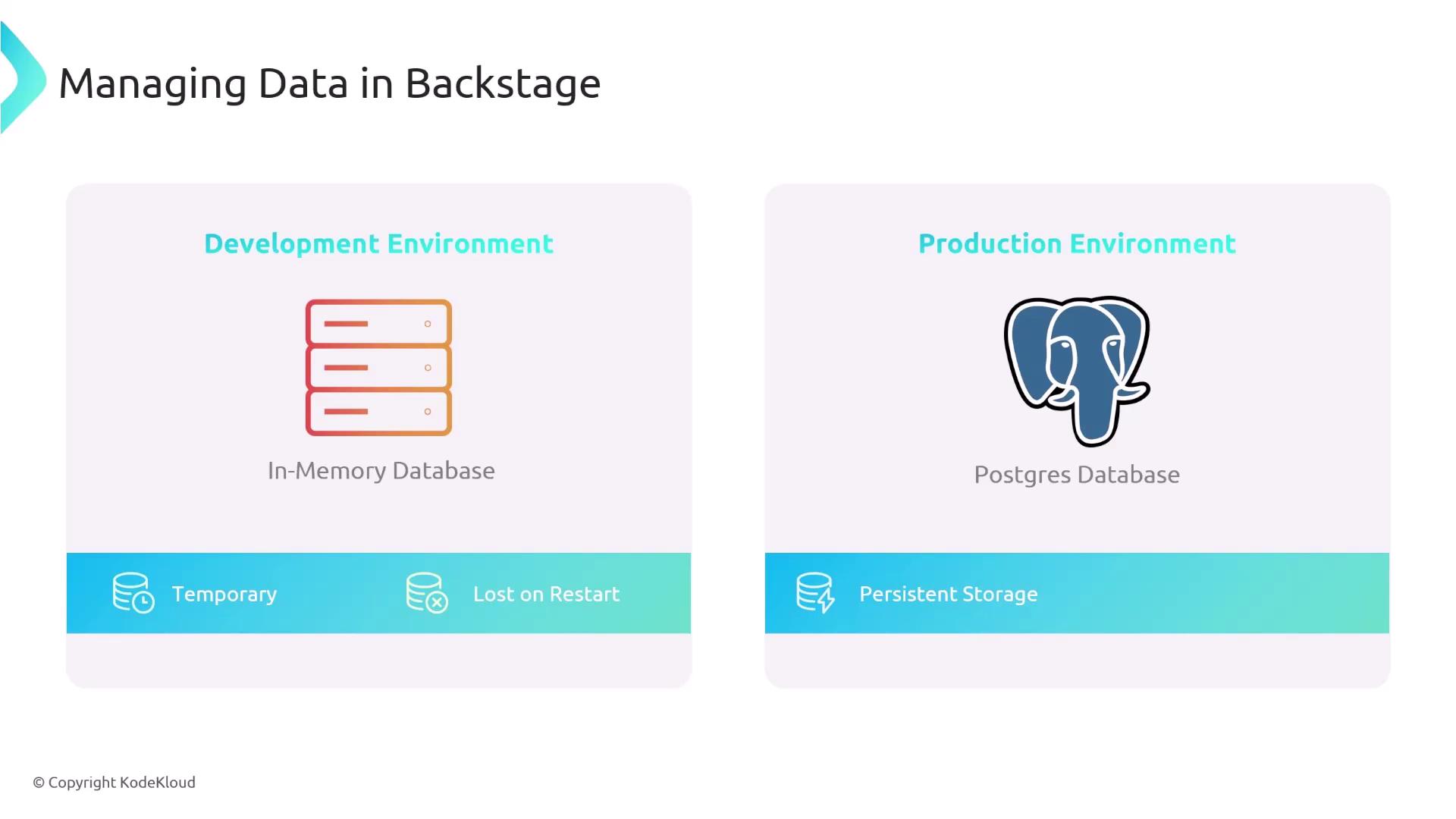
If you continue using the default in-memory database in production, all of your tracked applications and metadata will be lost whenever the Backstage instance restarts.
1. Provision a PostgreSQL Instance
You can provision PostgreSQL in several environments:| Environment | Description | Example Command |
|---|---|---|
| Local (Docker) | Run a container on your machine | docker run -d --name backstage-pg -e POSTGRES_PASSWORD=secret -p 5432:5432 postgres:13 |
| AWS RDS | Managed PostgreSQL in AWS | Create via AWS Console or aws rds create-db-instance ... |
| GCP Cloud SQL | Google-managed SQL service | Provision with Cloud Console or gcloud sql instances create ... |
| Azure Database for PostgreSQL | Azure-managed service | Provision via Azure Portal or az postgres flexible-server create ... |
- Host
- Port (default: 5432)
- Database name
- Username
- Password
2. Configure app-config.yaml
Update your Backstage configuration to use the PostgreSQL client. In app-config.yaml, replace the in-memory settings under backend.database with your PostgreSQL credentials:
host: Hostname or IP address of the PostgreSQL serverport: TCP port (default5432)user: Database user with read/write permissionspassword: Password for the specified userdatabase: Name of the target PostgreSQL database
Using environment variables keeps sensitive data out of your config file and allows you to manage credentials securely with tools like Vault.
3. Set Environment Variables
Before starting Backstage, export the connection parameters:4. Launch Backstage
With configuration and environment variables in place, start the Backstage backend:Links and References
- PostgreSQL Documentation
- Docker Hub: PostgreSQL Image
- AWS RDS for PostgreSQL
- Google Cloud SQL for PostgreSQL
- Azure Database for PostgreSQL Documentation