

- Locating the plugin in the Backstage community repository
- Installing frontend and backend packages
- Registering a backend provider for authentication
- Adding the plugin’s UI to an entity page
- Annotating a component so the plugin can surface CI/CD data
Finding the plugin
Community plugins are discoverable on the Backstage Plugins page and in the Backstage repository on GitHub. Searching for “GitHub Actions” leads you to the plugin folder and README in the backstage/backstage/plugins area. Community plugins may include both frontend and backend packages (e.g.,plugin-name and plugin-name-backend) or only frontend code. The GitHub Actions community plugin is primarily a frontend plugin but depends on backend auth/proxy support to perform authenticated requests.
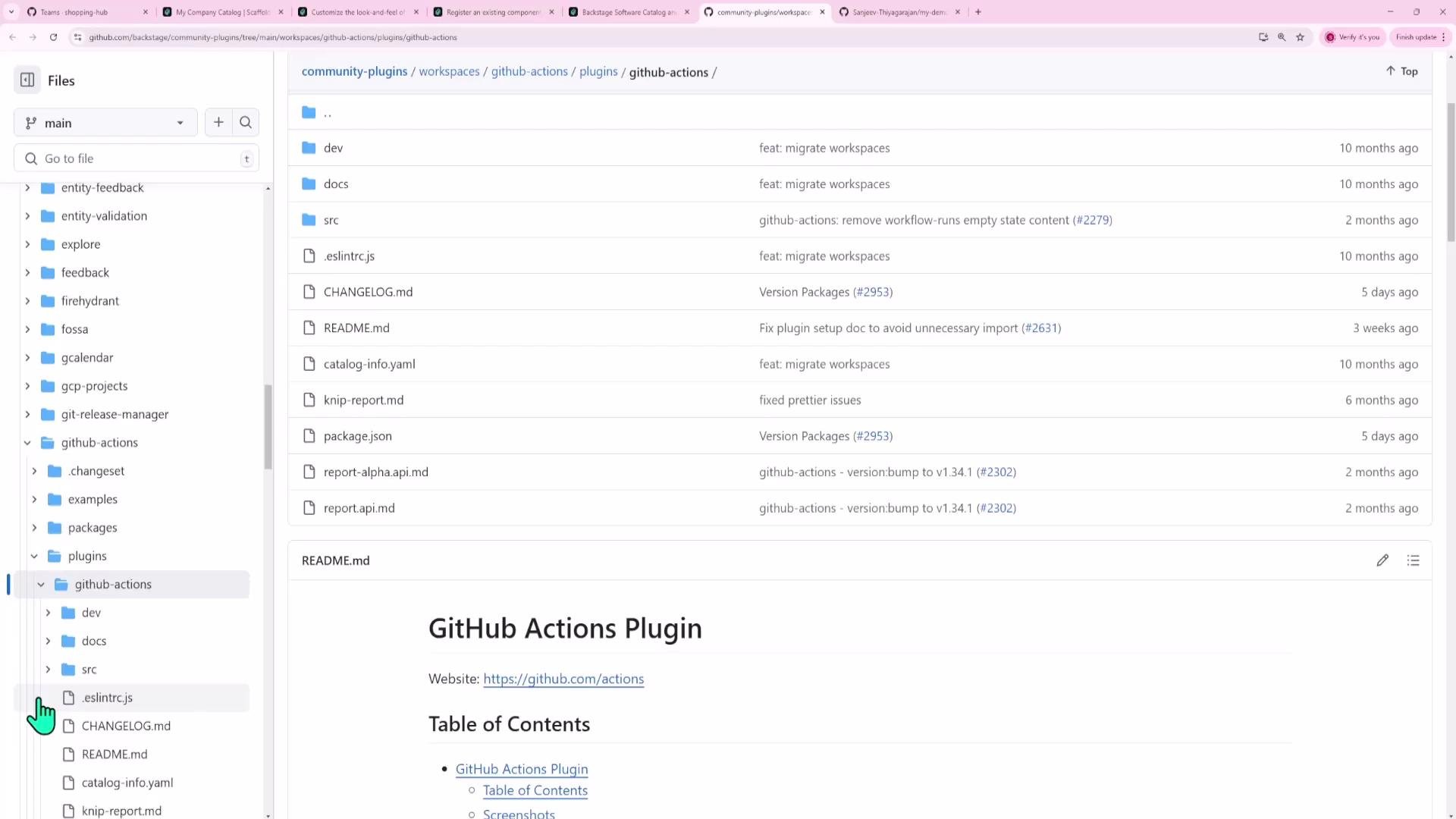
Frontend-only plugins and backend proxies
Many frontend-only community plugins require a backend to handle authentication, hide API tokens, or proxy requests. For example, the Dynatrace plugin is a frontend app that uses a backend proxy to add API tokens server-side so tokens are never exposed in the browser. Example: adding a Dynatrace tab to an entity (JSX):/dynatrace, which adds the Authorization header using a backend environment variable:
Installing the GitHub Actions plugin (frontend)
Install the frontend package inside yourpackages/app workspace:
@backstage-community/plugin-github-actions to packages/app/package.json so the frontend can import the plugin components.
Example dependency excerpt from packages/app/package.json:
@backstage-community/plugin-github-actions.
Quick commands and files
Back to the UI: the catalog and the entity page
Open your Backstage instance and navigate to the Software Catalog. Select a component (for example, “My Demo app”). Components include the Overview, CI/CD, Kubernetes, and other tabs. The GitHub Actions plugin renders CI/CD details on the CI/CD tab once configured.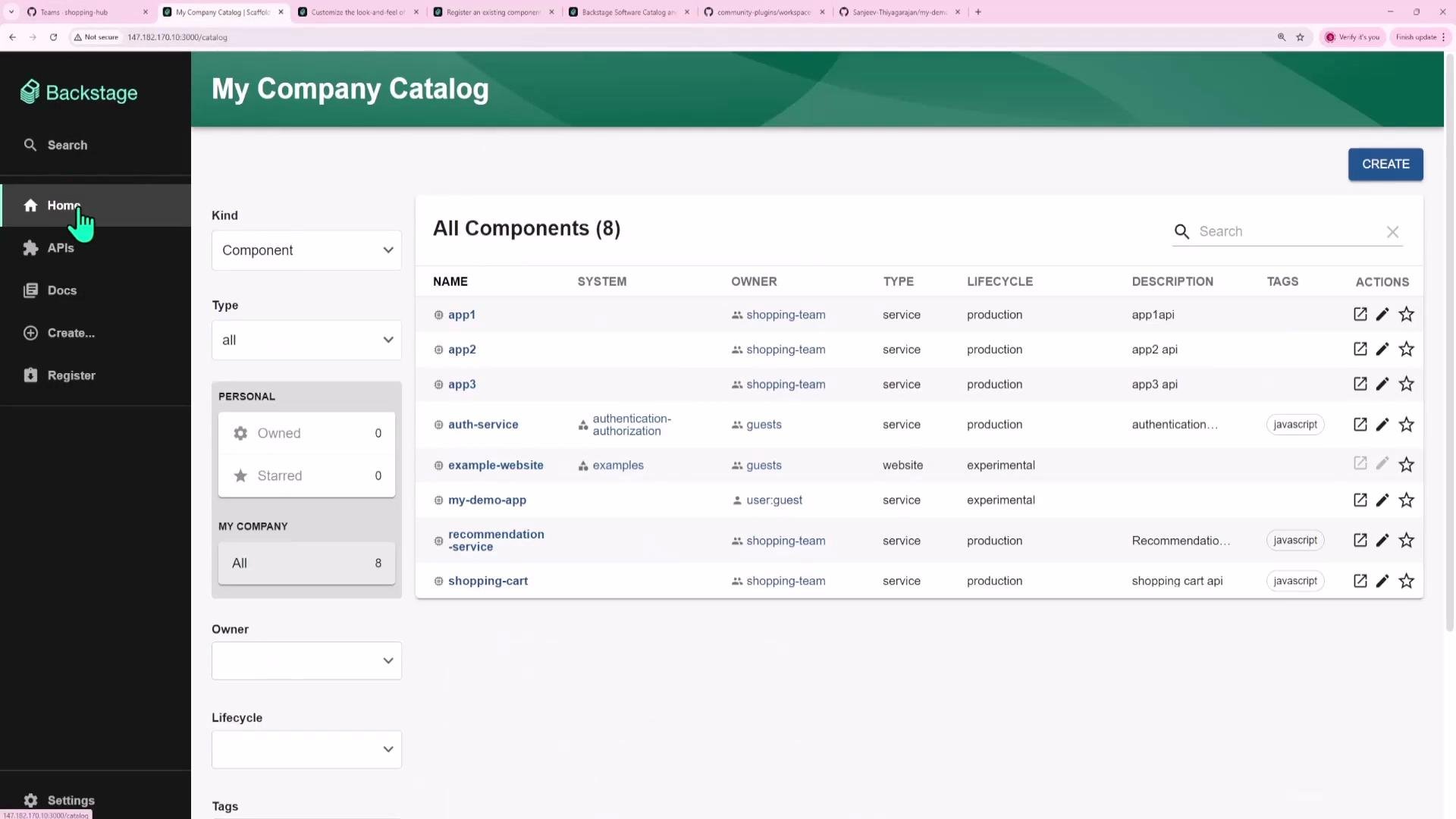
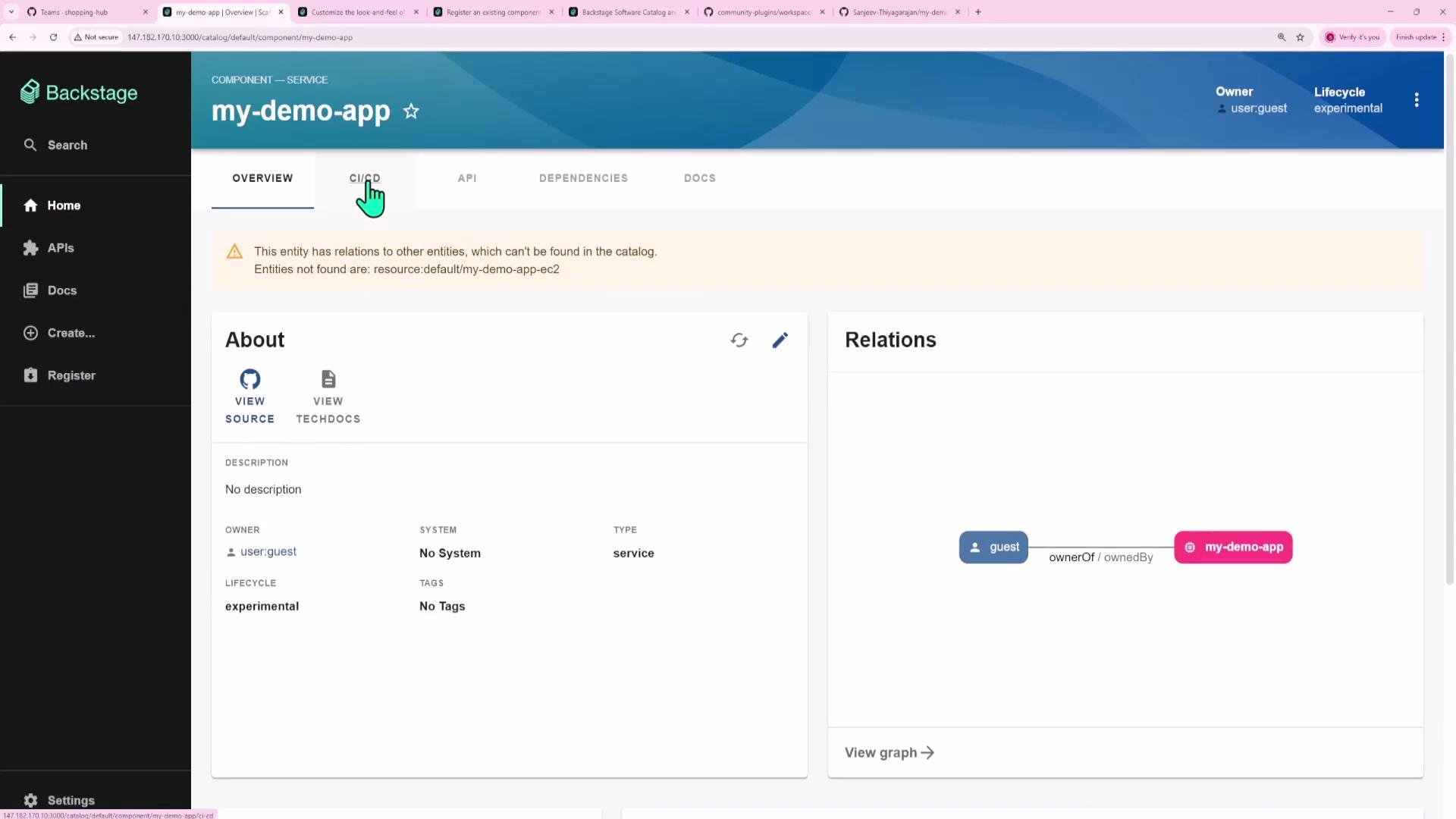
What the plugin shows
The GitHub Actions plugin queries workflow runs for the repository referenced by the component annotation. It displays recent runs, statuses, commit messages, and links to run details on GitHub—mirroring the information on a repository’s Actions page.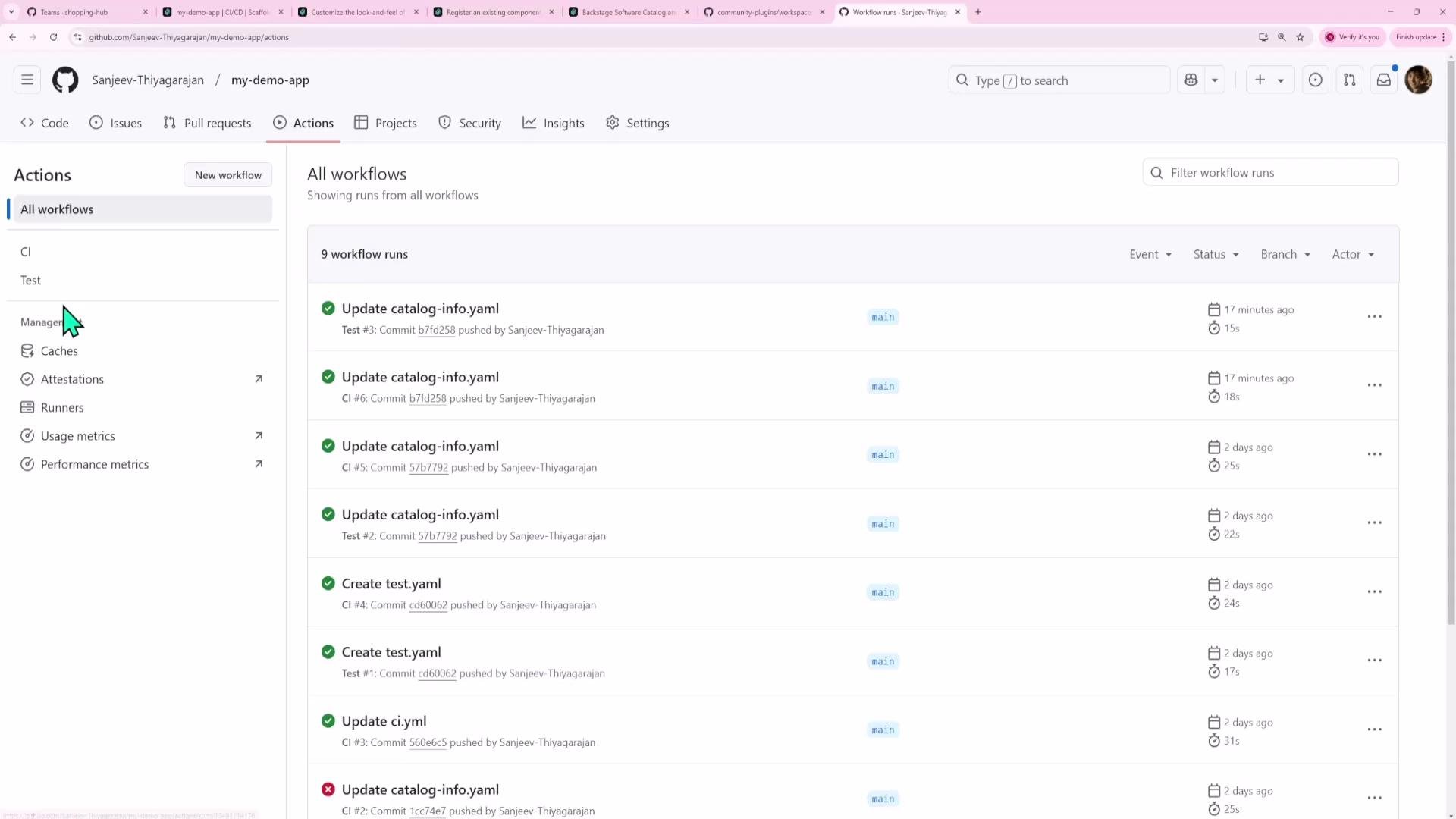
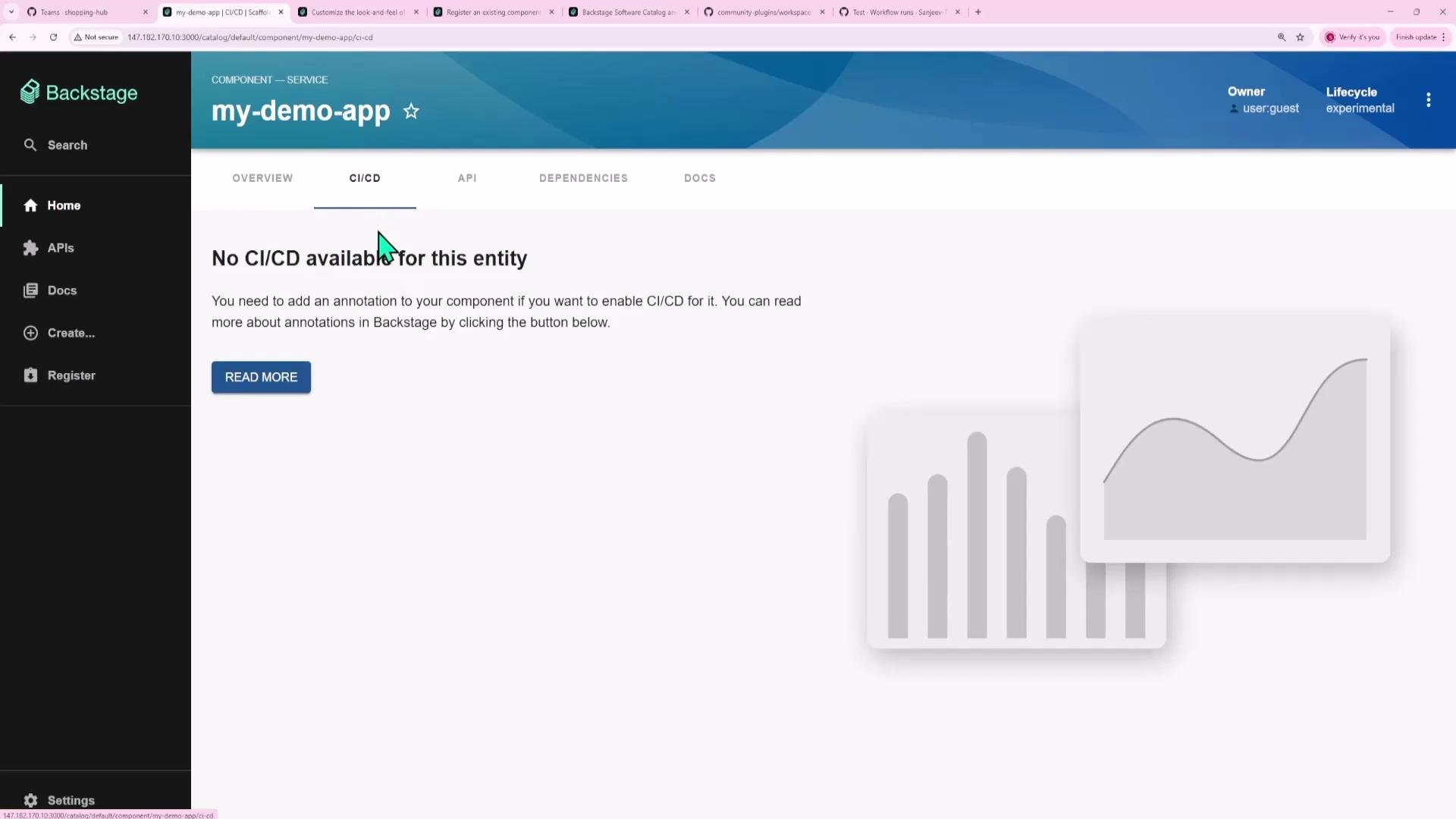
Adding the plugin UI to an entity page
Import the plugin components and add a route to your entity layout. Editpackages/app/src/components/catalog/EntityPage.tsx and insert the GitHub Actions route:
isGithubActionsAvailable) to conditionally render the tab only for entities that include the required annotations.
You can also combine multiple CI/CD providers using EntitySwitch to show the correct provider or an empty state:
Handling authentication on the backend
Although the GitHub Actions plugin runs in the frontend, it requires authenticated GitHub API requests. Backstage handles OAuth and tokens on the backend using auth modules such as@backstage/plugin-auth-backend-module-github-provider.
Install the GitHub auth provider into your backend workspace:
packages/backend/package.json dependencies:
packages/backend/src/index.ts) by adding it to the backend registry:
After installing a backend package, you must both add it to
packages/backend/package.json and register it in the backend index.ts with backend.add(...), then restart your backend.Configuring GitHub OAuth and Backstage auth
Create a GitHub OAuth App under GitHub → Settings → Developer settings → OAuth Apps. Set the callback URL to Backstage’s OAuth handler, for local development:http://localhost:7007/api/auth/github/handler/frame
Add the client ID and client secret to your Backstage configuration. For development you can add them to app-config.yaml; for production use environment variables or a secrets store.
Example auth section in app-config.yaml:
Do not commit OAuth client secrets to your repository. Use environment variables or a secrets manager (
AUTH_GITHUB_CLIENT_ID, AUTH_GITHUB_CLIENT_SECRET) for production deployments.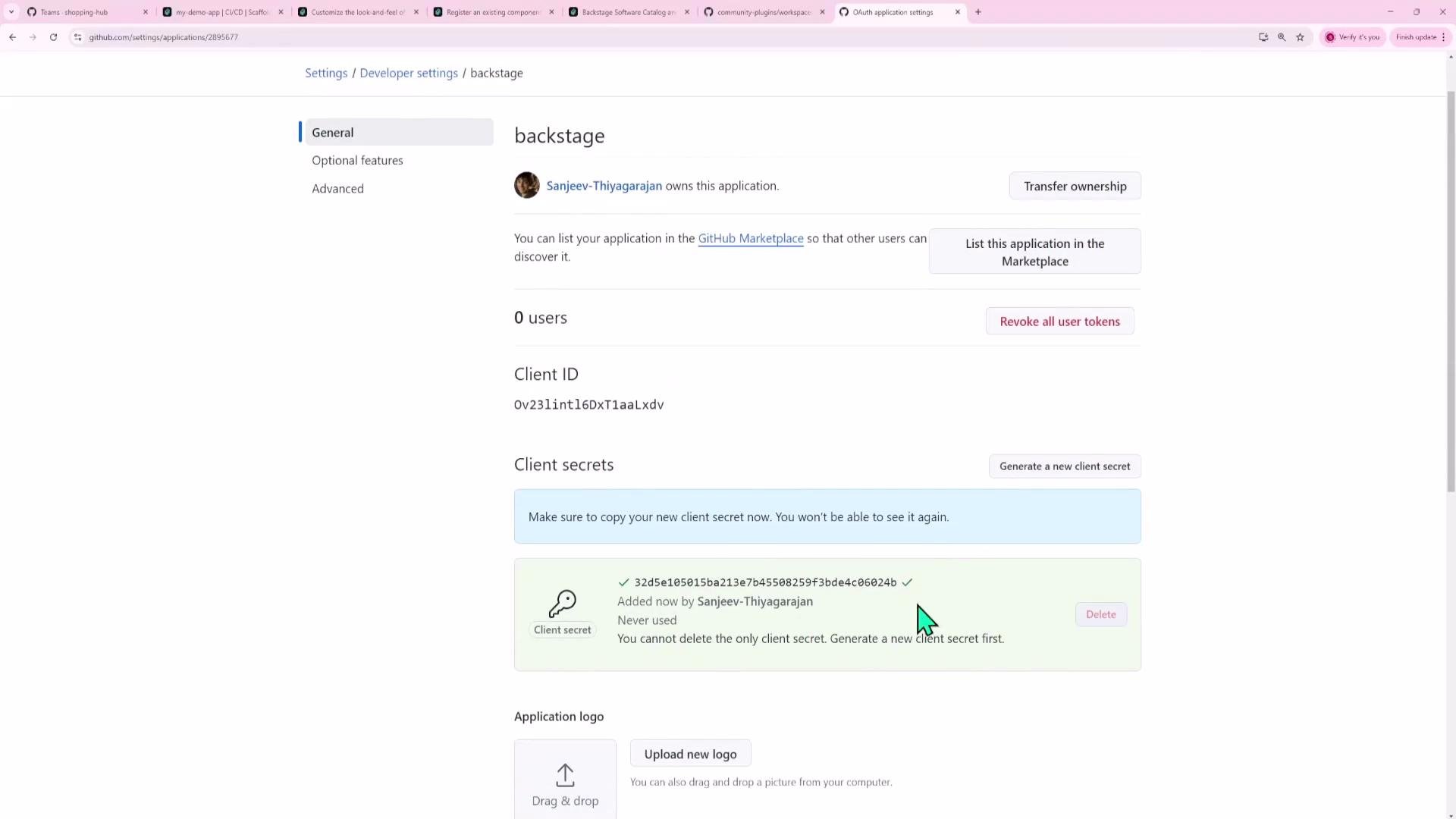
Annotate your component with the repository project slug
To map a Backstage component to a GitHub repository, add thegithub.com/project-slug annotation to the component’s catalog-info.yaml. The slug is typically owner/repo (for example, backstage/backstage).
Example catalog-info.yaml excerpt:
catalog-info.yaml. Backstage will refresh the entity and, if correctly configured, the GitHub Actions tab will appear and show workflow runs for the annotated repository.
You can find the repository slug on the GitHub repo page.
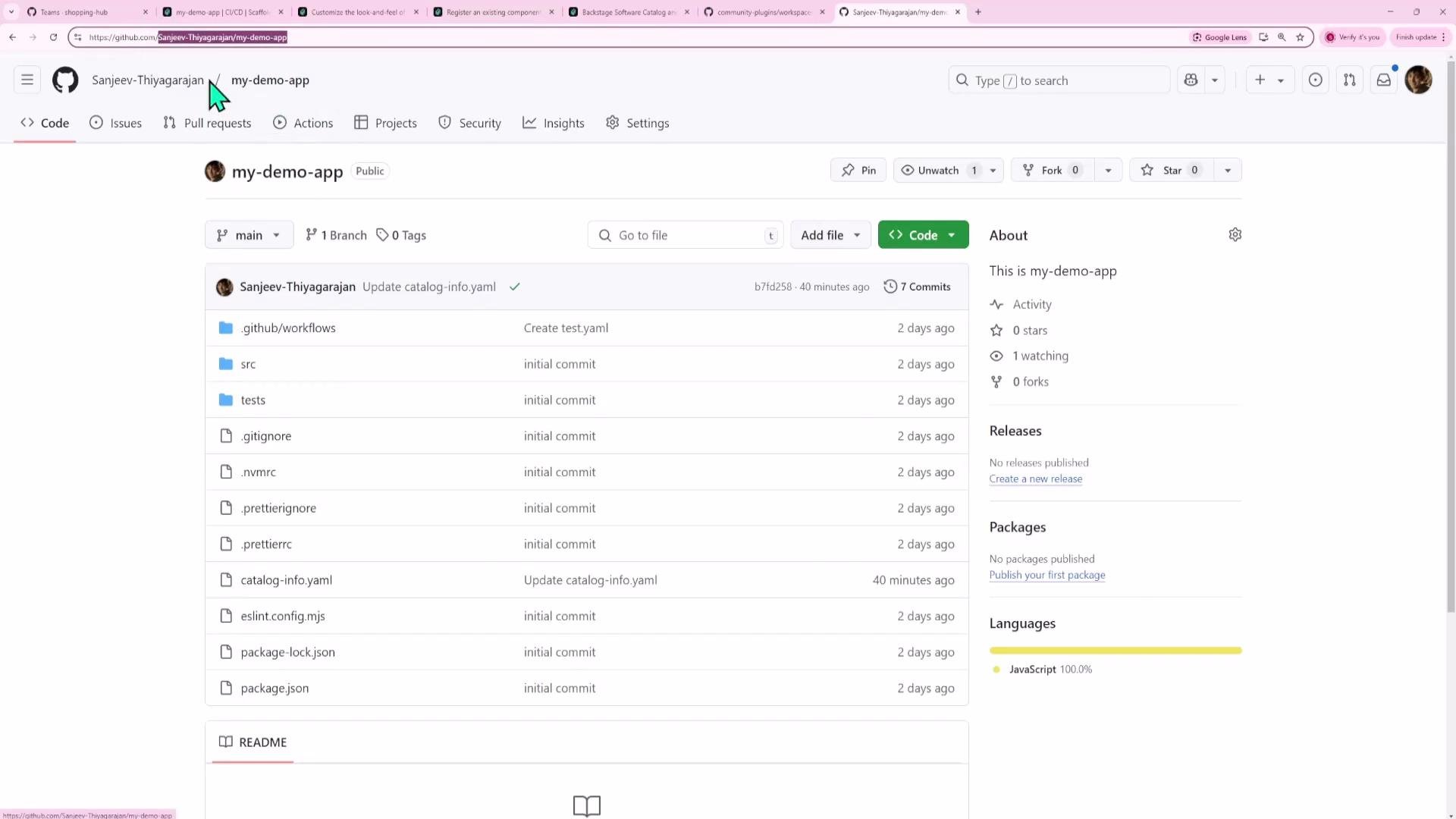
Using the plugin in Backstage
When you visit the component’s CI/CD tab, the plugin will trigger an authentication prompt handled by the backend provider. After authorizing with GitHub, the plugin will list workflow runs and provide links to the GitHub run detail pages and step logs. The experience mirrors what you get in GitHub Actions but embedded inside Backstage.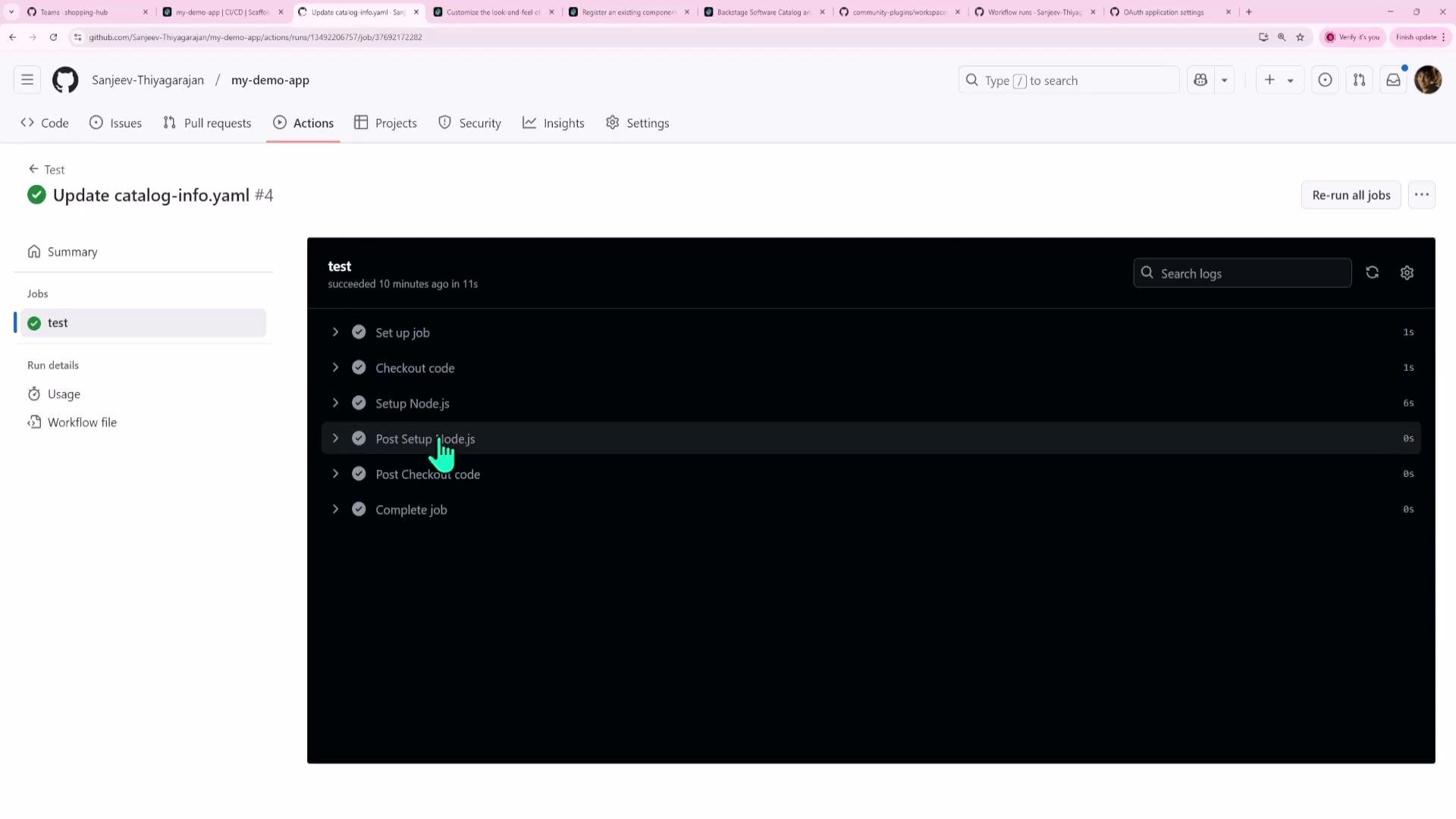
Key takeaways
- Community plugins may be frontend-only or include backend parts. The repository structure clarifies which is which.
- Frontend plugins are installed into
packages/app; backend plugins and auth modules go inpackages/backend.- Example:
yarn --cwd packages/app add @backstage-community/plugin-github-actions - Example:
yarn --cwd packages/backend add @backstage/plugin-auth-backend-module-github-provider
- Example:
- Backend modules must be registered with
backend.add(import('...'))inpackages/backend/src/index.tsand require a backend restart. - Many frontend plugins rely on backend auth modules or proxies to keep API tokens secret.
- Annotate components with
github.com/project-slug: 'owner/repo'to enable CI/CD data for that entity.
- A full-page plugin (own route)
- A tab inside an entity page (like CI/CD)
- A small card or block on an entity page
Links and references
- Backstage plugins: https://backstage.io/plugins
- Backstage community plugins repository: https://github.com/backstage/backstage/tree/master/plugins
- Backstage authentication docs: https://backstage.io/docs/auth
- GitHub OAuth apps: https://github.com/settings/developers