

Home / My Company Catalog
The Home page opens to the “My Company Catalog” — the central index of every software entity your organization manages. Use the catalog to discover components, APIs, systems, groups, and users, and to filter views by kind, owner, lifecycle, or other metadata. In this demo instance there is a single registered application:example-website. The catalog card shows metadata such as owner (a group named guests in this demo), kind (Component), component type (Website), and lifecycle (Experimental). You can switch filters to list Users, Groups, or APIs as needed.
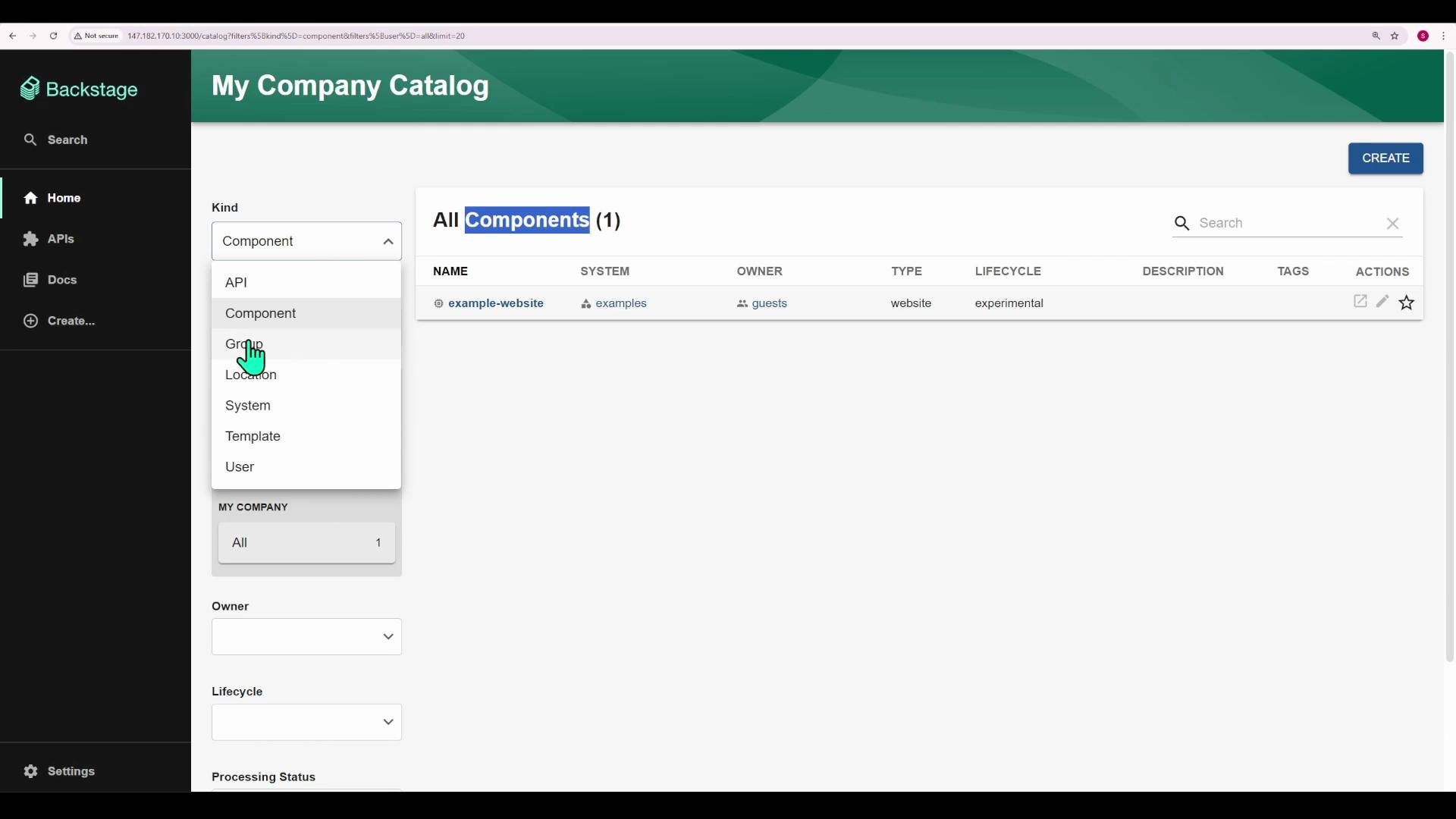
example-website card to open its component details page.
Component details and relations
The component details page combines overview metadata, navigation to source or docs, and a relations graph that visualizes ownership, system membership, provided and consumed APIs, and subcomponents. The relations graph is one of Backstage’s most powerful discovery tools for understanding architecture and team responsibilities.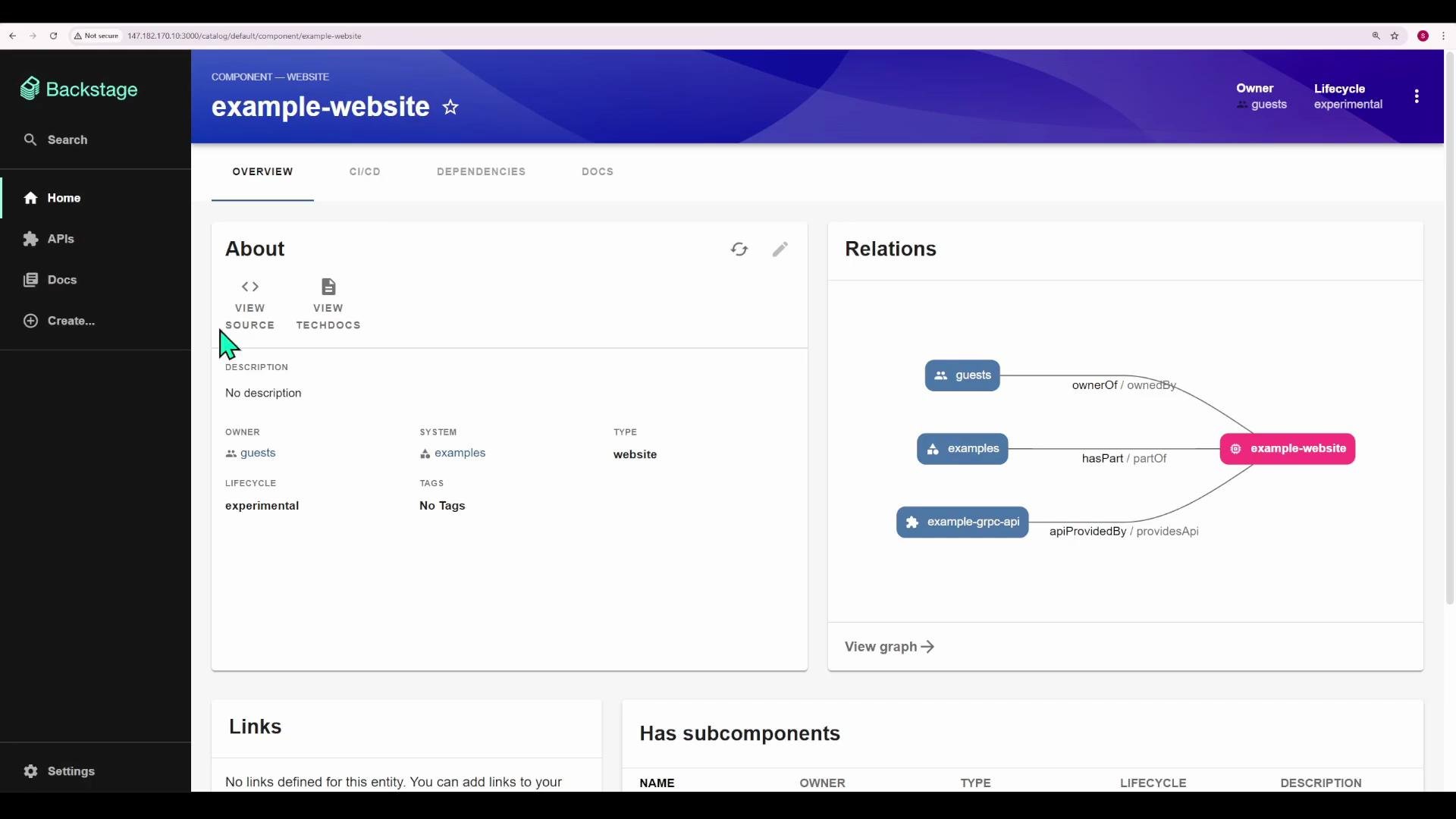
- Ownership:
group:guests - System membership:
examples - Provided API:
example-grpc-api - Subcomponents (if any)
API entity page and API definitions
The API entity view displays owner, lifecycle, relations, and—where available—the API definition itself (for example, gRPC proto files or OpenAPI specs). Backstage renders common API formats to make exploration and onboarding easy.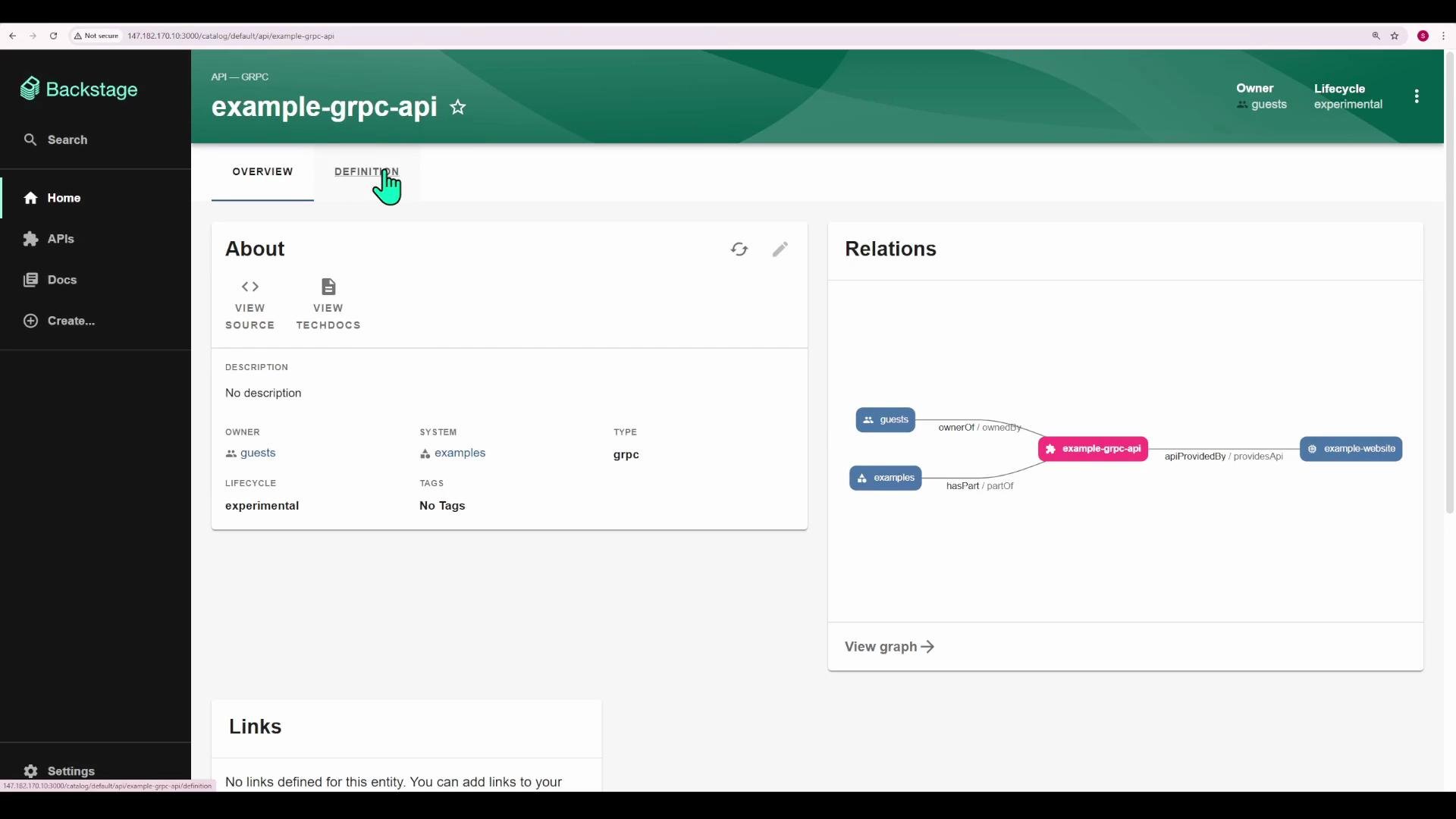
Home overview, users, and groups
The Home tab provides quick access to every entity type. Key points:- Users: lists individual users (e.g.,
guest). - Groups: shows groups and the components they own — useful to understand team responsibilities.
- Ownership in Backstage must reference either a user or a group string, for example
user:aliceorgroup:frontend-team.
Ownership must be assigned to an individual (
user:...) or a group (group:...). Use consistent naming to keep ownership and the relations graph accurate.Documentation (TechDocs) and global search
TechDocs (Backstage documentation) is available from component and API pages via the docs icon, or from the global Docs view. The top search bar indexes both catalog metadata and TechDocs content so you can find components, APIs, teams, and documentation from a single place. Searching for the term “example” in this demo returns the example website, the example API, and any TechDocs pages that contain the term.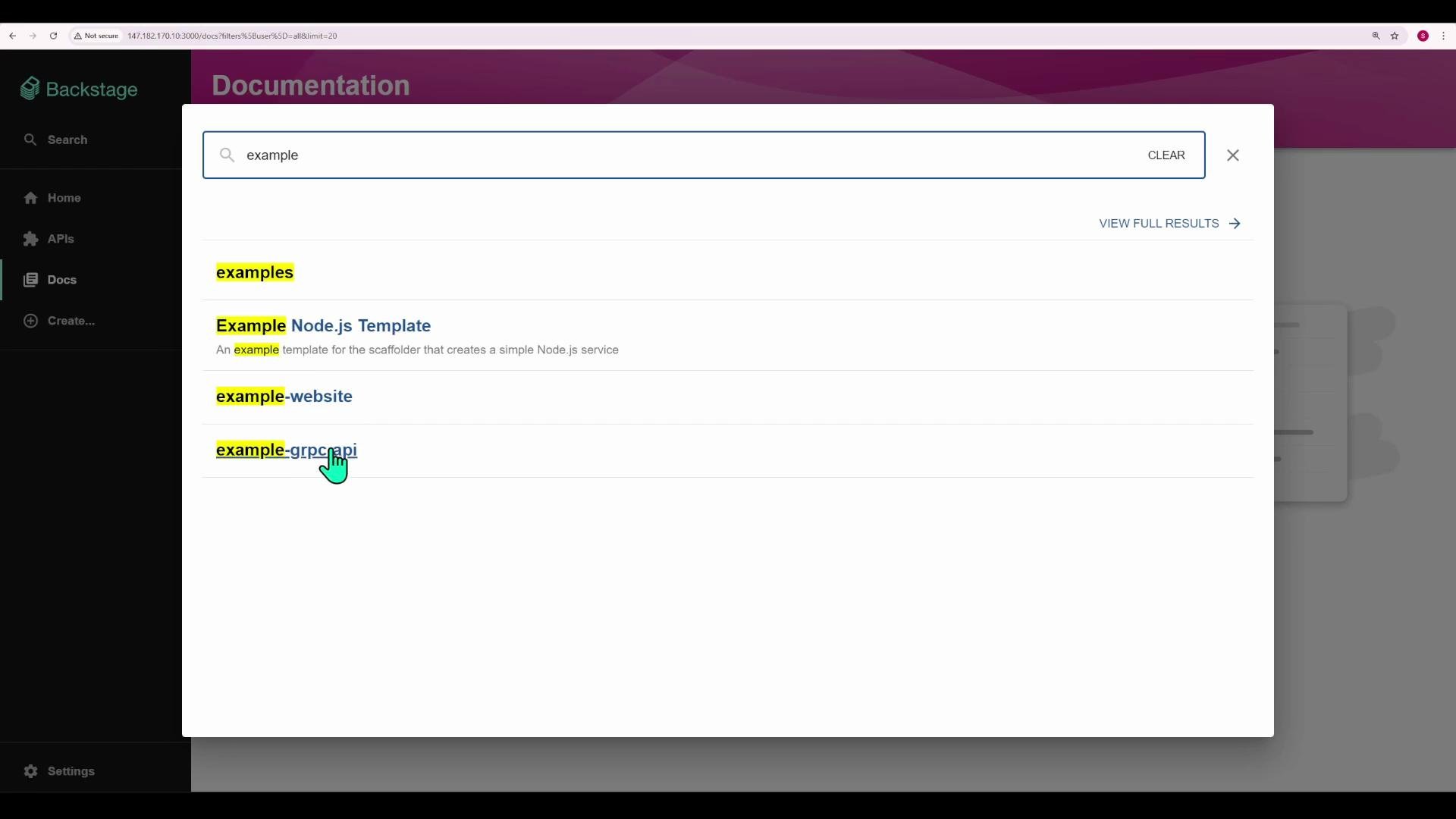
Create — Templates and scaffolding
The Create workflow launches Backstage templates used to scaffold new projects (applications, libraries, services) consistently. Templates collect inputs (project name, owner, repository location) and provision code and metadata according to your organization’s standards. In this demo you’ll find an Example Node.js template.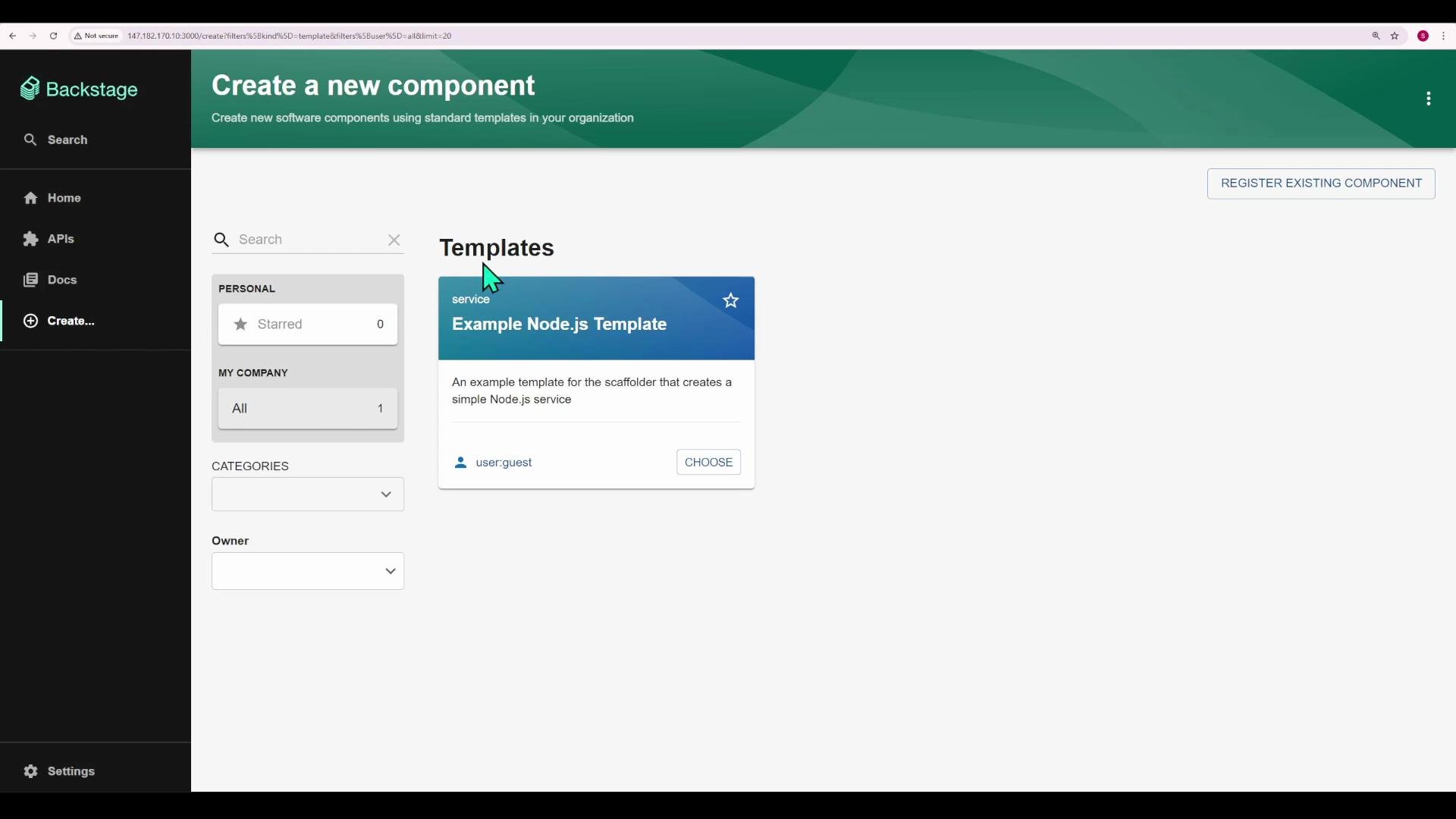
Settings, appearance, and authentication
The Settings page controls UI-level preferences: appearance (Light/Dark theme), profile details, authentication providers, and feature flags. These options let individuals and organizations tune Backstage behavior and sign-in methods.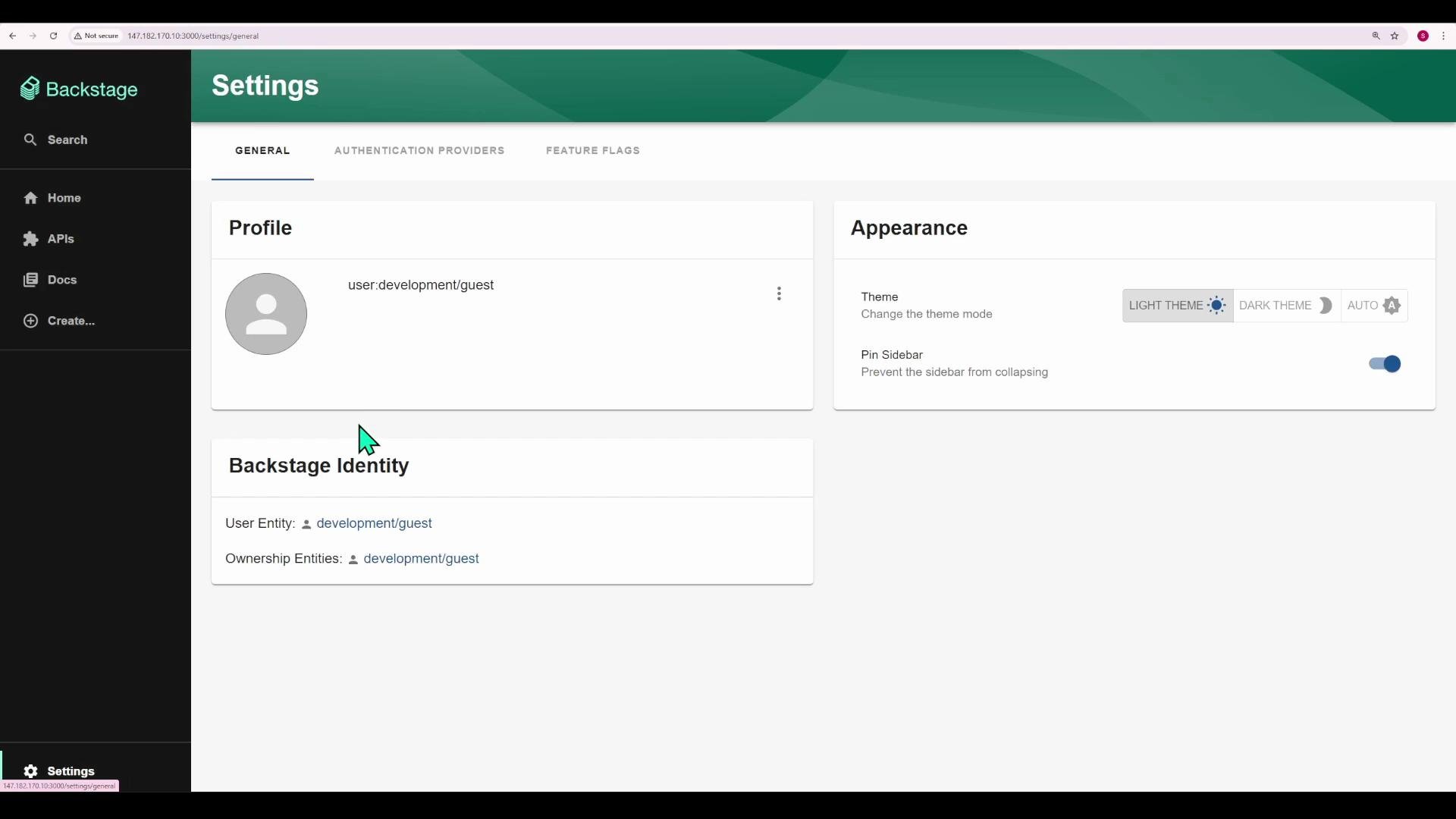
Stars, Owned filter, and quick access
- Star frequently used components to access them quickly (Show starred components).
- The Owned filter shows only components owned by your user or group. If your account isn’t a member of any group, the Owned filter may be disabled until group membership is configured.
Useful internal links and example catalog query
Backstage catalog pages are addressable via URL parameters so you can link directly to filtered views or specific entity pages. Example filtered catalog query (replace the host and parameters to match your installation):147.182.170.10:3000/catalog?filters%5Bkind%5D=api&filters%5Buser%5D=all&limit=20
Table — Common catalog entity kinds and examples:
Links and references
- Backstage project: https://backstage.io
- Backstage Catalog docs: https://backstage.io/docs/features/software-catalog/what-is-software-catalog
- Backstage TechDocs: https://backstage.io/docs/features/techdocs/what-is-techdocs
- Backstage Scaffolder (Templates): https://backstage.io/docs/features/software-templates/using-templates
Wrap-up
You’ve explored the Backstage Catalog, component and API entity pages, relations graphs, TechDocs search, templates/scaffolding, and settings. Next steps:- Open a component or API and inspect its relations graph.
- Browse TechDocs content and try the global search.
- Create a new component using a template to experience the scaffolding workflow.