

- Install the GitHub org backend module.
- Register the module in your backend entrypoint (
index.ts). - Configure the provider in
app-config.yamlundercatalog.providers.githubOrg. - Ensure the GitHub integration token has the required scopes (
read:org). - Restart the backend and verify users/groups are imported into the catalog.
@backstage/plugin-catalog-backend-module-github-org.
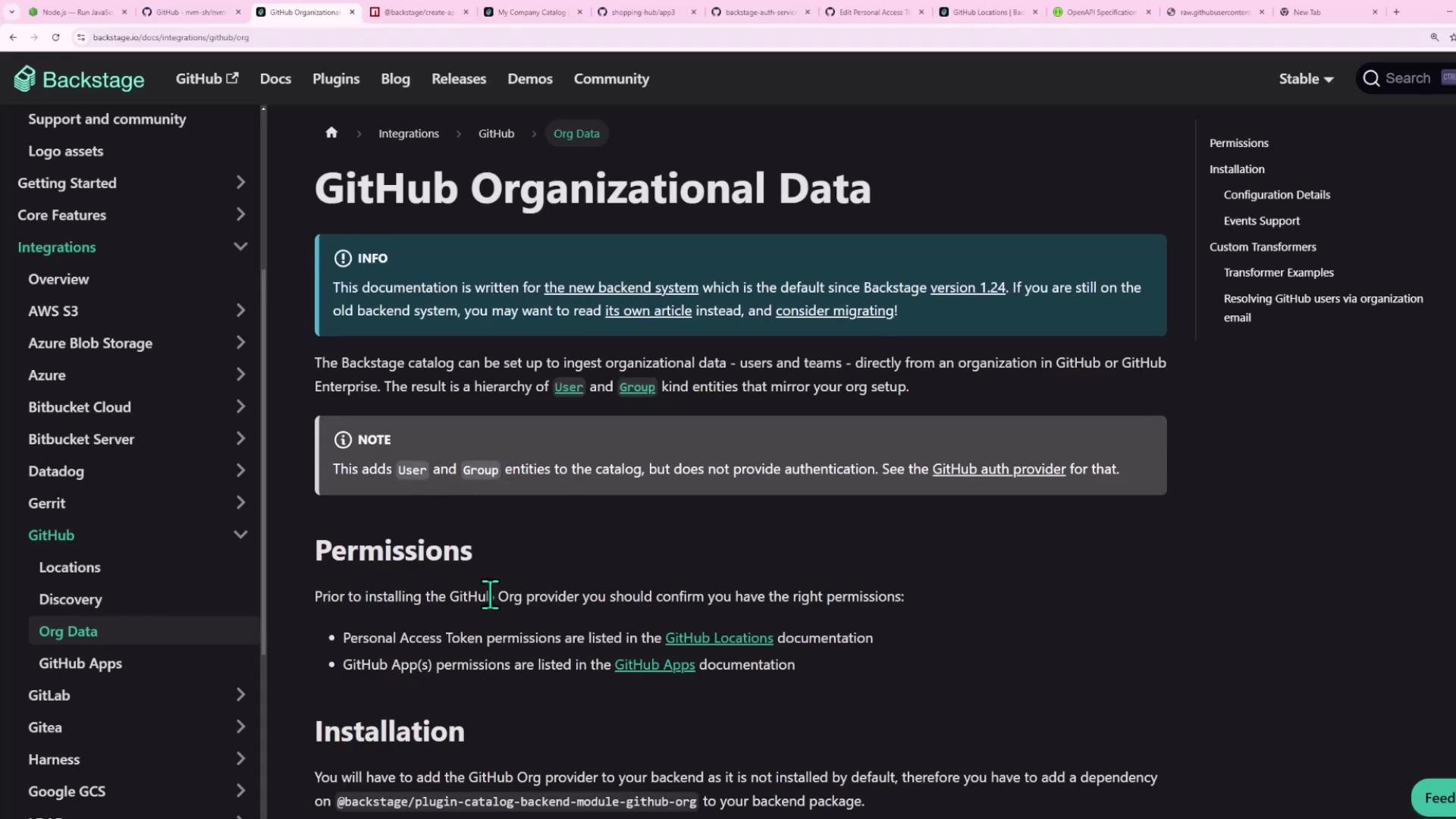
packages/backend/src/index.ts. Register it alongside other catalog backend modules so Backstage can instantiate the provider.
Example registration snippet:
githubOrg provider under catalog.providers. Provide an id, the githubUrl (e.g., https://github.com or your GitHub Enterprise hostname), the orgs array, and a schedule for scanning.
Example configuration:
id: arbitrary provider identifier.githubUrl: GitHub base URL or enterprise hostname.orgs: list of GitHub organization names to import (e.g.,['shopping-hub']).schedule: controls how often Backstage queries GitHub for org data. Org membership and teams change infrequently — hourly is a reasonable default.
Step 4 — Ensure the GitHub token has the correct scopes
Backstage uses the GitHub integration token configured under
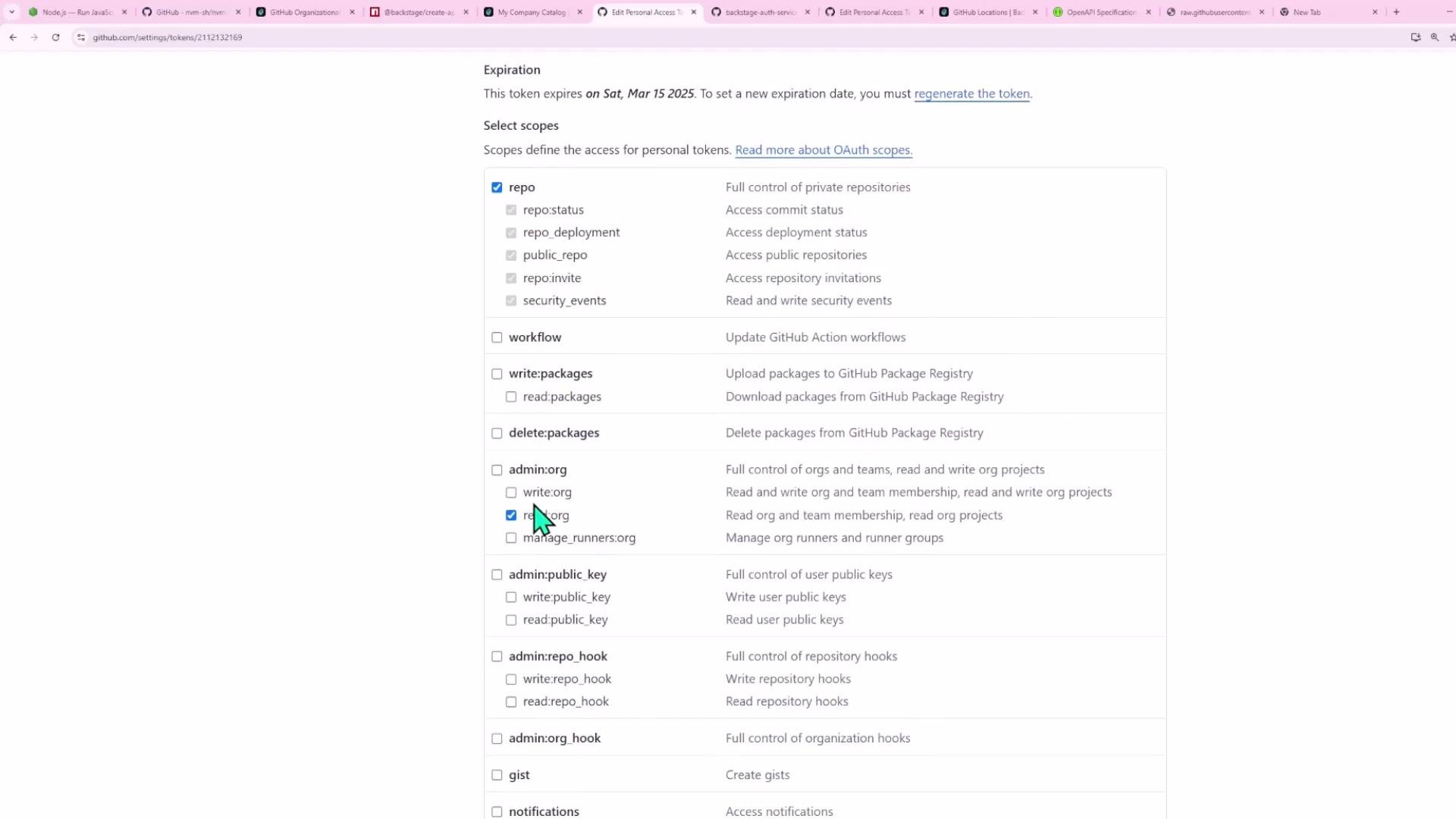
integrations.github in app-config.yaml. That token must include permissions to read org membership and team data.
Minimum recommended scopes:
read:org— required to read organizations, teams, and membership.read:user— optional, to fetch additional user profile information.
If the token lacks
read:org, Backstage cannot import users or groups. Update the token scopes in GitHub or create a new token, then update your Backstage integration configuration.
Step 5 — Restart the backend
After installing the plugin or changing configuration or token scopes, restart the Backstage backend so the provider picks up the new settings and runs its initial scan. Some deployments allow manually triggering a provider run; otherwise restart is the simplest approach.
Verify results in the Backstage catalog
- Users page: user entities imported from the GitHub org will appear.
- Groups page: GitHub teams become Backstage group entities. Nested GitHub teams are represented as parent/child groups in Backstage (e.g.,
devanddev/auth).
dev becomes a Backstage group dev, and its members are imported as group members. Nested teams such as dev/auth will appear as child groups under dev.
Troubleshooting
If users or groups are not imported after configuring the provider, confirm that:
- The
catalog.providers.githubOrgconfiguration points to the correct GitHub organizations. - The GitHub integration token has the
read:orgscope. - The backend has been restarted so the provider can perform an initial scan (or manually trigger the provider run if your deployment supports it). You can also check backend logs for provider scheduling and any error messages.
- Backstage catalog provider documentation: https://backstage.io/docs/features/software-catalog
- GitHub personal access tokens: https://docs.github.com/en/authentication/keeping-your-account-and-data-secure/creating-a-personal-access-token