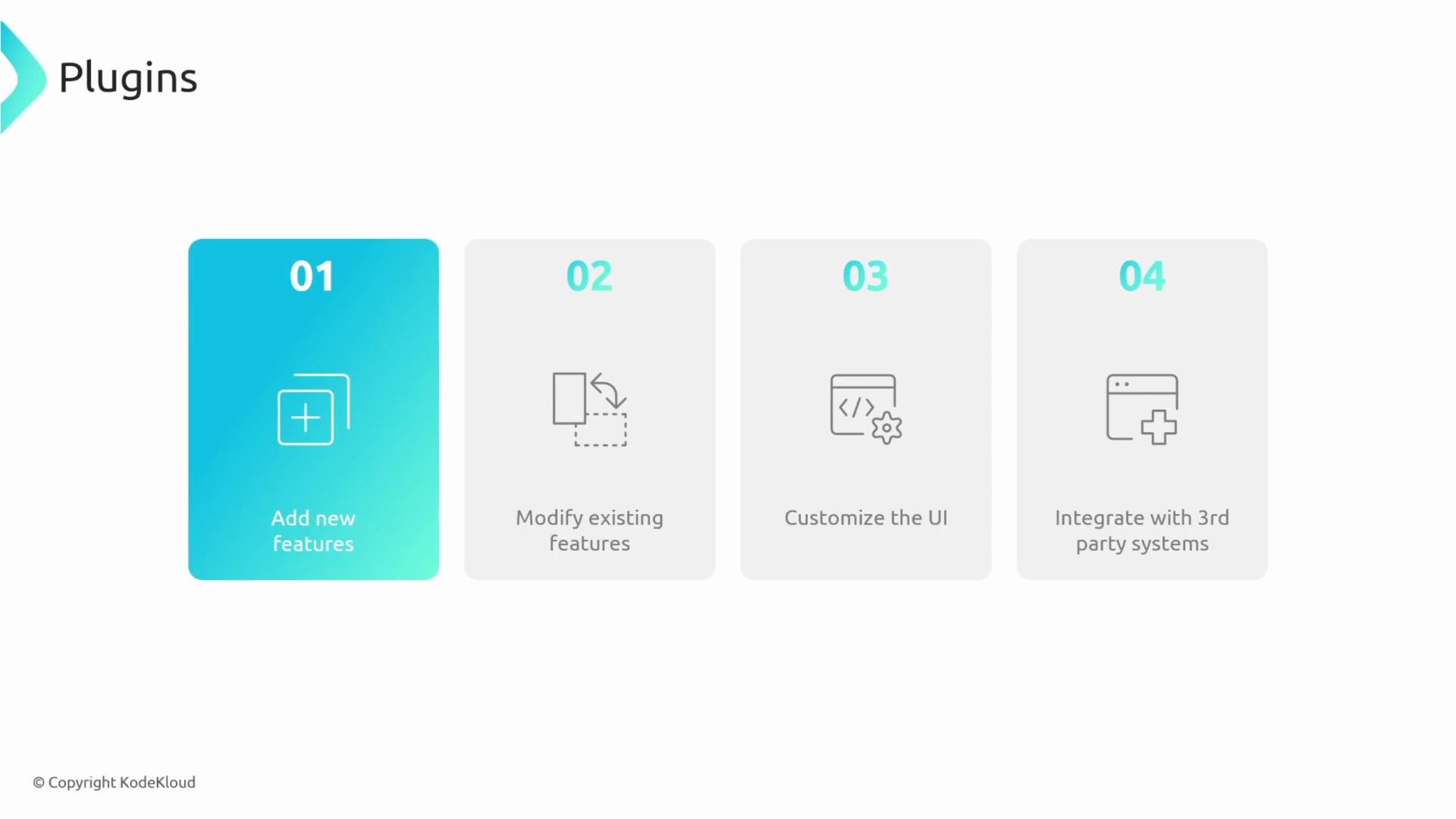
In this lesson we’ll cover Backstage plugins: what they are, how they’re organized, and common design patterns for implementing and presenting them. Plugins enable you to:
  • Add new features to Backstage
  • Modify or extend existing features
  • Customize the UI
  • Integrate with third‑party systems
A presentation slide titled "Plugins" with four numbered cards. The cards list: 01 Add new features (highlighted), 02 Modify existing features, 03 Customize the UI, and 04 Integrate with 3rd party systems.
Backstage is intentionally extensible: many core capabilities (Catalog, Software Templates, TechDocs, Search, etc.) are implemented as plugins. In practice, Backstage composes many independent plugin packages together to form the full platform.

Architecture refresher

Backstage follows a classic web architecture: a frontend (React) and a backend (Node.js). Plugins may include both frontend and backend components. For example, the Catalog feature typically has a catalog frontend plugin and a corresponding backend plugin that handles data retrieval and APIs. Typical request flow:
  1. The user interacts with the frontend (clicks or navigates).
  2. The frontend sends a request to a backend plugin endpoint.
  3. The backend plugin queries a database or external service.
  4. The backend returns data to the frontend, which renders it.
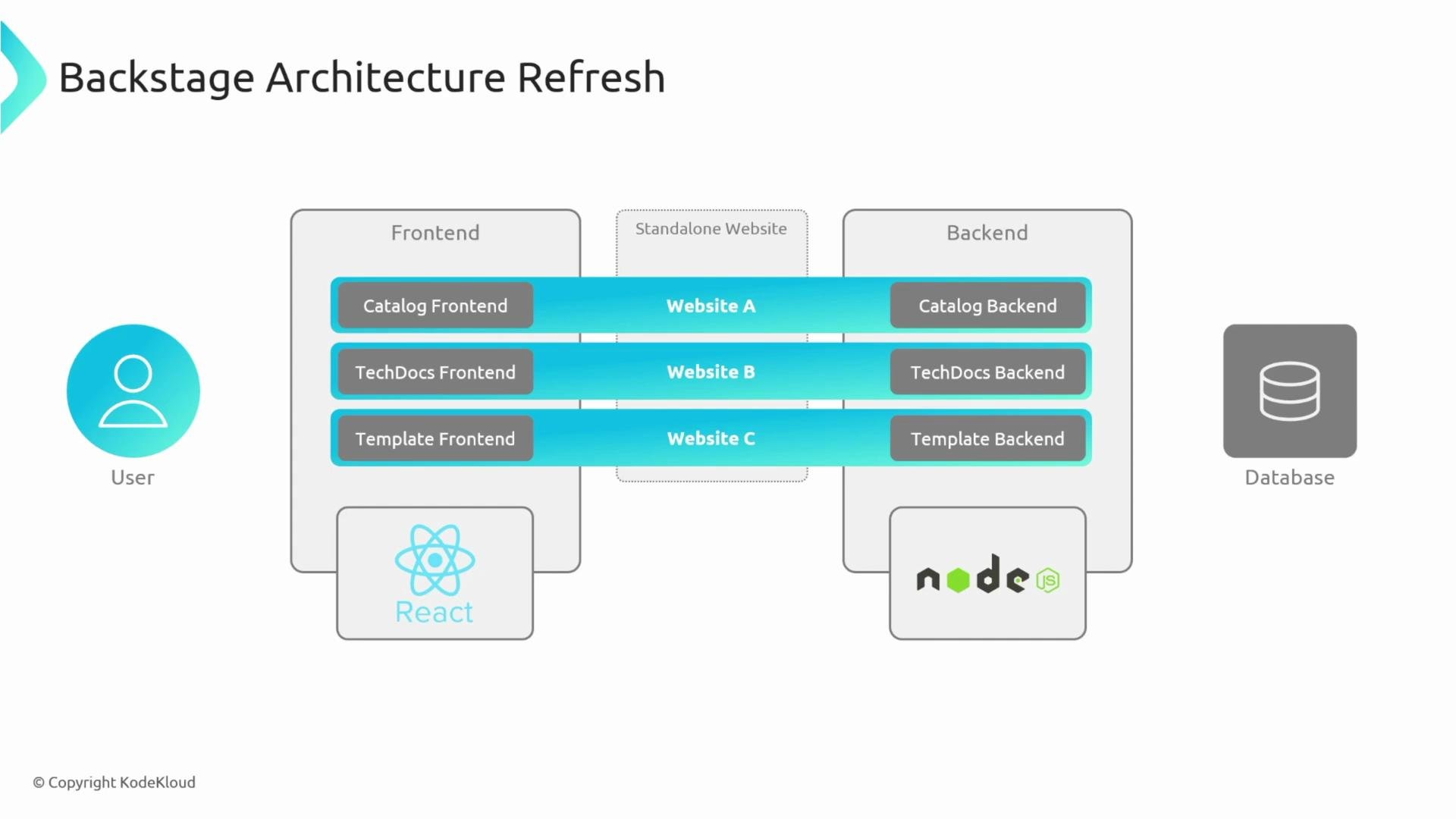
Because each plugin is designed to operate independently, a plugin can function like a small, standalone website (with its own frontend routes and optional backend). This isolation improves resilience: one failing plugin is less likely to take down the entire Backstage instance.
A schematic titled "Backstage Architecture Refresh" showing three paired frontend-backend stacks (Catalog, TechDocs, Template) mapped to Website A, B, and C between a User icon on the left and a Database icon on the right. The diagram also shows React under the frontend and Node.js under the backend to indicate the tech stack.
Note: The Backstage server is essentially a thin wrapper around backend plugins, and the frontend app is a thin wrapper around frontend plugins. The platform stitches those plugin “websites” together into a single cohesive product.
Each plugin is a separate package that can be developed, tested, and deployed in isolation. This improves developer productivity and runtime resilience.

Monorepo layout

A common Backstage repo structure places each plugin in its own directory under plugins/, and core application code under packages/. Example layout:
Workspaces are usually configured to include both packages and plugins:
Each plugin directory generally contains its own package.json and can be treated like an independent npm package. You can publish or share plugins via npm, and you can run or debug a single plugin without launching the entire Backstage app.
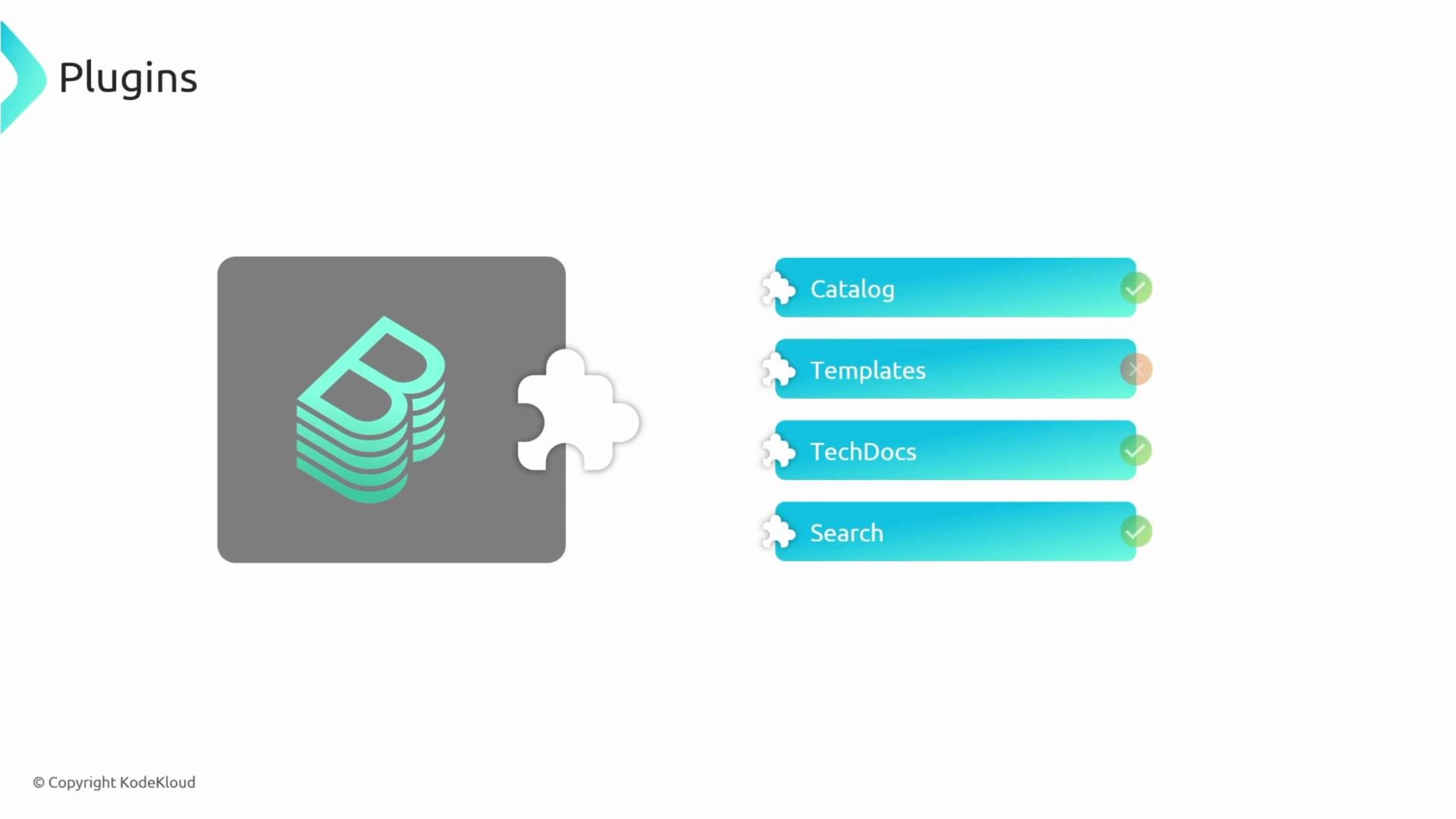
A slide titled "Plugins" shows a gray app logo block with a white puzzle-piece connector on the left. On the right are four blue-green plugin bars labeled Catalog, Templates, TechDocs, and Search, with Catalog, TechDocs, and Search checked and Templates marked with an X.
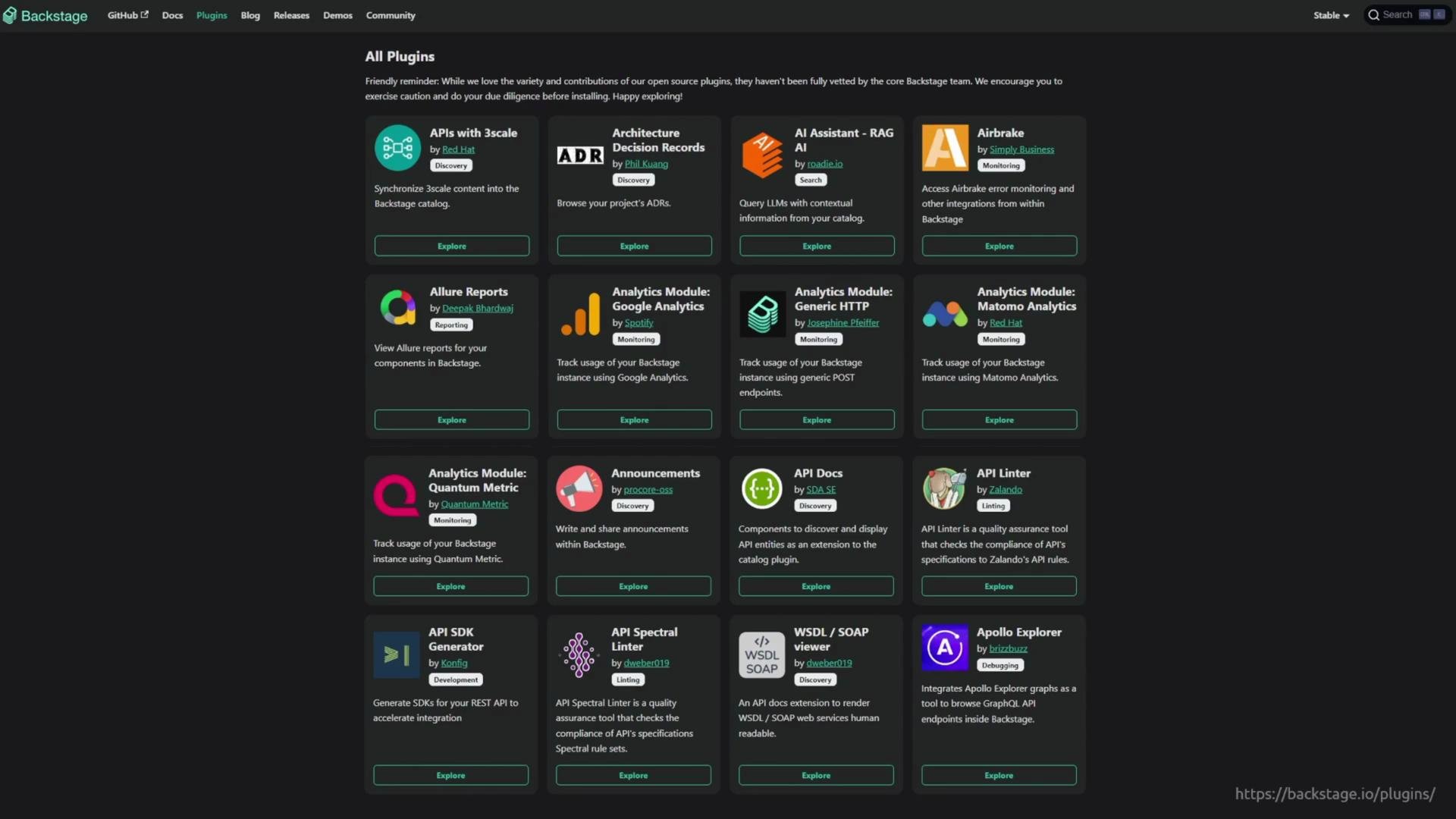
Backstage has a large ecosystem of community and official plugins. Before building your own plugin, search the official plugin directory to see if an existing solution meets your needs: Backstage plugins directory.
A dark-themed webpage showing a grid of Backstage plugin cards, each with an icon, title, short description and an "Explore" button. It appears to be the Backstage plugins directory listing extensions like monitoring, analytics and discovery.

Plugin architecture types

When designing plugins it helps to think in patterns. The three common plugin architecture types are:

Standalone plugin

A standalone plugin runs entirely in the browser. It is typically a React component that renders static or client-side data and does not require a backend plugin or external service calls.
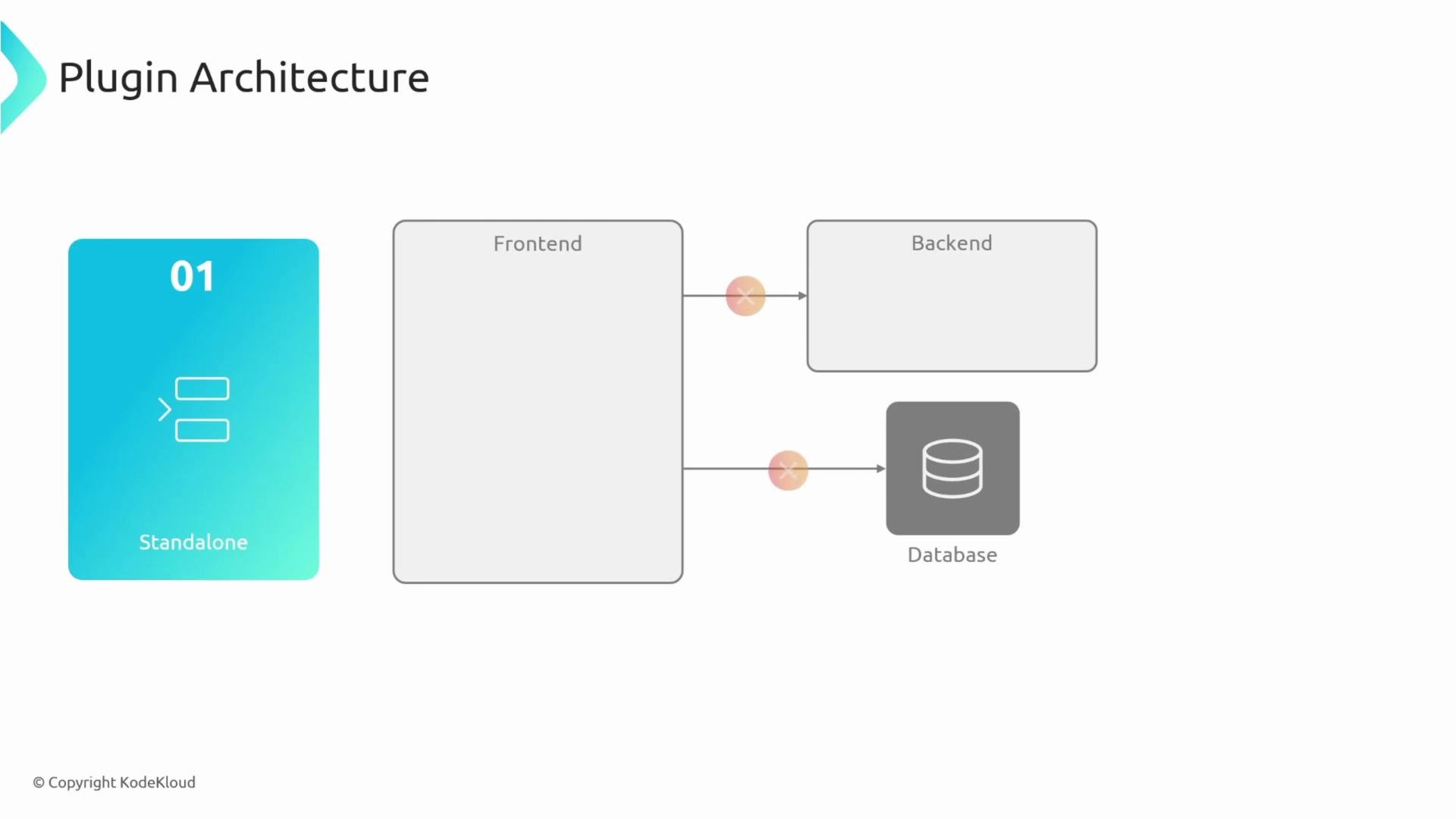
A slide titled "Plugin Architecture" showing a blue "01 Standalone" module on the left and a diagram on the right where a Frontend box connects to Backend and Database components. Copyright KodeKloud is noted at the bottom.

Service-backed plugin

Service-backed plugins are appropriate when you control the backend service or need to aggregate and process internal data. The frontend plugin calls a backend plugin; the backend then communicates with databases, caches, or internal services.
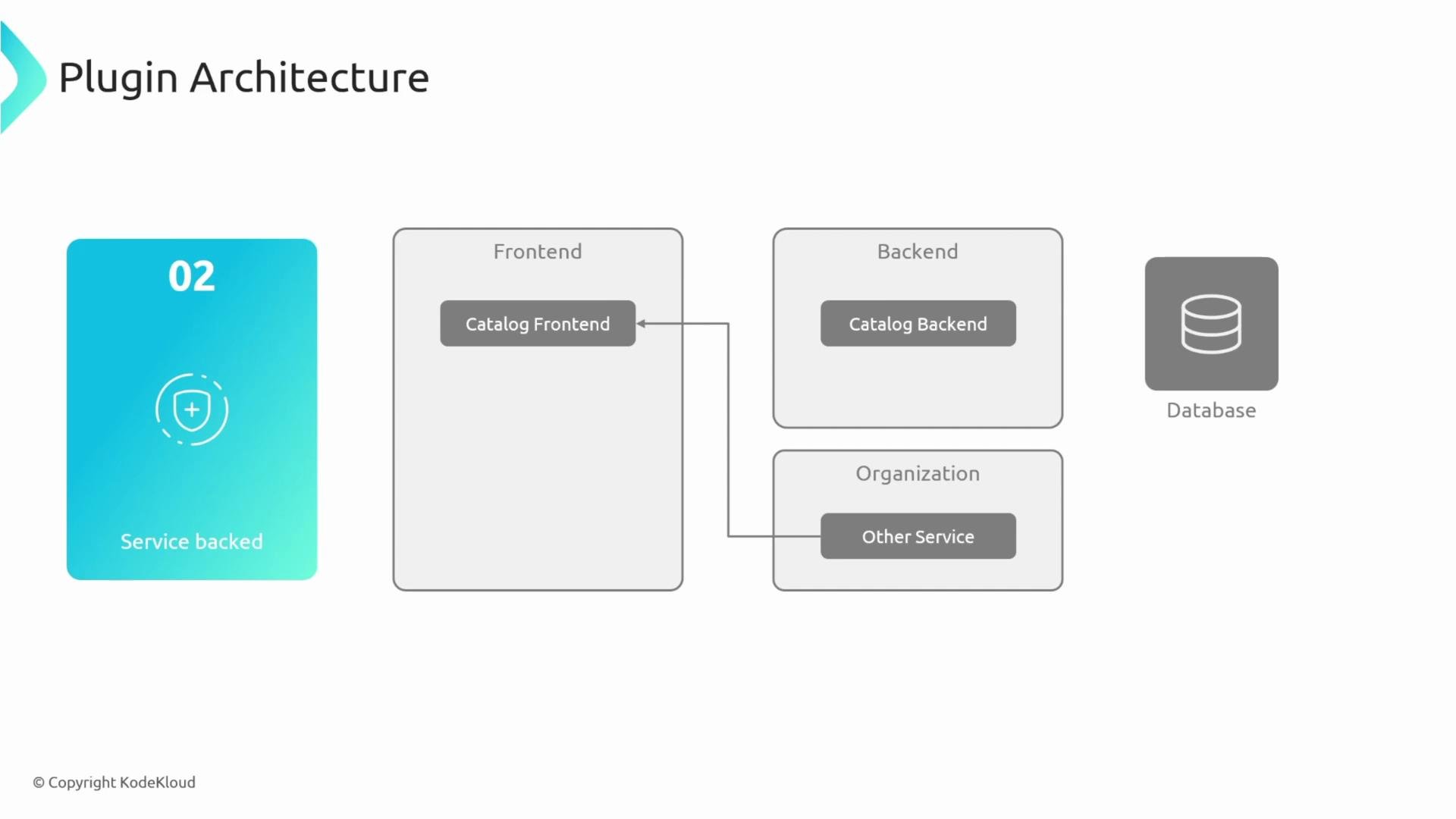
A slide titled "Plugin Architecture" showing a schematic of frontend, backend and organization boxes with components labeled "Catalog Frontend," "Catalog Backend," and "Other Service" connected by lines to a Database icon. A teal panel on the left is labeled "02 Service backed."

Third‑party‑backed (proxy) plugin

Use a third‑party‑backed pattern when you must interact with external services you do not control (e.g., GitHub, GitHub Actions, external SaaS APIs). In this pattern the frontend calls a backend proxy, which forwards requests to the external API. Common reasons to add a backend proxy:
  • Avoid CORS issues by making server-to-server requests
  • Keep credentials and tokens on the backend (do not expose long-lived tokens in the browser)
  • Apply authorization, caching, rate limiting, or request shaping before contacting the external API
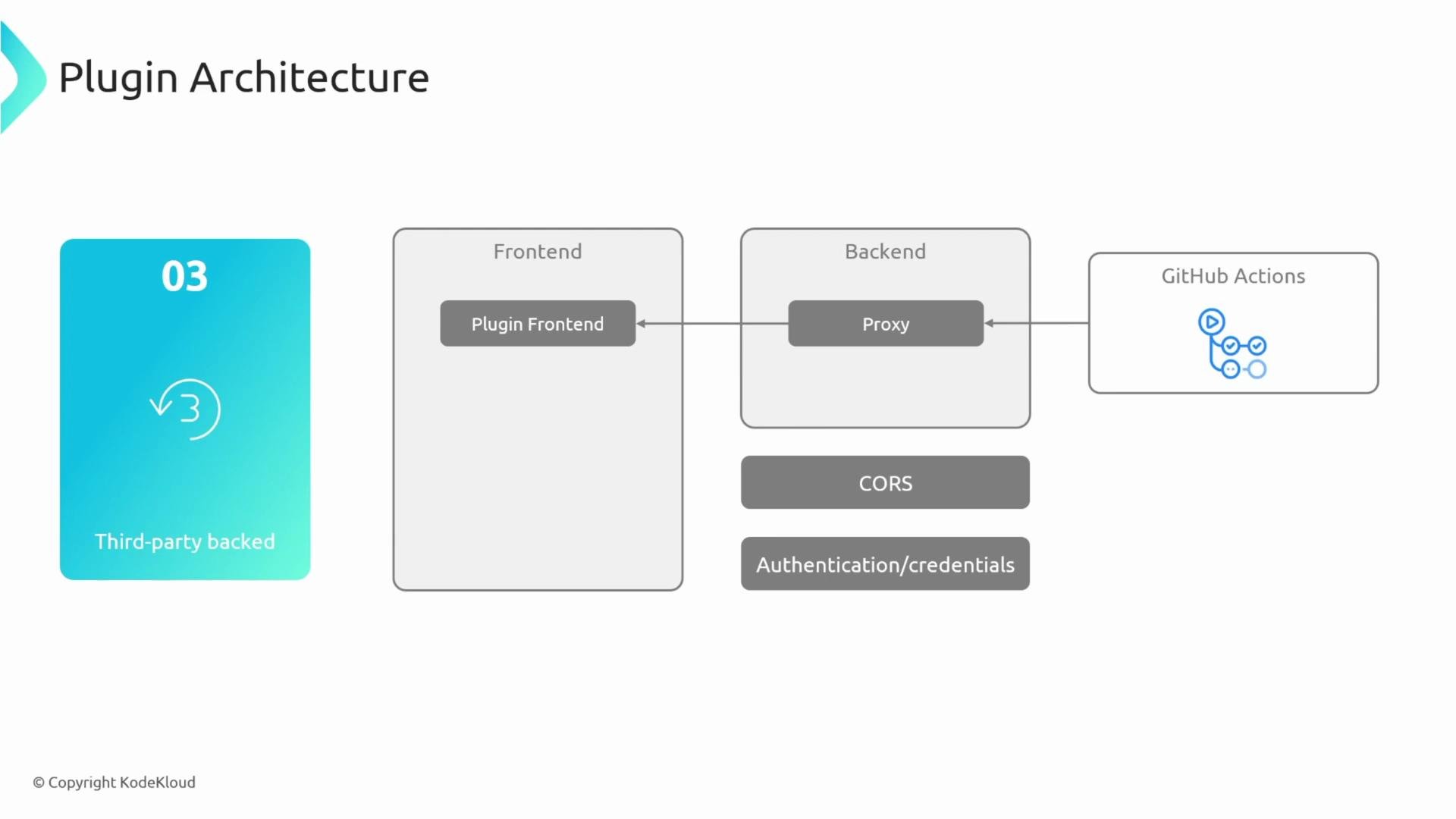
A slide showing a plugin architecture diagram with a frontend containing a "Plugin Frontend" component, a backend "Proxy" component, and a GitHub Actions service on the right, plus notes for CORS and authentication/credentials. On the left is a teal card labeled "03 Third-party backed."
Never store long‑lived API keys or credentials in frontend code. Use a backend proxy to keep secrets secure and to perform authorization checks server‑side.

Frontend presentation patterns

Frontend plugins can be presented in multiple ways within Backstage. Common presentation patterns:
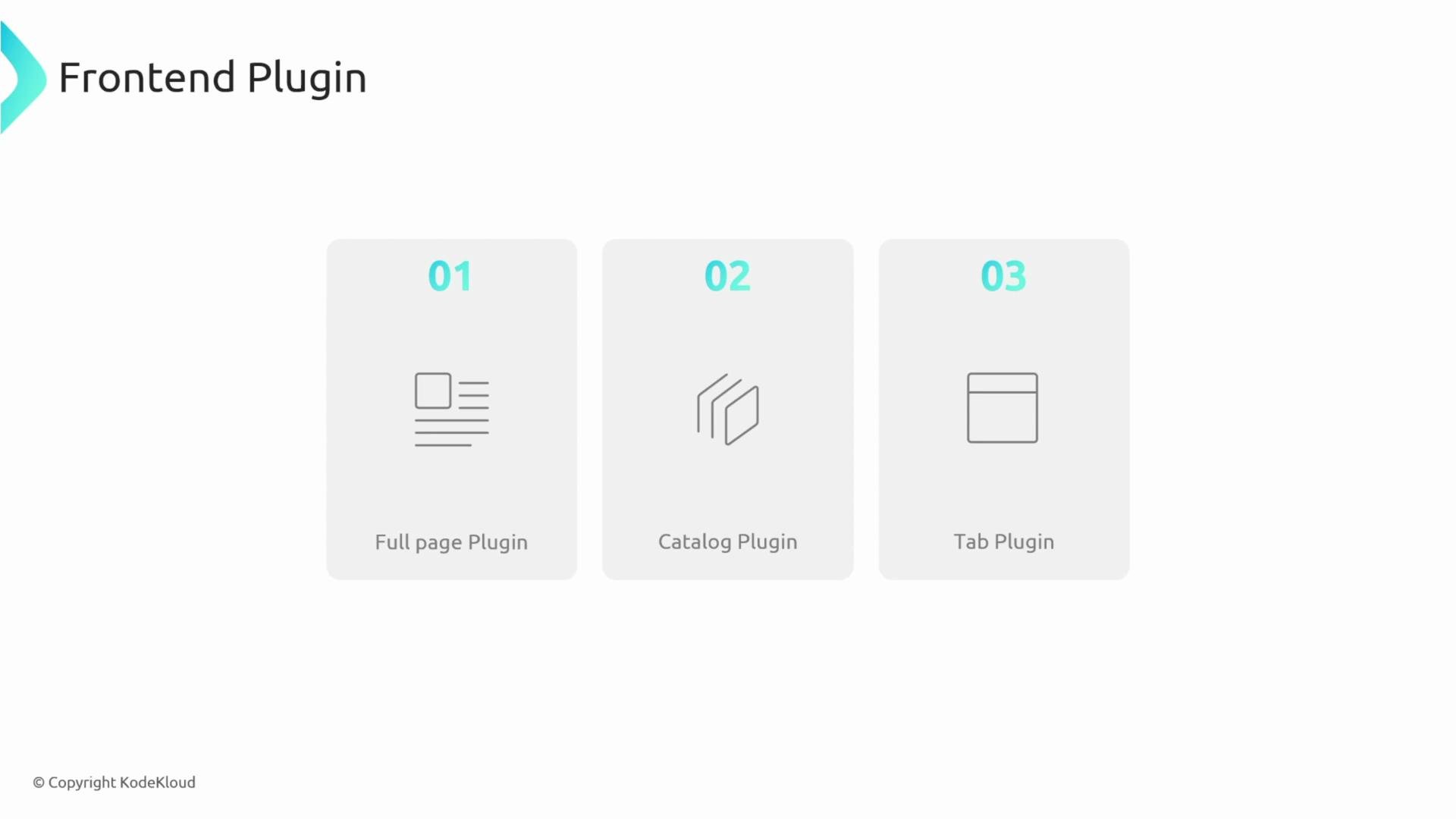
A minimalist slide titled "Frontend Plugin" showing three numbered cards for plugin types: 01 Full page Plugin, 02 Catalog Plugin, and 03 Tab Plugin, each with a simple icon.

Full‑page plugin

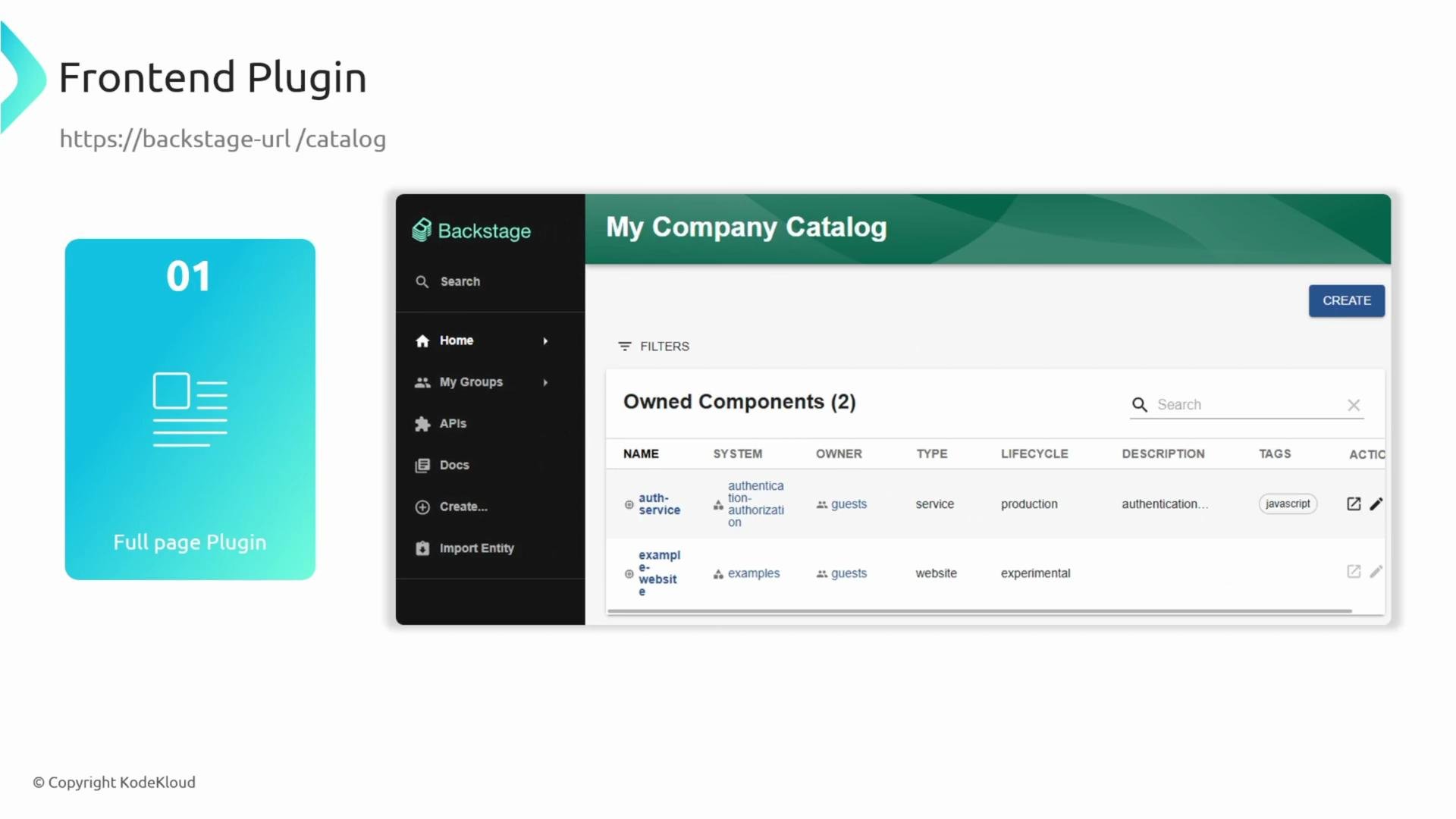
Full-page plugins register a route (for example, /my-plugin) and render an entire page within Backstage. Many core features, such as the Catalog (/catalog), are implemented as full-page plugins.
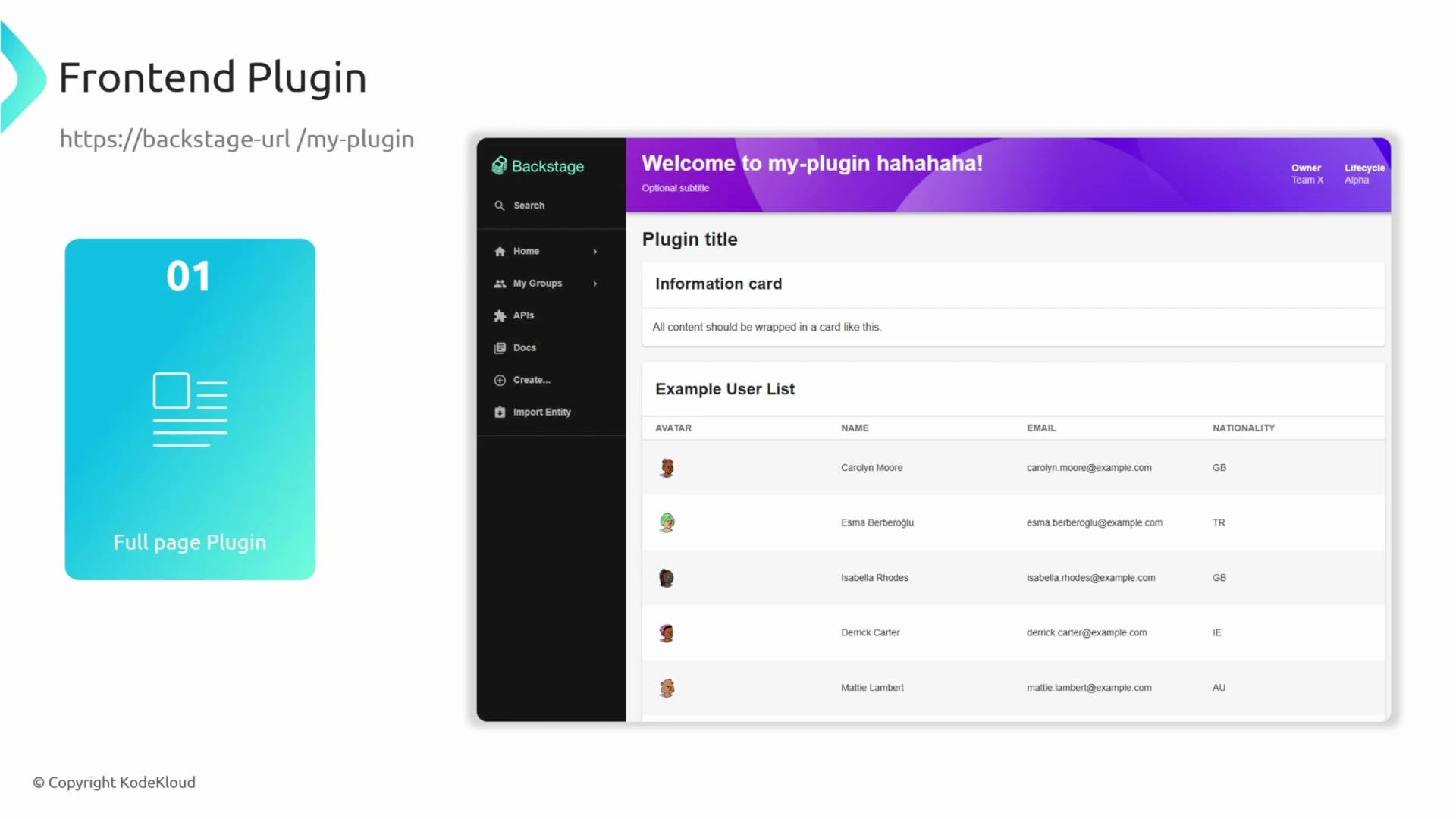
A mockup screenshot of a Frontend Plugin page for Backstage, showing a left navigation bar and a main content area with a "Plugin title" header and an example user list table. On the left is a turquoise card labeled "01 Full page Plugin" and the plugin URL.
A presentation slide titled "Frontend Plugin" showing a Backstage UI screenshot — the "My Company Catalog" page with a left navigation bar and a table of Owned Components. On the left is a teal card labeled "01 Full page Plugin" and a sample URL (https://backstage-url/catalog).

Catalog plugin

Catalog plugins enhance entity pages by injecting cards or sections into the existing Catalog UI (for example, adding an About section, relations, or links). This preserves the overall Catalog layout while surfacing extra contextual information for entities.
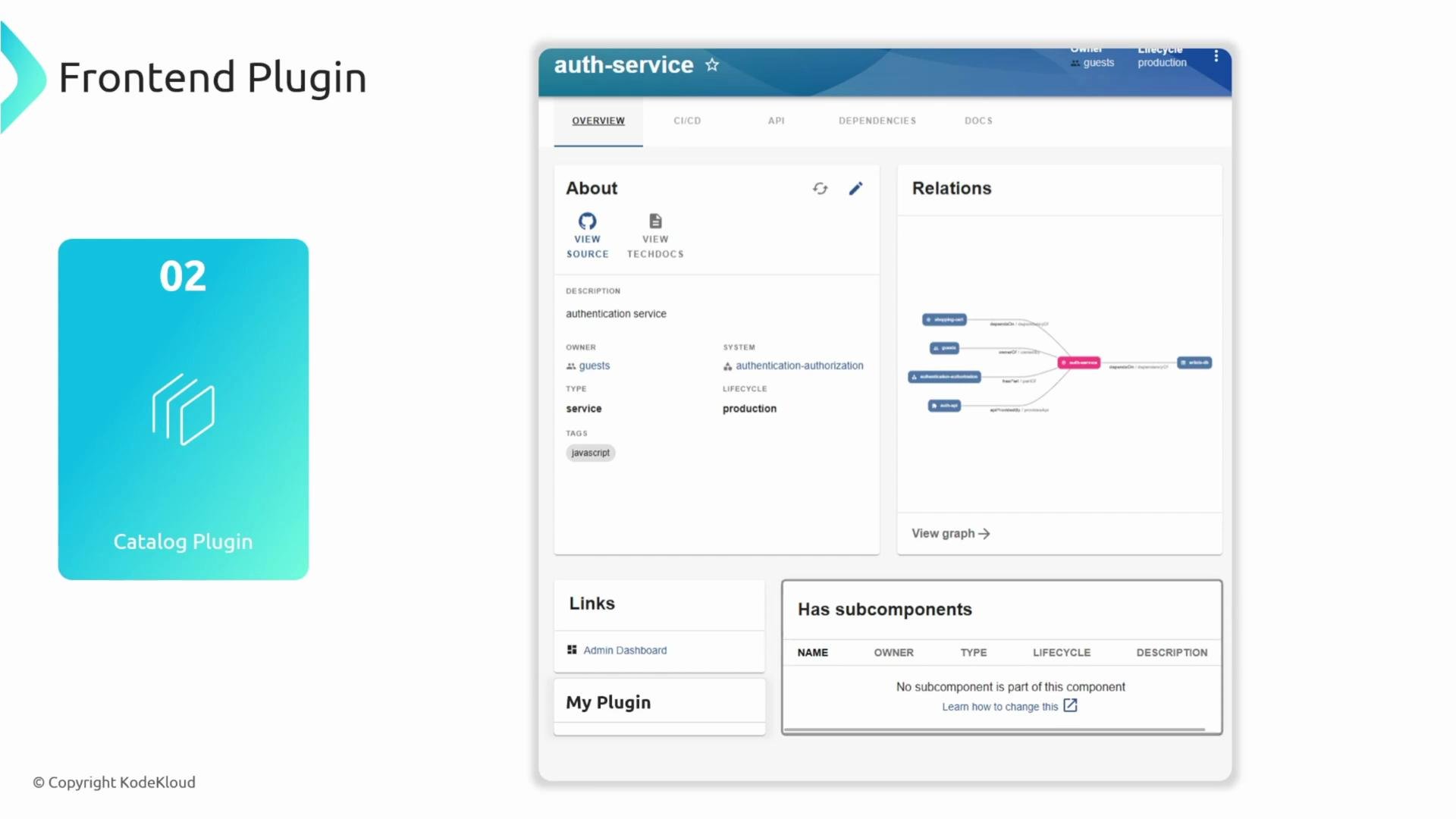
A presentation slide with a teal "Catalog Plugin" card on the left and a screenshot of an "auth-service" frontend/catalog UI on the right. The UI shows an About panel, a relations graph, links, and a subcomponents section.

Conclusion

You now have a practical overview of Backstage plugins:
  • Why plugins exist and what they enable
  • How plugins are structured in a typical monorepo
  • Common architecture patterns (standalone, service‑backed, third‑party proxy)
  • Frontend presentation options (full‑page, catalog, tab)
Next steps:
  • Explore the Backstage plugin directory for existing plugins
  • Try creating a small standalone plugin to get familiar with the development workflow
  • When integrating external APIs, design a secure backend proxy to handle credentials and cross‑service concerns
References and further reading:

Watch Video