Now that you’ve installed HashiCorp Vault on your machine, you can start Vault in Dev Server mode. This mode launches Vault fully initialized, unsealed, and authenticated as the root user—without requiring any configuration files. Dev Server runs entirely in memory, with no TLS encryption, making it ideal for quick experimentation and development but not for production.
Vault Dev Server skips all security controls.
  • Data is lost when the process stops.
  • All traffic is unencrypted.
    Never use Dev Server in a production or sensitive environment.

Dev Server Features
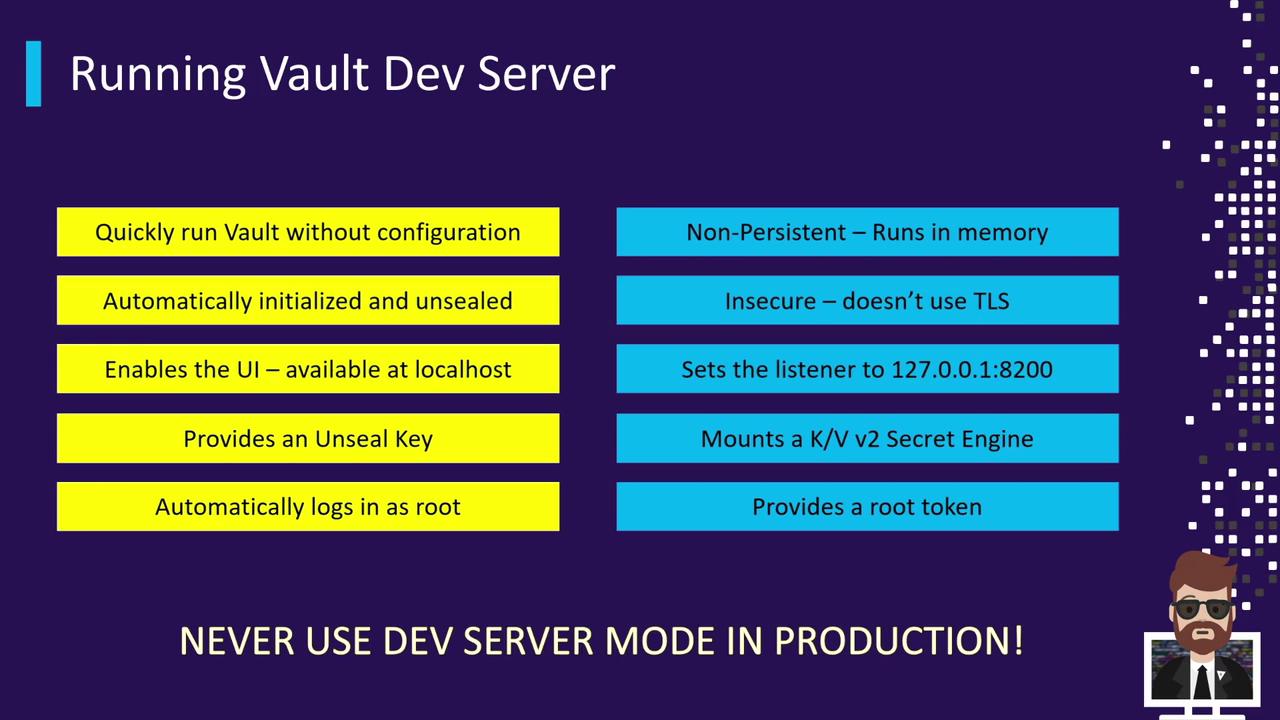
FeatureDescription
Auto-initialized & unsealedVault comes up ready to use without manual setup
Built-in UIAccessible at http://127.0.0.1:8200
Provides a root tokenDisplayed in the startup logs
In-memory storageNon-persistent; all data is lost when Vault stops
No TLSAll API calls and UI traffic are in clear text
Default KV v2 Secrets Engine at secret/Pre-mounted for immediate key/value operations
Single authentication methodRoot token only; no additional auth backends enabled by default
The image is a slide titled "Running Vault Dev Server," listing features and warnings about using the Vault Dev Server mode, emphasizing not to use it in production.

When to Use Dev Server

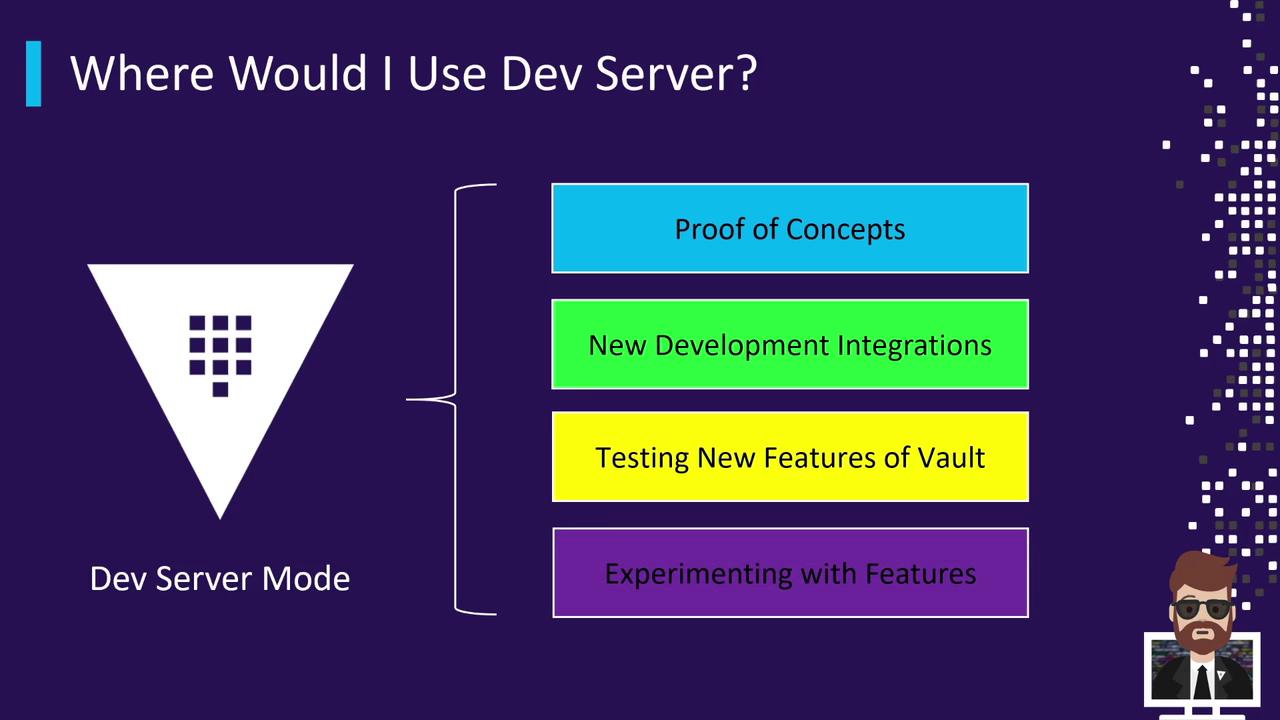
Vault Dev Server is perfect for:
  • Proof-of-concepts (POCs) for secret management
  • Testing new Vault features or upgrades
  • Developing CI/CD integrations (e.g., with Jenkins)
  • Exploring unfamiliar secrets engines
The image is a slide titled "Where Would I Use Dev Server?" listing four uses: Proof of Concepts, New Development Integrations, Testing New Features of Vault, and Experimenting with Features. It includes a graphic of a triangle labeled "Dev Server Mode" and a cartoon character.
Never run Dev Server mode in a production environment.

Launching the Dev Server

Assuming the vault binary is on your PATH, open a terminal (or PowerShell on Windows) and execute:
vault server -dev
You should see output like the following:
==> Vault server configuration:
    Api Address: http://127.0.0.1:8200
    Listener 1: tcp (addr: "127.0.0.1:8200", cluster addr: "127.0.0.1:8201")
    Storage:
      Type: inmem
    Version: Vault v1.7.0
    Version Sha: 4221b8c84b1a074b8e2c554499f92b39bf
==> Vault server started! Log data will stream in below:
2021-04-11T08:04:07.699-0800 [INFO]  core: security barrier initialized
...
Root Token: s.XXXXXXXXXXXXXXXX
Before running additional commands, point your shell to the Dev Server:
export VAULT_ADDR='http://127.0.0.1:8200'
# Windows PowerShell:
# $Env:VAULT_ADDR = "http://127.0.0.1:8200"

Verify Vault Status

Confirm that Vault is unsealed and running:
vault status
Expected output:
Key             Value
---             -----
Seal Type       shamir
Initialized     true
Sealed          false
Version         1.7.0
Storage Type    inmem
HA Enabled      false
You’re now connected to your Dev Server and ready to start issuing Vault commands.

Next Steps

  1. Authenticate
    Use the root token from the startup log:
    vault login s.XXXXXXXXXXXXXXXX
    
  2. Mount & Test Secrets Engines
    For example, enable a new KV engine at kv-data/:
    vault secrets enable -path=kv-data kv-v2
    
  3. Cleanup
    When you’re done, terminate the Vault process. All in-memory data will be discarded.