

Avoid hardcoding credentials in your source code. Instead, leverage managed identities to improve your security posture.
Using Plain Text Credentials
Initially, consider a Python script that connects to a SQL database by hardcoding the username and password. Hardcoding credentials is a major vulnerability since anyone with access to the code can see the sensitive data.Using Managed Identity for Azure AD Authentication
Managed identities enable your code to authenticate with Azure AD by obtaining a token. Azure SQL Database then uses this token for authentication without the need for a username and password. The following Python example shows the modifications needed to use Azure AD authentication via a managed identity:Managed Identity with Key Vault and Function Apps
Another approach is to configure your Function App to use a managed identity for accessing a Key Vault. The Function App obtains an access token from Azure AD, retrieves the connection string stored in the Key Vault, and uses it to connect securely to the SQL database.Infrastructure Deployment with PowerShell
The following PowerShell script deploys the infrastructure by creating a SQL server with a preloaded sample database (AdventureWorksLT), a Key Vault to securely store the connection string, and two Function Apps—one using a plain text connection string and the other using a managed identity:Function Code Samples
Below are two function examples—one with a plain text connection string, and the other using a managed identity to access Key Vault.Function Using Plain Text Connection String
This function demonstrates the risk of using a hardcoded connection string:Function Using Managed Identity to Access Key Vault
This function uses a system-assigned managed identity to request an access token. It then retrieves the connection string from Key Vault and connects to the SQL database: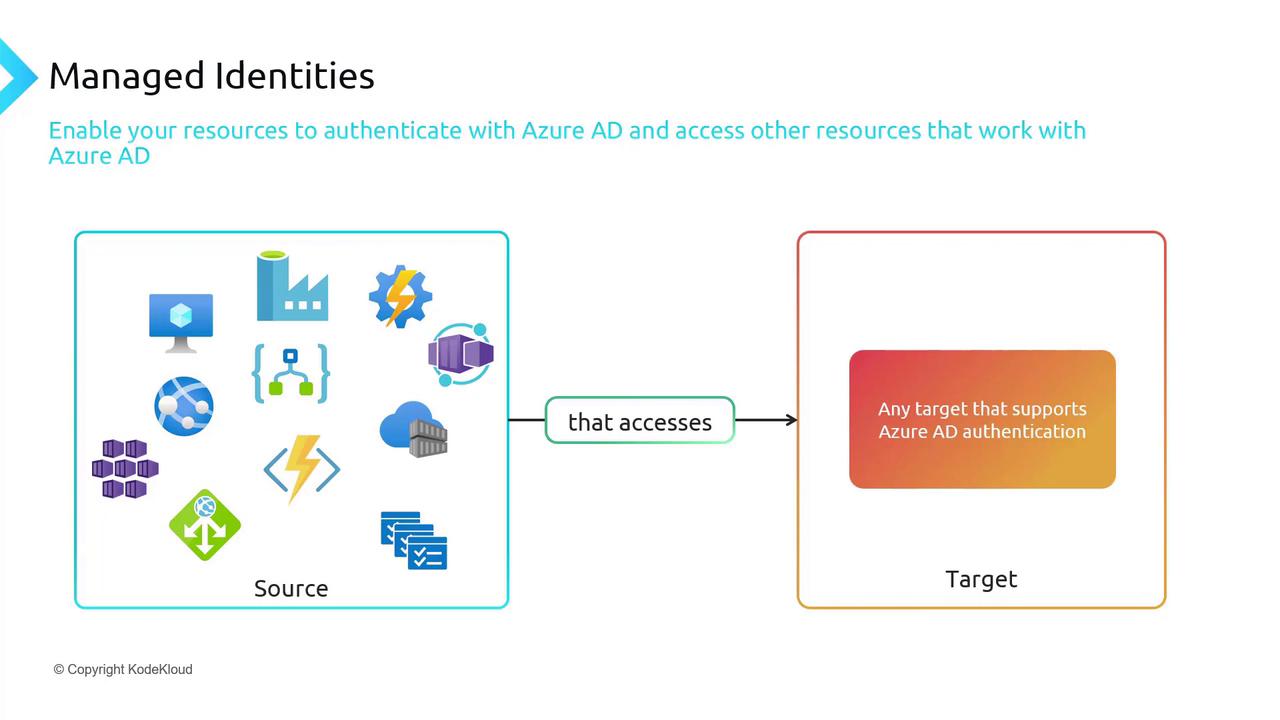
Overview of Managed Identities
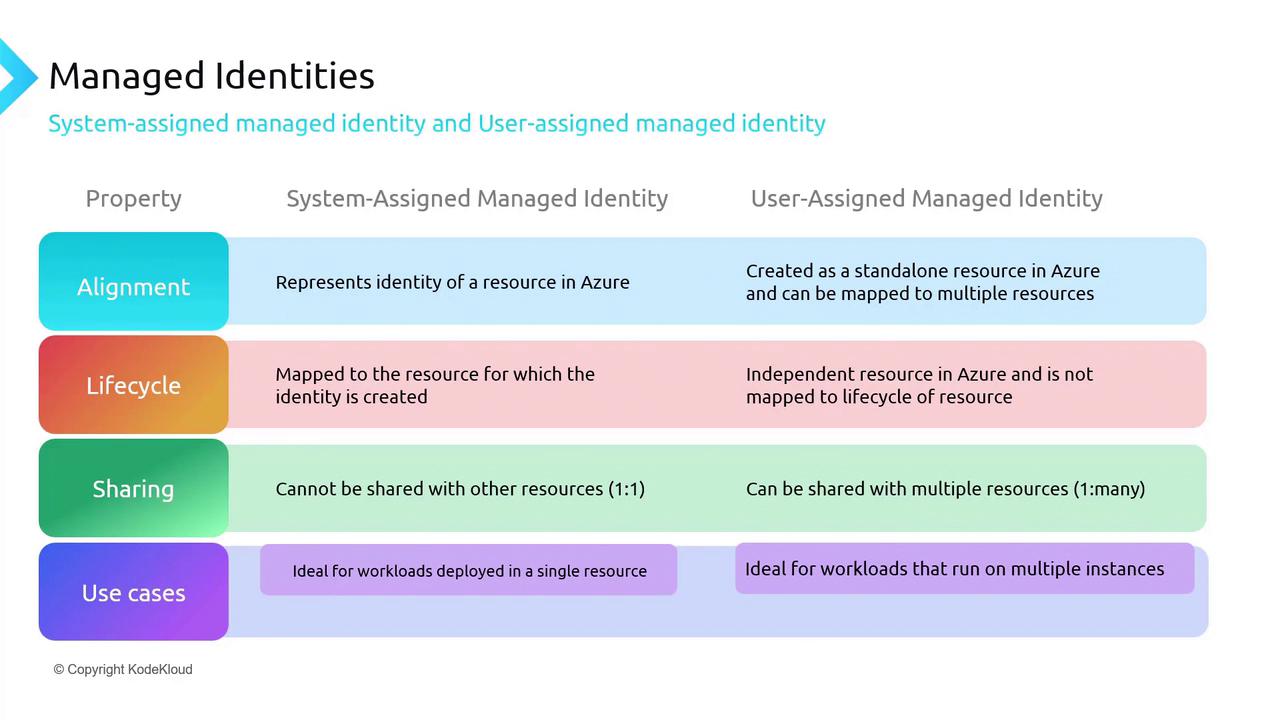
Managed identities ensure that only Azure resources can authenticate using credentials stored in Azure AD. Since the source must be an Azure resource, on-premises solutions cannot directly use managed identities. There are two types of managed identities:- System-assigned Managed Identity: Tied directly to a single Azure resource, this identity is deleted if the resource is removed.
- User-assigned Managed Identity: A separate Azure resource that can be associated with multiple resources and remains even if one resource is deleted.
Comparison of Managed Identity Types
Configuring Managed Identity in the Azure Portal
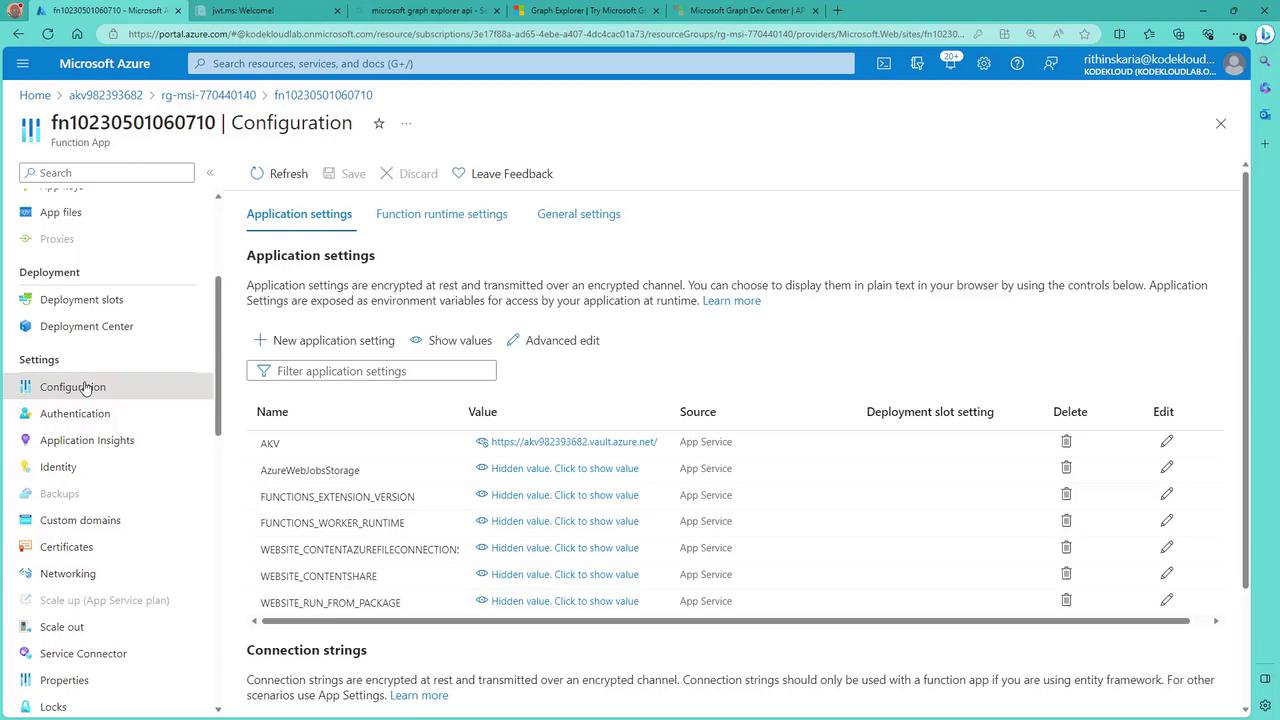
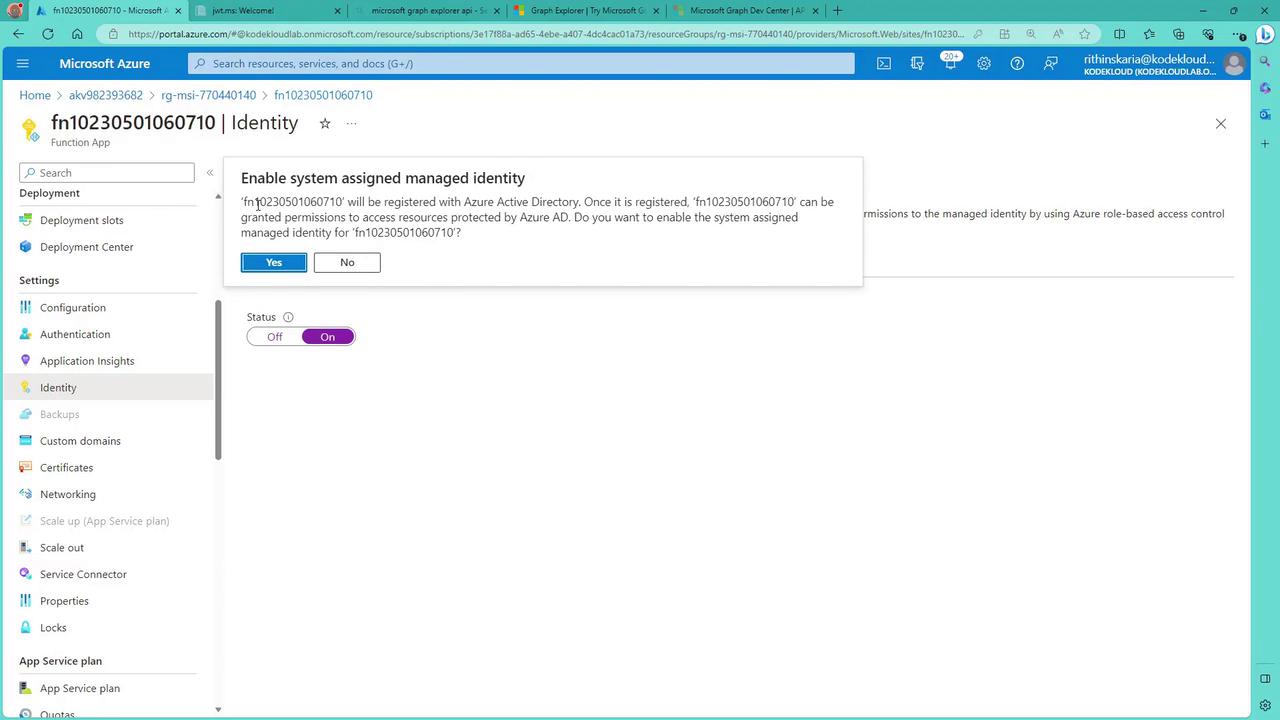
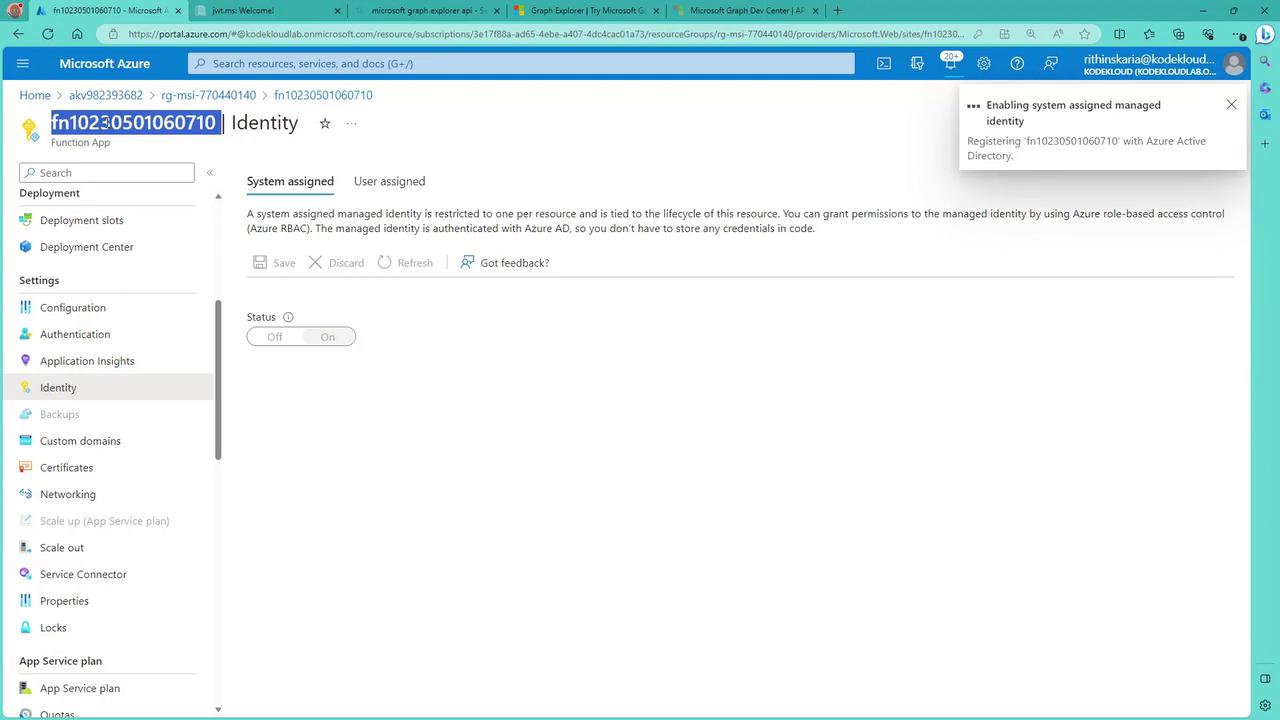
To enable a system-assigned managed identity for a Function App in the Azure portal:- Navigate to the Function App’s Configuration.
- Under the Identity section, toggle the system-assigned managed identity to “On.”
- Save the settings. The identity is now registered with Azure AD.
Testing the Functions
After deployment, navigate to your Function App in the Azure portal to test the functions:-
Plain Text Function:
This function returns a list of table names from the SQL database using a hardcoded connection string. -
Managed Identity Function:
This function leverages a managed identity to authenticate with Azure AD, retrieve the connection string from Key Vault, and connect securely to the SQL database. If you encounter an error, it may be due to missing permissions for the Function App’s managed identity in Key Vault.
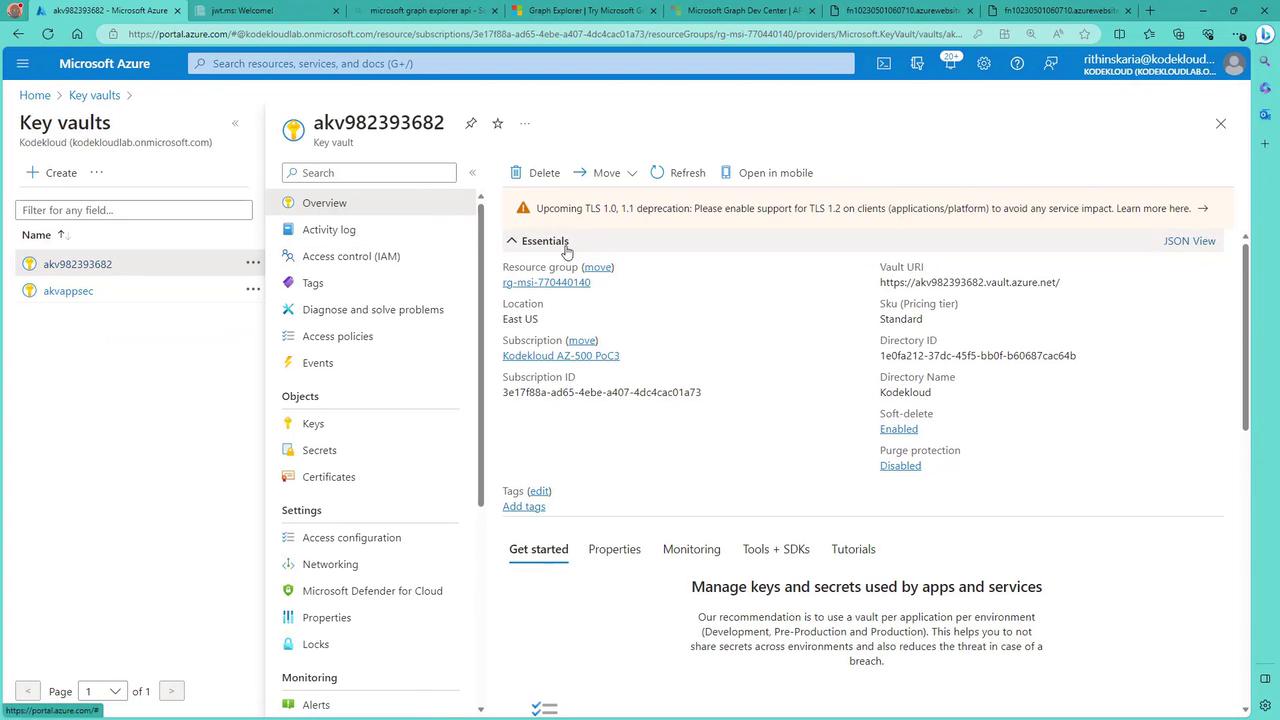
Ensure you configure the Key Vault access policy to grant the Function App’s managed identity permission to read secrets. Without this permission, the managed identity function will fail.
- In the Azure portal, navigate to the Key Vault’s Access Policies.
- Add an access policy that grants the Function App’s managed identity permission to read secrets.
- Save your changes.
Summary
Managed identities provide a secure way for Azure resources to authenticate with other resources via Azure AD. In this article, we explored two approaches:- Using a plain text connection string (an insecure method)
- Using a system-assigned managed identity to retrieve secrets from Azure Key Vault