This article explains how to enable Azure Resource Locks to protect critical resources from accidental modifications or deletions.
This article explains how to enable Azure Resource Locks—a powerful yet often underutilized Azure security feature—to protect your critical resources from accidental modifications or deletions. Resource locks are essential for maintaining the stability of production environments, and they can be configured to meet your specific requirements.
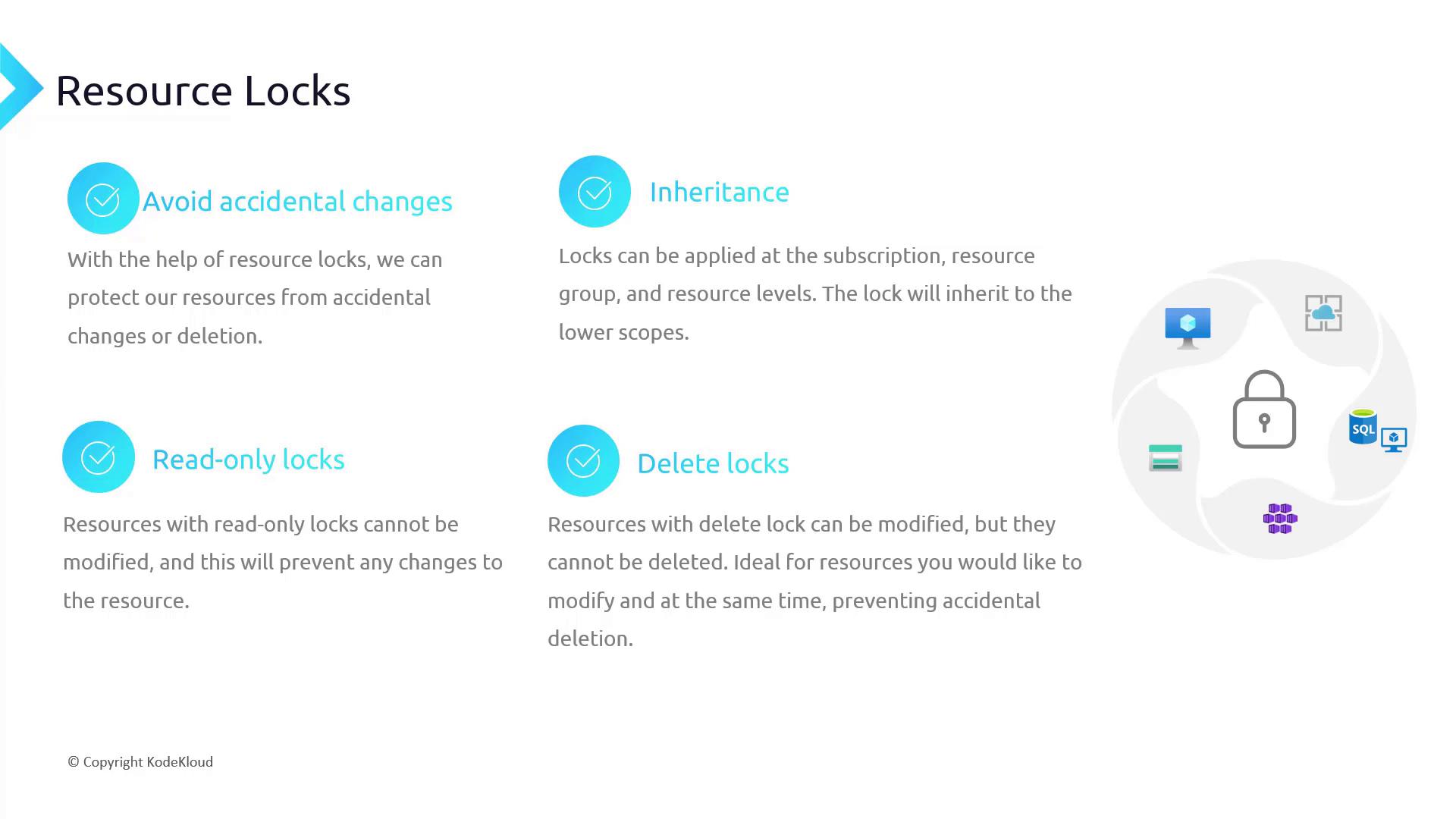
Azure resource locks serve as a safeguard against unintended changes. For example, if a production database is mistakenly modified or removed, a resource lock will restrict such actions and enhance the security and resilience of your environment.
Similar to Azure RBAC, resource locks provide flexible deployment options. They can be applied at various scopes:
Subscription
Resource Group
Individual Resource
Although locks cannot be applied at the management group level, any lock assigned at a higher scope is automatically inherited by all underlying resources. For example, applying a lock to an entire resource group ensures that all production resources within that group remain protected from unauthorized modifications or deletions.
There are two primary types of Azure resource locks, each serving a specific purpose:
Read-only Lock
A read-only lock permits you to view the resource details but prevents any modifications. This lock is ideal for configurations that should remain unchanged. For instance, a Network Security Group meeting organizational compliance can be safeguarded against modifications by applying a read-only lock.
Delete Lock
A delete lock allows modifications but prevents the resource from being deleted. This is particularly useful for resources that require frequent updates, such as virtual machines running critical applications, but must never be accidentally deleted.
Consider a virtual machine that requires routine software updates. By applying a delete lock, you can modify its configuration without risking accidental deletion.
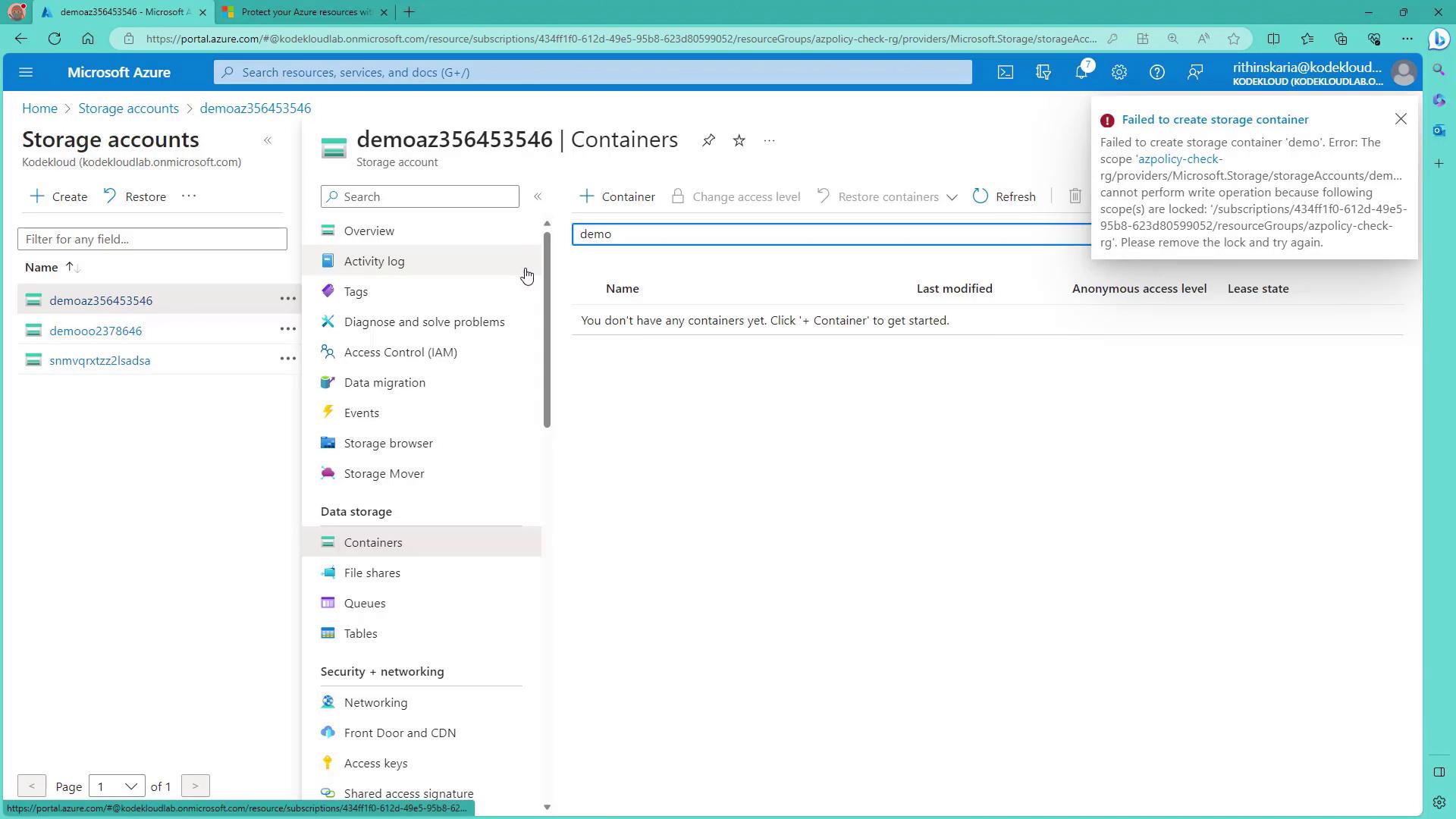
When using resource locks on shared environments, always review possible limitations. For instance, a read-only lock on a storage account prevents the creation of a blob container, and a read-only lock on app servers may interfere with file interactions in Visual Studio Server Explorer.
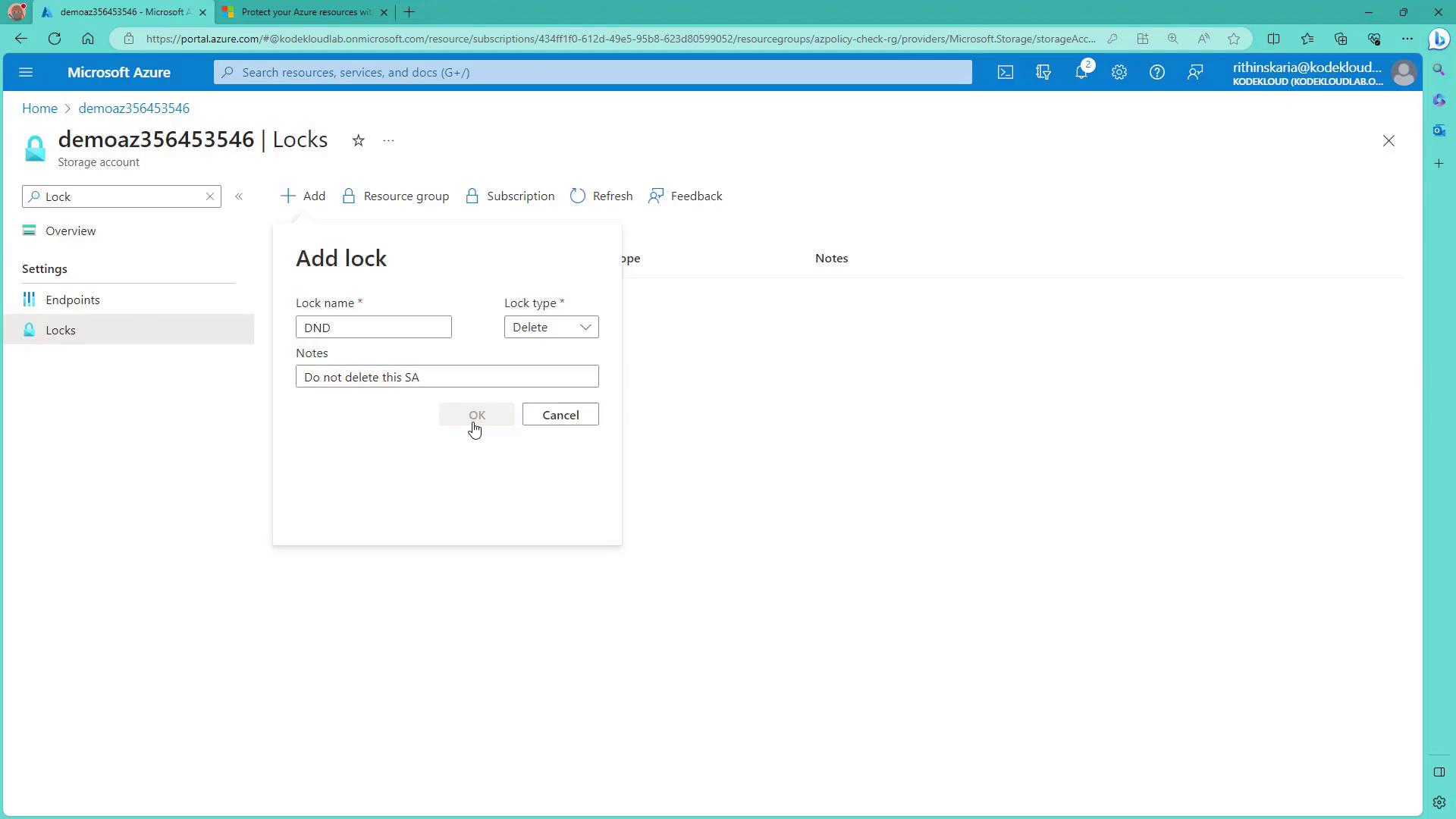
Azure resource locks are configured directly from the Azure portal. To add a lock, navigate to the desired resource and click on “Add Lock”. Below is an example of creating a delete lock named “dnd” (do not delete) on a storage account.
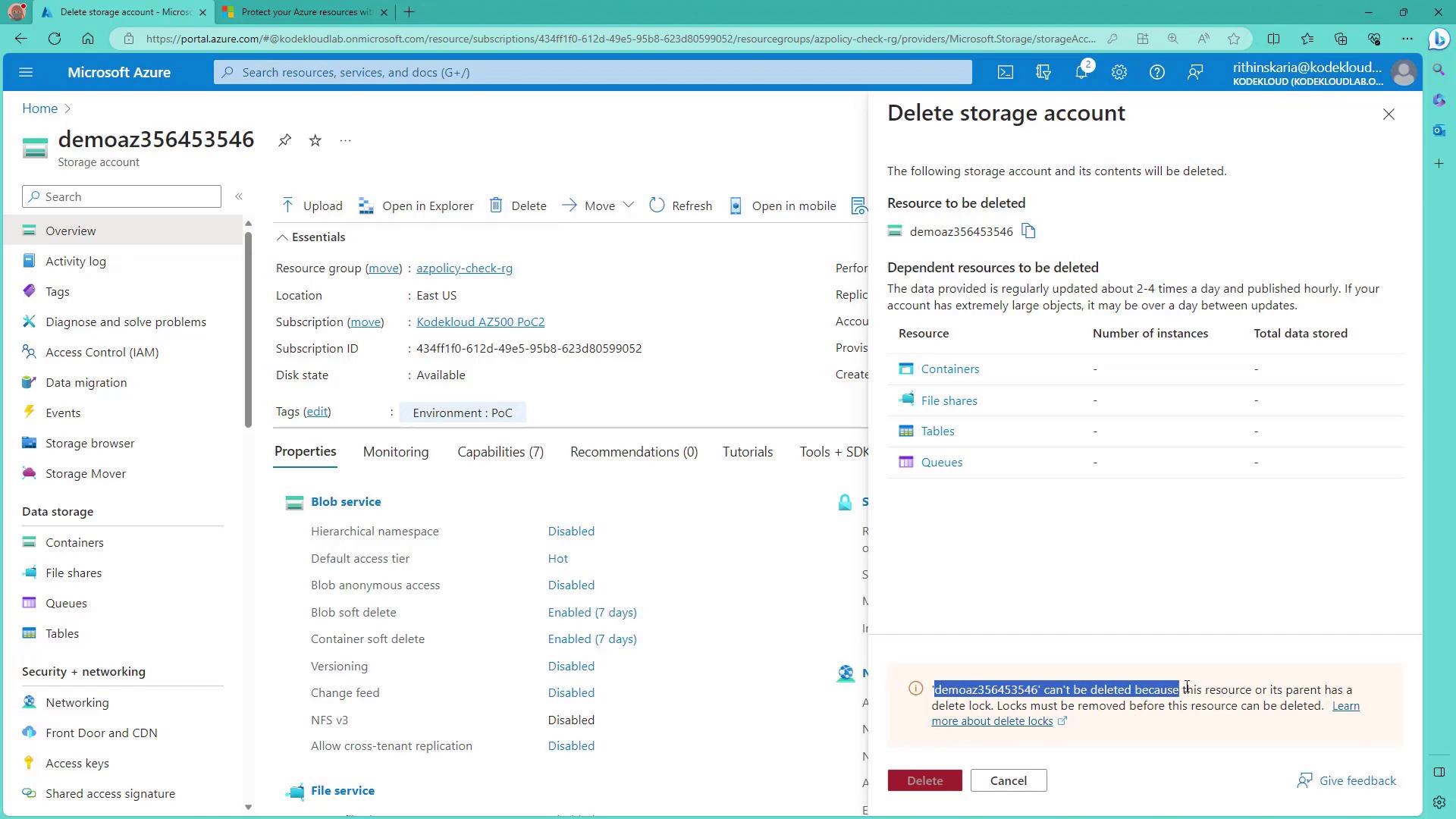
When a locked resource is deleted, Azure displays an error message:
The error clearly indicates that the lock must be removed before deletion can proceed.
Demonstration: Creating and Locking a Storage Account
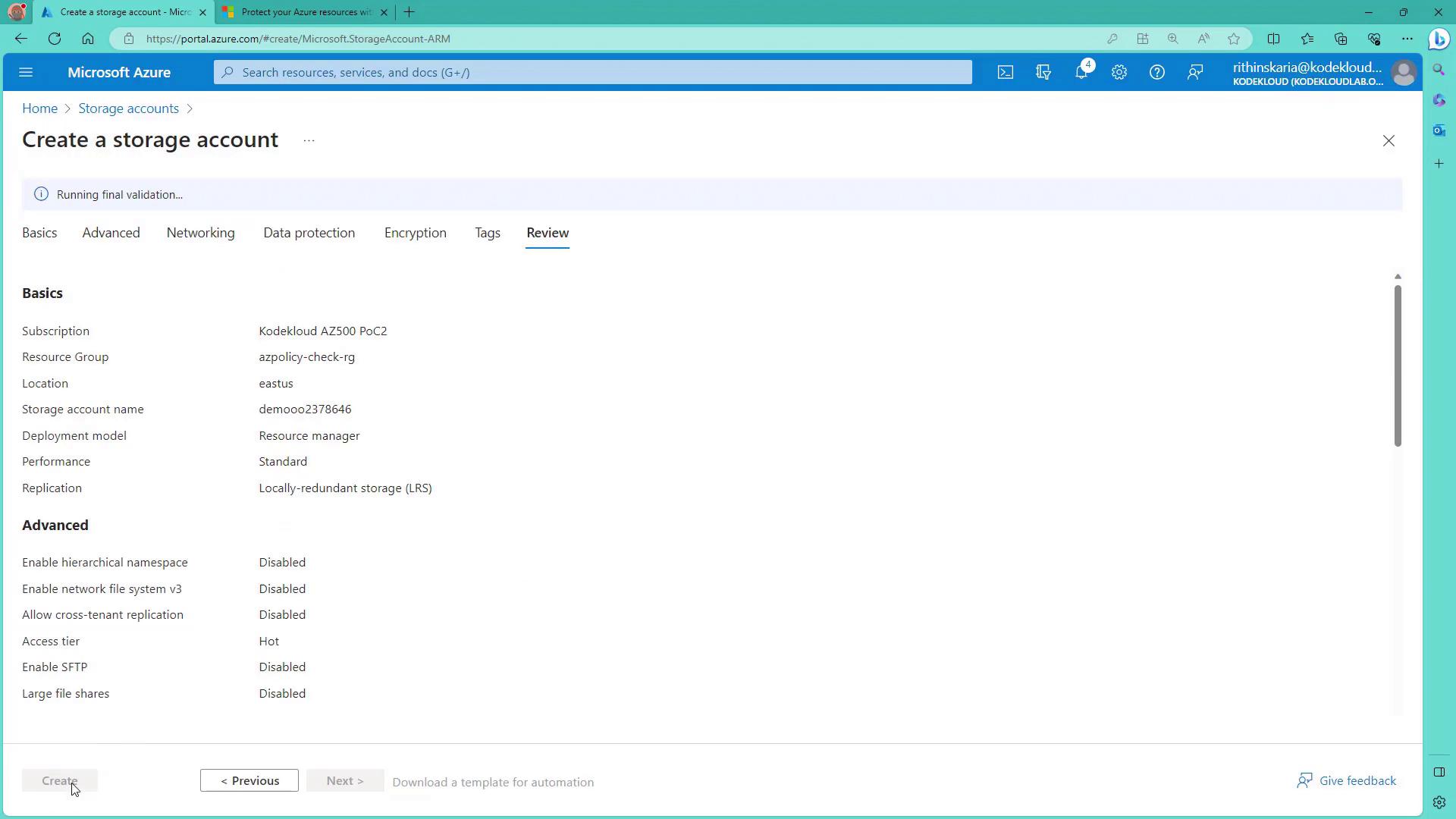
Before applying locks at the resource group level, you can create a new storage account. Use the following Azure CLI command to check policies and ensure the storage account name is unique:
az policy check
After the storage account is successfully created, you can assign a lock via the Azure portal, which provides a streamlined process for both creating storage accounts and applying locks.
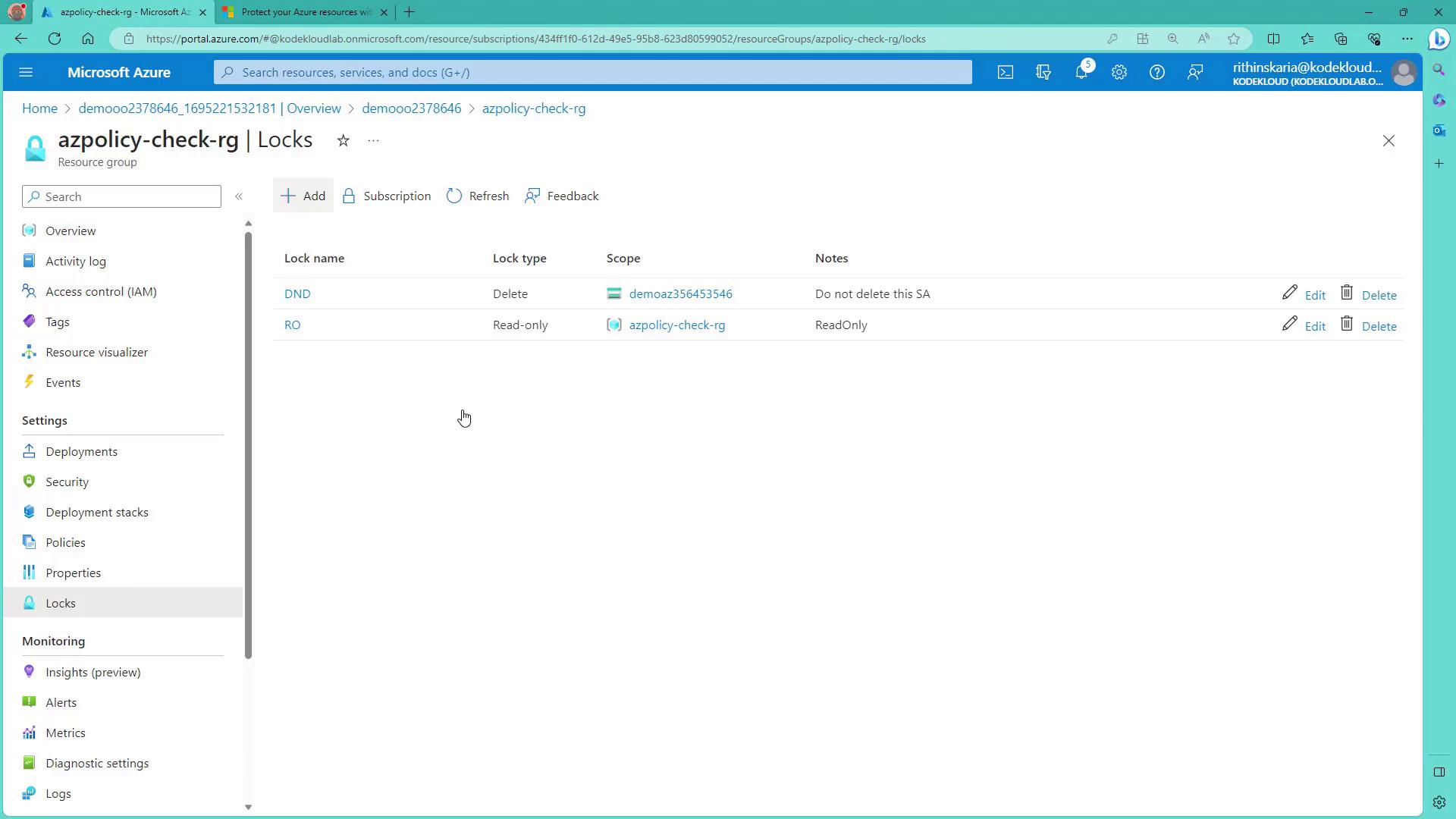
Once created, you can review and manage locks for the resource group. For example, the “azpolicy-check-rg” resource group might show both delete and read-only locks:
If an operation violates the lock policy—such as attempting to create a storage container in a locked scope—you will see an error message:
This confirms that the lock is active and functioning as intended.
Azure resource locks are a critical tool for maintaining a secure and stable environment. By carefully configuring read-only and delete locks at the appropriate scopes, you can efficiently protect your valuable assets from accidental changes and deletions. Always review the limitations of resource locks and consider their impact on operations before applying them.For more information on Azure security features, visit Microsoft Azure Documentation.