

- The user initiates a login request to Azure AD.
- Azure AD verifies the user’s credentials.
- Upon successful verification, Azure AD issues a bearer token that serves as a temporary access pass.
- The user includes this bearer token in a subsequent request to the storage API.
- The storage API validates the token, retrieves the requested blob data, and returns it to the user.
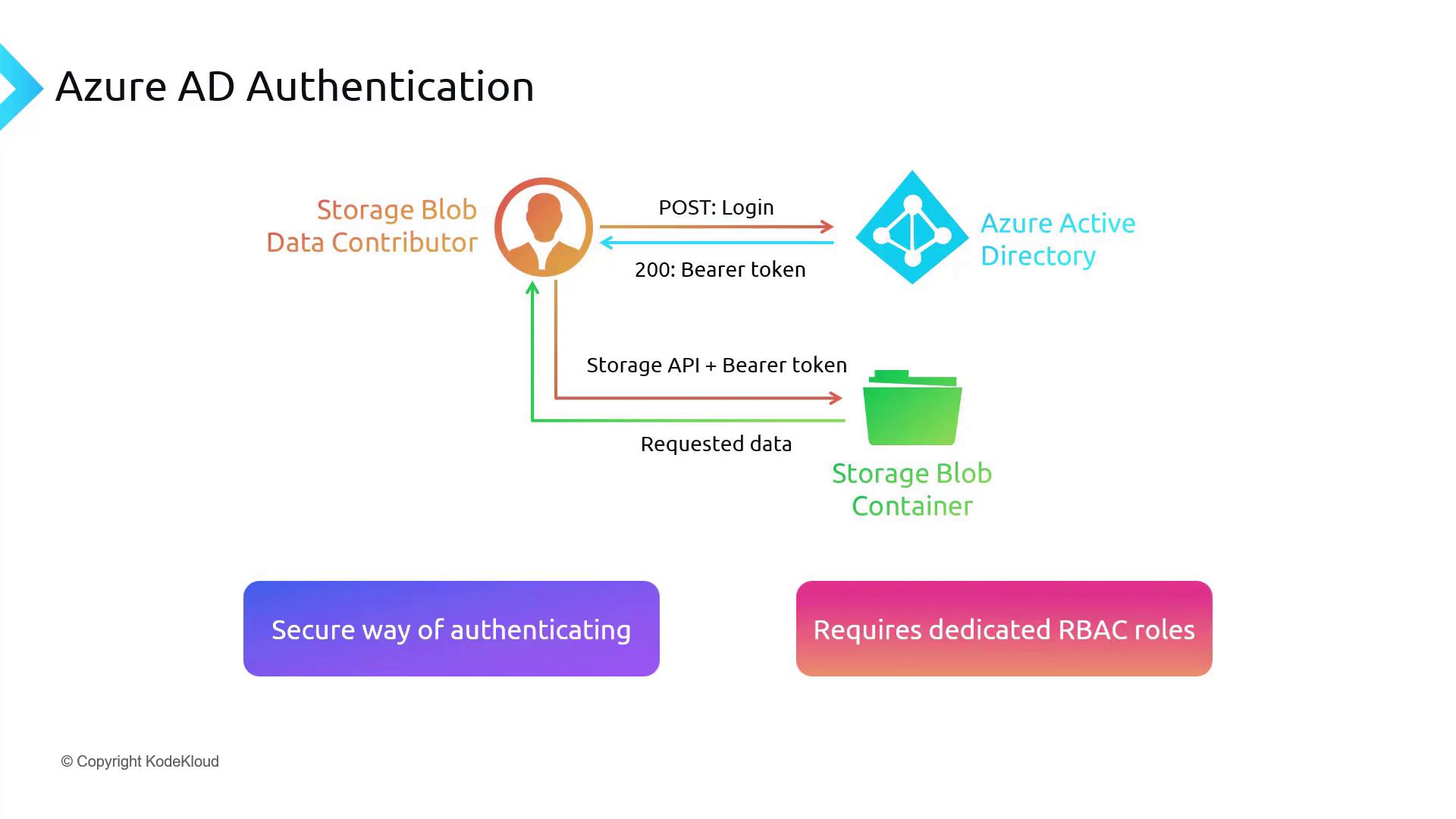
Azure AD authentication integrates access with user identity and RBAC permissions, eliminating the dependency on short-lived tokens like SAS.
Configuring Azure AD Authentication for Storage Access
To configure Azure AD Authentication for accessing your Azure Storage, follow these steps:- Create a service principal (app registration) in the Azure Portal.
- Generate a client secret and record the credentials securely.
- Use Postman to generate a token by making an API call to Azure AD.
- Access the blob storage using the obtained token.
Creating the Service Principal
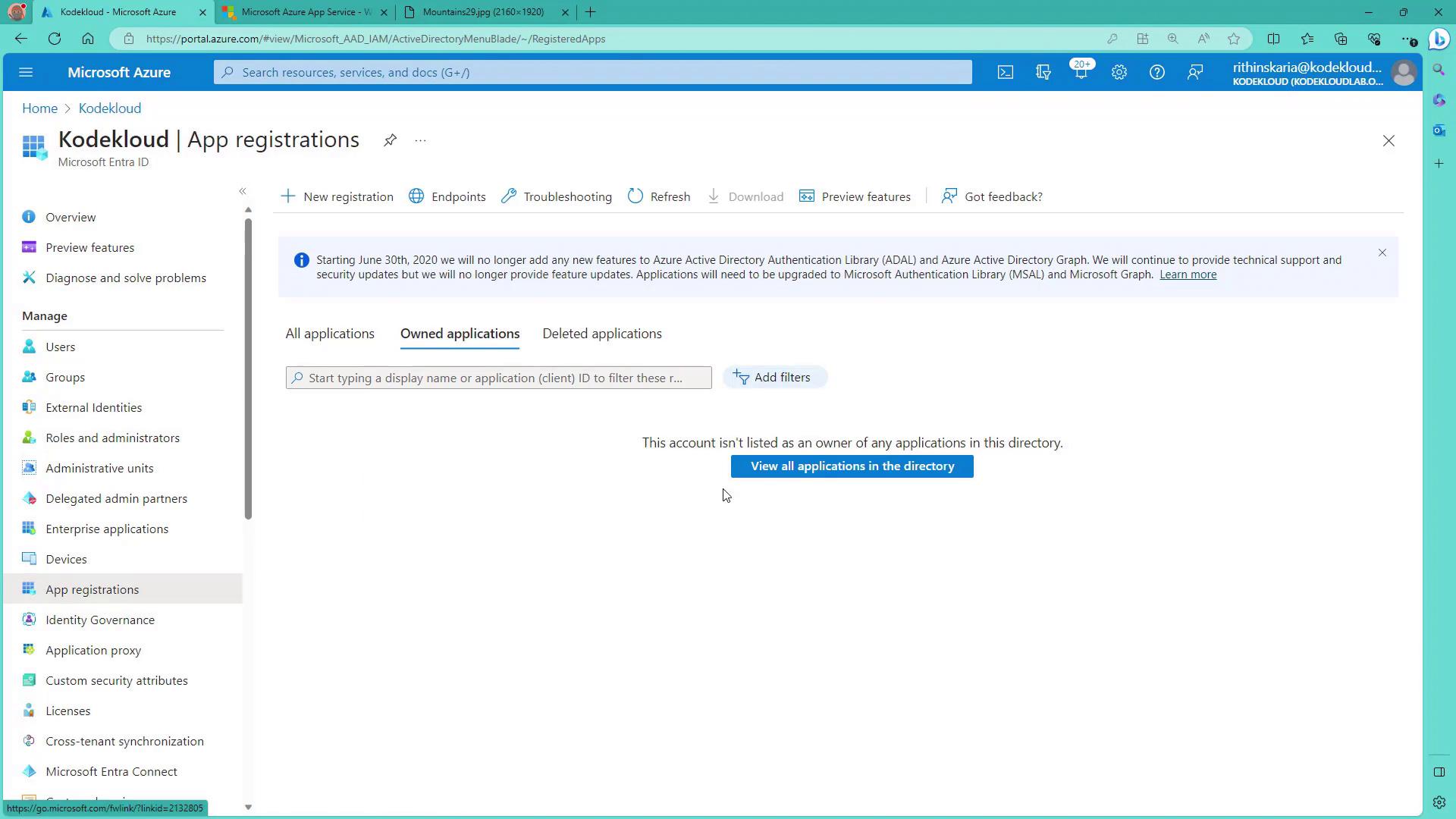
- Navigate to the Azure AD section in the Azure Portal and click on “App registrations”. For this example, a dedicated service principal is created rather than using your user account.
- Click on “New app registration”, provide a name (e.g., storage-SPN), and select “Single tenant”.
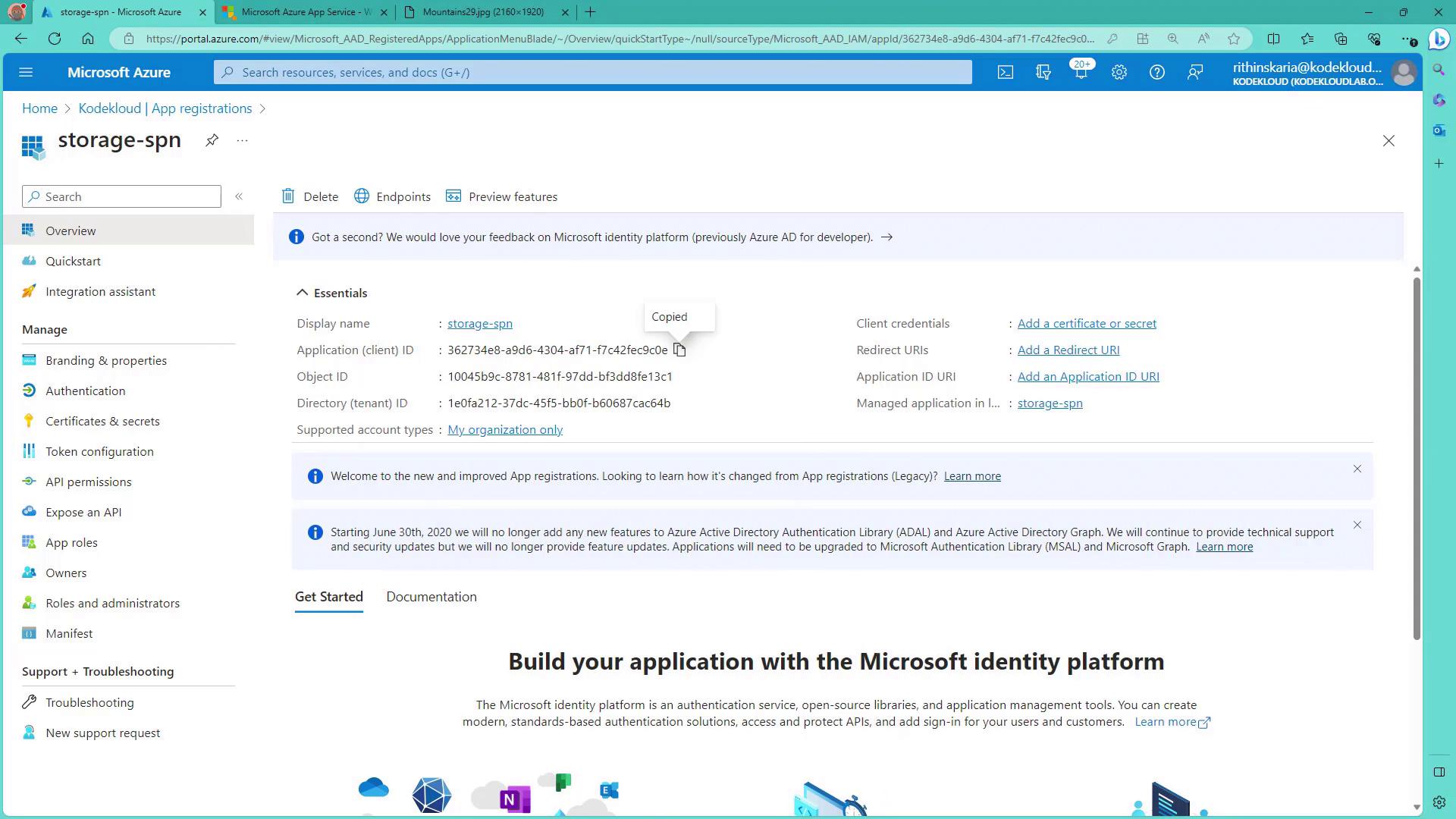
- Once the app is created, open the application overview and copy the client ID.
- Generate a new client secret and save its value securely (for example, in Notepad).
- Record your tenant ID and the endpoint for V1 authentication.
Assigning the Appropriate Role
Next, ensure your service principal is granted proper access by assigning it the relevant RBAC role on your storage account:- Open the target storage account in the Azure Portal.
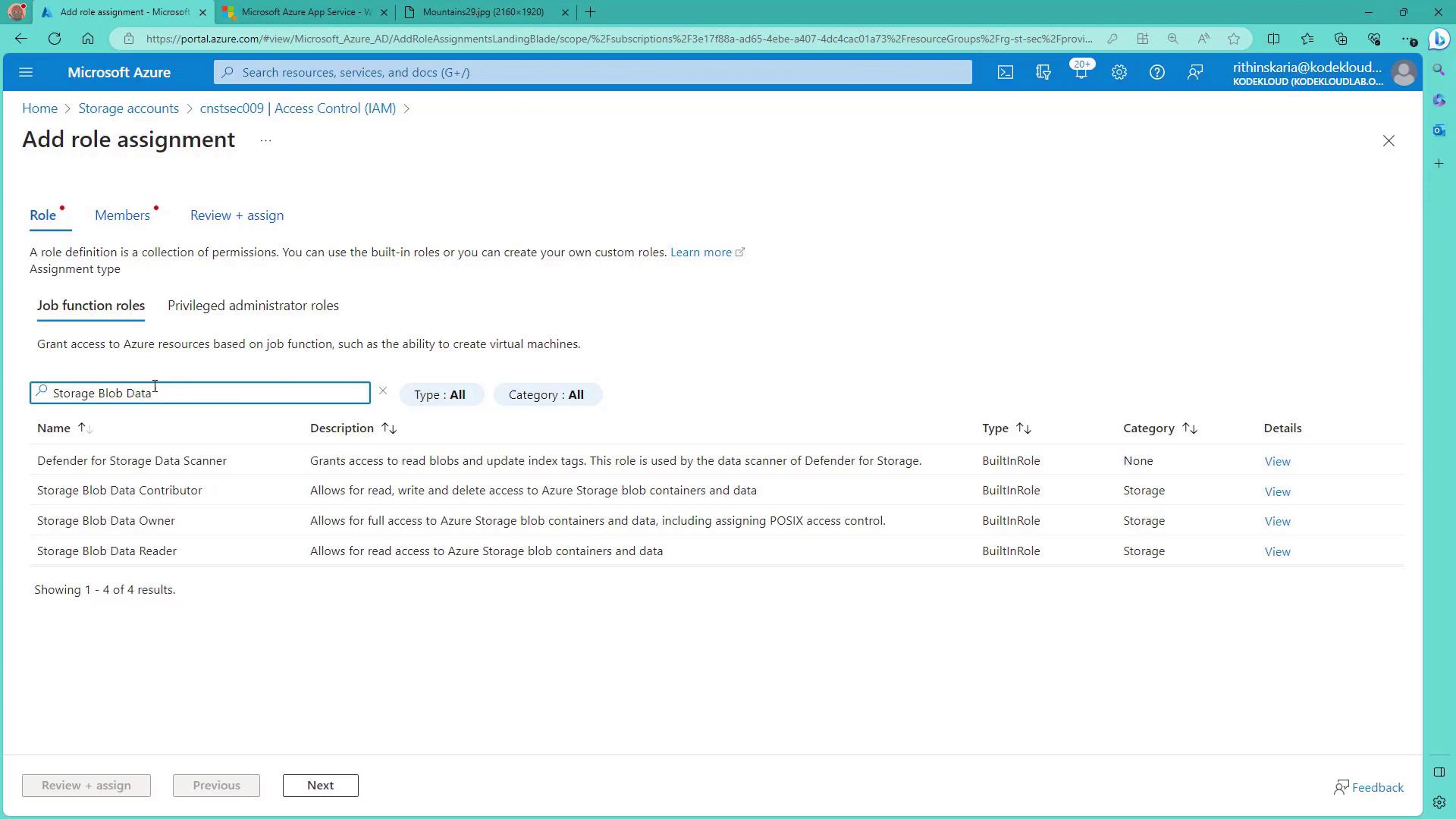
- Navigate to “Access control (IAM)” or “RBAC” and add a new role assignment.
- If you require read-only access, search for “Storage Blob Data Reader” (or choose a role that matches your requirements).
- Select your service principal (e.g., storage-SPN) and complete the role assignment.
Generating and Using the Bearer Token in Postman
To interact with blob storage via Azure AD authentication, perform the following steps using Postman:-
Configure a request in Postman to the Azure AD token endpoint. Use these parameters:
- client_id: (your copied client ID)
- client_secret: (your generated client secret)
- grant_type: client_credentials
- resource: https://storage.azure.com
-
Once you obtain the bearer token, test access to your storage account. First, try sending a request to your storage URL without an authentication header. You will likely receive a “ResourceNotFound” error, similar to the example shown below:
-
Next, update your Postman request by adding the necessary headers:
- Add the header
x-ms-versionwith the value2017-11-09to specify the storage service version. - Include the Authorization header with the bearer token, formatted as:
Authorization: Bearer
- Add the header
The bearer token is temporary. Once it expires, you need to re-authenticate to continue accessing the storage account. This process is similar regardless of whether you’re using a service principal or a user account.