Overview
Layered Defense
Azure WAF operates at the application layer (layer 7 of the OSI model), enabling deep inspection of HTTP/HTTPS traffic. By analyzing application-level messages, the WAF can effectively detect and block harmful requests, protecting your applications from vulnerabilities such as SQL injection, cross-site scripting (XSS), and more.Built-in Security Policies
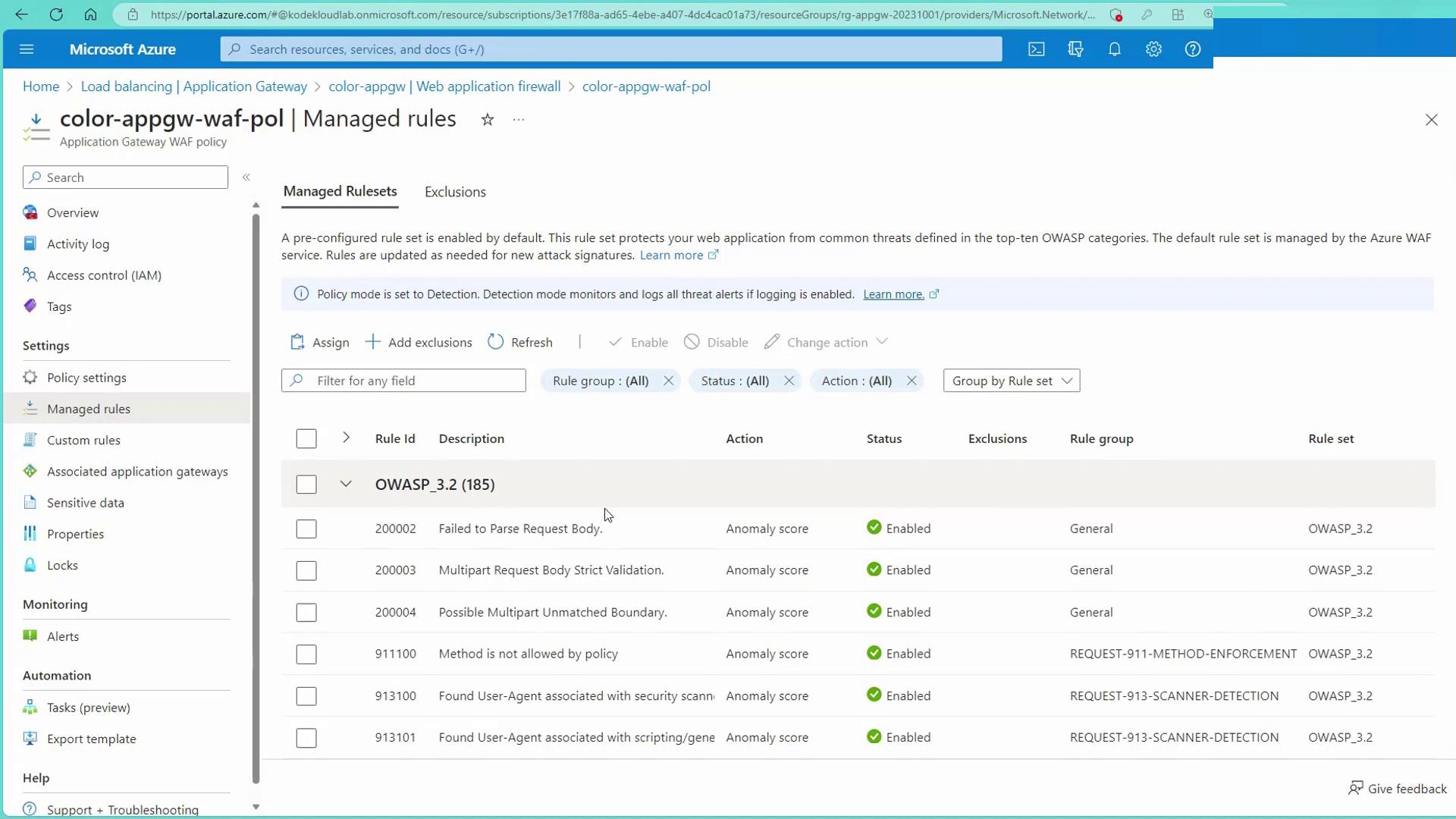
Azure WAF includes pre-configured, industry-standard security policies that are regularly updated to mitigate emerging threats. These built-in policies ensure robust, out-of-the-box protection with minimal manual interventions.Custom Rule Sets
For added flexibility, Azure WAF allows you to create custom security rules tailored to your specific environment. Custom rules help fill any gaps in the default protection by targeting application-specific vulnerabilities.Threat Intelligence Integration
With integration to Microsoft Threat Intelligence, Azure WAF continuously monitors global threat data. This proactive approach enables the system to block malicious traffic even if the threat source seems benign at first glance.Logging and Monitoring
Comprehensive logging and monitoring capabilities ensure that all web application traffic, detected threats, and security events are tracked. This visibility supports effective incident response, security analysis, and compliance reporting. Azure WAF shields your applications against a range of web-based attacks using OWASP core rule sets.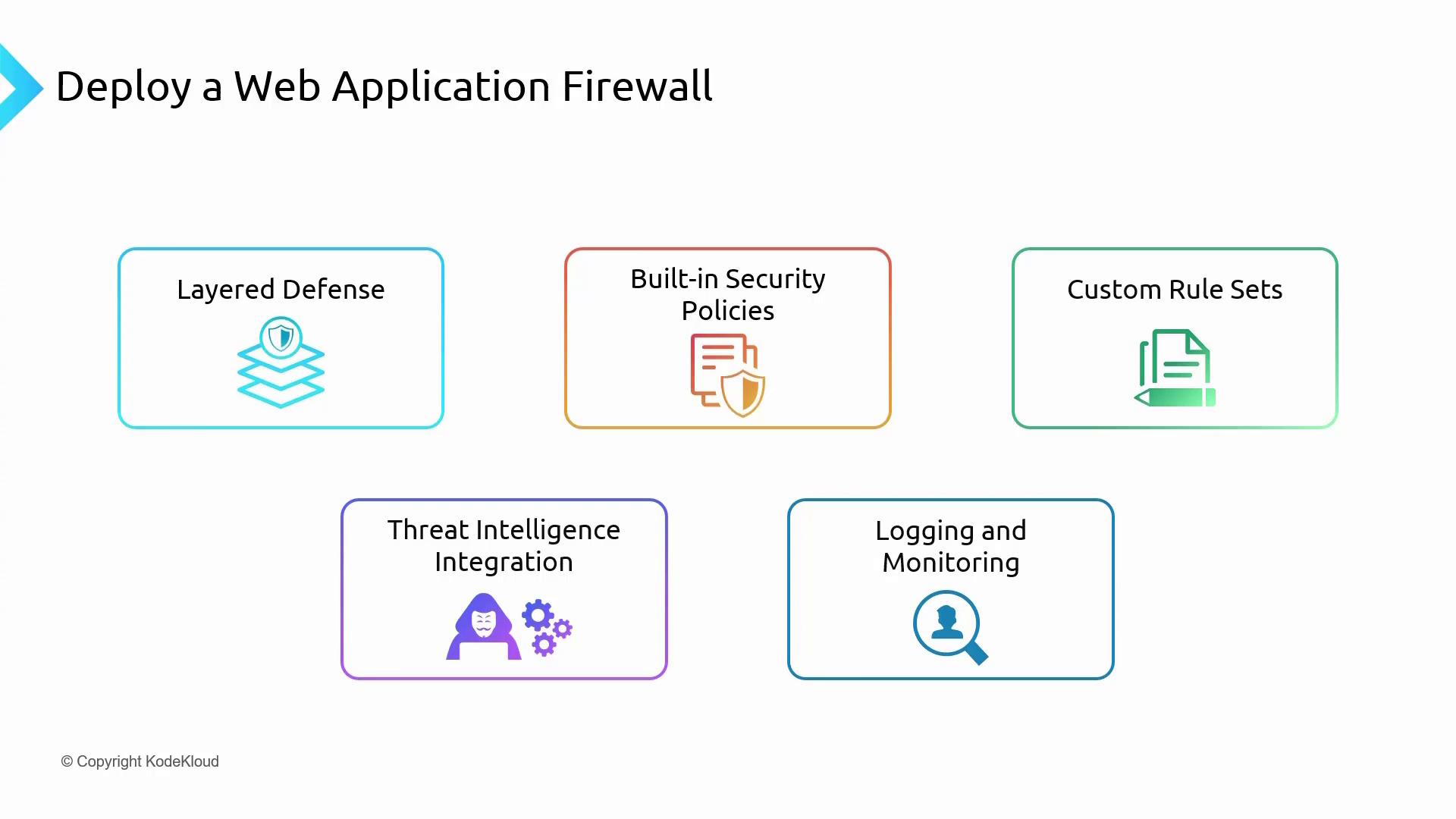
How Azure WAF Works
Azure WAF is deployed at the network edge, offering centralized protection for your web applications. The following sections detail its core functionalities:Global WAF Policy
A global WAF policy consists of a set of predefined and custom rules that you can apply across multiple applications. This centralized approach simplifies policy management and reduces configuration overhead.Custom Access Control
Azure WAF provides granular control over incoming requests. By configuring the rules based on factors like IP address, geolocation, or HTTP methods, you can ensure that your access policies meet both security and operational requirements.Rate Limiting
To defend against brute force and DDoS attacks, Azure WAF supports rate limiting. This feature sets a threshold on the number of allowed requests in a specified timeframe, preserving application performance and stability.OWASP Top 10 Protection
Azure WAF implements OWASP Top 10 rulesets to protect your applications against critical vulnerabilities. Enabling these rules automatically shields your web services from a range of known attack vectors. Azure WAF is versatile enough to secure on-premises, Azure-hosted, and other cloud-based applications. While on-premises and third-party cloud applications usually connect via the public network, Azure services benefit from the secure Azure global network.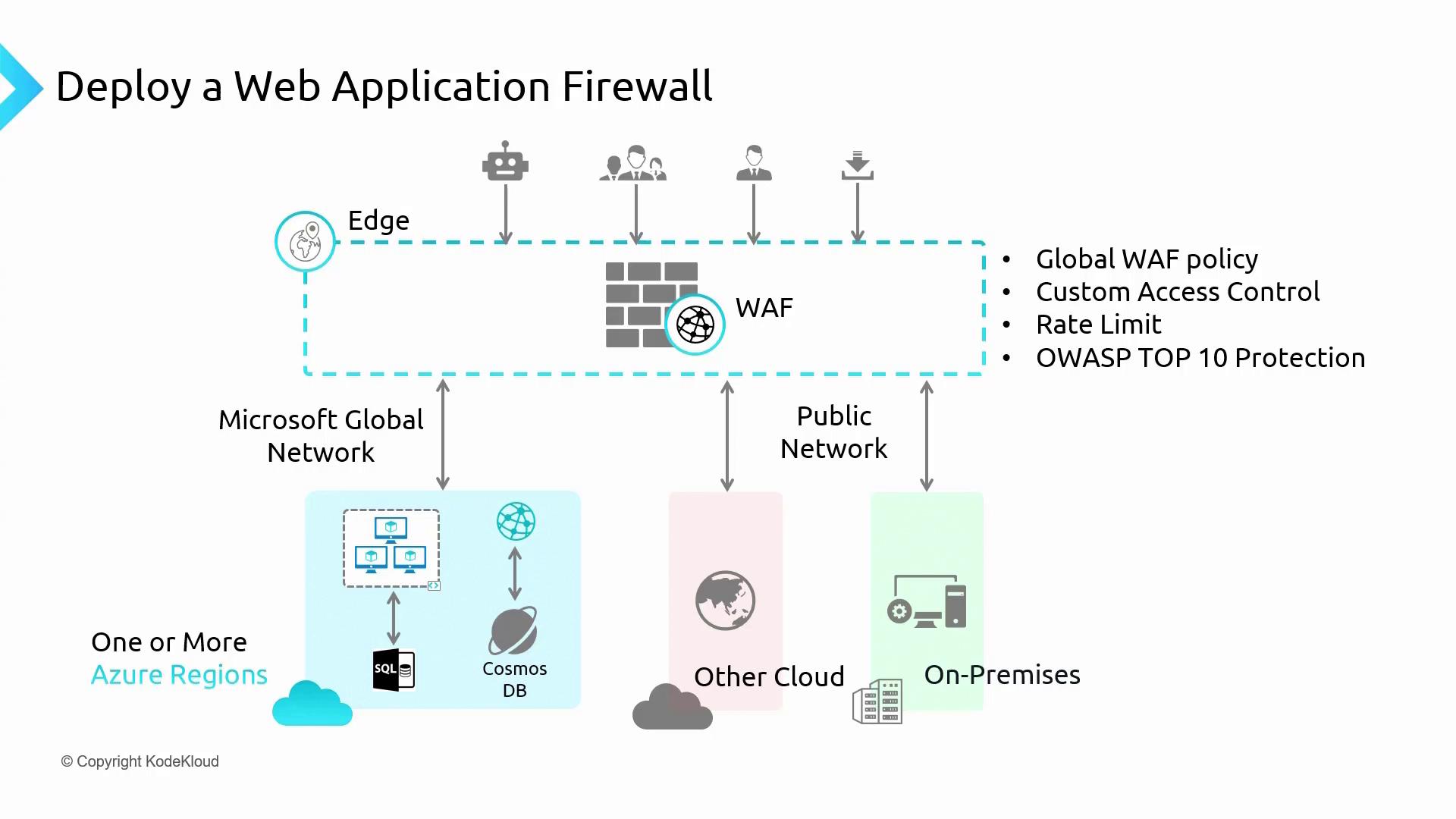
Traffic from bots, hackers, and mass downloaders can be blocked based on the rules configured within the WAF.
Configuring Azure WAF via the Azure Portal
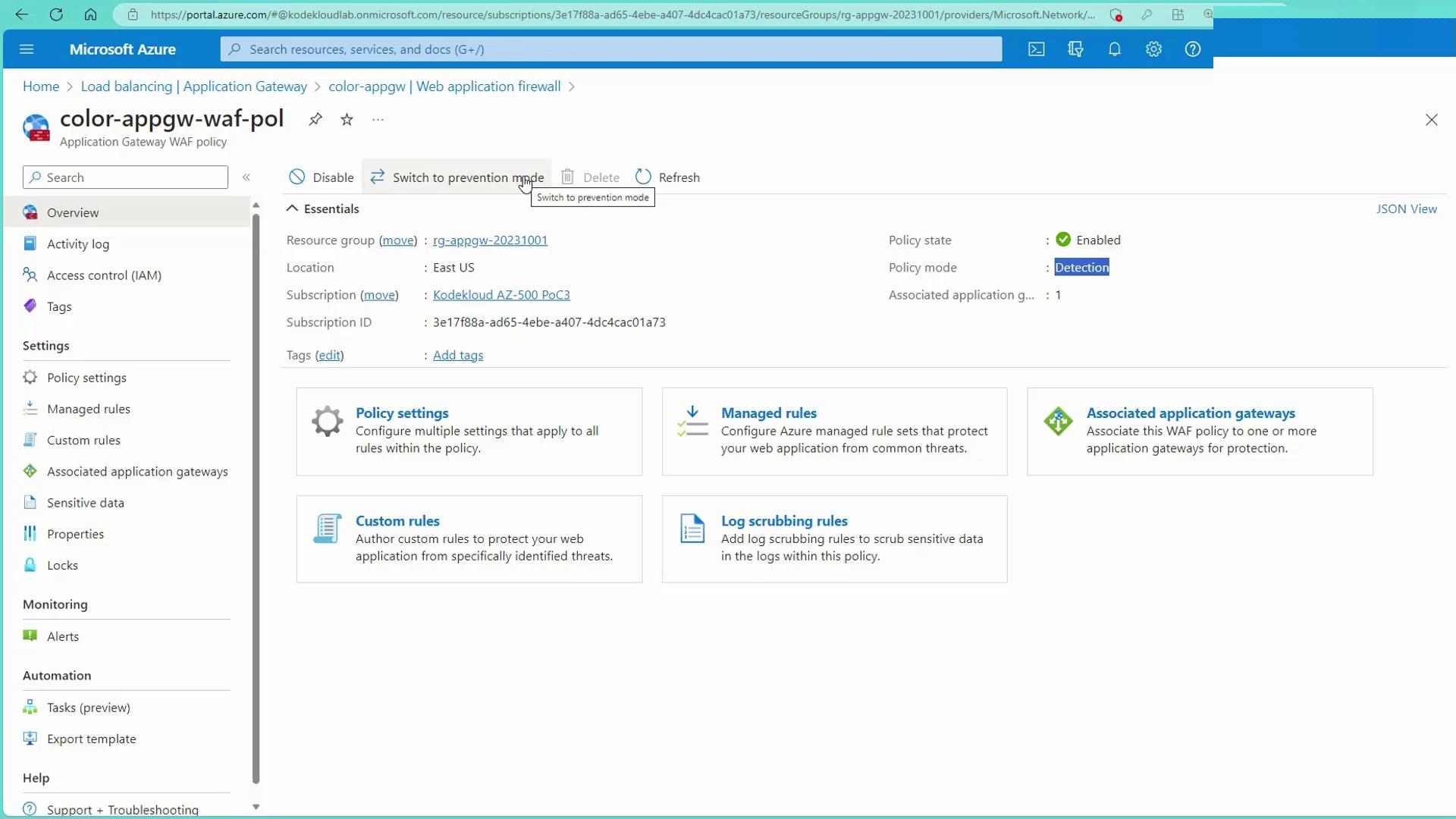
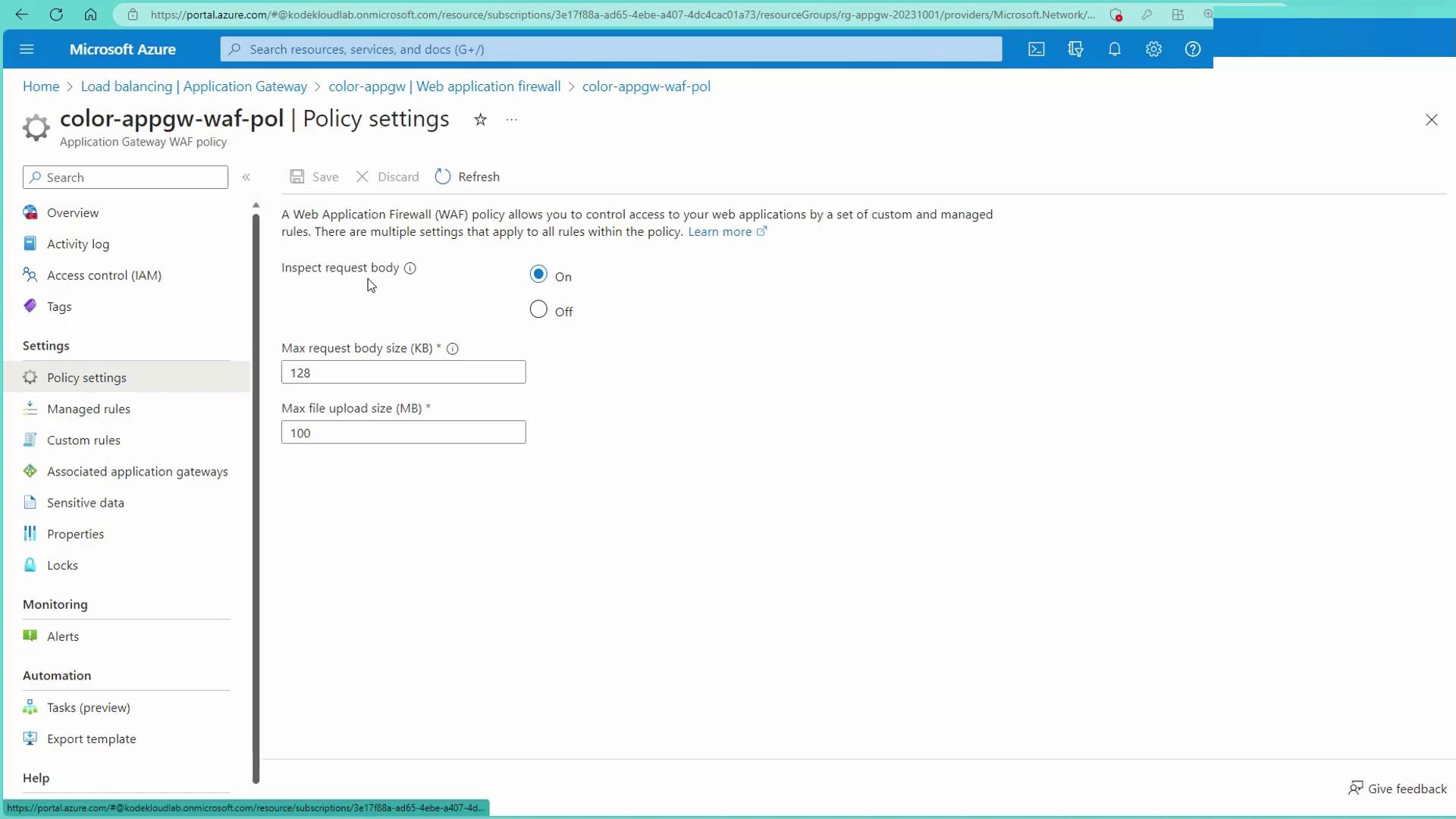
Navigate to the Azure portal to view and manage the Web Application Firewall in action. This example demonstrates using the Web Application Firewall V2 SKU attached to an Application Gateway. If you are already using a Standard V2 Application Gateway, note that upgrading from V1 to V2 requires a redeployment using a Microsoft-provided script.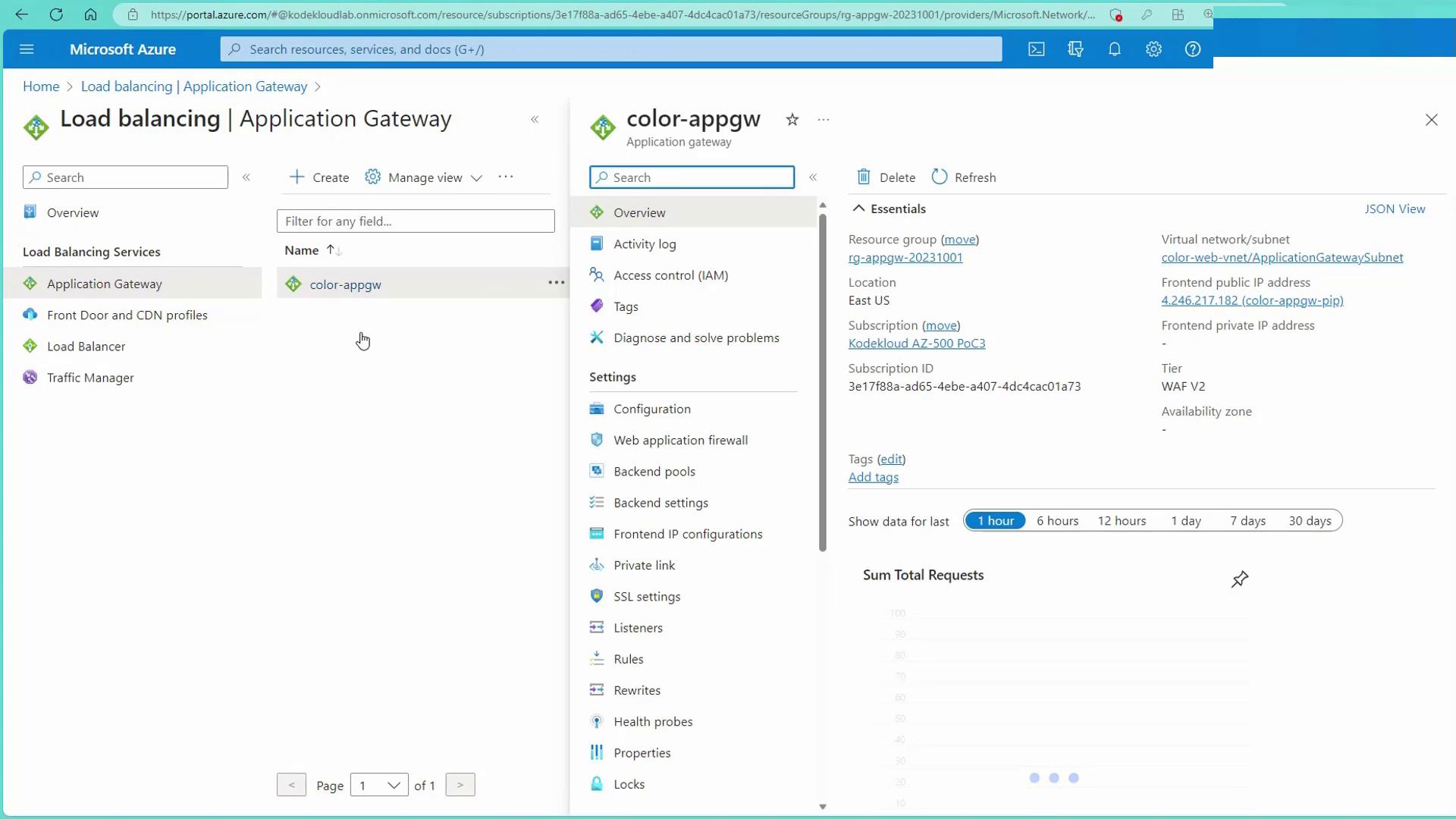
Creating Custom Rules
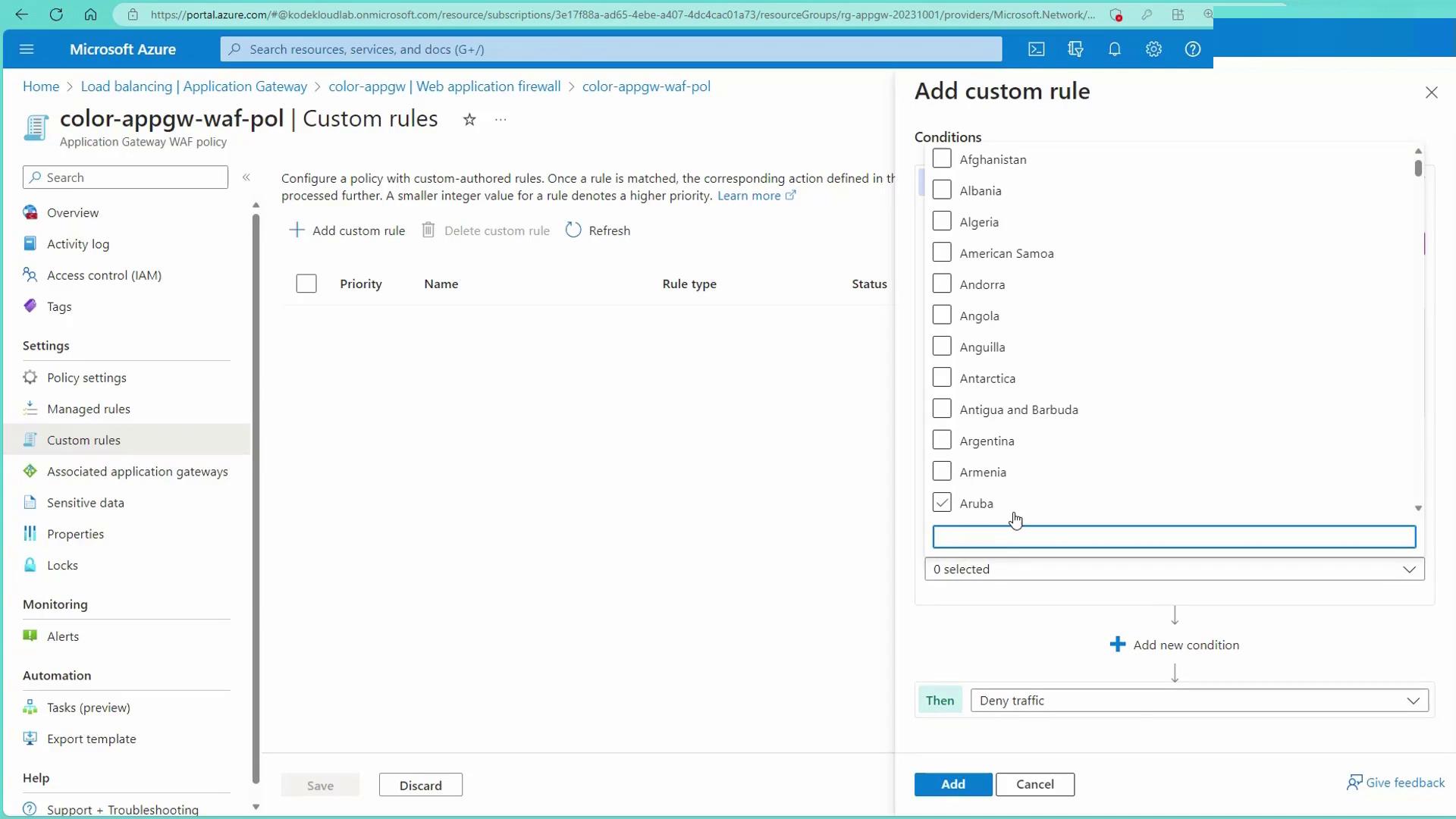
To further secure your application, you can create custom rules. For instance, to block all traffic from the United States, follow these steps:- Create a custom rule and name it (e.g., “BlockUS”).
- Enable the rule and choose “Match” as the rule type.
- Set the rule priority (e.g., 1).
- Select “Geolocation” as the match type.
- Configure the match variable as “Remote Address” with the condition “in” for “United States”.
- Set the action to “Deny” and save the rule.
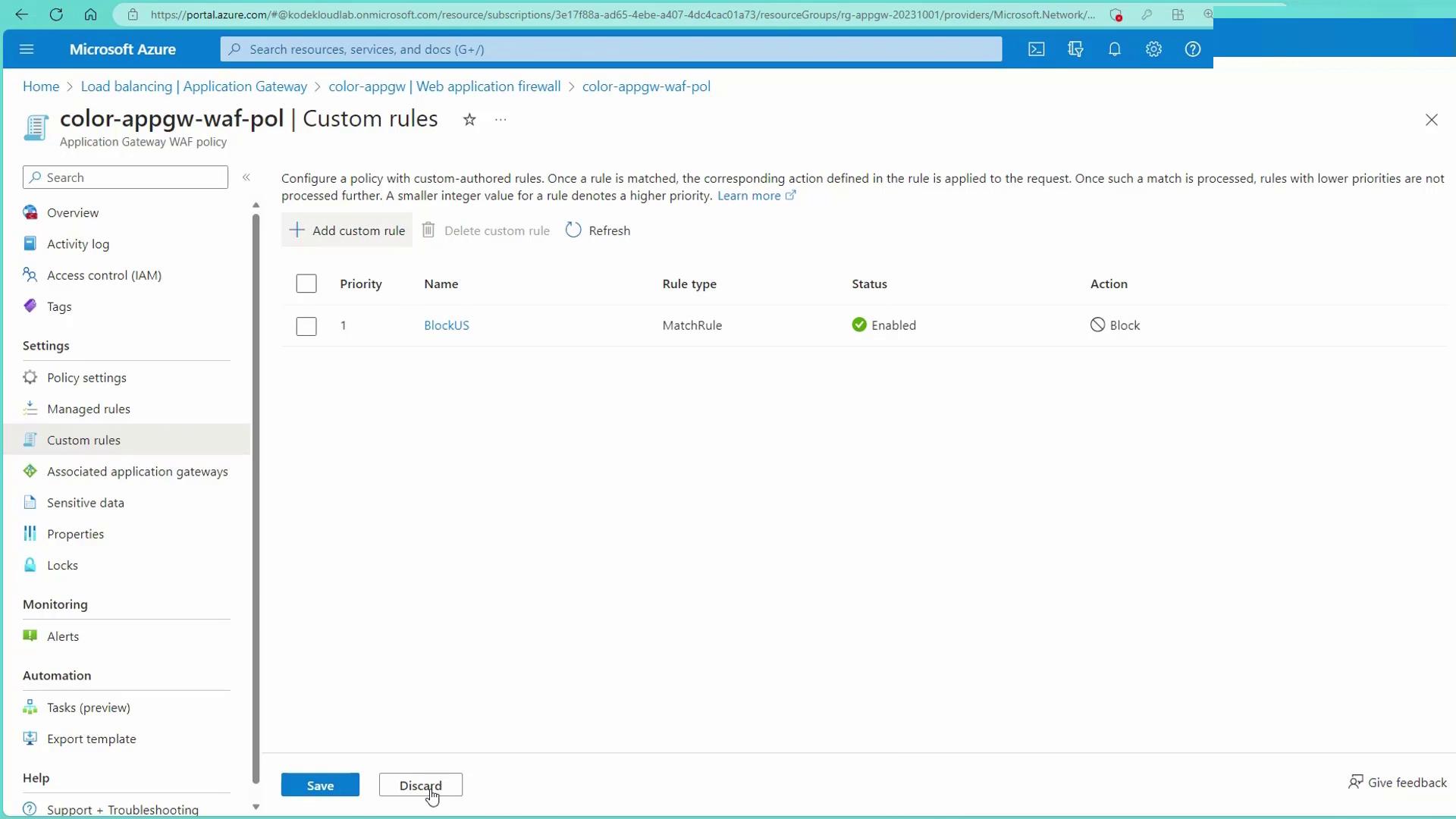
Remember: If the WAF remains in detection mode, custom rules will only log and alert without actively blocking traffic. To enforce blocking, switch the WAF to prevention mode.
Testing the WAF Configuration
After switching to prevention mode, validate your configuration using a jump box deployed in East US. Below is an example session that demonstrates web server checks and the WAF’s blocking behavior.Diagnostic Settings and Logging
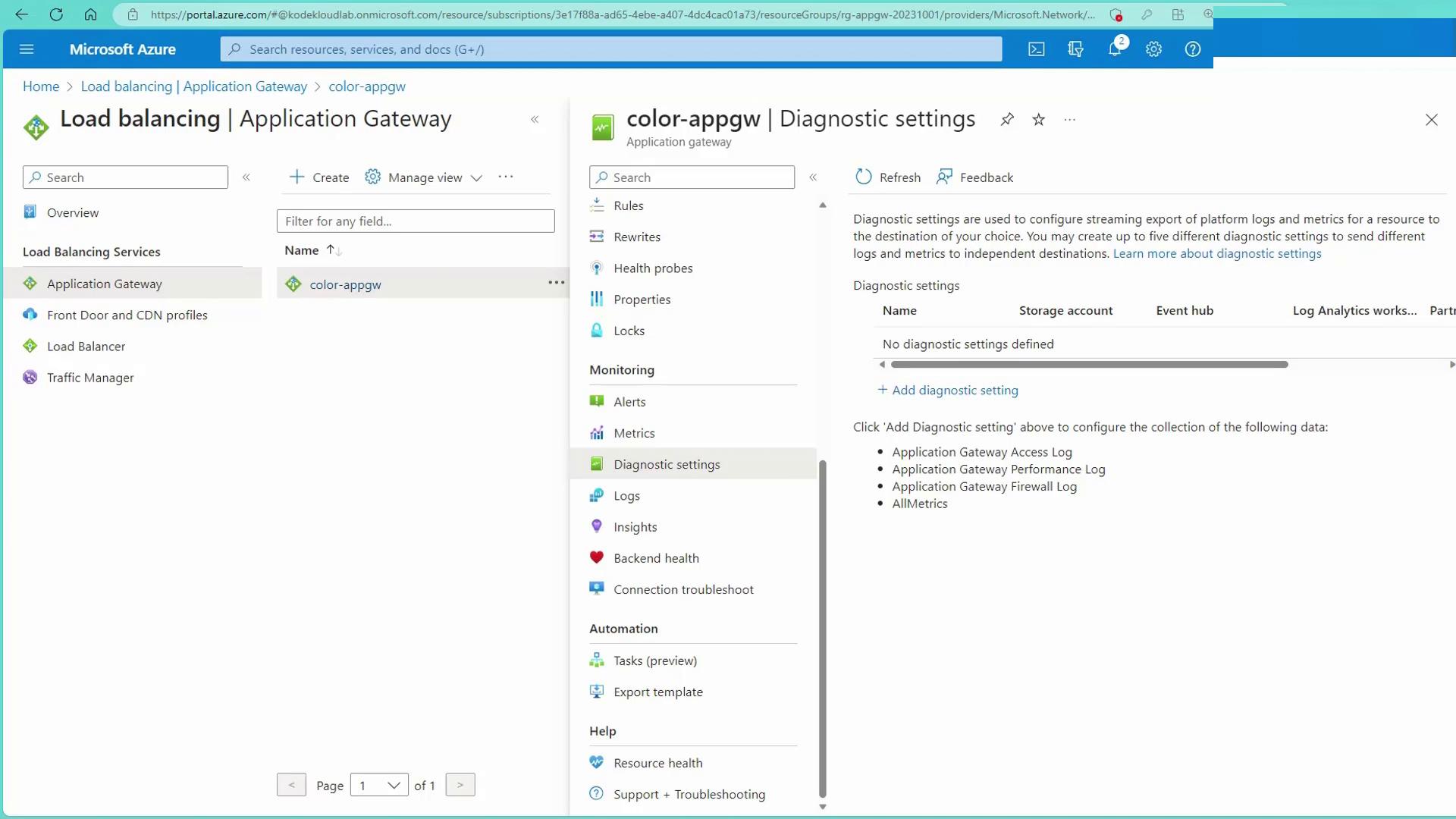
Enable diagnostic settings to send firewall logs to a Log Analytics workspace. These logs provide insights into blocked requests, potential vulnerabilities, and overall application security events.