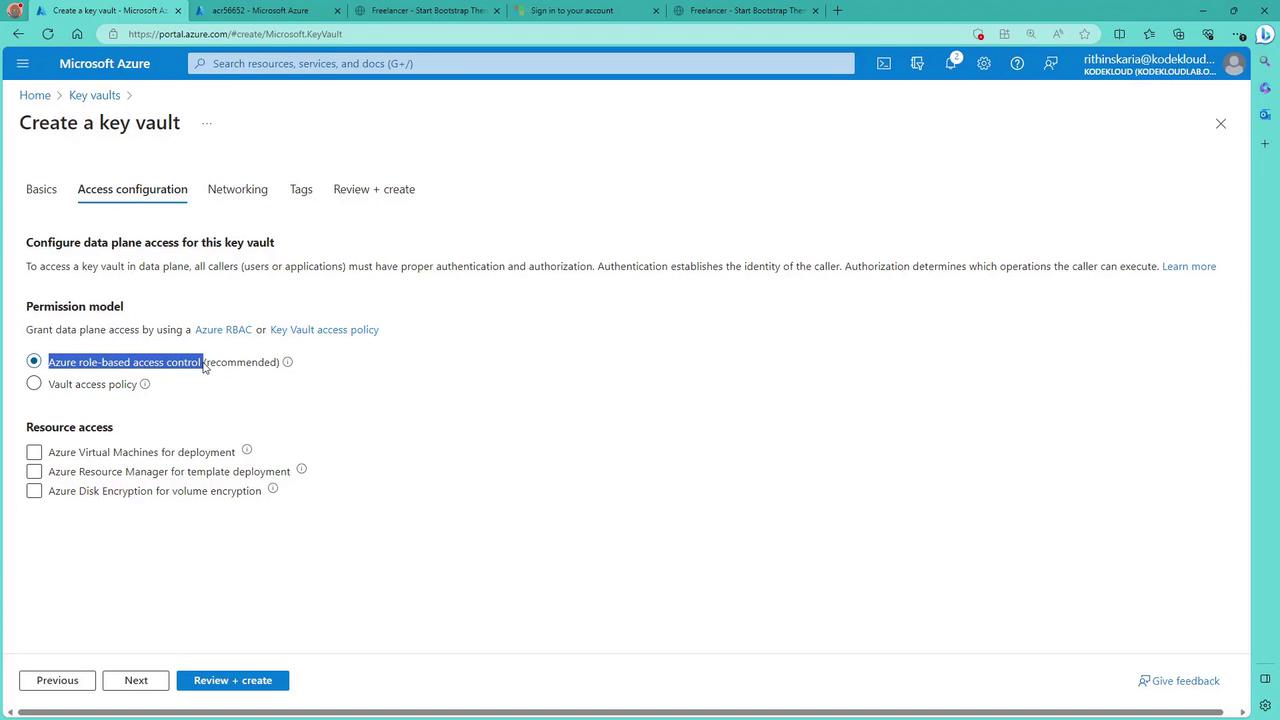
- RBAC is primarily used for management plane operations (e.g., creating, updating, or deleting the Key Vault, retrieving vault properties, and managing access policies).
- For the data plane—which involves keys, secrets, and certificates—permissions must be granted through the Key Vault Access Policy. However, you can also use RBAC for the data plane if preferred.
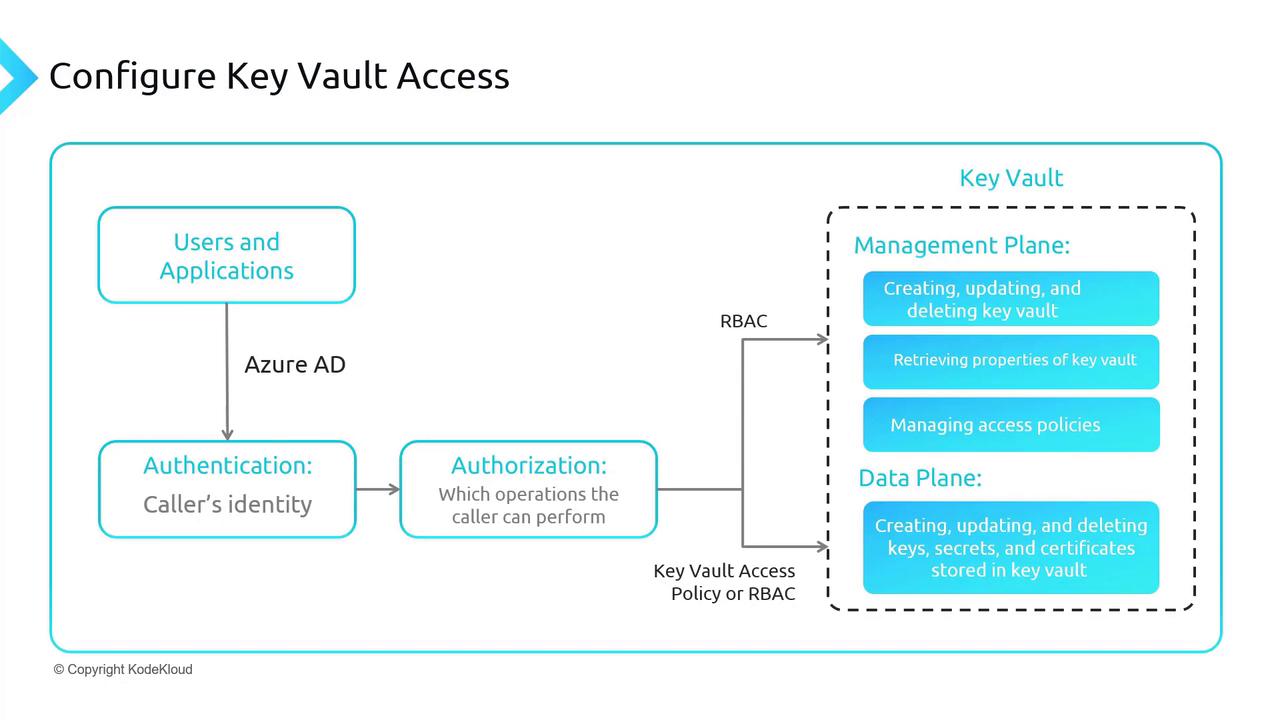
- Users authenticate using Azure AD.
- Authorization is executed using either RBAC or Key Vault Access Policies.
- RBAC controls management plane activities, while the Access Policy secures data plane elements.
- If needed, RBAC can fully replace Access Policies.
- Deploy a new Key Vault
- Add a secret, key, and certificate
- Configure access using both Access Policies and RBAC
Deploying a New Key Vault
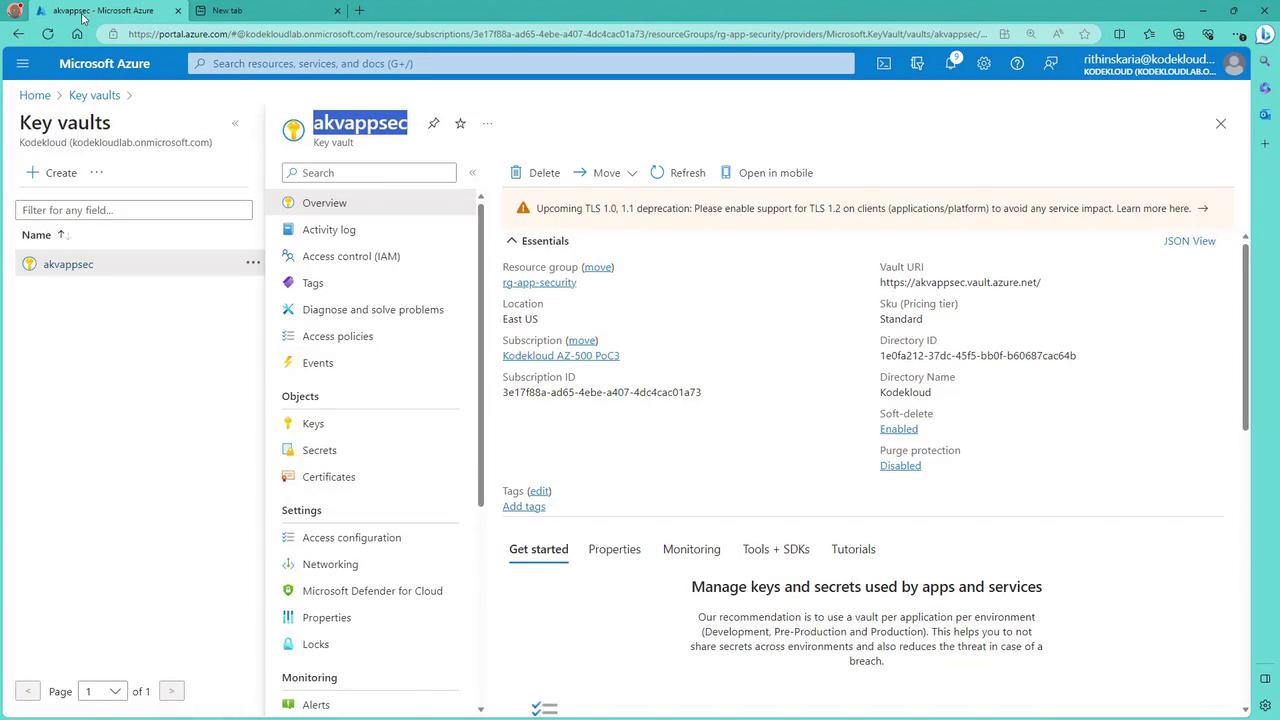
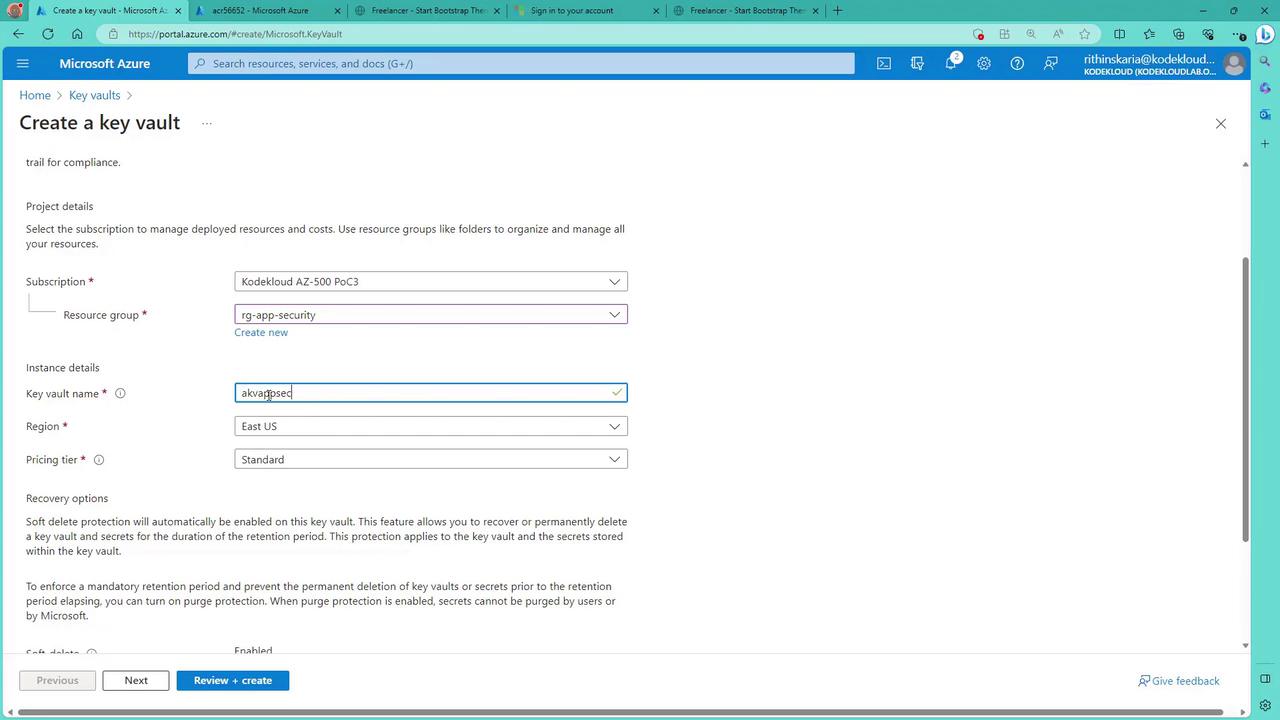
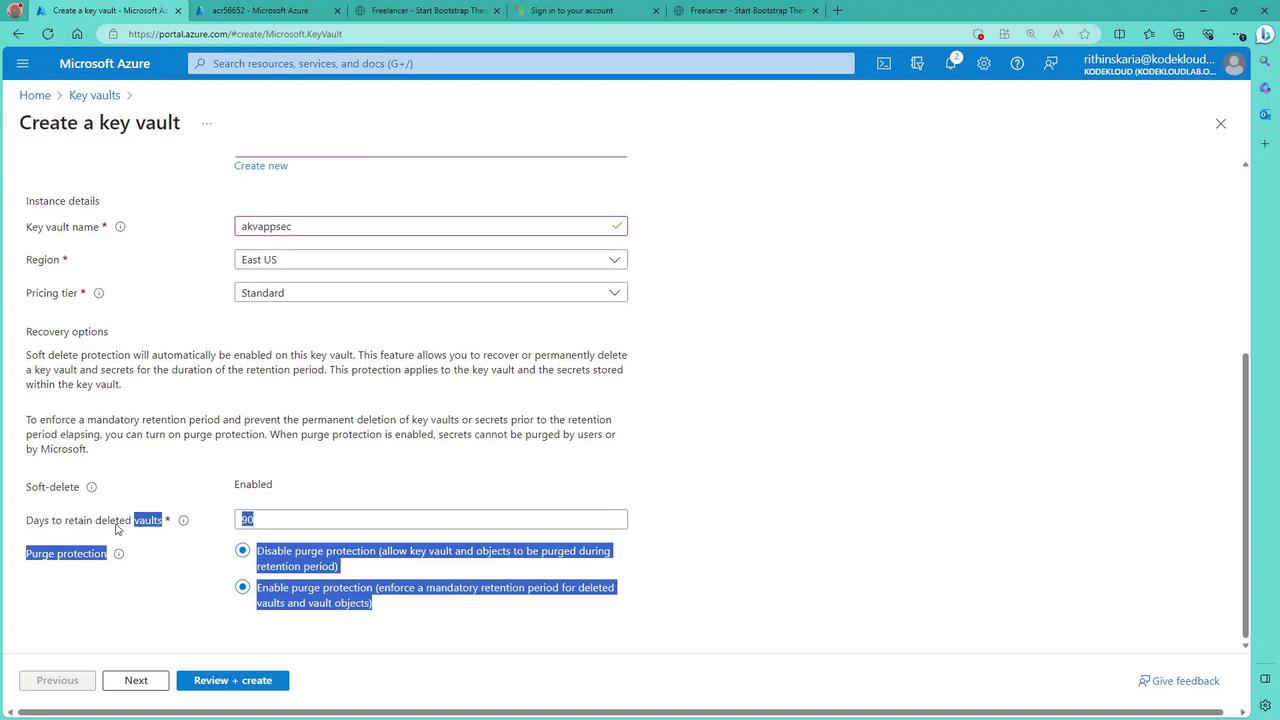
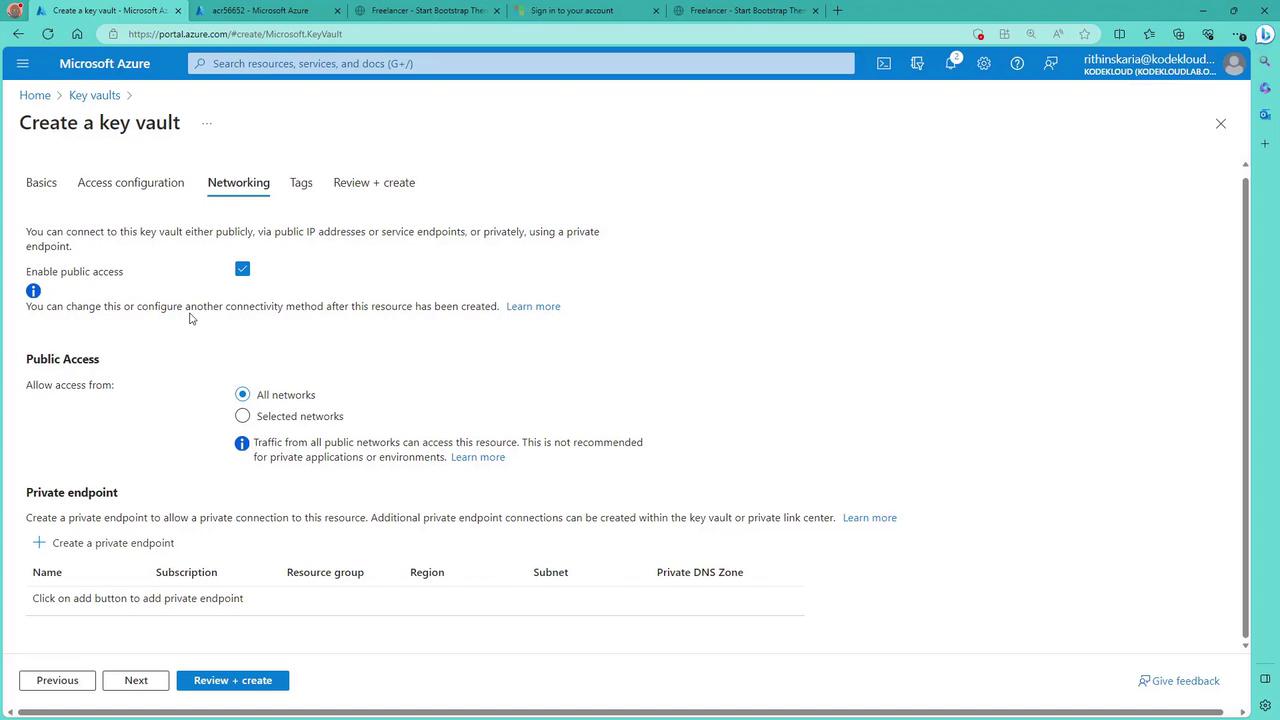
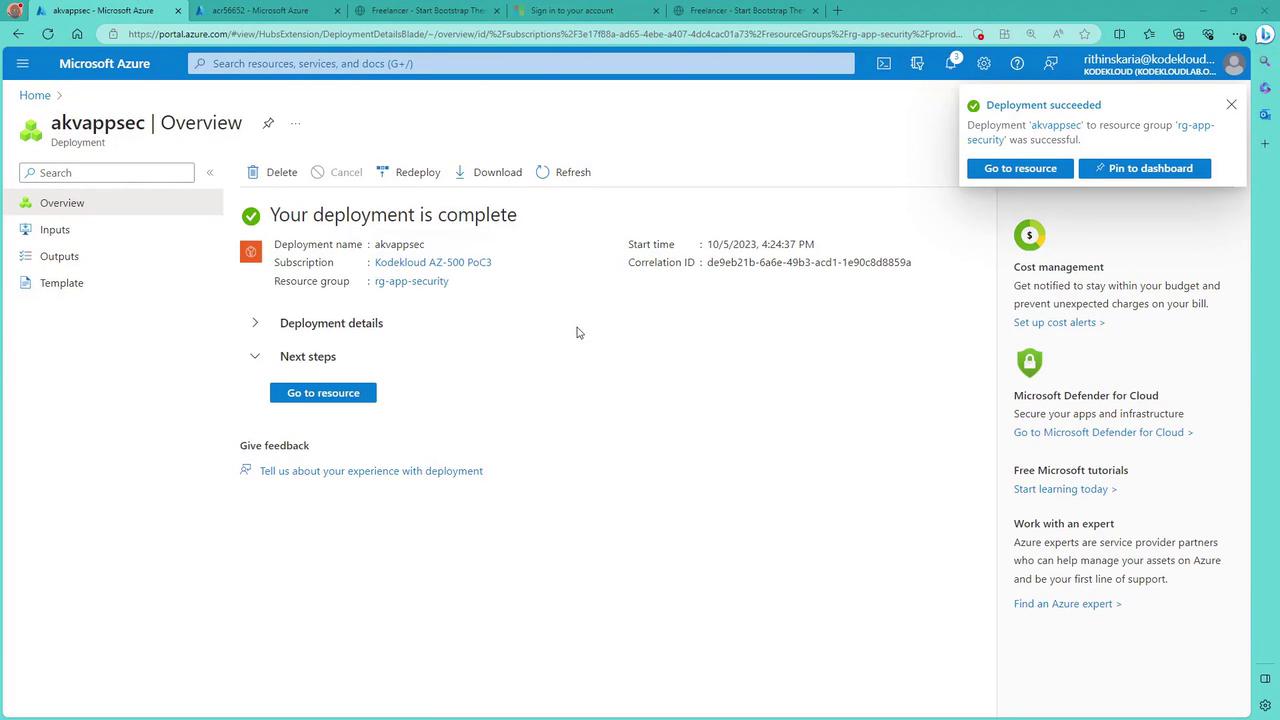
Within the Azure Portal, search for “Key Vault”. Even if you have an existing vault (for example, one created for Azure Disk Encryption), this demonstration involves creating a new one. Select your desired resource group (such as “RG App Security”) and provide a unique name like “AKV AppSec”. The Key Vault’s data plane URL is in the format:yourKeyVaultName.vault.azure.net
This URL format ensures uniqueness across Azure.
Configuring Data Plane Access with RBAC
When retrieving objects like keys from the Key Vault, you might encounter notifications stating that the operation is not permitted through RBAC—even for subscription owners. This is because the data plane operations require explicit RBAC roles. To modify keys, secrets, or certificates, assign roles like “Key Vault Administrator” to allow full management access. Other available roles include “Certificate Officer”, “Key Vault Contributor”, “Key Vault Crypto Officer”, and “Key Vault Reader”.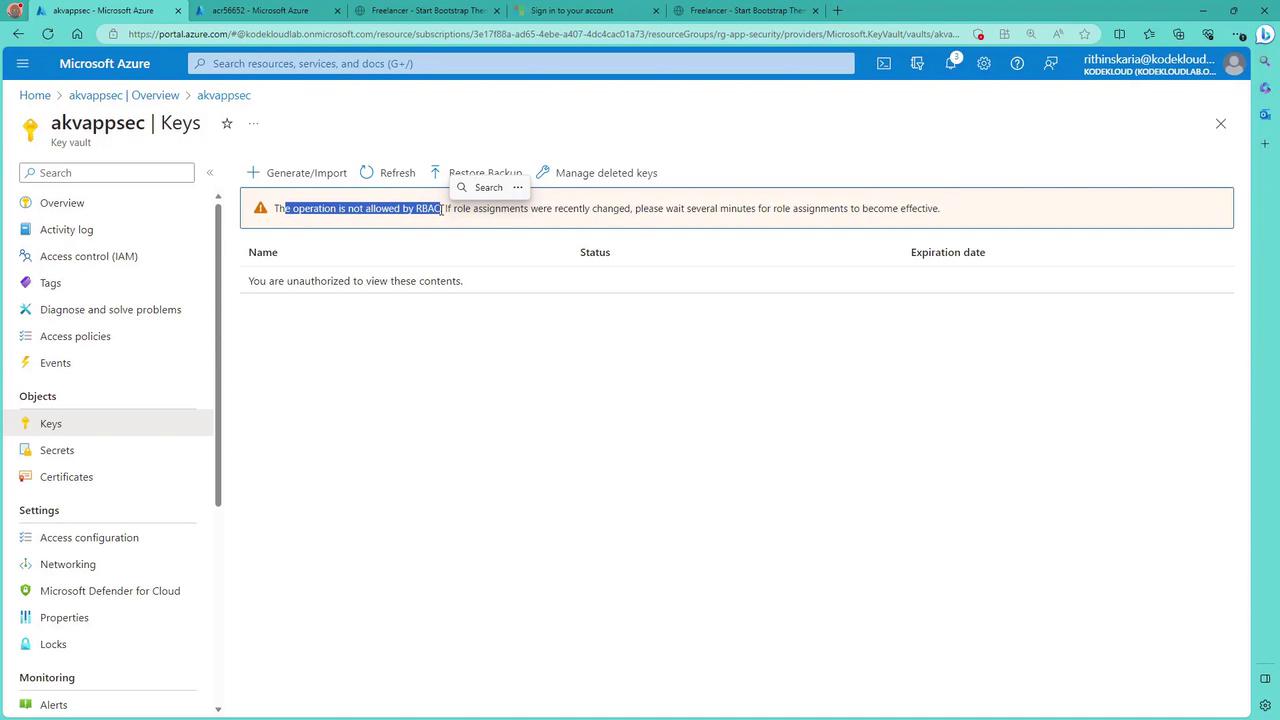
Working with Keys, Secrets, and Certificates
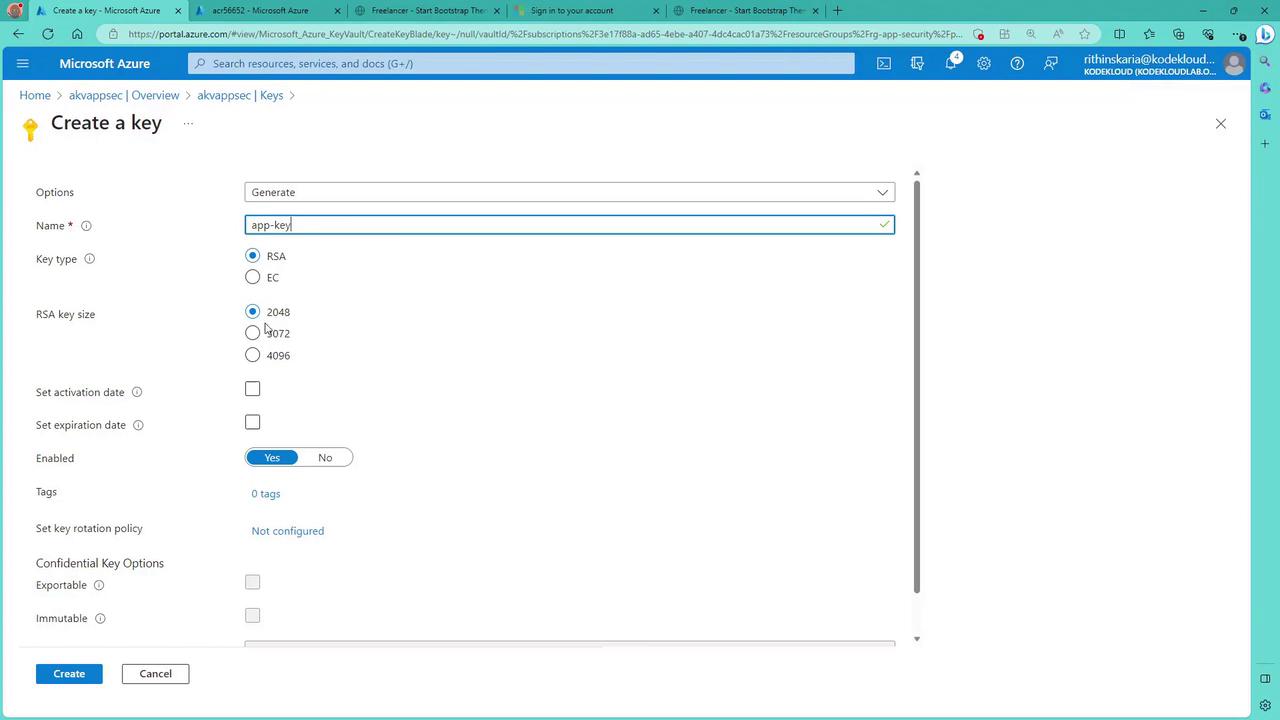
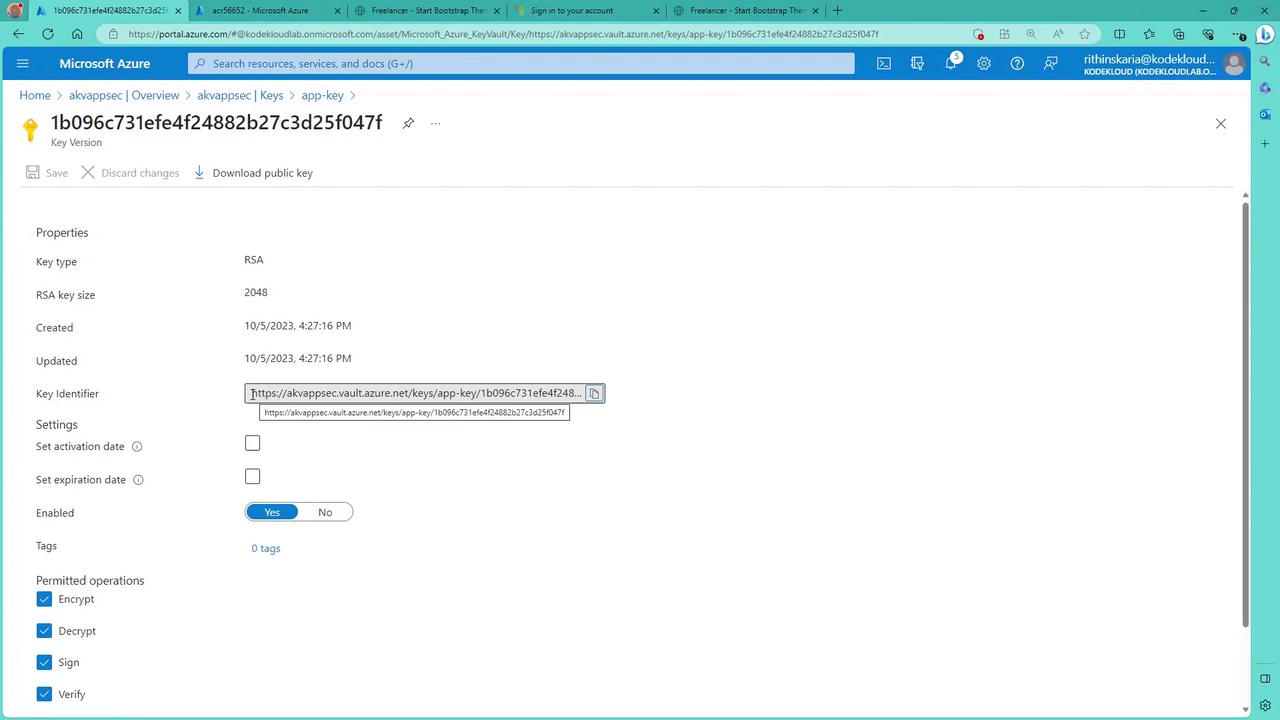
Creating a Key
- Navigate to the “Keys” section.
- Choose to generate, import, or restore a backup of a key. For this example, create an “app key” using RSA 2048.
- Optionally, set an expiration date, define a rotation policy, and adjust export or immutability settings.
- Click “Create” when ready.
Creating a Secret
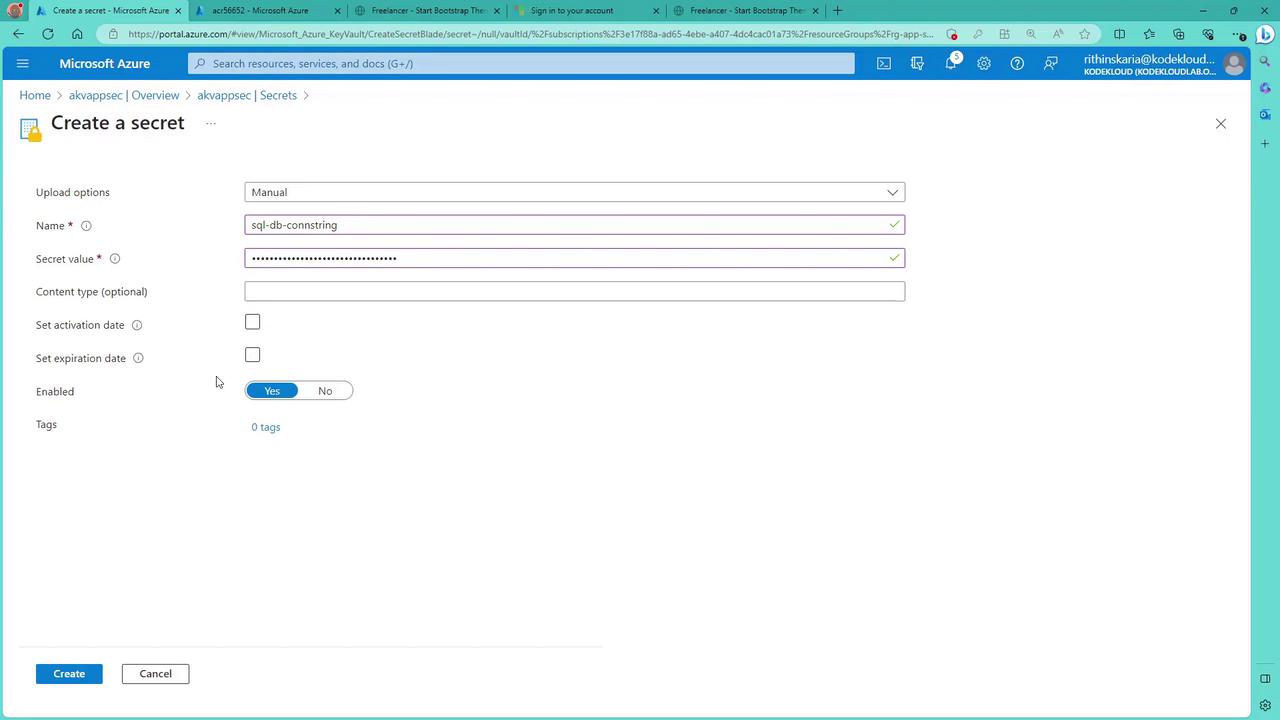
- Select “Secrets” and opt for manual input (or file upload if needed).
- For example, store a SQL database connection string as a secret.
- Set optional details such as activation and expiration dates.
- Click “Create”.
Creating a Certificate
- Navigate to “Certificates” to create a new certificate.
- For example, create an SSO certificate with a subject CN such as “KodeKloud.com”.
- Optionally, add DNS names, set a validity period, and configure automatic renewal when the certificate reaches 80% of its lifetime.
- Click “Create”.
- After deployment, enable and review detailed certificate properties (note that some details may take a few minutes to load).
Managing RBAC Role Assignments for the Data Plane
When accessing keys, secrets, or certificates in Key Vault, specific RBAC roles must be assigned regardless of subscription-level privileges. For instance, to retrieve secrets, an application needs the “Secret User” role; to access keys, the “Crypto User” role may be required. Here are some common roles: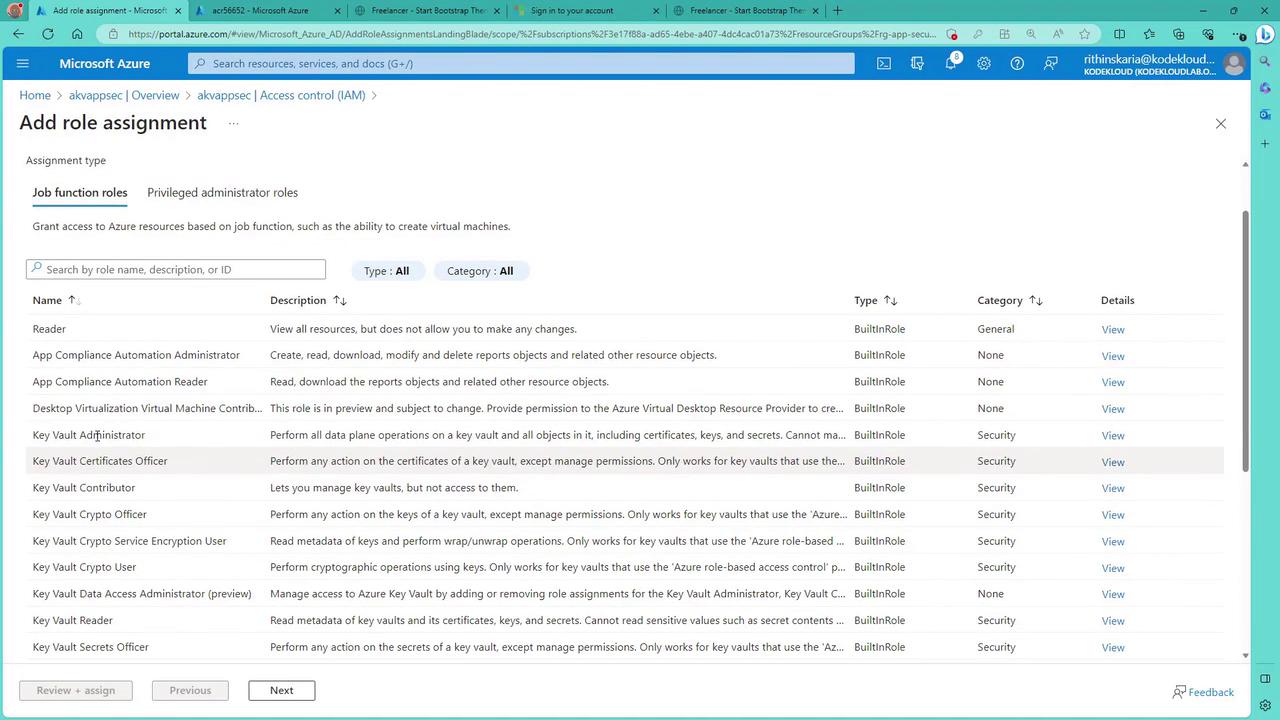
Always assign only the necessary roles to users and applications to adhere to the principle of least privilege.
Accessing Azure Key Vault Using a Function App
This section demonstrates how an application can retrieve a Key Vault secret using an HTTP-triggered Function App running PowerShell code. The deployment process involves:- Creating a Function App configured with HTTP trigger.
- Utilizing an Azure AD–created service principal whose client ID, client secret, tenant ID, and service principal name are provided as environment variables.
- Passing the Key Vault name and secret name as URL parameters.
Reviewing the Function App Code
In the Azure Portal, navigate to the “Code + Test” tab for the “RetrieveKey” function. Despite its name, the function retrieves a secret from the Key Vault. The following PowerShell code illustrates the process:To test this configuration:
- Copy the function URL.
- Append the required parameters (for example, keyVaultName and secret) to the URL.
- Open the URL in your browser. If retrieval fails, verify that the service principal has been assigned the appropriate role (e.g., “Secret User”) on the Key Vault.