

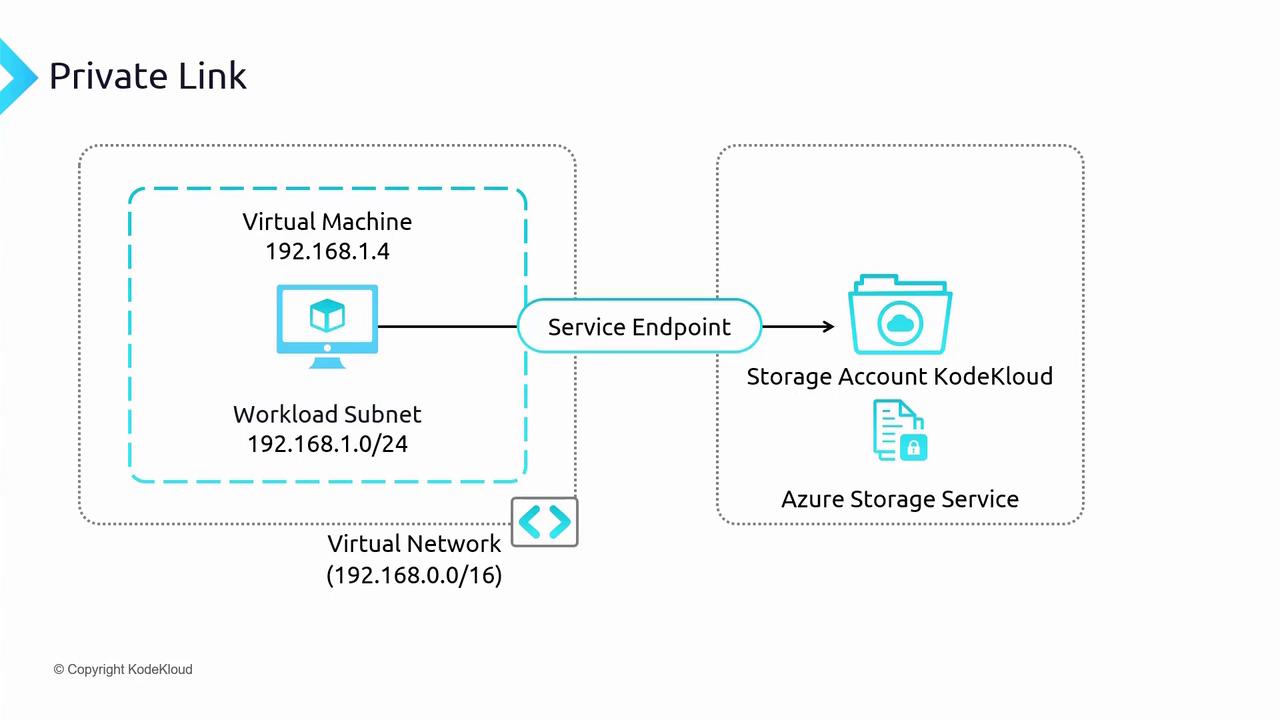
Understanding Connectivity Options
When evaluating Azure connectivity, two prominent features come into play:- Azure Service Endpoints: These allow your virtual network to securely access Azure services over the backbone network. However, with service endpoints, the connection targets the public endpoint of the storage account while retaining your VM’s private IP. This means that the service remains publicly exposed, which might not meet strict security requirements.
- Azure Private Link: By creating a private endpoint for a storage account, the service appears as if it is part of your virtual network. A network interface is created with a private IP address from the VNet address space, enabling secure connectivity from your VM even when the endpoint is deployed in a different VNet (given proper peering).
- Data traffic between your resources and Azure services remains within the private network.
- Azure services are accessed using a private IP, effectively making them part of your own network.
- It supports connectivity between VNets in different regions and provides on-premises access via a private IP.
If your environment requires private IP provisioning within your VNet and strict traffic isolation, Azure Private Link is the recommended solution over service endpoints.
Scenario Overview
Imagine you have previously configured a VM and a storage account with a service endpoint. With the service endpoint, the VM accesses the storage account via its public endpoint, and the traffic, though secured over the backbone network, is not entirely private. To achieve complete privacy, you will disable public network access for the storage account and set up a private connection using a Private Link.
Disabling Public Access
In the Azure portal, you previously set up a service endpoint. Now, disable public network access for your storage account. With public access turned off, the VM will no longer be able to reach the storage account via the service endpoint.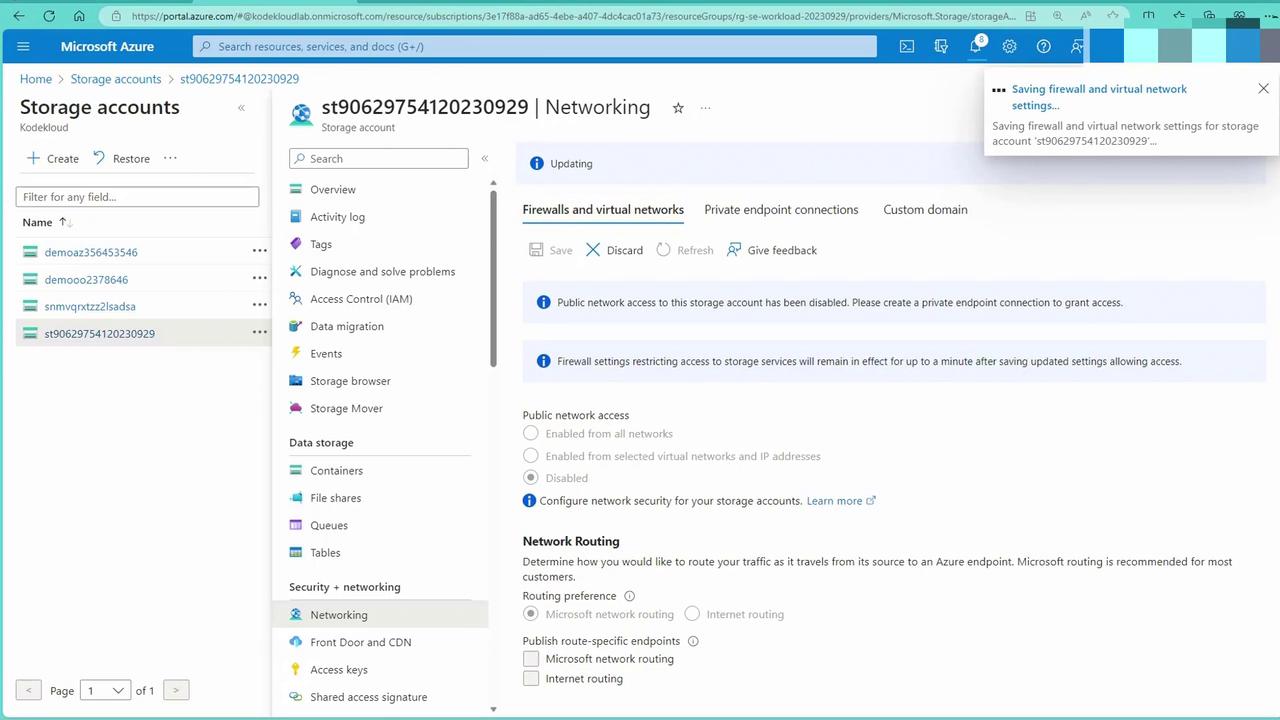
Setting Up a Private Link
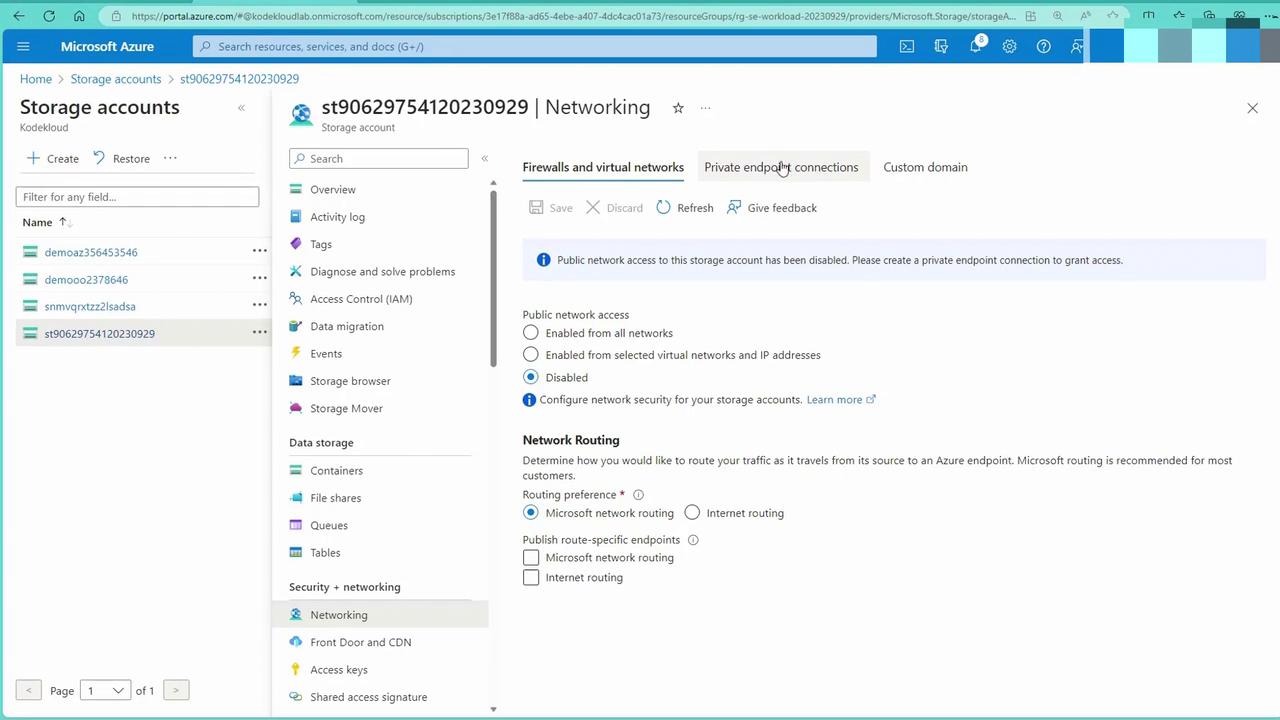
Next, we will create a private connection by configuring a private endpoint:- Navigate to the Private Endpoint Section:
In the Azure portal, go to the private endpoint connection area.
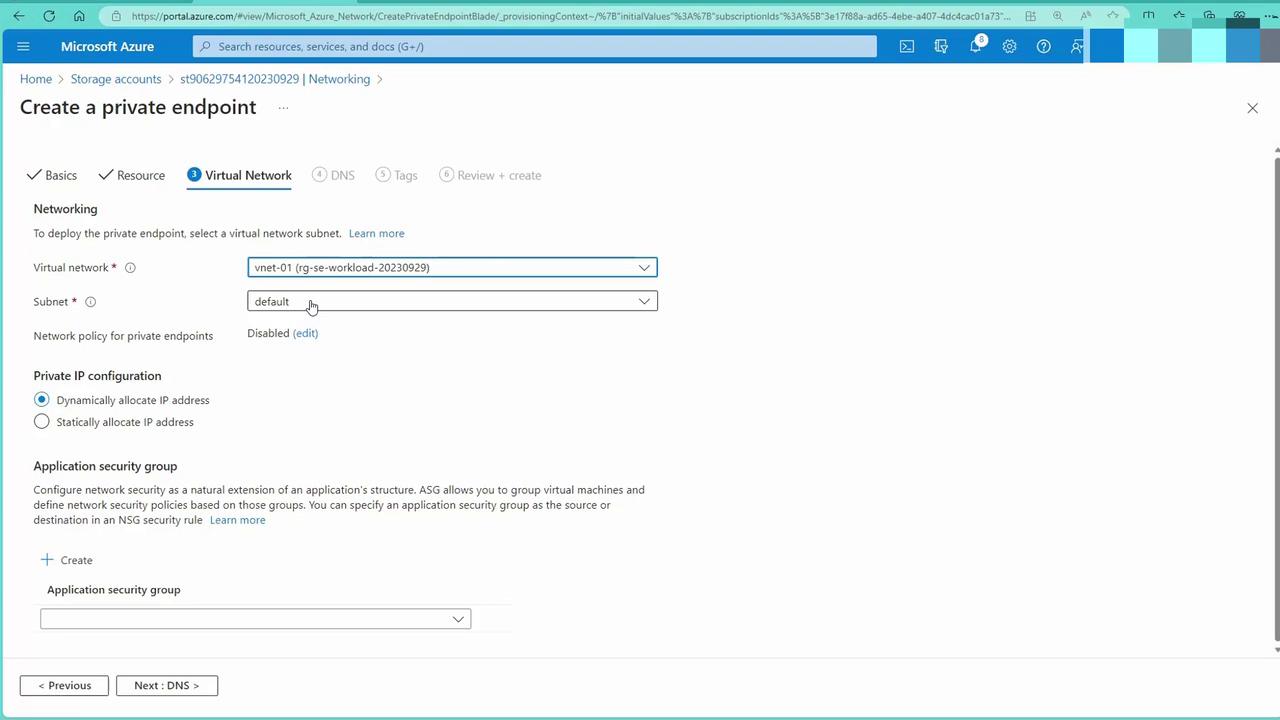
- Create a New Private Endpoint:
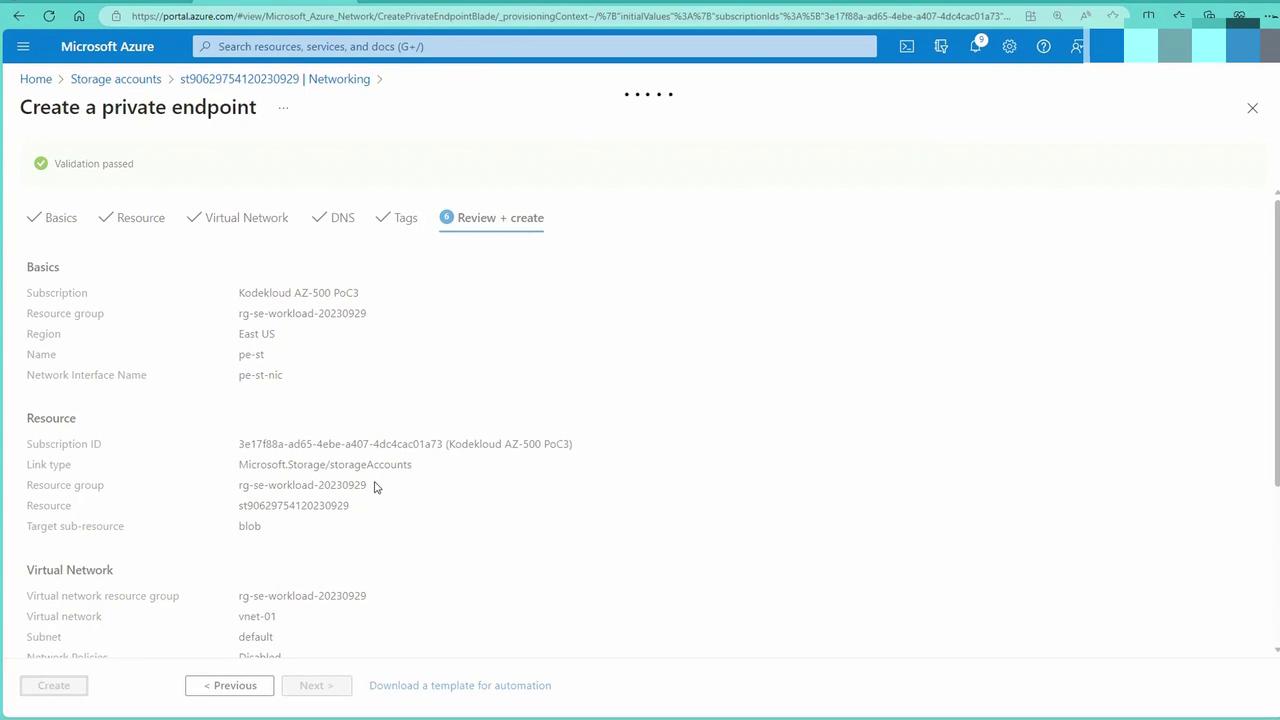
Provide a name (e.g., “PE storage”) and select the blob endpoint on your storage account. For the virtual network, choose the one where your VM resides. The private endpoint can be deployed in the same subnet or a different one—as long as the VNets are peered.
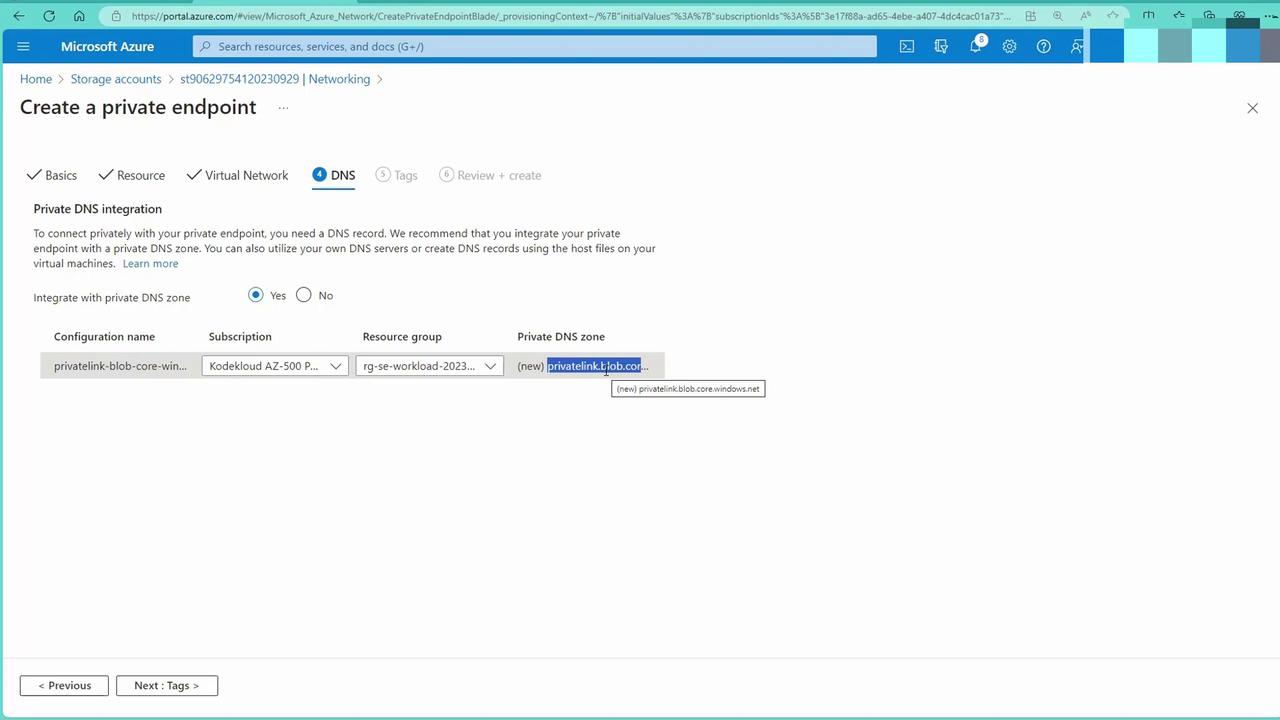
- DNS Integration:
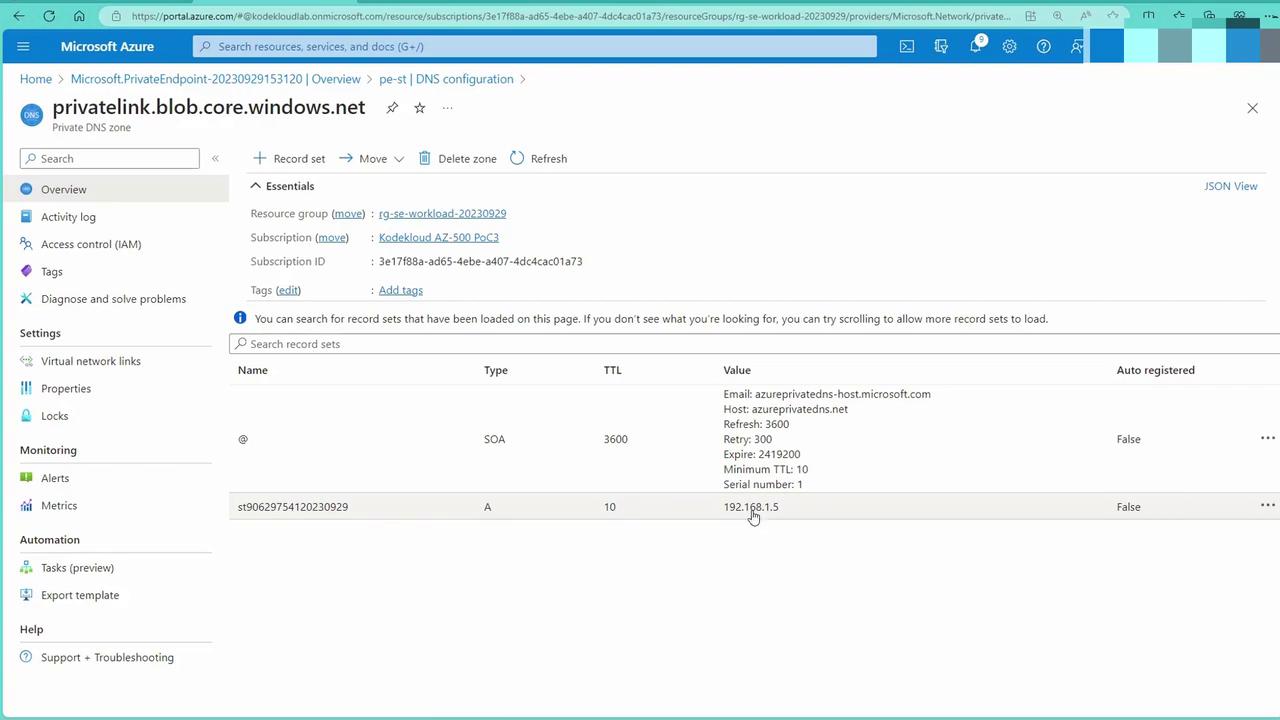
After creating the private endpoint, an automatic private DNS zone (typically named private-link.blob.core.windows.net) is provisioned. This zone includes an A record mapping the storage account’s name to its private IP address.
Ensure that any virtual networks requiring DNS resolution are linked with this private DNS zone. For VMs that use Azure-provided DNS, this setup is seamless. For on-premises environments, you may need to configure a DNS conditional forwarder.
- Review Private Endpoint Details:
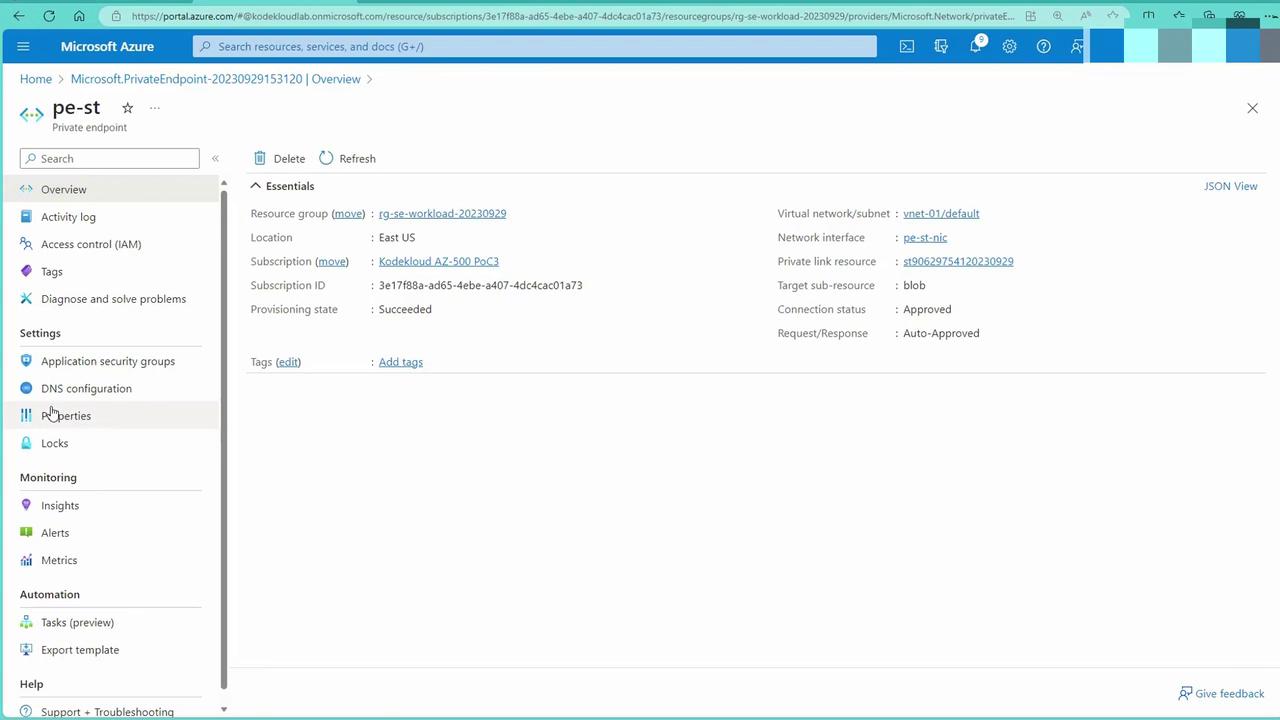
Once deployment completes, verify the private endpoint details in the Azure portal, which include subscription, resource group, and virtual network information.
- Confirm Private DNS Records:
Upon checking the DNS zone associated with the private endpoint, you will see that it includes the DNS record for your storage account.
Verifying DNS Resolution and Connectivity
Return to your VM to validate the new DNS resolution. Use the followingdig command to confirm that the domain resolves to a private IP address and includes a CNAME record pointing to privatelink.blob.core.windows.net:
For more details on private DNS zones and extensive network troubleshooting, refer to the AZ-104: Microsoft Azure Administrator course.