Overview of Alert Rules
Azure Alerts allow you to assign severities (from zero to four) to prioritize alerts and categorize them by user response status (new, acknowledged, or closed). You can also integrate alerts with action groups to define your notification and automation preferences such as email, SMS, phone calls, automation accounts, function apps, logic apps, webhooks, and more. There are four key stages when creating an alert rule:- Scope: Define which resources are included in the alert (similar to RBAC or policy scopes).
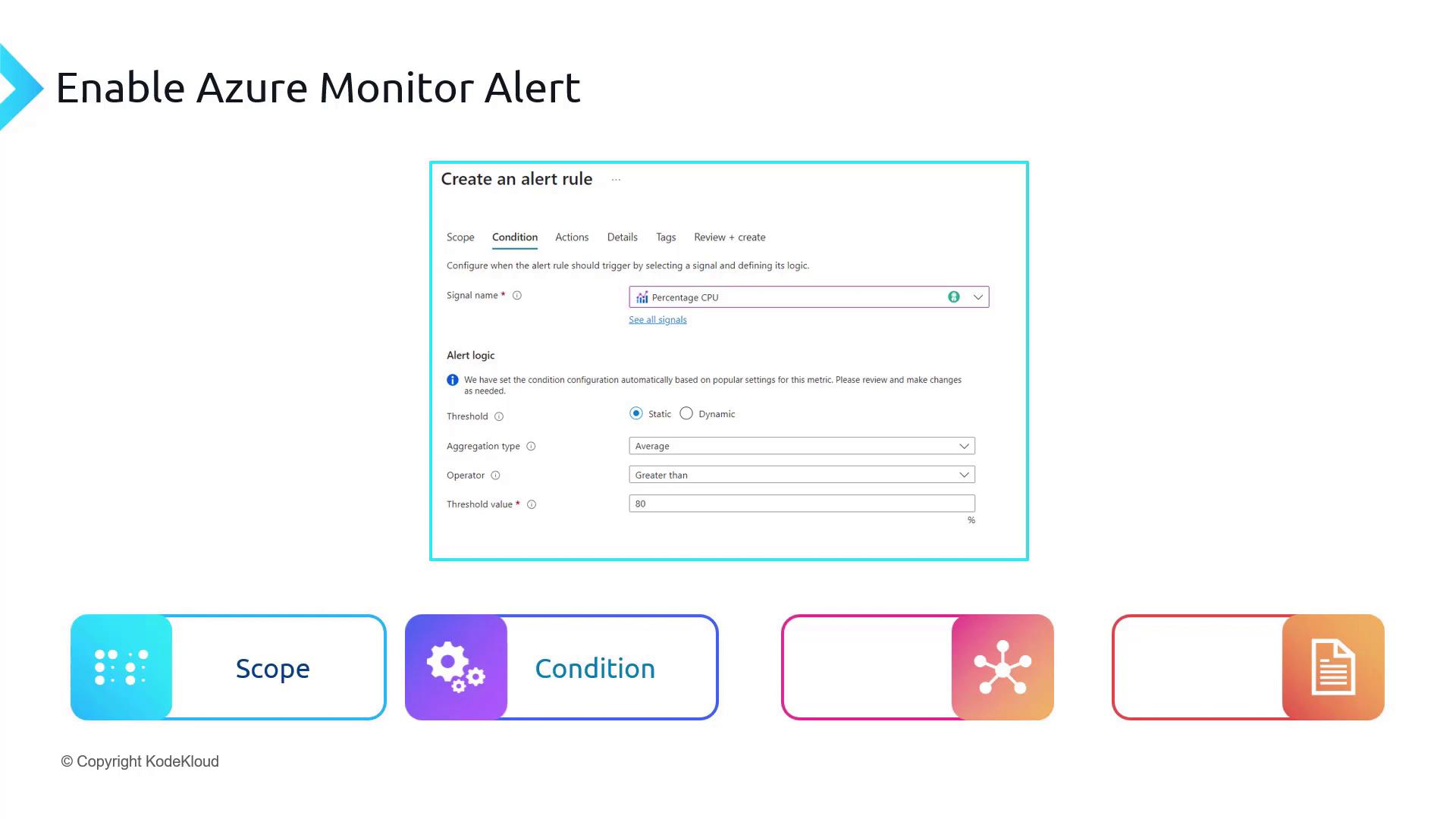
- Condition: Specify the signal (e.g., Percentage CPU) and the criteria (e.g., CPU utilization exceeding 80%) that trigger the alert.
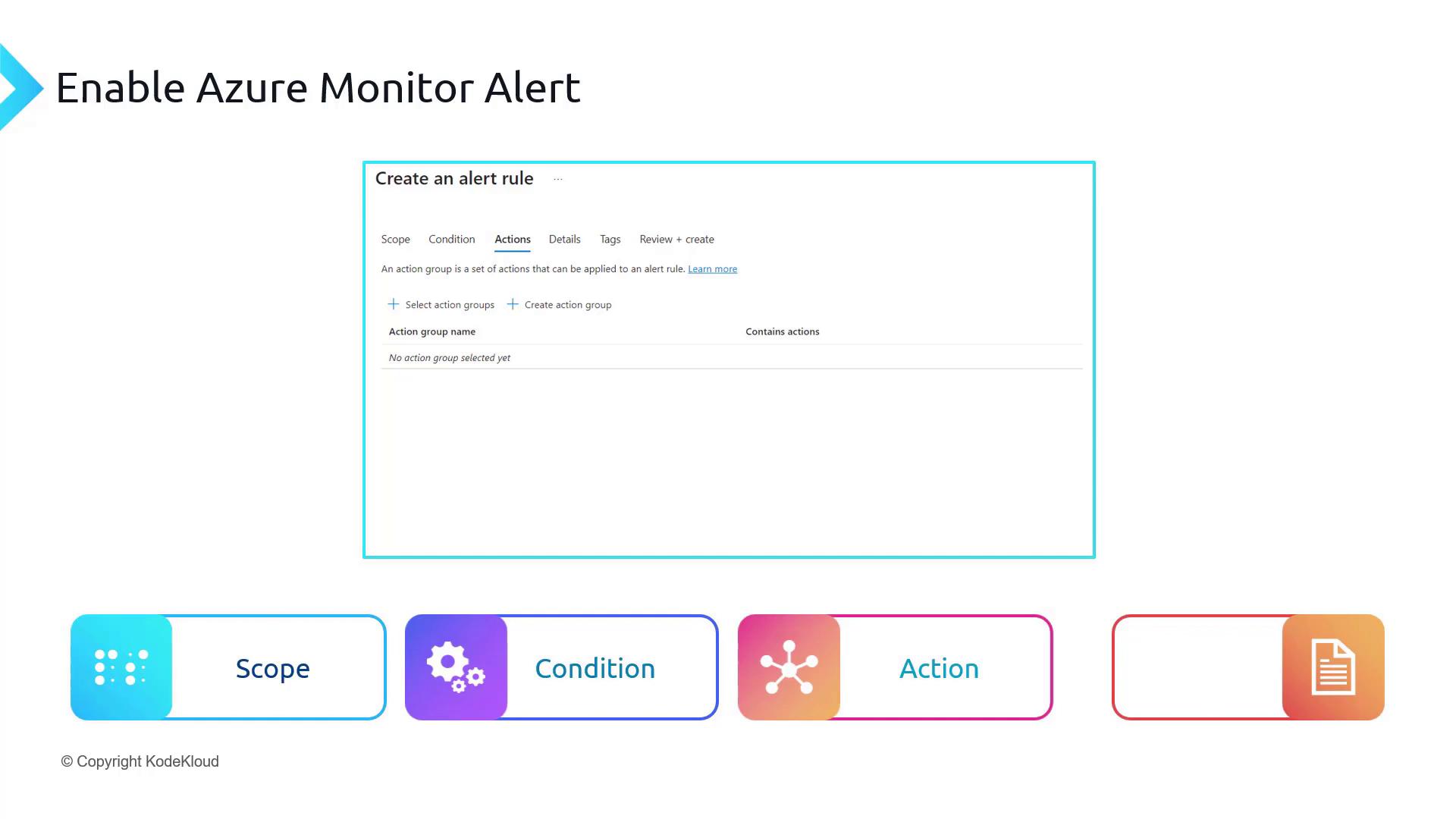
- Action: Configure an action group—the set of notification and automation actions to execute when the alert fires.
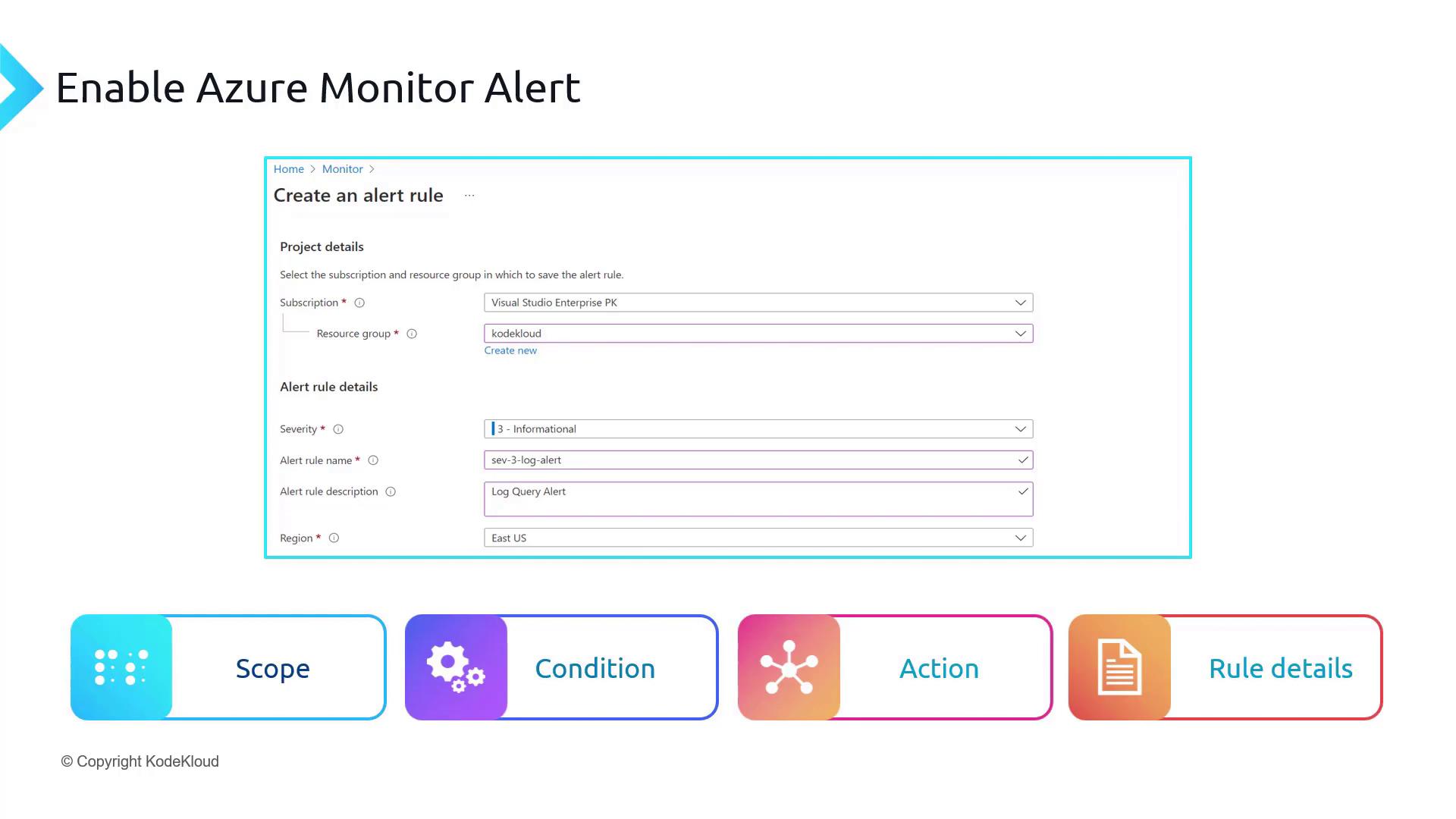
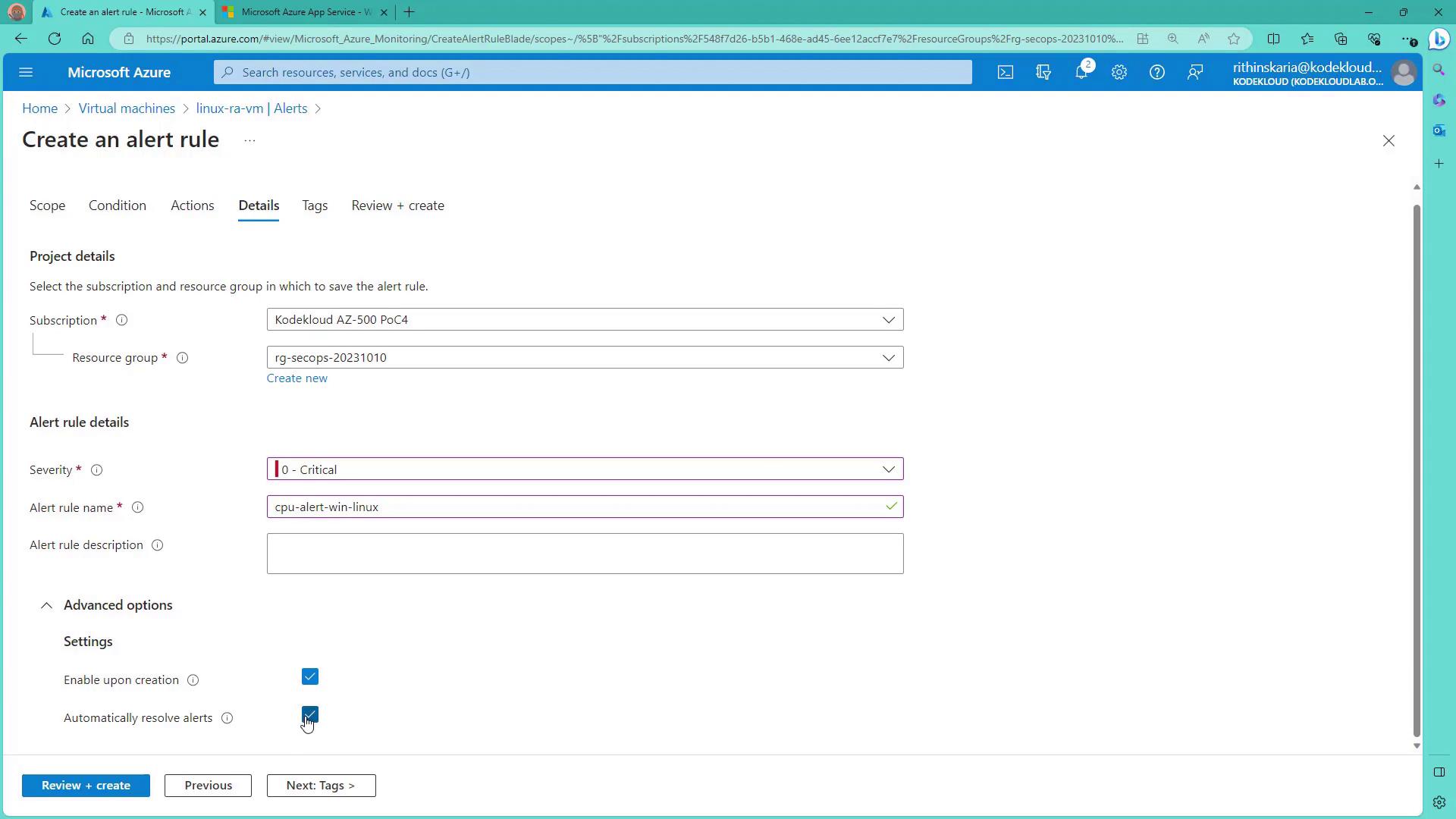
- Rule Details: Provide the alert rule name, description, and severity to help identify and prioritize alerts.
The following image illustrates how to select the resource scope for your alert. In this example, you can see the “Create an alert rule” interface in Azure Monitor with icons representing steps like Scope, Condition, Actions, and Details.
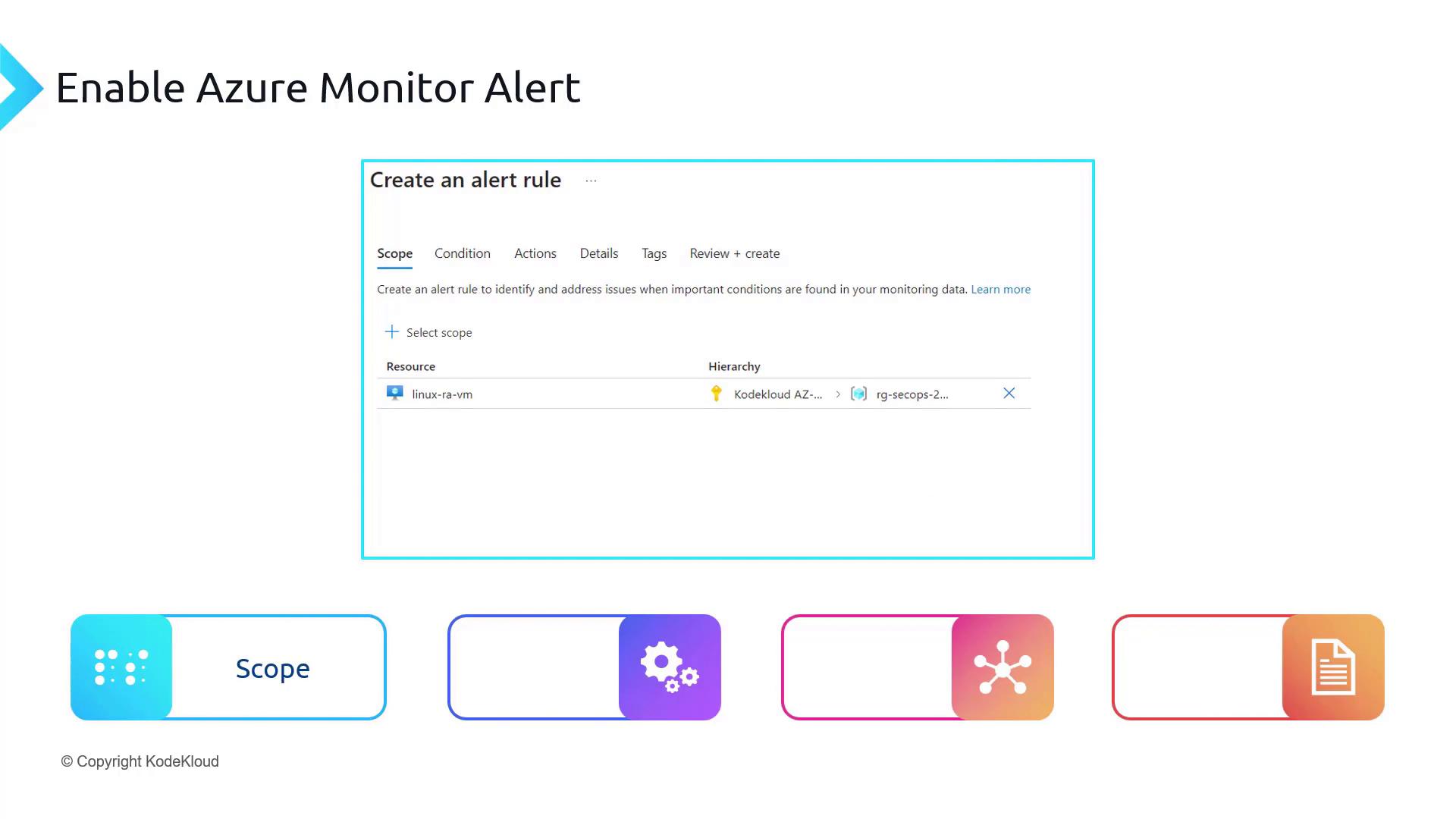
Next, define the Condition. In this stage, you set up the signal (for example, Percentage CPU) and the criteria (for example, triggering the alert when CPU utilization exceeds 80%). When the measured value exceeds this threshold, the alert is activated.
The Action stage involves assigning an action group. Action groups manage the notification and automation preferences, such as sending emails, SMS messages, or triggering an automation runbook when the alert is activated.
Finally, the Rule Details stage requires you to provide the alert rule name, description, and severity. This information helps you quickly identify and prioritize alerts when you receive notifications—for example, via email.
Action Groups: Notification and Automation Preferences
Action groups let you configure both notification options (such as emailing Azure Resource Manager roles like owner, contributor, and reader) and automation options (such as triggering an automation runbook, Azure Function, Logic App, ITSM connector, or webhook). For instance, you can specify a group email address so that multiple team members are alerted simultaneously when an alert is triggered. In the Azure portal, select the notification and action types while creating the action group. The image below shows the action group creation interface, where you define these settings: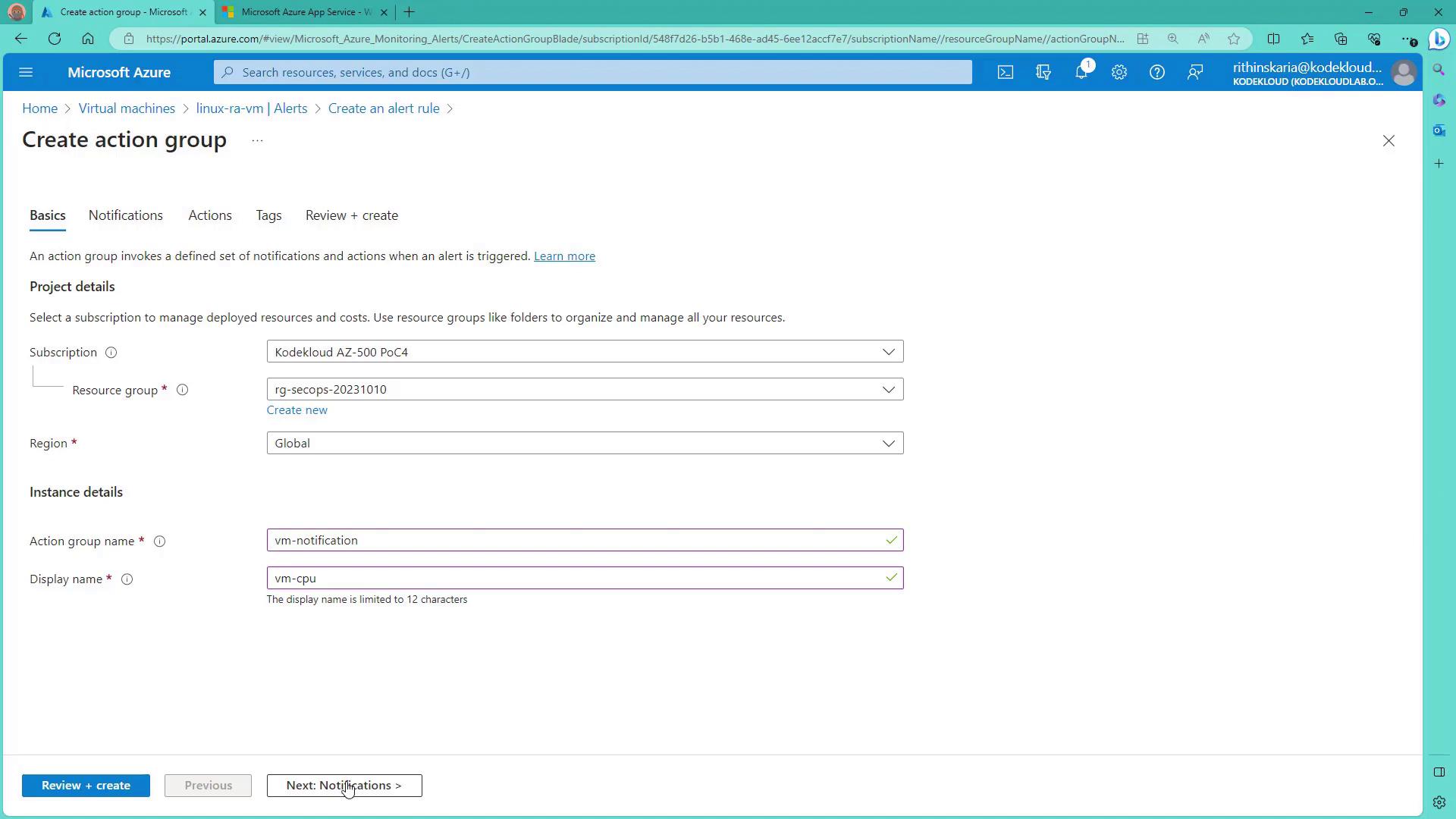
After specifying the alert rule name, severity, and advanced options (such as enabling the rule upon creation), you can review and create the alert. The following diagram confirms that your alert rule has been set up with the necessary conditions and action groups:
Demonstration: Creating an Alert for Log Analytics
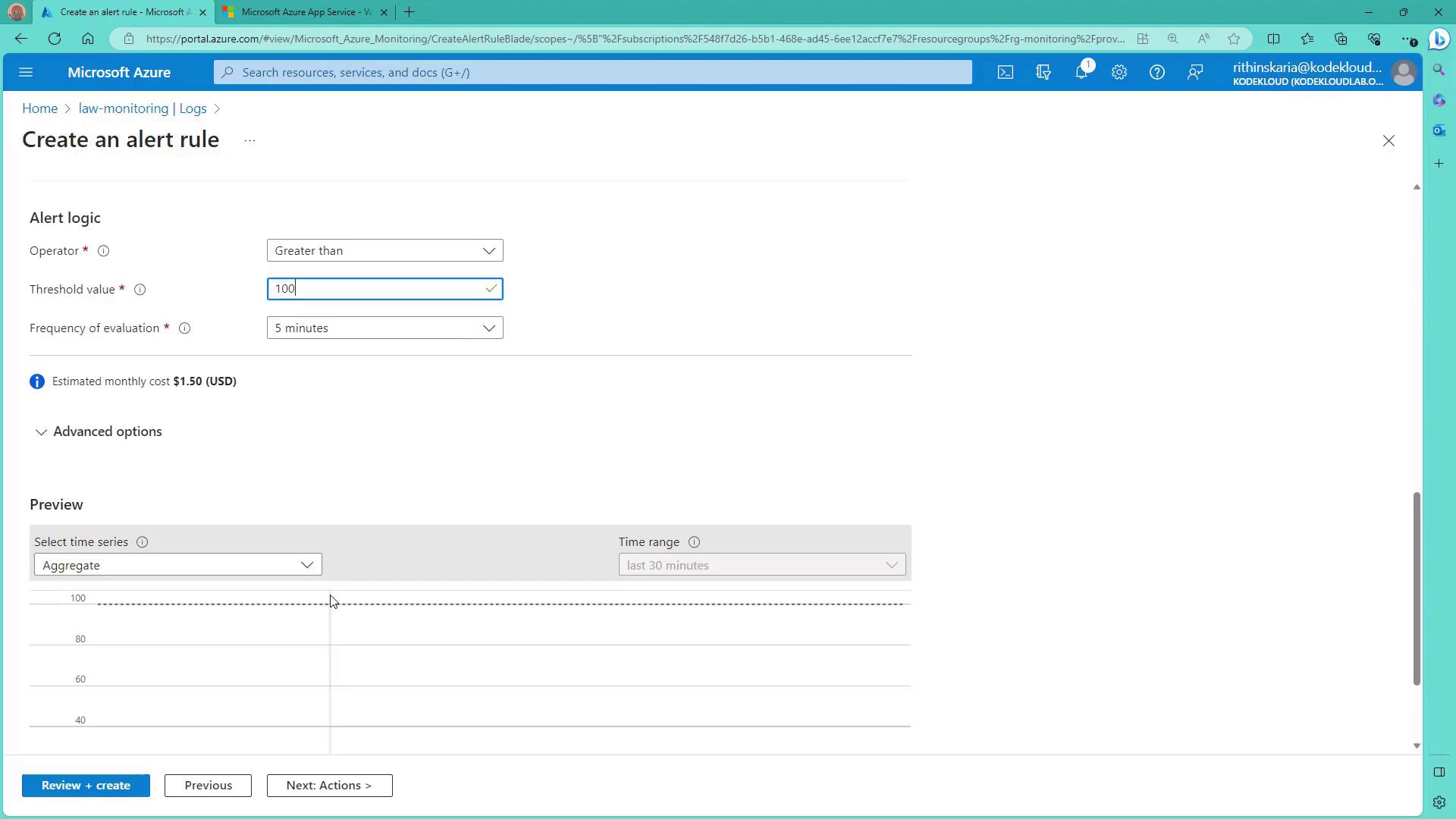
Let’s move from theory to practice. In this demonstration, you’ll learn how to create an alert for a Log Analytics workspace. Suppose you want to monitor App Service HTTP logs to see if the number of requests reaches a specific threshold within 25 minutes. You can begin by running a query on your Log Analytics workspace: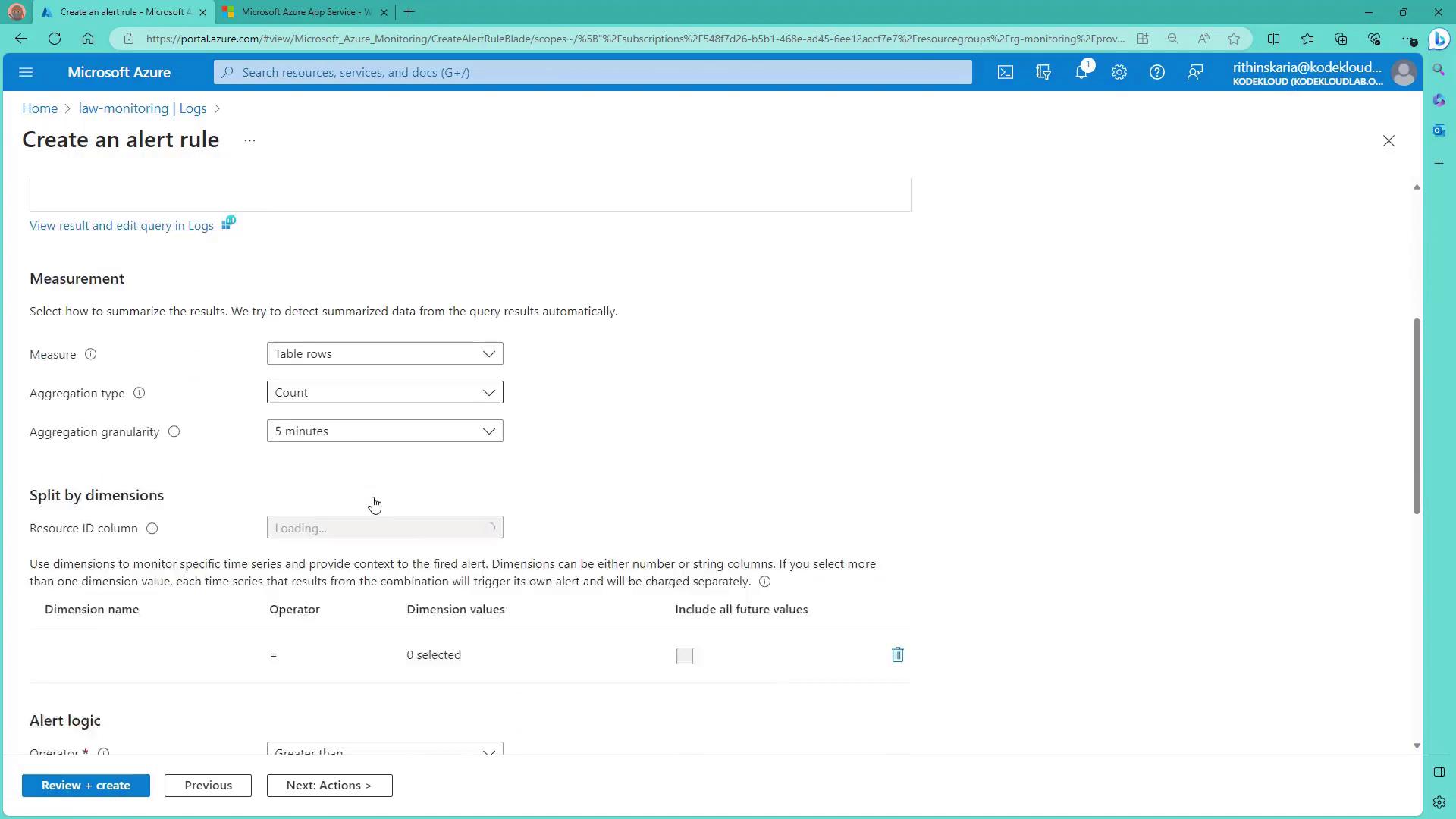
Demonstration: Setting Up an Alert for a Virtual Machine
For critical production servers such as virtual machines, it is essential to receive an alert when CPU usage exceeds a specific threshold. In this demonstration, you will learn how to create an alert for both Linux and Windows VMs:- Navigate to the Virtual Machines section in the Azure portal and select a Linux machine.
- Click on the Alerts blade and choose “Create a custom alert rule.” The resource is auto-selected; if you want to include additional machines (such as a Windows machine), add them to the scope.
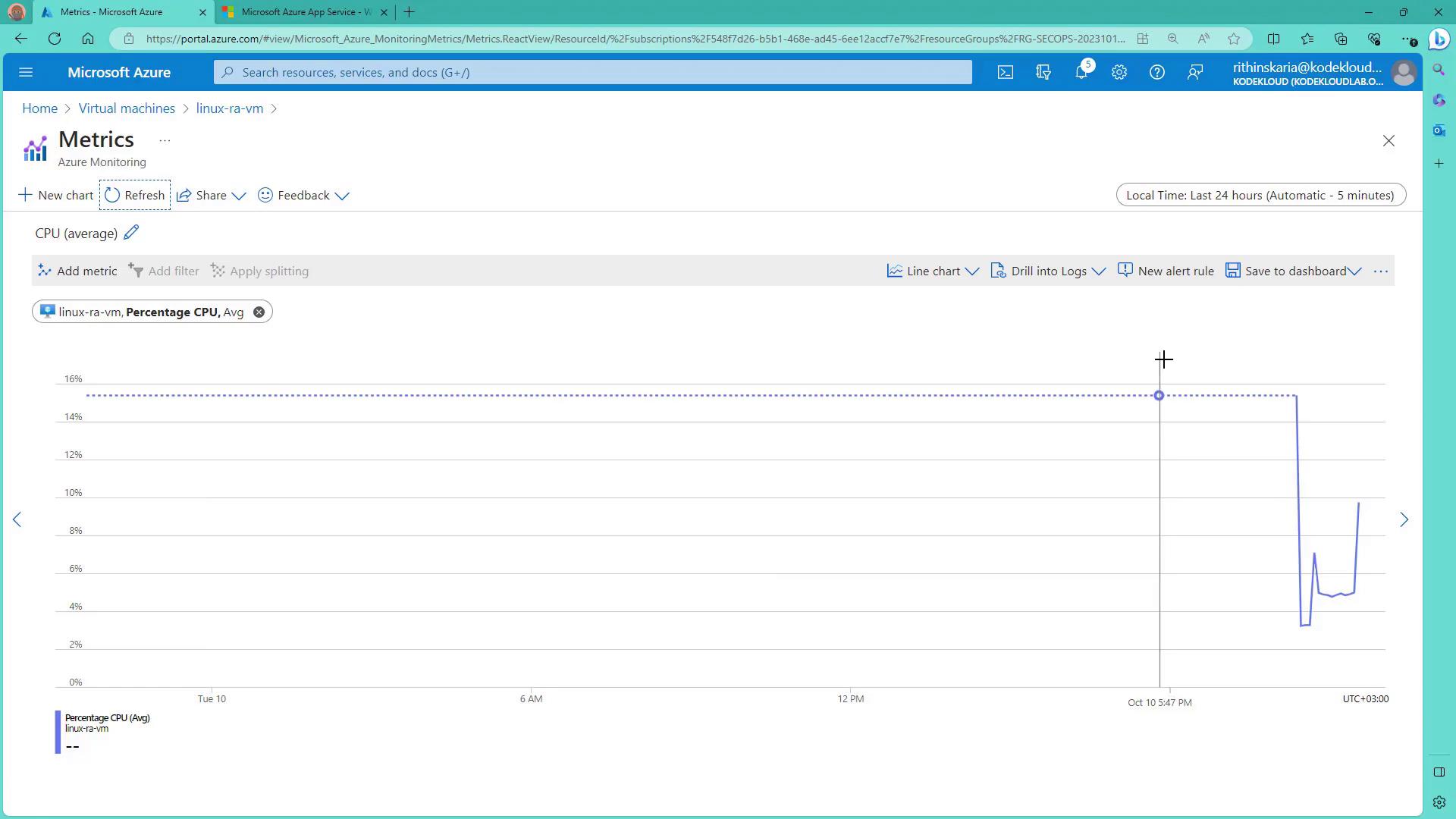
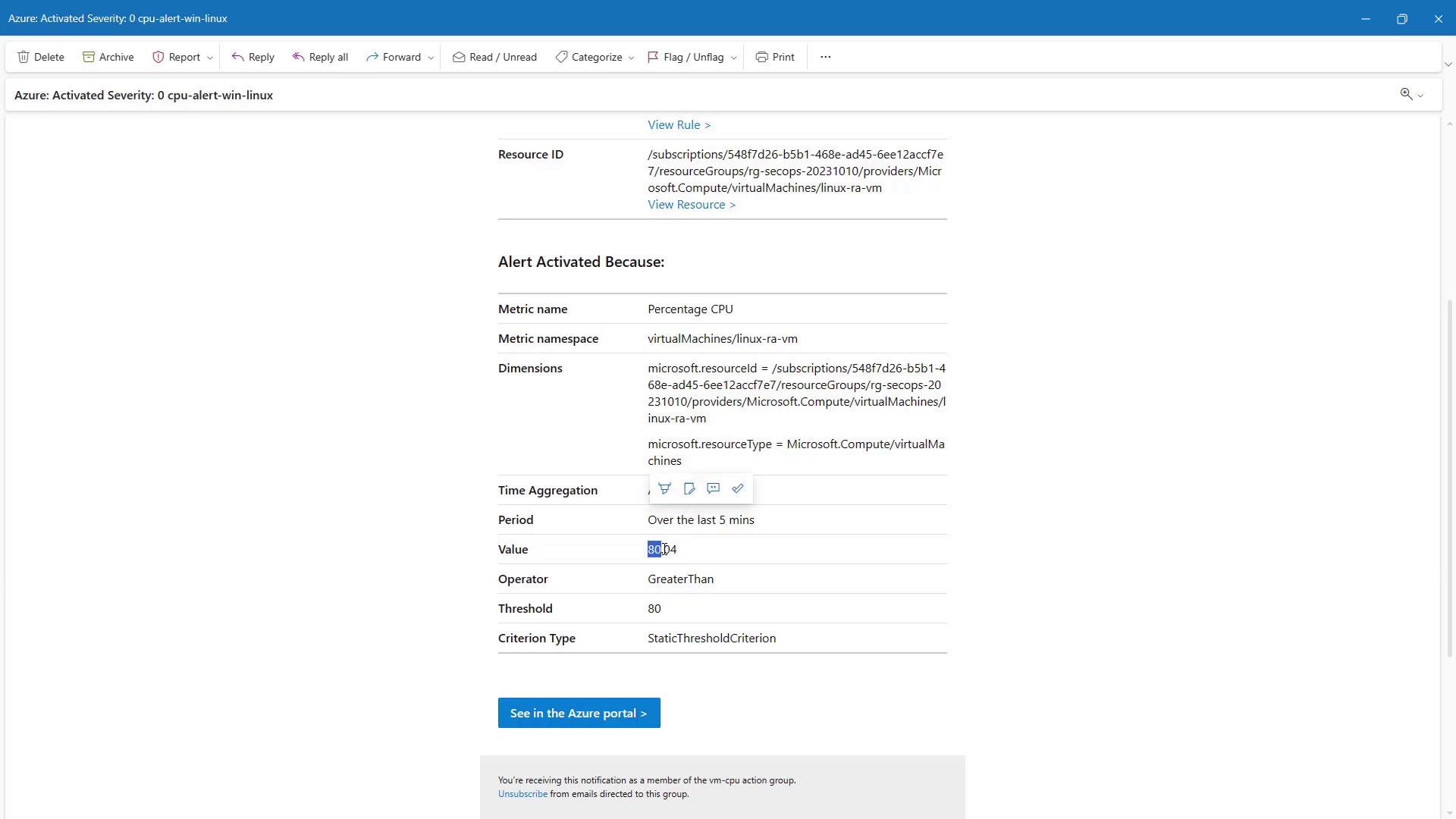
- In the Condition stage for the VM, select a signal such as Percentage CPU. In this demonstration, a static threshold is used with the average calculated over the last five minutes. For example, the alert fires if the average CPU usage exceeds 80% during that interval.
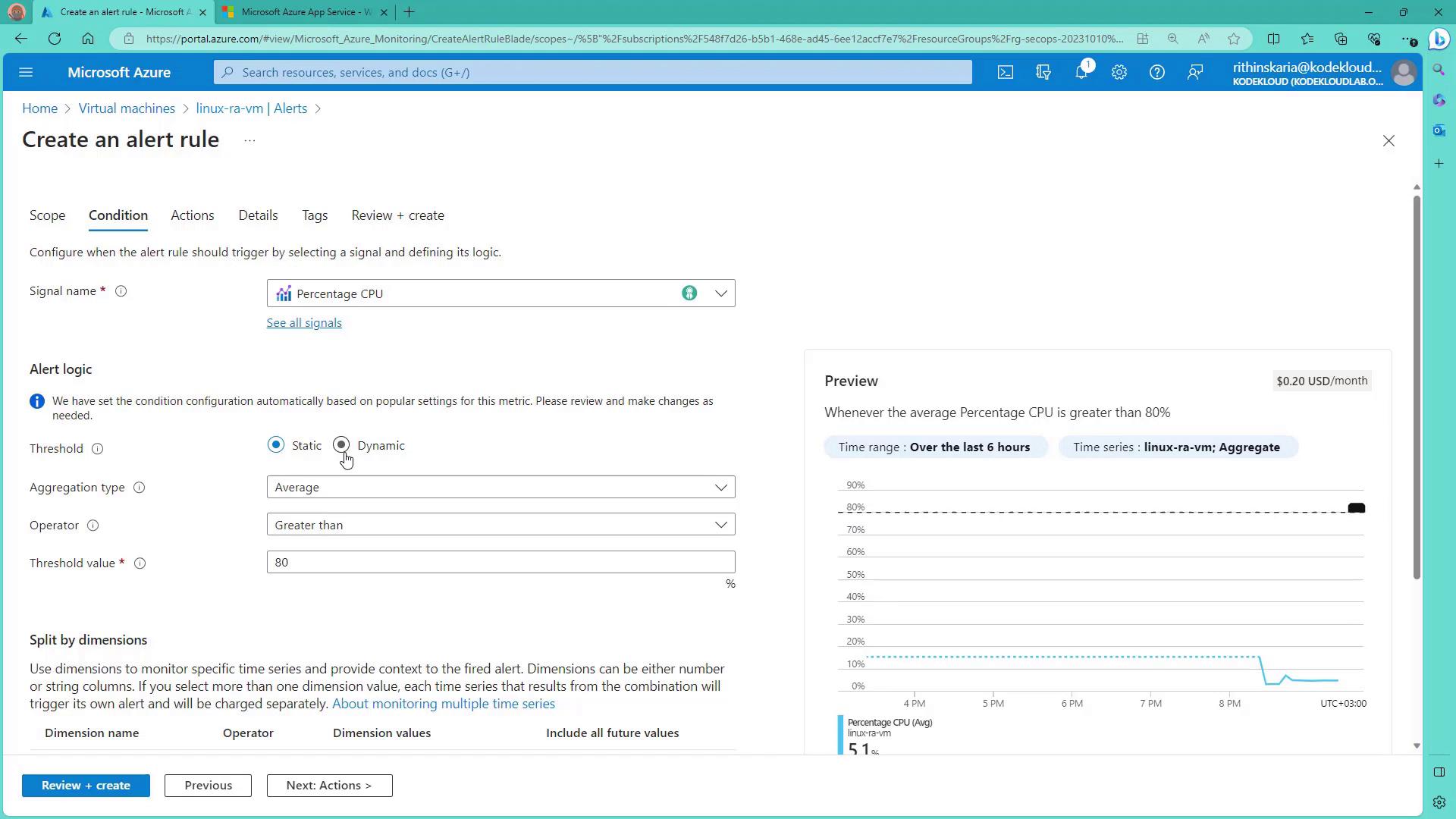
Azure also offers dynamic thresholds that adapt based on historical usage patterns, which can help reduce noise in alerting.
- In the Action stage, create an action group. For example, name the action group “VM CPU” and configure a notification preference, such as an email alert. Once the action group is set up, it is automatically associated with the alert rule.
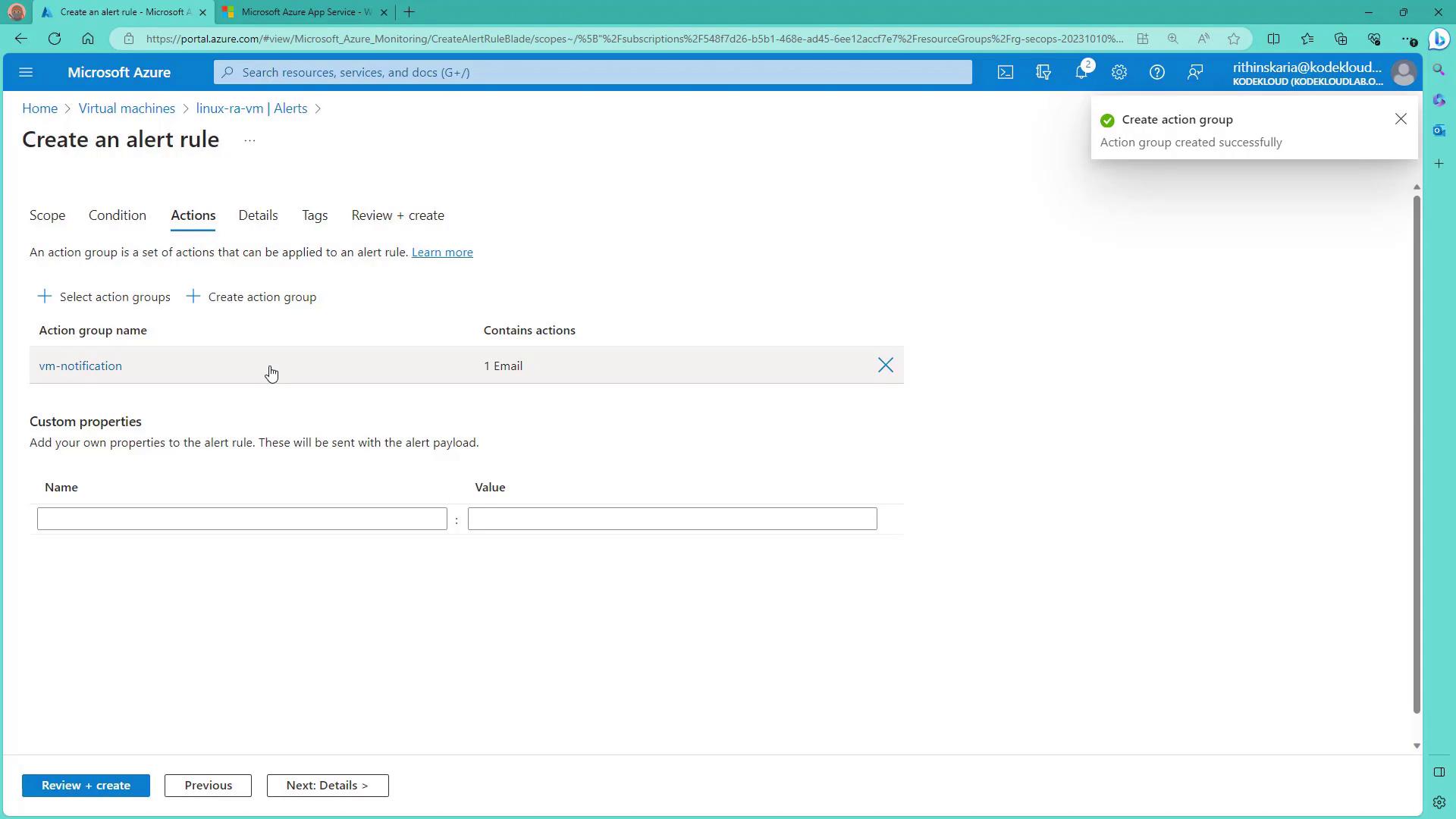
- In the Rule Details stage, set the alert rule name (for example, “CPU Alert for Linux VM”), define its severity (such as Critical), and decide whether the rule should be enabled immediately upon creation.
- Review the configuration and click “Create.” The alert takes a few moments to deploy.
Stress Testing the VM to Trigger the Alert
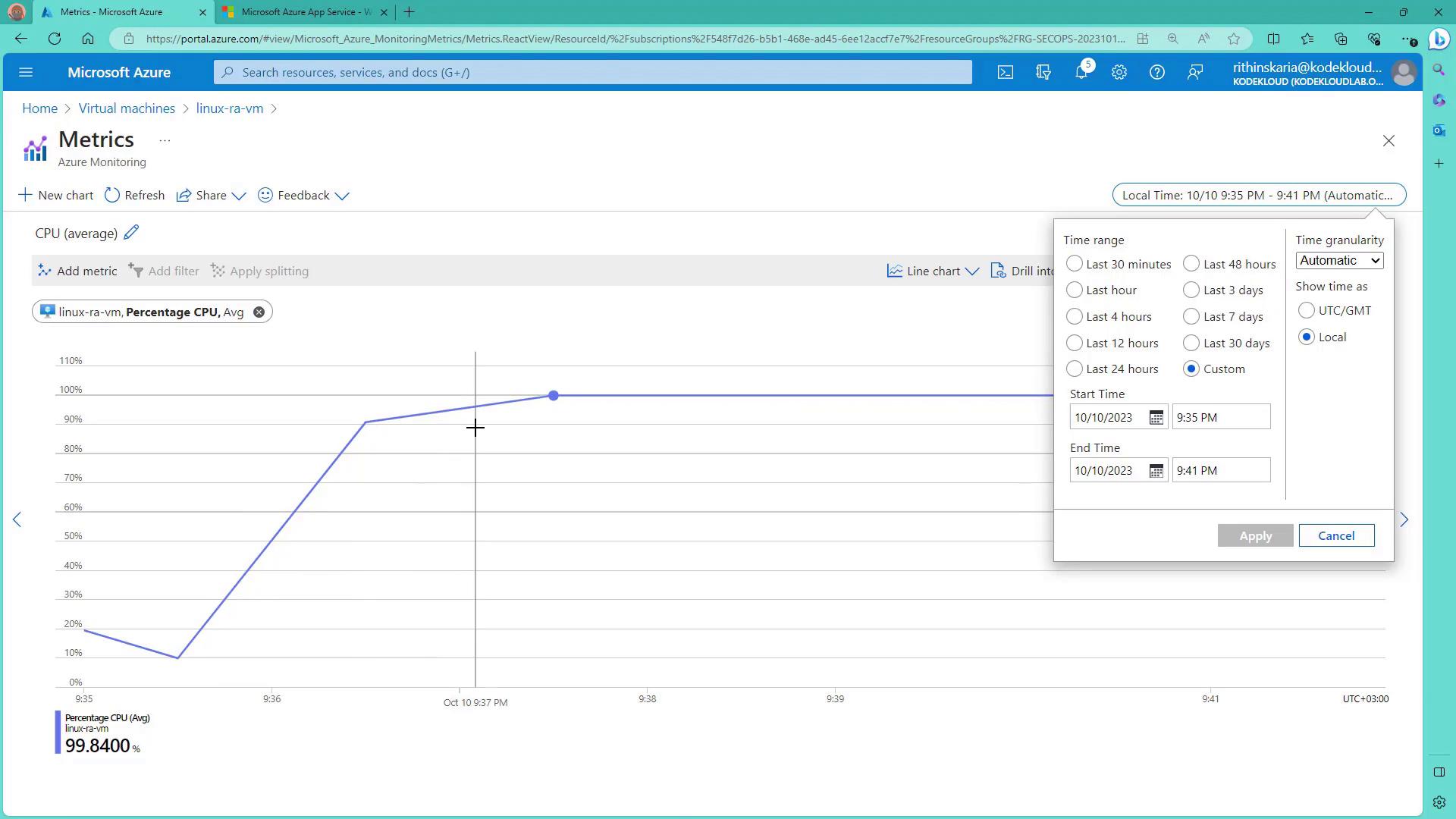
To simulate high CPU usage on your Linux VM, SSH into the machine and install a stress testing tool if it’s not already installed. Follow these steps: