

Azure AD Administrative Units enable you to create virtual perimeters around specific segments of your organization. This allows you to delegate administrative responsibilities (such as password resets or help desk support) to designated administrators, ensuring that only those with proper permissions can manage their assigned areas.
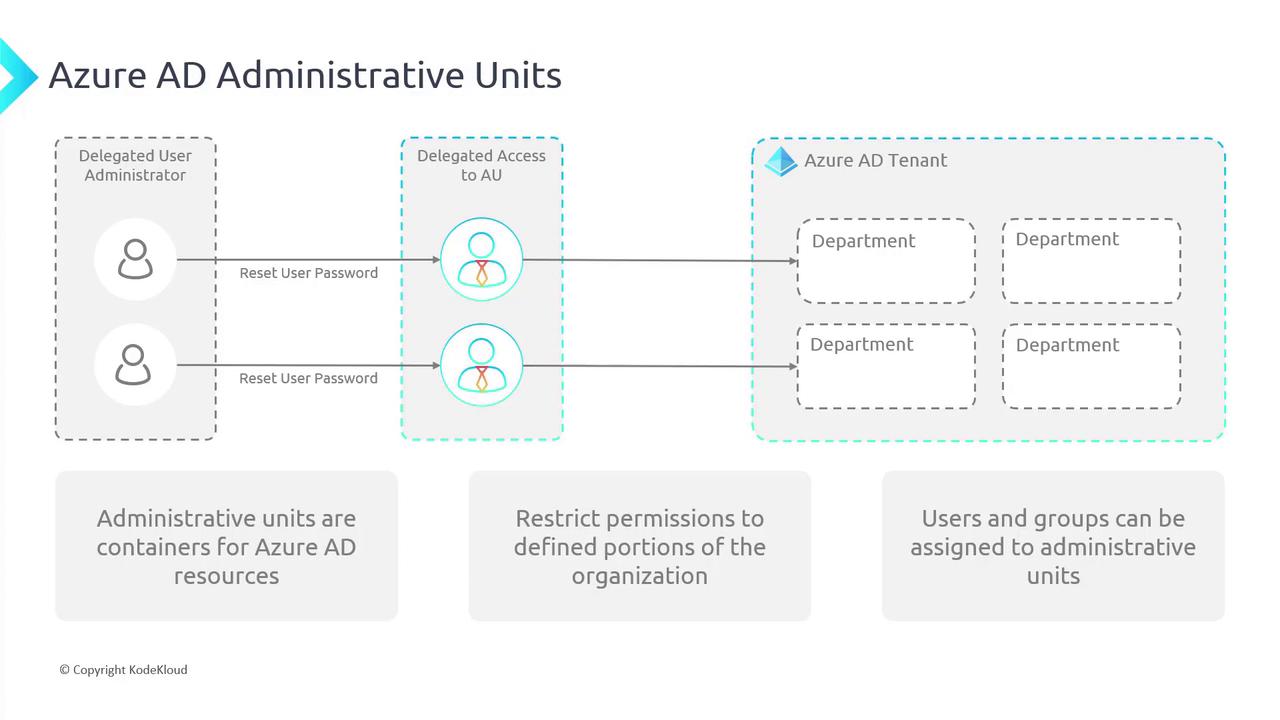
Role-Based Permissions Within Administrative Units
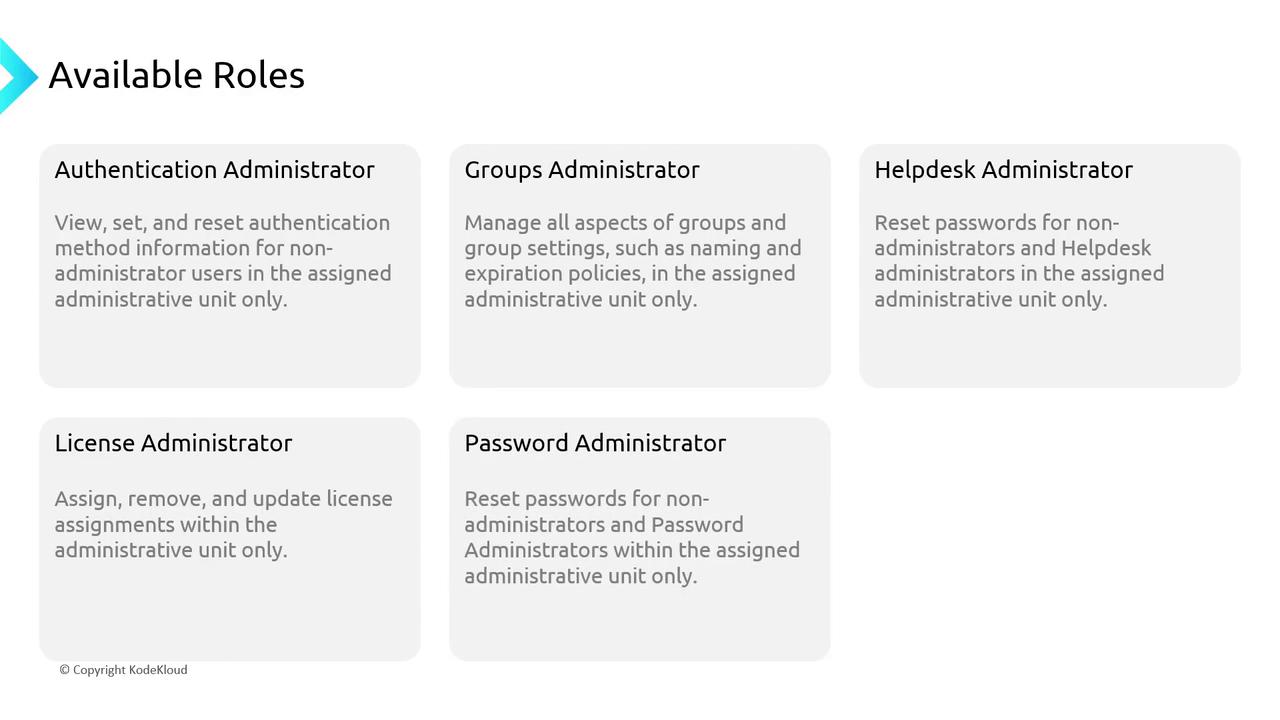
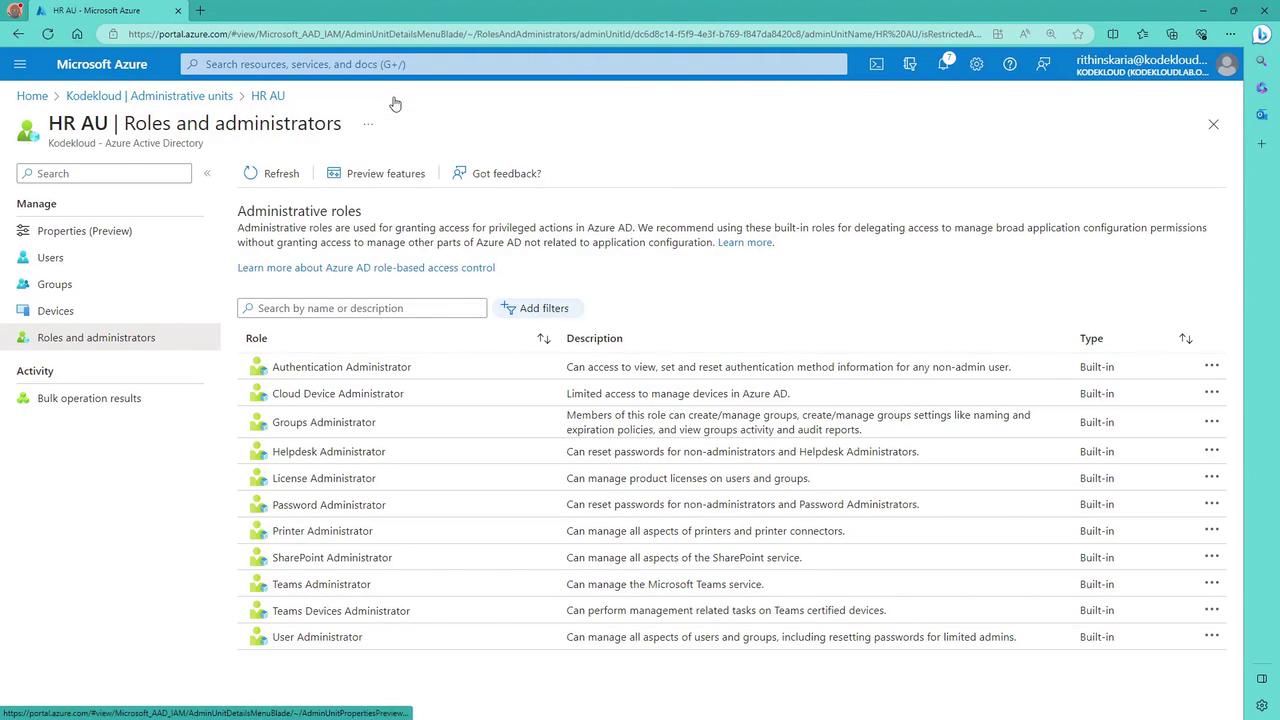
Not every role in Azure AD can be scoped to an administrative unit. Some roles, like the Global Administrator, are tenant-wide. Within an AU, the following roles can be delegated:-
Authentication Administrator:
Can view, set, and reset authentication method information for non-administrative users. For example, if a user loses their phone, an authentication administrator within the AU can update their authentication method. -
Groups Administrator:
Manages all aspects of groups and group settings (including naming and expiration policies) specifically within the AU. -
Help Desk Administrator:
Resets passwords for non-administrators and other help desk administrators, and performs tasks such as forcing sign-outs and revoking sessions. -
License Administrator:
Oversees license assignments by adding, removing, or updating licenses within the AU. -
Password Administrator:
Responsible for resetting passwords for non-administrative users and other password administrators within the designated AU. Note that password administrators must contact another administrator to reset their own passwords. -
User Administrator:
Possesses comprehensive rights to manage users and groups, including password resets for many roles except global administrators.
Working with Administrative Units in the Azure Portal
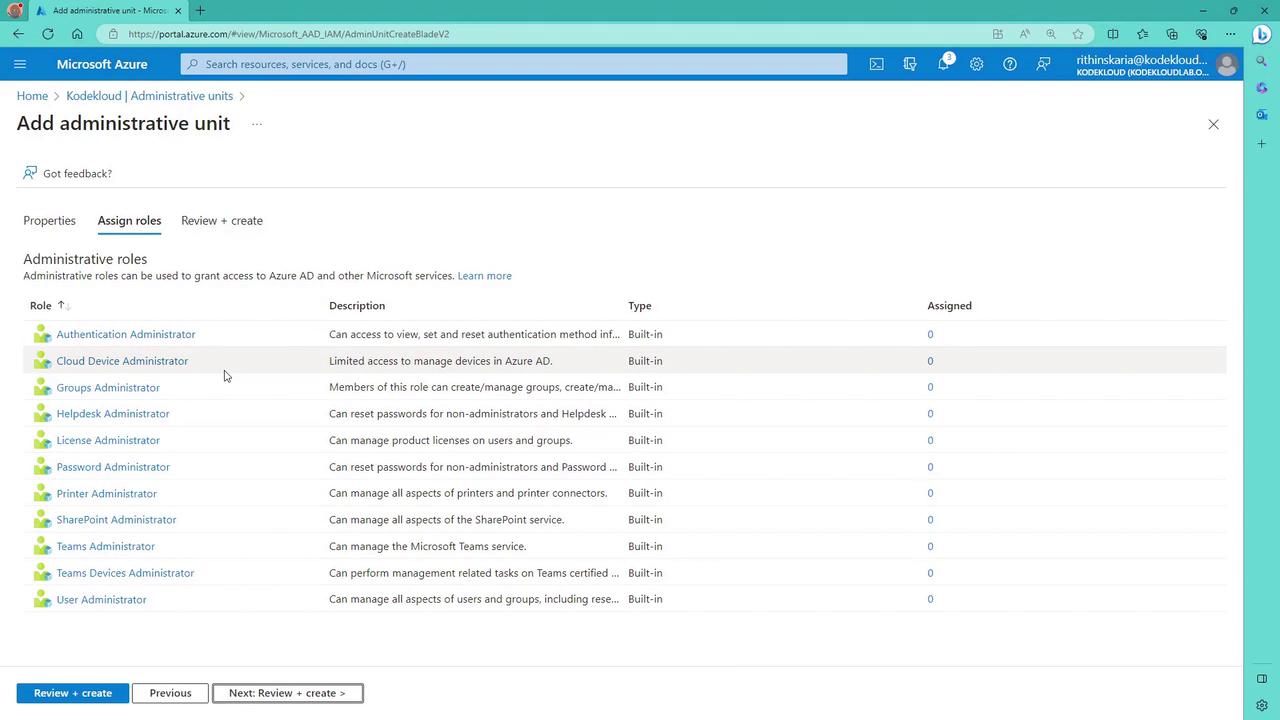
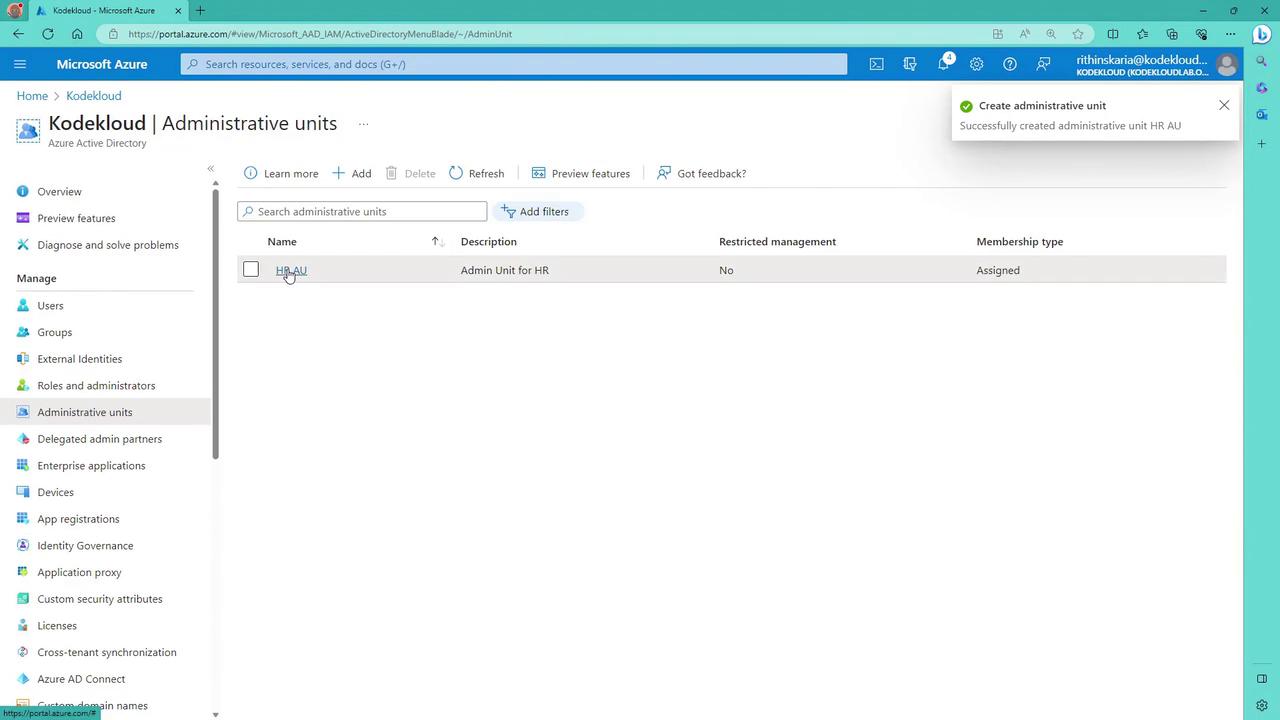
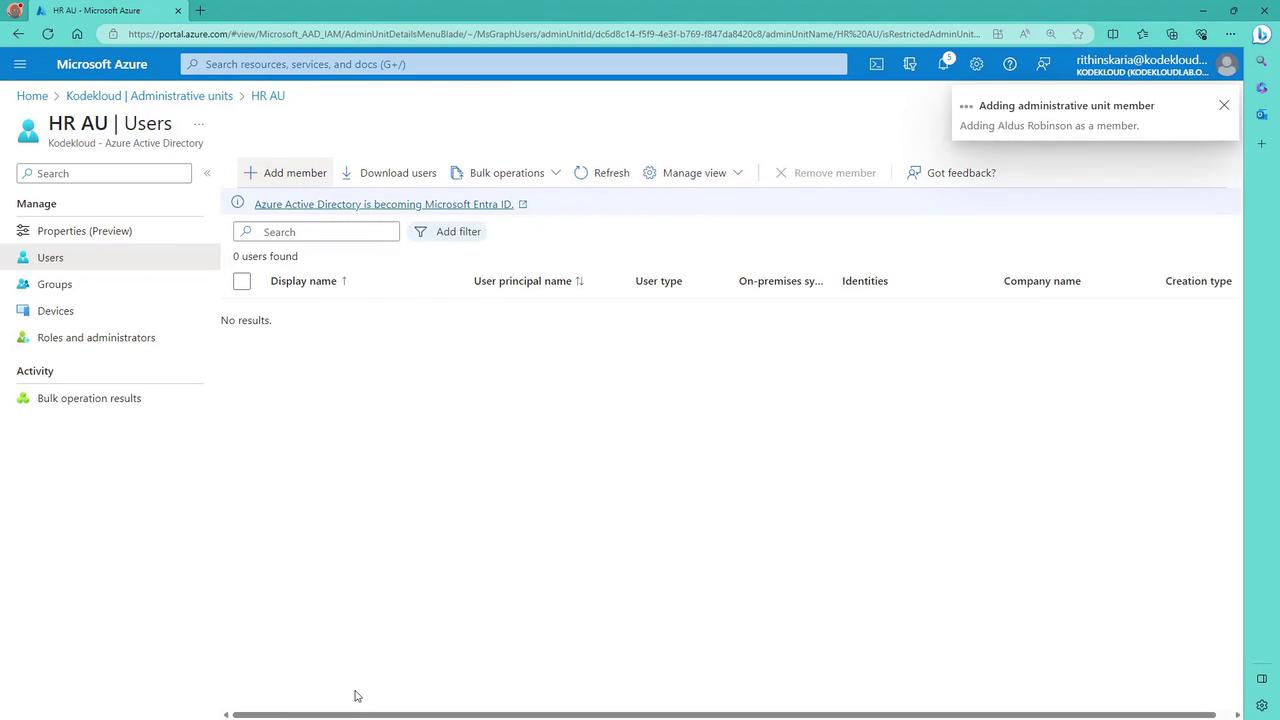
This section guides you through setting up an Administrative Unit using the Azure Portal.- Navigate to Azure Active Directory in the Azure Portal, then select Administrative units.
- Click on Create administrative unit. Provide a name for the unit (e.g., “HRAVew”).
- Notice the option for enabling restricted management. This preview feature protects certain objects from modification by unauthorized administrators. For production environments, leave it set to No.
- Click Assign roles—this can also be managed later if you prefer—review your settings, and then click Create to finalize the AU.
Summary
Azure AD Administrative Units provide a powerful mechanism for achieving granular control over your organization’s resources. By grouping resources together and delegating specific administrative roles within secure boundaries, you enhance overall security, streamline operations, and simplify complex management environments. With these finely scoped permissions, only designated administrators can manage their respective units, keeping your entire Azure AD tenant secure and well-organized.Passwordless authentication is another vital element of secure user access management. Incorporating this technology can further strengthen your security framework in tandem with AU delegation.