Backup and Performance Considerations
When using Azure Backup, your encryption keys are saved to the Recovery Services vault, and backups are encrypted with AES 256-bit encryption. This ensures that your backups are secure and tamper-proof. While disk encryption adds an extra layer of security, it might introduce a slight performance overhead due to the continuous encryption and decryption processes. For CPU-intensive applications, you might consider encrypting only the data disk to optimize performance without compromising the security of your mission-critical data.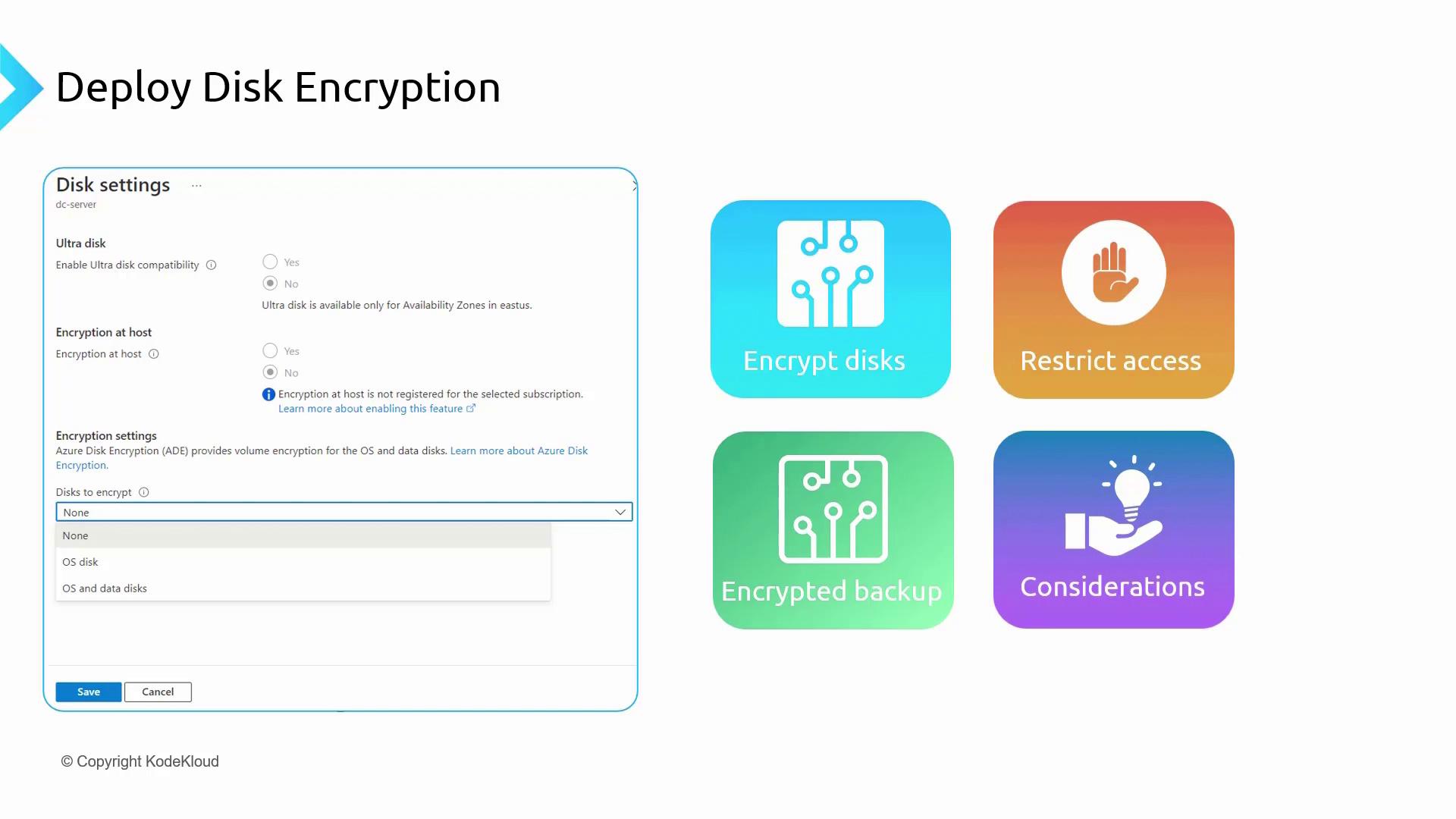
Managed Disk Encryption Options
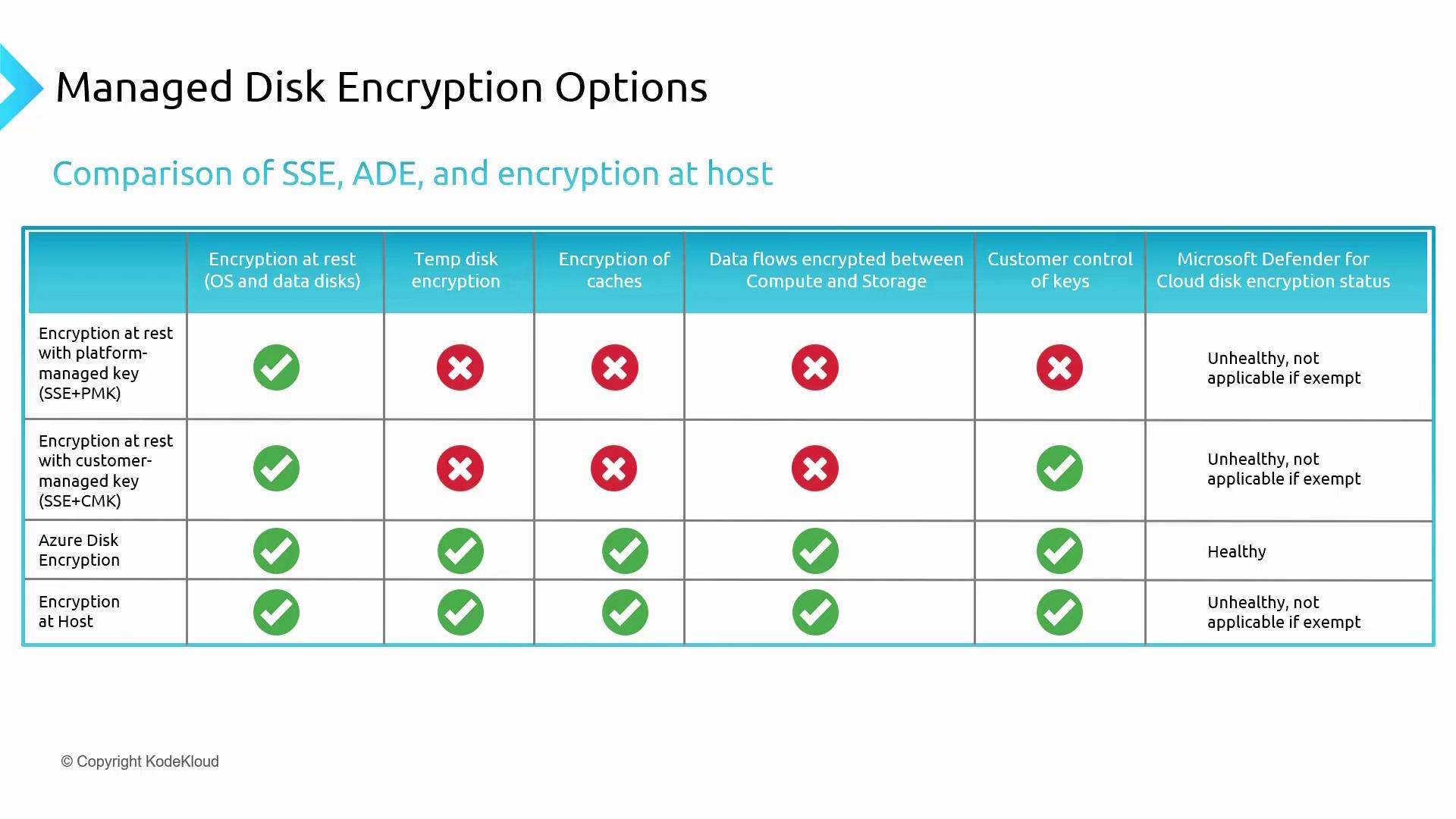
Azure offers several disk encryption options to fit various use cases. Below is an overview of these options:-
Encryption at Rest with Platform Managed Key (SSE+PMK):
SSE automatically encrypts data before storage and decrypts it during access. With Platform Managed Keys, all key management is handled by Azure. Note that this method does not encrypt temporary disks, caches, or the data flow between compute and storage, and it does not support customer-managed keys (CMK). In Microsoft Defender for Cloud, the disk encryption status might appear as unhealthy. -
Encryption at Rest with Customer Managed Key (SSE+CMK):
This option provides the same encryption benefits as SSE while allowing you to manage your encryption keys independently. However, if you choose SSE+CMK, you cannot enable Azure Disk Encryption on the VM, and Microsoft Defender for Cloud will flag the machine as unhealthy. -
Encryption at Host:
This approach encrypts data in use, ensuring protection for temporary disks, OS, and data disks. Similar to SSE, Encryption at Host supports both Platform Managed Keys and Customer Managed Keys. However, when using Encryption at Host, Azure Disk Encryption is not available, and the VM may be marked as unhealthy in Microsoft Defender for Cloud.
- SSE provides automatic encryption with minimal setup.
- ADE is ideal for those who require granular control over virtual machine disk encryption using BitLocker or dm-crypt.
- Encryption at Host is best suited for environments that require comprehensive encryption of data in use, but it is not compatible with ADE.
Enabling Azure Disk Encryption in the Azure Portal
Follow these step-by-step instructions to enable Azure Disk Encryption on your virtual machine via the Azure portal:- Open the Azure portal and navigate to Virtual Machines.
- Select the target virtual machine and click on Disk.
- When selecting a disk, you will initially see the SSE (Storage Service Encryption) settings with a platform-managed key. Note that this setting cannot be altered unless the disk is detached from the VM.
- Scroll down to the Additional settings section. Here you will see options for enabling Encryption at Host or Azure Disk Encryption (ADE). Keep in mind that Encryption at Host is available only when the virtual machine is deallocated.
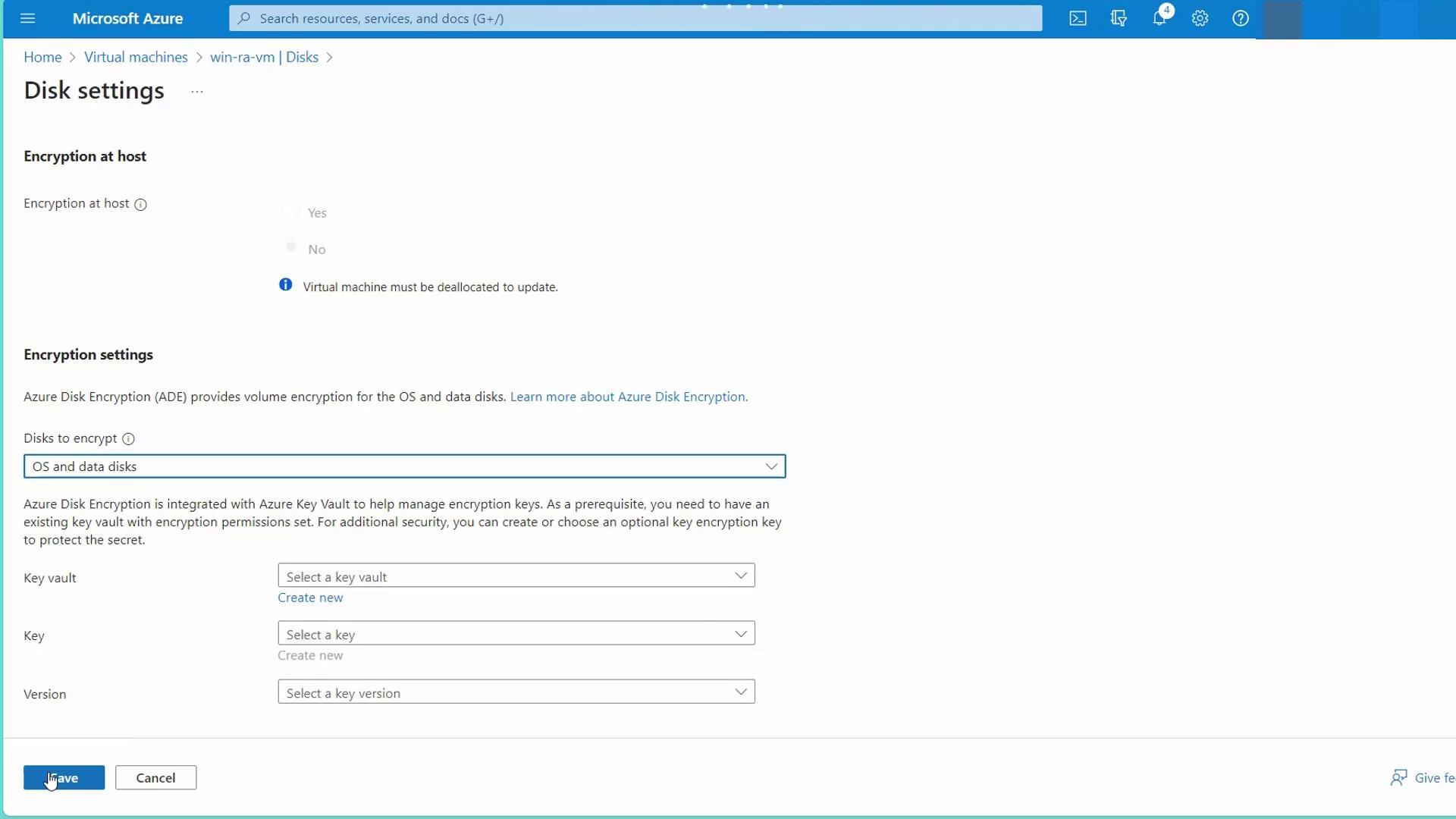
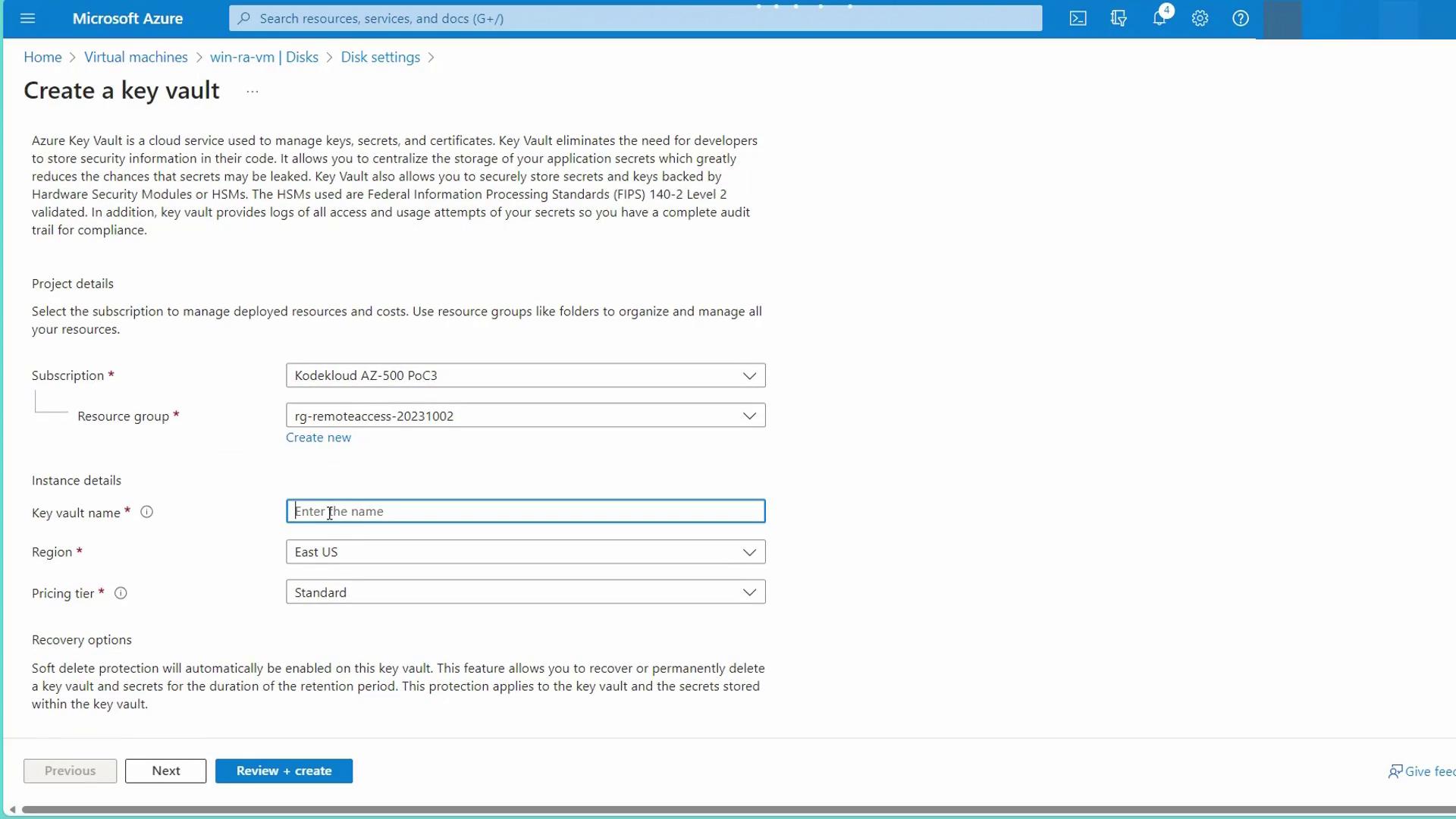
- Choose ADE and configure your encryption keys by linking to Azure Key Vault. Click to create a new Key Vault—for example, name it “ADE AKV.” Ensure that the name is unique.
- Within the Key Vault, create your encryption key (e.g., “AAD key”) and save your changes. The virtual machine will require a restart to apply the new encryption settings.
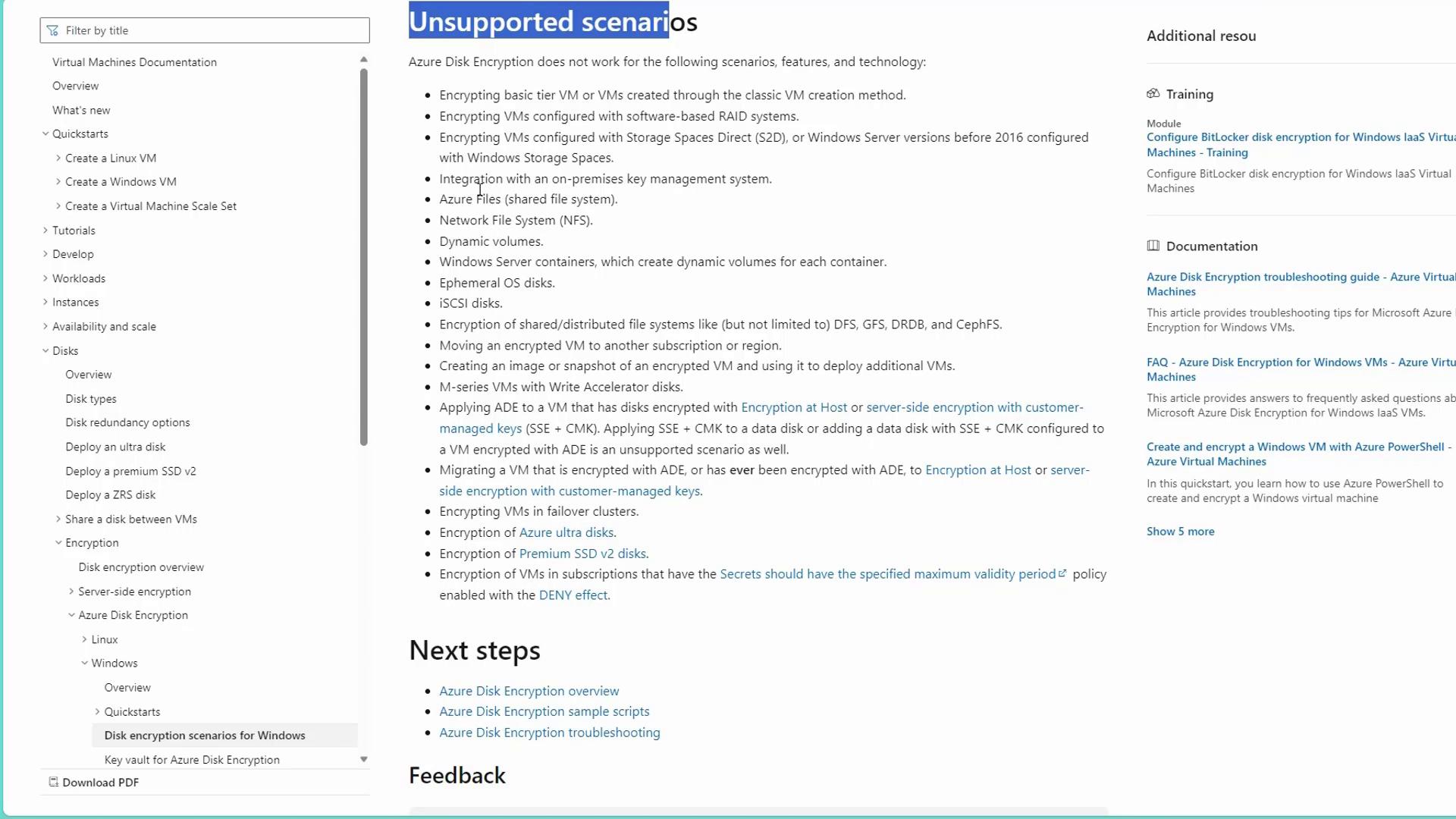
Before proceeding, note the following unsupported scenarios when using ADE:
- Encrypting basic tier VMs or migrating to classic is not supported.
- Encrypting VMs utilizing software-based RAID systems is not supported.
- ADE cannot be applied to VMs with disks already encrypted using Encryption at Host or SSE+CMK.
- Encryption of Azure Ultra Disks, Premium SSD v2 disks, iSCSI, ephemeral disks, dynamic volumes, NFS, and Azure Files is unsupported.