

Benefits of Always Encrypted
- Transparent Data Encryption/Decryption: Encryption and decryption operations occur at the application layer, reducing the exposure risk within the database.
- Enhanced Key Management: Encryption keys are managed on the client side, keeping them hidden from the database engine.
- Secure Enclaves Support: Enables confidential computations on encrypted data to boost privacy.
- Flexible Encryption Types:
- Randomized Encryption: Encrypts data in a non-deterministic way, preventing pattern analysis for higher security.
- Deterministic Encryption: Consistently produces the same encrypted value for a given plaintext, which supports indexing and equality searches.
- Regulatory Compliance: Aids in meeting strict data encryption and privacy regulations.
Implementing Always Encrypted
Implementing Always Encrypted involves identifying the database tables and columns that house sensitive information. For example, suppose the Social Security Number (SSN) or an address field in the [SalesLT].[Address] table contains sensitive data. You can use SQL Server Management Studio (SSMS) to start the Always Encrypted Wizard by selecting the table and choosing the “Encrypt Columns” option.Step 1: Viewing the Data
Begin by executing a query in SSMS to display data from your target table. This helps you identify the columns that require encryption:Step 2: Launching the Always Encrypted Wizard
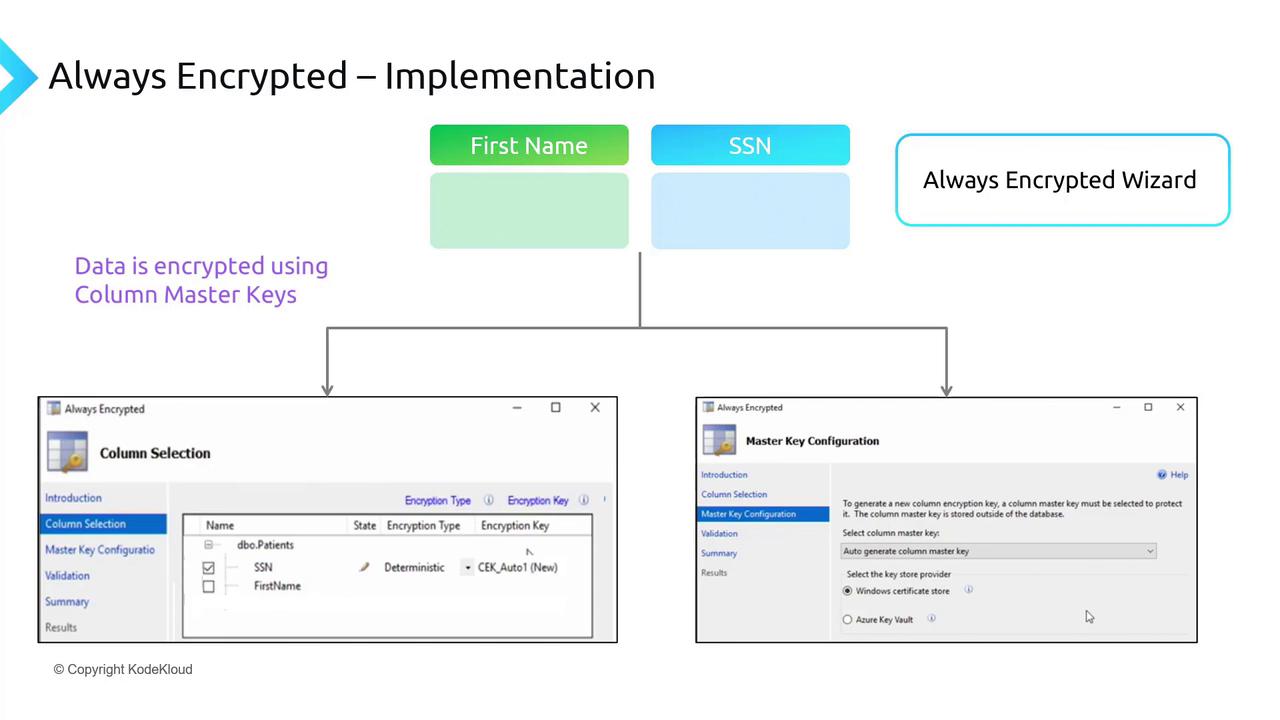
Right-click the table in SSMS, select Encrypt Columns, and the Always Encrypted Wizard will launch. Follow these steps in the wizard:- Choose the columns to encrypt (e.g., AddressLine1)
- Select the encryption type:
- Deterministic Encryption: Always returns the same encrypted value for identical plaintext.
- Randomized Encryption: Provides full data anonymity by encrypting data differently each time.
Step 3: Key Generation and Storage
Within the wizard, you have the option to auto-generate an encryption key. You can choose to use the same key for multiple columns or create unique keys per column. The master key that encrypts these column encryption keys can also be auto-generated and stored as:- A Windows certificate in the Certificate Store, or
- Within Azure Key Vault for enhanced cloud-based security.
Step 4: Verifying the Encryption
After completing the encryption process (which may require some time), run your query again to confirm that the data is encrypted. Although the database now displays the encrypted data, using the master key in your query or application will decrypt and reveal the original values.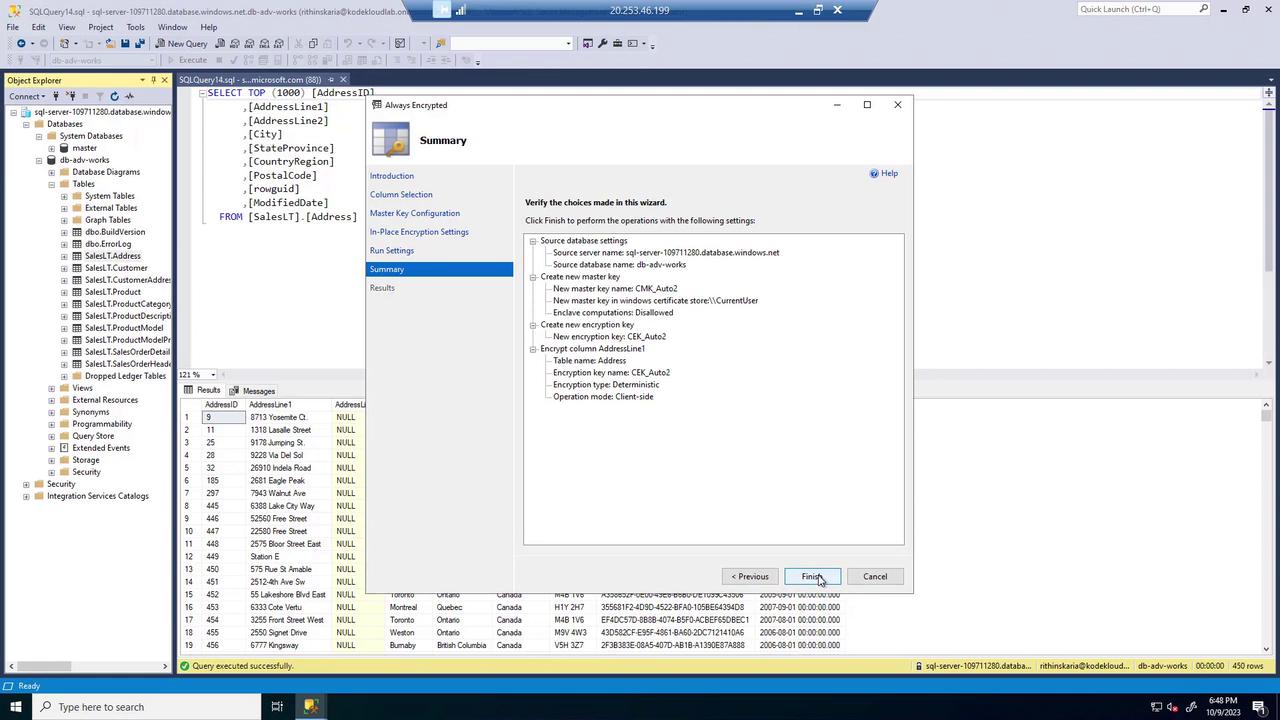
Always ensure that your client application securely manages the encryption keys to maintain data confidentiality.