

Scenario Overview
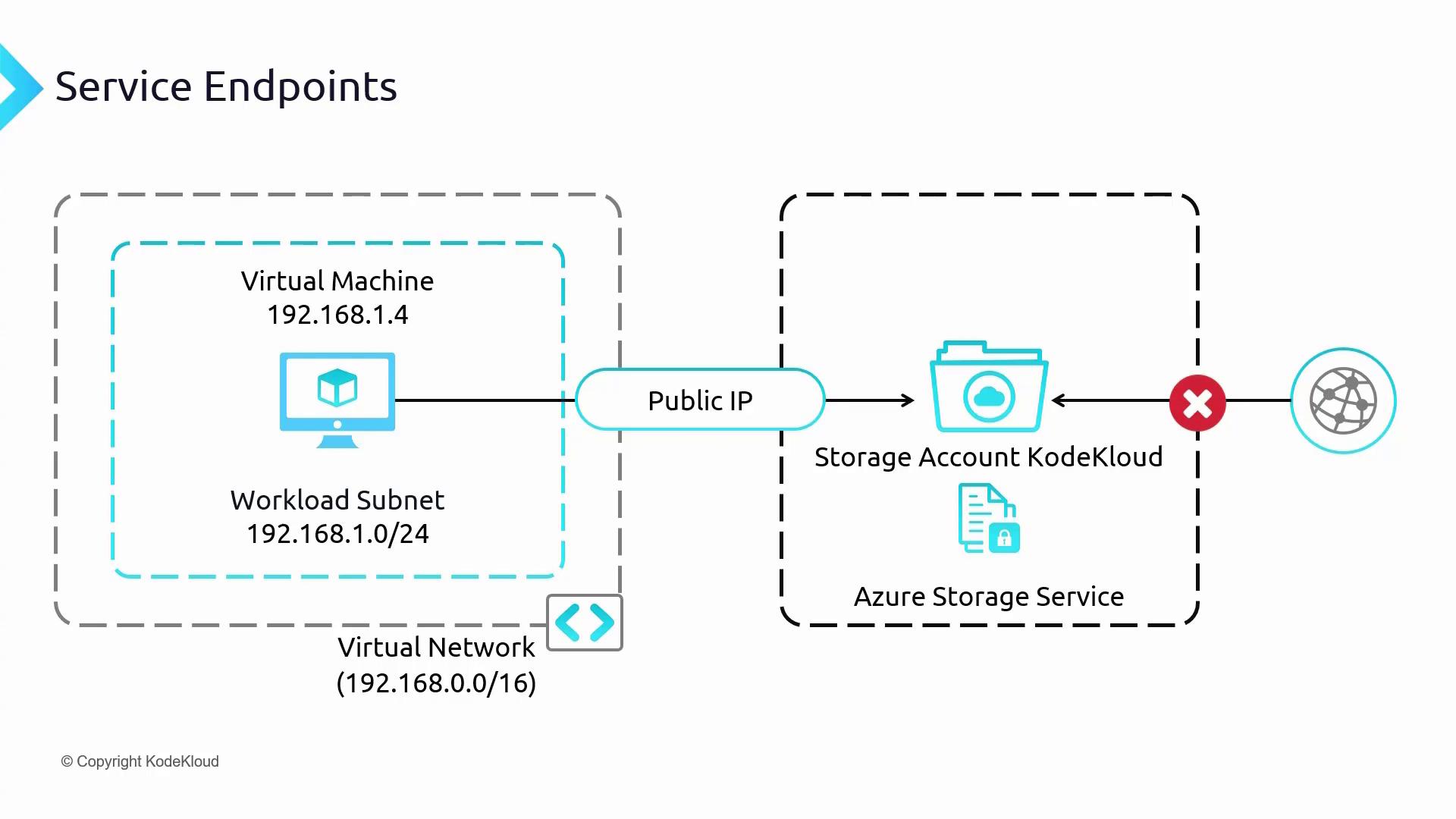
Consider the following scenario:- You have a virtual network (VNet) with a subnet hosting a virtual machine (VM).
- The VM has an IP address of 192.168.1.4.
- There is a storage account, named “KodeKloud storage account,” which currently has public internet access enabled.
- The VM accesses the storage account using a URL like
<storage-account-name>.blob.core.windows.netthat resolves to a public IP address.
- Blocking all public access through a firewall policy on the storage account.
- Allowing access only from the designated subnet in your virtual network via a service endpoint.
Configuring the Storage Account
Initially, you configure the storage account to block all public access by enforcing a firewall policy. Although this policy blocks internet access, you explicitly allow communication from the subnet where your VM resides. This means that the VM will be able to connect to the storage account over the service endpoint, using its private IP as the source. Even if the DNS resolves to a public IP address, the traffic remains on the Microsoft Azure backbone network. To summarize:- A VM is set up in your Azure virtual network.
- A storage account holding critical data is configured with a firewall that denies public access.
- A service endpoint is enabled on the subnet hosting the VM, thereby extending the VNet’s private IP address space to the storage account.
- Within the storage account’s network settings, you specify that only the selected subnet can access the storage, ensuring a secure connection via Azure’s backbone network.
Benefits of Azure Service Endpoints
Azure service endpoints offer several advantages:-
Improved Security
Service endpoints restrict access to Azure services (such as Storage or SQL Database) so that only your virtual network can connect to them instead of the entire internet. -
Utilization of Microsoft’s Backbone Network
By leveraging Microsoft’s global backbone network, service endpoints ensure that traffic between your VNet and Azure services bypasses the public internet for enhanced security and reliability. -
Ease of Setup and Management
Configuring service endpoints is straightforward using the Azure portal, simplifying network security management. -
Wide Range of Supported Services
Service endpoints extend support to many Azure services, including Azure Storage, Azure SQL Database, Synapse Analytics, PostgreSQL, Cognitive Services, Container Registry, App Services, and more.
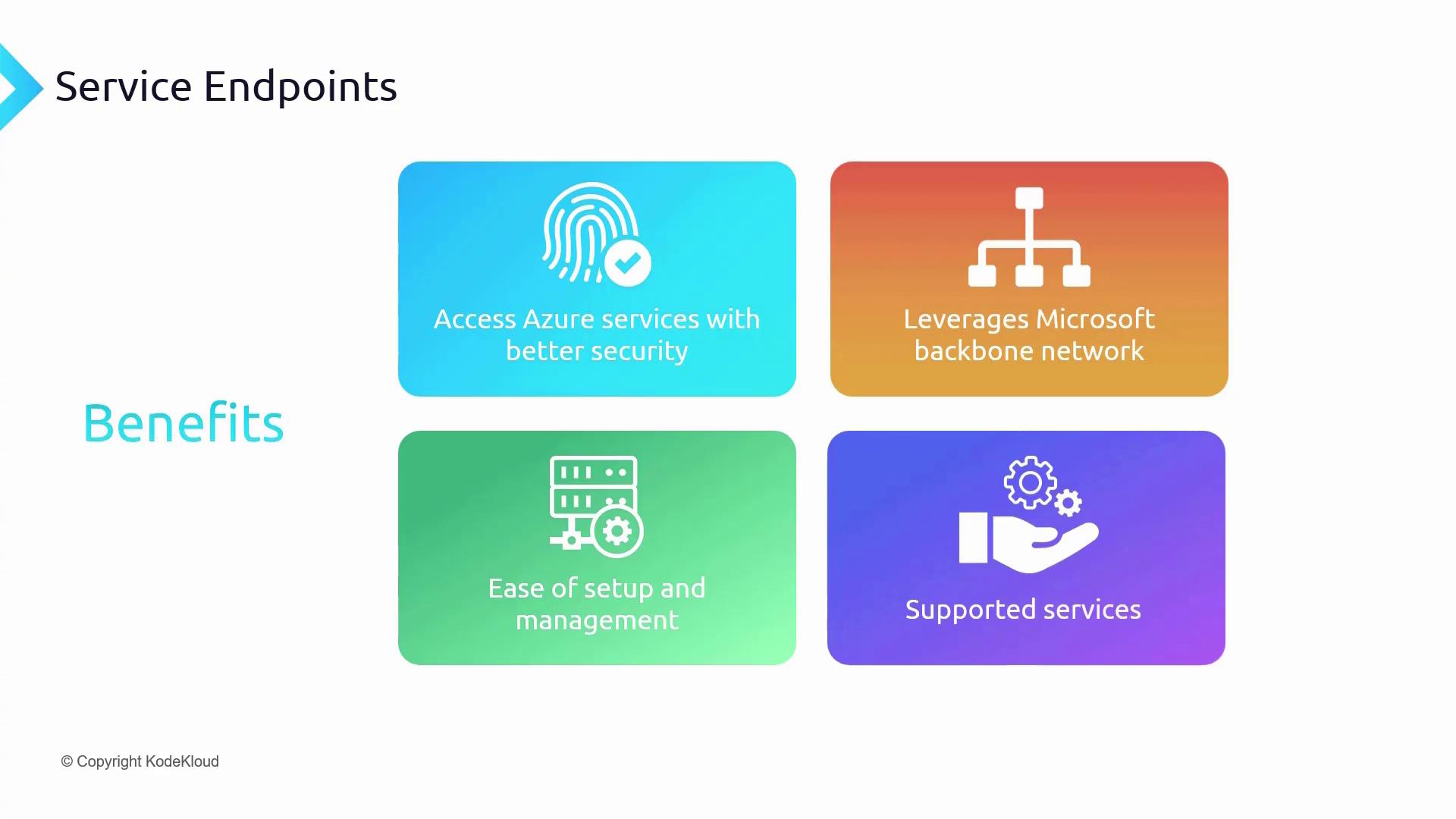
Azure service endpoints secure your connections by ensuring that traffic remains on Microsoft’s private network infrastructure.
Demonstration Using the Azure Portal
In this section, we implement the architecture using the Azure portal. For this demonstration, you will need a VM and a storage account. You can create these resources manually or by using the provided PowerShell script namedservice-endpoints-prep-infra.ps1.
Running the Infrastructure Script
Open your PowerShell terminal and navigate to the directory containing the script: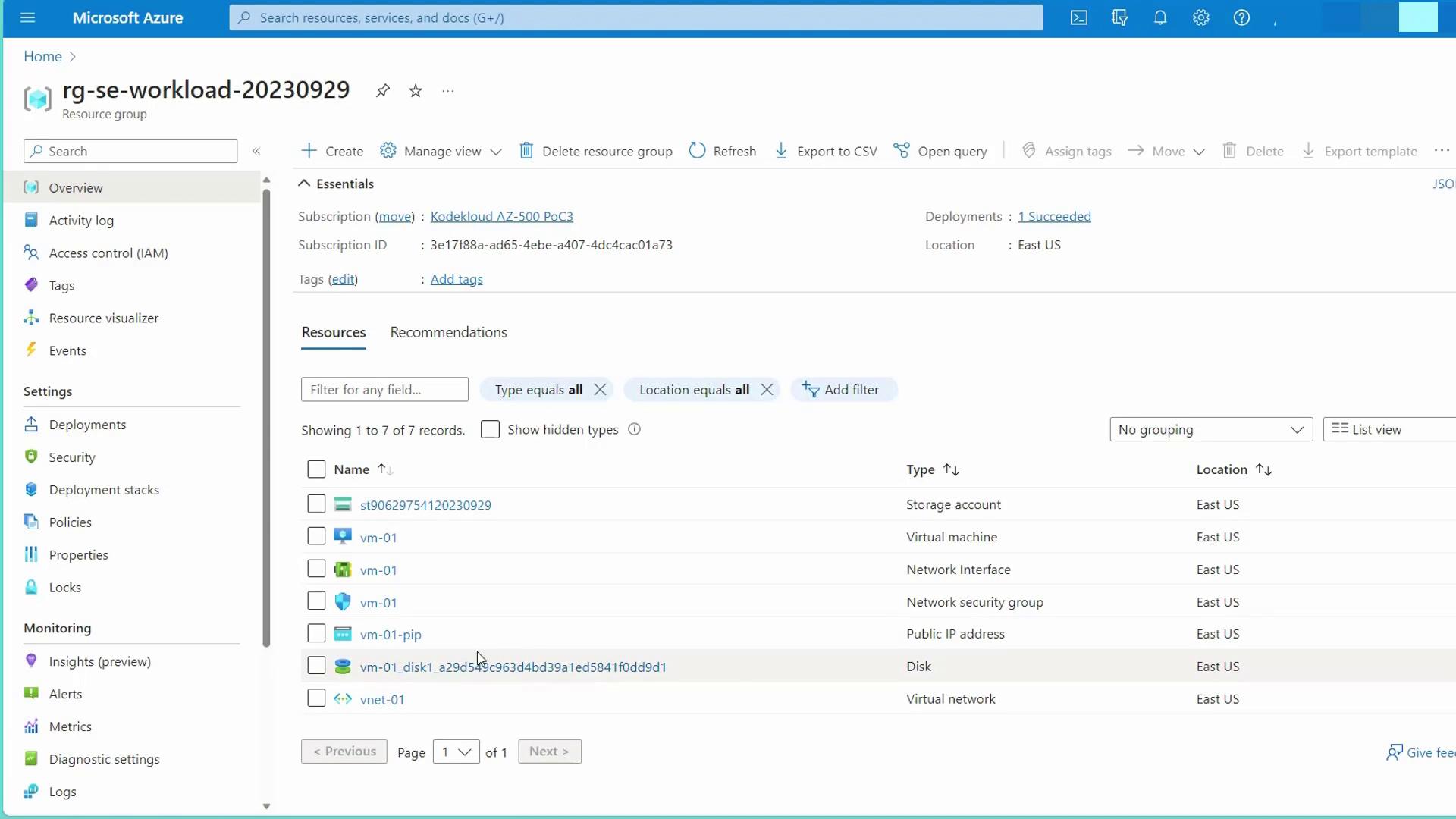
Setting Up the Storage Container and Uploading Files
- Navigate to the storage account in the Azure portal.
- Create a new container under the “Containers” section (for example, name it “demo”).
- Upload files to the container. Initially, these files are accessible via the public internet, but they will later be protected by the service endpoint configuration.
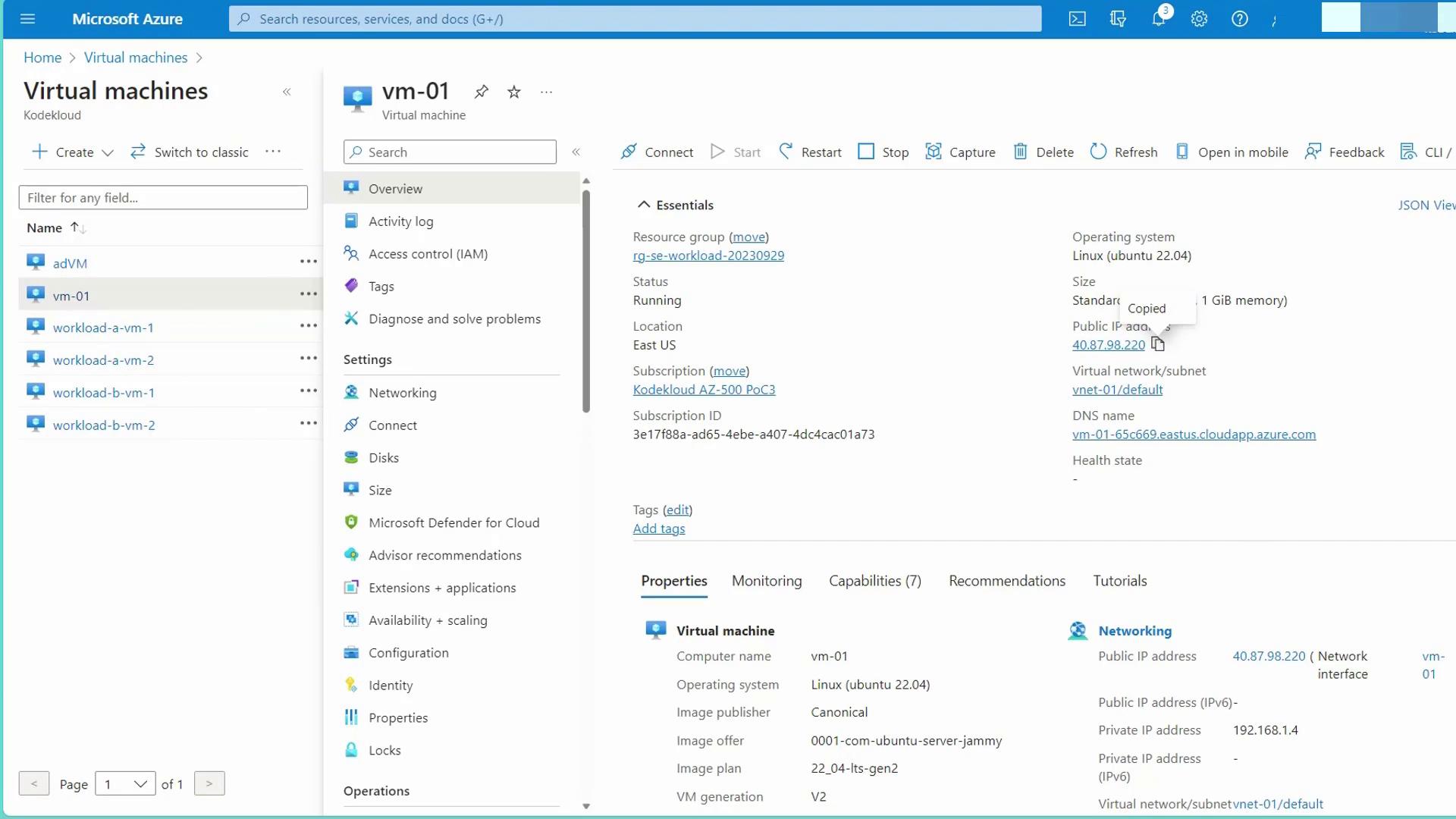
wget command:
Restricting Public Access and Enabling Service Endpoints
Now, secure the storage account by modifying its networking settings:- Go to the storage account’s Networking settings.
- Change the configuration from “All networks” to “Selected virtual networks and IP addresses.”
- Add the existing virtual network (e.g., VNet01) and select the relevant subnet.
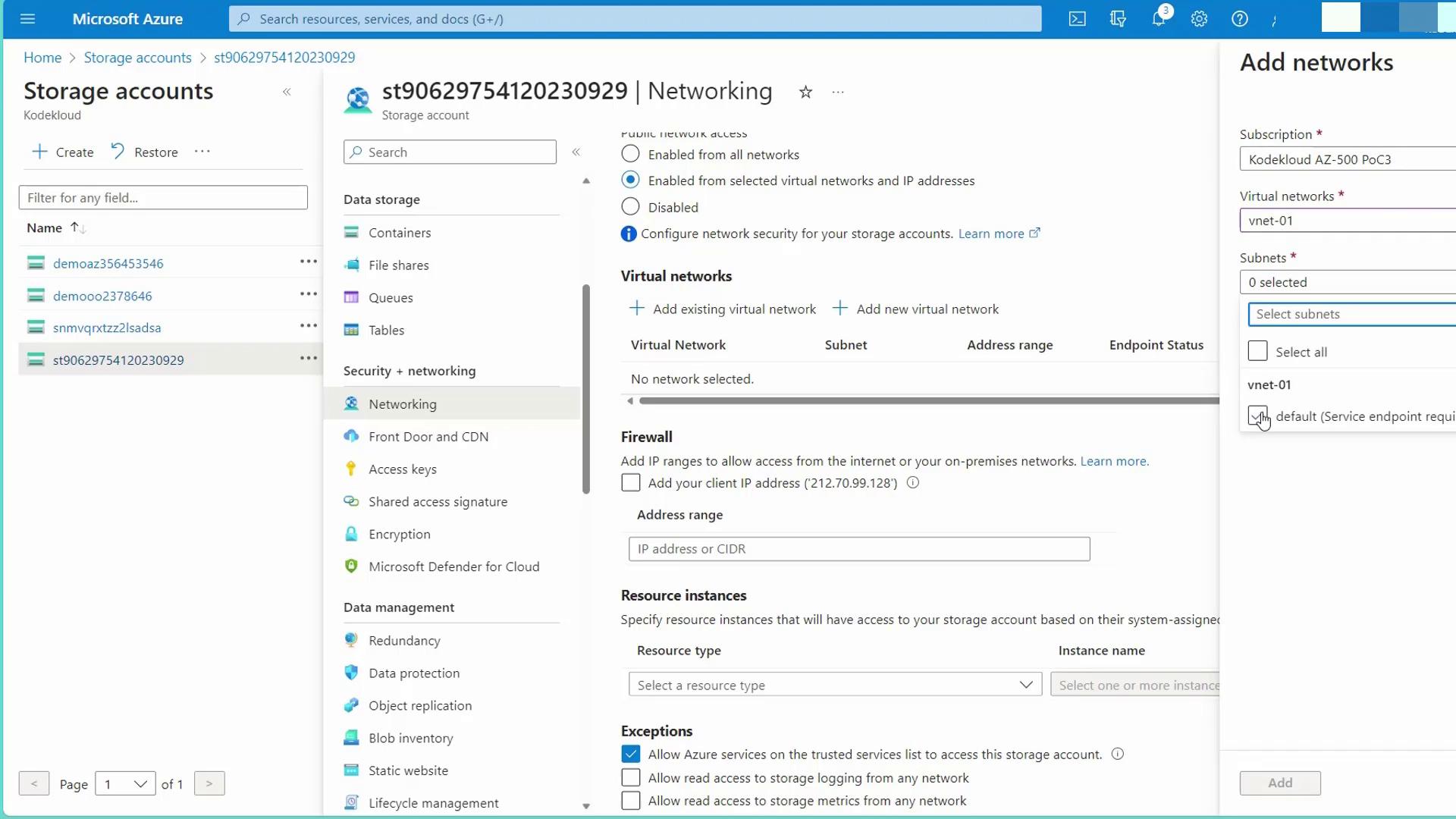
- Open an incognito browser window to confirm that accessing the file results in an authorization error.
- From within the VM, download the file again with a similar
wgetcommand:
After changing the network settings on your storage account, public access will be denied. Ensure that all necessary service endpoints are configured correctly to avoid access issues.
Transition to Private Link
While service endpoints secure access by directing traffic through Azure’s backbone network, private links provide an additional layer of security by mapping the service directly into your virtual network with a private IP. This eliminates exposure to public endpoints altogether. Test private link connectivity with a similar command:In this lesson, you learned how to configure Azure service endpoints to secure your Storage Account while allowing controlled access from your virtual network. The demonstration covered firewall configuration, network settings via the Azure portal, and connectivity testing via a virtual machine. We also briefly introduced private links as an alternative that further secures your connection by removing public endpoint exposure. Happy configuring!