

Benefits of Using Virtual Machine Templates
-
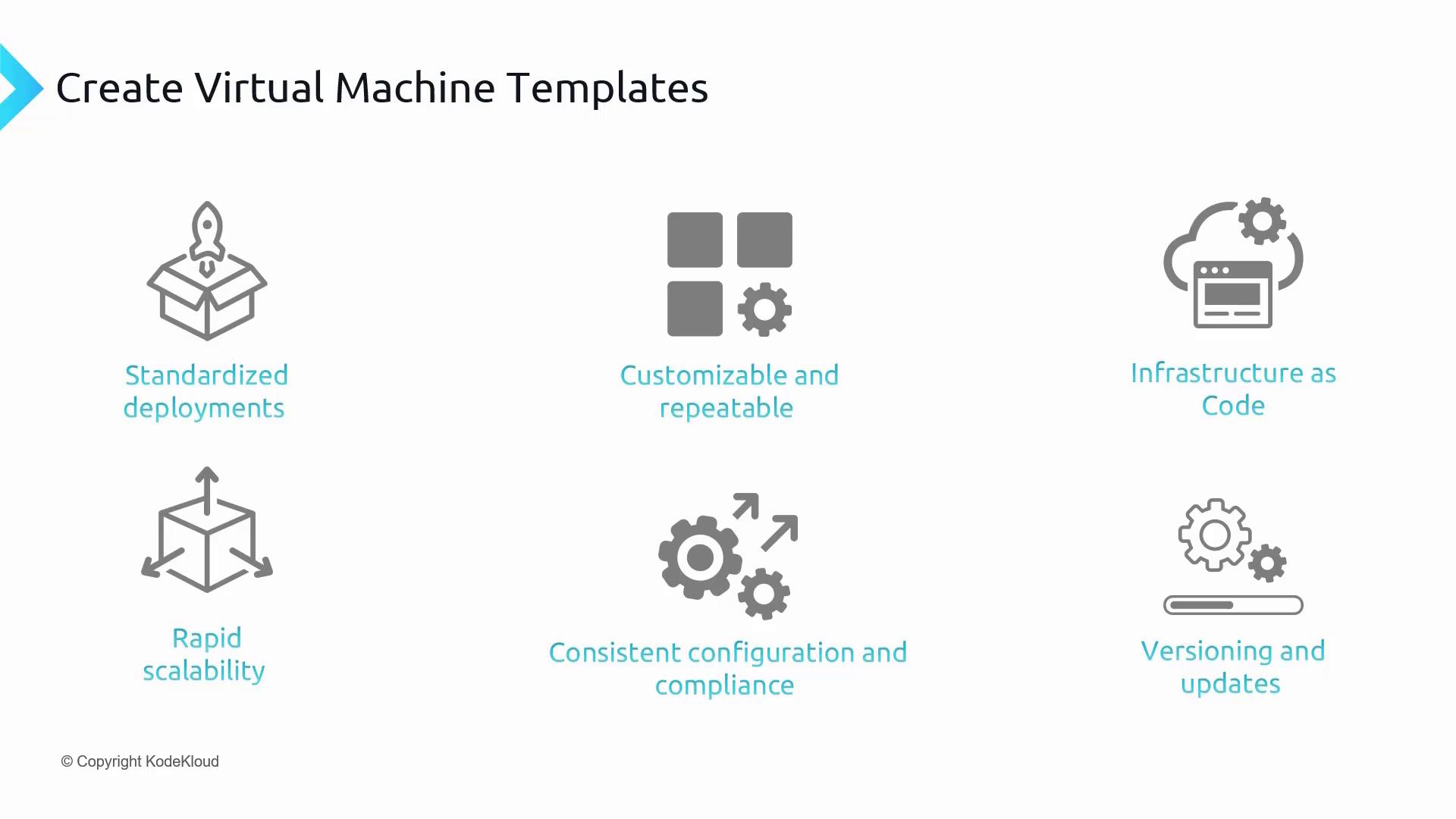
Standardized Deployments:
VM templates encapsulate all the necessary VM specifications such as the operating system, pre-installed applications, and configurations. This ensures that every new VM deployment meets stringent requirements like specific firewall settings, standardized file structures, and pre-installed software. -
Customizable and Repeatable:
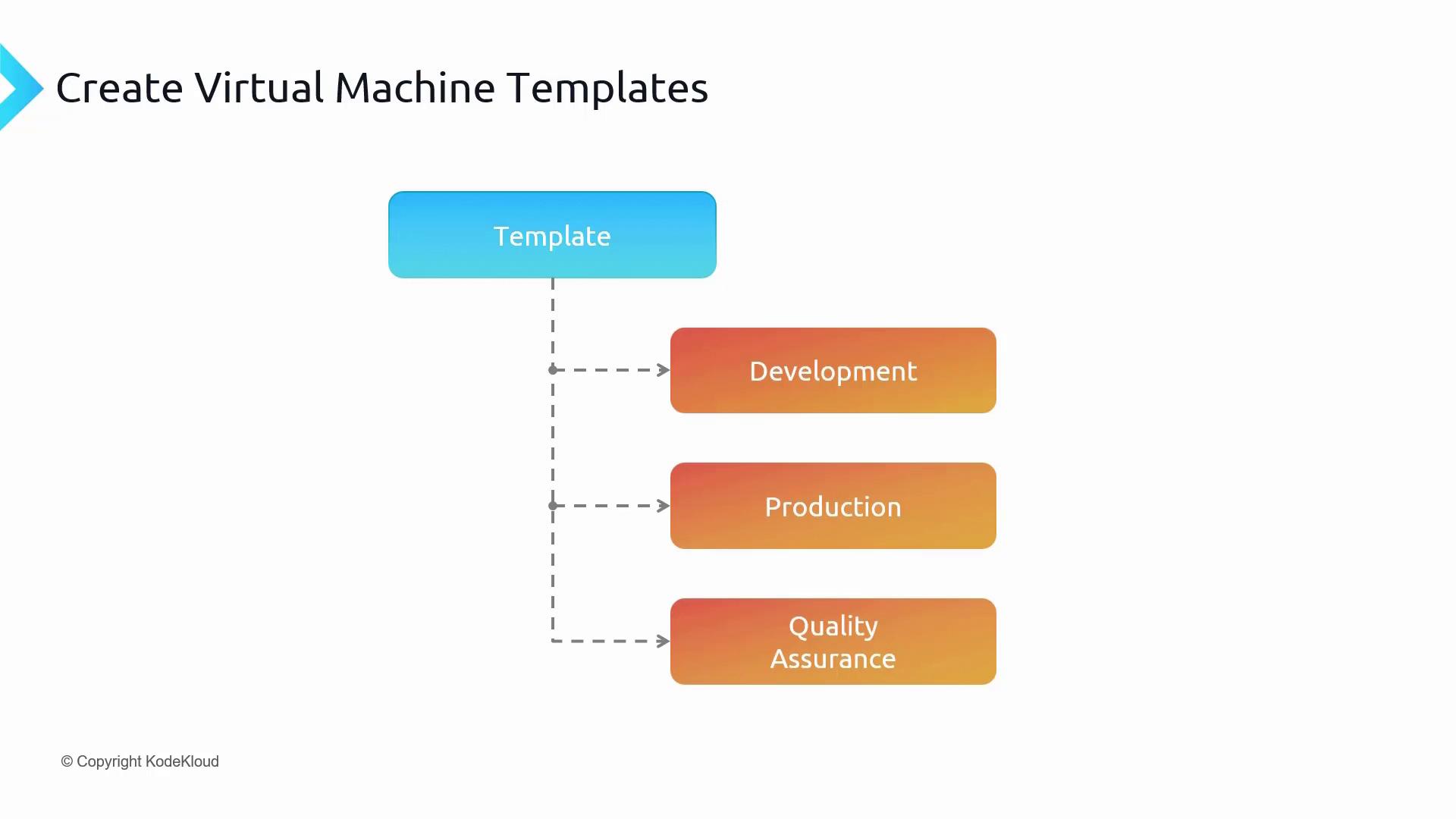
Templates can be tailored to the distinct needs of various departments. For example, an engineering template may include different software compared to a sales template. Once defined, these templates ensure that each department receives the precise configuration they need. -
Infrastructure as Code:
By defining VM templates in Azure Resource Manager (ARM) and storing them in version control systems like Git, organizations can track changes, perform rollbacks, and collaborate more effectively. This integration not only boosts automation but also enforces consistency across deployments. -
Rapid Scalability:
VM templates enable quick instantiation of multiple VM instances. For example, during high-traffic periods such as sales events, additional VMs can be rapidly deployed to handle increased user demand, ensuring a smooth experience. -
Consistent Configuration and Compliance:
Templates guarantee that every deployed VM adheres to set configuration and compliance standards. For example, financial institutions can create templates that automatically align with regulatory requirements, thereby enhancing security and compliance. -
Versioning and Updates:
Versioned templates simplify management by ensuring that when new security patches or updates are released, they can be seamlessly integrated into subsequent deployments.
Scenario: Creating a VM Template with Apache and Website Files
In this scenario, we will build a VM that has Apache installed along with HTML files needed to run a company website. Once configured, this VM will be used as a template for future deployments across regions or for scaling purposes.Step 1: Running a Remediation Script
In our example, a GenBox VM is utilized for testing purposes. A remediation script namedCSBP_remediation.sh is executed to assess the VM and apply hardening policies. When run, the script checks various configurations and outputs its progress in the terminal.
Ensure that you carefully review the remediation script’s output and address any persistent issues before proceeding to the next steps.
Step 2: Installing Apache
After remediation, Apache is installed on the VM. Additional website files are then downloaded from a bootstrap source. The installation process automatically handles the unpacking of requisite packages such aslibapr1, apache2-bin, and apache2-data.
Step 3: Downloading and Extracting Website Files
The website files are delivered as a ZIP file (files.zip). Since the unzip package is not included by default, it is installed first. Following this, the ZIP file is extracted into a directory named website.
Step 4: Copying the Website to Apache’s Web Directory
Copy the website files recursively with verbose output to Apache’s default web directory (/var/www/html/):
Step 5: Configuring the Azure Network Security Group (NSG)
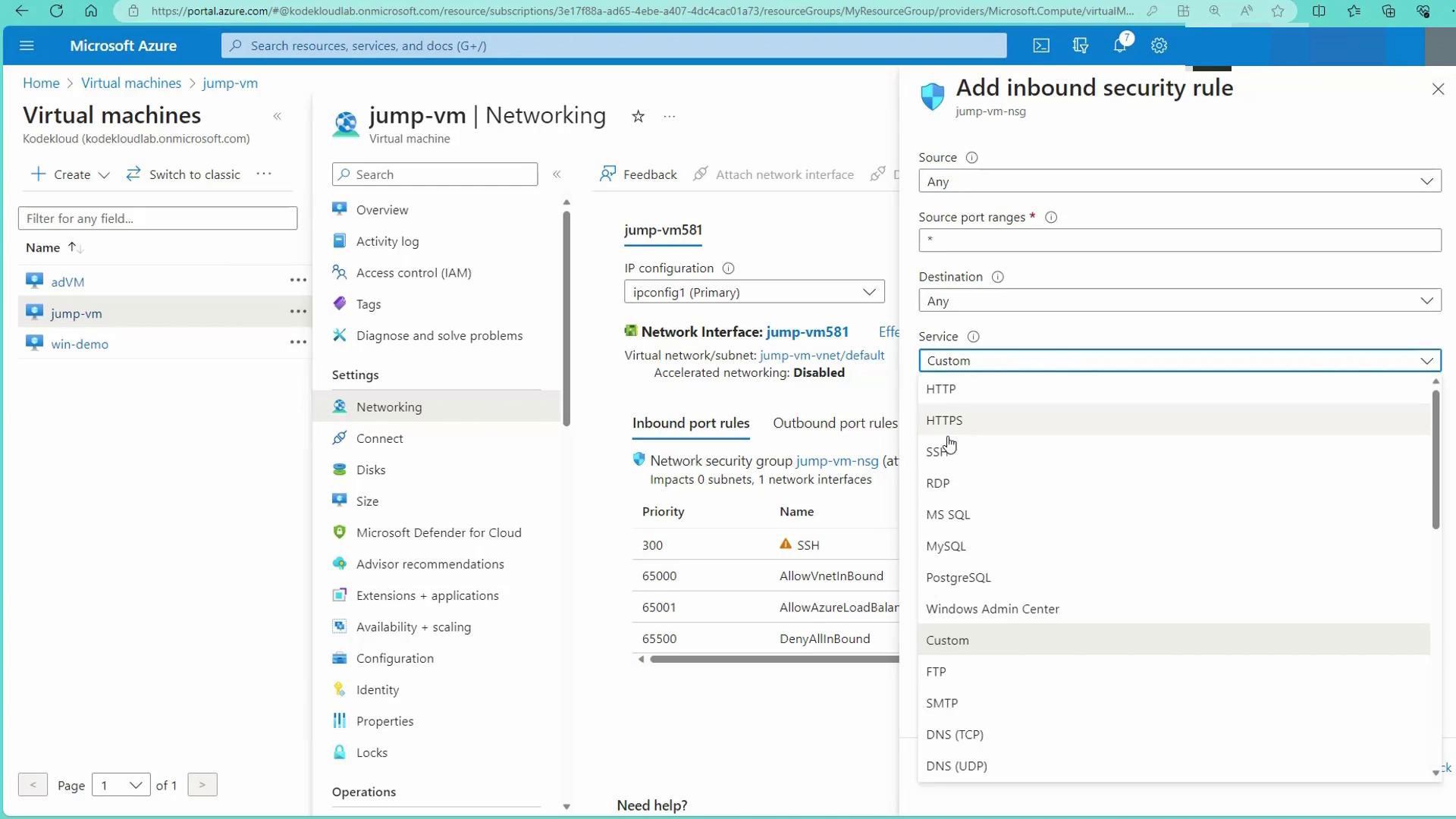
Before accessing the website externally, ensure that the NSG allows traffic on port 80 (HTTP). In the Azure portal, navigate to the virtual machine (e.g., “jump-vm”) and review its networking settings.
Creating a Virtual Machine Template from the Configured VM
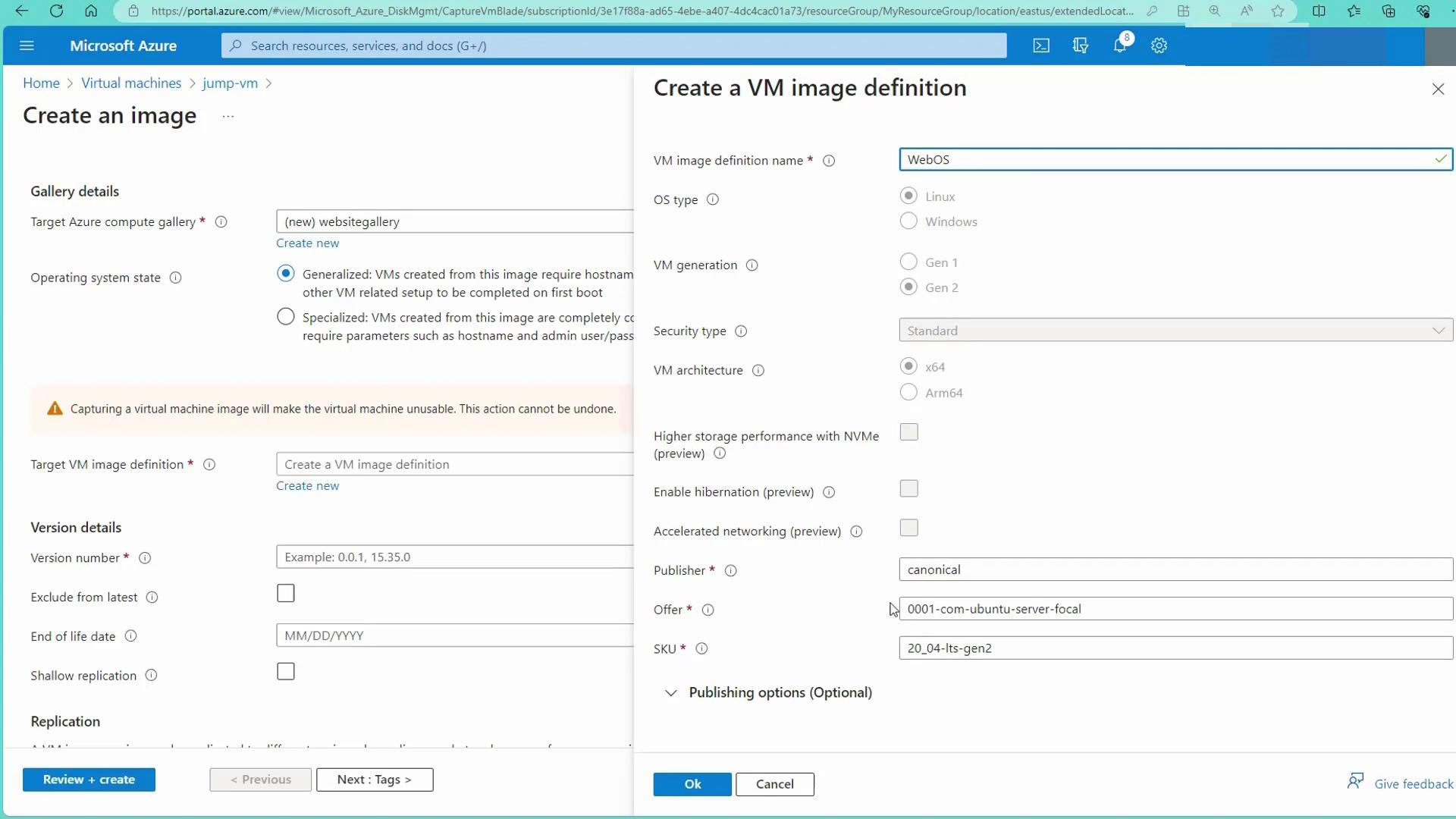
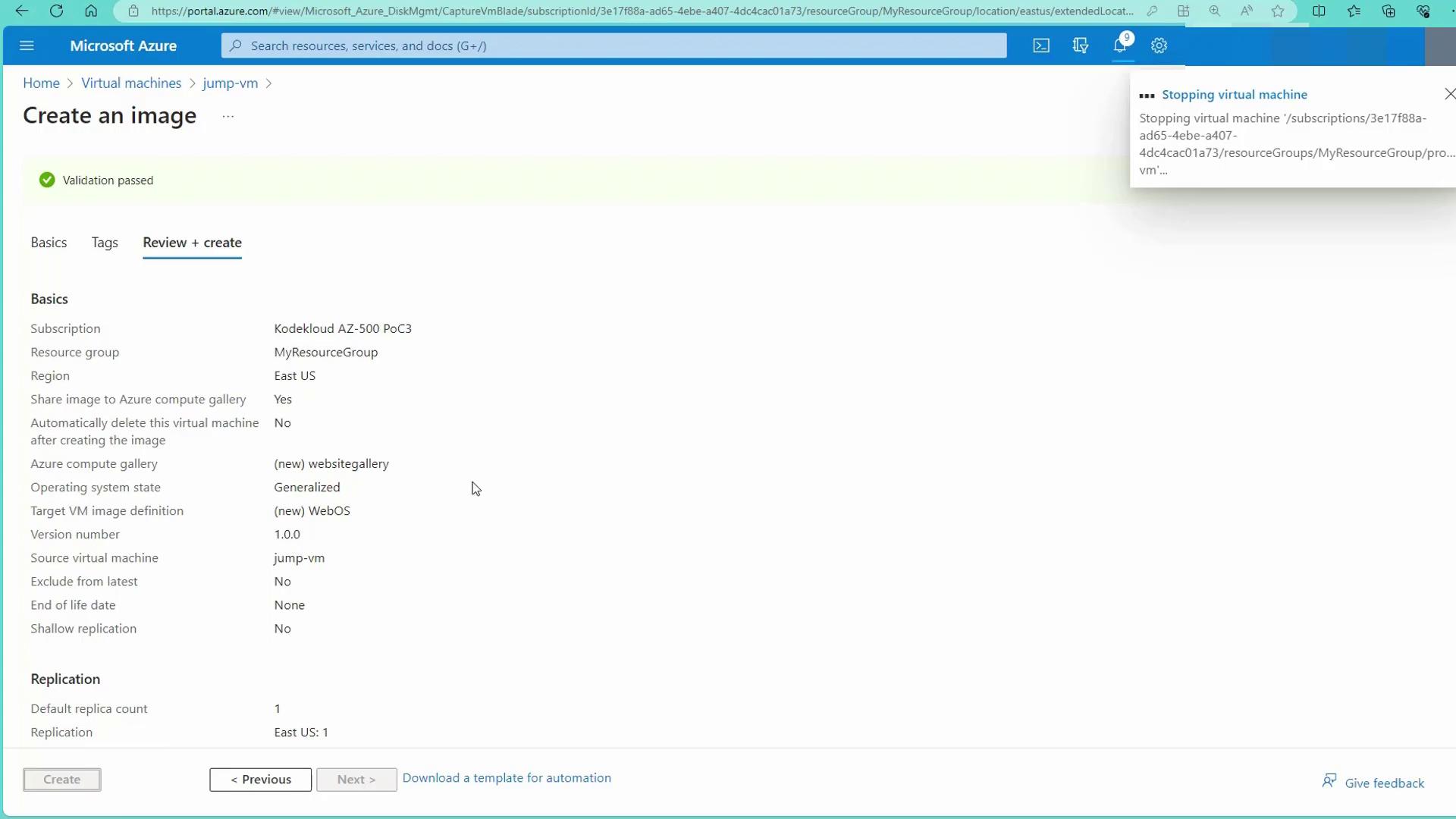
Once the web server with Apache and website files is set up, the next step is to capture this configuration as a VM template. Navigate to the virtual machine’s overview in the Azure portal and select the “Capture” option. When capturing the VM, you are presented with two options:-
Generalized:
This option is similar to executing a sysprep on a Windows machine. The VM image will not retain user-specific information, and initial configuration (like hostname and admin user) will be required upon first boot. -
Specialized:
This option creates an exact clone of your virtual machine, preserving all user accounts and settings.
Deploying a New VM from the Template
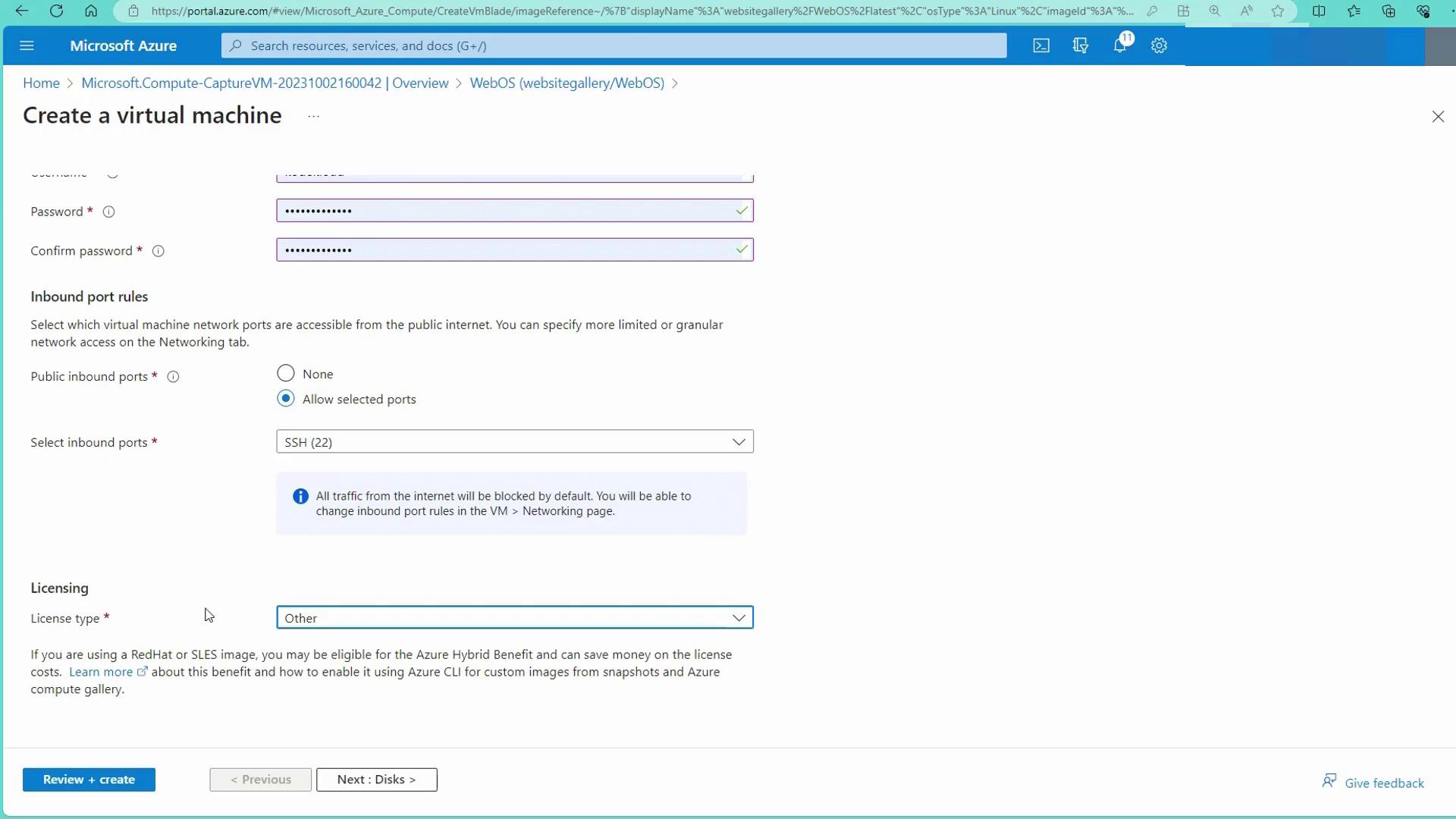
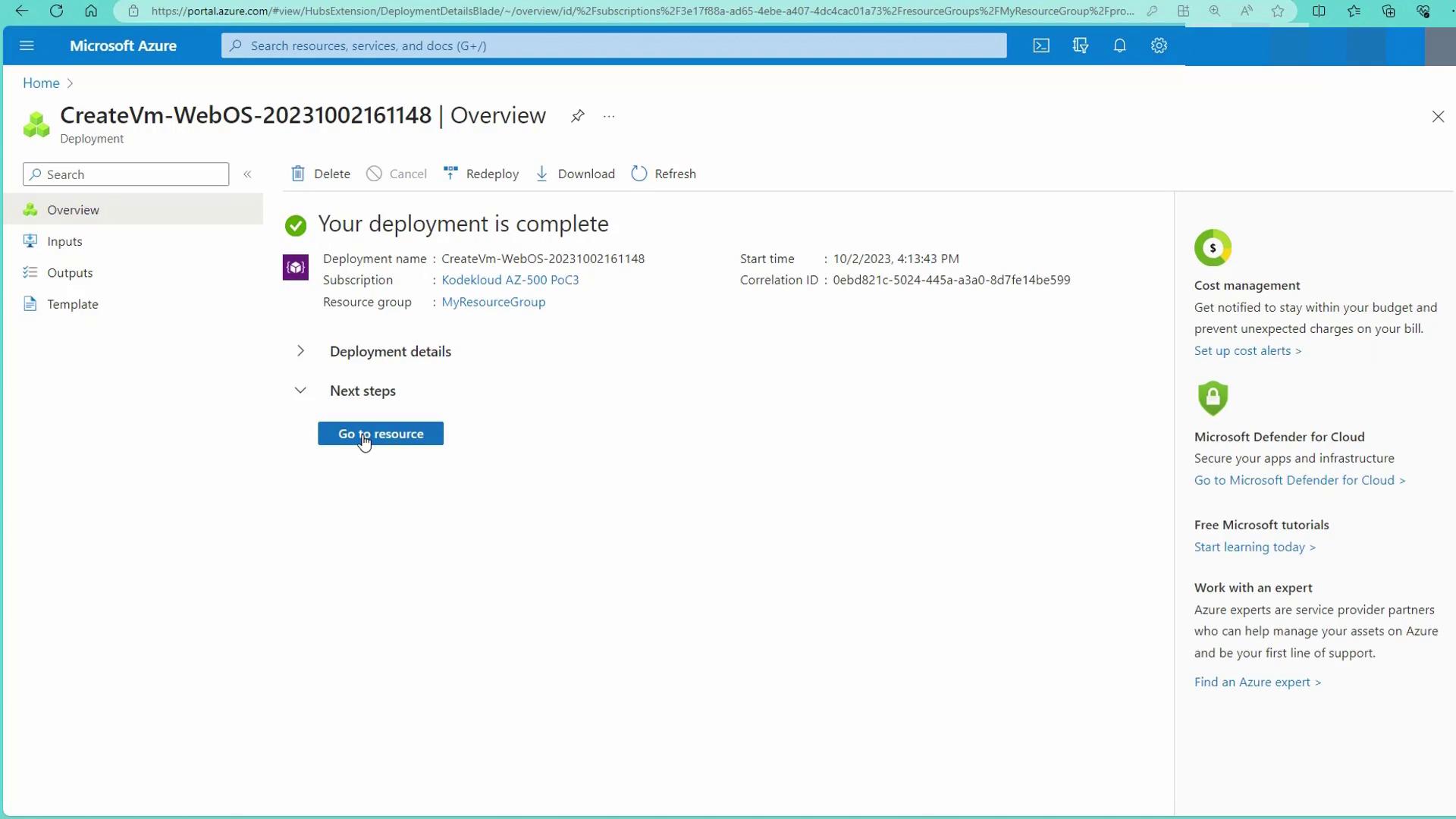
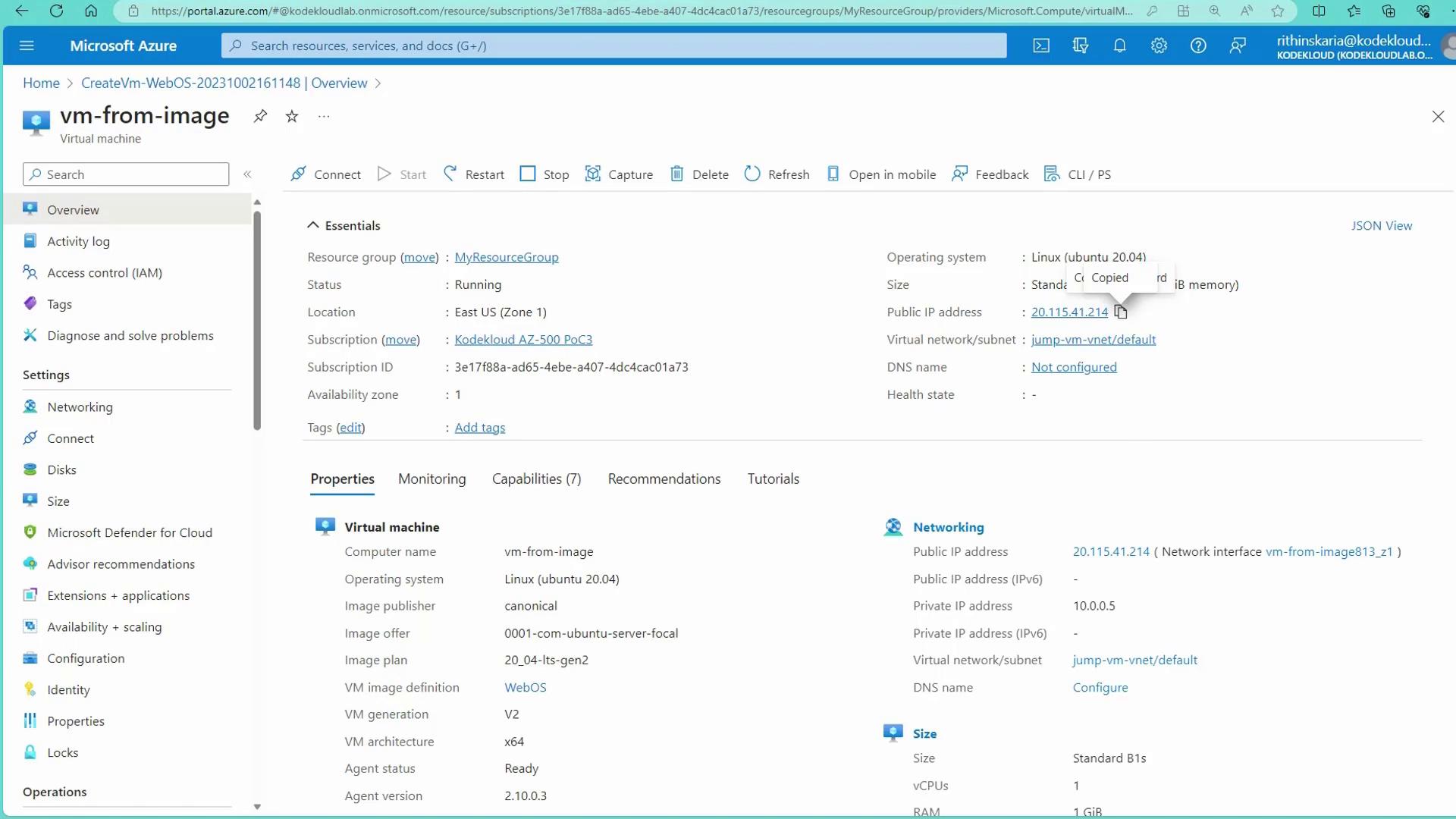
To validate the template, deploy a new VM using the captured image:- In the Azure portal, click on “Create VM.”
- Select an appropriate VM size and name the machine (e.g., “VM-from-image”).
- Configure the authentication method (password and/or SSH).
License selection is not required as the image was created from an Ubuntu machine.
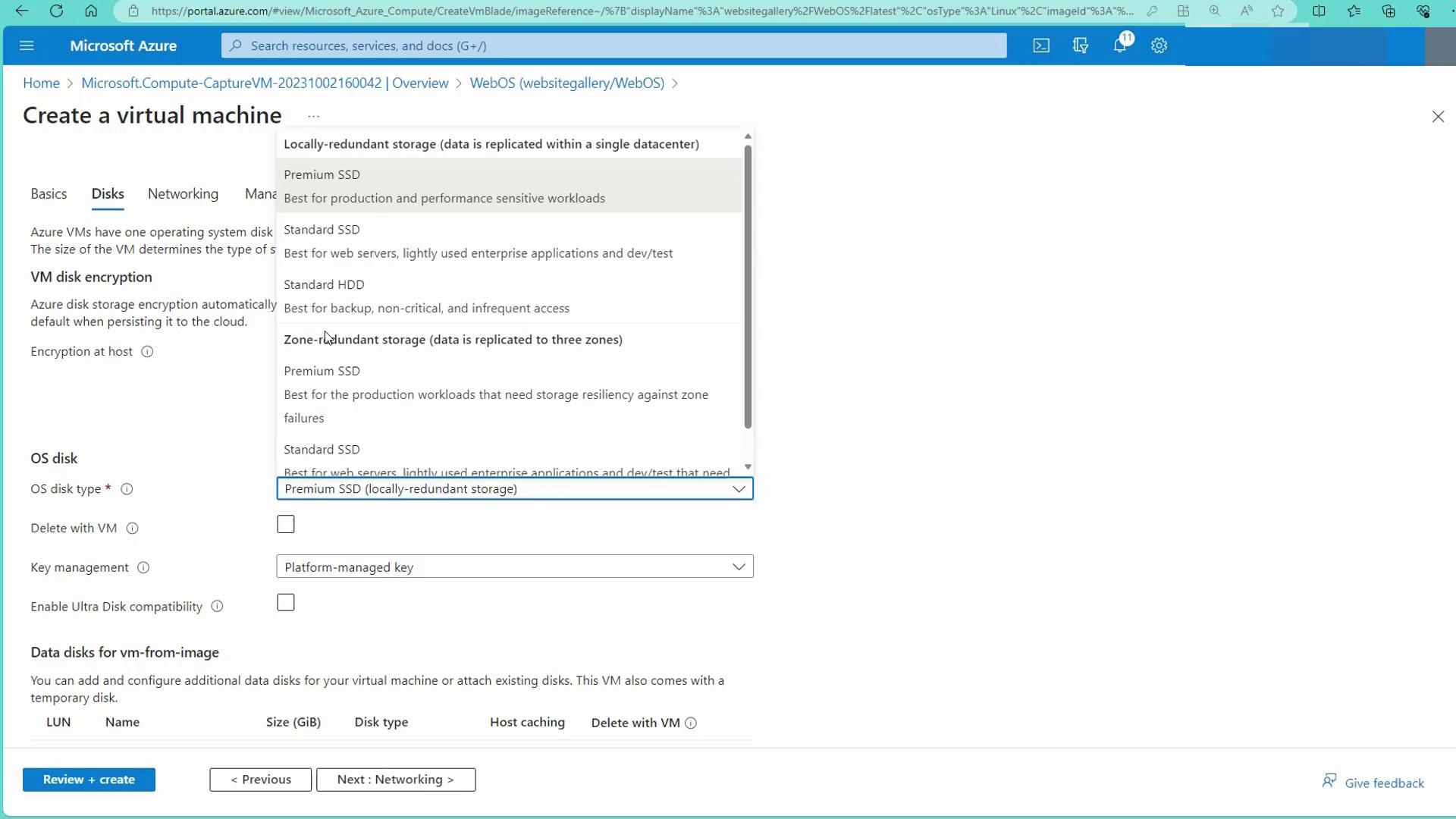
- Choose a standard SSD and review all configurations.
Conclusion
This guide demonstrates the significant benefits of using virtual machine templates:- Consistent and standardized deployments across varied environments.
- Pre-configured security controls and website files embedded in the deployed VMs.
- Rapid scalability through quick replication of secure, standardized configurations.