

- Goal: Create a customer-managed IAM policy that permits programmatic listing, reading, writing, permission management, and tagging for S3 vector buckets, then attach it to a user.
- Pre-requisite: You have an existing S3 vector bucket (or buckets) and an IAM user or role to attach the policy to.
- In the AWS Console, search for and open IAM.
- On the left menu, click Policies, then click Create policy.
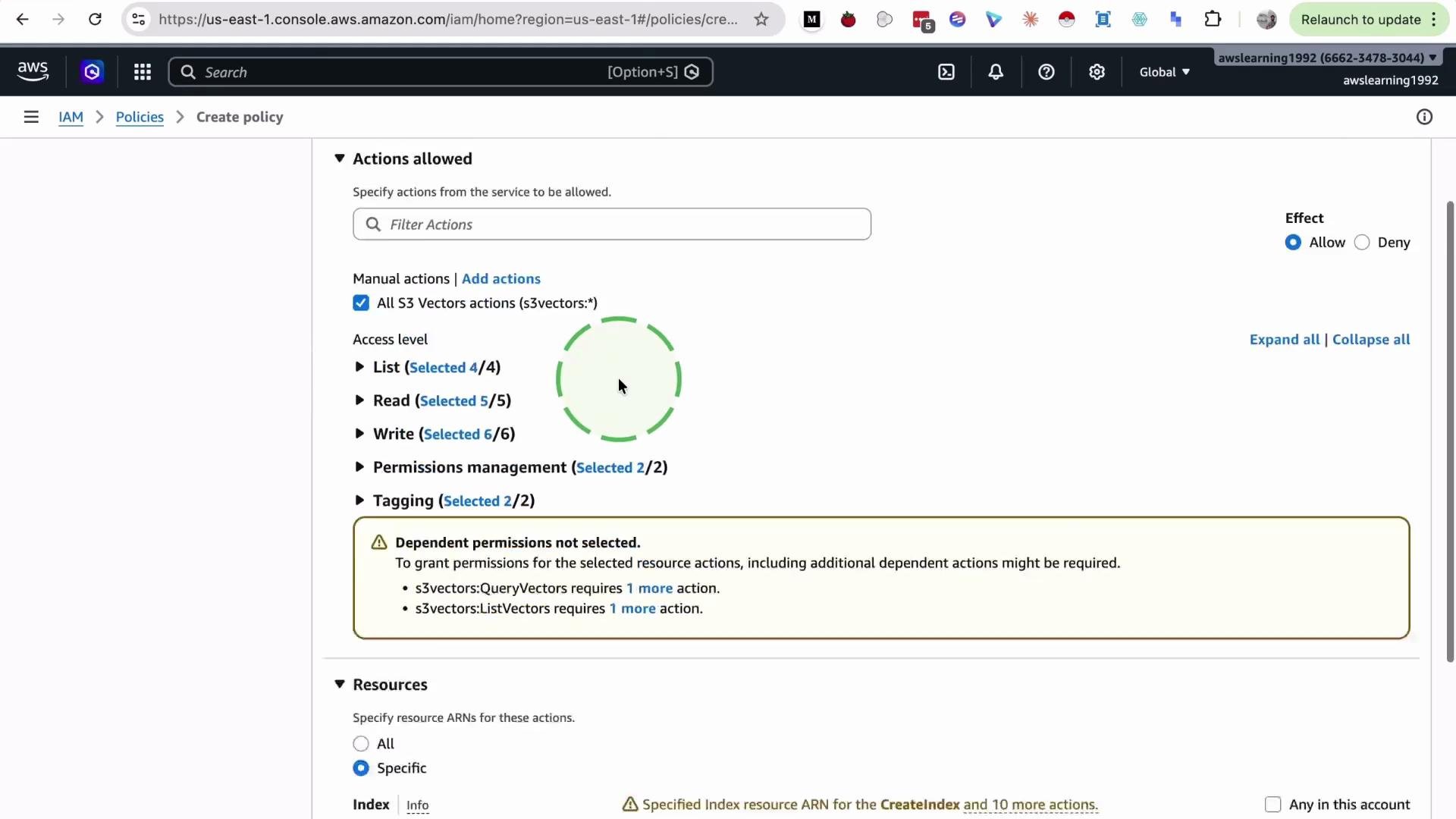
- In the policy editor:
- If your account or organization provides an
S3 Vectorspolicy template, search forvectorsand select it. - If that template is not available, choose the S3 service and manually select the actions your vector workflows require (examples below).
- If your account or organization provides an
- Fine-tune allowed actions depending on your needs:
- Permit only listing, only read/write, or full control depending on the principle of least privilege.
- For this demo, enable actions required for listing, reading, writing, permission management, and tagging so the user can list, read, write, and manage S3 vector buckets and objects.
- Choose the resource scope:
- Selecting
Allapplies the policy to all S3 buckets. For least privilege, scope the policy to specific bucket ARNs such asarn:aws:s3:::my-vector-bucketandarn:aws:s3:::my-vector-bucket/*.
- Selecting
- Click Next, give the policy a name (for example
S3-vector-bucket-demo), then Create policy.
Example minimal customer-managed IAM policy (adjust ARNs and actions for your environment)
your-vector-bucket-name with your actual bucket name, or add multiple ARNs to scope to several buckets.
Step 2 — Attach the policy to a user (or role)
- In IAM, go to Users and select the target user (for example
s3-vector). - Click Add permissions → Attach policies directly.
- Choose the Customer managed filter, search for
vector, select the policy you created, click Next, then Add permissions.
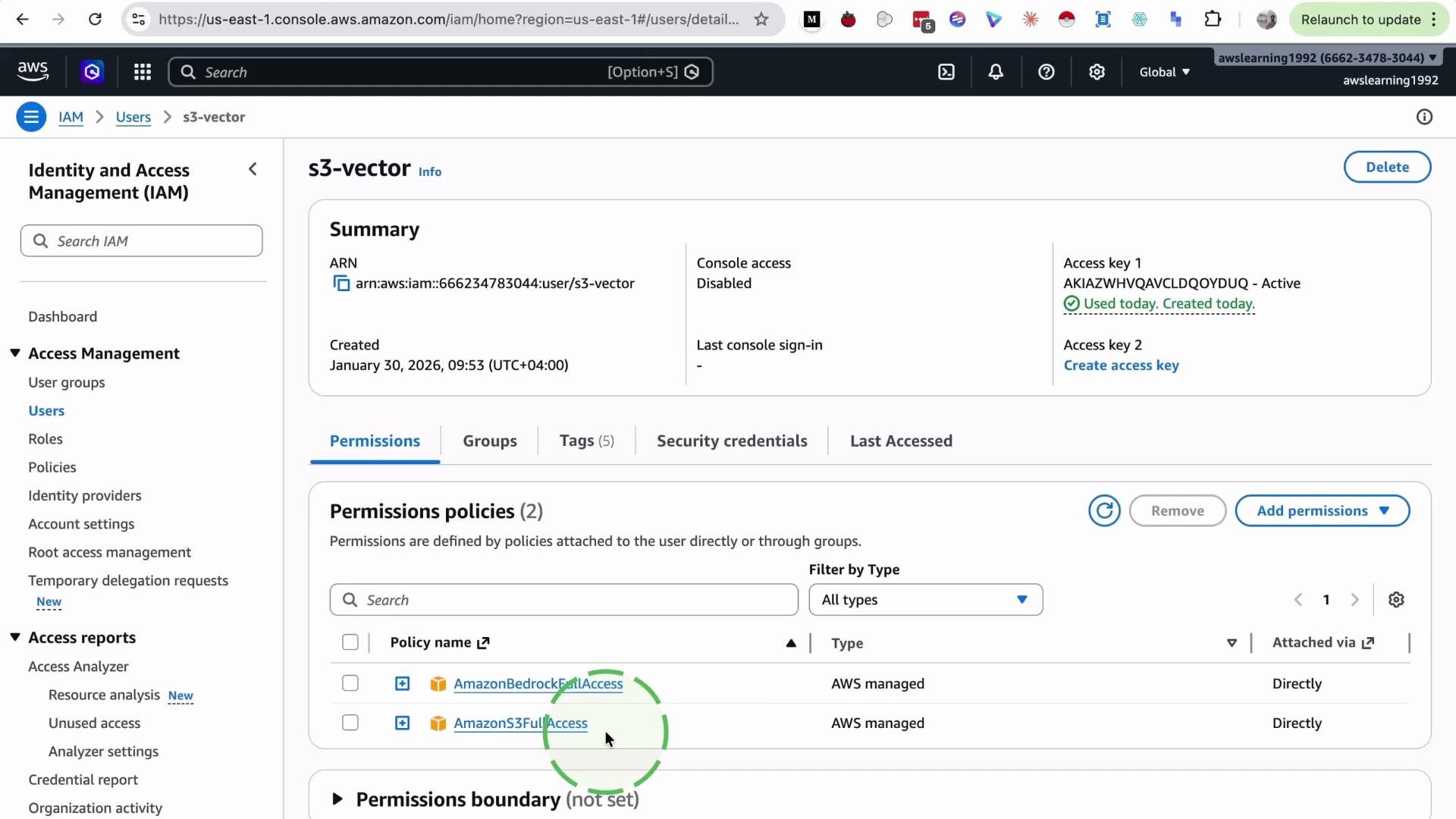
AmazonS3FullAccess policy attached, creating and attaching a customer-managed policy for S3 vector buckets lets you explicitly grant the precise actions and resource scope required by your vector operations (for example scoping permissions to specific bucket ARNs or enabling tagging and permission-management actions). AWS-managed policies can be broader than necessary for your application.
If you have multiple vector buckets or separate environments (dev/stage/prod), create separate policies per environment and scope ARNs accordingly. This makes auditing and rotation easier.
- If objects are encrypted with a KMS key, include the appropriate KMS key permissions such as
kms:Encrypt,kms:Decrypt, andkms:GenerateDataKeyfor the key used by the bucket or objects. - Cross-account bucket access, bucket policies, or object lambda integrations may require extra permissions or trust relationships.
- In the user’s Security credentials tab, generate an Access key (access key ID and secret access key).
- Store these keys securely — for example:
- In an AWS Secrets Manager secret.
- In an encrypted environment variable management solution.
- In a CI/CD secret store.
Never commit access keys to source control. Store them securely (for example, in a secrets manager or environment variables) and rotate them regularly.
- Policy created and scoped to correct bucket ARNs.
- Policy attached to the intended user or role.
- KMS key policy updated if bucket uses SSE-KMS.
- Access keys generated and stored securely.
- Application environment configured to use the keys or role.
- IAM Policies and Permissions (AWS)
- Amazon S3 Actions, Resources, and Condition Keys
- AWS KMS Developer Guide