

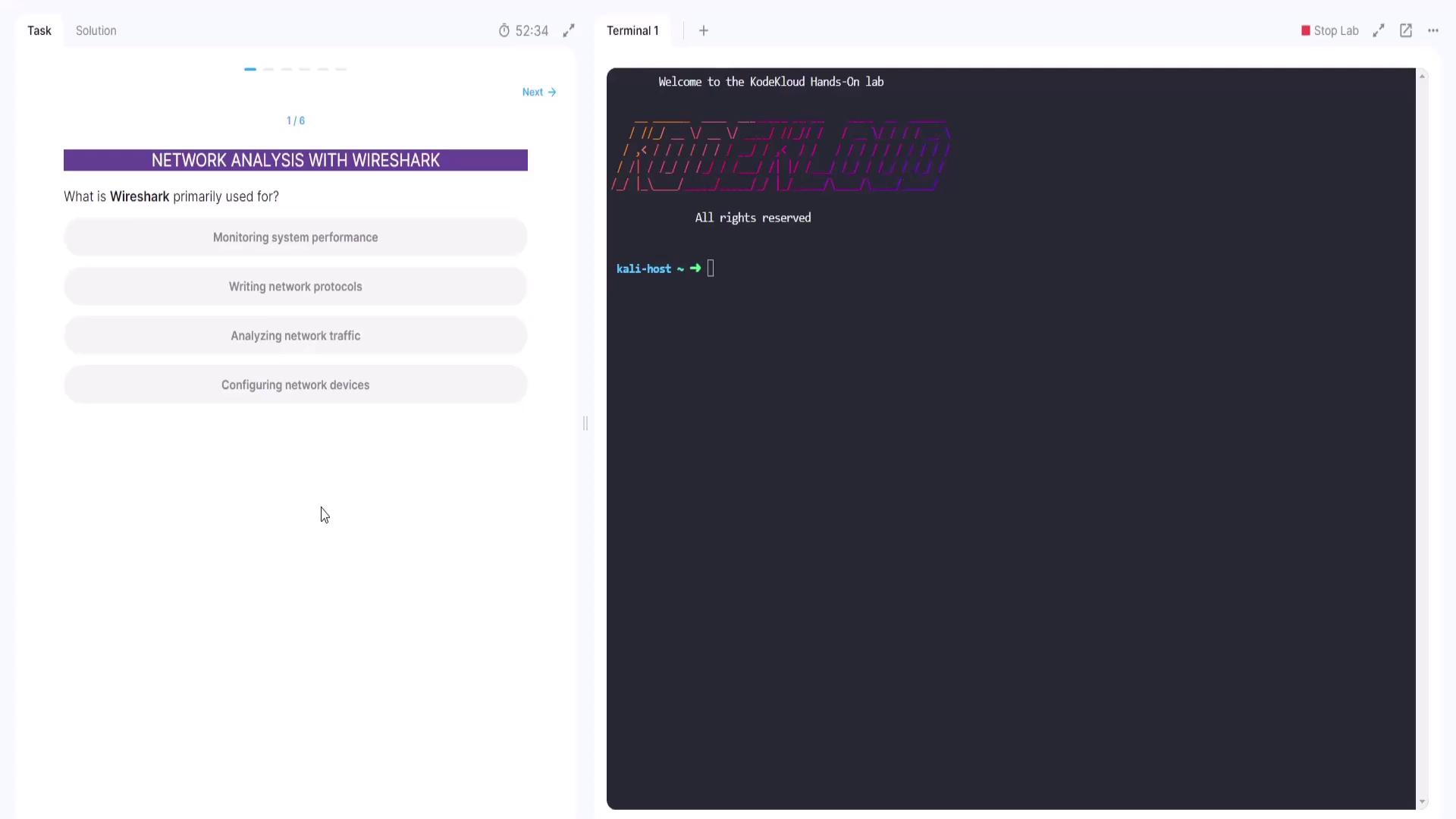
Question 1: What is Wireshark Primarily Used For?
The first query in our hands-on lab asks: Which of the following is the primary application of Wireshark?- Monitoring system performance
- Writing network protocols
- Analyzing network traffic
- Configuring network devices
Question 2: Filtering HTTP Traffic in Wireshark
Next, consider the following question: Which filter in Wireshark would you apply to display only HTTP traffic?- ip.port == 80
- HTTP
- ip.address == 192.168.1.1
- DNS
- The DNS filter only shows DNS traffic.
- The ip.address == 192.168.1.1 filter limits the view to a particular IP address.
- The ip.port == 80 filter is not as precise for HTTP, which is better targeted with the HTTP protocol filter.

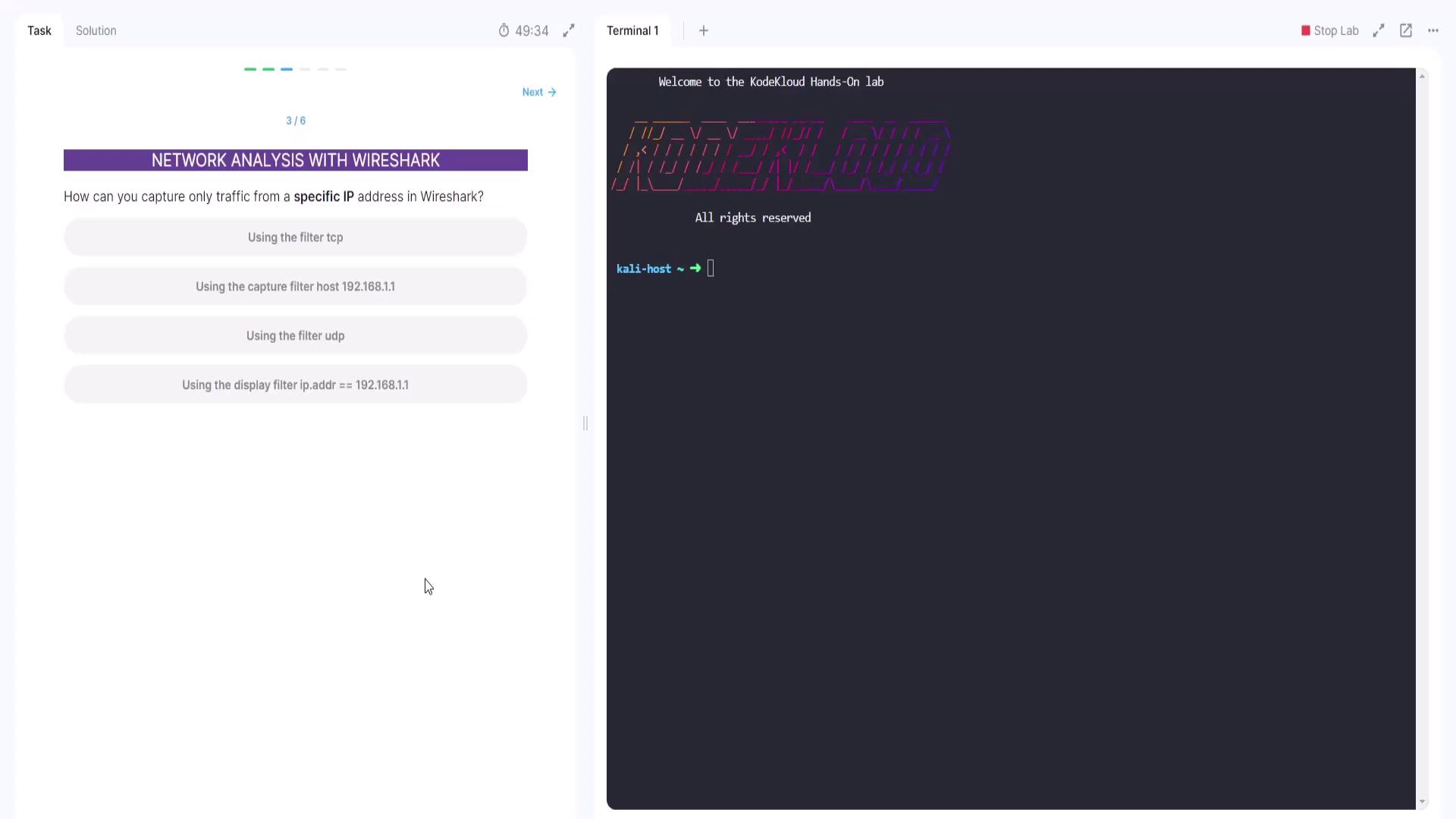
Question 3: Capturing Traffic from a Specific IP Address
The third question in our lab is: How can you capture only traffic from a specific IP address in Wireshark?- Using the filter TCP
- Using the capture filter host 192.168.1.1
- Using the filter UDP
- Using the display filter ip.address == 192.168.1.1
Use the capture filter “host 192.168.1.1” to ensure that only traffic from the specified IP is captured.
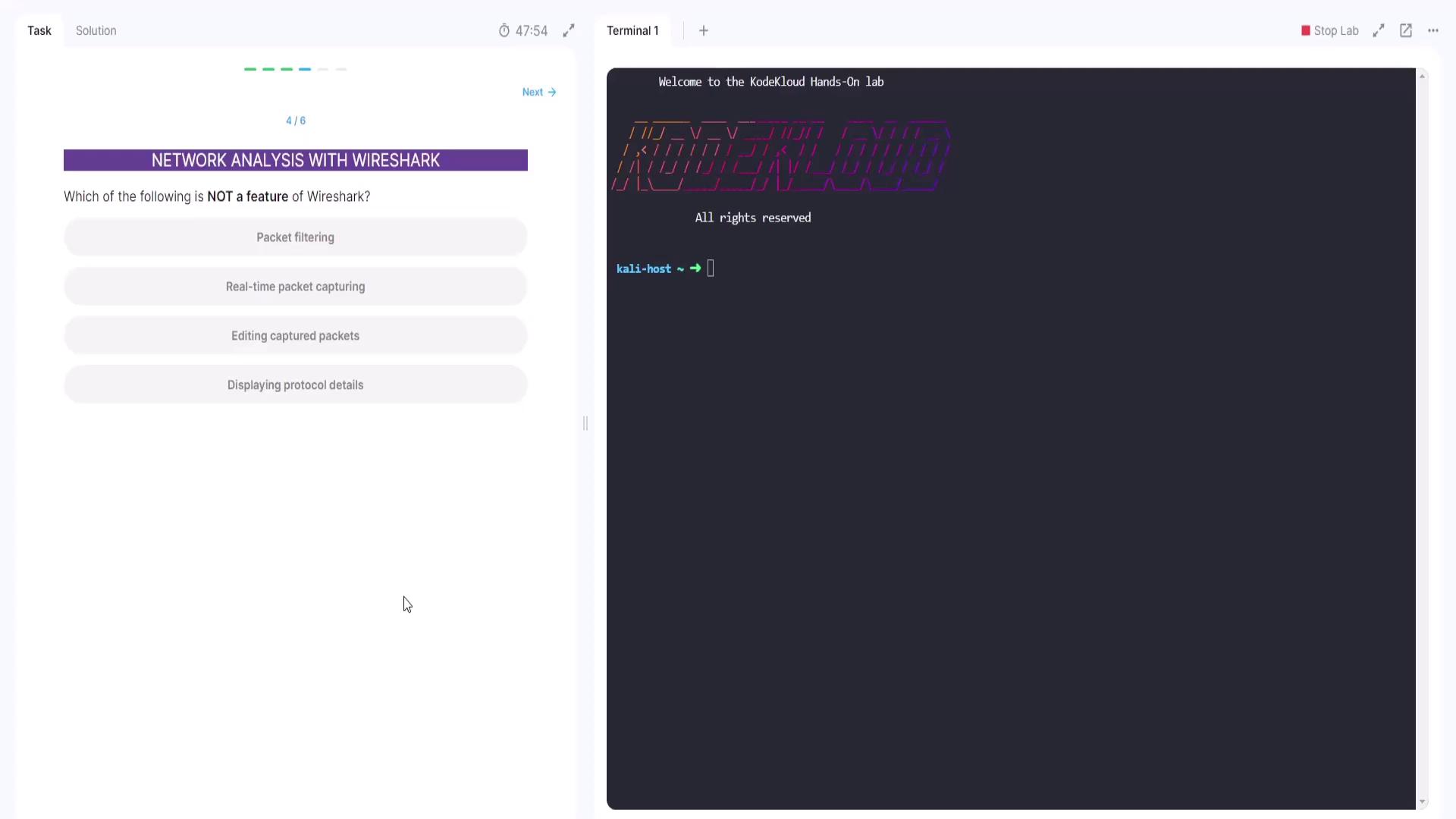
Question 4: Identifying Non-Features in Wireshark
The fourth question asks: Which of the following is NOT a feature of Wireshark?- Packet filtering
- Real-time packet capturing
- Editing captured packets
- Displaying protocol details
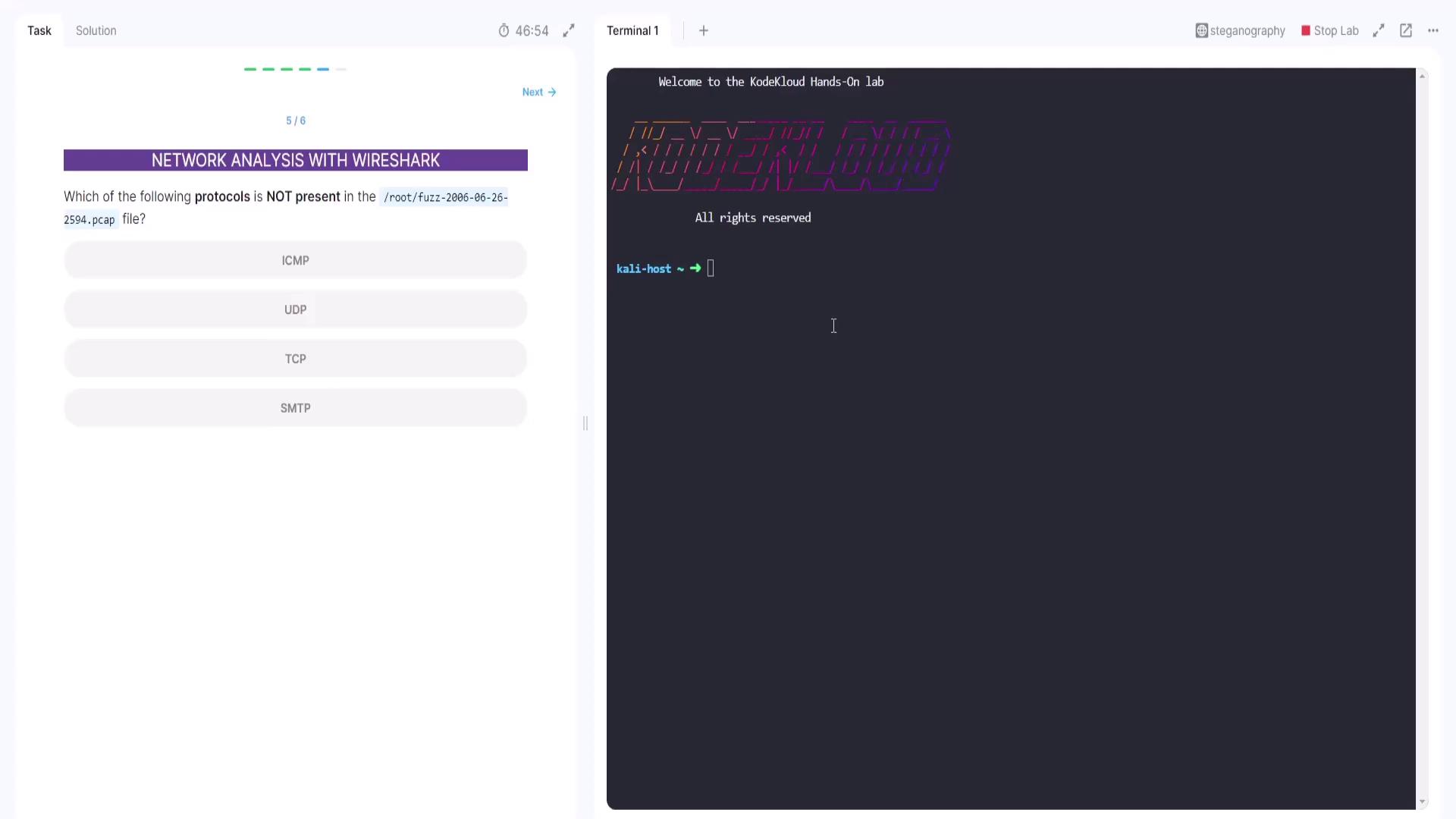
Question 5: Analyzing Protocols in a Capture File
This question presents a hands-on lab challenge regarding protocols present in a capture file. You have a capture file (ending with .pcap) on the Kali host and a terminal window open. Your task is to analyze the file and identify which protocol is absent from the capture. The options provided are:- ICMP
- UDP
- TCP
- SMTP
fuzz-2006-06-26-2594.pcap) using Tshark:
-q option:
-z io,phs switch:
fuzz-2006-06-26-2594.pcap) and run the command again. The resulting output will display various protocol statistics. By comparing the available protocols (ICMP, UDP, TCP, SMTP), it becomes evident that SMTP is not present.
Question 6: Determining the IP Address with the Highest Traffic
The final question of our demo is: Which IP address has the highest amount of traffic in the Wireshark capture? To answer this, begin by analyzing overall protocol statistics from the capture file using Tshark:ip_hosts,tree option:
Always verify the accuracy of the capture file name and the paths provided in your lab instructions to avoid file-not-found errors.
That concludes our network analysis demo using Wireshark. Stay tuned for additional exam insights and more hands-on labs. Happy analyzing! For more information on Wireshark and network analysis best practices, consider exploring the following resources: Happy networking!