

Organization Settings → Users
From the Datadog console, open the main menu and go to Organization Settings → Users. The Users list shows every human and non-human account in the organization. Use filters for status (active, deactivated, service account) and invite new members with the Invite Users button (top-right): enter an email and assign a role during invitation. Clicking an account opens the user detail view with:- Name, email, creation & modification timestamps
- Team memberships and role assignments
- Security settings (MFA status, password policy)
- Permissions attached to that account
Teams
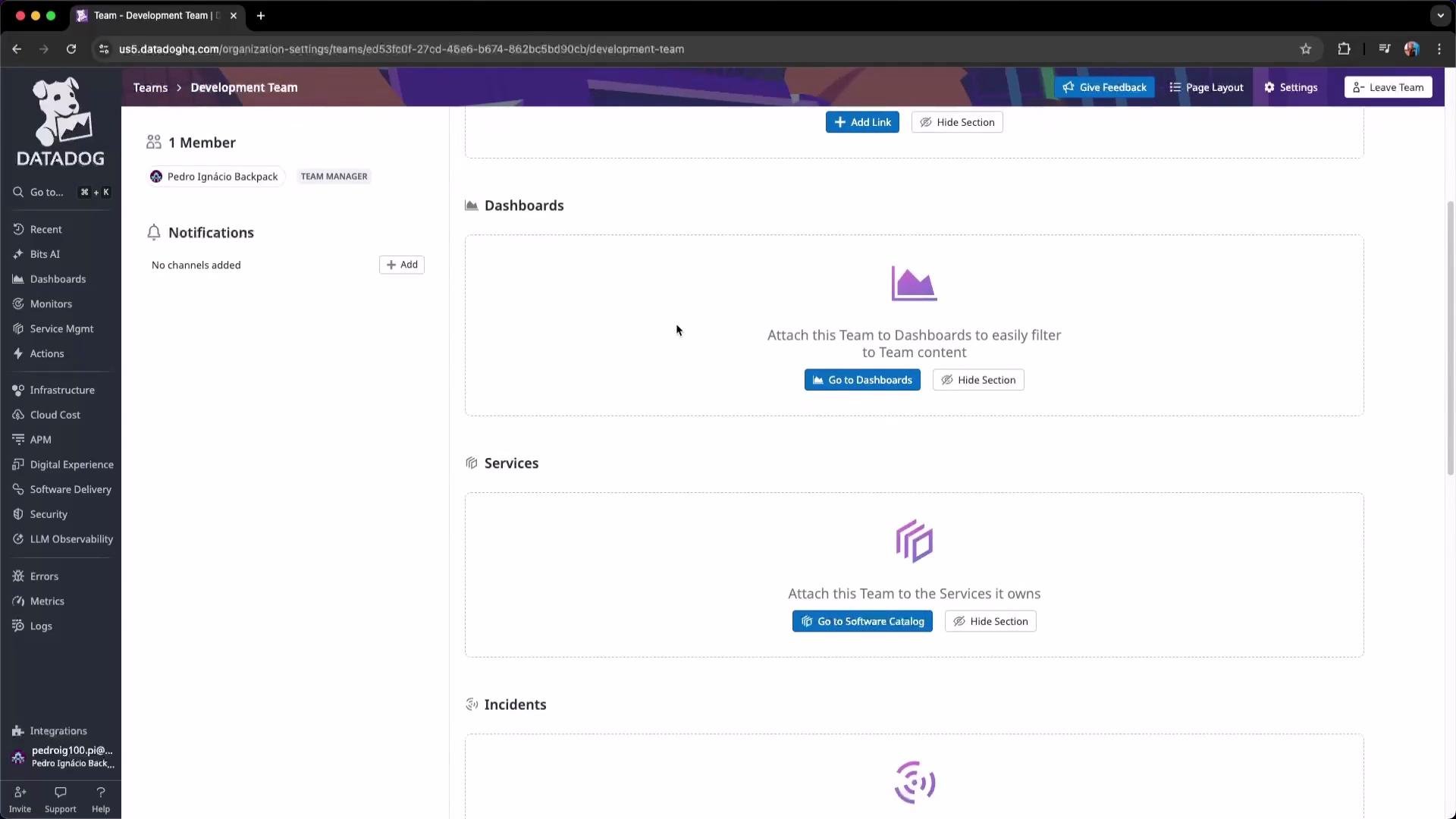
Teams let you mirror your company structure inside Datadog (e.g., Development, SRE, Security, FinOps). Teams can own and be linked to resources (dashboards, notebooks, apps, incidents) so members see only relevant resources.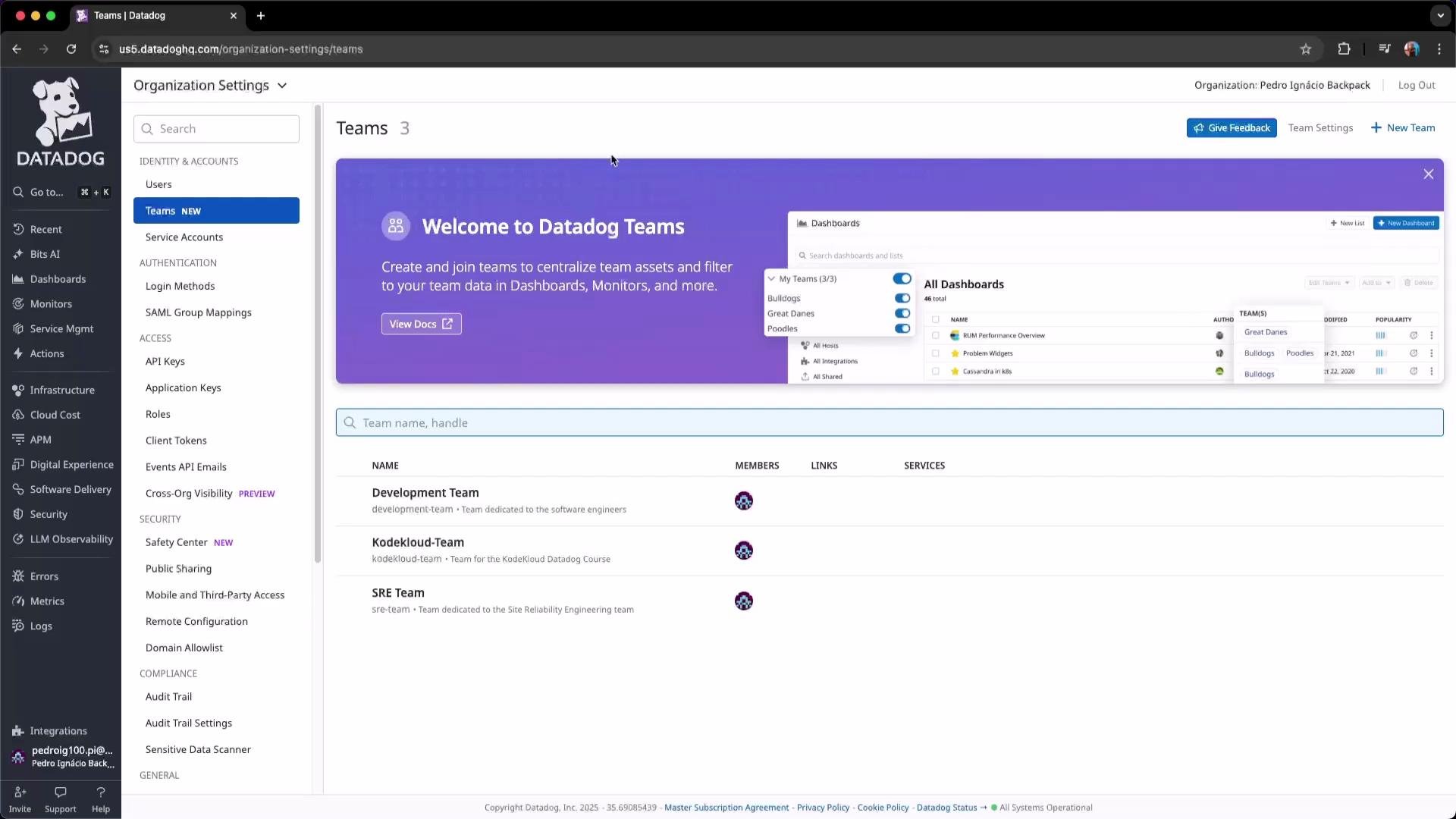
Service accounts
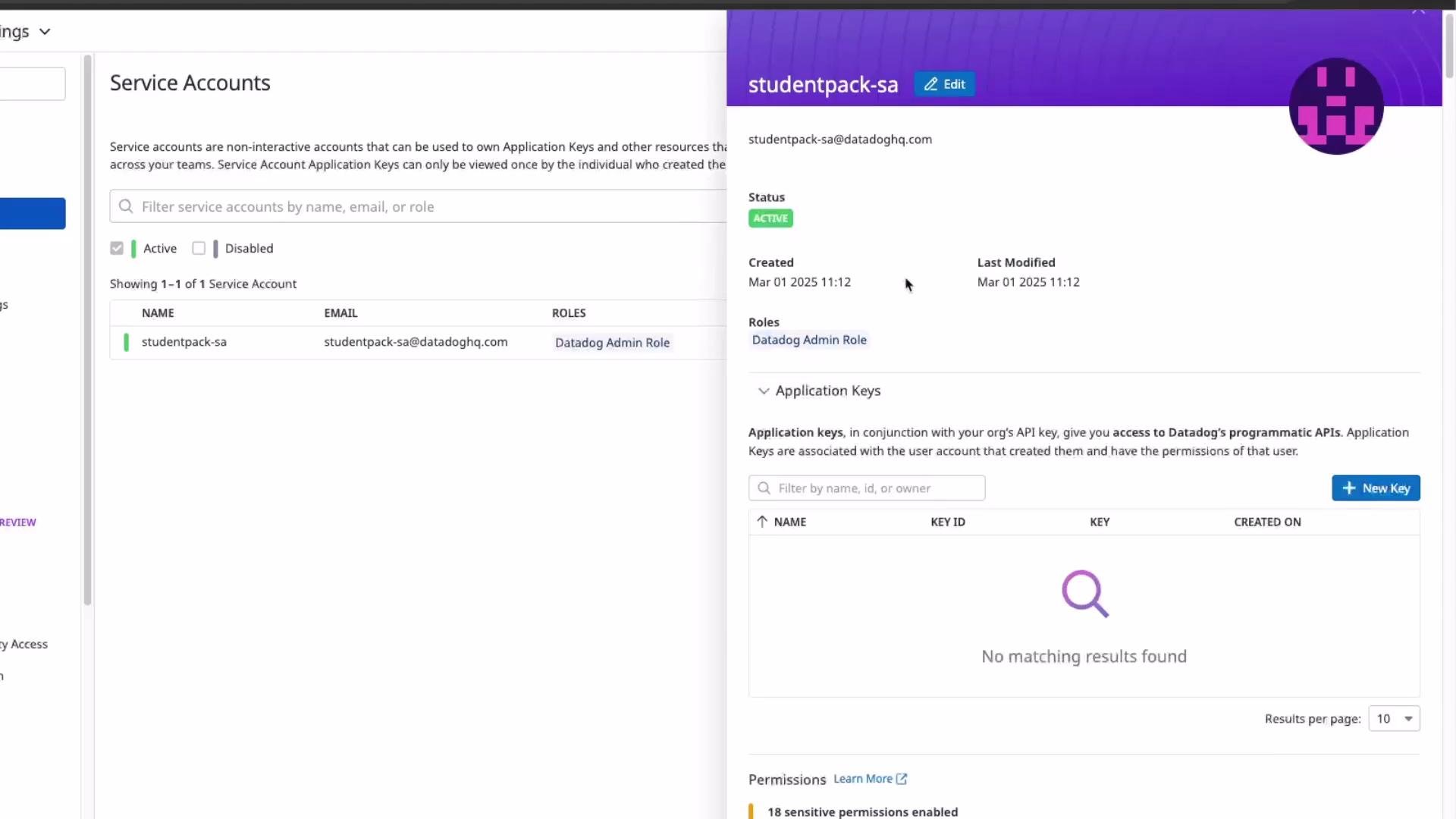
Service accounts are non-human identities used by automated workflows (Lambda functions, CI/CD pipelines, agents). They can own application keys and receive roles like human users, but are designed for programmatic access. To create a service account:- Click New Service Account
- Provide a name (optional email)
- Assign the minimum role required for the automation
Do not assign a Datadog Admin role to production service accounts. Apply least privilege to reduce blast radius if credentials are exposed.
Application keys
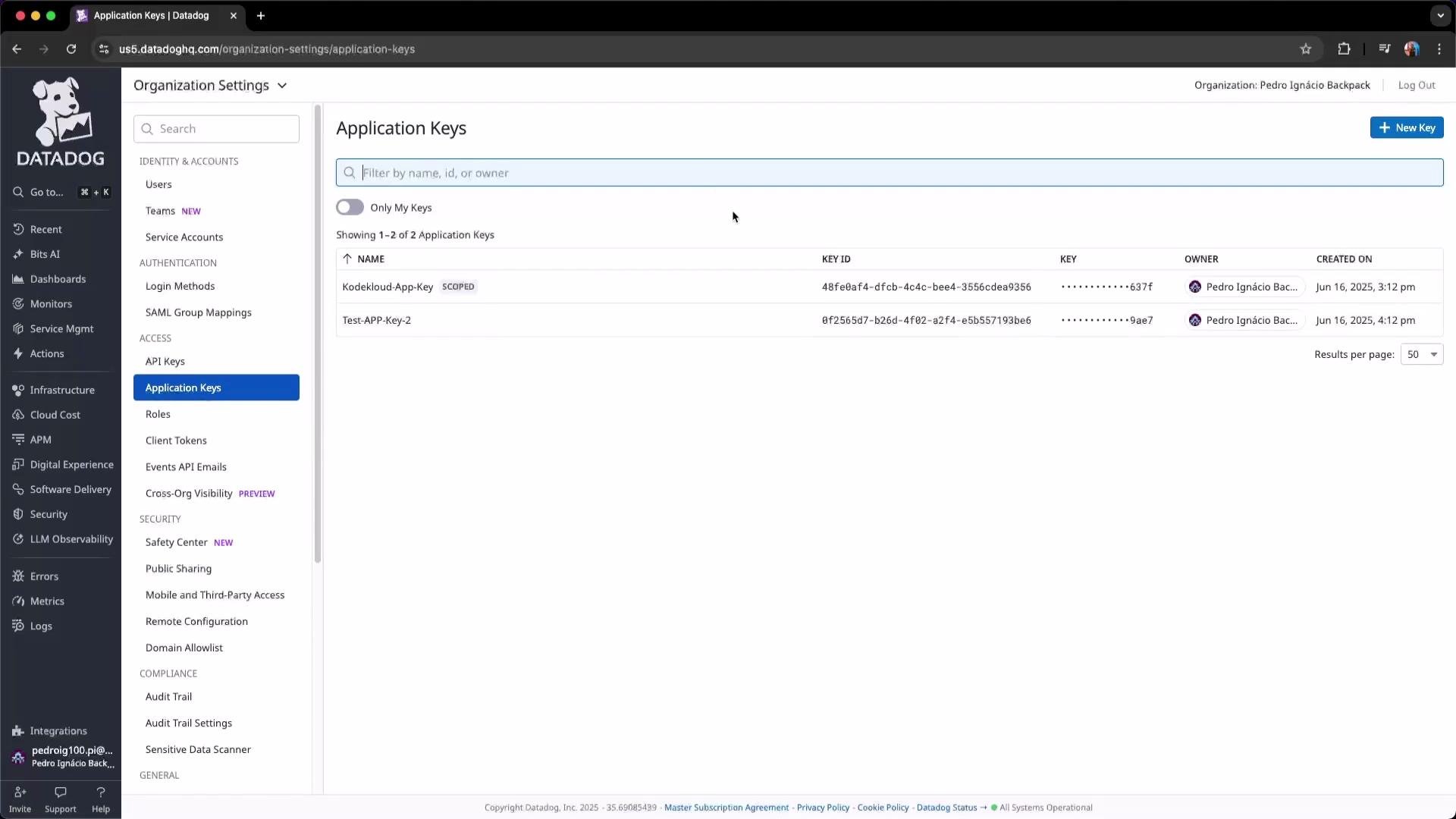
Application keys, used together with an org-level API key, let applications call Datadog APIs. Create app keys for integrations or tools that need to operate on behalf of a user or service account. Application keys identify the calling application; pair them with minimal scopes.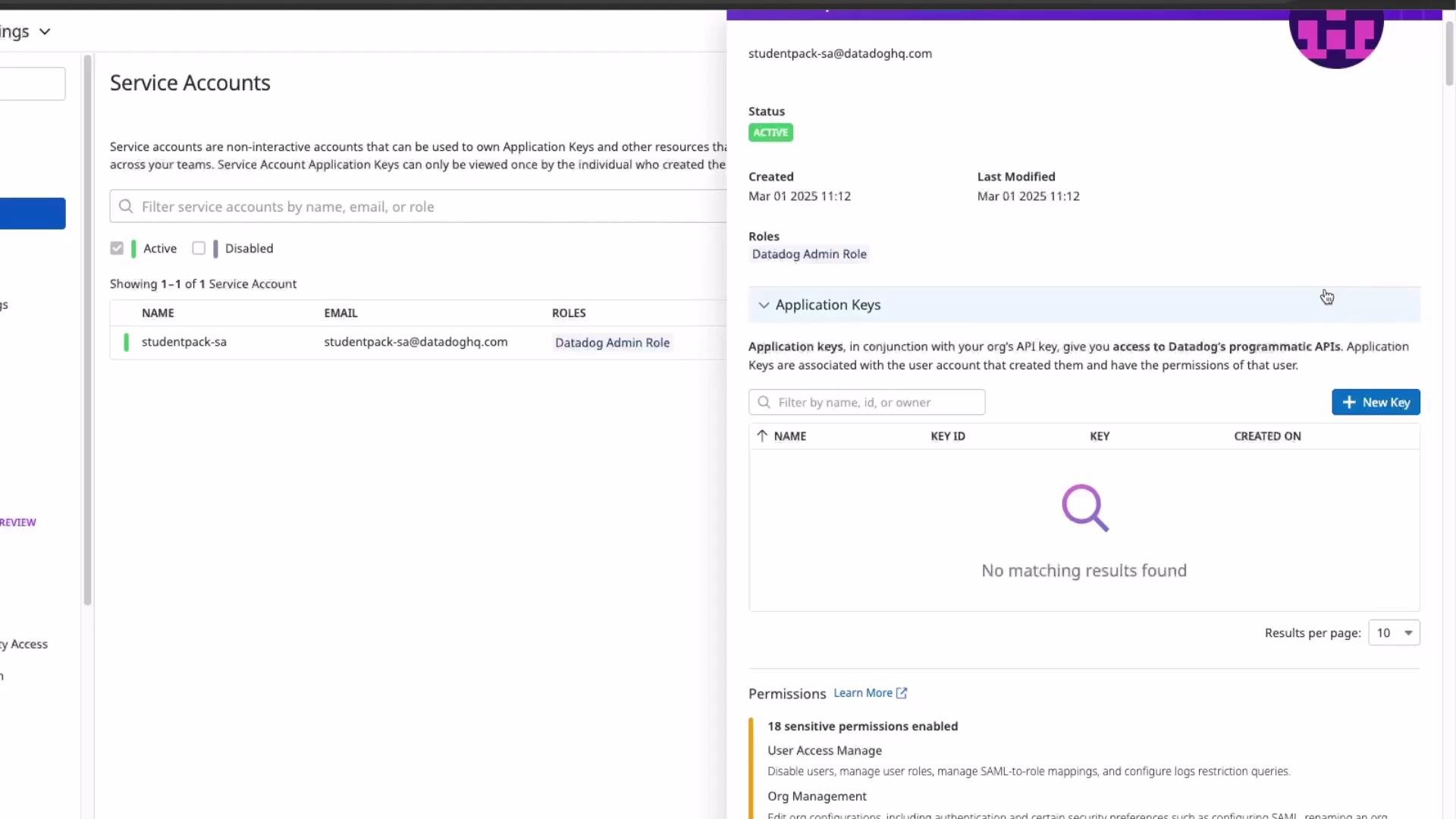
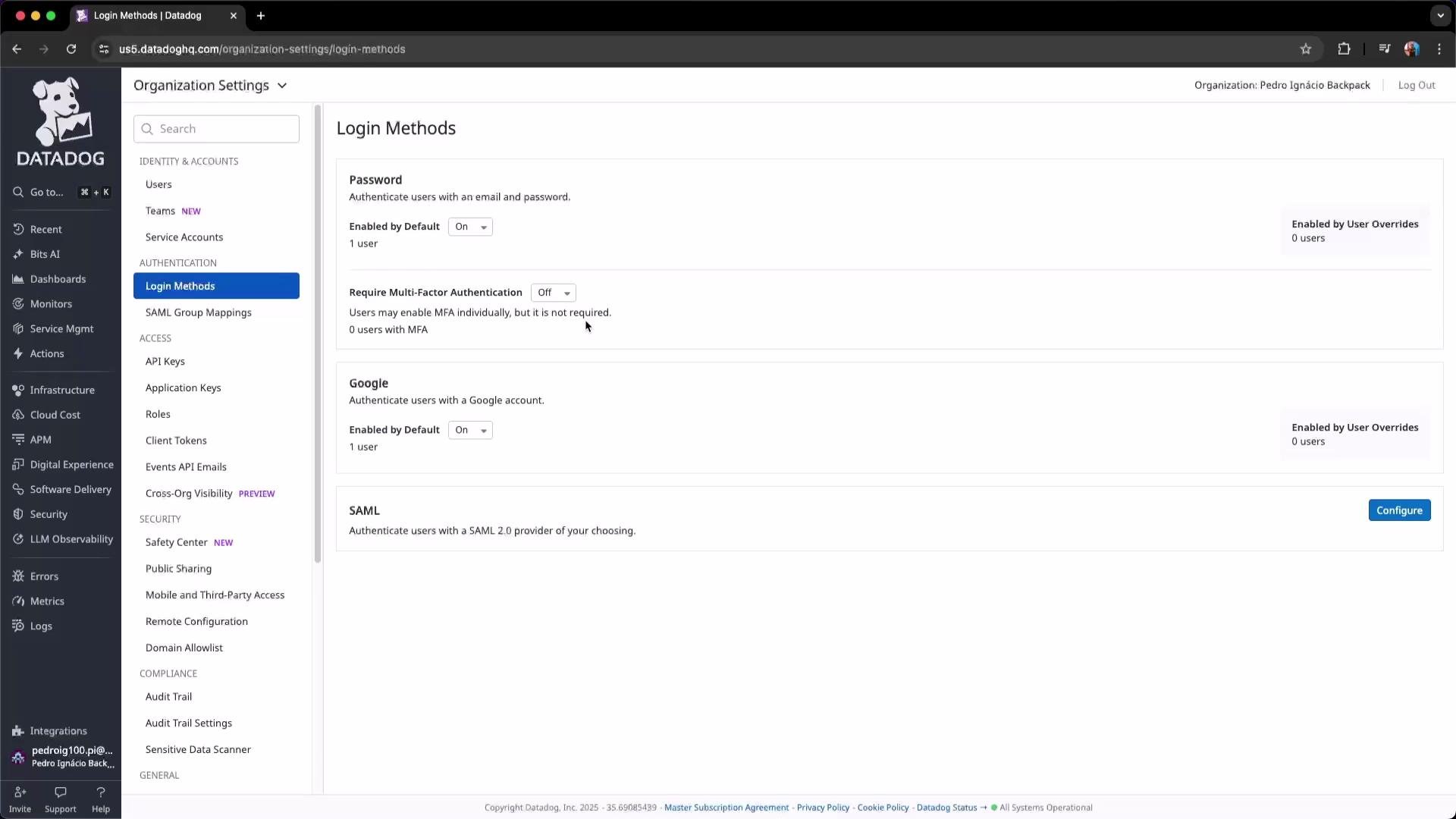
Authentication (Login Methods)
Datadog supports multiple login methods and authentication policies. In Organization Settings you can:- Configure password policies
- Enable/require Multi-Factor Authentication (MFA)
- Set up federated identity providers (Google OAuth, SAML, OIDC)
Federation (SAML / Identity Providers)
Federation with SAML/OIDC/Google OAuth allows teams to use existing corporate identities (Okta, Microsoft Entra ID, AWS IAM Identity Center). Benefits:- Centralized lifecycle management (hire/transfer/terminate)
- Centralized MFA enforcement and conditional access
- Simplified onboarding and offboarding
Integrate SAML/OIDC to enforce corporate access controls and centralize user lifecycle, MFA, and group membership management.
SAML Group Mappings
SAML group mappings convert identity-provider group attributes into Datadog properties and roles. When a user authenticates, the IdP token can include group claims; Datadog maps those claims to platform roles or team memberships (for example, mapping an IdP group to the Log Management role).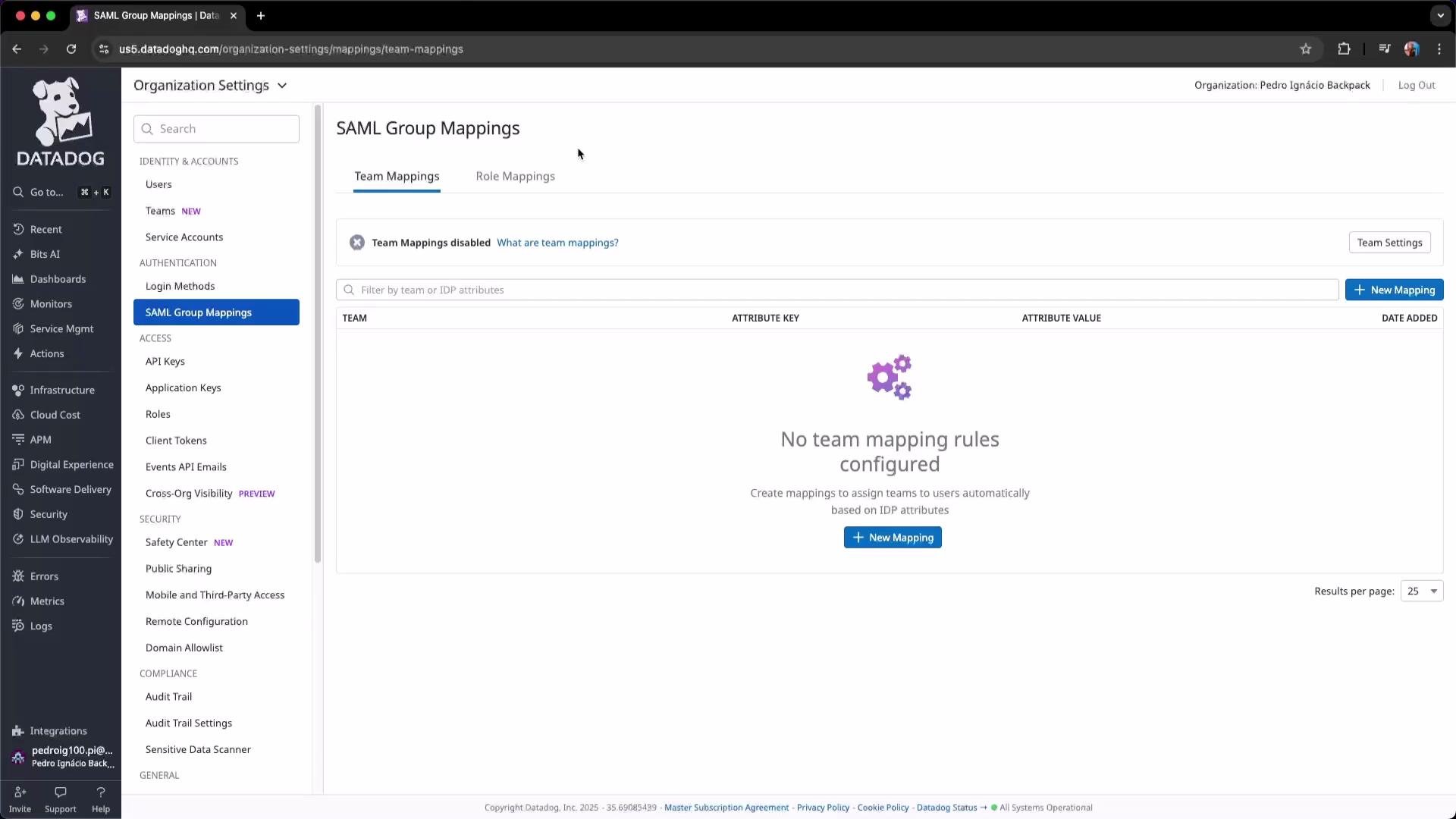
API keys
API keys authenticate Datadog agents and backend integrations. They are used by agents (metrics, logs, traces) and cluster agents to send telemetry to Datadog.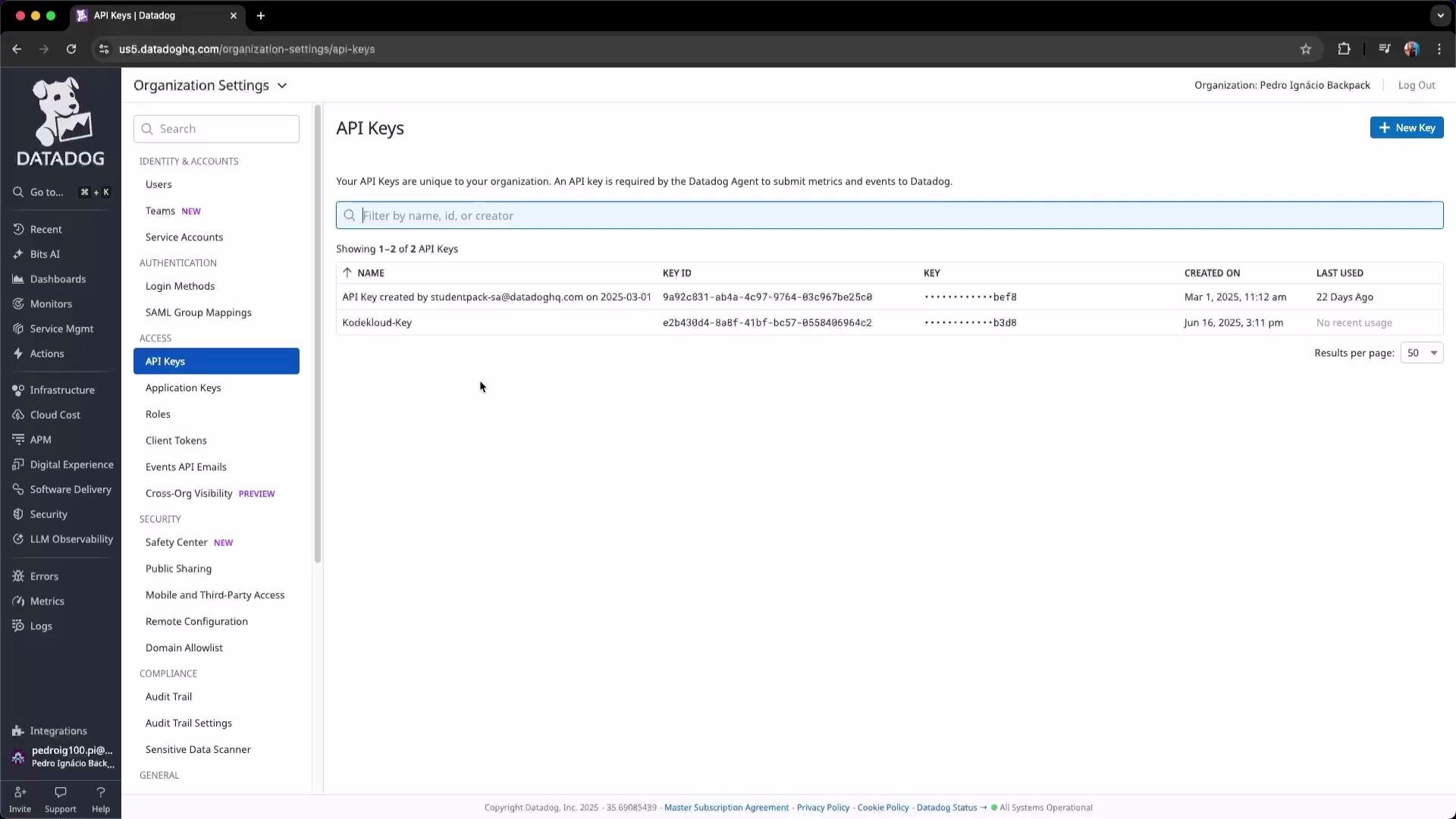
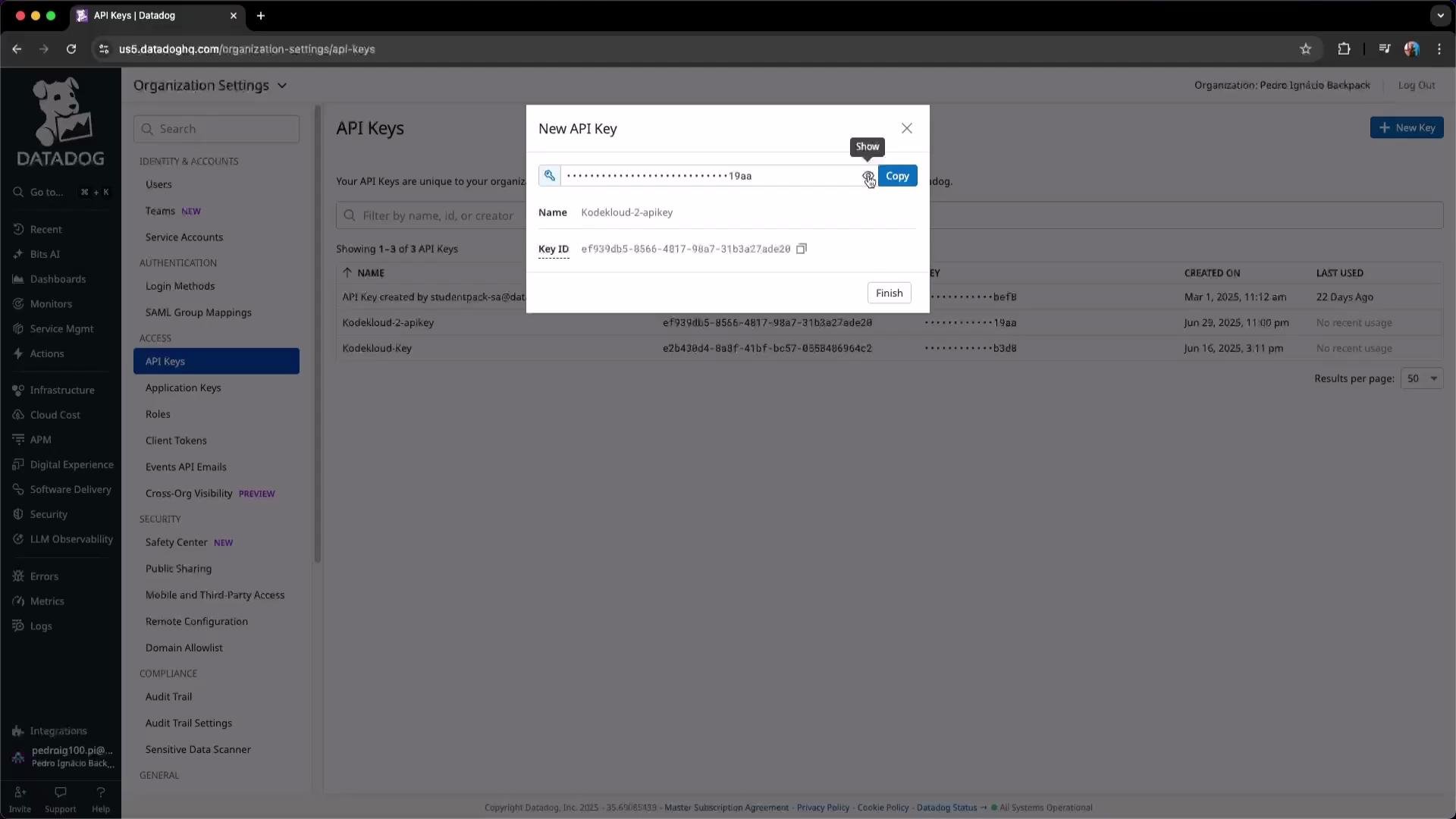
- Store keys in a secrets manager (e.g., HashiCorp Vault, cloud KMS).
- Rotate keys regularly and remove unused keys.
- Revoke immediately if a key is leaked or committed to source control.
Key types at-a-glance
Application keys (detailed scopes)
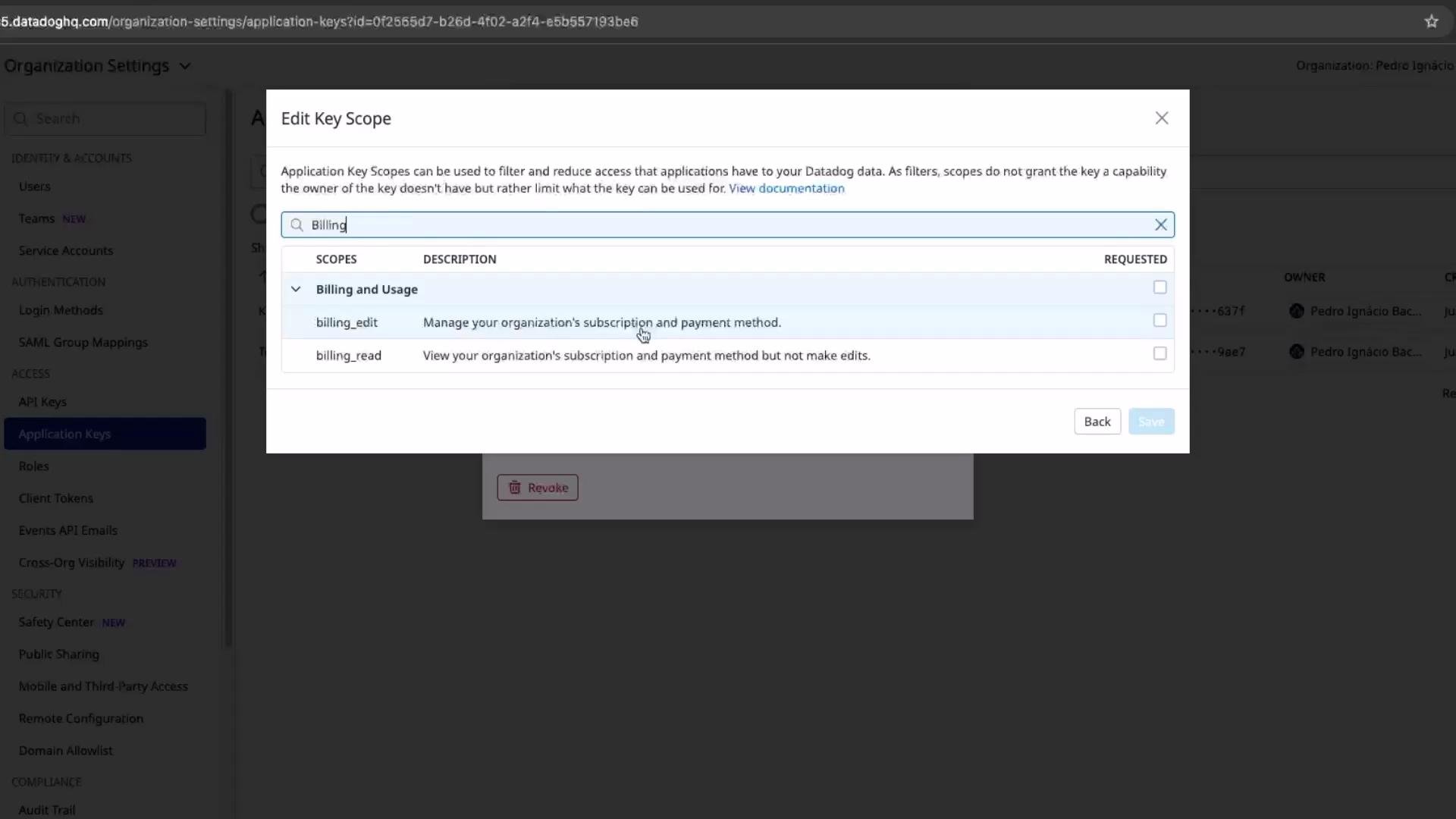
Application keys can be scoped to limit what the key can do. When creating or editing an application key, select the minimal scopes required (e.g.,billing_read for FinOps tools). Scoping reduces exposure if a key is compromised.
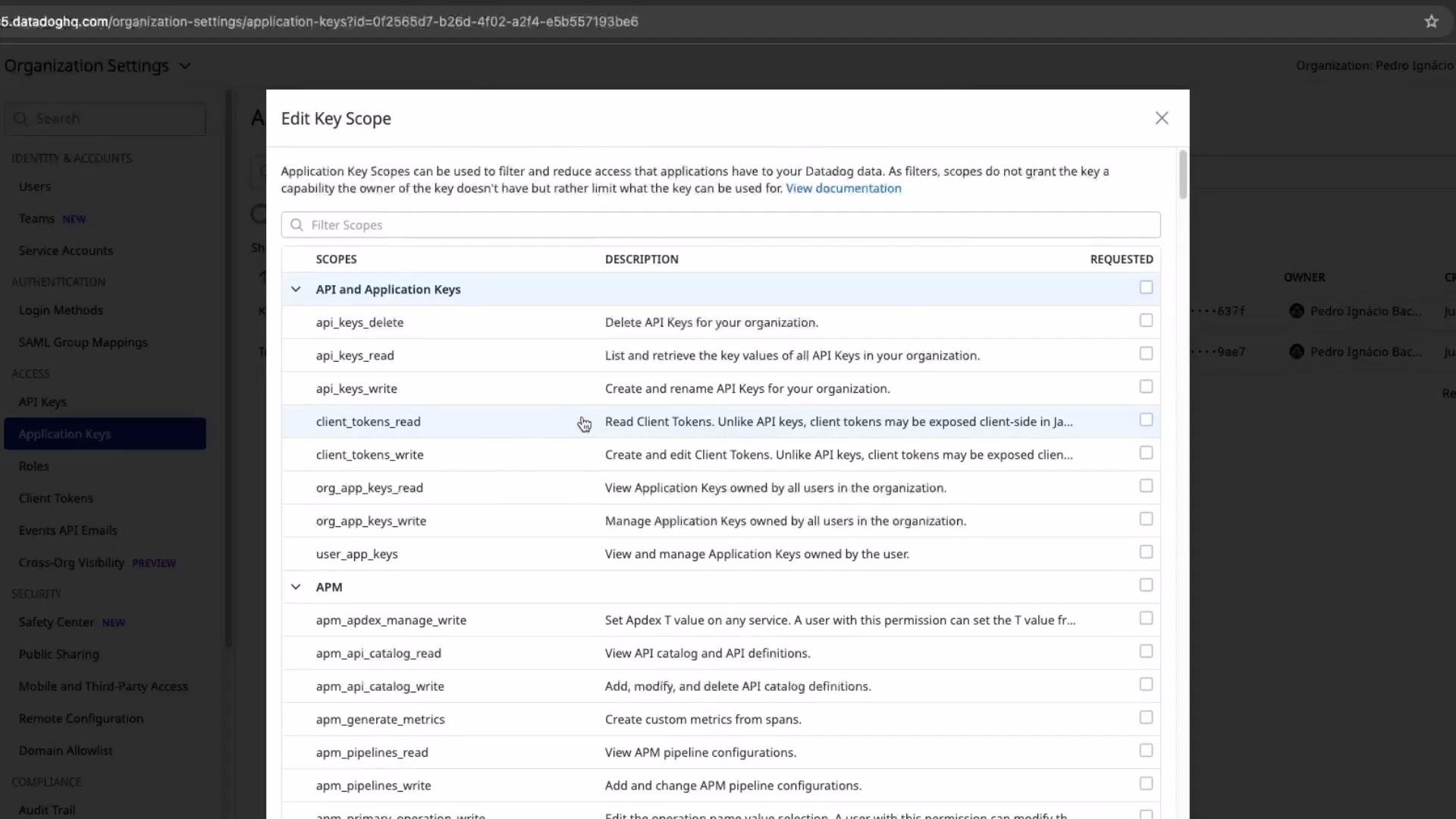
billing_read instead of full admin rights.
Roles
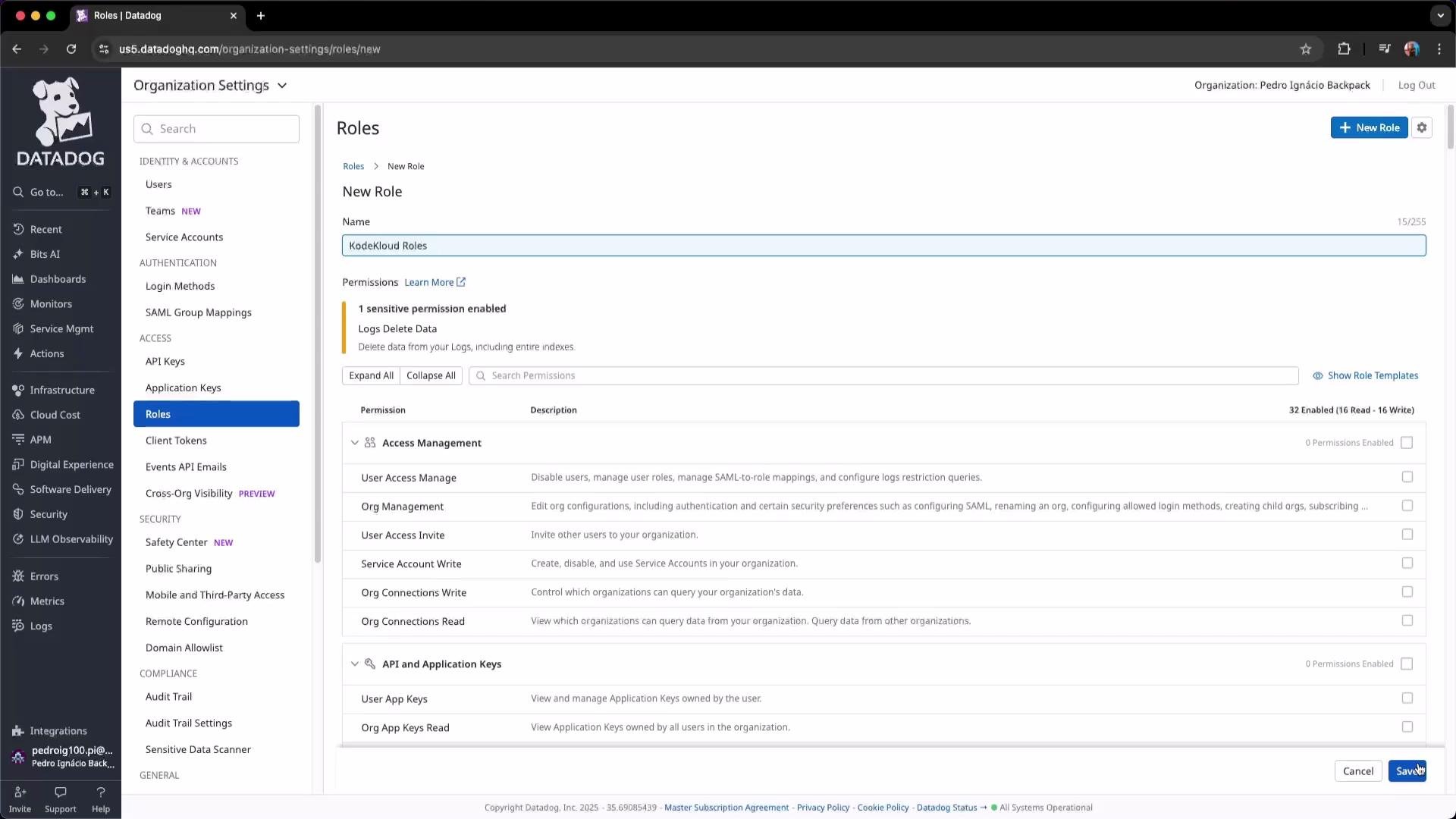
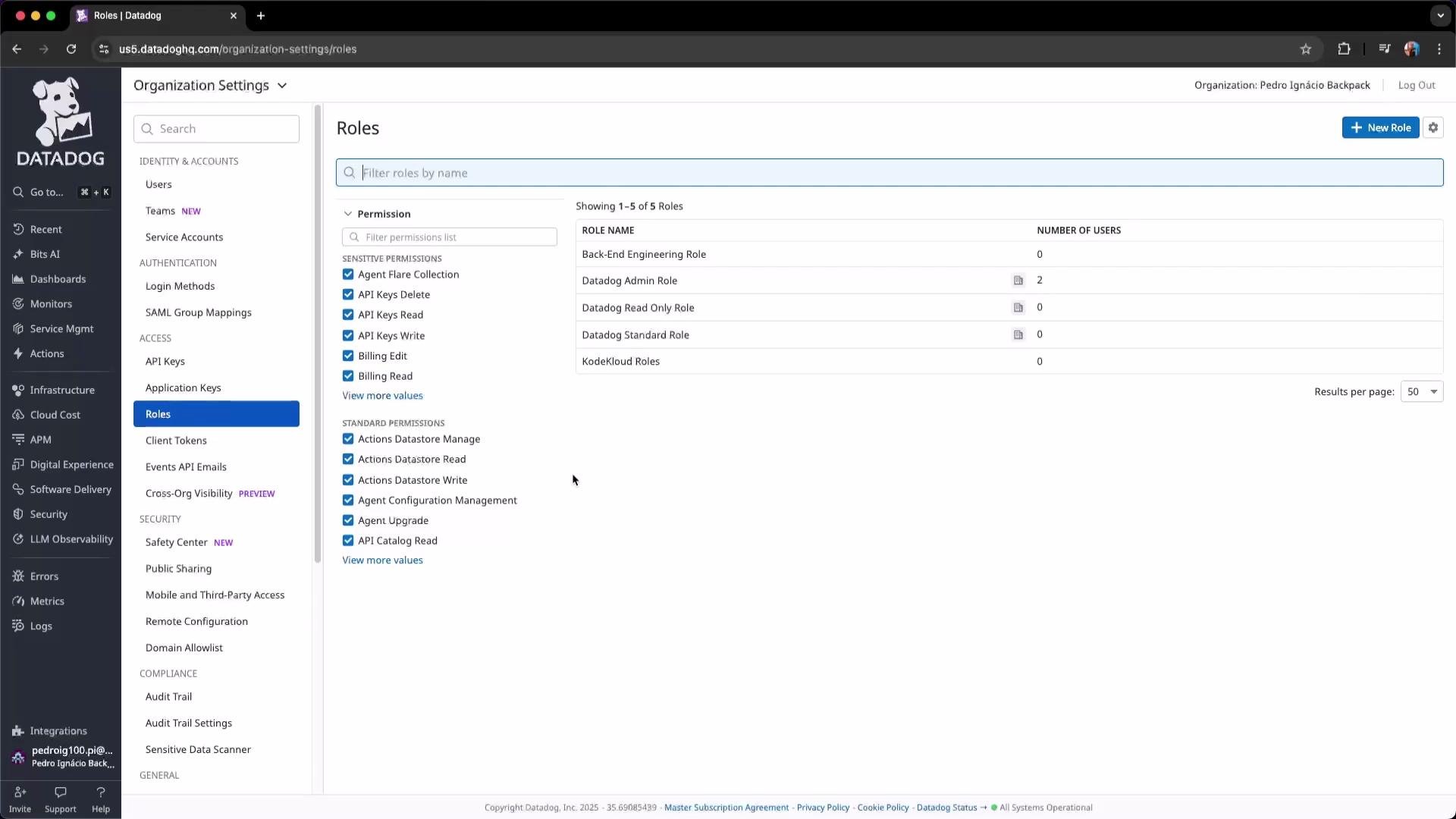
Roles are reusable permission sets you attach to users, service accounts, or application keys. Create roles to represent job functions (SRE, Developer, FinOps, Executive) and assign only the permissions required.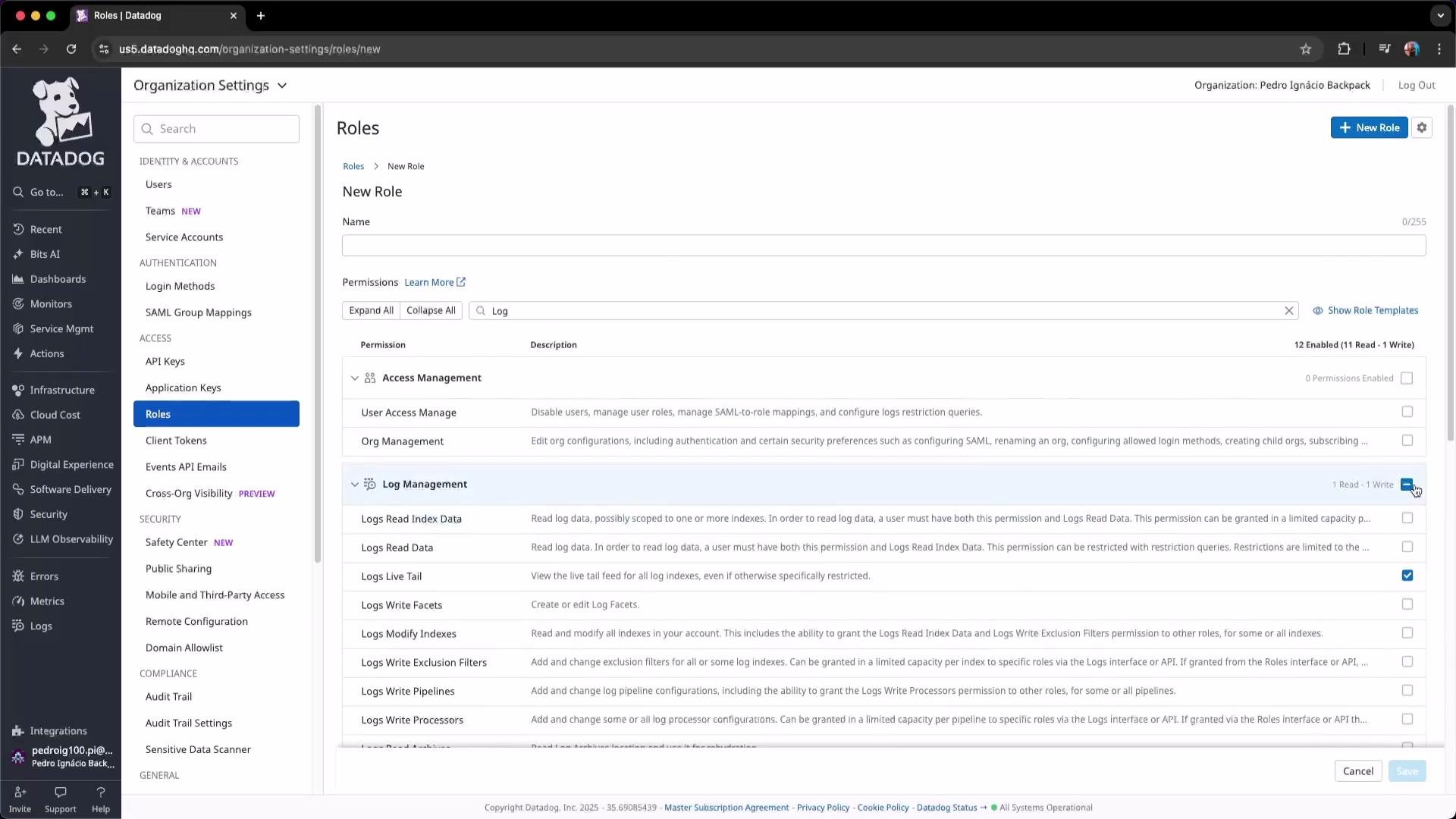
- Choose a descriptive name
- Select granular permissions (logs, metrics, traces, billing)
- Save and attach the role to users or service accounts
Client tokens (RUM / frontend)
Client tokens are for browser/JS usage and differ from backend API/application keys. Use client tokens to identify Real User Monitoring (RUM) instances in the frontend. Never embed backend API keys or application keys in client-side code.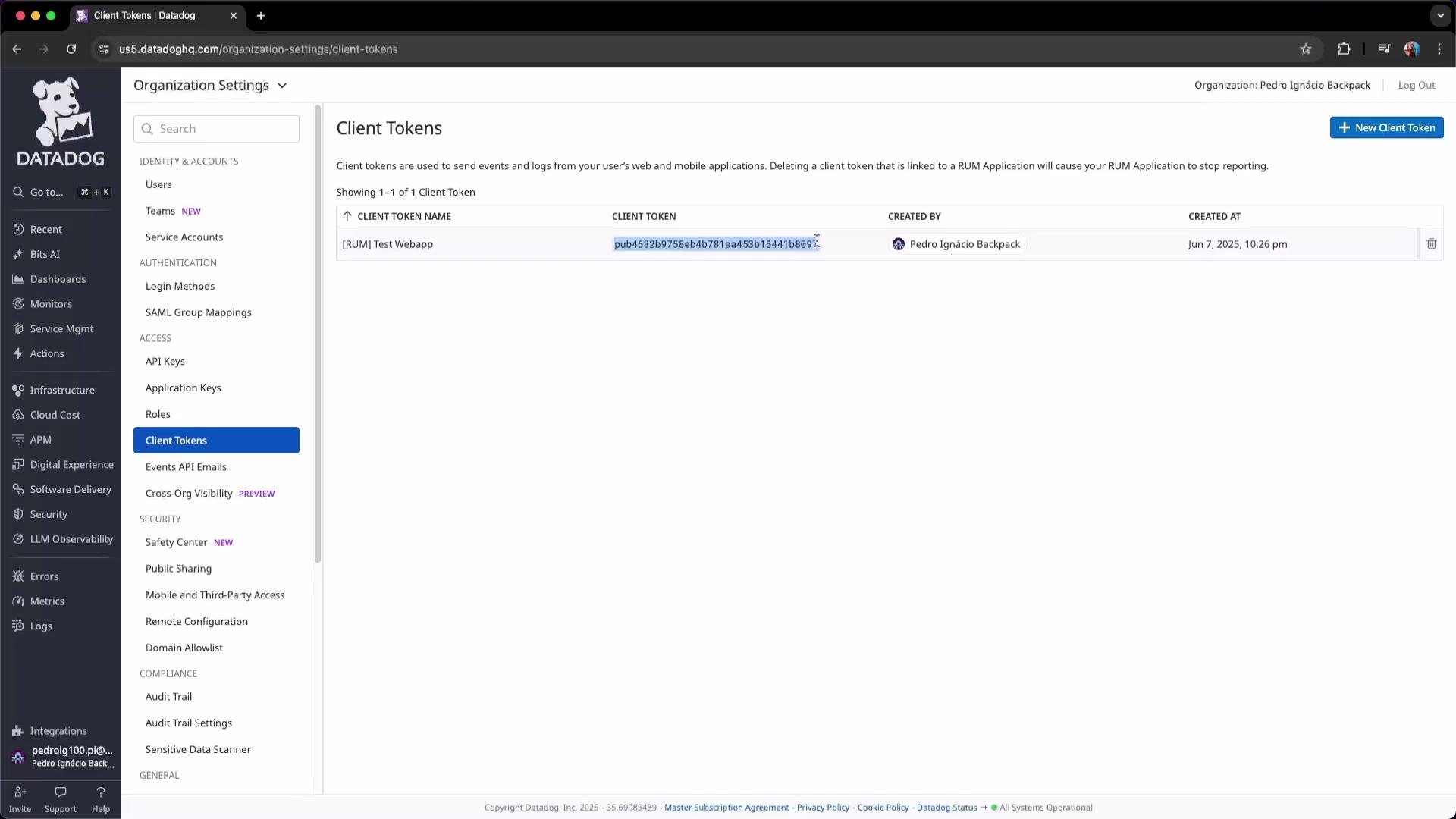
Events API — Email integration
Datadog’s Events API can send events and reports to email endpoints. Configure New Email to specify recipients, tags, formats, and alert types for automated reports (monthly billing, incident digests).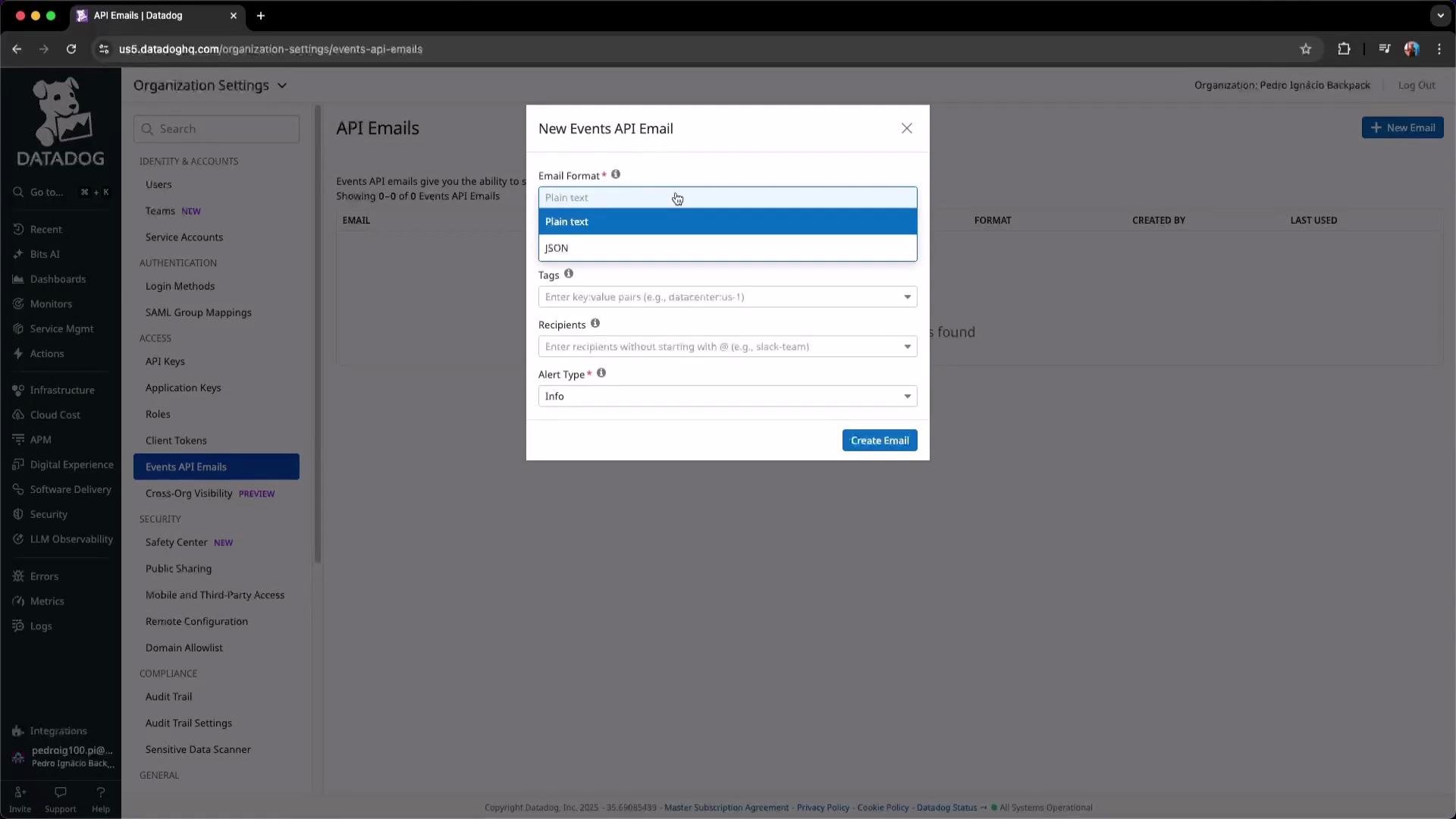
Cross-Organization Visibility
For companies with multiple Datadog tenants (different business units or acquisitions), Cross-Org Visibility allows tenants to share selected dashboards and resources. Configure cross-org rules to control which resources are shared and which tenants can view them.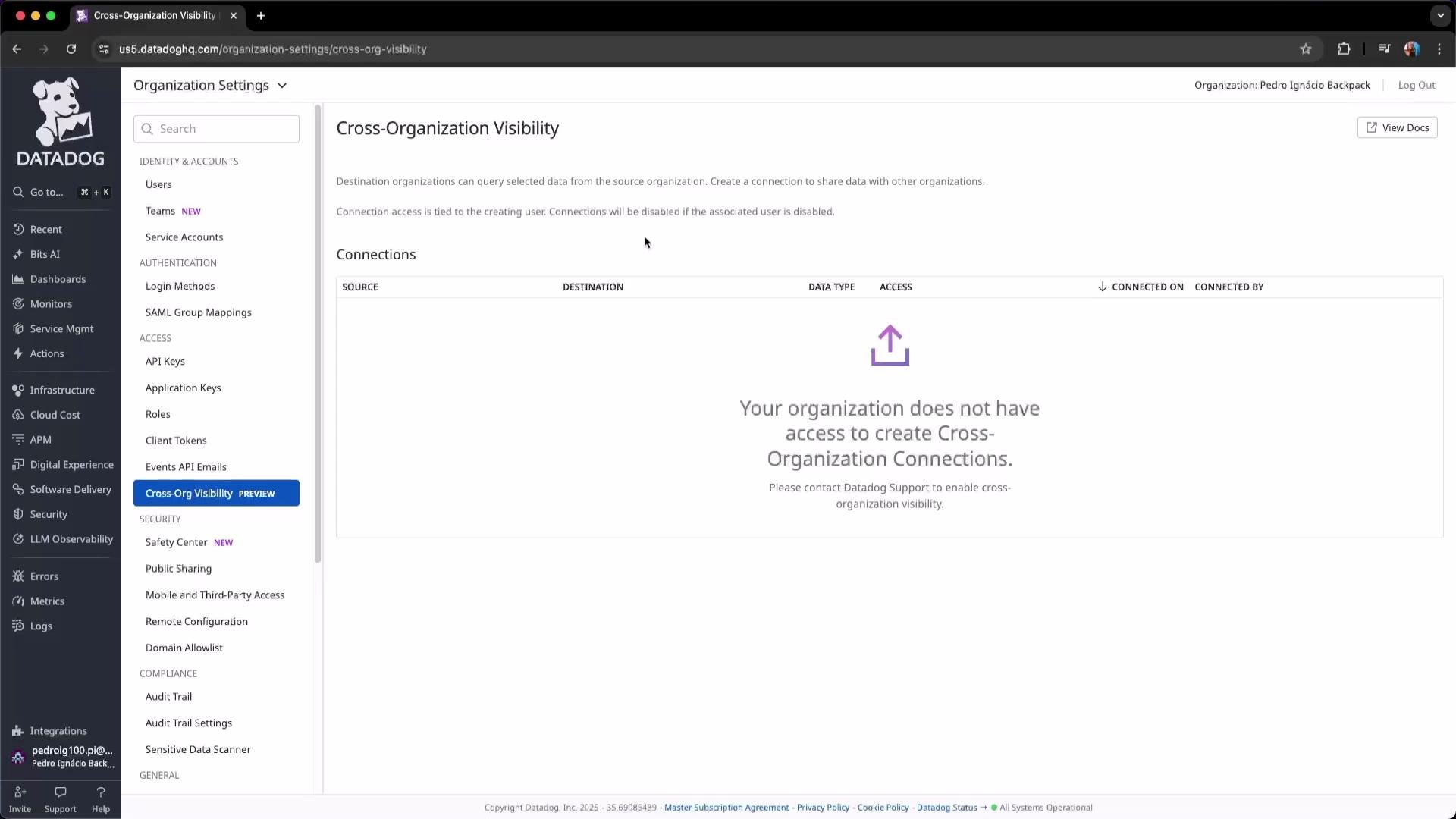
Wrap-up
This lesson covered Datadog IAM essentials:- Users and Teams — organize accounts and resources
- Service accounts and Application keys — automate safely
- Federation (SAML/OIDC) — centralize identity and MFA
- API keys, Application keys, Client tokens — choose the right key type
- Roles and Scopes — apply least privilege
- Cross-Org Visibility and Events integrations
- Use least privilege: narrow scopes and roles
- Centralize identity: integrate SAML/OIDC where possible
- Protect secrets: use secrets managers and rotate keys
- Audit regularly: remove unused credentials and review mappings
Links and references
- Datadog IAM & SSO docs: https://docs.datadoghq.com/account_management/
- SAML and SSO integrations: https://docs.datadoghq.com/account_management/saml/
- HashiCorp Vault: https://www.vaultproject.io/
- Okta: https://www.okta.com/
- Microsoft Entra ID: https://learn.microsoft.com/en-us/azure/active-directory/
- AWS IAM Identity Center: https://aws.amazon.com/iam/identity-center/