

rewrite directive to map one URL path to another. In this example, the site serves images from /var/www/html/images, but the site owner wants to use /pics going forward. To preserve existing /images/* links (so bookmarks and external links keep working), we’ll add a rewrite that transparently redirects /images/... requests to /pics/....
Why this matters:
- Keeps old links working while you change the public path.
- Issues an HTTP 301 (permanent) redirect so clients and search engines update bookmarks and indexes.
- Easy to implement without moving clients to the new path manually.
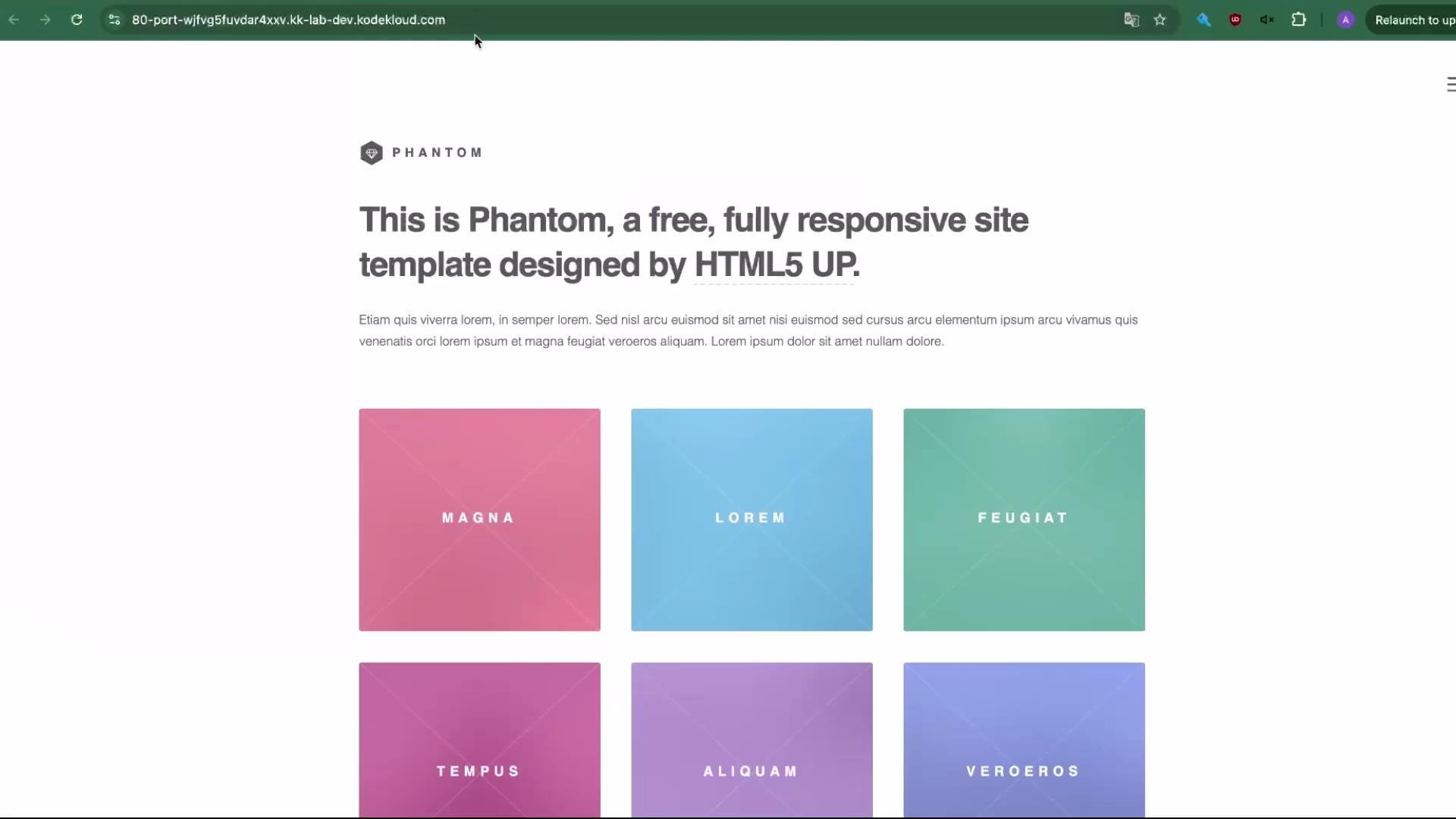
/images/pic10.jpg to confirm the image is currently reachable. The demo site uses the Phantom template and contains a set of small picture files:
1. Prepare the filesystem
Make a copy of the existingimages directory to pics so both directories exist on disk:
images/ (the files that will be served):
2. Add the rewrite rule to your Nginx site config
Edit your Nginx server block (for example/etc/nginx/sites-available/example) and add the rewrite directive inside the location / block, before try_files. The ^ anchors the match to the start of the path, (.*) captures the rest of the requested path, and /pics/$1 inserts that captured portion into the new path. The permanent flag issues an HTTP 301.
^/images/(.*)$— matches any URI starting with/images/and captures everything after the slash.$1— is the first capture group, representing whatever(.*)matched.- Use more specific patterns if you need to limit matches (e.g., only
.jpgor.png).
3. Test and reload Nginx
Always validate configuration before reloading:4. Verify the redirect in a browser
Open a fresh browser window (or incognito) and request the old URL:/pics/ location.
Permanent redirects (HTTP 301) are cached aggressively by browsers and search engines. Use an incognito window or clear the cache when testing. If you need a temporary redirect while testing, use the
redirect flag instead of permanent.Test rewrite rules on a staging environment before applying them in production. Regular expressions in
rewrite directives are powerful but easy to misconfigure.Quick reference — rewrite flags
For more details on
rewrite and directives, see the official Nginx docs: nginx rewrite module.
That covers a basic permanent rewrite from /images to /pics. Adjust the regex and flags (last, break, redirect, permanent) to suit your specific routing and caching requirements.