

gzip in the Nginx configuration and confirm responses are compressed and transferred much faster. Note that compressing already-compressed image formats (JPEG, PNG, GIF) usually yields little to no benefit — this demo intentionally inflates JPEG sizes so the difference is easy to observe in browser developer tools.
We begin by testing the site with no compression and hitting backend Apache servers. Most text-based assets (HTML, CSS, JS) are already efficient, but artificially large image/jpeg files will exhibit long transfer times when not compressed.
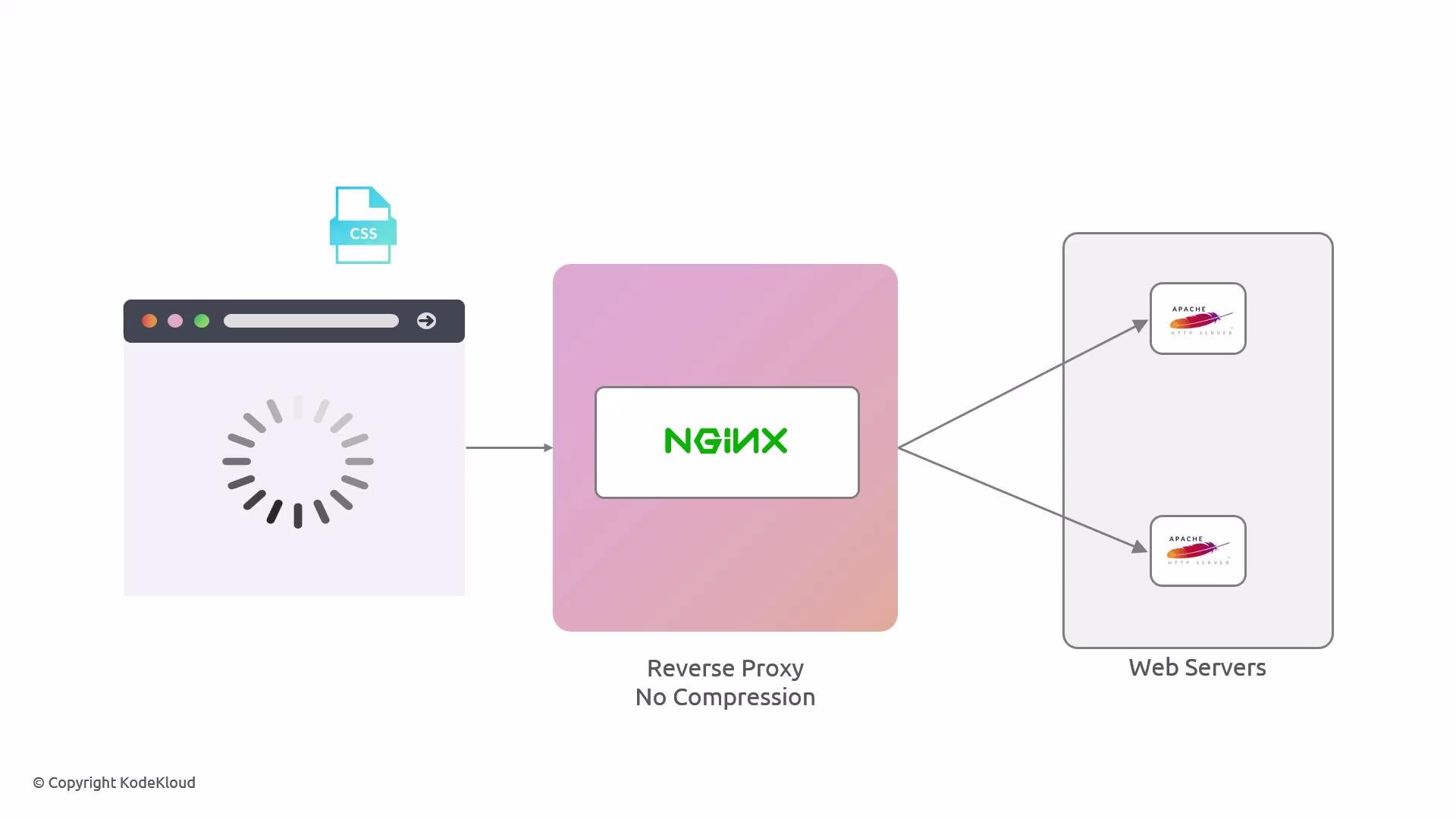
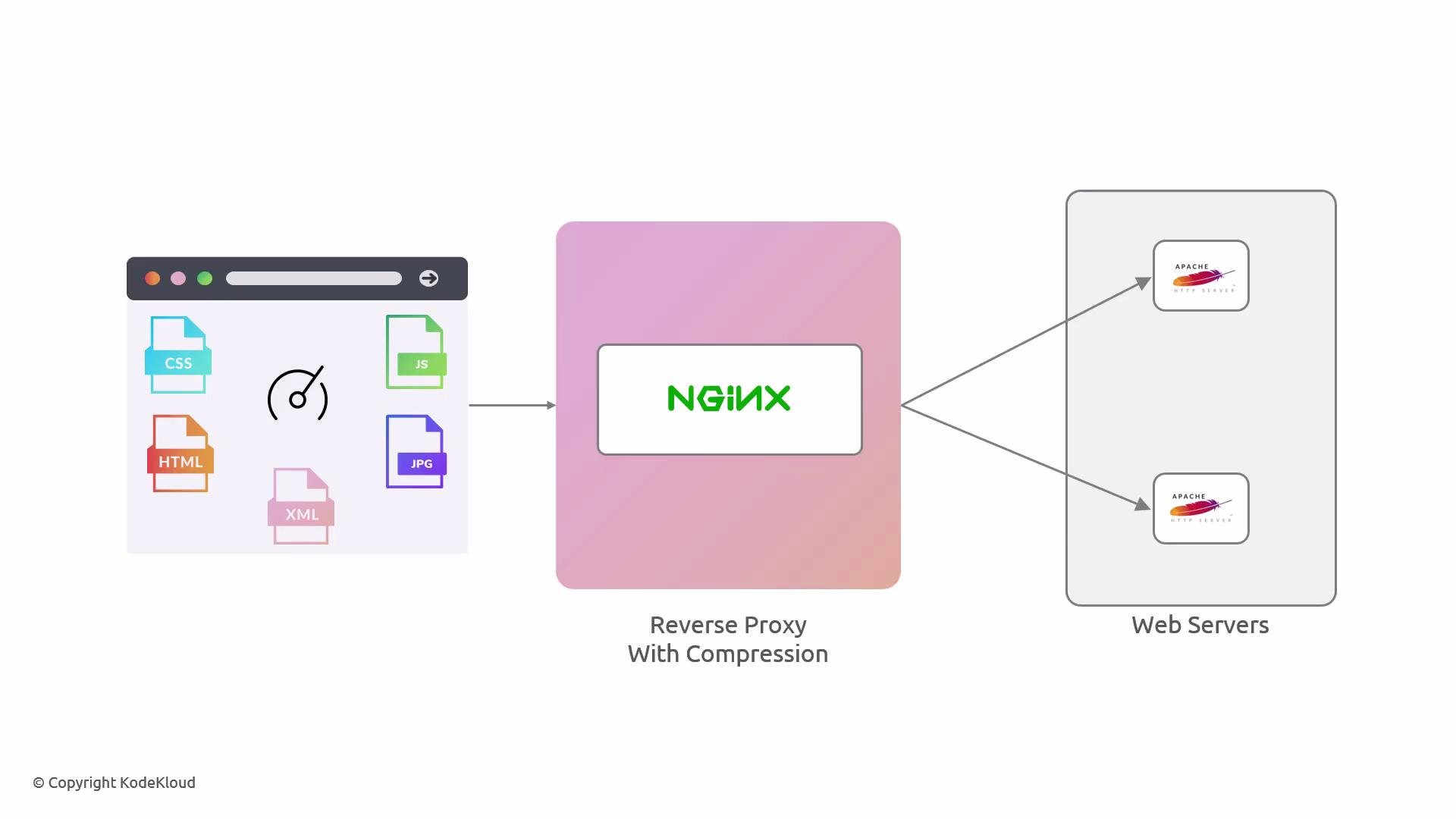
Preparing the environment
- Confirm your Nginx reverse proxy forwards requests to Apache upstreams. Example
upstreamand HTTP-to-HTTPS redirect:
- Example HTTPS server block on the reverse proxy (shortened for clarity):
Best practice: configure
proxy_set_header lines so your backend sees the original Host and client IPs, and include proxy_ssl_server_name on; when proxying to HTTPS backends.Inflating images for the demo
On the Apache webserver(s) we intentionally inflate the JPEG files to simulate very large images. Run these commands in the images directory:fallocate -l 20M, each .jpg reports a much larger size. This produces invalid image contents in many cases — acceptable here because we only demonstrate transfer size and compression behavior, not image fidelity.
Using
fallocate as shown will change file contents and can corrupt images. Do this only in test/demo environments where file integrity doesn’t matter.Monitoring access logs
Tail the Apache access log while exercising the site so you can observe incoming GET requests and response sizes:Testing in the browser (no compression)
- Open an Incognito/private window, open Developer Tools → Network tab, and load the site.
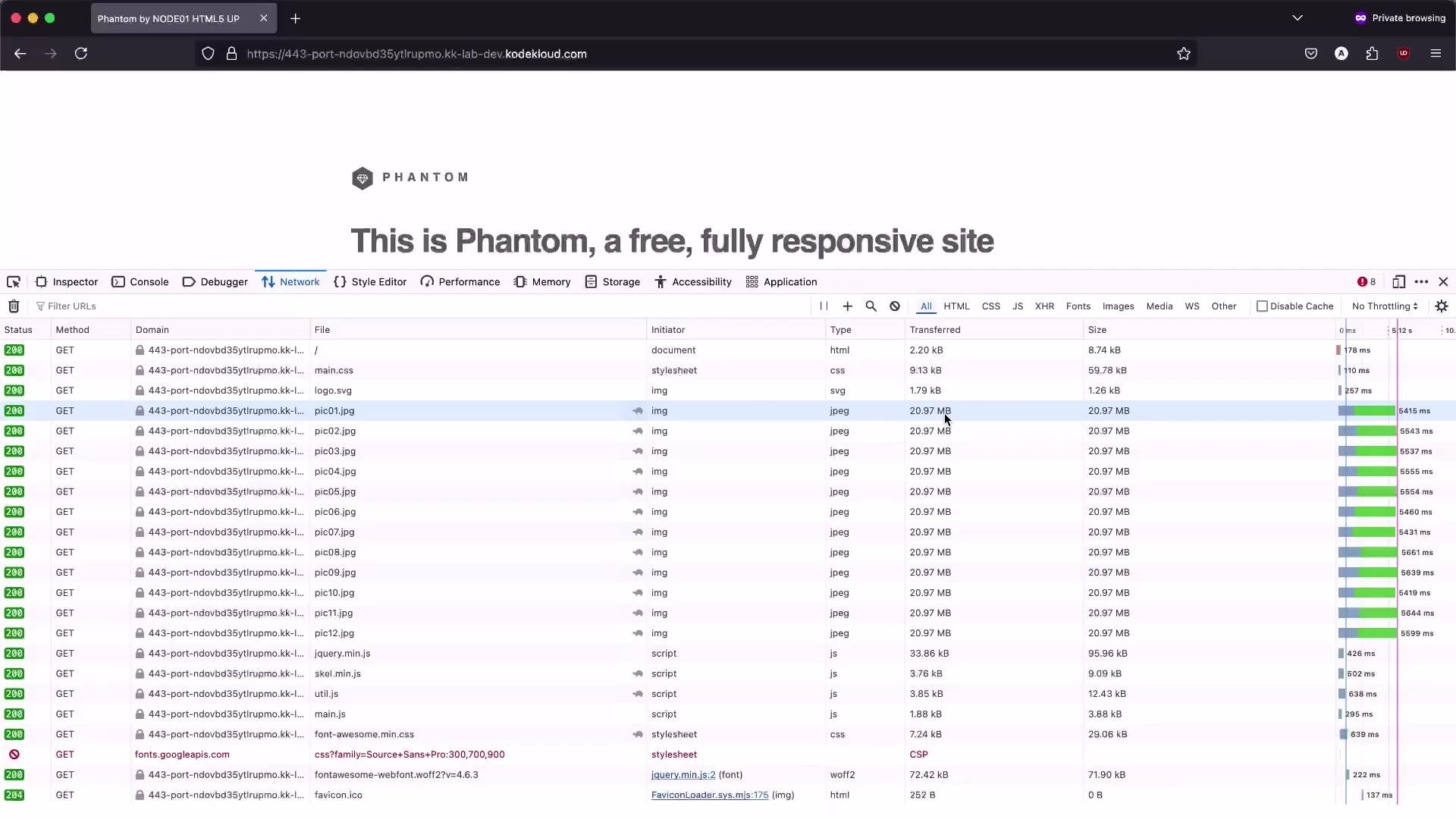
- Without compression you’ll see large transferred sizes for the inflated JPEGs and long transfer times (multiple seconds per file).
Content-Length ~ 20 MB and no Content-Encoding):
Enabling gzip in Nginx
Edit the main Nginx configuration (typically/etc/nginx/nginx.conf) and add gzip settings inside the http block. The key directives to enable and control gzip:
gzip on;— enables gzip compression.gzip_vary on;— addsVary: Accept-Encodingto responses (important for caches).gzip_proxied any;— allow compression when requests come via a proxy.gzip_comp_level 6;— compression level (1–9).gzip_http_version 1.1;— ensures proper handling for HTTP/1.1 clients.gzip_types— list of MIME types to compress (text-based types are priority).
http block:
What these gzip directives do
Notes:
- Keep
gzip_typesfocused on compressible, text-based content (HTML/CSS/JS/JSON/XML). - Adding
image/jpegtogzip_typesgenerally has little benefit because JPEGs are already compressed; in this demo we included it to illustrate the effect on inflated files.
Validate and reload Nginx
Always test the config before restarting:nginx -t reports errors, fix them before reloading.
Verifying compression in the browser
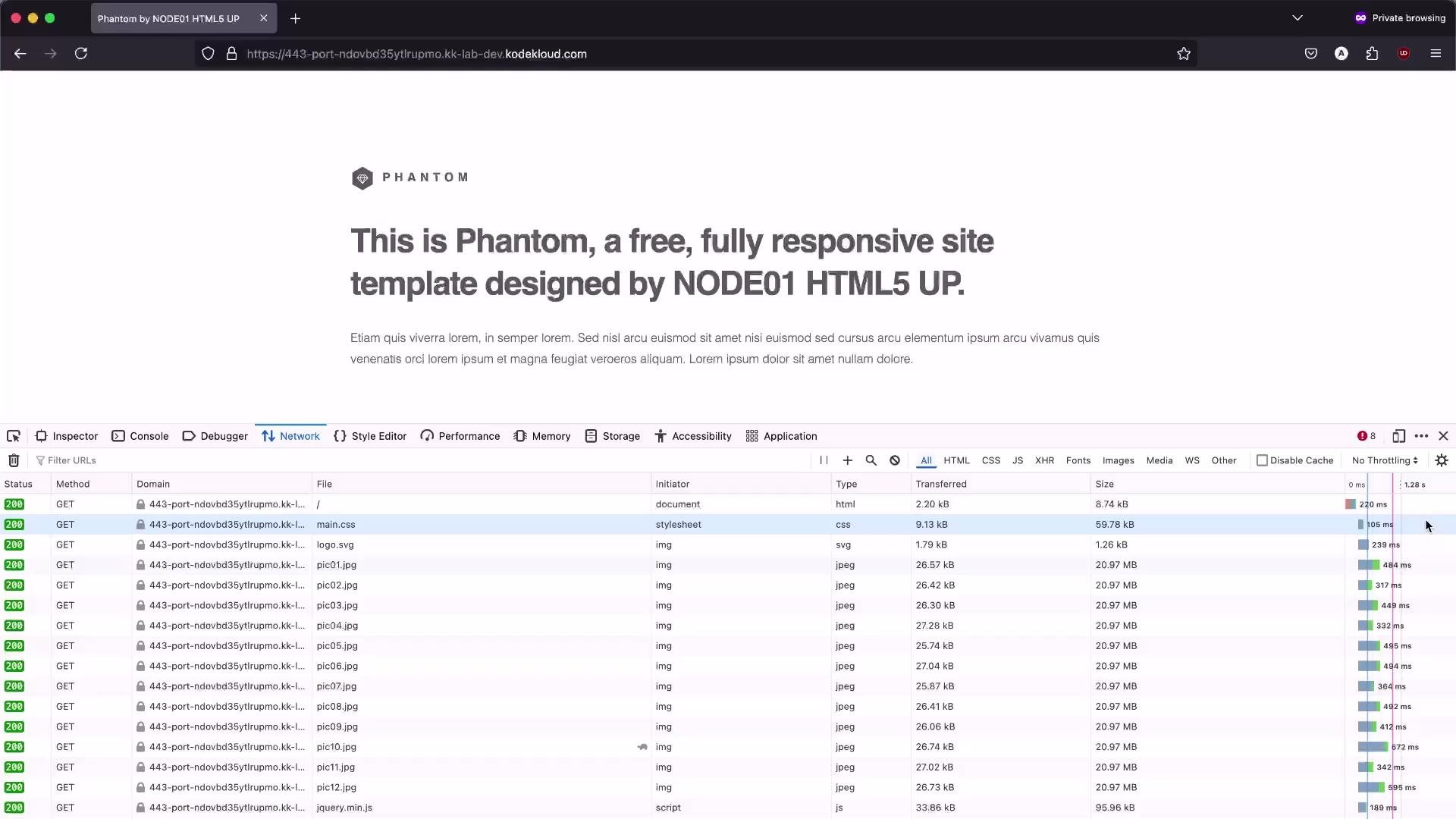
Reload the page in an incognito/private window and watch the Network tab. Compressed responses will includeContent-Encoding: gzip and Vary: Accept-Encoding headers. The browser shows a smaller “Transferred” size than the resource “Size” when compression is applied.
Example compressed response headers:
Consolidated configuration examples
Below is a compact snapshot of common server-wide settings you can place innginx.conf or your site-specific configuration. Adjust values for your environment.
HTTP headers reference
For comprehensive information about HTTP headers and their semantics, see: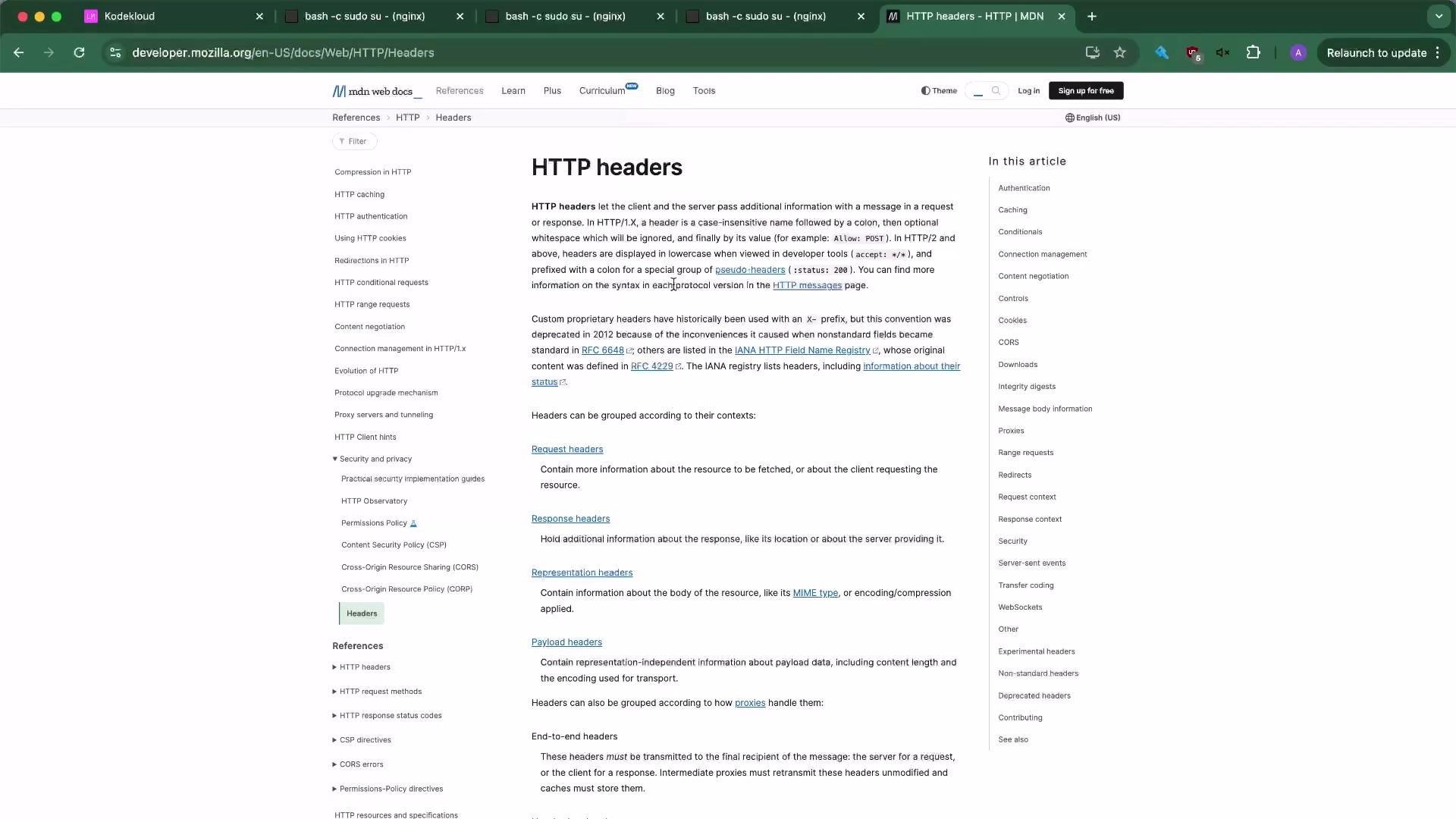
Conclusion
- Enabling
gzipin Nginx with a sensiblegzip_typeslist andgzip_vary on;dramatically improves transfer times for compressible content (HTML, CSS, JavaScript, JSON, XML). - Most modern image formats (JPEG, PNG, WEBP) are already compressed; gains from gzipping them are usually minimal. This demo inflated JPEGs to make the compression effect visible.
- Always validate configuration changes with
nginx -tbefore reloading, and verify behavior using multiple clients (Chrome, Firefox,curl) and your browser developer tools.
- NGINX gzip module: https://nginx.org/en/docs/http/ngx_http_gzip_module.html
- MDN — HTTP headers: https://developer.mozilla.org/en-US/docs/Web/HTTP/Headers