

/admin path will require a username and password.
Example site:
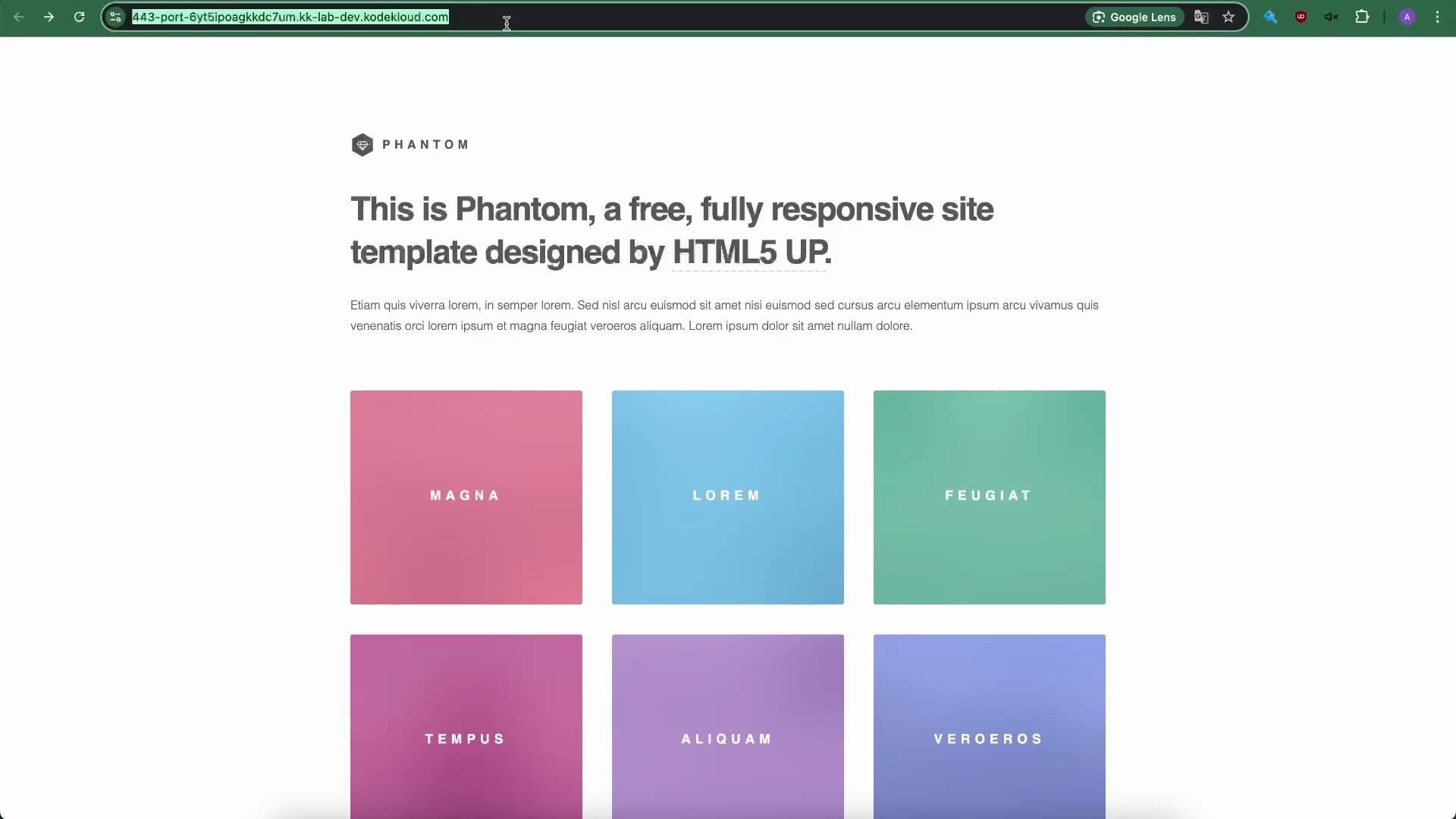
https://www.example.com/admin shows the same public page because authentication isn’t enabled yet. We’ll update the NGINX configuration to require Basic Auth only for the /admin location.
Update the NGINX server configuration
Edit your site configuration (for example/etc/nginx/sites-available/example-https) and add a location /admin block with auth_basic and auth_basic_user_file. This example server block shows a minimal HTTPS configuration with the /admin protection:
Notes:
auth_basicis the realm string that appears in the browser prompt (here:"Restricted Access").auth_basic_user_fileshould point to a readable file containingusername:encrypted-passwordentries.
Create the .htpasswd file and add a user
Create the .htpasswd file and add a user (we’ll add admin in this example). The commands below create or overwrite the file and append an APR1 (Apache MD5) encrypted password produced by openssl passwd:
password123). The .htpasswd file will contain a single line similar to:
Ensure the Avoid world-writable/readable permissions on sensitive files.
.htpasswd file is readable by the NGINX worker process (adjust ownership or permissions as needed). For example:Test and reload NGINX
Validate the configuration and reload NGINX so changes take effect:https://www.example.com/admin — the browser should prompt for credentials:
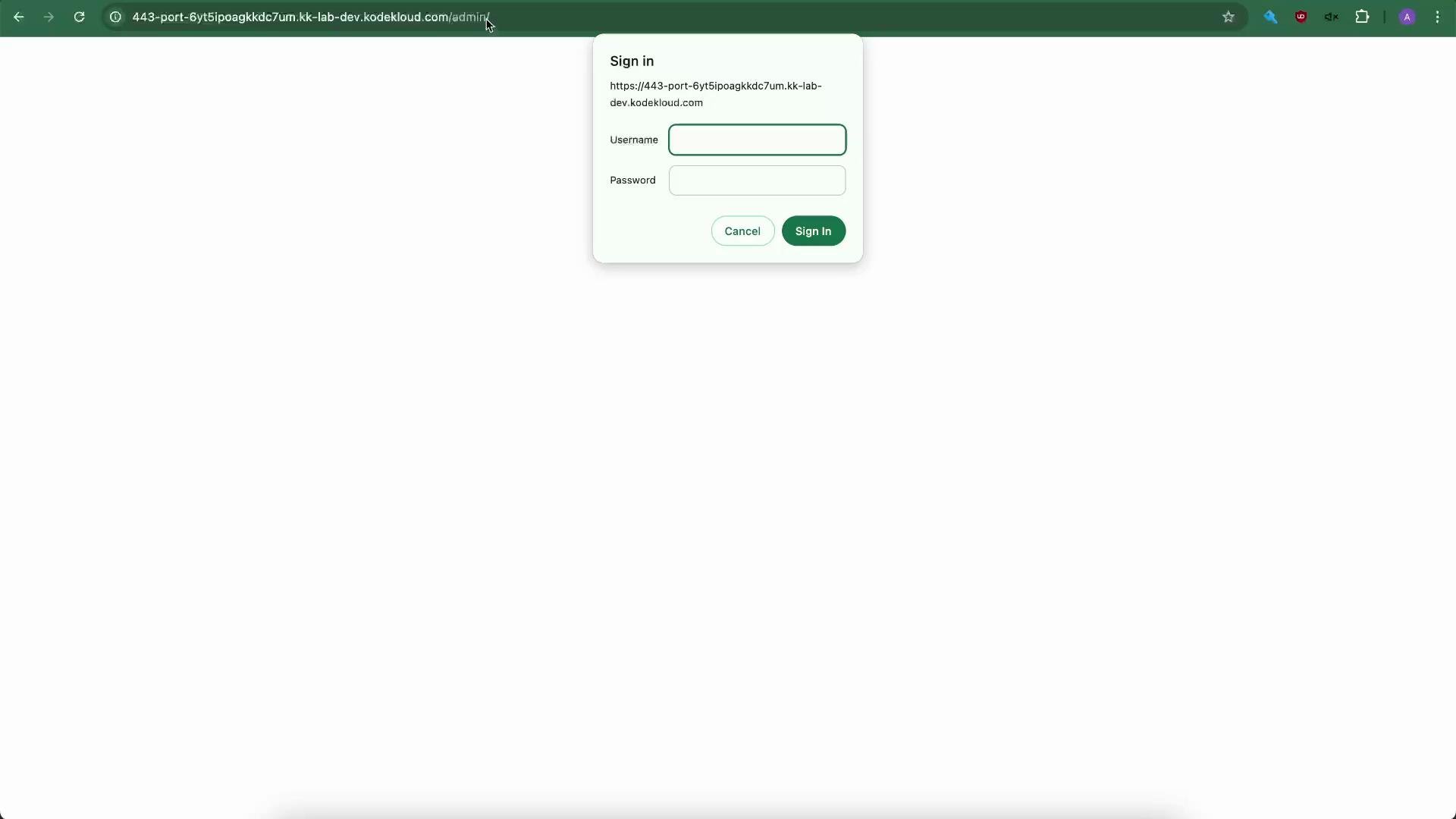
admin) and the password you created (e.g., password123). After successful authentication you gain access to /admin. The public / endpoint remains accessible without credentials.
Protecting the entire site
If you prefer to require authentication for the entire site, move theauth_basic and auth_basic_user_file directives into the location / block or the server block (scope depends on your needs). Example replacing the earlier location /:
nginx -t and reload NGINX. Note: browsers may cache credentials; use a private/incognito window or clear credentials if you do not see the login prompt immediately.
Basic authentication with
.htpasswd is simple and useful for internal or small-scale protection, but it does not scale well for large production deployments. Credentials are sent with every request and managing many users via .htpasswd becomes cumbersome. For production consider more robust solutions like OAuth, OpenID Connect, or integrating with an identity provider or SSO.Alternatives and integrations
If you use NGINX Plus (commercial) or additional modules, you can integrate NGINX with external identity providers. Examples include the NGINX JavaScript module (njs), OpenID Connect integrations, or vendor-specific modules. Example: install and enable the njs module (package names vary by distribution):Summary
This lesson showed how to:- Protect a single NGINX location (
/admin) using Basic Auth withauth_basicand a.htpasswdfile. - Create APR1-encrypted credentials using
openssl passwd -apr1. - Extend protection to the entire site.
- Consider alternatives for production deployments (OAuth, OpenID Connect, NGINX modules).
- NGINX auth_basic documentation: https://nginx.org/en/docs/http/ngx_http_auth_basic_module.html
openssl passwdmanual: https://www.openssl.org/docs/man1.1.1/man1/openssl-passwd.html- NGINX documentation: https://nginx.org/en/docs/
- NGINX Plus: https://www.nginx.com/products/nginx-plus/