

stub_status endpoint, integration options with monitoring platforms, and common runtime checks and commands to validate changes safely.
Logging
NGINX produces two primary log streams:- Access logs — record every incoming HTTP request (useful for traffic analysis, response codes, request sizes, user agents, and referers).
- Error logs — record server-side errors and configuration/runtime issues.
log_format directive inside the http block. See the NGINX log module docs for full details: https://nginx.org/en/docs/http/ngx_http_log_module.html
Example custom log format:
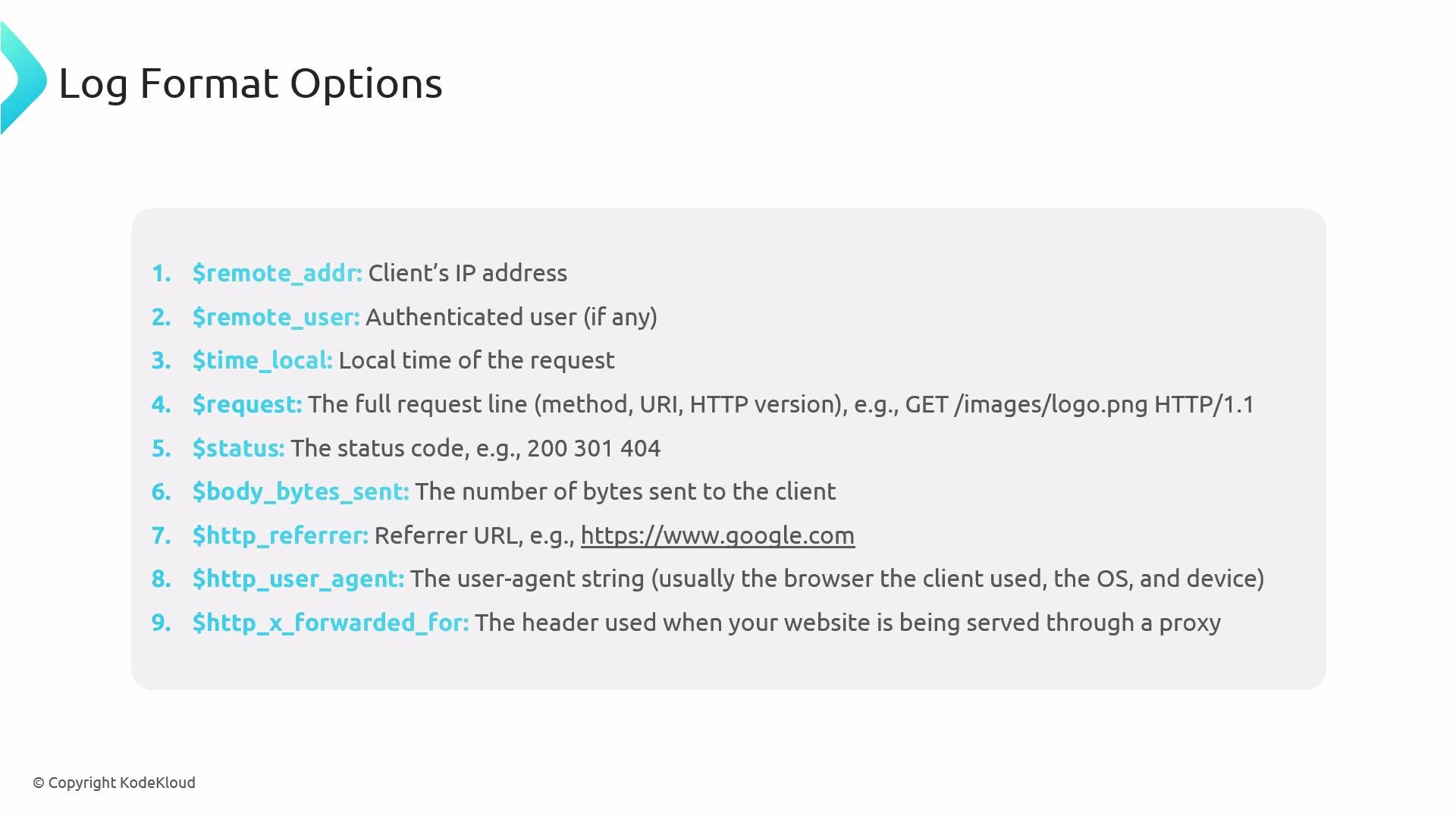
$host to capture the requested host header).
Common log variables
Enable access logs inside a
server block (default log files are usually under /var/log/nginx):
- Ask a remote user to make a request while you
tail -fthe access log. If there’s no entry, the request didn’t reach NGINX (DNS, client, proxy, or firewall issue). - Ensure
access_logis set in the appropriatehttp,server, orlocationblock. Custom logs won’t be enabled unless explicitly configured.
Error logs
Error logs capture server-side and runtime issues. They should be quiet during normal operation; frequent errors indicate misconfiguration or application problems. Configure location and verbosity witherror_log:
error_log for stack traces, file-not-found errors, permission problems, or upstream failures.
NGINX metrics: stub_status
NGINX provides a lightweight status endpoint through thestub_status module (see https://nginx.org/en/docs/http/ngx_http_stub_status_module.html). It exposes runtime counters for connections and requests.
Example server block to enable a local-only /nginx_status endpoint:
access_log off;prevents scrape requests from cluttering logs.- Restricting access (localhost or your monitoring hosts) and using a nonstandard port reduce exposure.
- Active connections — current client connections.
- accepts — total accepted connections.
- handled — accepted and handled connections.
- requests — total number of client requests.
- Reading/Writing/Waiting — connections reading the request, writing the response, and keep-alive idle connections.
Monitoring platforms and approaches
There are many solutions for metrics and log aggregation. Common choices include Prometheus + Grafana, Datadog, Dynatrace, and New Relic.
Common approach:
- Install an agent on the host (Datadog Agent, Prometheus node_exporter).
- Collect system metrics (CPU, memory, disk, network) and NGINX metrics (via
stub_statusor an NGINX exporter). - Centralize logs and metrics, then build dashboards and alerts (error rate, response codes, connection saturation).
Datadog example
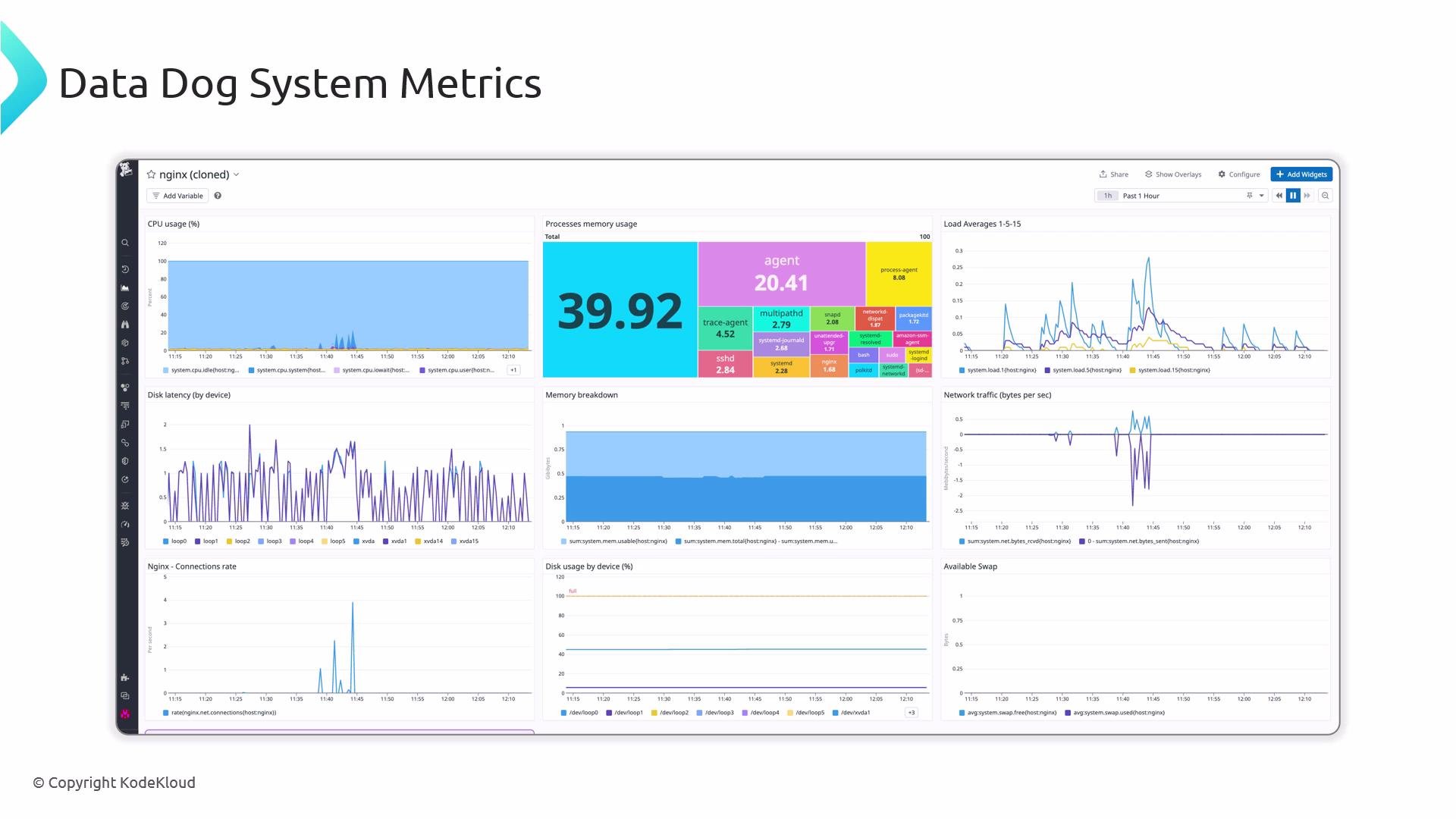
Datadog can ingest both logs and metrics and scrapestub_status for basic NGINX metrics. A typical system dashboard includes CPU, memory, load, disk, network, and NGINX charts.
Example log excerpts
Error and request lines can reveal missing files, bad routes, or failing backends:Configuration testing and reloading
Always test configuration changes before applying them to avoid service disruption. Test configuration syntax:systemctl:
Do not run two services bound to the same port (for example, Apache and NGINX both listening on port 80). Port conflicts will prevent the web server from starting.
Quick runtime checks
Ifsystemctl reports NGINX as active but users still have problems, test the local HTTP response:
200 status shows NGINX is responding locally; next check the application, firewall, DNS, or network path.
Firewalls and connectivity
Ensure cloud-provider security groups and host firewalls allow ports 80 and 443. UFW (Ubuntu) example:Production monitoring best practices
- Rotate logs to avoid disk exhaustion (logrotate or your platform’s logging agent).
- Centralize metrics and logs (Prometheus, Datadog, ELK/Opensearch) and set alerts for high error rates, CPU spikes, or connection limits.
- Limit exposure of sensitive endpoints (for example, restrict
/nginx_statusto localhost or specific monitoring hosts). - Consider NGINX Plus for advanced metrics and commercial support if you need upstream health, cache analytics, and built-in dashboarding.
Final recommendations
Always validate configuration changes with
nginx -t before reloading, restrict sensitive endpoints (e.g., /nginx_status) to trusted hosts, and centralize logs and metrics to simplify troubleshooting and alerting.- NGINX documentation: https://nginx.org/en/docs/
- Prometheus: https://prometheus.io/
- Grafana: https://grafana.com/
- Datadog: https://www.datadoghq.com/