

- Installing and configuring ThinBackup
- Triggering manual backups and viewing logs
- Inspecting backup sets on disk
- Restoring Jenkins and recovering deleted jobs
- Considerations for backing up build artifacts and history
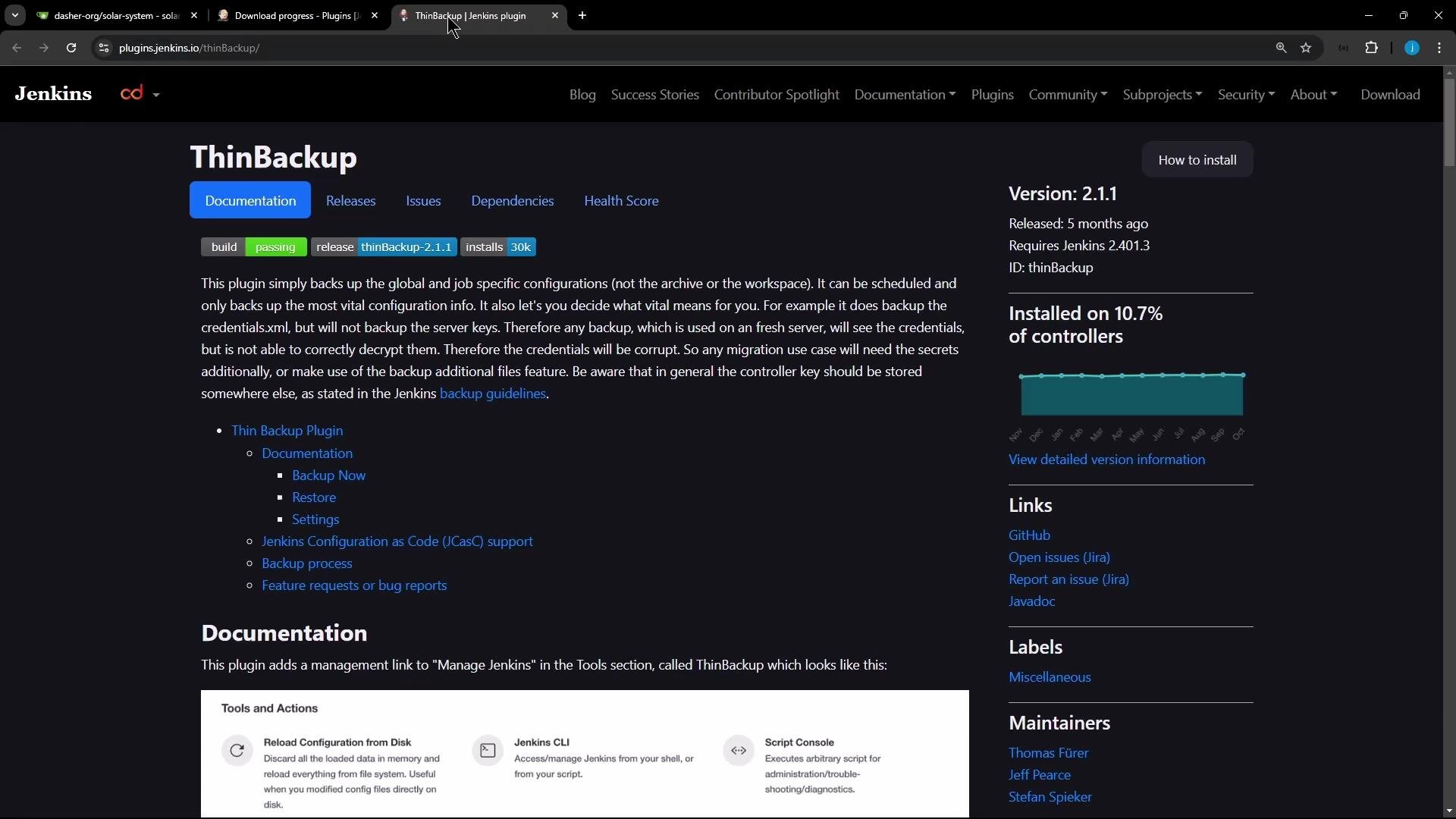
Install and configure ThinBackup
- Install the ThinBackup plugin from Manage Jenkins → Manage Plugins.
- Open Manage Jenkins → Configure System and search for “Thin”.
- Configure the backup directory, schedule, type, and retention.
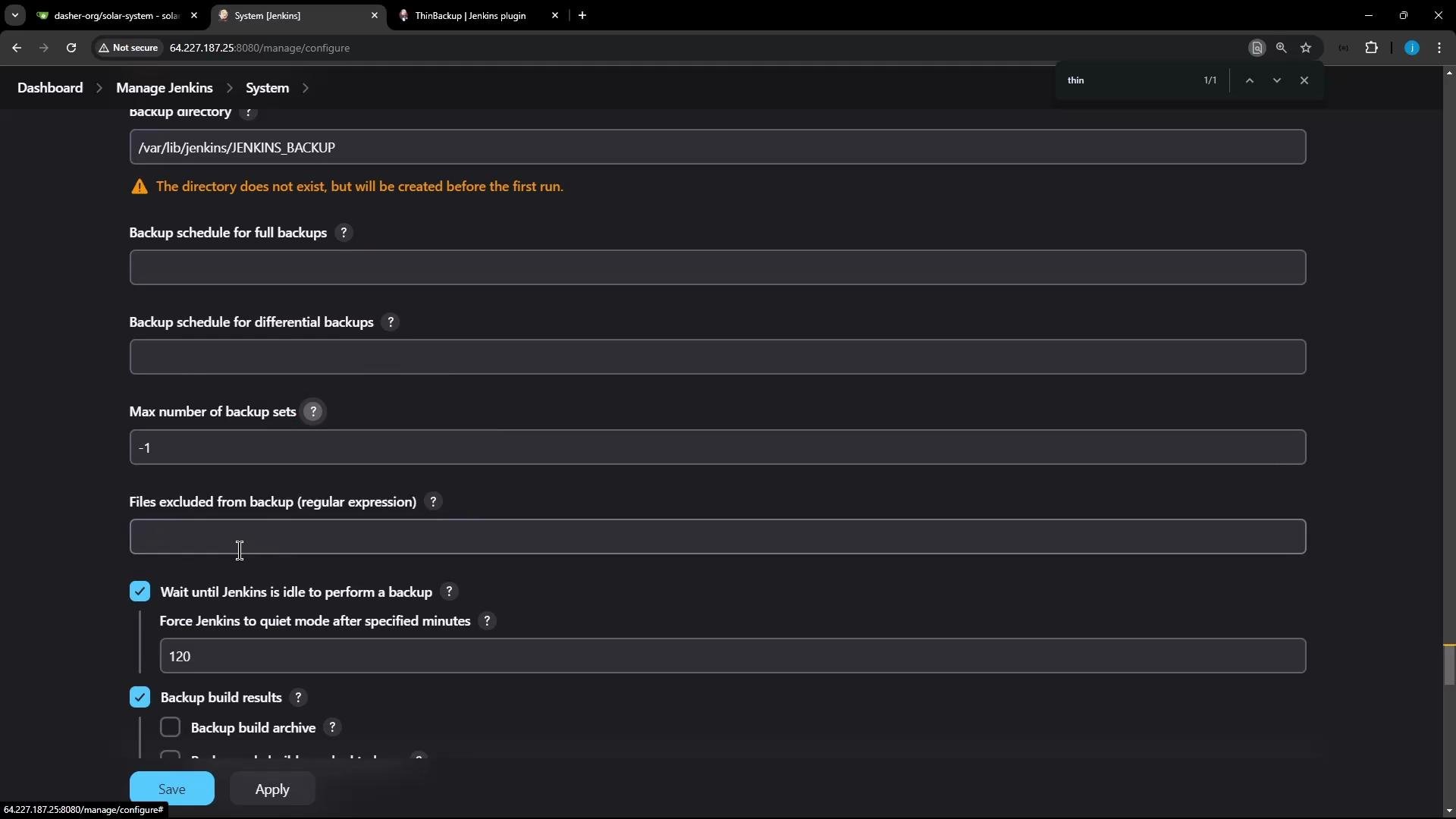
Additional configuration options
After saving the ThinBackup configuration, you can select:- Whether to include plugin archives in the backup
- Whether to include additional files
- Whether to compress backups (ZIP)
- Whether to include build archives (artifacts) and/or build results (history)
Trigger a manual backup and view logs
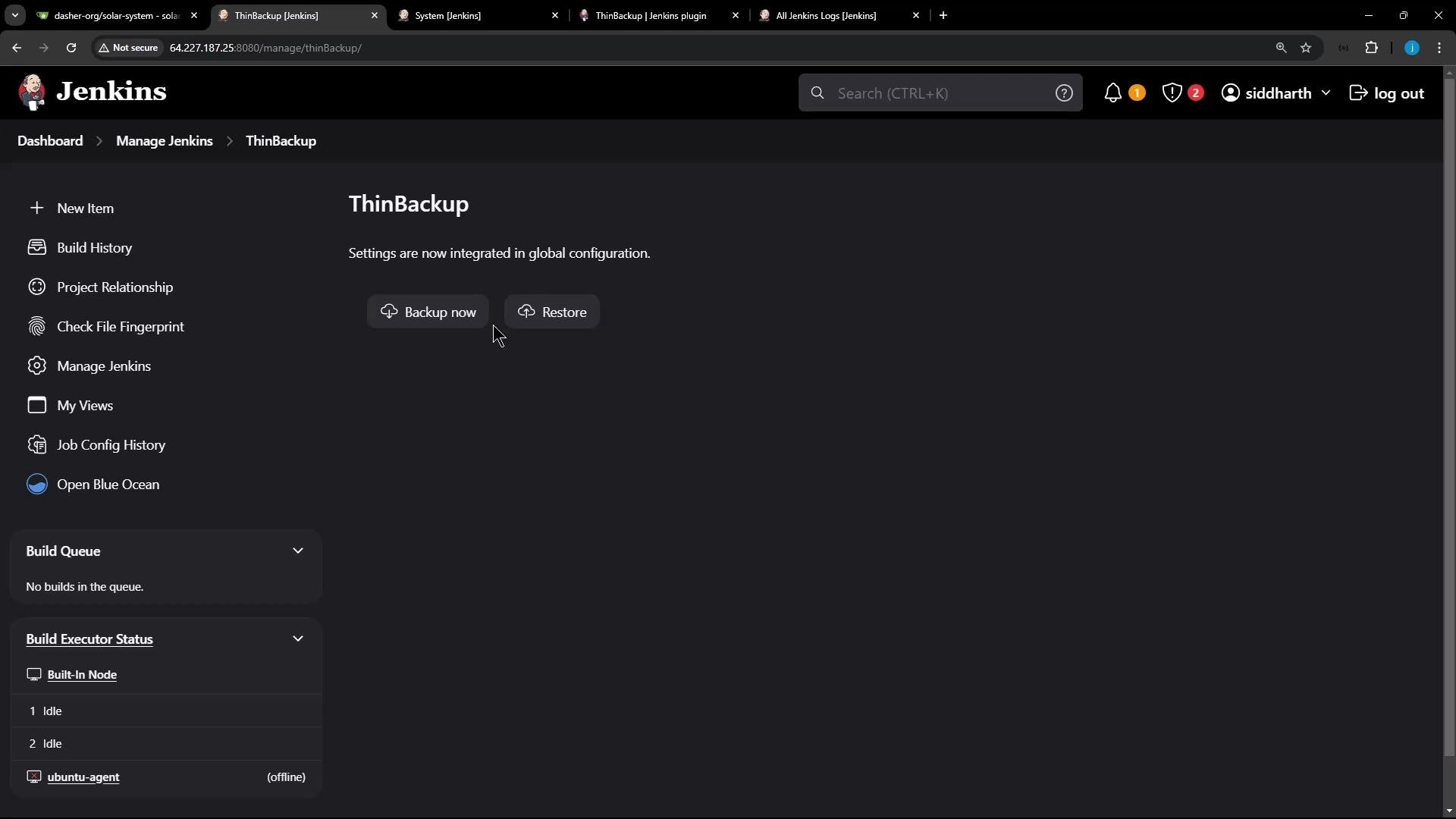
To run a manual backup: Manage Jenkins → Tools and Actions → Thin Backup → Backup Now. ThinBackup logs only a few messages in its UI. For detailed messages, inspect Jenkins system logs: Dashboard → Manage Jenkins → System Log → All Jenkins Logs. Example condensed log output from a manual backup:Inspecting the backup on disk
ThinBackup writes each backup set into the configured backup directory as separate folders (for example,FULL-YYYY-MM-DD_HH-MM). To verify backup contents on the Jenkins controller:
Restoring Jenkins from a backup
To restore: Manage Jenkins → Thin Backup → Restore. The plugin shows available backup sets. Select the desired backup and choose restore options—examples include restoring plugin archives and restoring next build number files. Click Restore to start the process.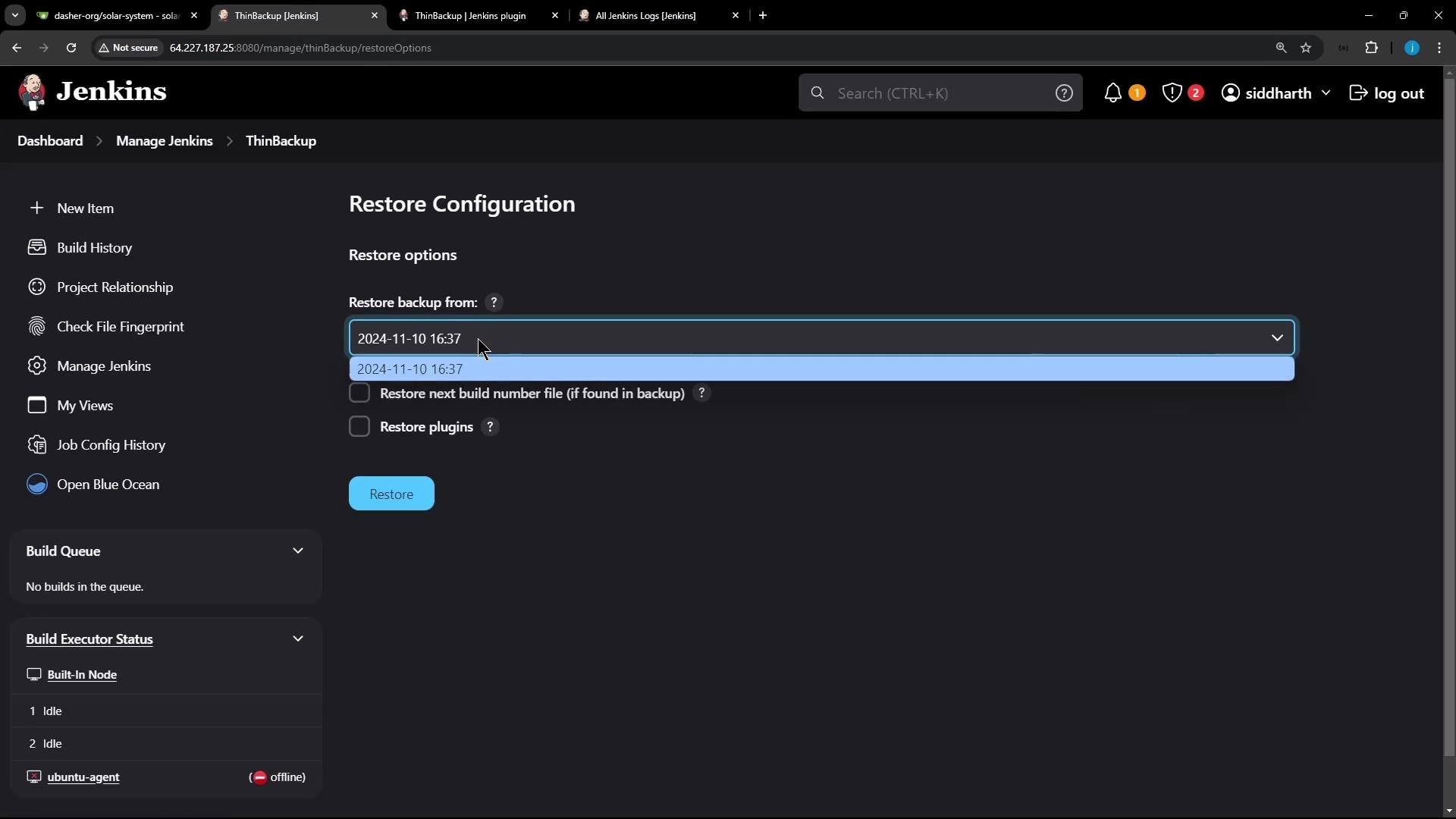
Restoring configuration may require a Jenkins restart for all changes to be applied cleanly. Plan restores during maintenance windows and ensure you have a current system snapshot in case you need to roll back.
Example: restoring a deleted job
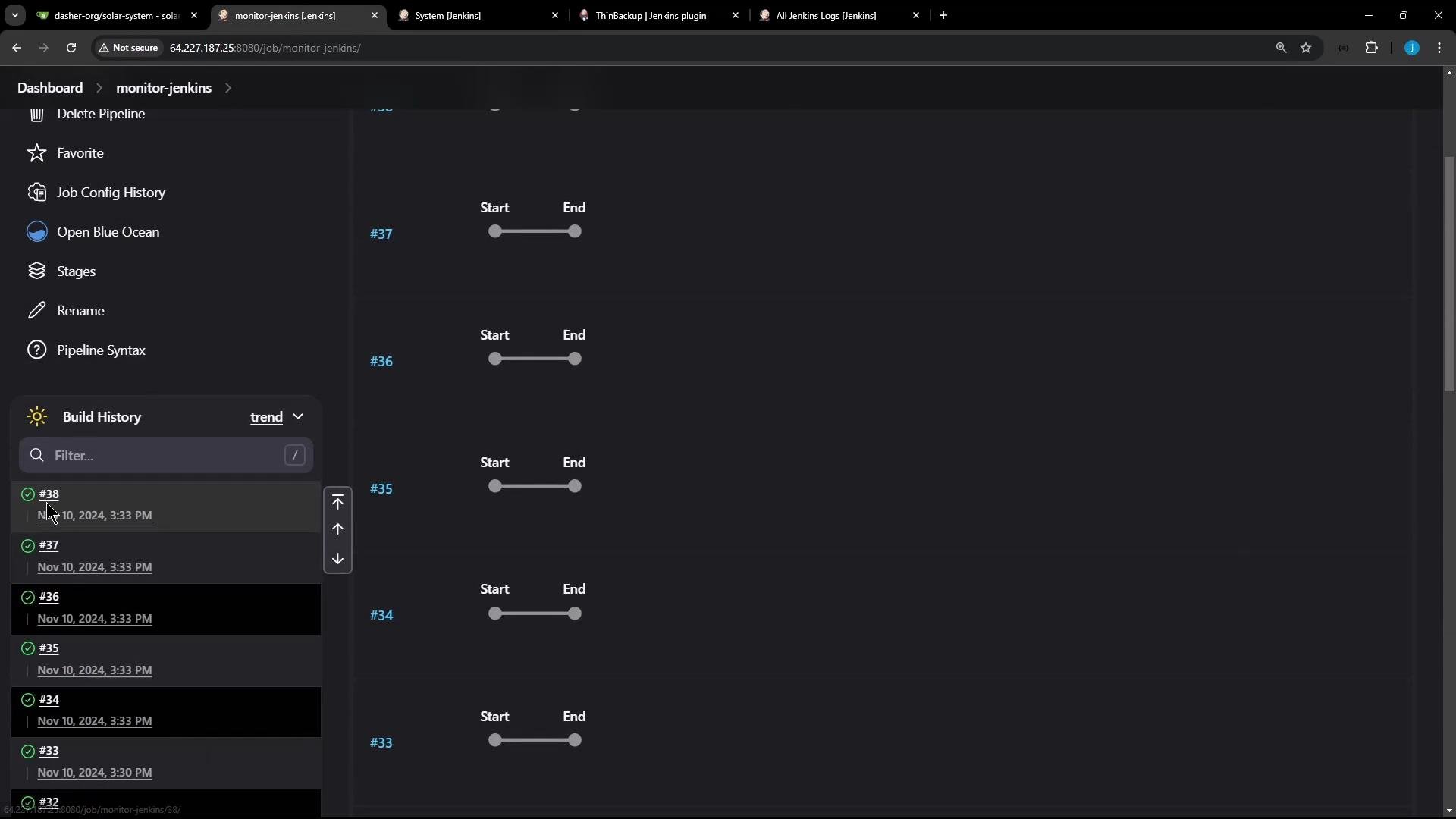
- Delete the job you want to recover (for example, a pipeline named
monitor-jenkins). - Use Manage Jenkins → Thin Backup → Restore and pick the backup set that contains that job.
- After restoring, restart Jenkins if prompted or if the UI does not immediately reflect changes.
Enabling backup of build results and artifacts will significantly increase backup size and duration. Consider whether you need full build archives or only job configuration and metadata for recovery. If you retain build artifacts, plan for additional storage and longer backups.
Best practices and wrap-up
- Schedule regular full backups with periodic differential backups to balance recovery time and storage requirements.
- Limit the number of retained backup sets to avoid uncontrolled disk growth.
- Exclude large temporary files and workspace contents using regex exclusions unless you require them for recovery.
- Test restores periodically in a staging environment to ensure your backup strategy covers all critical data (jobs, credentials, plugin states).
- Keep plugin versions and Jenkins itself consistent between backup and restore environments to avoid compatibility problems.
- ThinBackup plugin: https://plugins.jenkins.io/thinbackup/
- Jenkins documentation: https://www.jenkins.io/doc/
- Jenkins backups and disaster recovery best practices: https://www.jenkins.io/doc/book/system-administration/backing-up/