

Increasing log verbosity (e.g., to FINE, FINER, FINEST or ALL) can significantly impact Jenkins controller performance. Enable verbose logging only to diagnose issues, then restore the original level or delete the recorder.
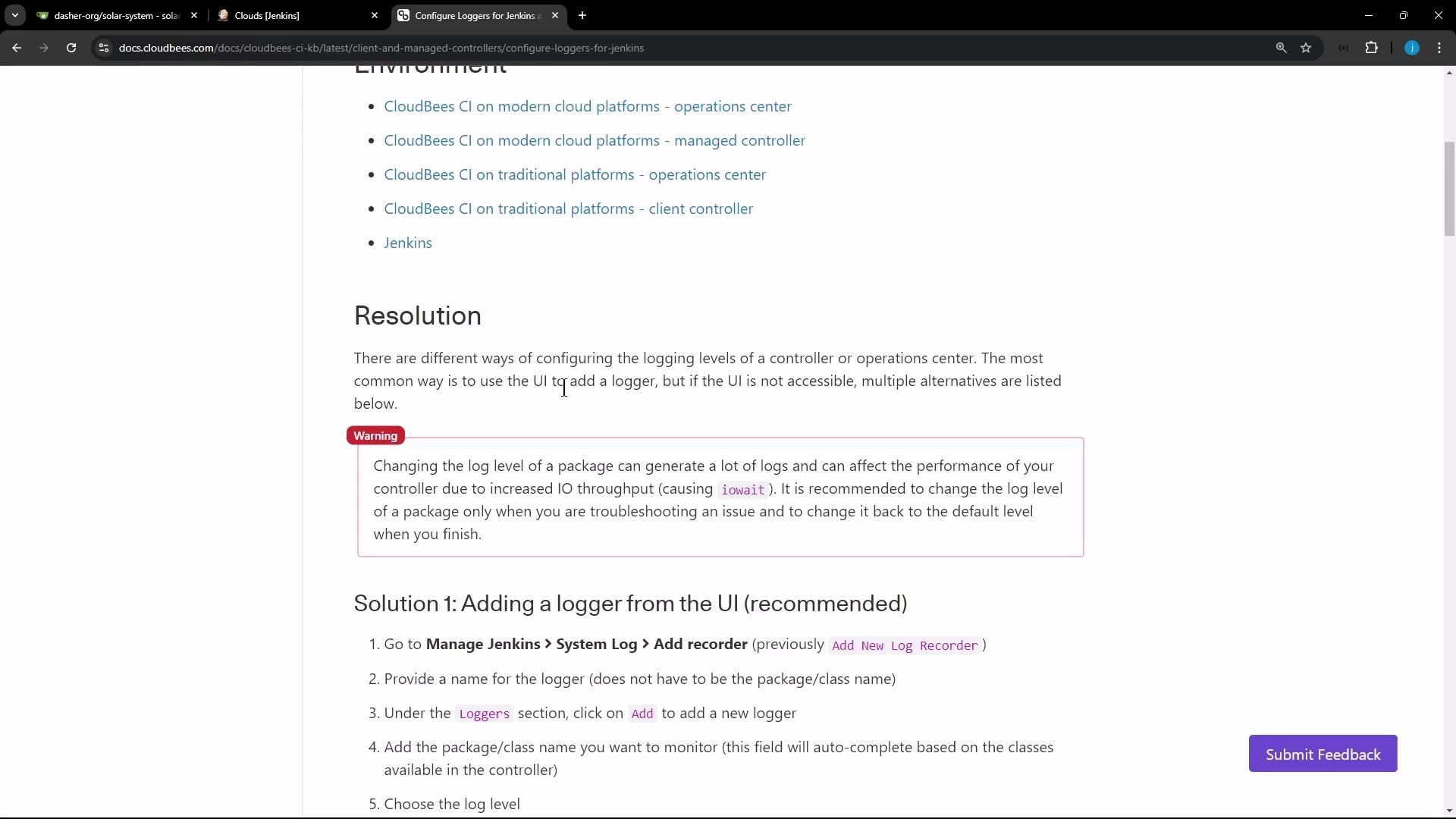
- Add a log recorder from the Jenkins UI — recommended for short-lived debugging.
- Run a Groovy init script to set logger levels at startup.
- Provide a Java logging properties file on the filesystem (
$JENKINS_HOME/logging.properties). - Add a persistent log recorder definition XML under Jenkins home (survives restarts).
- Configure default levels from the UI (note: UI changes may not persist across restarts).
Detailed examples
Groovy init script
- Add a Groovy script to the Jenkins initialization scripts (for example, in
init.groovy.d/) to set logger levels programmatically. This is useful for automated deployments or containers where you control the image contents.
- You can also set logging via a Java logging properties file placed under
$JENKINS_HOME/logging.propertiesand have Jenkins load it during startup:
- Example layout for a custom log recorder and its output file placed inside
JENKINS_HOME/log/:
- To persist a named recorder across restarts, create an XML file under the Jenkins home logs directory. A minimal example (truncated):
- The simplest and most approachable method for temporary troubleshooting is using the Jenkins UI:
- Manage Jenkins → System Log.
- Click “Add recorder” to create a named log recorder.
- Within the recorder, add one or more logger names (packages/classes) and set the desired level.
- Save, run the operation you want to diagnose, then view the recorded logs.
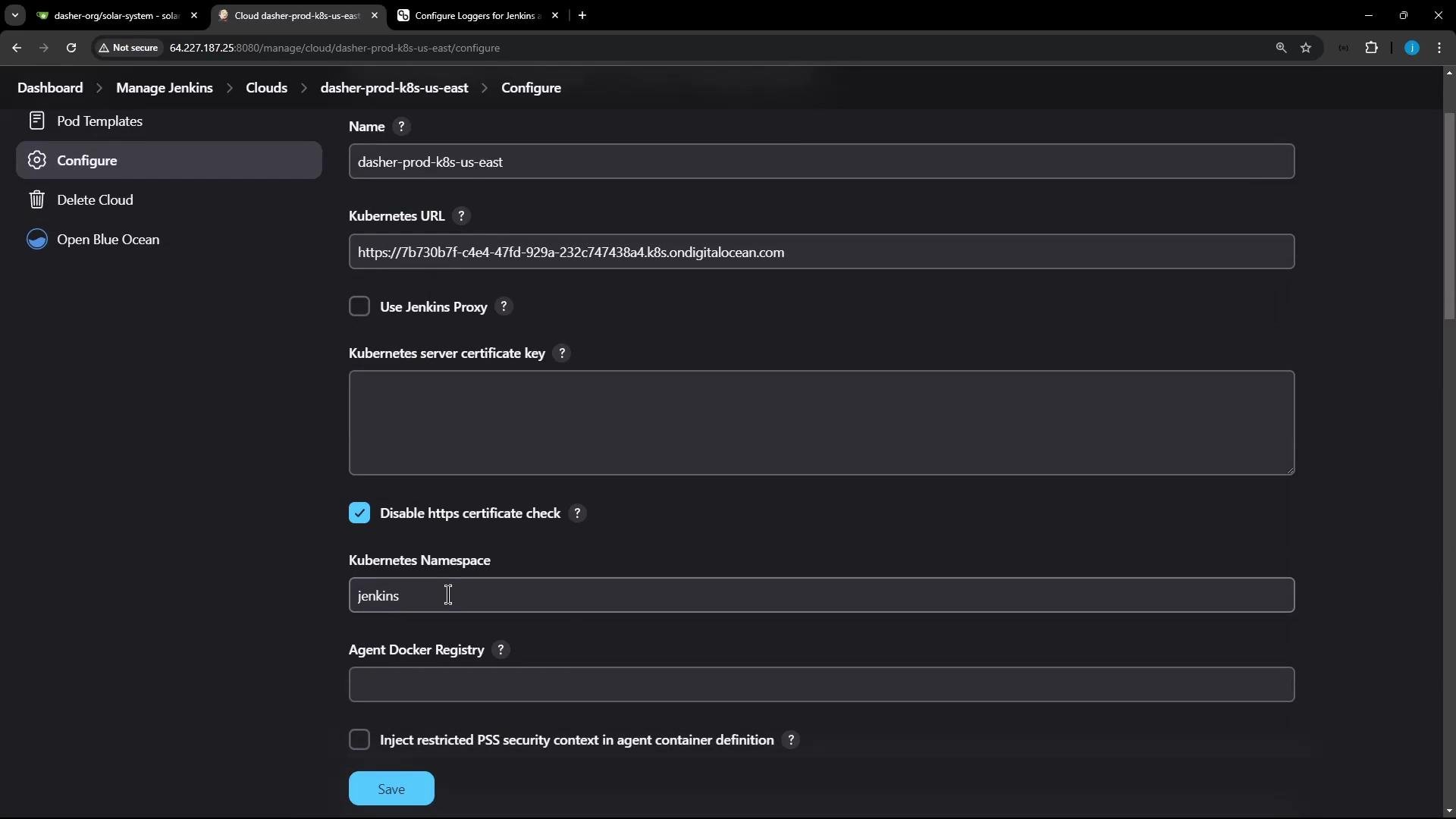
- Example scenario: a Kubernetes cloud configured in Jenkins fails the test connection and shows only a terse error in the UI. Creating a log recorder for the Kubernetes client packages (for example
io.fabric8.kubernetes) reveals HTTP-level details, Authorization headers, and response bodies that the plugin UI hides.
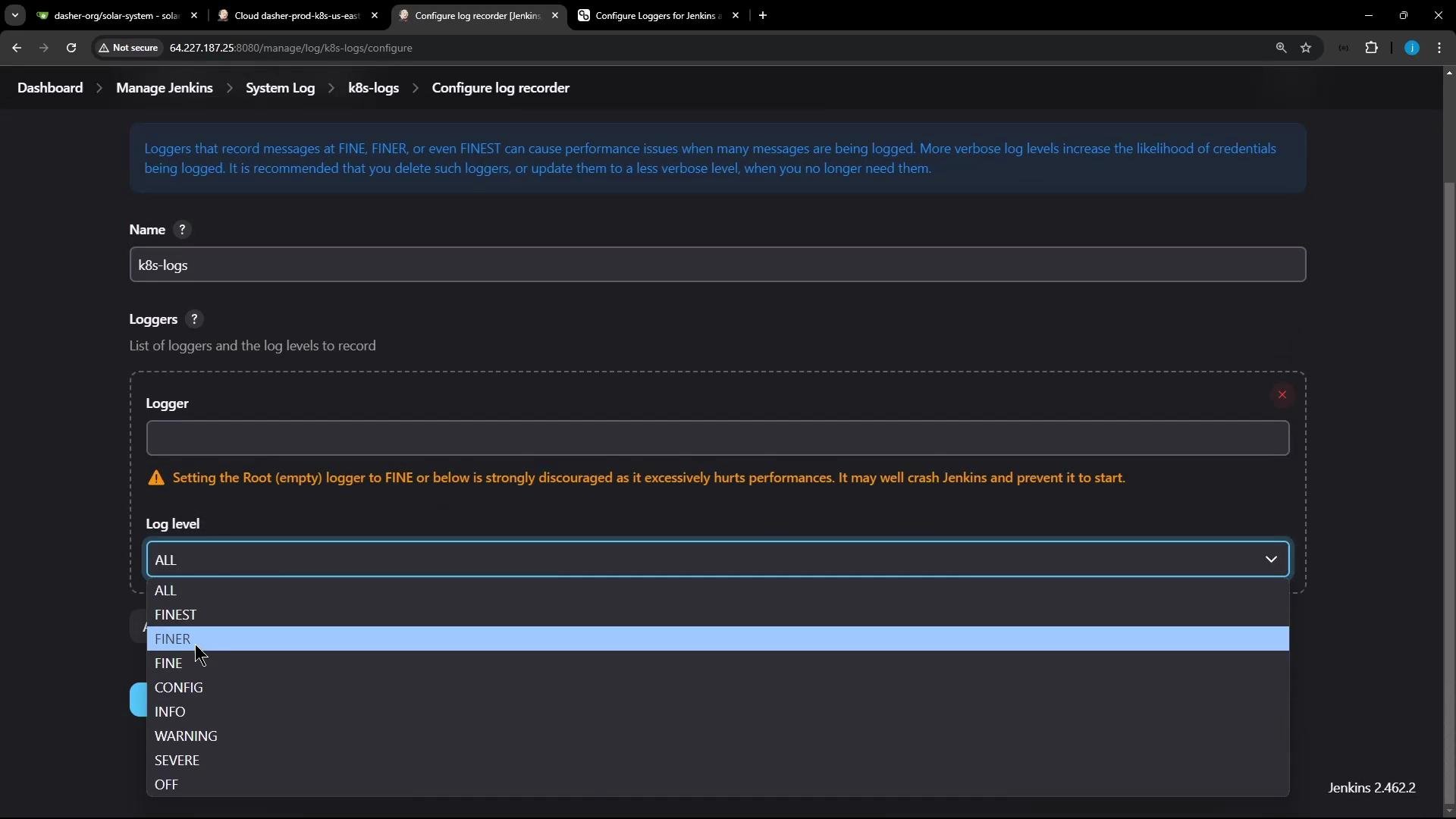
- Manage Jenkins → System Log → Add recorder.
- Name it (for example
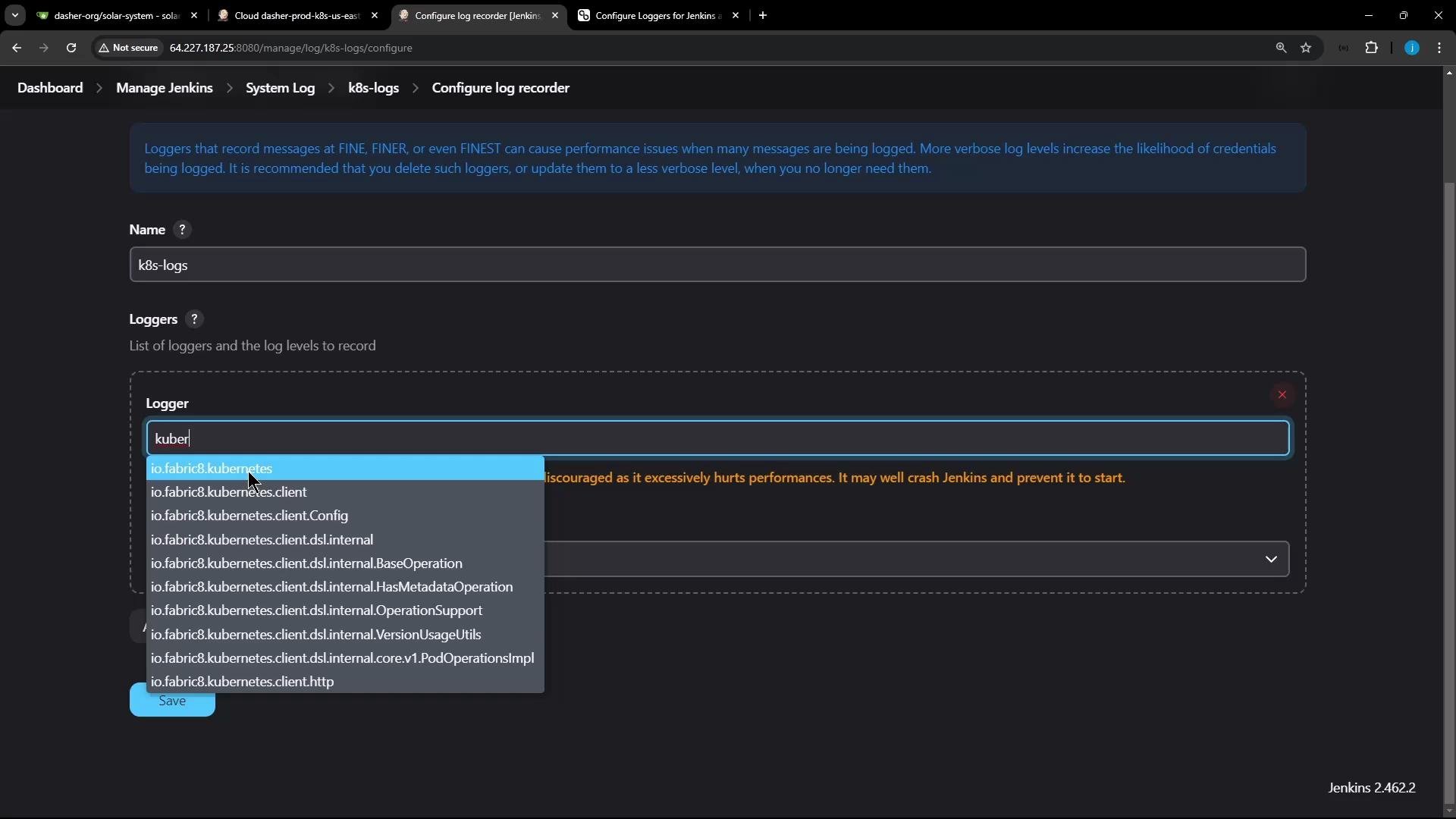
k8s-logs). - Add loggers such as
io.fabric8.kubernetesand set the level to the desired verbosity (FINE,FINER,FINEST, orALL). Use high verbosity only temporarily.
- With verbose logging enabled you will see the HTTP request with the Authorization header and the server response, including the JSON response body returned by Kubernetes:
{"kind":"Status", ... }) is the raw Kubernetes response and is not normally visible in the plugin UI; the log recorder reveals it and helps identify RBAC or credential issues.
Example: 200 OK (when credentials/permissions are correct)
- When the connection succeeds, you’ll see similar HTTP-level logs followed by the Kubernetes version JSON in the response body:
- You can create multiple recorders for different plugins or packages and view their output from Manage Jenkins → System Log. Use separate recorders for different subsystems (for example,
k8s-logs,git-logs,security-logs) to keep output organized.
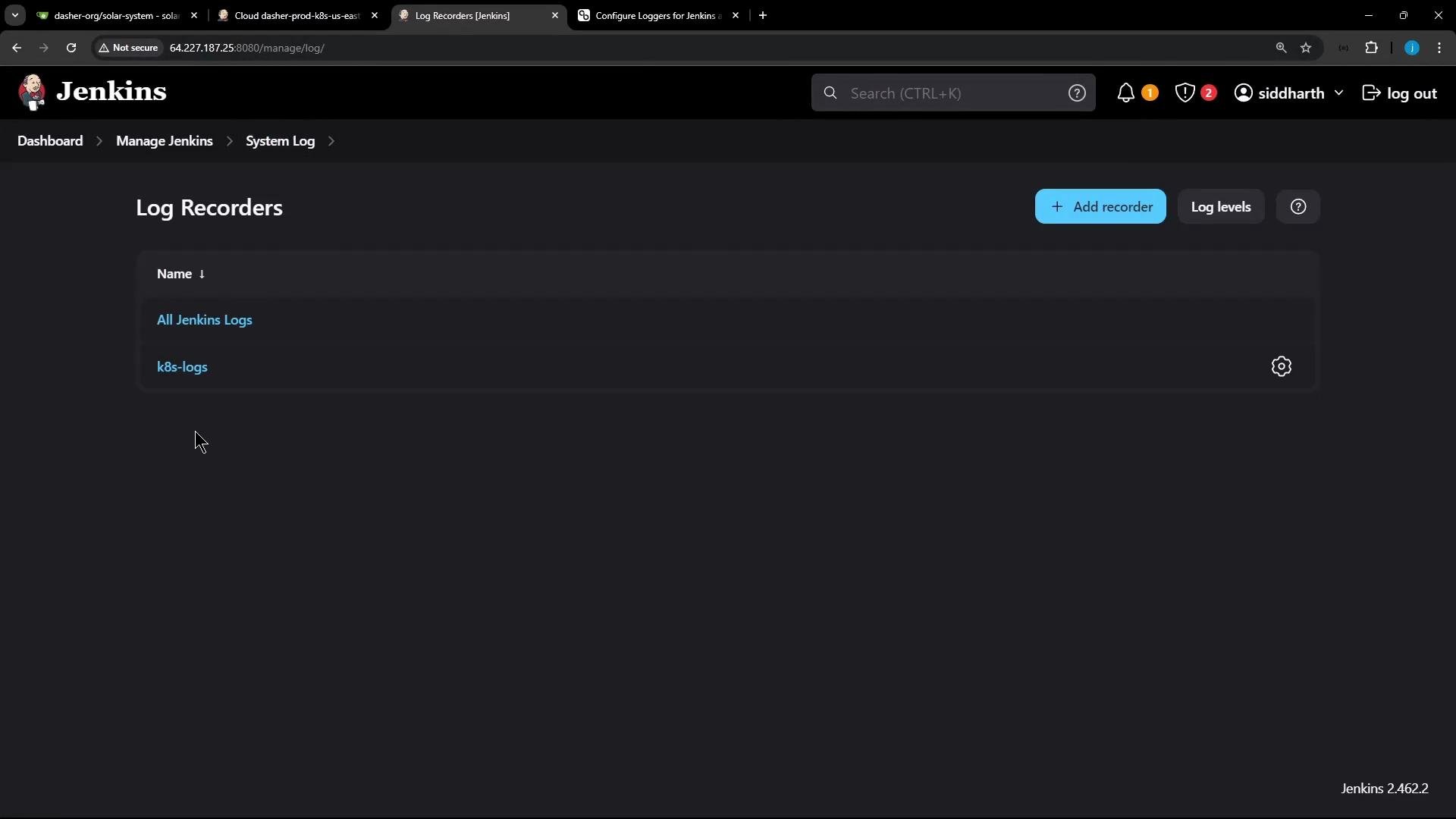
- After troubleshooting, clear or delete the log recorder or restore previous log levels to avoid ongoing verbose logging and the associated performance impact.
Best practice: apply verbose logging only for the narrowest scope (specific package/class names), run the failing operation to capture the needed information, then revert changes immediately. Automate cleanup where possible (e.g., delete recorder via script or remove init scripts).
- Jenkins System Log / Log Recorders — see Manage Jenkins → System Log in your Jenkins UI.
- Jenkins logging and troubleshooting concepts: https://www.jenkins.io/doc/
- Kubernetes API status responses: https://kubernetes.io/docs/reference/using-api/api-concepts/#status
- fabric8 Kubernetes client: https://github.com/fabric8io/kubernetes-client