Viewing the Application Components
After deploying your Sock Shop application, navigate to Workloads → Deployments to view all running components. This interface displays deployment names, statuses, labels, and pod selectors.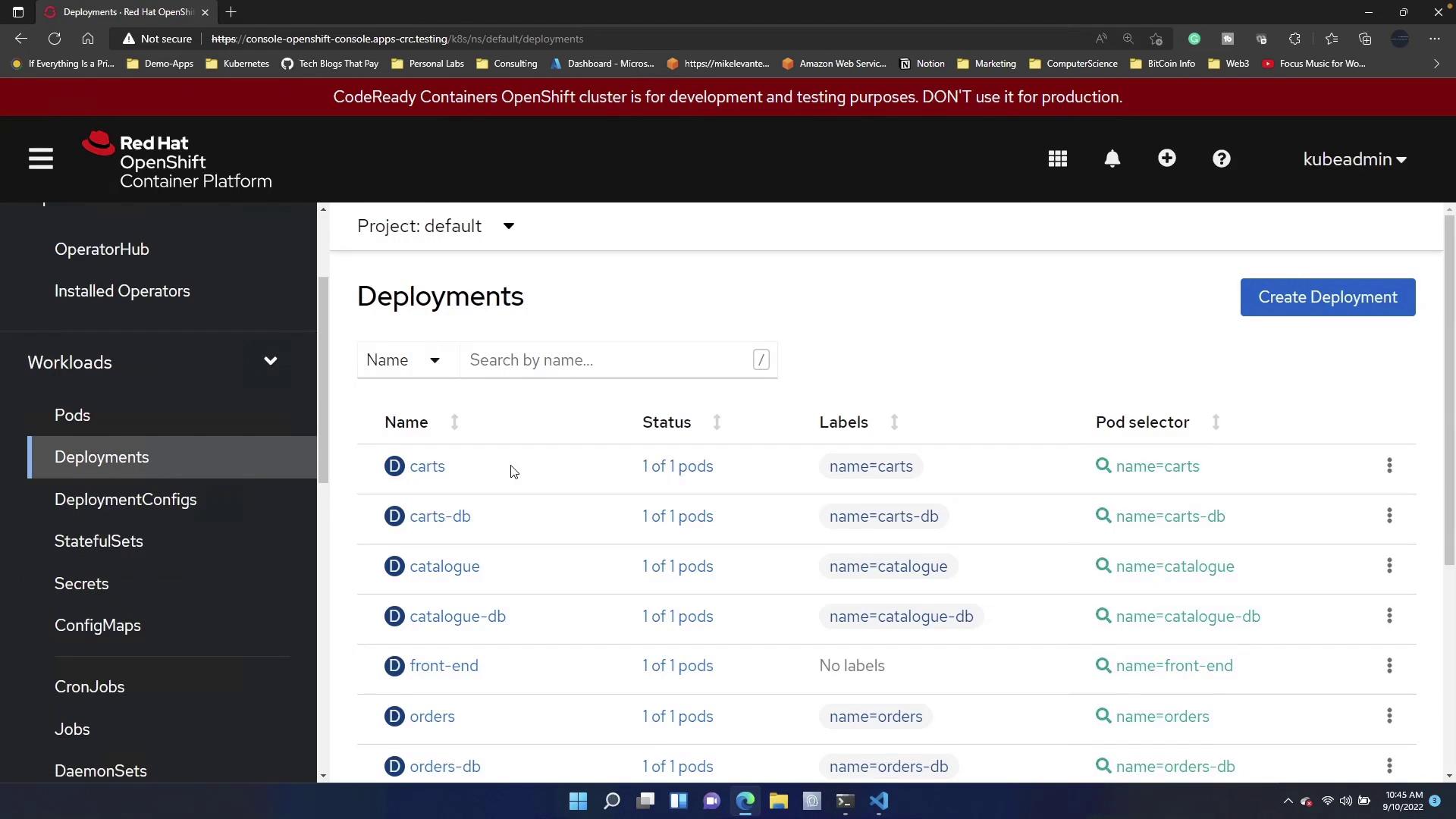
Inspecting the Application Route
Next, access Networking → Routes. Here, you can view the configured route for the application. The route provides a quick way to verify if your application is up and running.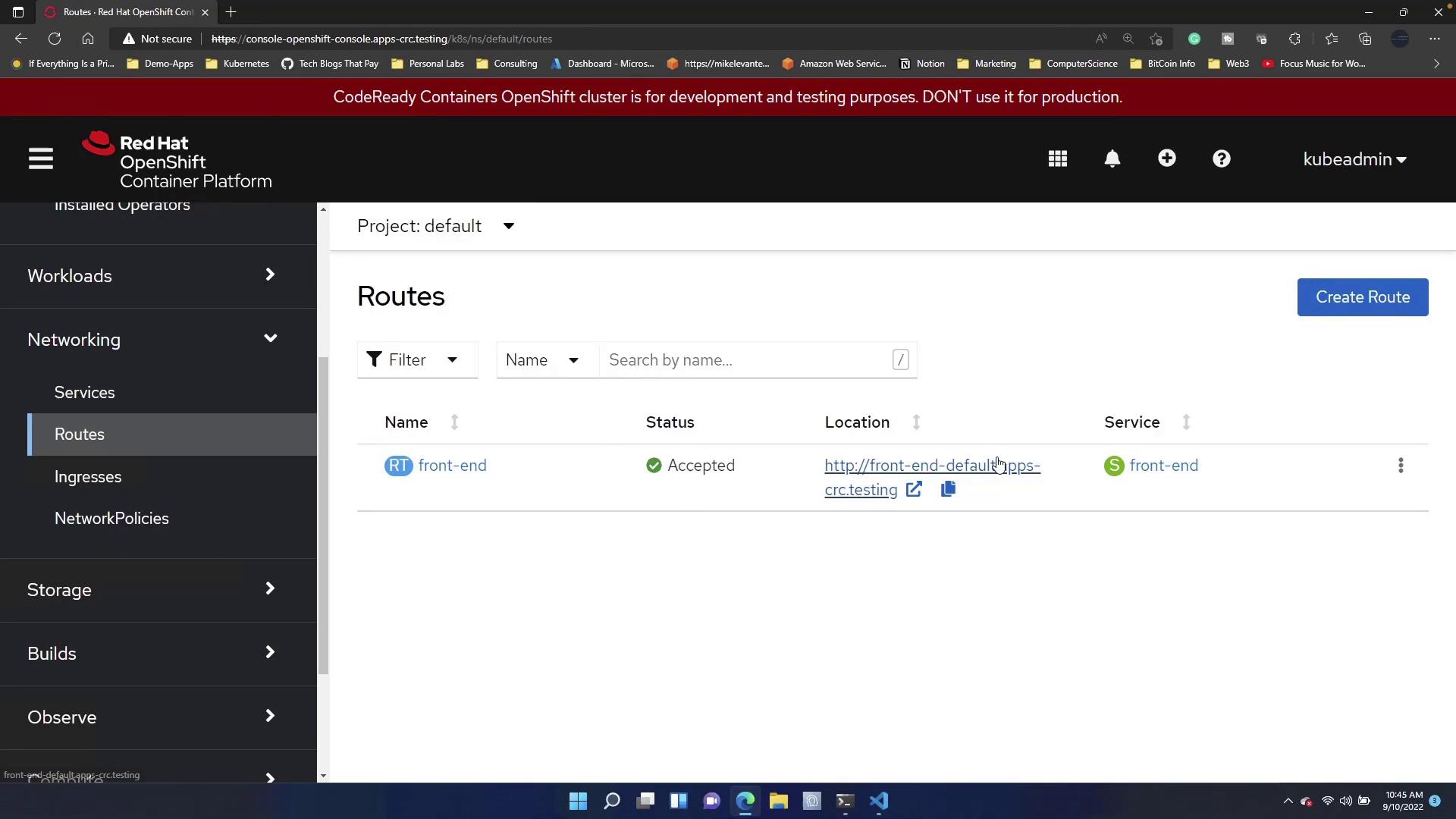
Practical Exercise: Creating a New Route
For hands-on practice, intentionally delete the existing route. Deleting the route will temporarily disable access to your application’s frontend.Deleting the route will render your application frontend inaccessible until the new route is configured.
- Click the Create Route button.
- In the route creation form, assign a name such as “Frontend App.”
- You have two options for the hostname:
- If DNS is configured in your environment, specify a hostname.
- If not, allow OpenShift to auto-generate one for simplicity.
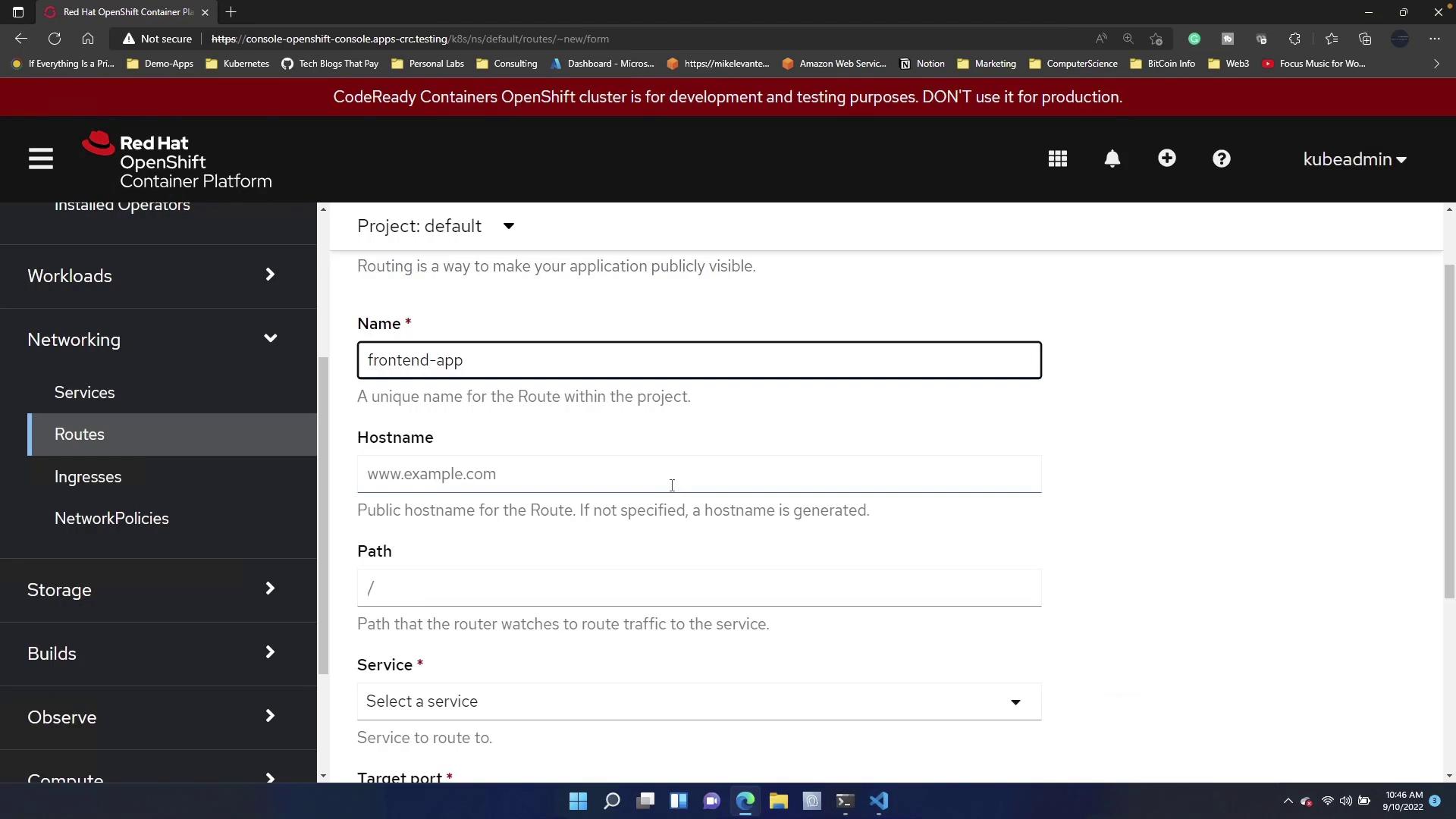
- Specify a path (for example, “/test”) so that the application is accessible under this path.
- Leave the path blank to serve the frontend at the default route.
- Select the service corresponding to your frontend component.
- Choose the appropriate target port.
- Configure the route as secure by setting up SSL certificates if required.
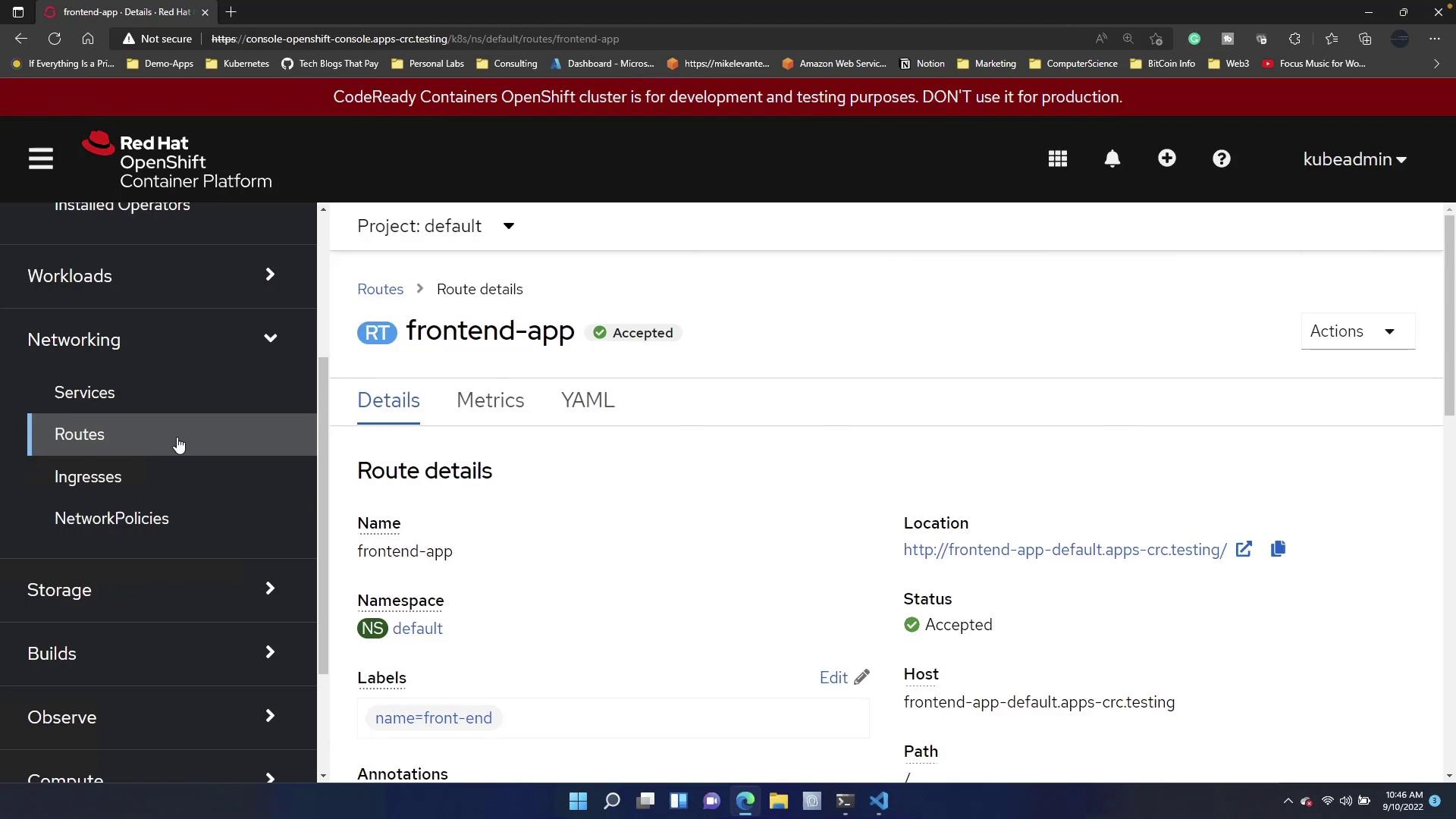
Verifying the New Route
Once created, return to the Routes section and select the URL provided. The application should be accessible again. Notice the route name has been updated to “frontend-app” by default, indicating the new configuration is active.