Logging into the CLI
In this section, you will learn how to log in to the OpenShift CLI using the system administrator credentials. Although we have previously discussed creating a project via the user interface, we now focus on accessing and managing your environment through the CLI. Log in with the following command using the username “system:admin”:Viewing Users in the System
To view the users currently configured on the system, run the following command. Notice that in this demonstration, we are logged in using a developer account on the web console:Managing Multiple Users and Projects
Next, log in to the developer console with another user (for example, “developer2”) using the anypassword provider. After this login, return to the CLI and run the users command again. You will now see that a new user has been created. Switch back to the original developer user and create a new project: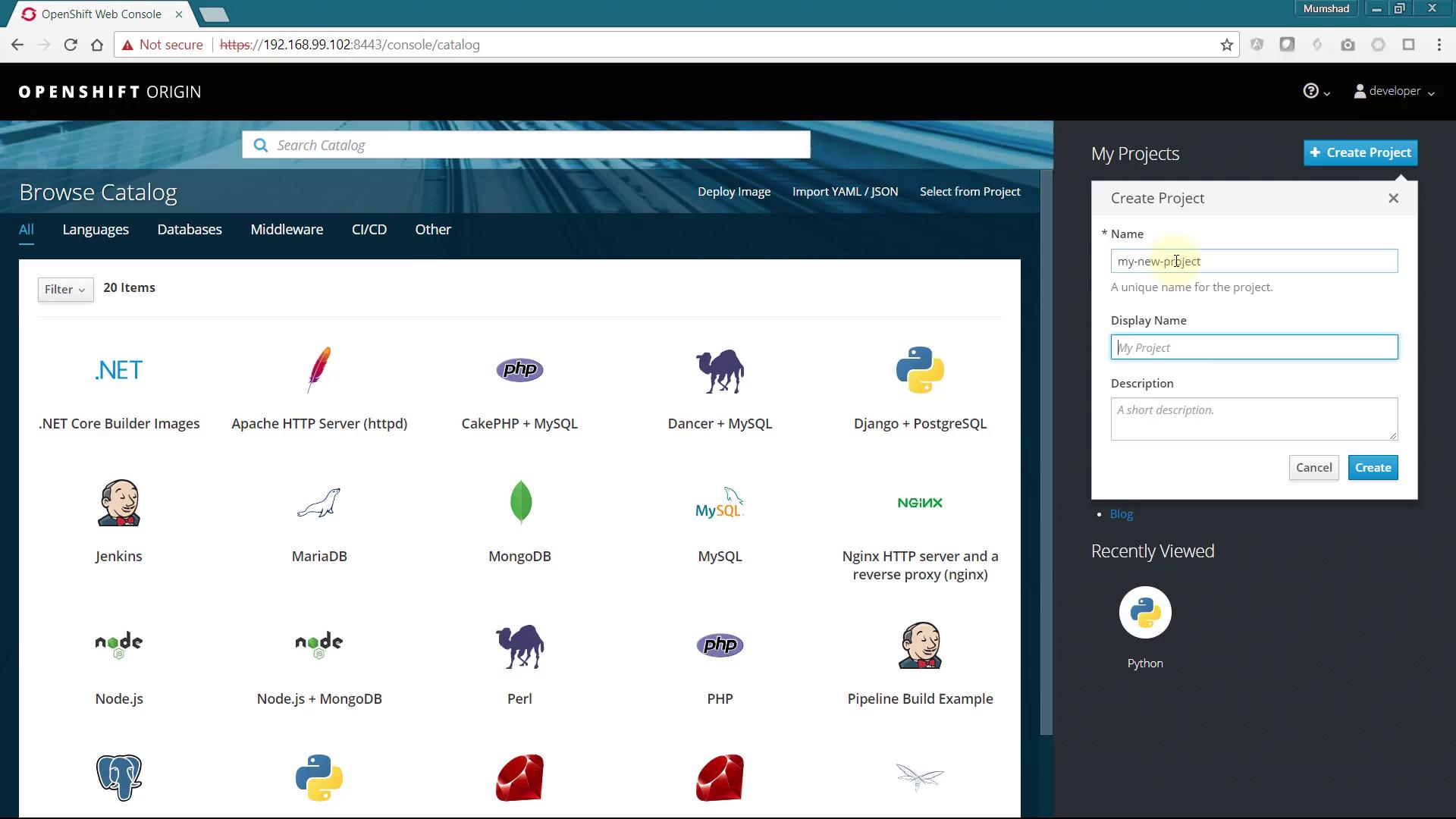
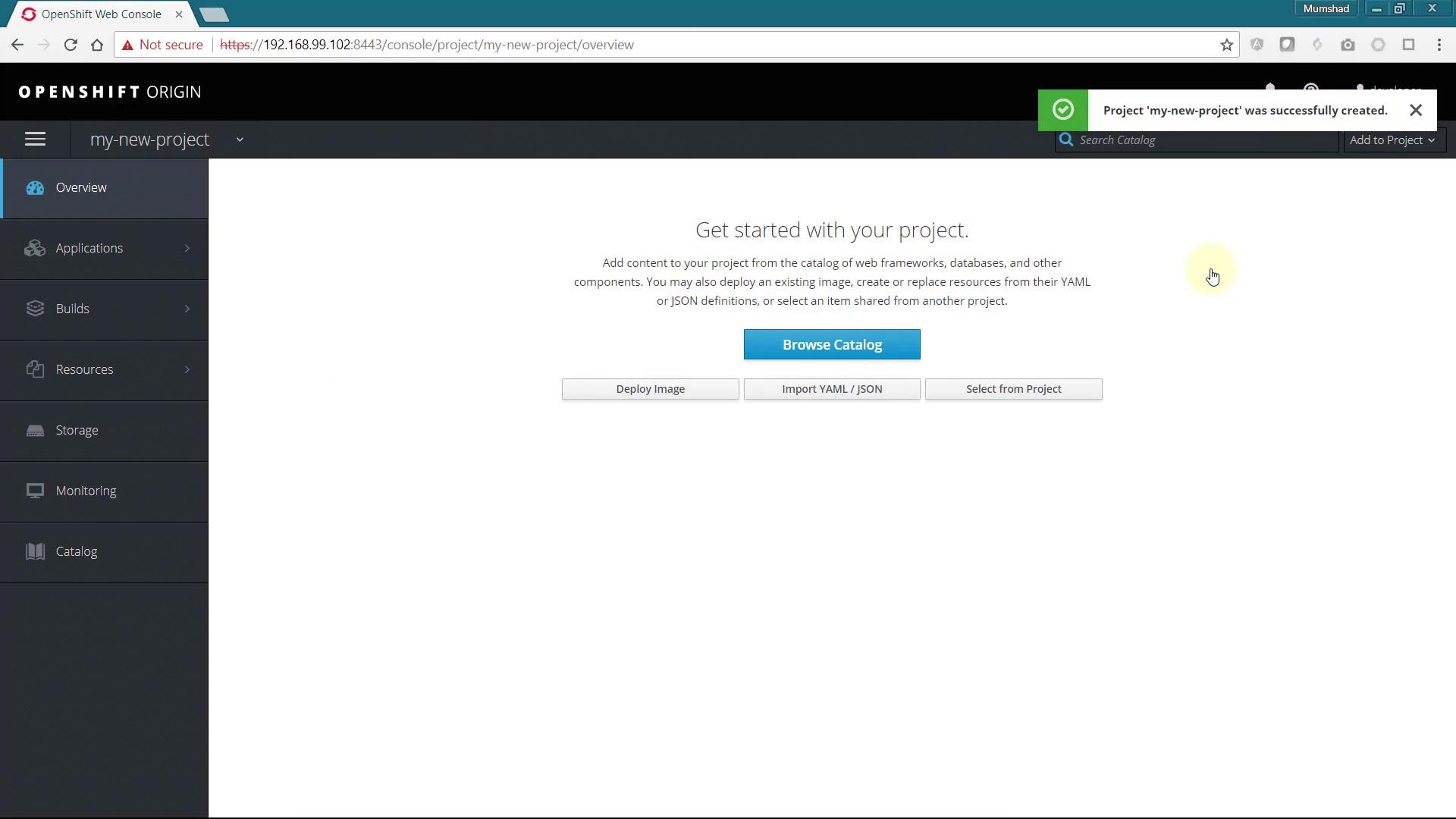
Viewing Default Projects via the CLI
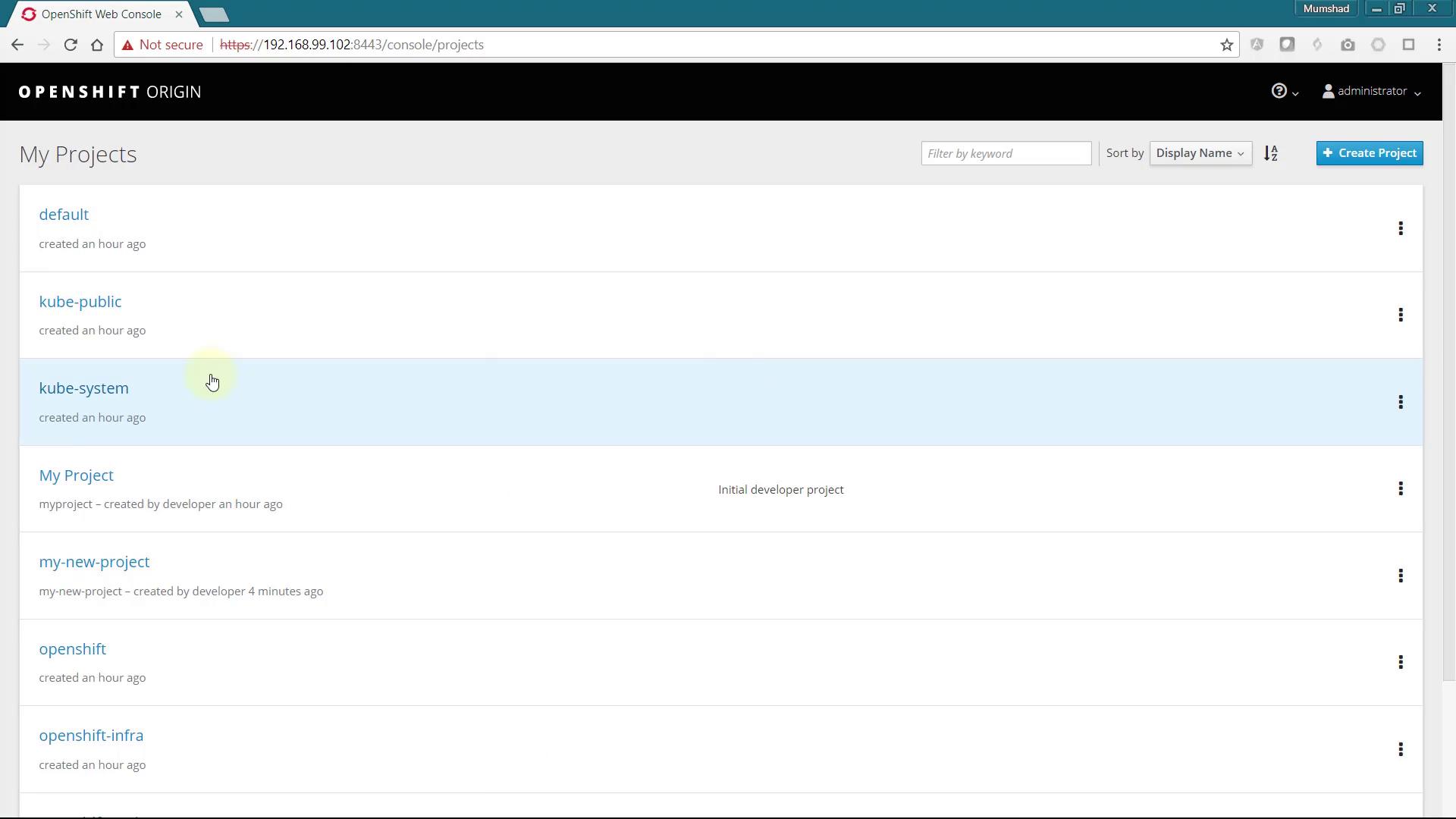
The CLI displays all projects when logged in as the system admin user. However, to view these projects within the web console, you must be logged in as a system administrator. Use the following CLI command to log in again as “system:admin”:Granting Cluster Administrator Privileges
To view all projects in the web console, create a new user and assign cluster administrator privileges. For this demonstration, we use the username “Administrator.” When you log in with this new username, the system will automatically create the user using the anypassword identity provider. Grant the new user cluster administrator privileges with the following command: