This guide explains how to create a custom template for a voting application on an OpenShift cluster.
Welcome to this lesson. In this guide, we will create a custom template for the example voting application deployed on an OpenShift cluster. The objective is to package all the components—BuildConfigs, DeploymentConfigs, Services, Routes, ImageStreams, and Secrets—into a single template, making it easy for developers and users to deploy the complete voting application with just a few clicks.We will first identify and extract the YAML configurations for all the components into a dedicated template file. Then, we will create the template using either the OpenShift UI or CLI.
Begin by creating a file named example-voting-app-template.yml. Initialize this file with the API version and kind set to v1 and Template, respectively. Specify the template name in the metadata section.
As noted, ensure that the template contains all the necessary components including BuildConfigs, DeploymentConfigs, Services, Routes, ImageStreams, and Secrets.
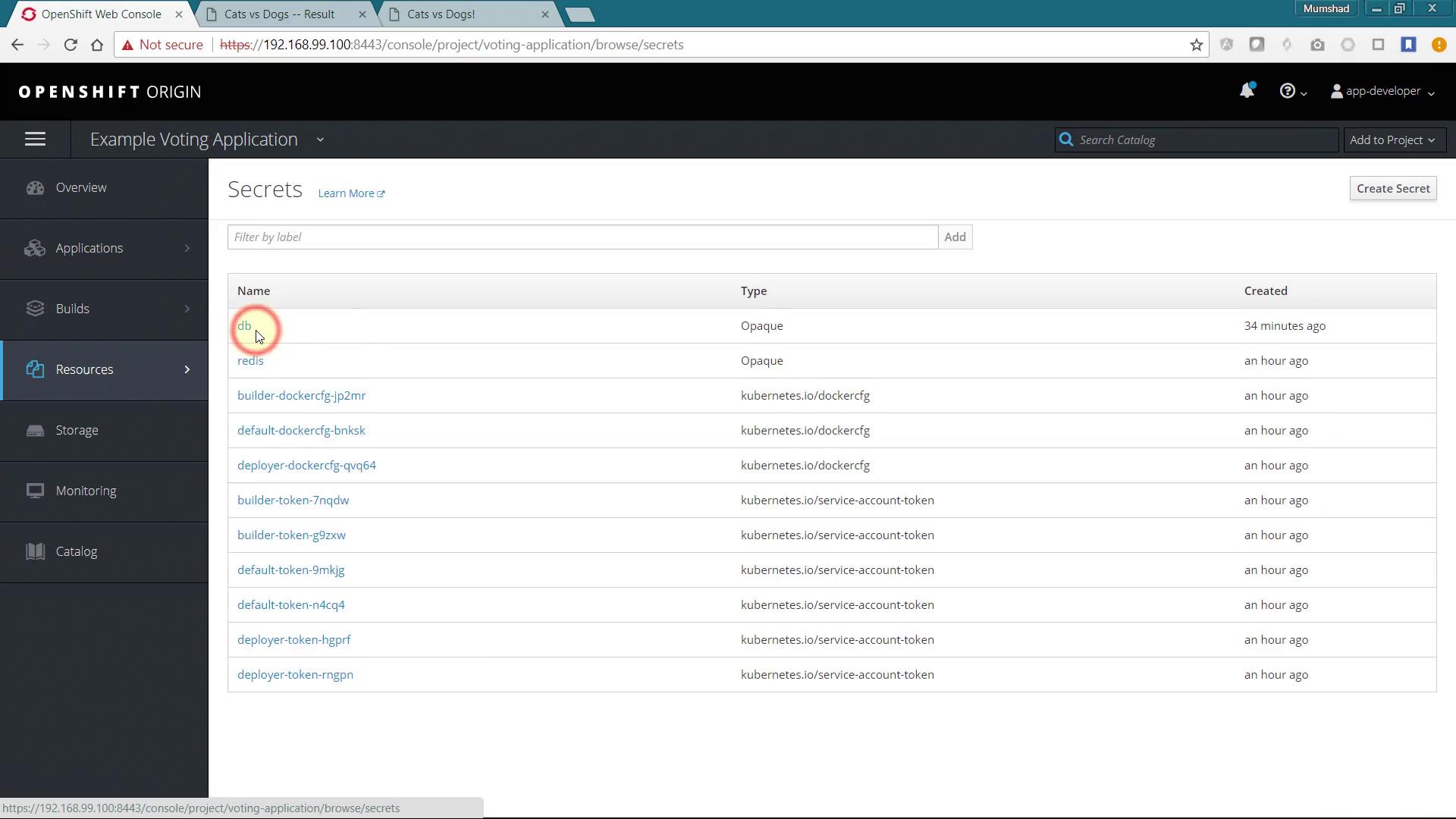
Start by adding the Secrets. Navigate to the Secrets section in your OpenShift resources. You will find two relevant secrets: the DB secret and the Redis secret.
To add the DB Secret, select it, click “Actions,” and then “Edit YAML.” Copy the content and paste it into your template file. Modify the secret by replacing the encrypted passwords with clear text and removing extraneous annotations and metadata, while retaining the essential information.Original snippet:
Repeat these steps for the Redis Secret by copying its YAML content, removing unnecessary details, and retaining only the critical data (e.g., redis_password and its name).
Next, add the BuildConfigs. Begin by selecting the YAML configuration for the existing BuildConfig for the “result” component and adding it to the objects array. Remove any unneeded details while preserving all crucial specifications.
Leave the content under the spec section as-is. Note that the GitHub URL embedded in the template can later be parameterized to prompt user input during deployment. Be sure to remove any status sections if they exist. Follow similar procedures for the BuildConfigs of the vote and worker applications.
If possible, parameterize the GitHub URLs and other hard-coded values in your BuildConfig to enhance reusability.
Below is an additional snippet showcasing an ImageStreamTag configuration:
There are three ImageStreams configured—one for each application. Copy the YAML for each ImageStream and add it to the objects array. For example, to tag and push an image from Docker, you might use:
$ sudo docker tag myimage registry/voting-application/worker:tag$ sudo docker push registry/voting-application/worker:tag
Then duplicate the configuration for the other two ImageStreams:
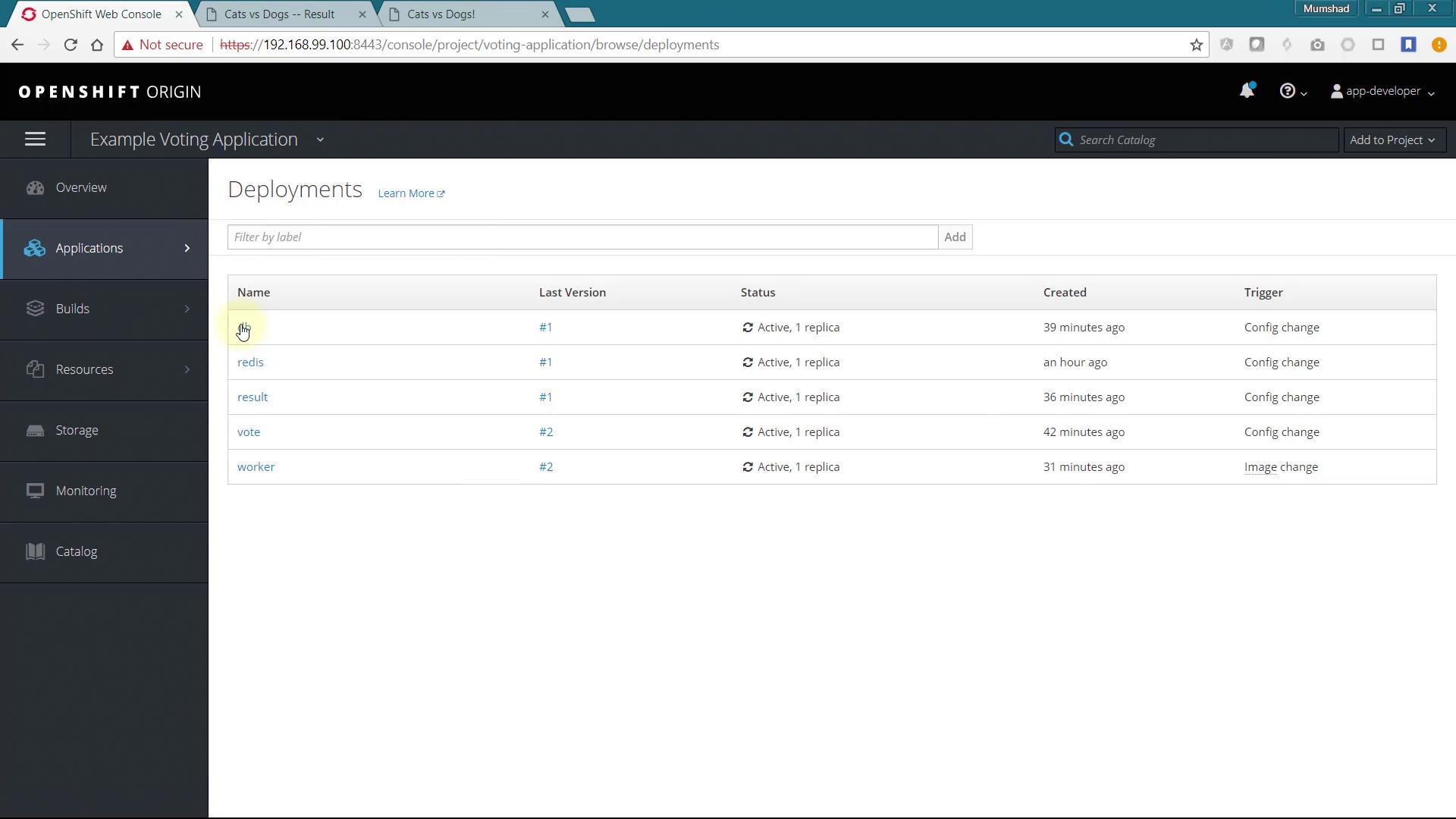
Next, add the DeploymentConfigs. There are five DeploymentConfigs for the application components. In the OpenShift Origin web console, you can see the list of deployments, as shown in the image below:
For every DeploymentConfig, select the YAML configuration, copy it into your template file, and remove any unnecessary details. Consider simplifying blocks such as the livenessProbe as shown below:
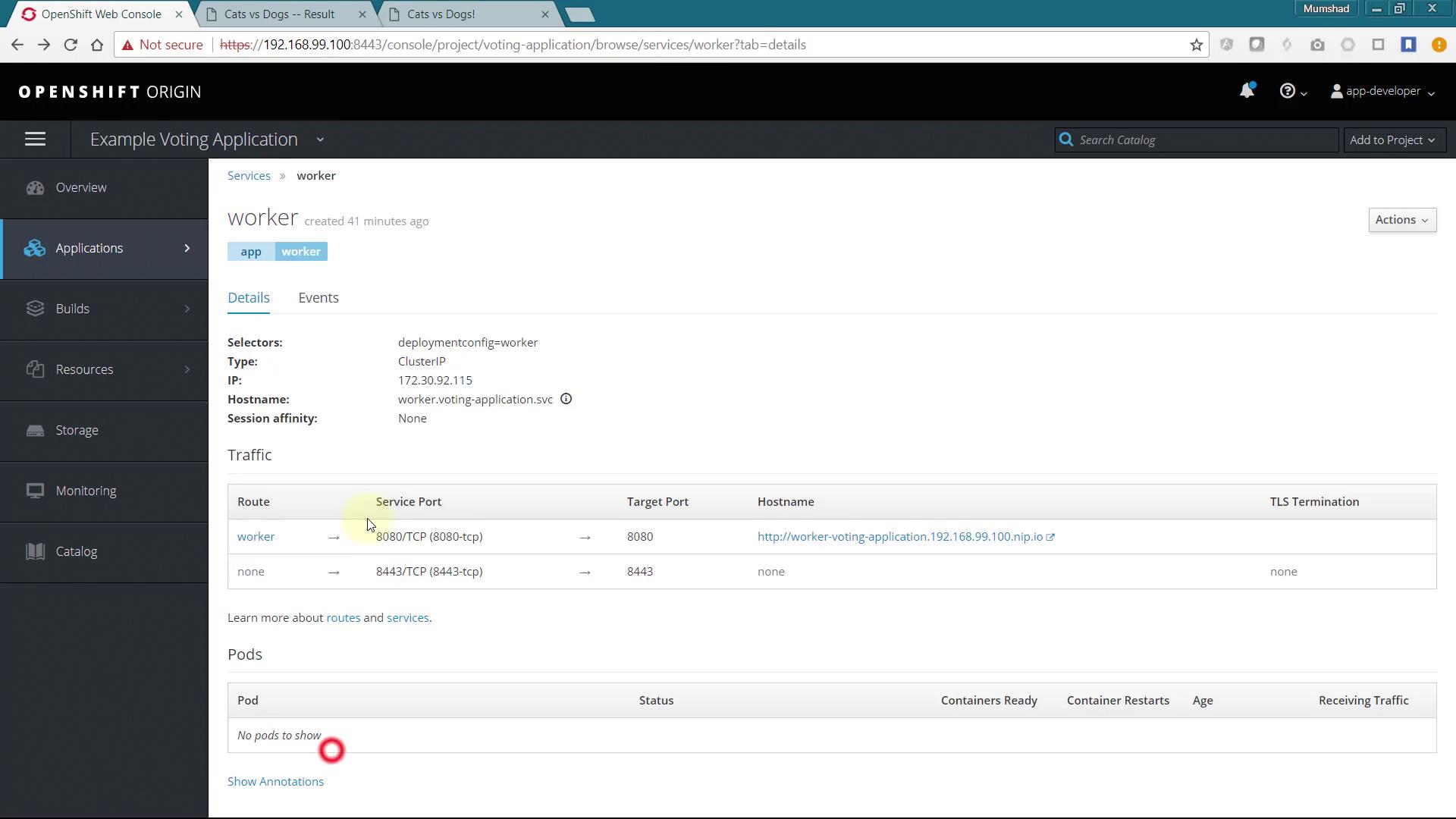
Although the worker application does not strictly require its own Service because it interacts indirectly with Redis and PostgreSQL, include the Service (and Route) configurations for consistency with the wizard-generated template.
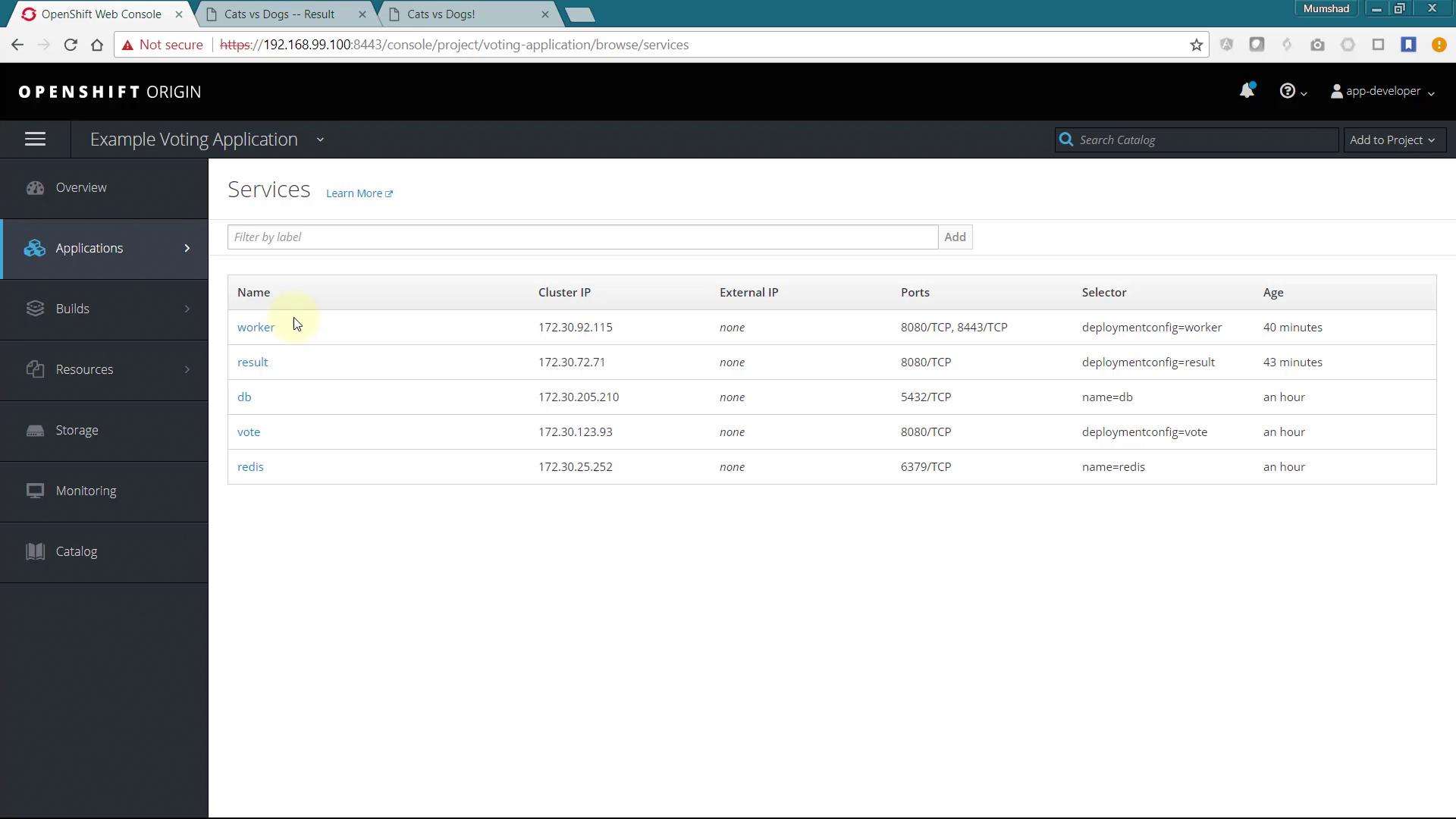
View the list of services in the OpenShift Origin web console as shown below:
For additional service details (e.g., for the worker application), refer to the image below:
For Routes, here’s an example configuration for the “result” application:
- apiVersion: v1
  kind: Service
  metadata:
    name: result
  spec:
    ports:
      - name: 8080-tcp
        port: 8080
        protocol: TCP
        targetPort: 8080
    selector:
      deploymentconfig: result
    sessionAffinity: None
    type: ClusterIP
  status:
    loadBalancer: {}
Similarly, additional Route configurations for, for instance, the vote service can be specified as follows:
Once the file is complete, you can create a template from the CLI. First, configure your OC environment variable. In this example, the template is intended to be available for a new user (for example, AppDeveloper2).Switch to the directory containing the file and execute the oc create -f command:
c:\Users\mmums>cd c:\c:\>cd minishift-1.16.1-windows-amd64c:\minishift-1.16.1-windows-amd64>minishift.exe oc-envSET PATH=C:\Users\mmums\.minishift\cache\oc\v3.9.0\windows;%PATH%REM Run this command to configure your shell:REM @FOR /f "tokens=*" %i IN ('minishift oc-env') DO @call %ic:\minishift-1.16.1-windows-amd64>SET PATH=C:\Users\mmums\.minishift\cache\oc\v3.9.0\windows;%PATH%
Log in through both the UI and CLI using your credentials, navigate to the directory with example-voting-app-template.yml, and create the template using:
d:\Mumshad Files\Google Drive\Udemy\OpenShift\code>oc create -f example-voting-app-template.ymlError from server (Forbidden): error when creating "example-voting-app-template.yml": templates is forbidden: User "app-developer-2" cannot create templates in the namespace "default": User "app-developer-2" cannot create templates in project "default"d:\Mumshad Files\Google Drive\Udemy\OpenShift\code>
Since regular users cannot create a template in the default namespace, create a new project and specify its namespace:
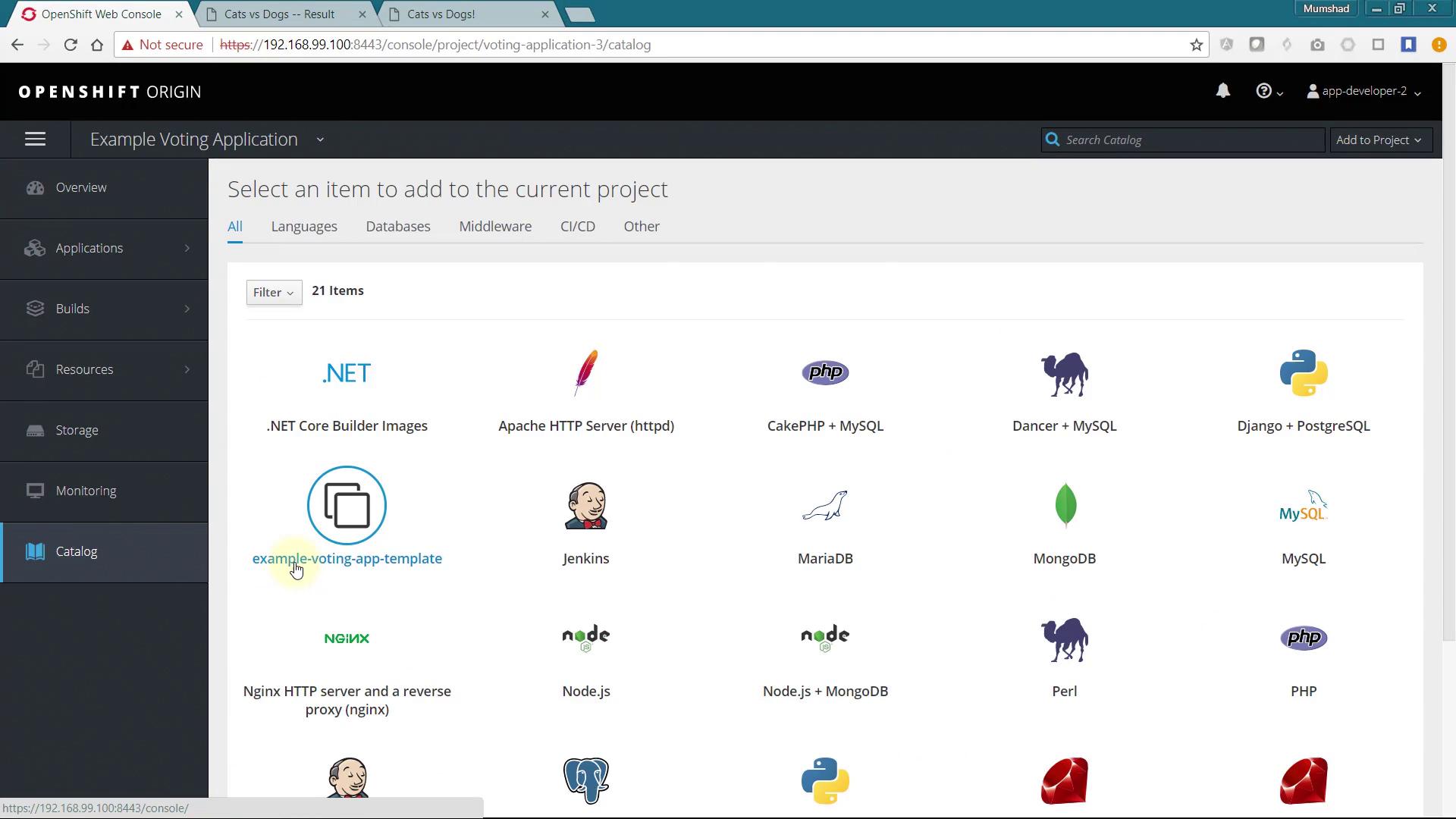
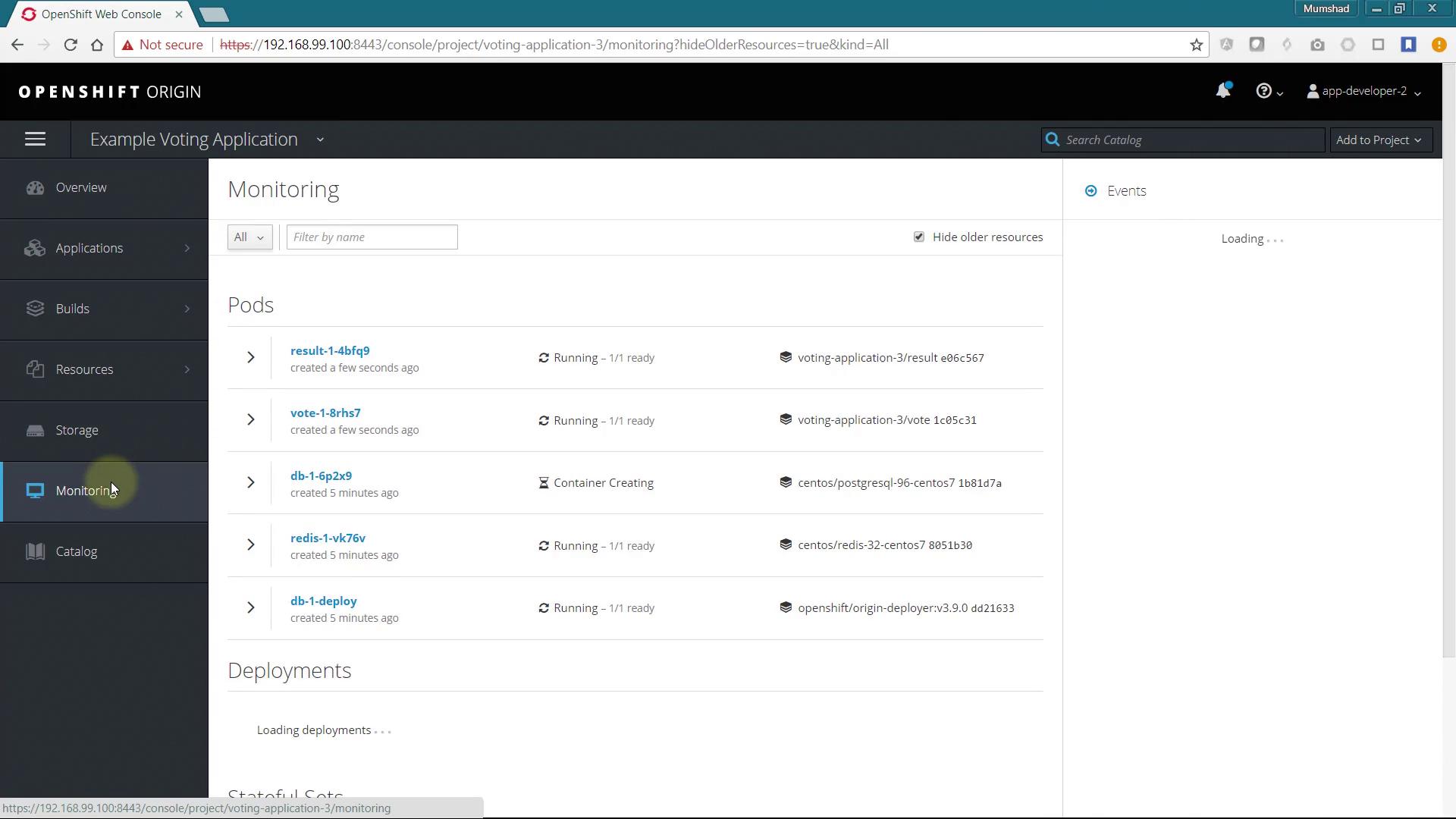
After running this command, refresh the UI. You should see the new catalog item named example-voting-app-template displayed. Click on it and follow the deployment wizard to launch the application stack. Monitor the progress of builds and deployments on the monitoring page.
After deployment, click on the Routes to access the voting and result pages.
You have successfully created a custom catalog item for the example voting application, enabling quick deployment for anyone. As a next step, consider parameterizing the template to allow user input via the wizard. For additional ideas, review the source code of existing templates.Thank you for your time, and we hope this lesson helps you get started with creating custom templates in OpenShift.