

- Quick one-off setup from the command line using
oc autoscale. - Declarative control by creating a
HorizontalPodAutoscalerYAML manifest.
metrics-server or another metrics provider). Without metrics the HPA controller cannot make scaling decisions.
CPU-based autoscaling requires metrics to be exposed in the cluster (e.g.,
metrics-server). If resource metrics are unavailable, the HPA controller will not be able to scale pods.Quick comparison
Autoscaling with the CLI
Useoc autoscale to rapidly attach an HPA to an existing Deployment. The general form:
front-end Deployment never drops below two replicas and may scale up to seven replicas, targeting 75% CPU:
- Creates a
HorizontalPodAutoscalerresource in the same namespace that targets the named Deployment. - The HPA controller enforces the configured
minReplicasand scales up/down (withinmaxReplicas) based on the metric (CPU in the example).
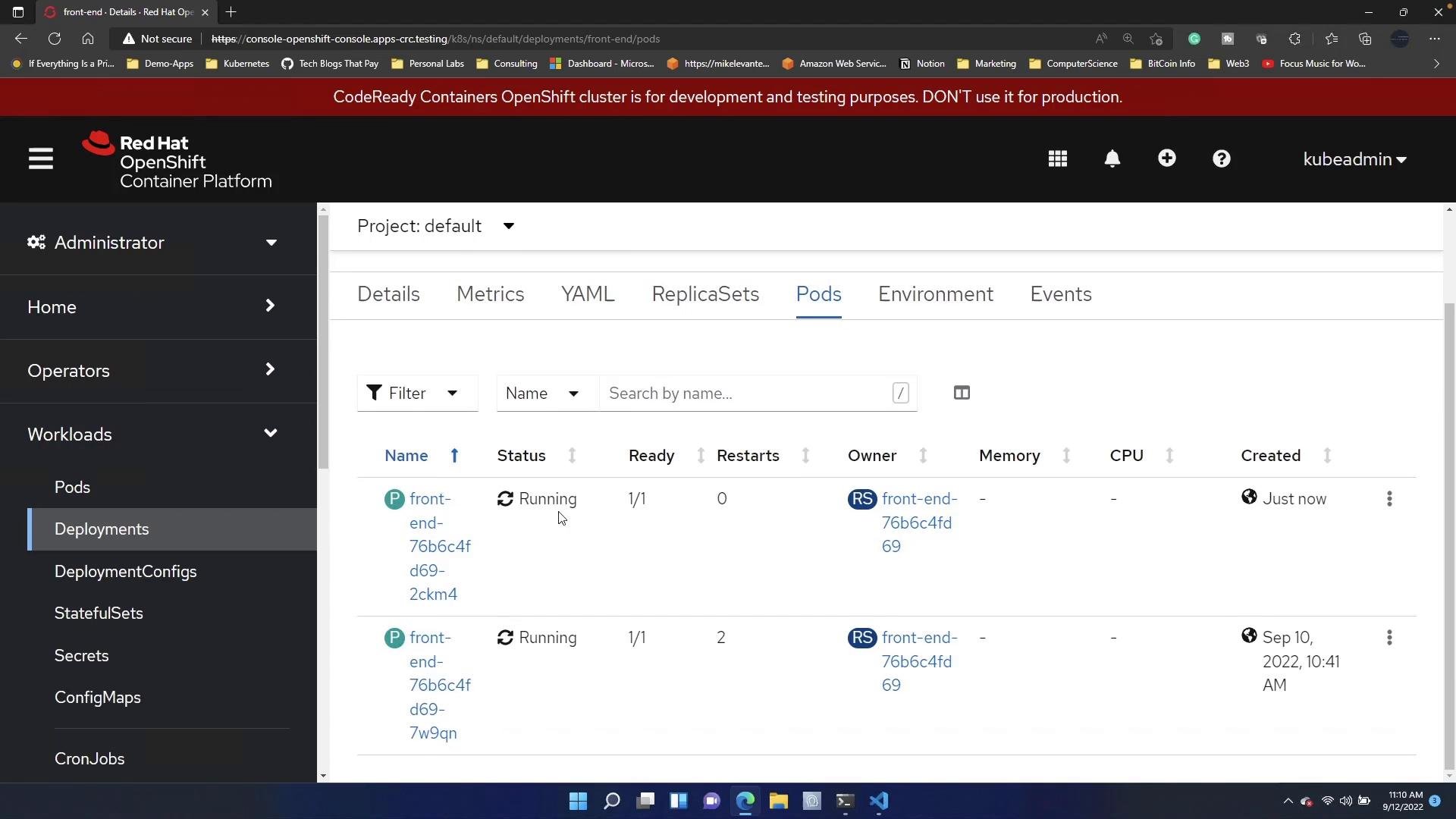
front-end Deployment, you should see at least the minimum number of pods running.
Creating a HorizontalPodAutoscaler YAML
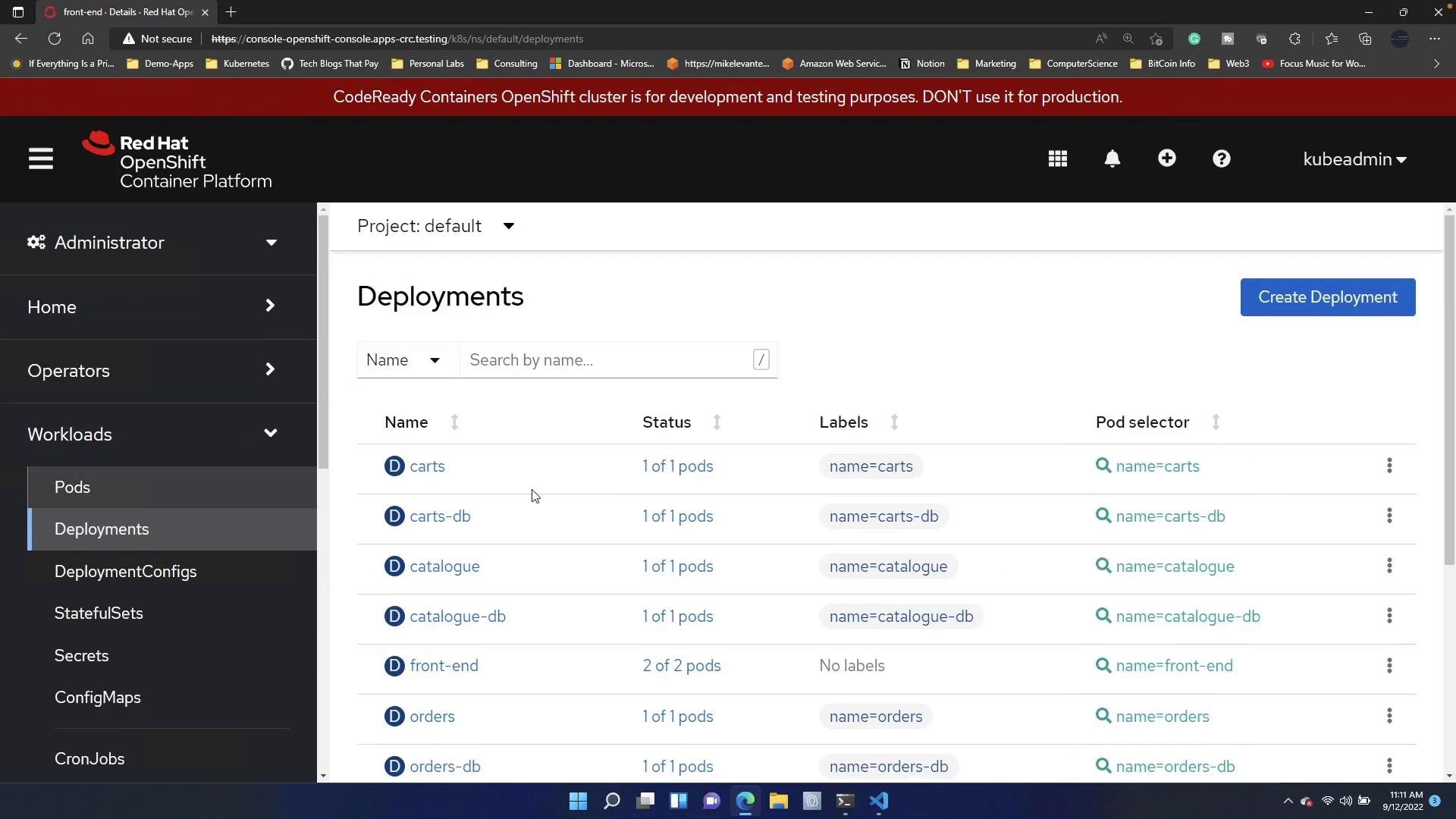
For reproducibility and source control, create an HPA manifest. HPAs live in theautoscaling API group. Use:
autoscaling/v1for simple CPU-based autoscaling withtargetCPUUtilizationPercentage.autoscaling/v2for advanced metric types, multiple metrics, and custom metrics formats.
autoscaling/v1 manifest that targets the front-end Deployment:
- Do not include a
statusblock in your manifest — the controller populatesstatusautomatically. - For memory-based autoscaling, custom metrics, or multiple metric types, use
autoscaling/v2and themetricsarray described in the Kubernetes docs.
Removing or replacing an existing HPA
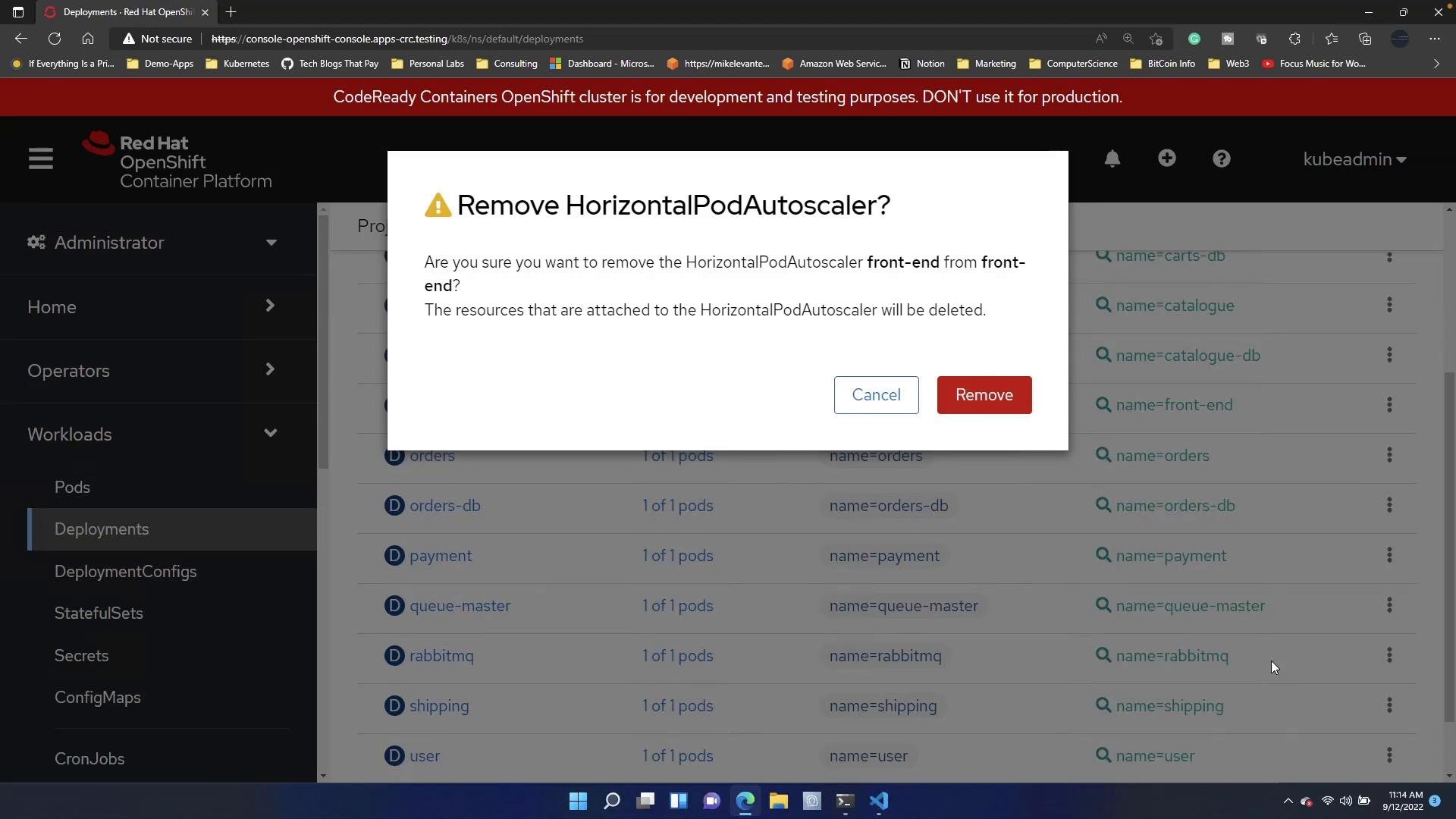
HPA resource names are unique within a namespace. If an HPA already exists for the Deployment, attempting to create another with the same name will fail. To replace or remove an existing HPA:- CLI:
oc delete hpa <name> - Console: open the Deployment, click the actions (hamburger) menu, choose to remove the HorizontalPodAutoscaler, and confirm the removal.
Deleting an HPA removes the autoscaling rules but does not delete the Deployment. The Deployment’s replica count will remain at whatever value it currently has until manually changed or another automation adjusts it.
Troubleshooting tips
- Verify metrics availability:
- Check that
metrics-serveror another metrics provider is deployed and healthy. - Use
kubectl top pods(oroc adm top pods) to confirm CPU/memory metrics are visible.
- Check that
- Validate HPA resource:
oc get hpaandoc describe hpa <name>show current metrics, observed values, and events.
- Common causes for no scaling:
- No metrics available.
- Resource requests are not set on pods (HPA uses requests to calculate utilization).
- Incorrect
scaleTargetRef(wrong name, kind, or API group).
Links and references
- Kubernetes Horizontal Pod Autoscaler concepts
- OpenShift Documentation — Autoscaling and HPA
- metrics-server GitHub