

Before you begin
- You need a Red Hat account. Visit the OpenShift cluster creation UI at: https://console.redhat.com/openshift
- Confirm your machine meets CRC prerequisites: virtualization support enabled, sufficient CPU, RAM, and disk space (CRC downloads ~10–15 GB of images and bundles).
For official CRC product information and supported backends, see the CodeReady Containers overview: https://developers.redhat.com/products/codeready-containers/overview
1. Create a local cluster and download the installer
- Sign in to https://console.redhat.com/openshift.
- Click Create Cluster → Local.
- Choose Red Hat OpenShift Local and download the installer for your OS (Linux, macOS, or Windows).
- Run the installer and proceed through the installer dialogs.
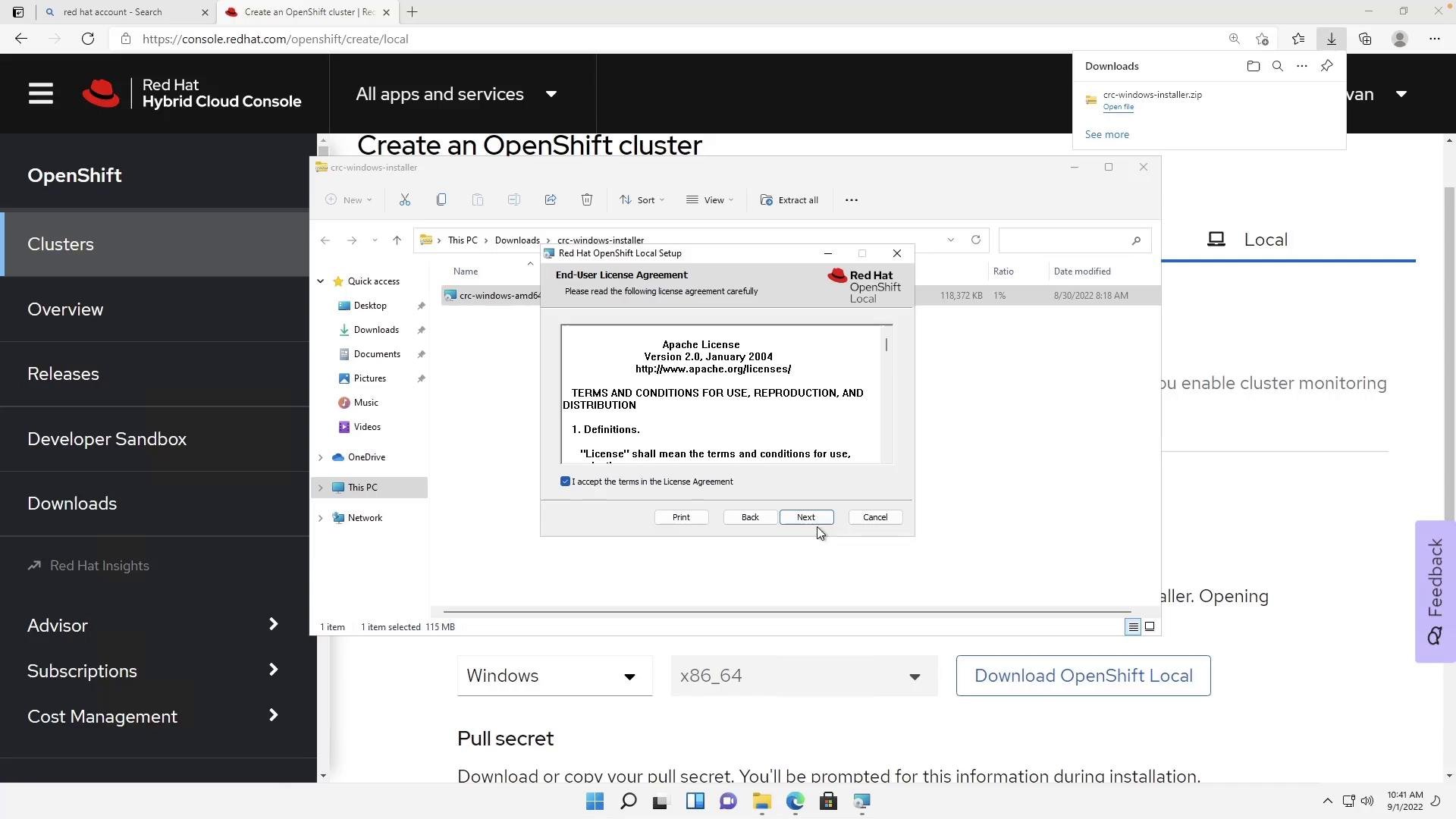
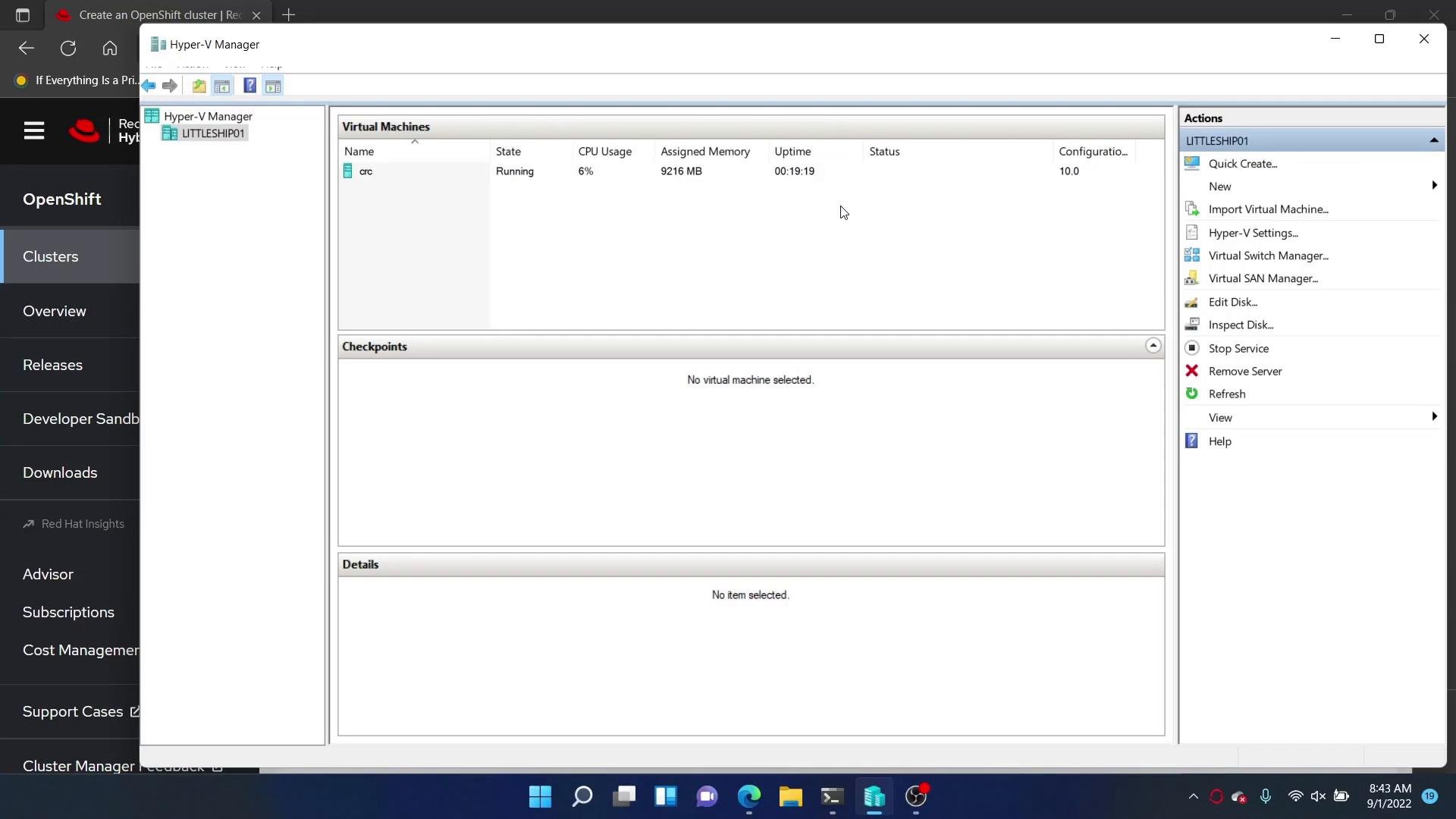
On Windows, ensure Hyper-V is enabled and your user is a member of the Hyper-V-related groups. CRC configures Hyper-V components during setup. If you use a different virtualization backend, confirm CRC supports it for your OS: https://developers.redhat.com/products/codeready-containers/overview
2. Run CRC setup
Open a terminal (PowerShell on Windows) and verify thecrc CLI is available. A typical prompt on Windows looks like:
- You may be asked about anonymous usage statistics — you can choose No.
- The setup will configure virtualization components (Hyper-V on Windows), adjust user group membership if needed, and install the CRC VM bundle.
- The required images and bundles are downloaded (this can be large — plan for 10–15 GB and several minutes).
3. Start the cluster
After setup completes, start the CRC cluster:crc start command creates and boots the VM, initializes OpenShift components, and streams logs. The process may take 10–20 minutes depending on your machine and network.
When startup finishes, CRC prints the web console URL and login credentials. Example output:
4. Access the OpenShift console and CLI
Open the web console by either:- Right-clicking the CodeReady Containers taskbar icon and choosing “Open Console”, or
- Visiting the web console URL printed by
crc start(for examplehttps://console-openshift-console.apps-crc.testing) in your browser.
oc CLI and then log in as the developer user:
kubeadmin password printed by CRC at startup.
5. Useful CRC commands
Troubleshooting tips
If the VM fails to start, check that virtualization is enabled in BIOS/UEFI and that no other hypervisor (e.g., VirtualBox) is conflicting with Hyper-V. On Windows, ensure Hyper-V is enabled and your account has the required permissions. Review
crc start logs for operator errors and consult the CRC documentation if needed.- If
occommands fail, ensure you ran thecrc oc-envstep or that your kubeconfig context was updated. - If the console URL is inaccessible, verify DNS resolution for
*.crc.testing(CRC sets up local DNS for the test domains). - Check CRC logs for details:
crc logs(or see the VM/hypervisor logs for low-level errors).
Next steps
With CRC running andoc configured, you have a local single-node OpenShift cluster ready for:
- Deploying and testing containerized applications
- Exploring OpenShift features (Projects, Routes, Operators)
- Learning OpenShift administration and CI/CD workflows
- Red Hat CodeReady Containers overview: https://developers.redhat.com/products/codeready-containers/overview
- OpenShift CLI (oc) documentation: https://docs.openshift.com/container-platform/latest/cli_reference/openshift_cli/oc/index.html