

- Create a Secret from a YAML manifest (preferred for reproducibility and GitOps).
- Create a Secret via the OpenShift web console (quick, GUI-driven).
- Consume a Secret from a Deployment using
env.valueFrom.secretKeyRef.
Resources and references:
- Kubernetes Secrets
- OpenShift CLI (oc) documentation
- Sealed Secrets — for encrypting secrets for Git
1) Create a Secret manifest
Below is a minimal Secret manifest. UsestringData to supply plain-text values; Kubernetes will convert these to base64 and store them under data. Alternatively you can manually include base64-encoded values under data.
apiVersion(core/v1)kind: Secretmetadata(for examplenamespaceandname)type(for exampleOpaque,kubernetes.io/dockerconfigjson, etc.)- secret values via
data(base64) orstringData(plain-text)
data.
2) Create a Secret in the OpenShift web console
In the OpenShift console navigate to Workloads → Secrets and click Create Secret. You will see options such as YAML, Webhook secret, Source secret (from Git), Image pull secret, and Key/value secret.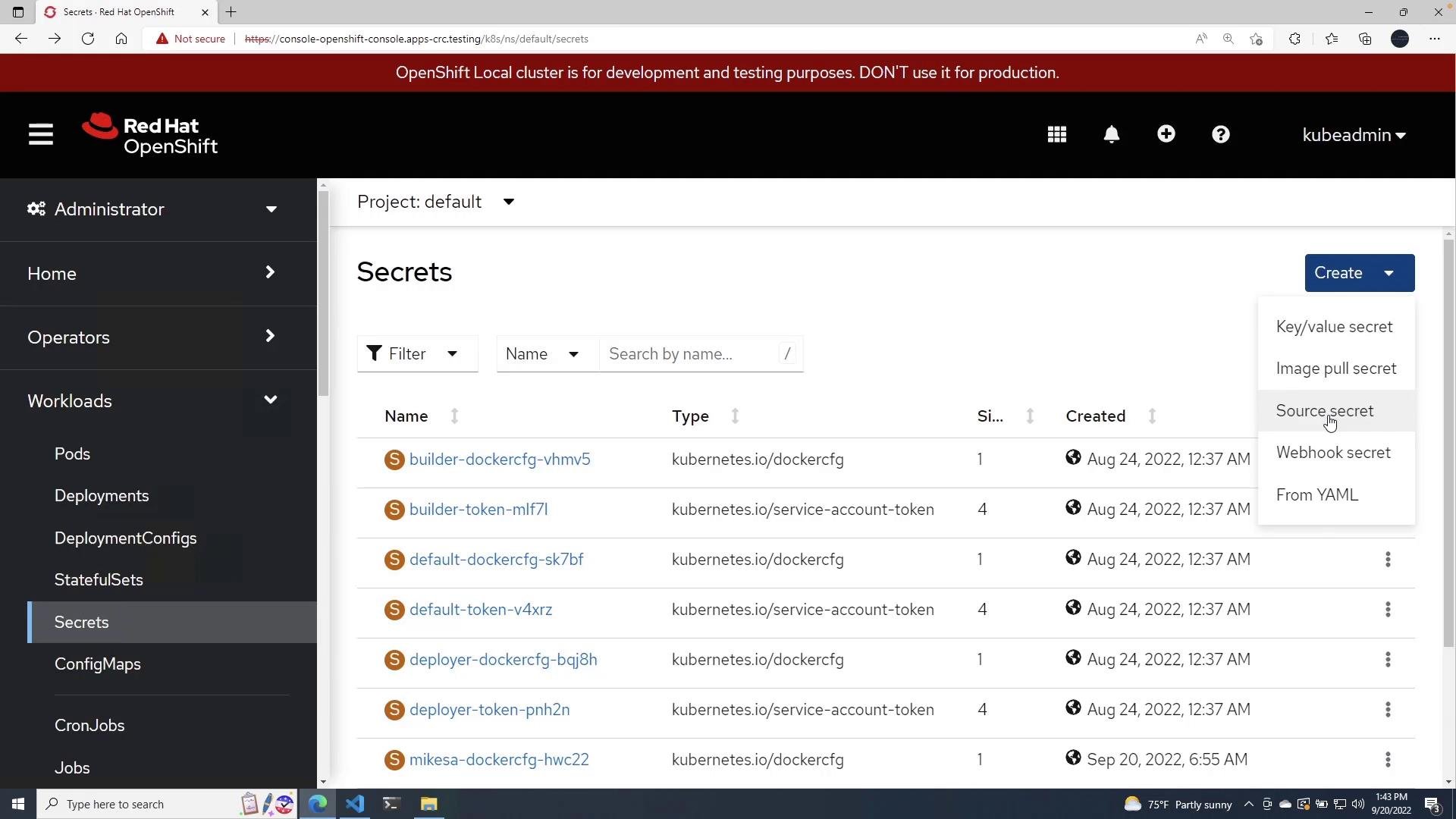
- Choose “Key/value secret”
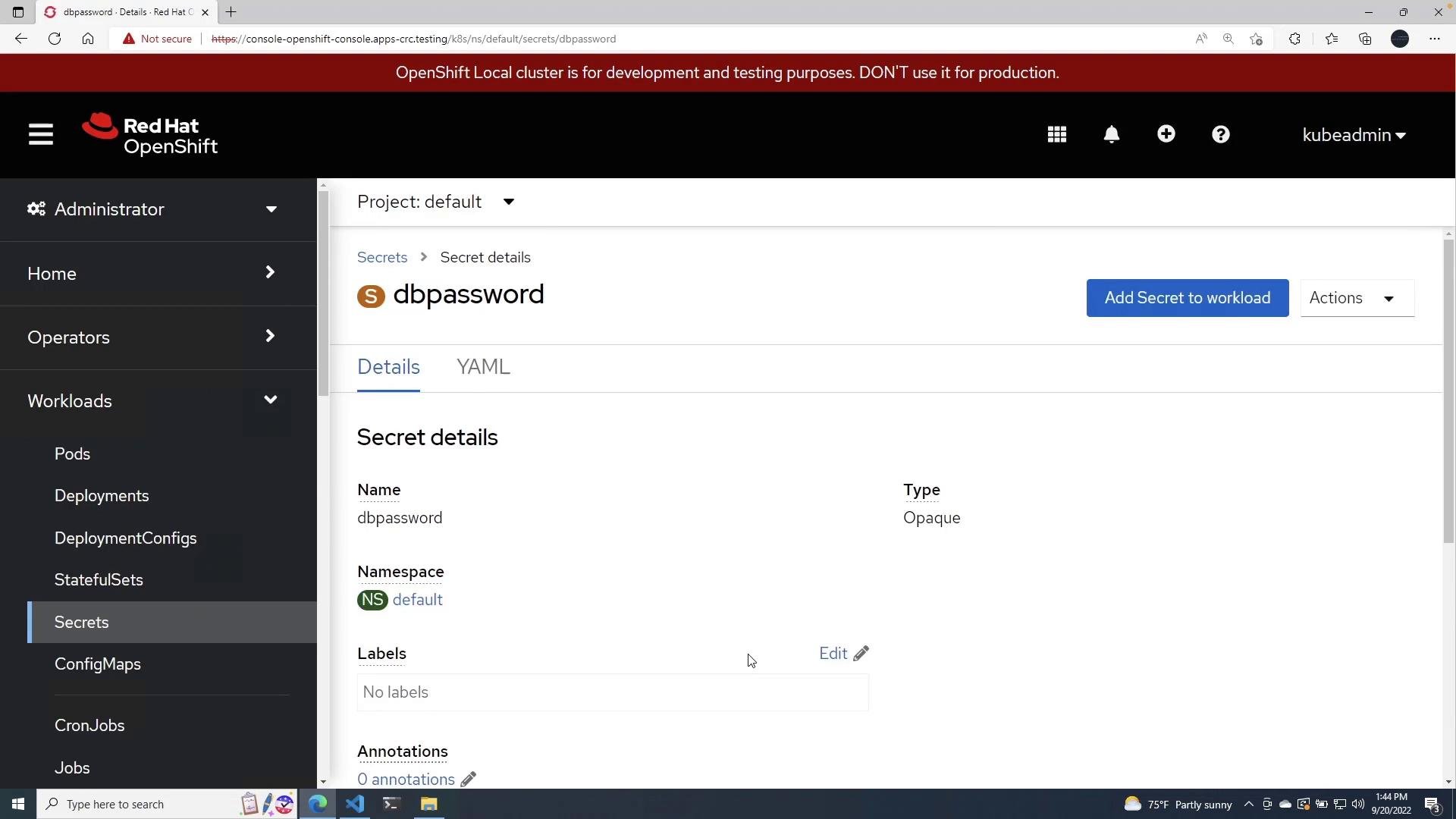
- Set a name (for example
dbpassword) - Add key
MONGODB_PASSWORD - Paste the password (or upload a file)
- Click Create
Using
stringData in a Secret manifest lets you write plain-text values in YAML; Kubernetes writes base64-encoded entries into data. If you prefer, place base64-encoded values manually under data instead of using stringData.- Show the secret YAML:
oc get secret dbpassword -o yaml
- Print and decode a single key:
oc get secret dbpassword -o jsonpath="{.data.MONGODB_PASSWORD}" | base64 --decode && echo
3) Consume the Secret in a Deployment
Below is a sample Deployment manifest that consumes thedbpassword Secret via an environment variable. Note the valueFrom.secretKeyRef that references the Secret name and key — the Deployment manifest does not contain the plaintext password.
oc get -o yaml) you will see the environment variable configured to pull its value from the Secret — the actual secret value is not displayed in plaintext in the Deployment manifest.
Secrets are base64-encoded, not encrypted, by default in etcd. For stronger protection, integrate a secrets management solution (for example Sealed Secrets, HashiCorp Vault, or OpenShift’s encryption-at-rest) and avoid committing plain secrets to Git. See linked resources above for options.