

- Open your browser and go to
https://access.redhat.com. - Click the registration button and choose an account type — typically “Personal” if you’re following this guide independently, or “Corporate” if your employer provides credentials.
- Provide the requested information: username, password, first and last name, job title, email address, and any other required fields.
- If prompted, enter company or address details.
- Submit the form and check your email for a verification link. Click the link to activate your account.
- After verification, sign in to access OpenShift downloads, documentation, and developer tools.
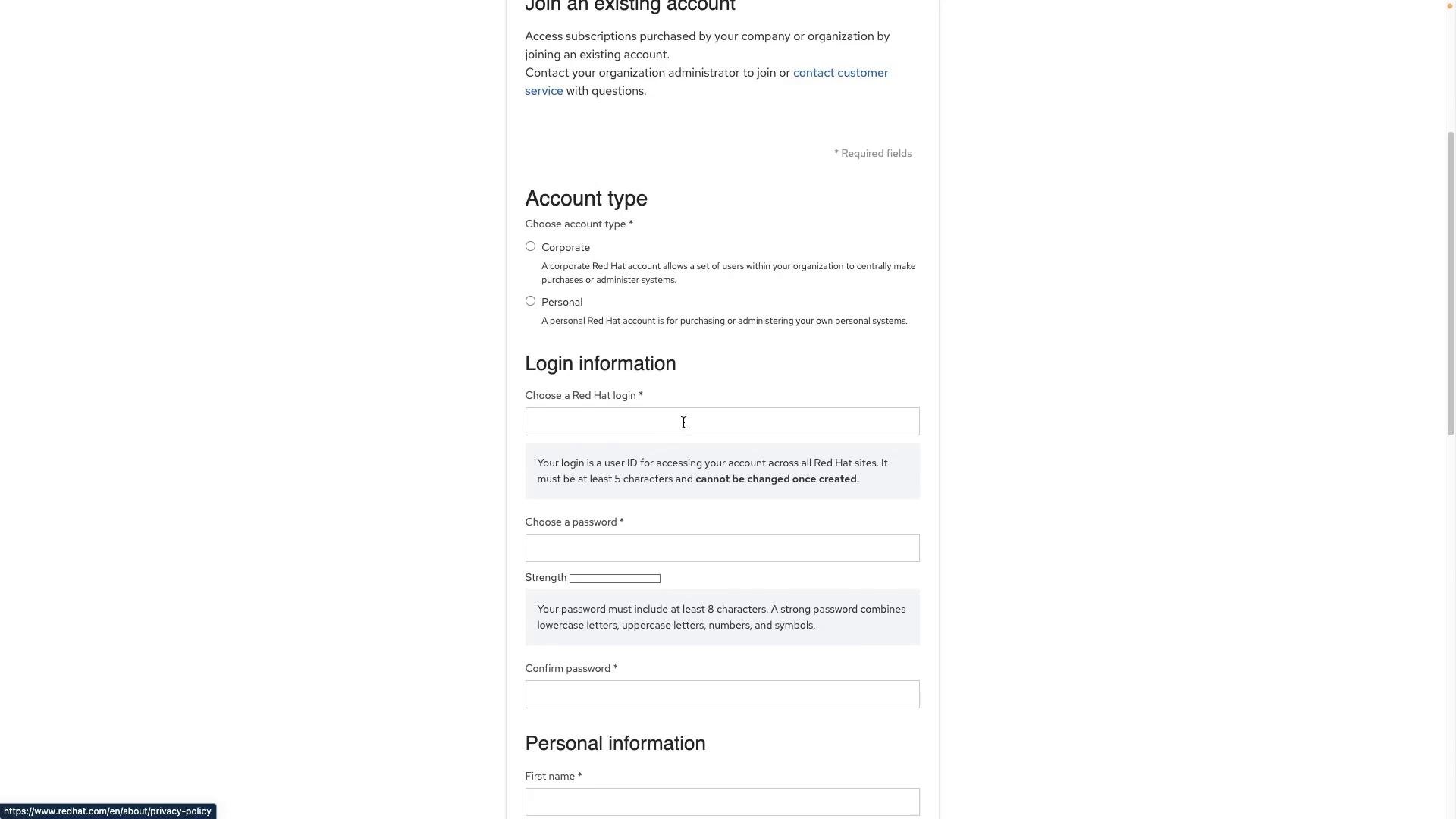
testuser92) and complete the other personal fields. If the registration flow requests company information or an address, provide those details to finish the form.
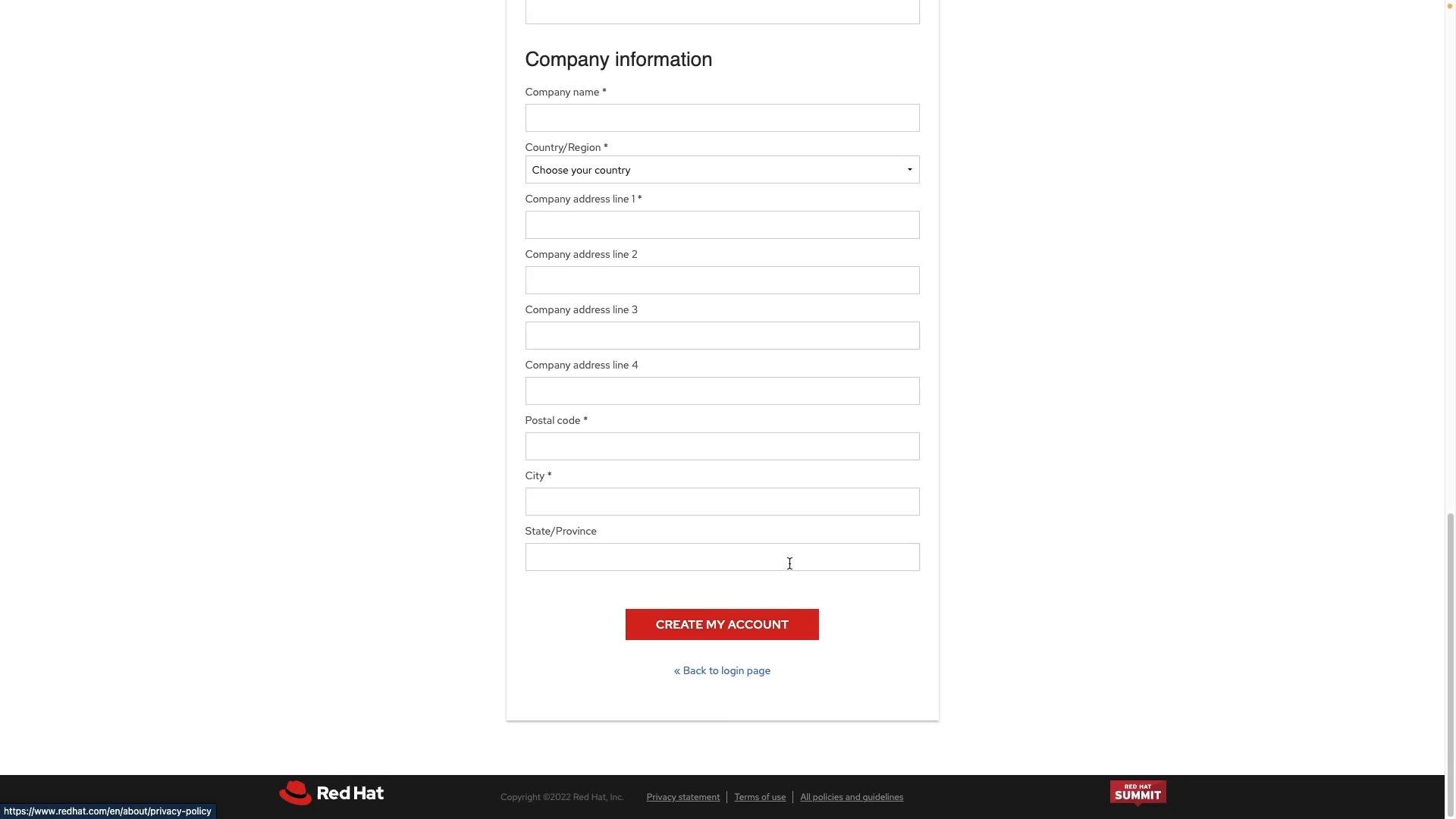
Use the “Personal” account option if you’re following this lesson independently. If your organization provides credentials, use the “Corporate” option instead.
A free Red Hat account lets you access documentation, downloads, and some trial or developer resources. It does not automatically include paid Red Hat subscriptions. Some production OpenShift offerings or support services require a separate subscription.
Links and references:
Next steps: after signing in, follow the OpenShift installation method relevant to your environment (Local, Cloud, or Bare Metal). Check prerequisites and supported platforms in the official OpenShift documentation before proceeding.