

oc CLI. You’ll see how the Developer and Administrator perspectives differ, where to inspect topology and workload details, how observability is presented, and how to authenticate and run basic commands with oc. Deployments and other resource types are introduced with examples you can reuse.
For further reading:
- CRC: https://developers.redhat.com/products/codeready-containers/overview
- OpenShift docs: https://docs.openshift.com/
- Kubernetes Basics: https://kubernetes.io/docs/concepts/overview/what-is-kubernetes/
Both views overlap in many areas — for example, Deployments, Services, Routes and Secrets are visible in either perspective — but the UI surfaces different sets of tools depending on the chosen perspective.
Topology, workloads and resource details
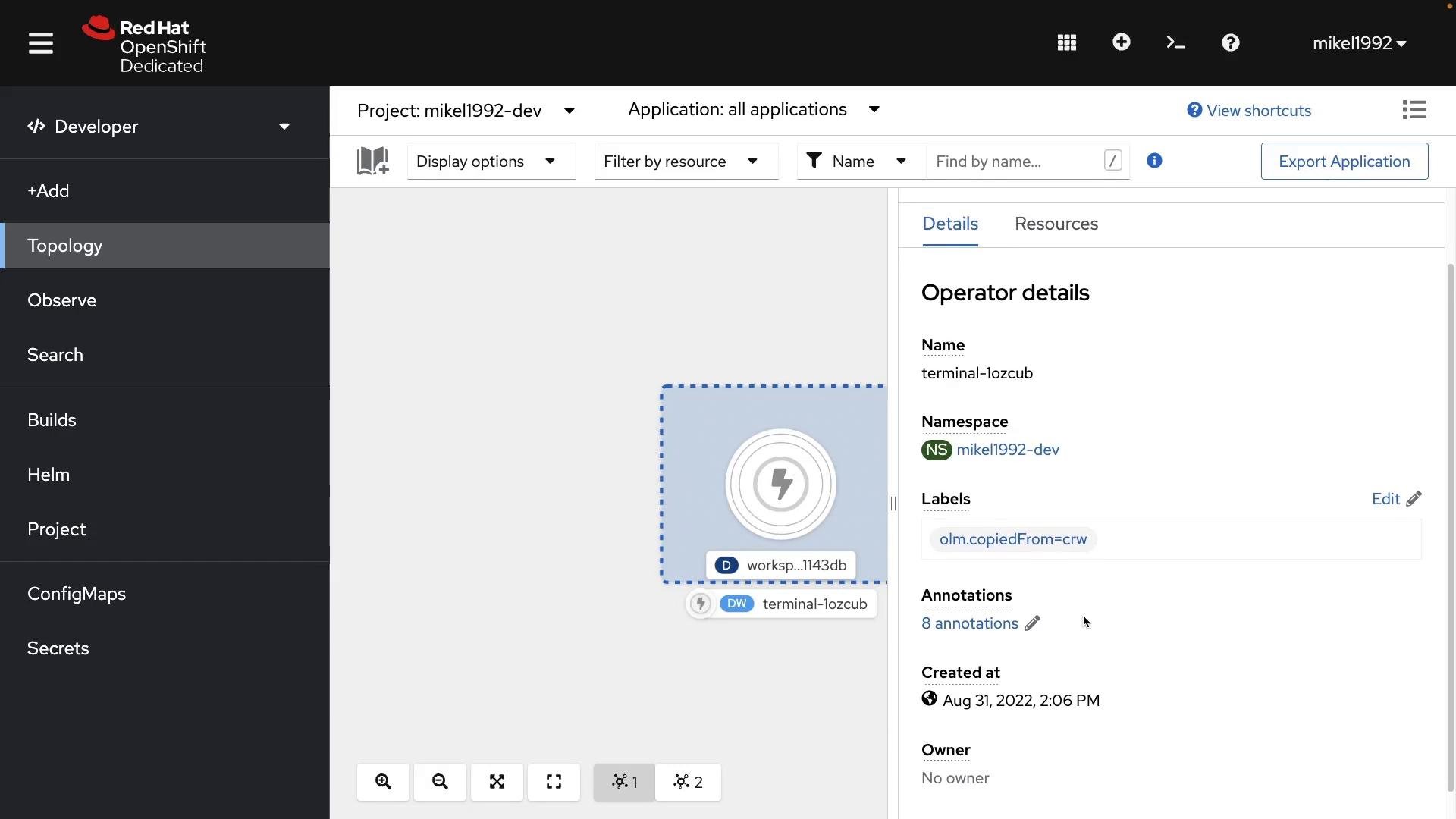
- In Developer → Topology you get an architectural view of applications and how components connect (services, routes, builds).
- Clicking a workload node or selecting a Workloads item reveals resource details such as Deployments, ReplicaSets, ConfigMaps, labels, namespace, annotations, and creation time.
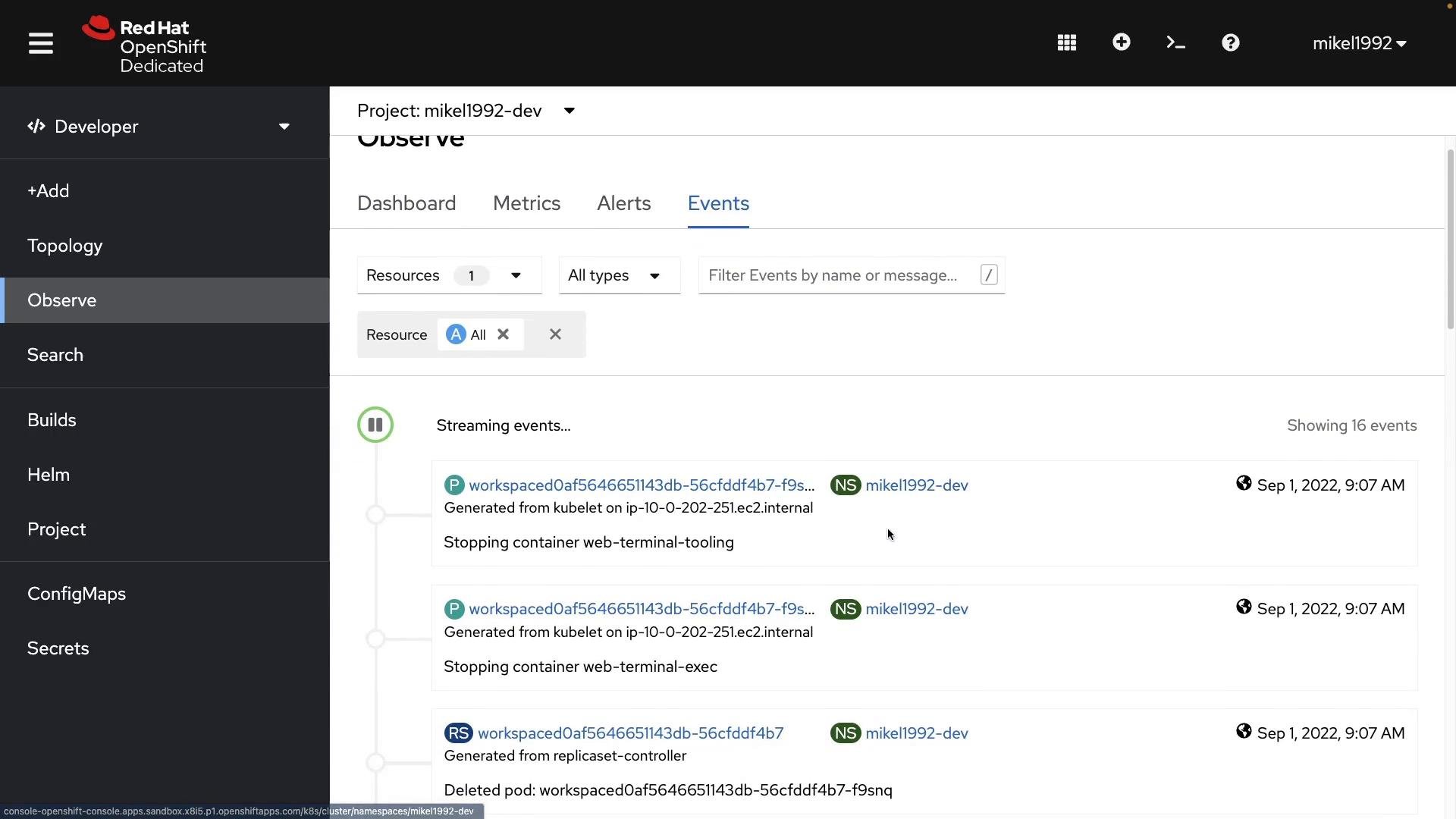
- The Observe section contains cluster events, metrics, and alerting information.
- Events provide a chronological timeline of cluster activity (pod/container start/stop, ReplicaSet scaling, etc.), useful for debugging transient issues.
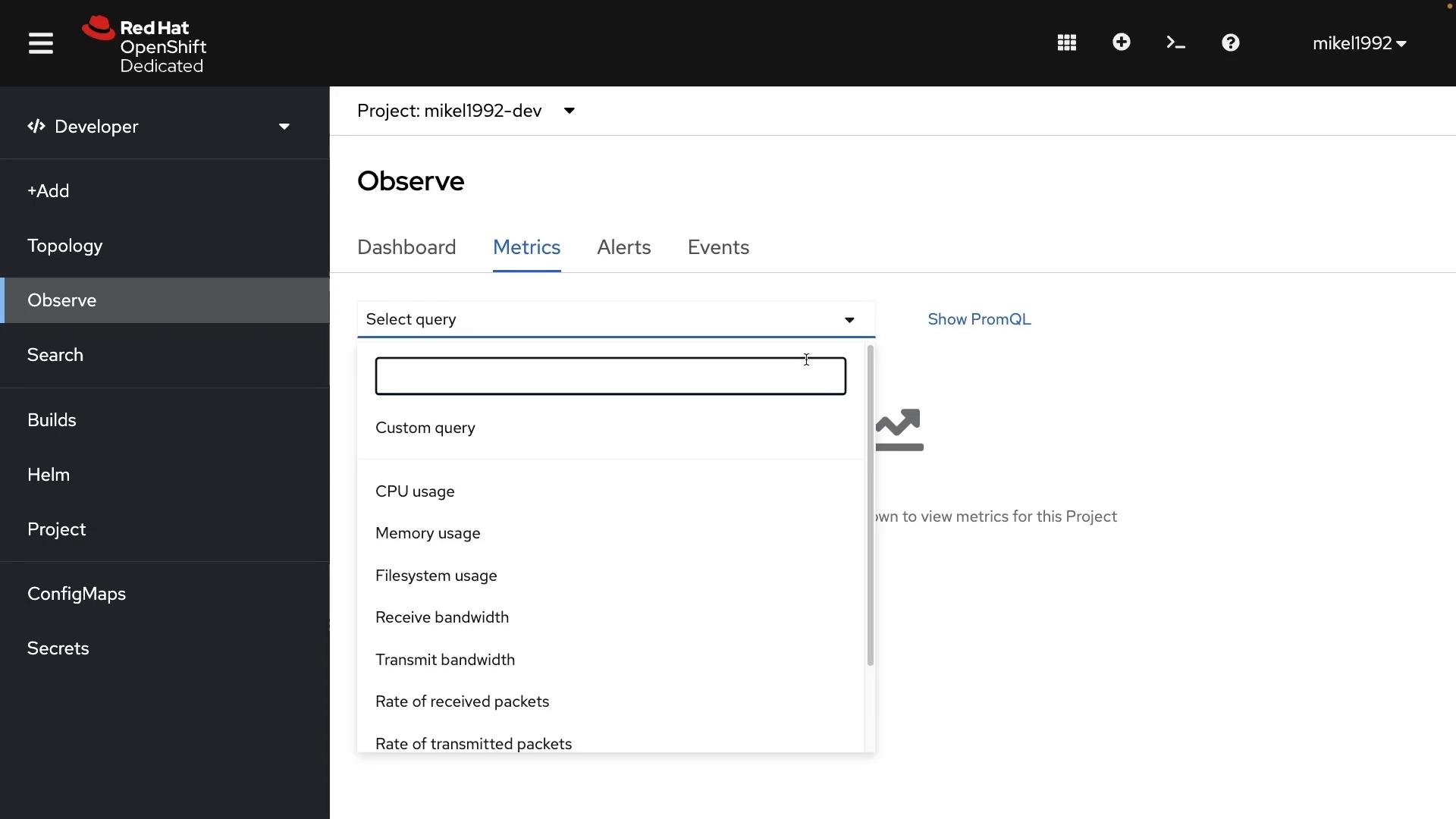
- Metrics queries let you visualize CPU, memory, network and custom metrics for chosen resources. If nothing is deployed you’ll see little data, but the UI and queries are identical across development and production clusters.
- Selecting a metric (for example, CPU usage) plots it in the Metrics explorer, letting you correlate spikes with events or pod restarts.
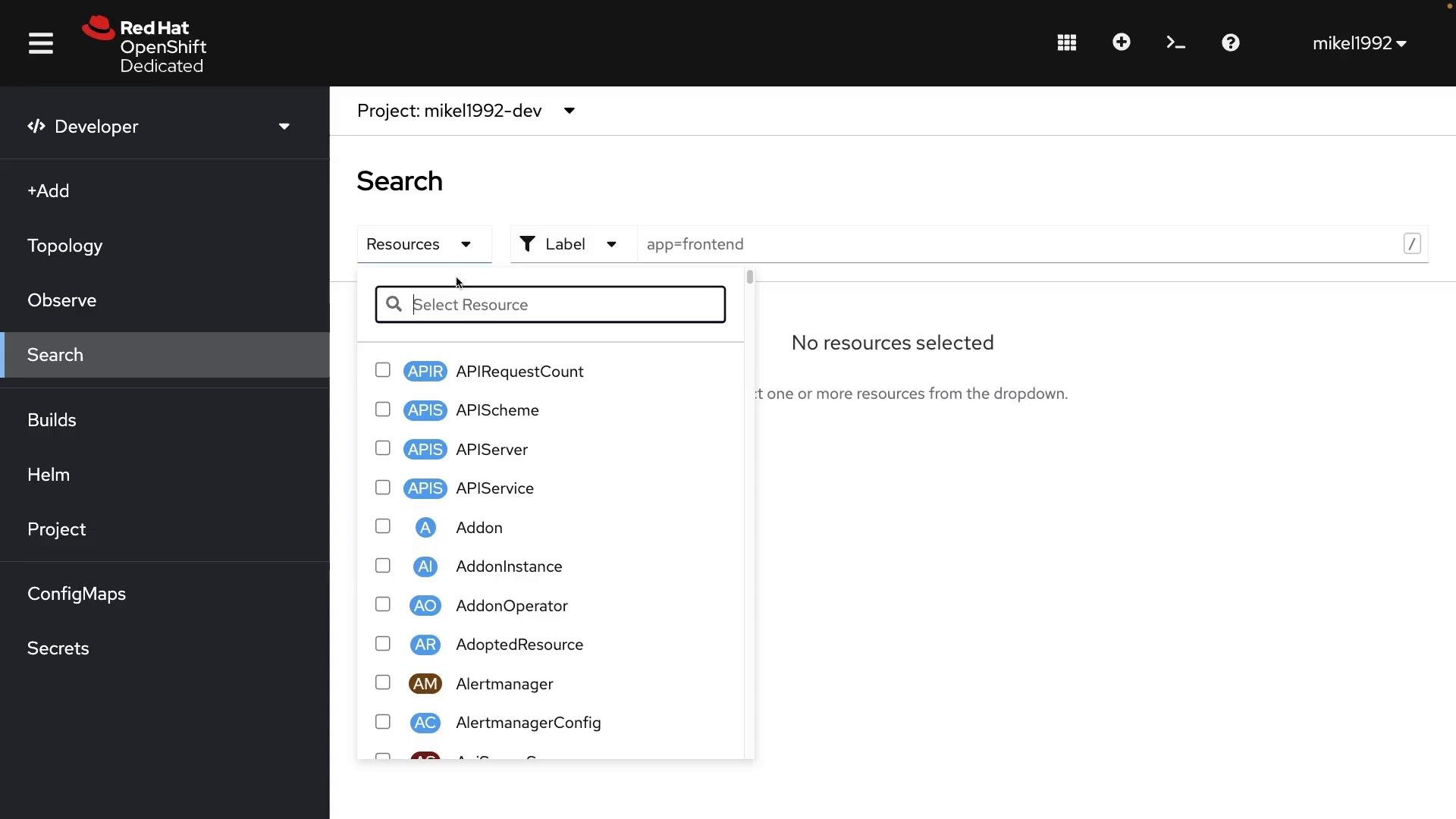
- The Search page lets you find resources in a project by type and filter (label selectors such as
app=frontendare commonly used). - Use Search to quickly locate resource kinds across namespaces or inspect metadata without navigating multiple menus.
- Developer view includes BuildConfigs (when using OpenShift builds), integrated support for deploying Helm charts, and easy access to ConfigMaps and Secrets for application configuration and credentials.
- The console displays Secrets and ConfigMaps in a table with type, size and creation timestamp, and you can view or edit their YAML directly from the UI.
In OpenShift a “project” is essentially a Kubernetes namespace with OpenShift-specific metadata and RBAC defaults. For most day-to-day tasks you can treat them the same way.
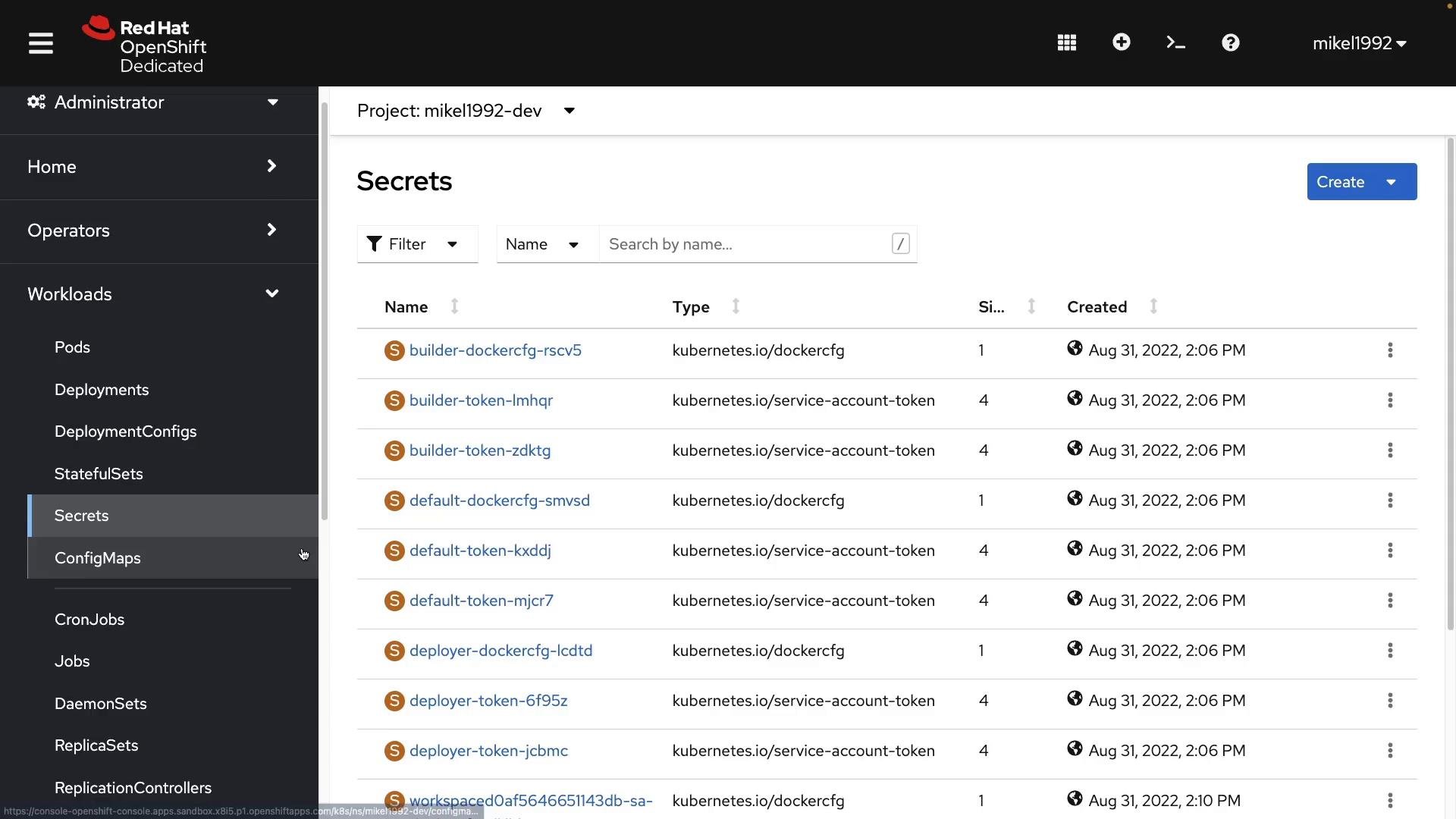
- Administrator view surfaces operators, cluster workloads, networking, storage, builds, user management, cluster settings and resource quotas.
- It also shows developer-oriented resources (services, routes, secrets), so administrators can manage both platform and application-level concerns from the same console.
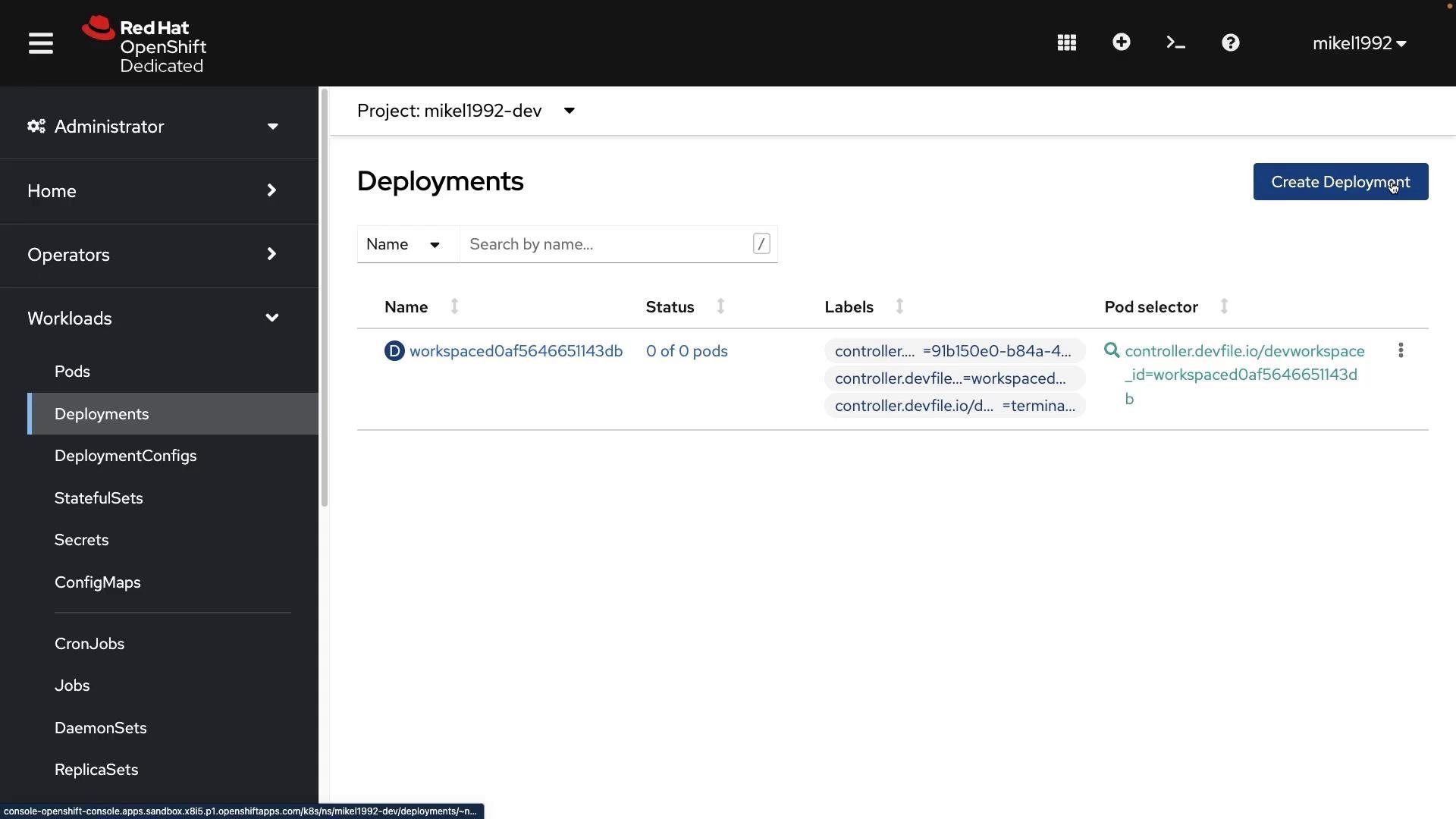
- Administrator → Workloads → Deployments lets you create and manage Deployments directly in the UI.
- The console exposes the raw Kubernetes manifest (YAML) for a Deployment so you can learn, edit and apply manifests in the browser.
- The YAML below is a canonical Kubernetes Deployment manifest (apiVersion:
apps/v1). You can paste it into the console editor or apply it withoc apply -f <file>.
- The OpenShift CLI is
oc. It mirrorskubectlfor many generic Kubernetes commands (oc get podsbehaves likekubectl get pods) and also includes OpenShift-specific subcommands for builds, routes, and other platform resources. - You can access a web-embedded terminal from the console (click the terminal icon) or install
oclocally and authenticate from your workstation.
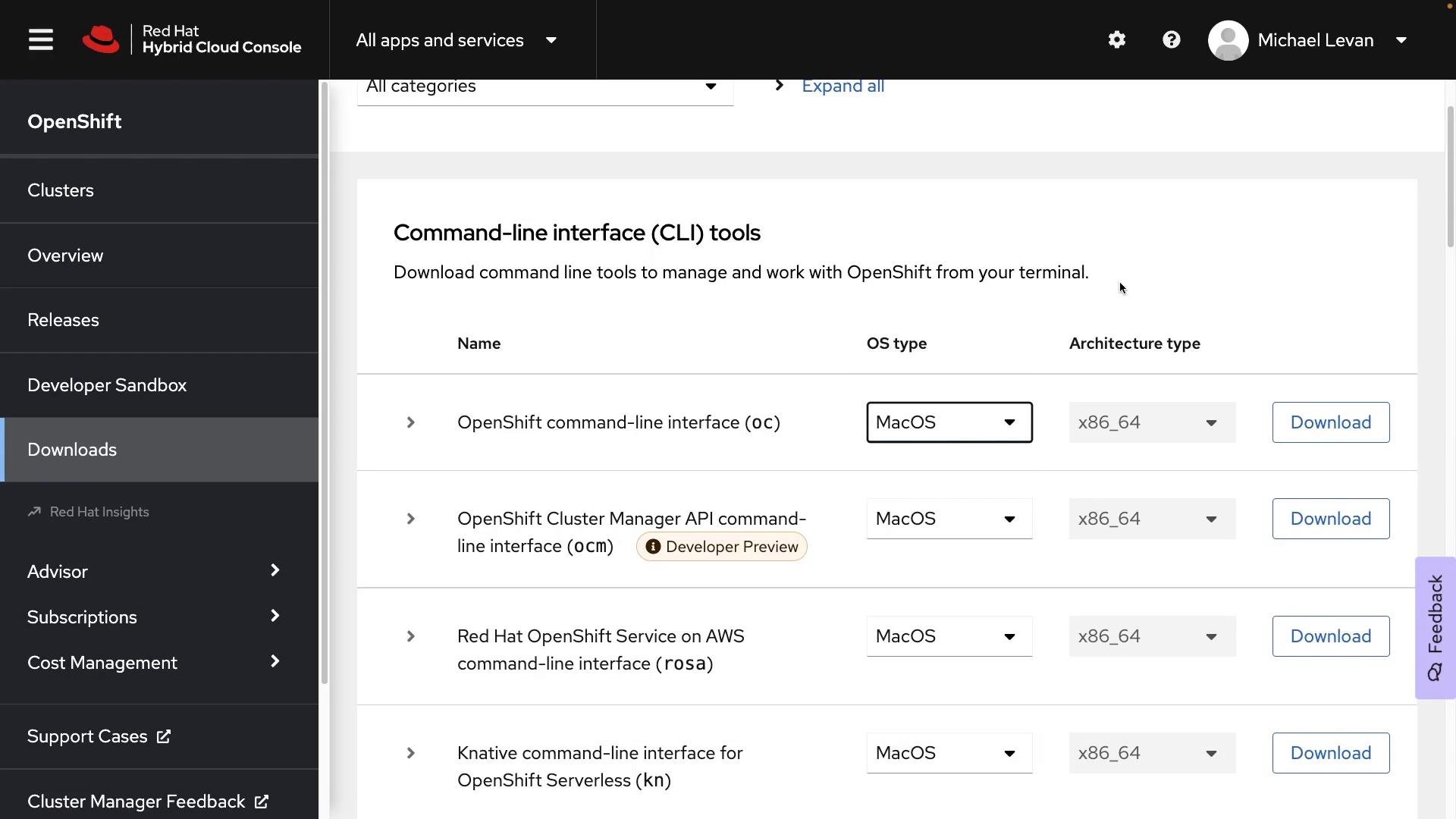
- Download the
ocCLI from console.redhat.com/openshift (OpenShift → Downloads → Command-line interface (oc)) or from the official OpenShift downloads page. - After installing, authenticate using the token the console provides (Console → Copy Login Commands → Display Token). The console gives you an
oc logincommand and the server URL for your environment.
Never share your login token. Treat it like a password — tokens grant API access to your account and cluster resources.
Wrapping up
- This article provided a practical tour of the OpenShift console (Developer and Administrator views), topology and observability screens, how the console displays canonical Kubernetes manifests, and how to use
ocfor authentication and inspecting cluster resources. - Key topics introduced: Deployments, Services, Routes, Builds, ConfigMaps, Secrets, metrics and events, and
ocbasics.
- OpenShift Documentation: https://docs.openshift.com/
- OpenShift CLI downloads: https://console.redhat.com/openshift (OpenShift → Downloads → Command-line interface (oc))
- Kubernetes Concepts: https://kubernetes.io/docs/concepts/