

Goal
Add persistent storage to an application so the app can read a file at/data/testfile.txt from within the container and reflect updates across replicas when the underlying storage supports shared mounts.
Application used in this demo
I updated a simple Flask application so it reads a file and displays its contents on the/read_file route. The app expects the file at /data/testfile.txt.
Here is the simplified Flask app used for this demo:
Reproducing the issue (before adding storage)
If you try to open/read_file before adding storage, the app returns an error because /data/testfile.txt (or even the /data directory) does not exist inside the pod.
A quick way to confirm this is to open a terminal into the pod (from the OpenShift web console, select the pod and click Terminal) and list the root filesystem and mounts. The terminal is a useful tool for inspections and debugging.
Example terminal session showing the root filesystem inside the pod:
Add persistent storage (PVC) via OpenShift web console
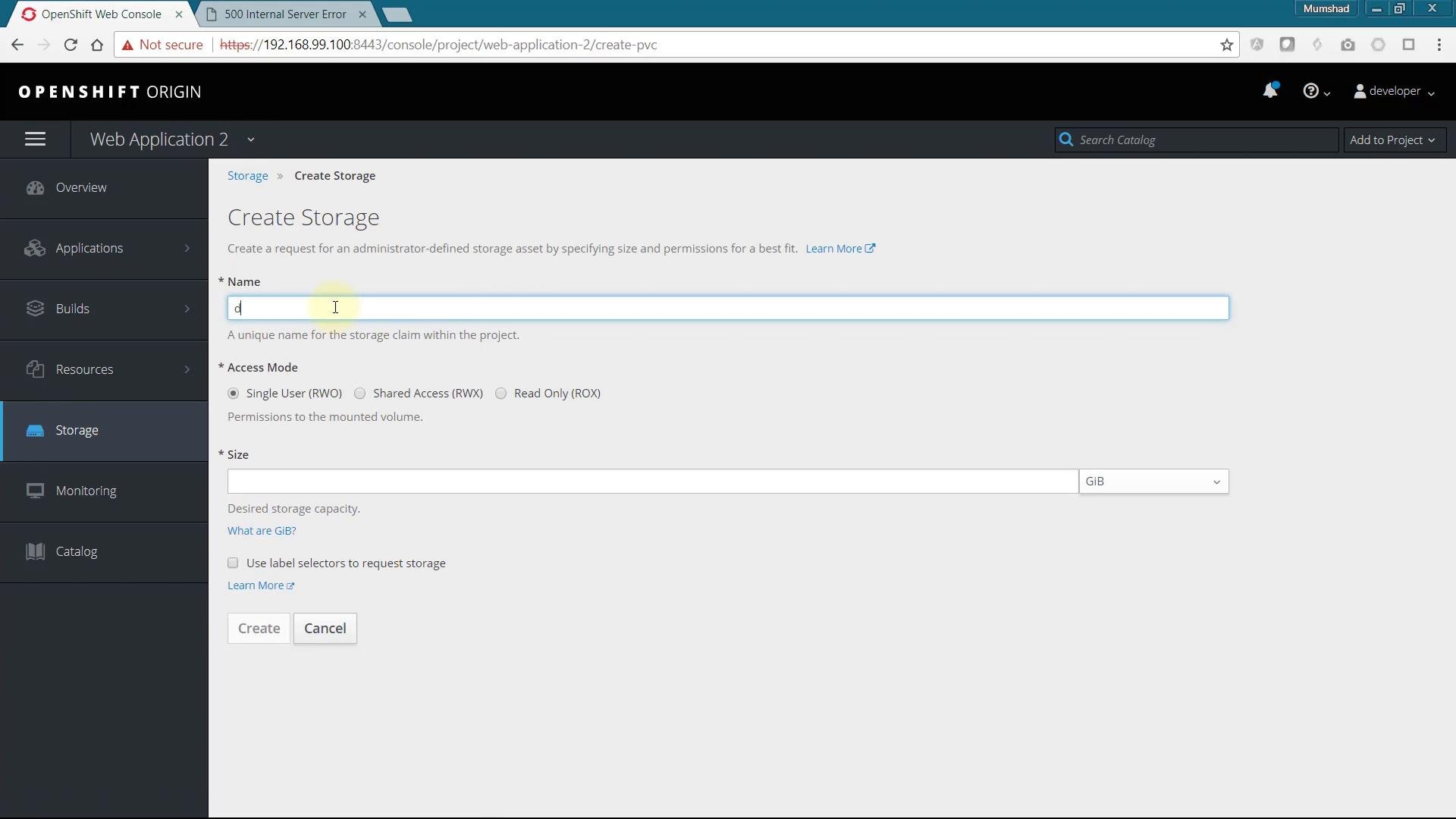
To persist the file across pod restarts and share it between replicas (when supported), create a PersistentVolumeClaim (PVC). From the OpenShift web console:- Navigate to Storage → Create PersistentVolumeClaim.
- Provide a claim name, requested size, and select the appropriate access mode (for example RWO or RWX depending on your storage backend).
/data (this matches the Flask app’s expected path).
After updating the DeploymentConfig, redeploy or let OpenShift rollout the new pods. Then open a terminal into one of the new pods and verify /data is now a mounted volume:
testfile.txt in the mounted volume and add some content:
/read_file. The UI should display the text from /data/testfile.txt.
If you append more text to /data/testfile.txt and refresh the browser, the application will show the updated contents.
Multiple replicas and shared storage
If you scale the application, new replicas will mount the same PVC. Whether multiple pods can read or write to that volume concurrently depends on the PVC’s access mode and the underlying storage provider.
Use the appropriate access mode when creating your PVC depending on whether replicas need simultaneous write access.
If multiple replicas require simultaneous read/write access, make sure your storage class and PersistentVolume support
ReadWriteMany (RWX). Many backend volumes only support ReadWriteOnce (RWO), which restricts writable mounts to a single node.Quick verification checklist
- PVC created in OpenShift and bound to a PV.
- DeploymentConfig updated to mount the PVC at
/data. - New pods show
/dataas a mounted filesystem. testfile.txtcreated at/data/testfile.txt.- Accessing
/read_filein the app displays the file contents. - If running multiple replicas, confirm the storage supports the chosen access mode (RWX vs RWO).