

oc new-app.
- Relevant links and references:
- Sock Shop demo repository: https://github.com/microservices-demo/microservices-demo
- OpenShift Builds and ImageStreams documentation: https://docs.openshift.com/
View existing ImageStreams
In the OpenShift console go to Builds → ImageStreams. Many applications (including the Sock Shop) already create ImageStreams for their build outputs. For example, the Git-based build for the Sock Shop has an ImageStream that lists the labels associated with the image: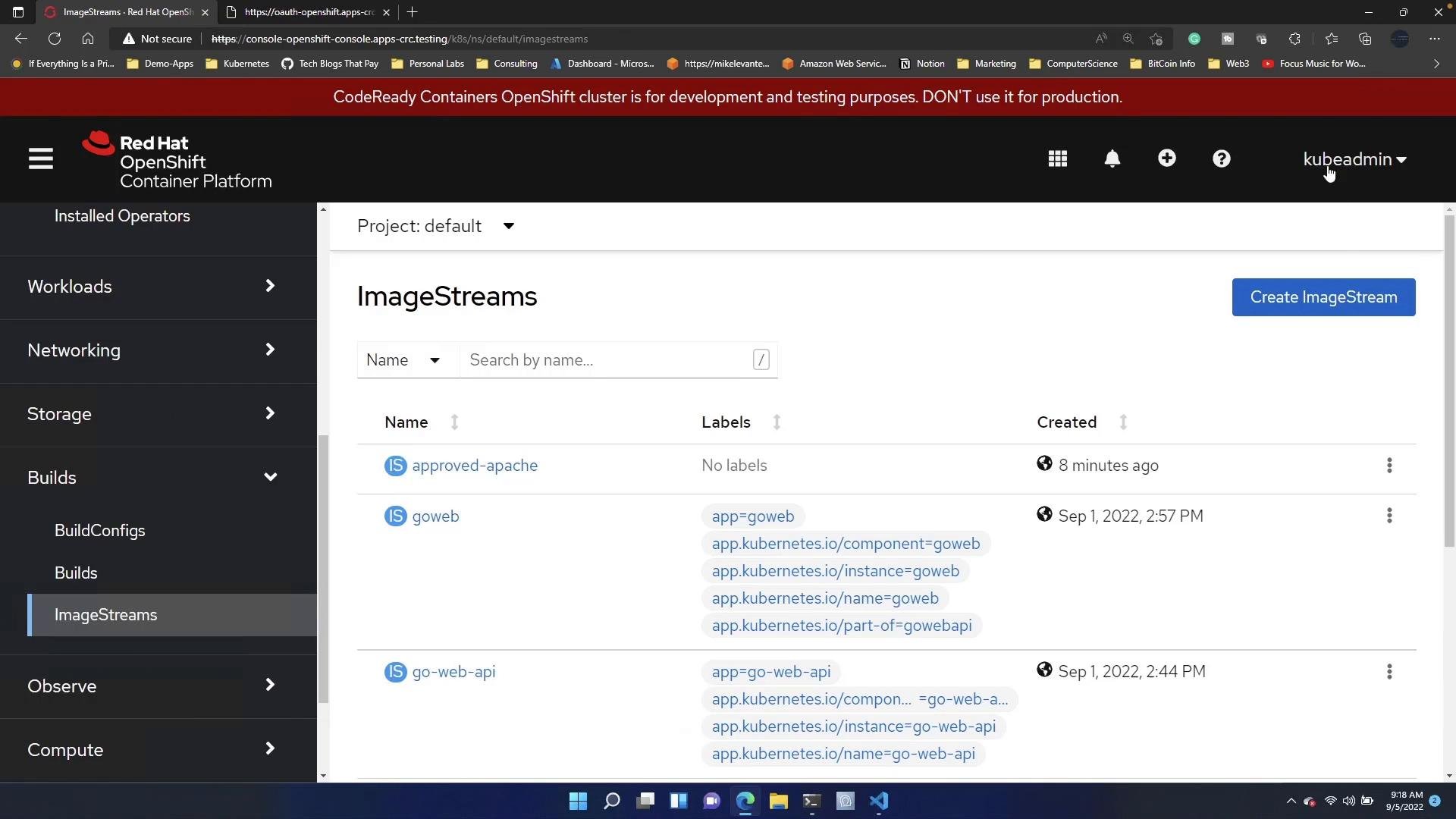
Create an ImageStream for the cart service
In the create dialog, replace the placeholder YAML with the following ImageStream manifest. This ImageStream points to the external Docker imageweaveworksdemos/carts:0.4.8 and creates the tag 0.4.8 in the cluster:
Verify the image and Deployment configuration
The carts Deployment used in this example pullsweaveworksdemos/carts:0.4.8. Here is the relevant portion of that Deployment for reference:
Deploy from the ImageStream with oc new-app
After creating the ImageStream, you can create an application from that tag usingoc new-app. ImageStream references include the project (namespace), for example: default/carts:0.4.8 refers to the carts ImageStream in the default project with tag 0.4.8.
Run:
oc new-app will fail because it tries to create duplicate resources. Example output when a deployment named carts already exists:
carts deployment already exists:
oc new-app, delete the existing deployment first:
oc new-app:
0.4.8.
Remember:
oc new-app creates new resources. If resources with the same names already exist (for example, a Deployment named carts), oc new-app will fail. Use oc apply, oc replace, or delete the existing resource before running oc new-app, depending on your workflow.