

oc) and web console workflows, with practical commands and YAML snippets you can reuse. Use this to quickly create users, map identities, manage service accounts, and assign roles via RoleBindings.
Quick reference links
- OpenShift User Management concepts: https://docs.openshift.com
- Kubernetes RBAC overview: https://kubernetes.io/docs/reference/access-authn-authz/rbac/
Common oc commands
Create a user
Use the CLI to create a user namedmiketest and verify it exists:
oc get user output confirms the user exists in the cluster. Users are OpenShift API objects under user.openshift.io/v1.
Create an identity mapping for the user
OpenShift separates users and identities. To attach an external identity to an OpenShift user, create a user identity mapping. For example, map the identityallow_all:miketest to the OpenShift user miketest:
IDENTITIES column shows the attached identity. This is required when integrating external identity providers or when your authentication flow provides identities separate from OpenShift user objects.
Service accounts (UI and CLI)
Service accounts are Kubernetes core objects (apiVersionv1) that represent identities for in-cluster processes (pods). You can create them from the OpenShift web console or via oc.
Example ServiceAccount YAML for the limittester namespace:
-n will place it in the current project, commonly default):
-n:
Always specify the target namespace (with
-n <namespace>) when creating resources from the CLI to avoid unintentionally creating them in the default project.mikesa the view role in default):
imagePullSecrets:
v1) used extensively for pod identity and integrations.
Groups and RoleBindings (UI)
Groups let you manage collections of users. RoleBindings assign roles to subjects (users, groups, or service accounts) within a namespace. Use the console to create groups and RoleBindings, or apply YAML from the CLI. Create another user (exampletest) via CLI:
admin) inside a namespace to the subjects listed.
Use the web console to create a RoleBinding (provide a name, target namespace, and role), or create one with oc. The console form looks like this:
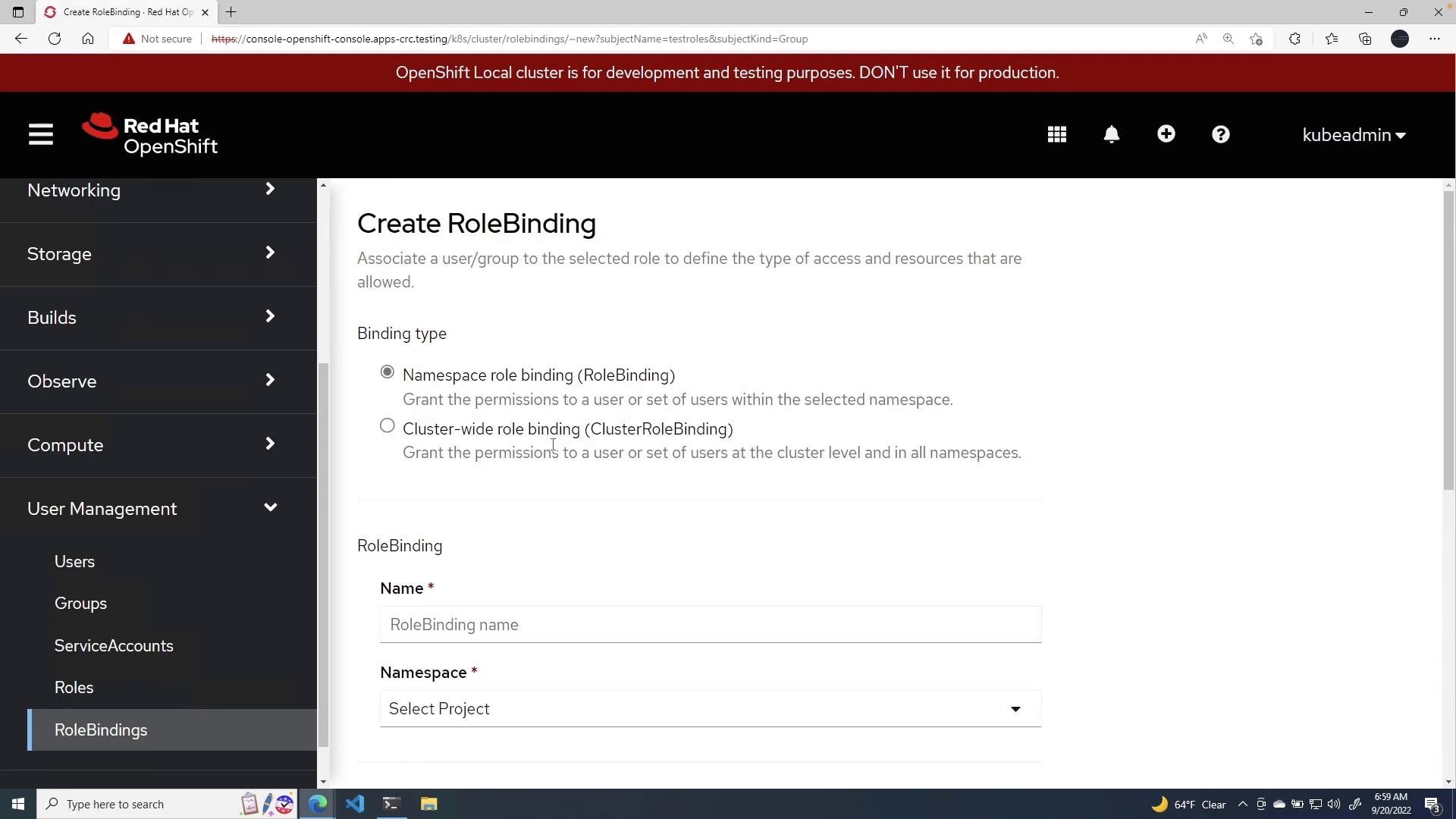
testbinding that grants the admin role in the default namespace to the test-roles group. After binding, group members (such as test) will have admin privileges in that namespace.
Once created, review the RoleBinding details in the console to confirm scope and subjects:
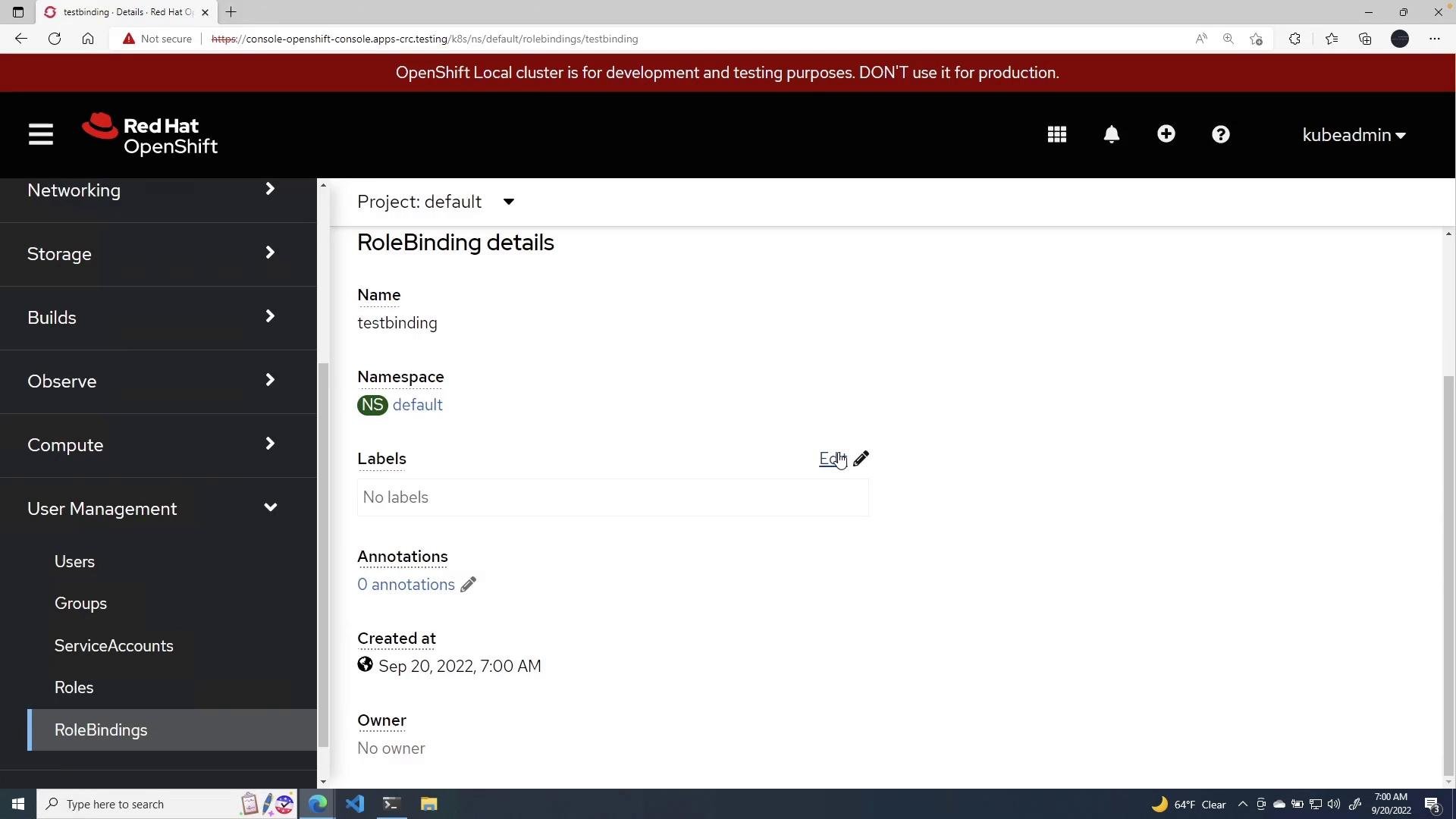
RoleBindings and ClusterRoleBindings grant permissions. Always verify the role, namespace (scope), and subjects before applying bindings—especially when assigning
admin or cluster-level roles.Next steps and further reading
- Study RBAC in depth: roles, ClusterRoles, RoleBindings, ClusterRoleBindings.
- Learn authentication integrations for external identity providers and how identities map to OpenShift users.
- Use
oc describeandoc get -o yamlto inspect objects and troubleshoot access issues.