

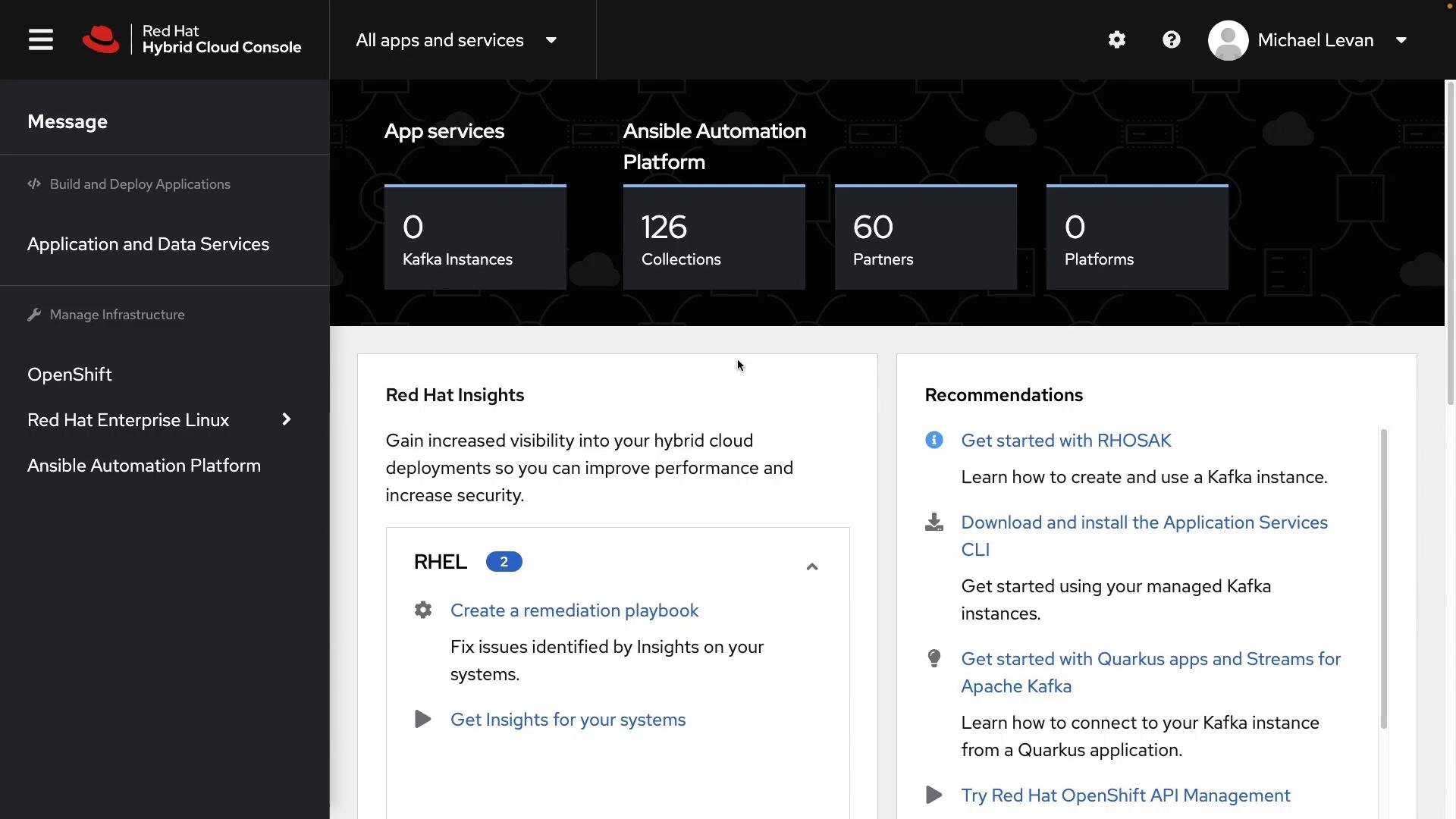
Where to start
From console.redhat.com navigate to Manage → Infrastructure → OpenShift. This area exposes multiple installation and management flows:- Assisted Installer clusters
- Cloud provider integrations (Azure Red Hat OpenShift — ARO, AWS, IBM Cloud)
- Register an existing cluster
- Create cluster flows tailored to different environments
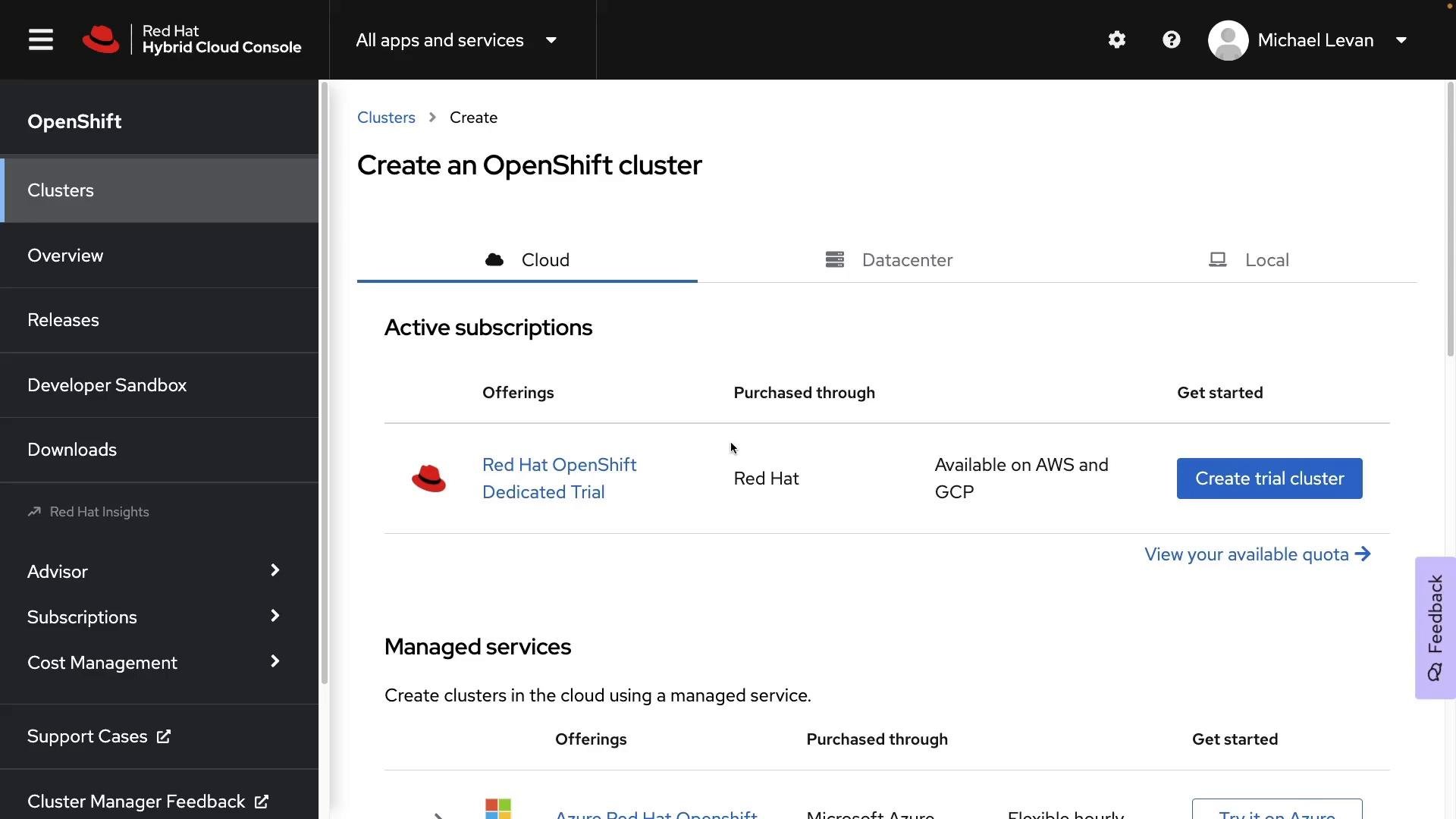
Be careful with trial clusters: OpenShift trials may waive the platform license cost, but cloud providers bill for the infrastructure (VMs, storage, networking). Delete trial clusters promptly to avoid unexpected charges.
Installation types and managed offerings
Under the Cloud section you can choose between fully managed offerings (recommended if you already use a cloud provider) or self-managed installations on cloud VMs or on-premises. Managed options reduce control plane overhead and simplify integrations. When selecting a cloud provider you will commonly see two installer types:- Installer‑provisioned infrastructure (IPI): the installer provisions the required cloud resources (recommended for most cloud-based installs).
- User‑provisioned infrastructure (UPI): you create networking and compute, and the installer uses your resources (more flexible for advanced or constrained environments).
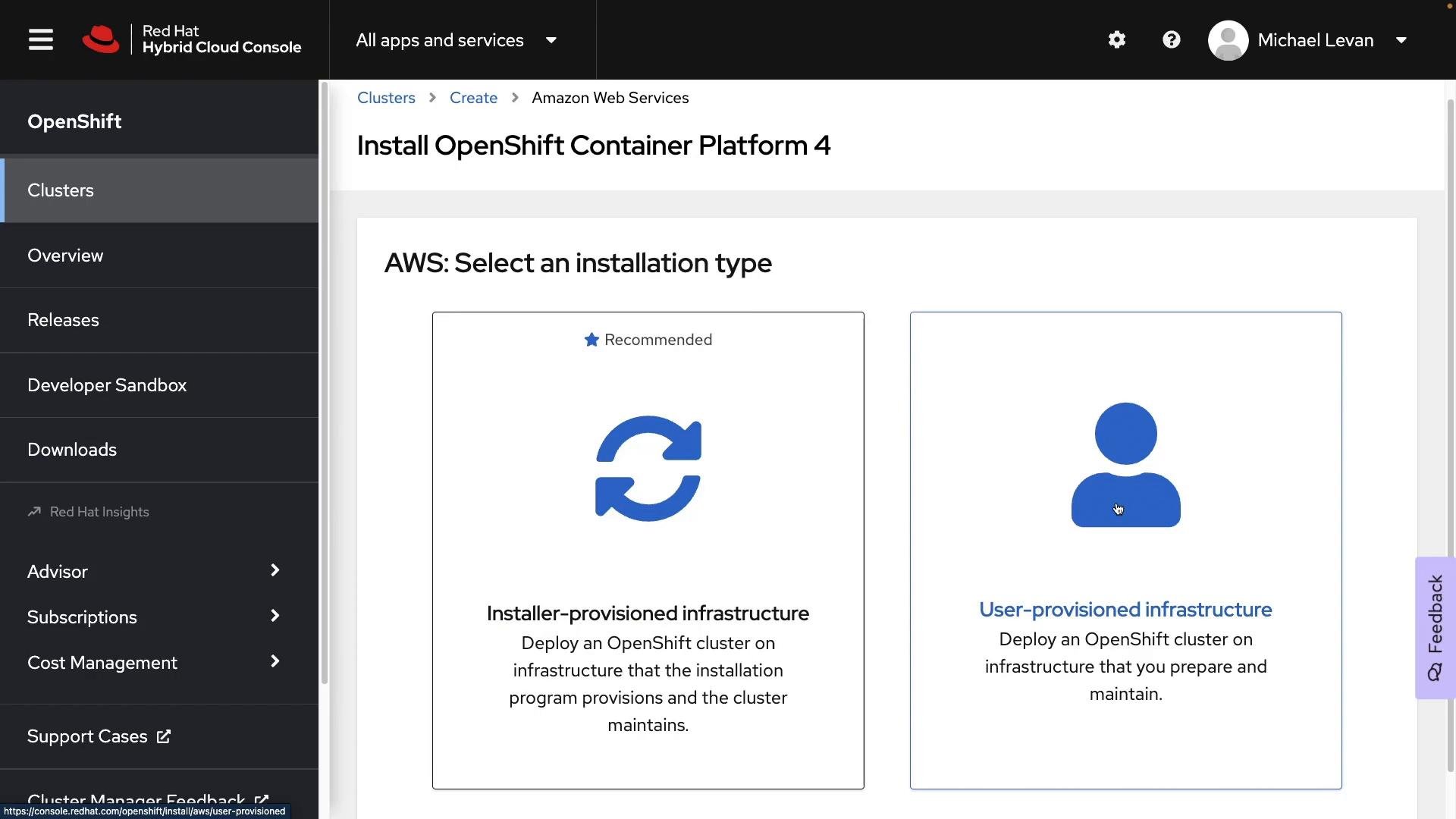
Quick comparison
Choosing a managed service (example: Azure Red Hat OpenShift)
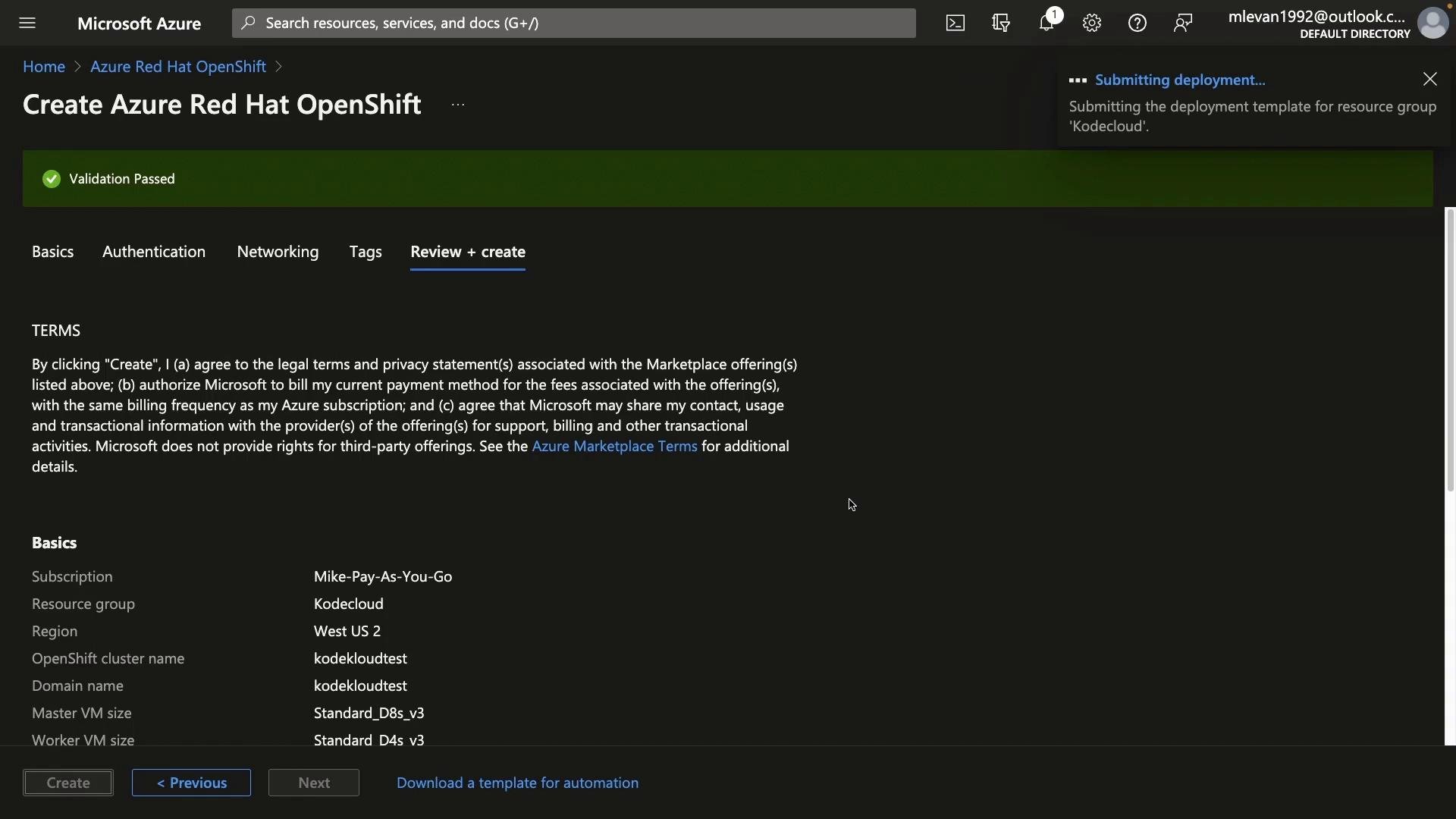
If you prefer a fully managed service (recommended when already using Azure), choose Azure Red Hat OpenShift from the Azure Marketplace and click Create. You’ll select a resource group, region, and cluster name; example values used in this walkthrough:- Resource group: KodeKloud
- Region: East US
- Cluster name: kodekloudtest
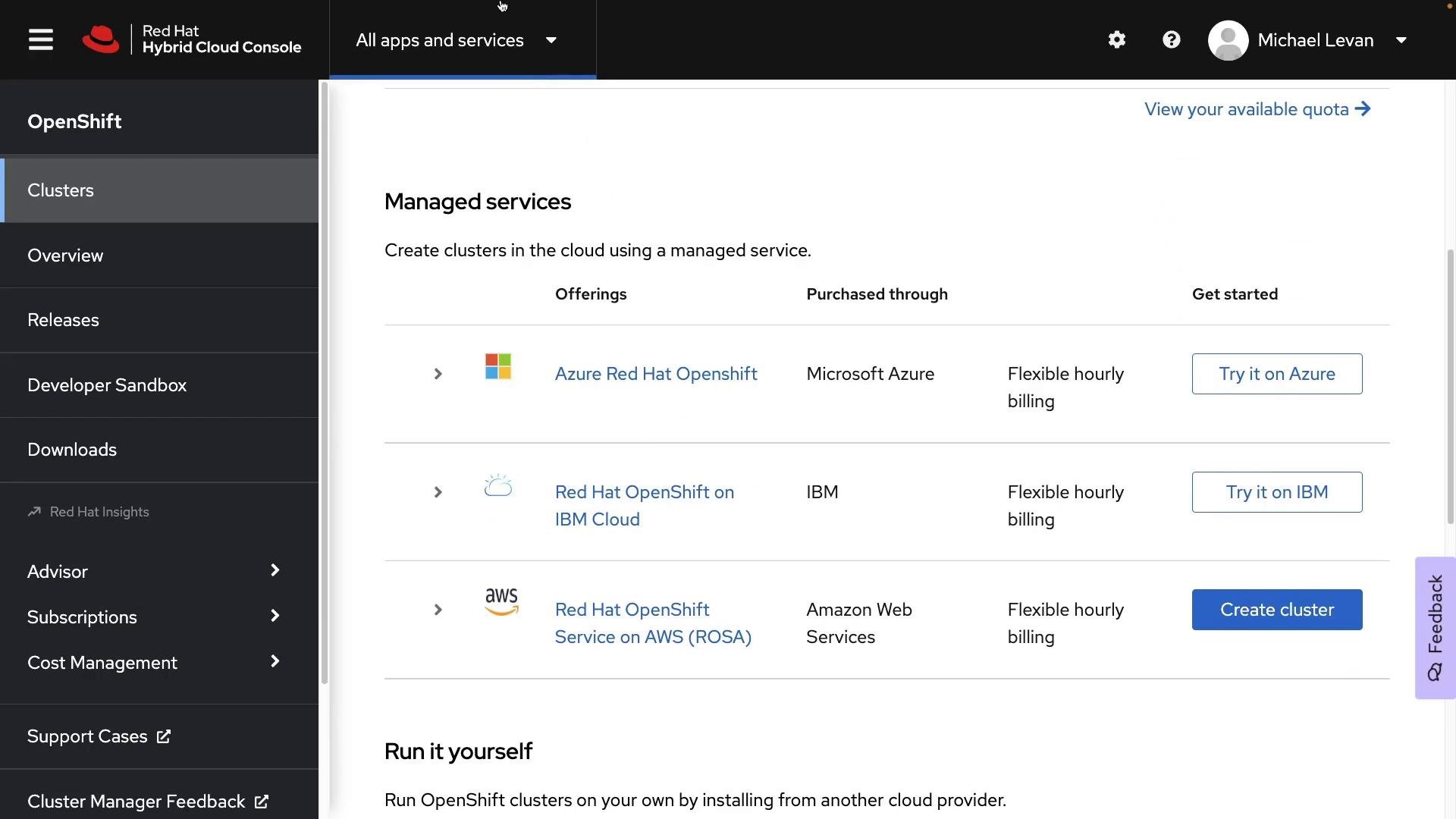
D8s_v3 with 8 vCPUs and 32 GiB RAM) for control plane and worker sizing.
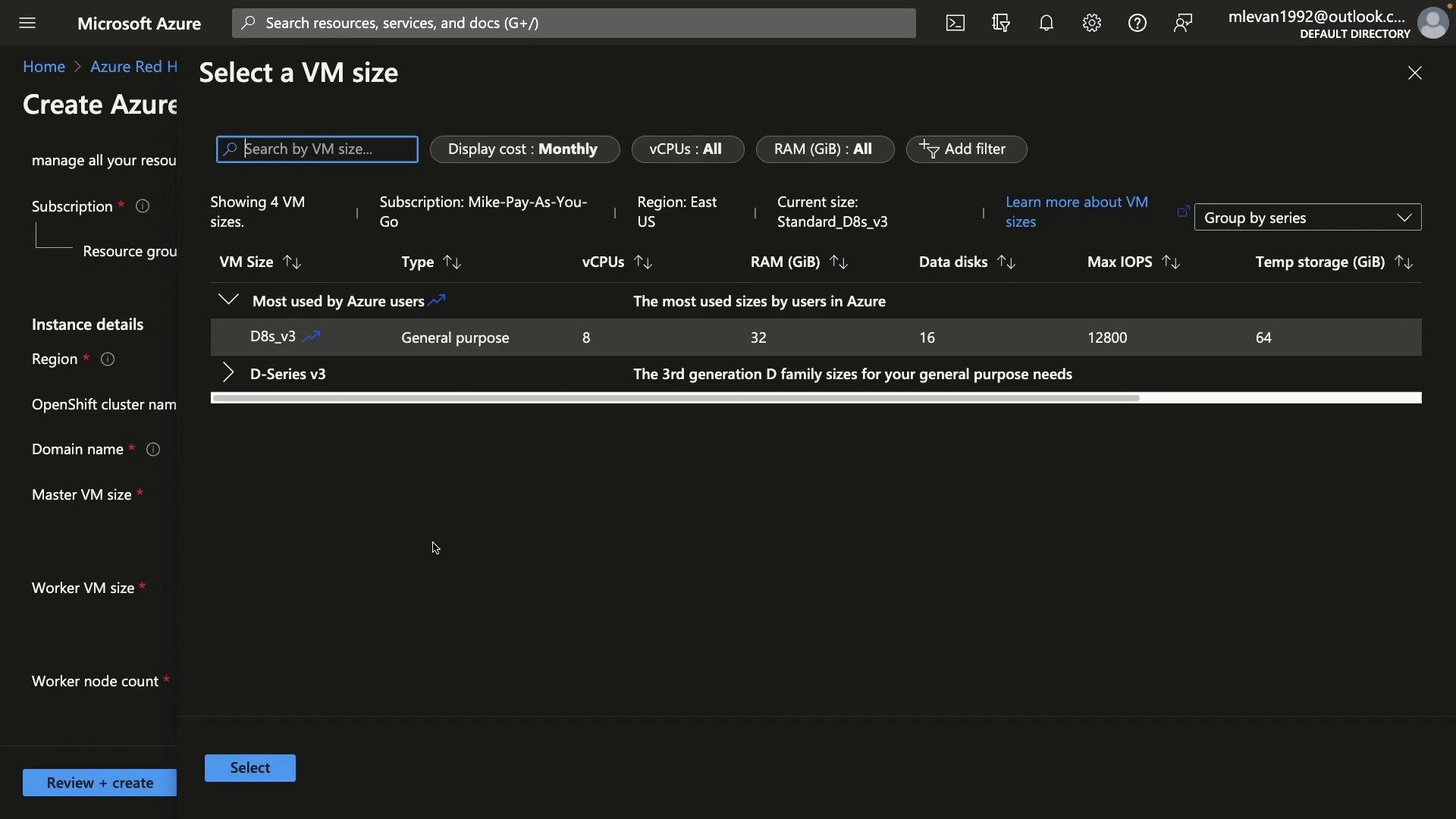
Azure prerequisites — App Registration and pull secret
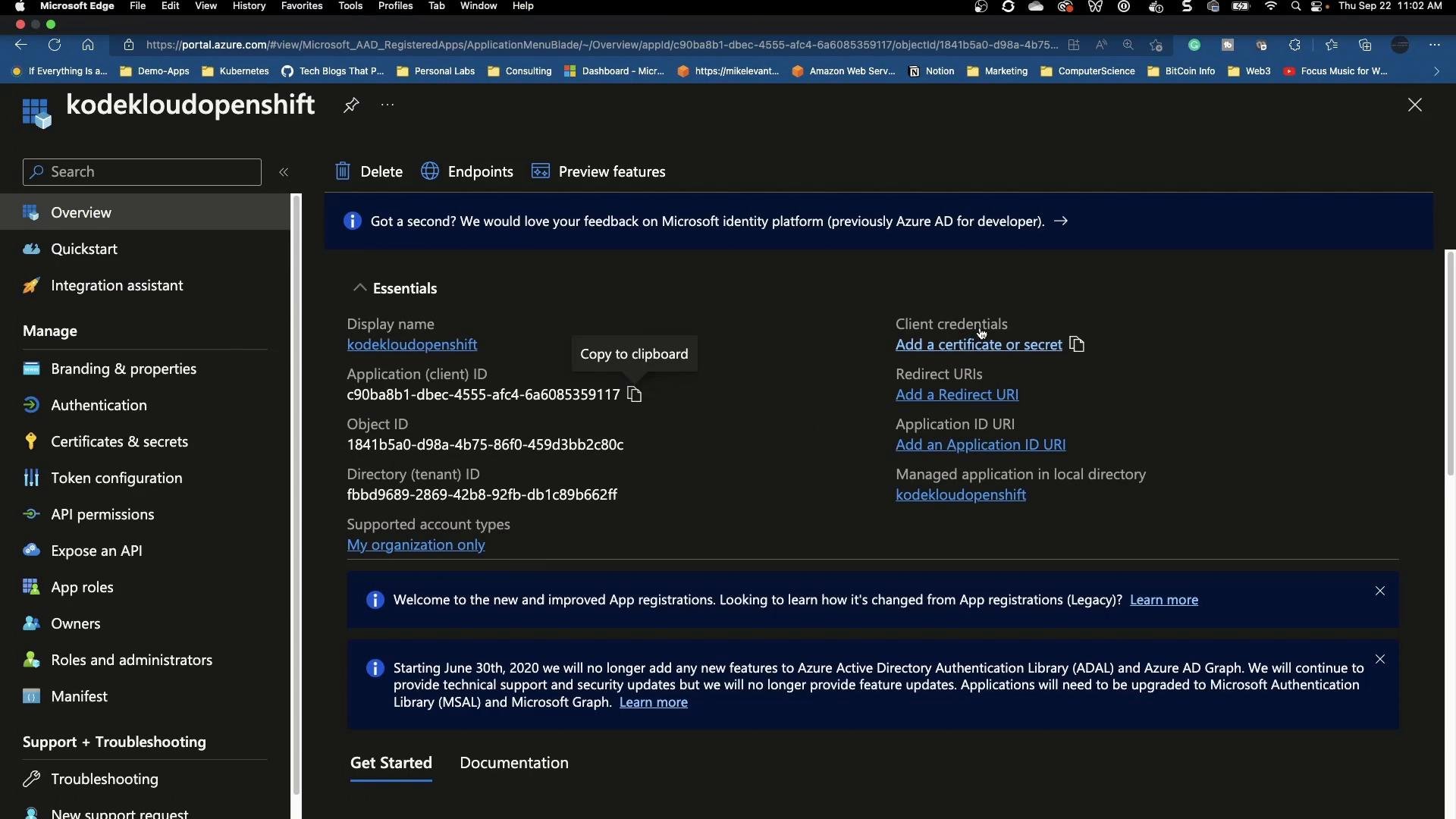
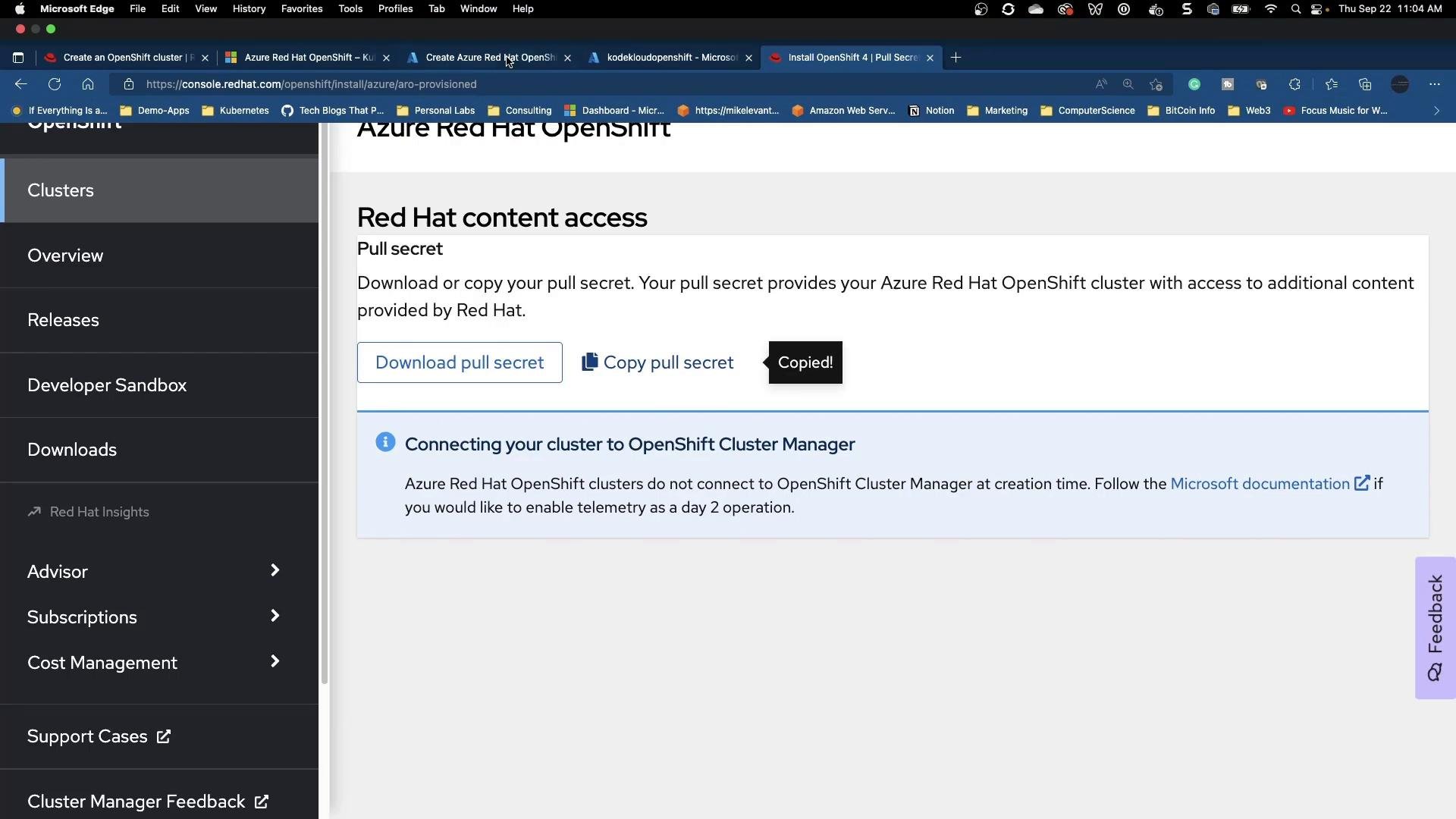
ARO requires an Azure AD App Registration (a service principal) with appropriate permissions. Steps:- In Azure AD create an App Registration.
- Create a client secret and copy the Application (client) ID and the secret value.
- In the ARO create form paste the client ID and secret.
Networking and API/Ingress visibility
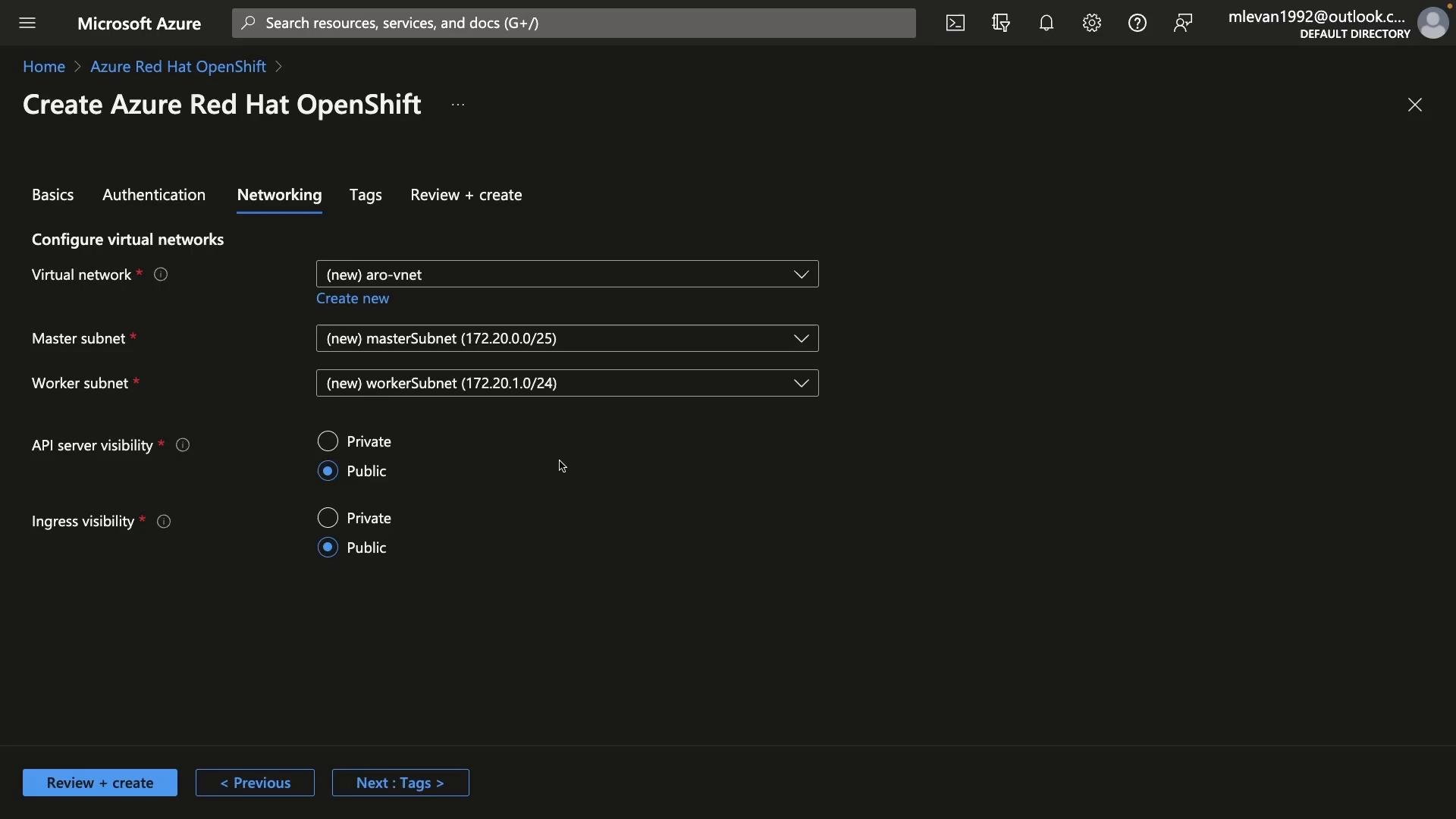
The installer creates a virtual network with separate subnets for control plane and worker nodes. You must select:- API server visibility: Public or Private
- Ingress visibility: Public or Private
Common validation issues (quota and permissions)
- If you see an App Registration object ID validation error, add the required API permissions. In Azure AD → App Registration → API permissions, add Azure Service Management and grant the
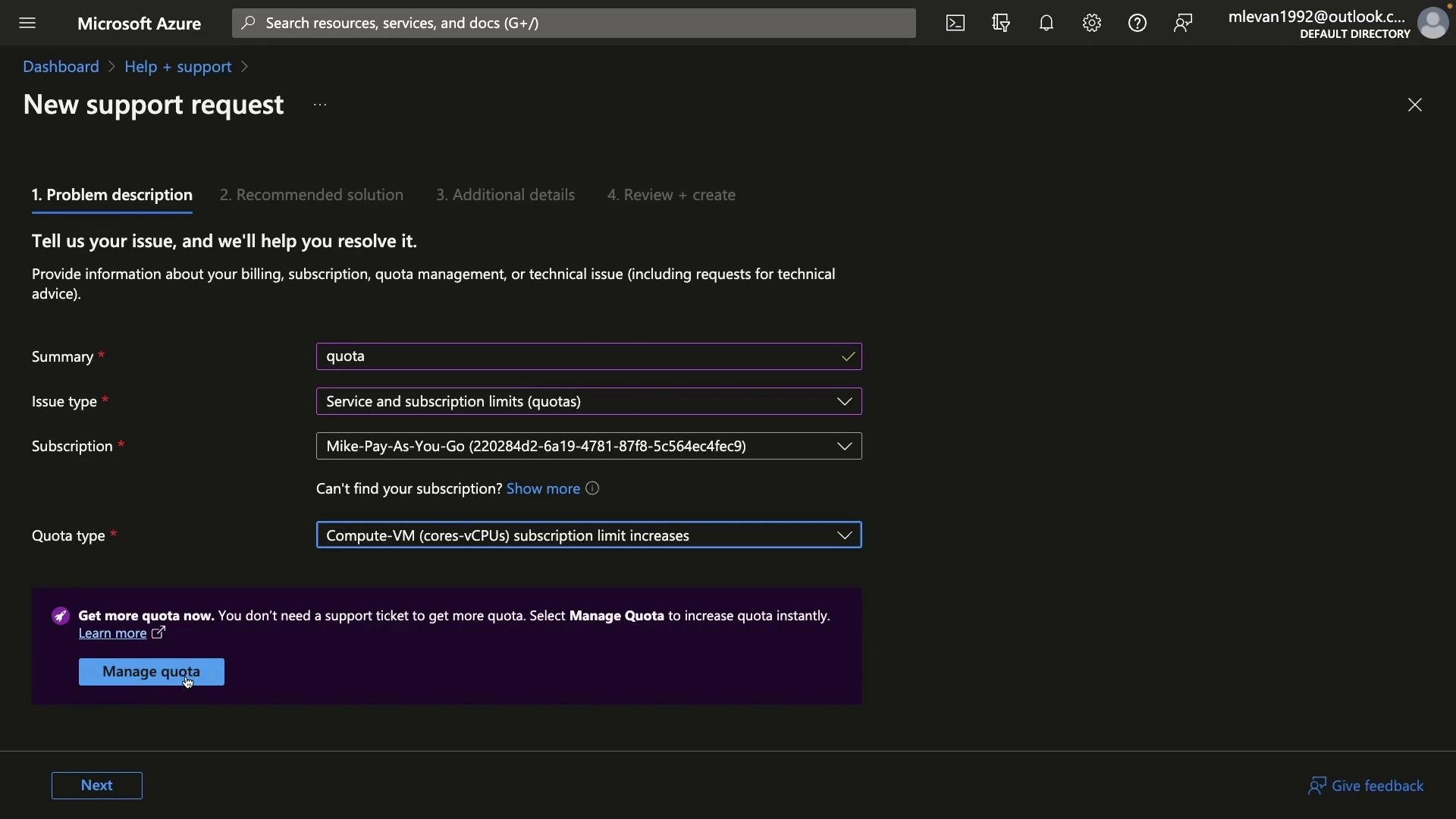
user_impersonationpermission or equivalent for the subscription. - If Azure reports insufficient vCPU quota (this walkthrough required 36 vCPUs for the selected sizes), submit a support request to increase quota.
Retrieve credentials and sign in
After the cluster is created, open the OpenShift console and sign in. For ARO you can retrieve kubeadmin credentials using the Azure CLI (requires theaz aro extension):
kubeadminPassword value and use the kubeadmin username to sign in to the OpenShift web console. After login you can begin:
- Deploying applications (Web or CLI)
- Creating projects and namespaces
- Configuring cluster resources (RBAC, network policies, storage classes)
Checklist — before you create the cluster
Links and references
- OpenShift Local (formerly CodeReady Containers)
- Azure Red Hat OpenShift (ARO) documentation
- Red Hat OpenShift installation guide
- Azure support: Increase quota (VM cores)
Tip: For production workloads prefer managed control planes (like ARO) when possible. Managed offerings simplify upgrades, availability, and integration with cloud provider services.