

Docker BuildConfig Example
The BuildConfig for a Docker-based strategy closely mirrors other BuildConfigs in OpenShift. It includes the API version, resource kind, metadata (such as name and labels), and the source location (typically a Git repository). The primary distinction is found in the strategy section—where the type is set to Docker and the Docker strategy specifies the path to the Dockerfile. Below is an example BuildConfig YAML file:Creating the BuildConfig in OpenShift
To create the BuildConfig through the OpenShift console, follow these steps:- Navigate to the “Build” section and then “BuildConfigs.”
- Create a new BuildConfig and clear the default template.
-
Paste the YAML configuration provided above. Be sure to specify the appropriate namespace by adding
namespace: defaultunder the metadata section: - Save the configuration. With this BuildConfig in place, OpenShift will monitor your Git repository for the Dockerfile, execute the build using the Docker strategy, and push the resulting image to the internal registry.
Ensure that your Git repository and Dockerfile are correctly configured to avoid build-time issues.
The Dockerfile
The Dockerfile used in this example is designed for building a Go-based application. Even if you’re not familiar with Go, the Dockerfile performs the following crucial steps:- Pulls the latest Golang image.
- Creates an application directory (
/app). - Adds all application files to the container.
- Sets
/appas the working directory. - Compiles the Go application.
- Exposes port 8080.
- Specifies the command to run the application.
Monitoring the Build
While the build is in progress, logs will detail each step, including:- Cloning the Git repository.
- Pulling the Golang image.
- Executing the Dockerfile to build the container image.
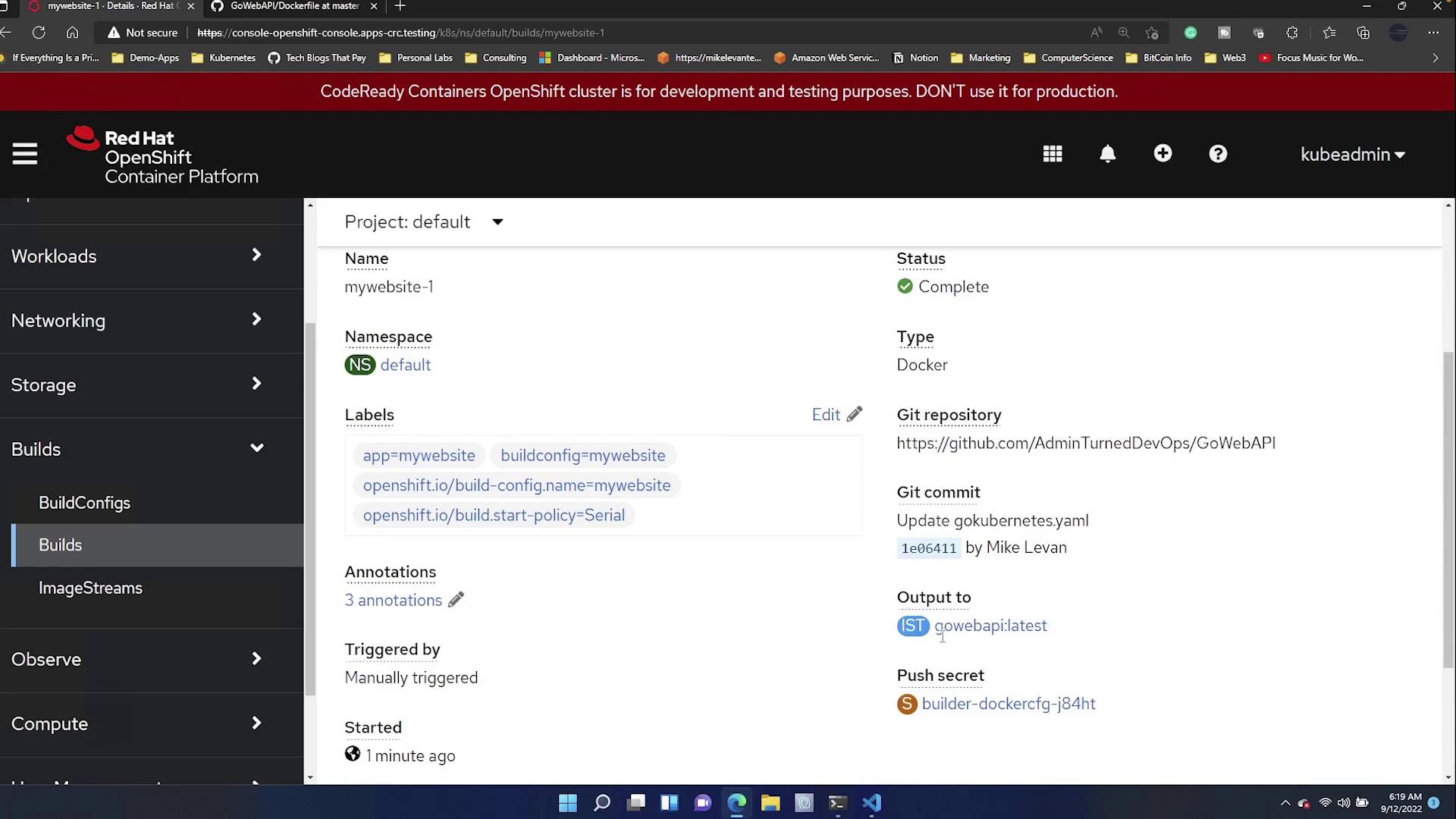
This confirms that the container was built as intended according to the specifications outlined in both the Dockerfile and BuildConfig.
Conclusion
In summary, this article demonstrated how to create an OCI-compliant container image in OpenShift using Buildah and a Docker-based BuildConfig. By configuring a BuildConfig, writing an appropriate Dockerfile for a Go application, and initiating the build via the OpenShift console, you can seamlessly produce and deploy consistent container images. For additional resources on container image building and OpenShift, please refer to the following links:Ensure that both your Dockerfile and BuildConfig are kept up to date with the latest security patches and best practices to maintain a robust container security posture.