This lesson covers managing software with DNF — the primary package manager for modern Red Hat–based Linux distributions (RHEL, CentOS Stream, Fedora). Use DNF for day-to-day package management: searching repositories, installing/removing packages, handling dependencies, applying updates, and managing package groups. RPM remains the low-level tool that performs the actual install/remove operations on .rpm files; DNF operates on top of RPM and resolves dependencies automatically.
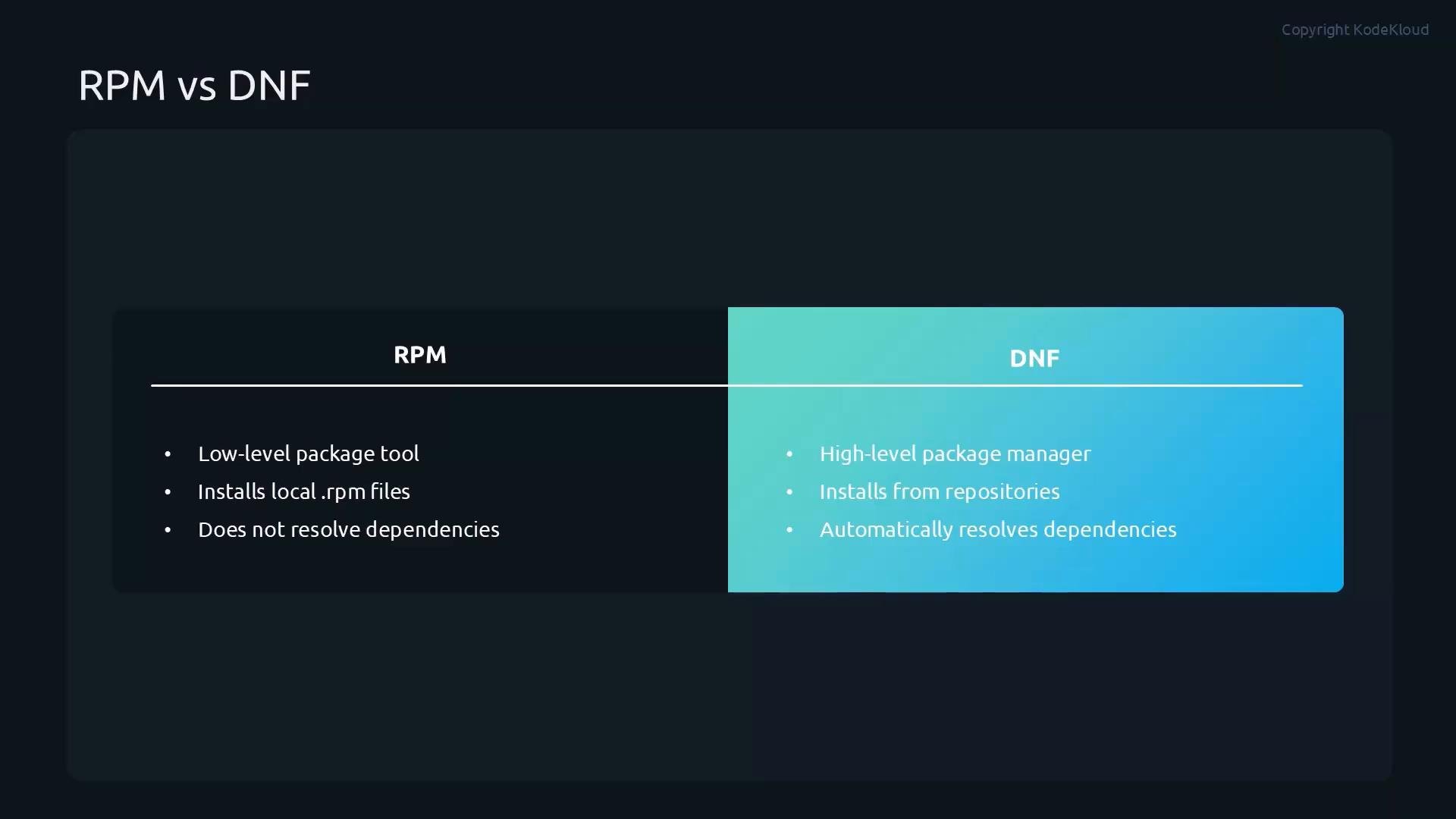
A dark-themed presentation slide titled "RPM vs DNF" comparing the two package tools. The left column lists RPM as a low-level tool that installs local .rpm files and doesn't resolve dependencies, while the right column lists DNF as a high-level manager that installs from repositories and automatically resolves dependencies.
DNF commands generally require root privileges — prepend sudo or run as root when performing installs, updates, or removals.

RPM vs DNF — quick comparison

Common DNF operations (cheat sheet)

Searching for packages

Use dnf search to locate packages in enabled repositories. It performs word-based matching by default:
The above will match packages that contain either web or server. Example output might include:
To search for an exact phrase (both terms together), wrap the phrase in quotes:
This returns packages matching the phrase, for example:

Installing, reinstalling, and removing packages

Install a package from enabled repositories:
If configuration files or package files become corrupted and you want to restore the installed package files, use:
To remove a package and its primary files:
If you have a downloaded .rpm file, prefer installing it with DNF so dependencies are resolved for you:
After removing packages, run dnf autoremove to purge orphaned dependencies that are no longer required:

Checking for updates and applying them

Check for available updates without applying them:
Apply all available package updates from enabled repositories:
If a kernel or other core component is updated, a reboot may be required to load the new components.
Reboot after kernel updates or other critical system updates when prompted to ensure the running system uses the new components.

Listing packages

List all packages (installed and available from enabled repos):
List only installed packages:
List only packages available from enabled repositories:
Sample dnf list output (truncated):

Example: Installing and removing Apache HTTP Server (httpd)

Search to verify the package is available:
Example search output (truncated):
Install the Apache package:
Get detailed package information after installation:
Example dnf info output:
If httpd is up-to-date, running an update will indicate there is nothing to do:
To remove Apache and its package components:
Sample removal transaction (truncated):

Managing package groups

DNF supports installing/removing predefined groups (environment groups and comps). This is useful for installing a set of related packages like container toolchains, development environments, or server roles. List groups:
Show hidden groups too:
Get detailed information about a group (wrap group names with spaces in quotes):
Example output:
Install a group:
Remove a group:
Confirm the removal when prompted.

Summary

DNF is the recommended day-to-day package manager for Red Hat–based systems. It:
  • Installs and removes packages from repositories.
  • Resolves and installs dependencies automatically.
  • Updates packages and the system.
  • Manages predefined package groups.
  • Uses RPM under the hood to perform low-level package operations.
Using DNF simplifies package management workflows, reduces dependency errors, and aligns with modern RHEL administration best practices.

Watch Video