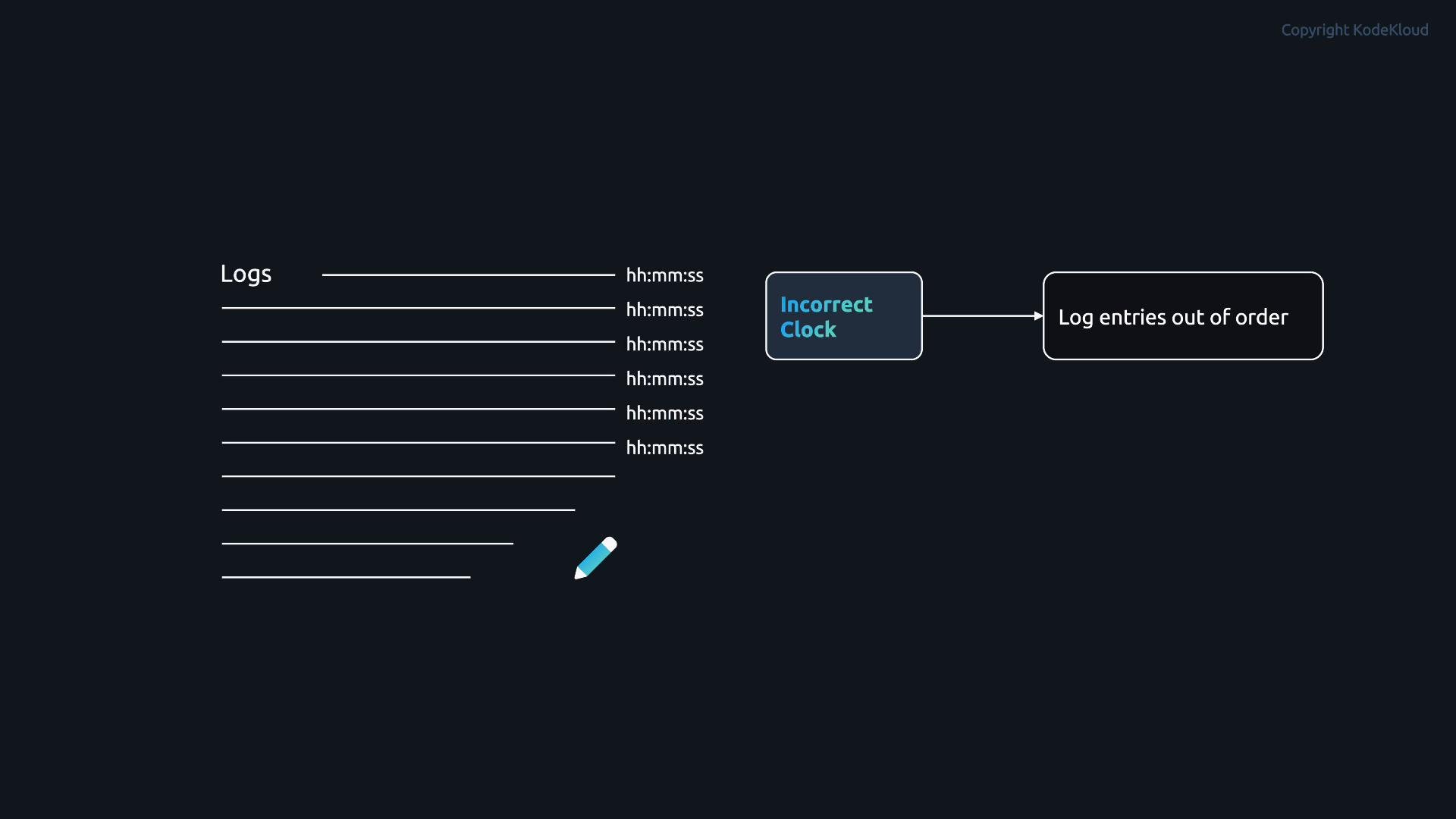
Accurate timestamps are essential for useful logs. If a system clock is wrong, log entries can appear out of order, making troubleshooting, auditing, and forensic correlation across multiple machines unreliable.
A dark-themed diagram showing a list of log lines with hh:mm:ss timestamps on the left and, to the right, a flow box labeled "Incorrect Clock" pointing to another box that reads "Log entries out of order."
For example, authentication failures, service restarts, or security events recorded on different hosts become hard to correlate if their clocks drift. To avoid this, servers must synchronize to a common, reliable time source.
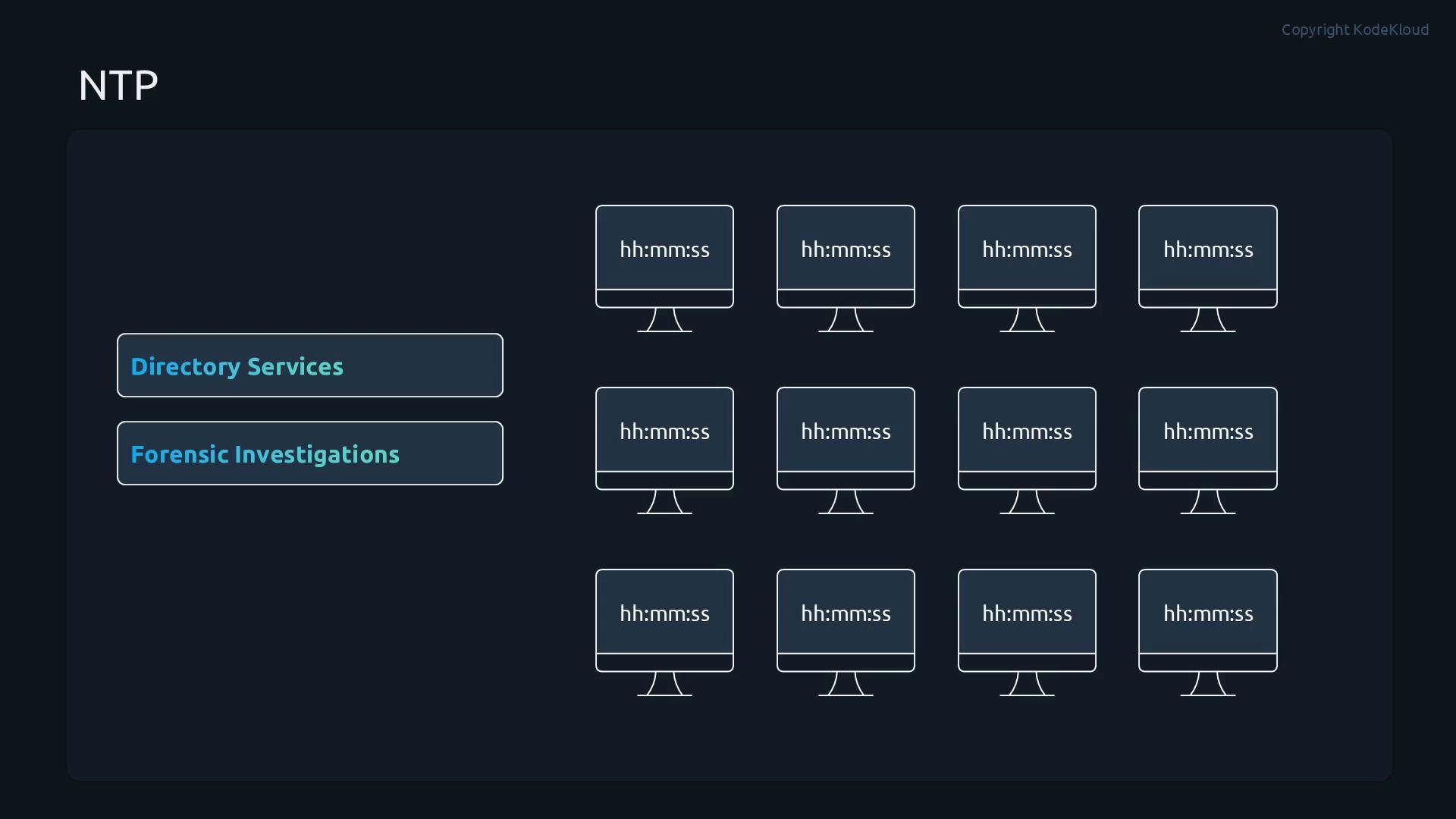
A dark-themed infographic titled "NTP" showing a grid of computer monitor icons, each labeled "hh:mm:ss." Two highlighted side boxes read "Directory Services" and "Forensic Investigations."
To implement uniform time settings, systems use Network Time Protocol (NTP) to synchronize clocks to UTC. Key points:
  • NTP communicates over UDP port 123.
  • A time server provides time to clients; clients periodically adjust their clocks and can, in turn, serve others.
  • NTP corrects clock drift and smooths adjustments to minimize disruption and network traffic.
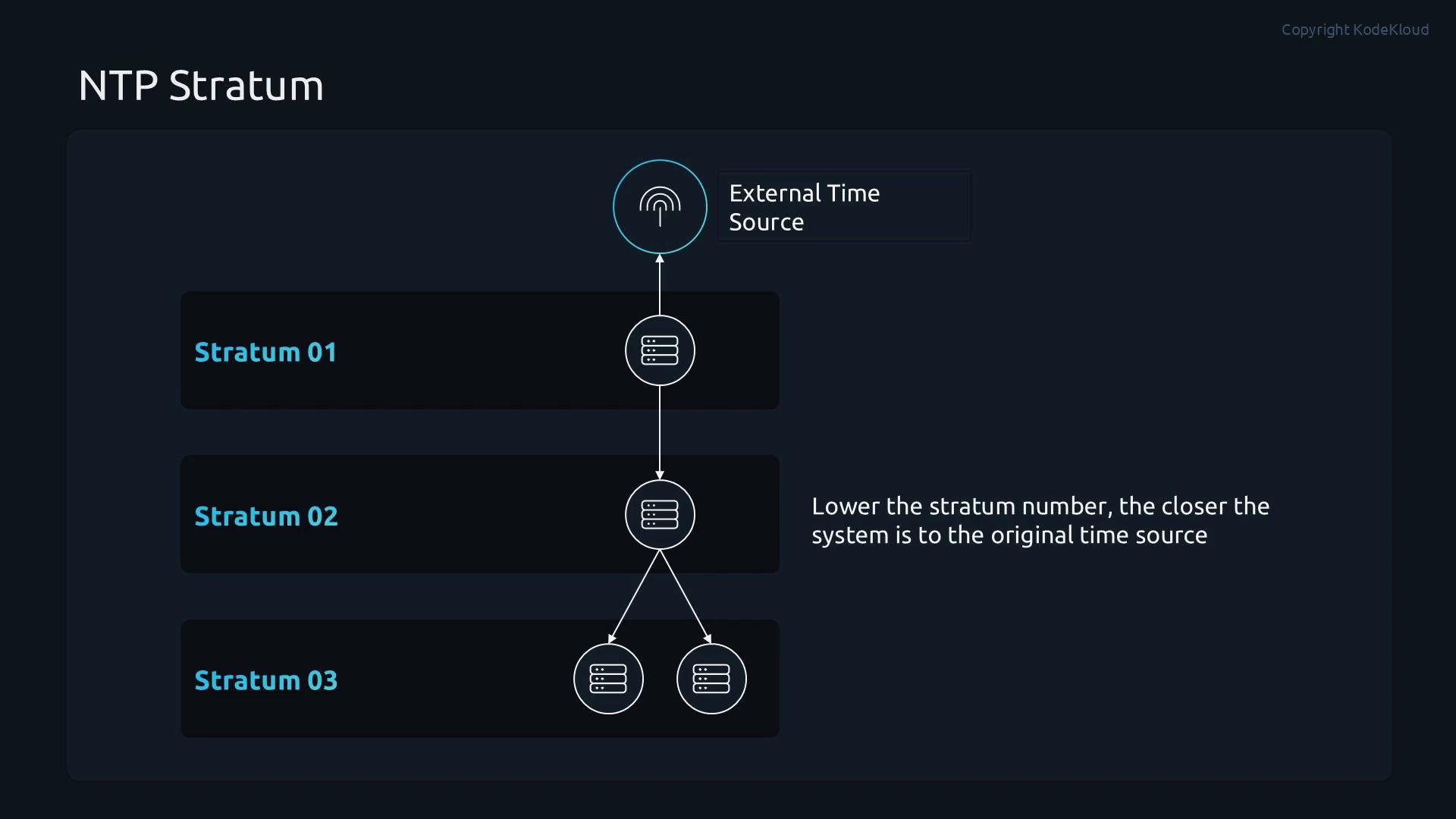
NTP uses a hierarchical stratum model—lower stratum numbers indicate a server closer to the reference clock:
A dark-themed infographic titled "NTP Stratum" showing an external time source at the top feeding downward through server icons labeled Stratum 01, Stratum 02, and Stratum 03. A caption notes that lower stratum numbers are closer to the original time source.
  • Stratum 0: Reference clocks (GPS, atomic).
  • Stratum 1: Servers directly connected to reference clocks.
  • Stratum 2+: Servers synchronized from higher-level strata.
This distributes load and maintains reliable synchronization across infrastructure. Most servers synchronize from Stratum 2 or Stratum 3 hosts rather than connecting to reference clocks directly. On most modern Linux distributions, time synchronization is handled by Chrony.
  • Chrony provides fast, accurate synchronization and is resilient on intermittent networks.
  • Chrony has two main components:
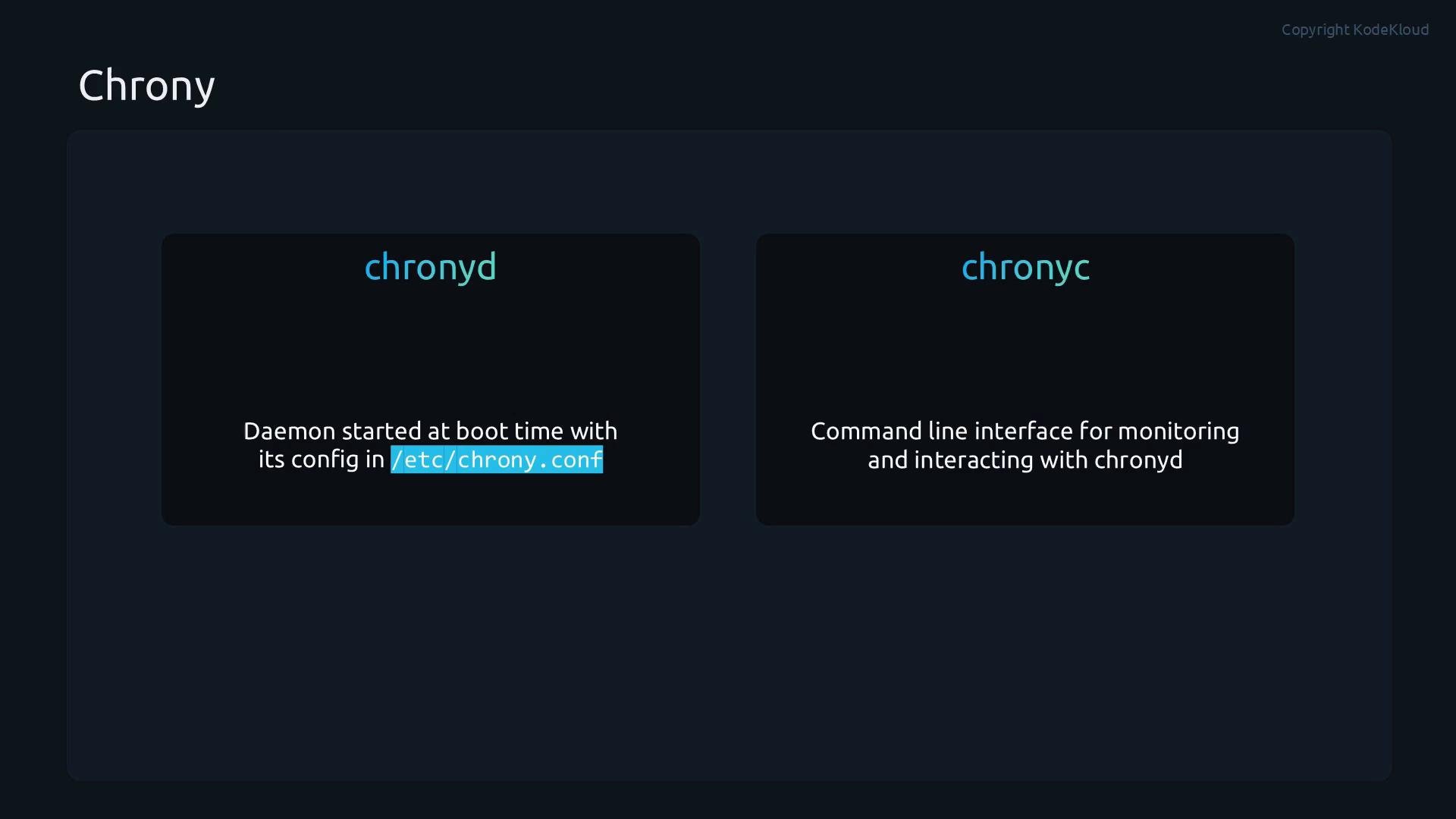
    • chronyd — the background daemon that runs at boot and continuously synchronizes the system clock (/etc/chrony.conf).
    • chronyc — the CLI client to query and control chronyd (view sources, tracking, force steps).
A dark-themed slide titled "Chrony" with two panels labeled "chronyd" and "chronyc." The left panel notes chronyd is a daemon started at boot with its config in /etc/chrony.conf, and the right panel says chronyc is the command-line interface for monitoring and interacting with chronyd.
chronyd keeps the system clock accurate; use chronyc to inspect and control chronyd (e.g., check sources, tracking, or force an immediate step).
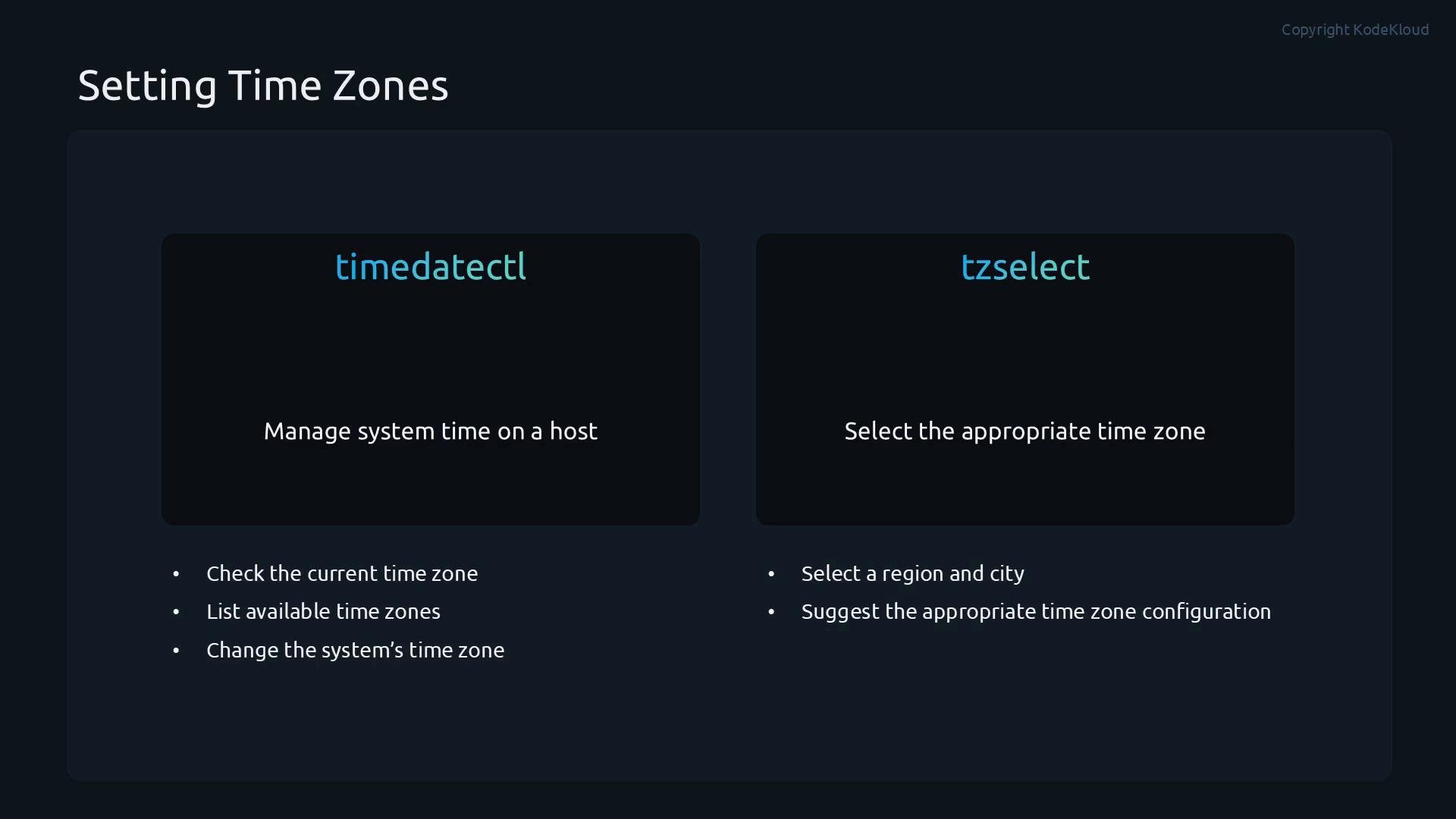
Even when NTP is running, local time can still appear incorrect if the time zone is misconfigured. Two common utilities for time zone management are:
A dark-themed slide titled "Setting Time Zones" showing two panels labeled "timedatectl" and "tzselect." Each panel briefly describes their functions—managing system time and selecting the appropriate time zone—with bullet points listed below.
In the following demo we verify and maintain accurate system time: display current time, inspect timedatectl, set time zones, enable NTP, configure Chrony with public servers, and verify synchronization. Start by displaying the current system time and full timedatectl status:
To change the time zone, use timedatectl set-timezone <Zone>. To list available zones:
If you prefer an interactive selection, run tzselect and follow the prompts:
After choosing a zone (for example, Europe/Paris), apply it:
Control NTP sync with timedatectl set-ntp true|false:
Chrony reads its configuration from /etc/chrony.conf. To use public pool servers, add server lines such as server 0.pool.ntp.org iburst and restart chronyd. Example /etc/chrony.conf fragment:
Save the configuration, restart chronyd, and enable NTP via timedatectl:
Use chronyc to inspect sources and tracking:
If a large offset requires an immediate correction (for example, after a long offline period), you can force a step:
chronyc makestep immediately adjusts the system clock. Use it cautiously—stepping the clock can disrupt time-sensitive services (databases, Kerberos, scheduled tasks). Prefer controlled maintenance windows when forcing large corrections.
This demo covered how to:
  • Display current time and timedatectl status.
  • Change and list time zones with timedatectl and tzselect.
  • Enable/disable NTP with timedatectl.
  • Configure Chrony (/etc/chrony.conf) to use public NTP servers.
  • Verify synchronization with chronyc sources and chronyc tracking.
  • Force an immediate correction with chronyc makestep (use with care).
These techniques ensure log timestamps are consistent across your infrastructure and improve the reliability of troubleshooting, monitoring, and forensic analysis.
A dark-themed slide titled "Summary" showing four rounded items: "System log architecture", "Working with Rsyslog", "Working with the Journal", and "Maintaining accurate time." A small "Copyright KodeKloud" label appears in the top-right corner.
Links and references:

Watch Video

Practice Lab