

at and recurring jobs with cron. In this article we cover a more modern, integrated approach using systemd timers — the systemd-native way to schedule tasks.
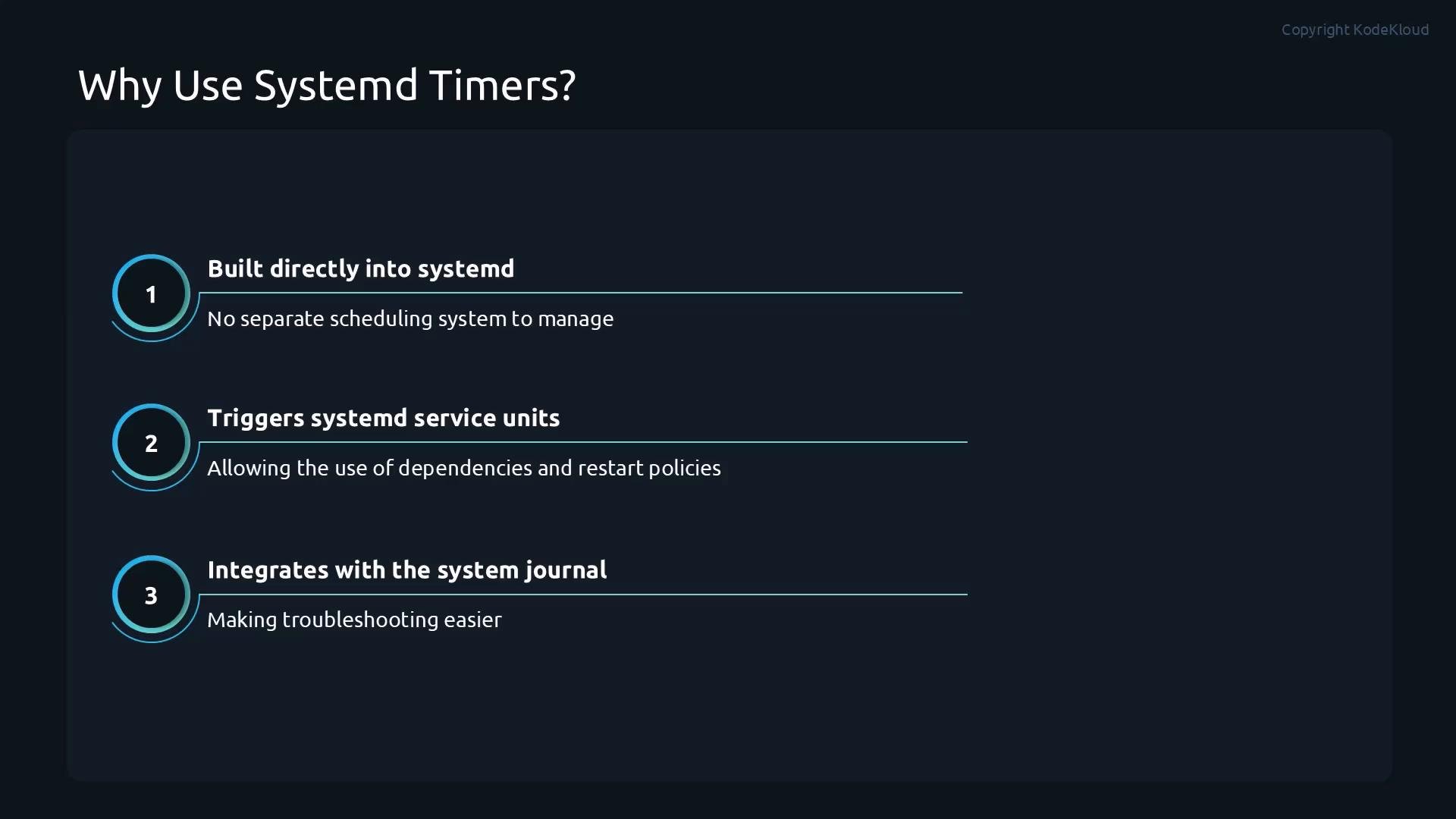
systemd timers schedule jobs using the same framework that manages services on Linux. Compared with traditional cron jobs, timers offer improved logging, dependency control, integration with service units, and awareness of system state (boots, shutdowns, targets). Because timers are first-class systemd units, they participate in restart policies and the systemd journal, making them more flexible and reliable for many automation use cases.
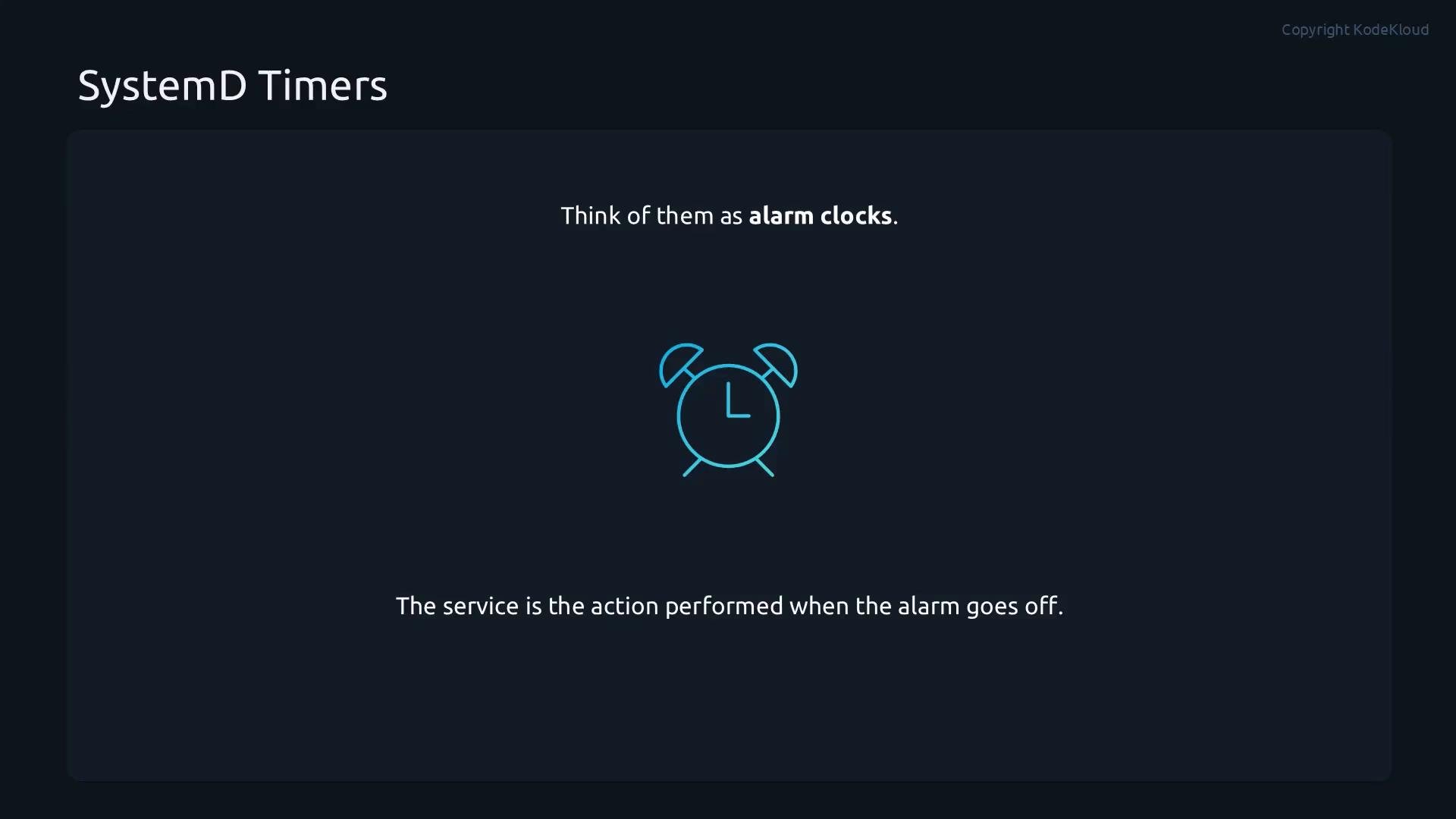
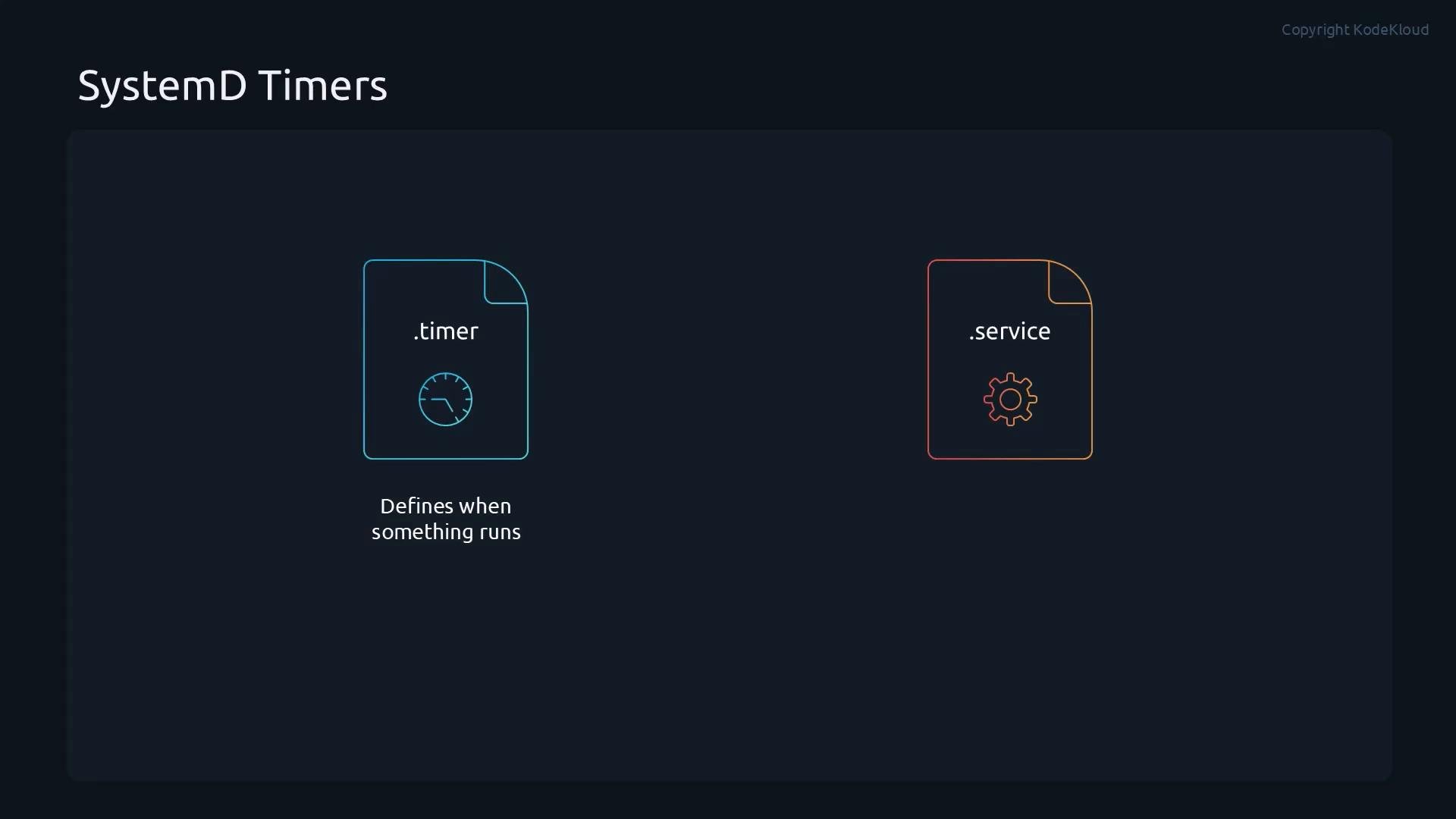
- The
.timerfile defines when something runs. - The
.servicefile defines what runs.
- When a
.timerreaches its scheduled time, systemd activates the associated.service. - Timers can be relative (e.g.,
OnActiveSec), absolute (OnCalendar), or tied to boot/shutdown events. - Timers integrate with systemd targets and the systemd journal for consistent logging and control.
Where timer units live
Timer unit files can be created or provided by different sources. Use this table to choose the correct location and editing approach.Quick commands
- List active timers and their next run times:
systemctl list-timers
- Inspect the combined unit contents (vendor file + overrides):
systemctl cat <timer-name>
- Create or edit a drop-in override:
systemctl edit <unit>
- Reload systemd configuration:
systemctl daemon-reload
- Restart or check a unit:
systemctl restart <unit>systemctl status <unit>
logrotate.timer combined (vendor file + overrides):
Editing vendor-provided timers: drop-in overrides (recommended)
Vendor files (under/usr/lib/systemd/system) may be replaced by package updates. To customize safely, do one of the following:
- Copy the vendor unit to
/etc/systemd/systemand edit the copy — this creates a full local unit. - Prefer creating a drop-in override using
systemctl edit <unit>— this preserves the vendor unit and applies only your changes.
Use
systemctl edit <unit> to create a drop-in override file under /etc/systemd/system/<unit>.d/. This preserves the vendor file and keeps your customizations separate and upgrade-safe.- Drop-in files live in
/etc/systemd/system/<unit>.d/and are merged on top of vendor files. - To replace an existing directive from the vendor file, first clear it by assigning an empty value, then add the new value.
logrotate.timer to run once on 2026-05-01 at 10:00:00.
Contents of the created override file (/etc/systemd/system/logrotate.timer.d/override.conf):
systemctl acknowledges the installation and you can verify the effective configuration with systemctl cat:
logrotate.service at the updated time.
Summary
- systemd timers are the preferred, systemd-native replacement or complement to
cronwhere you need improved logging, dependency handling, and integration with system state. - Always prefer drop-in overrides (via
systemctl edit) to preserve vendor files and ensure updates don’t overwrite your changes. - Use
systemctl list-timersandsystemctl catto inspect timer schedules and effective unit configurations.
- systemd.time — OnCalendar and time specifications: https://www.freedesktop.org/software/systemd/man/systemd.time.html
- systemd.unit and systemd.timer manual pages: https://www.freedesktop.org/software/systemd/man/systemd.timer.html
- systemctl(1) documentation: https://www.freedesktop.org/software/systemd/man/systemctl.html