

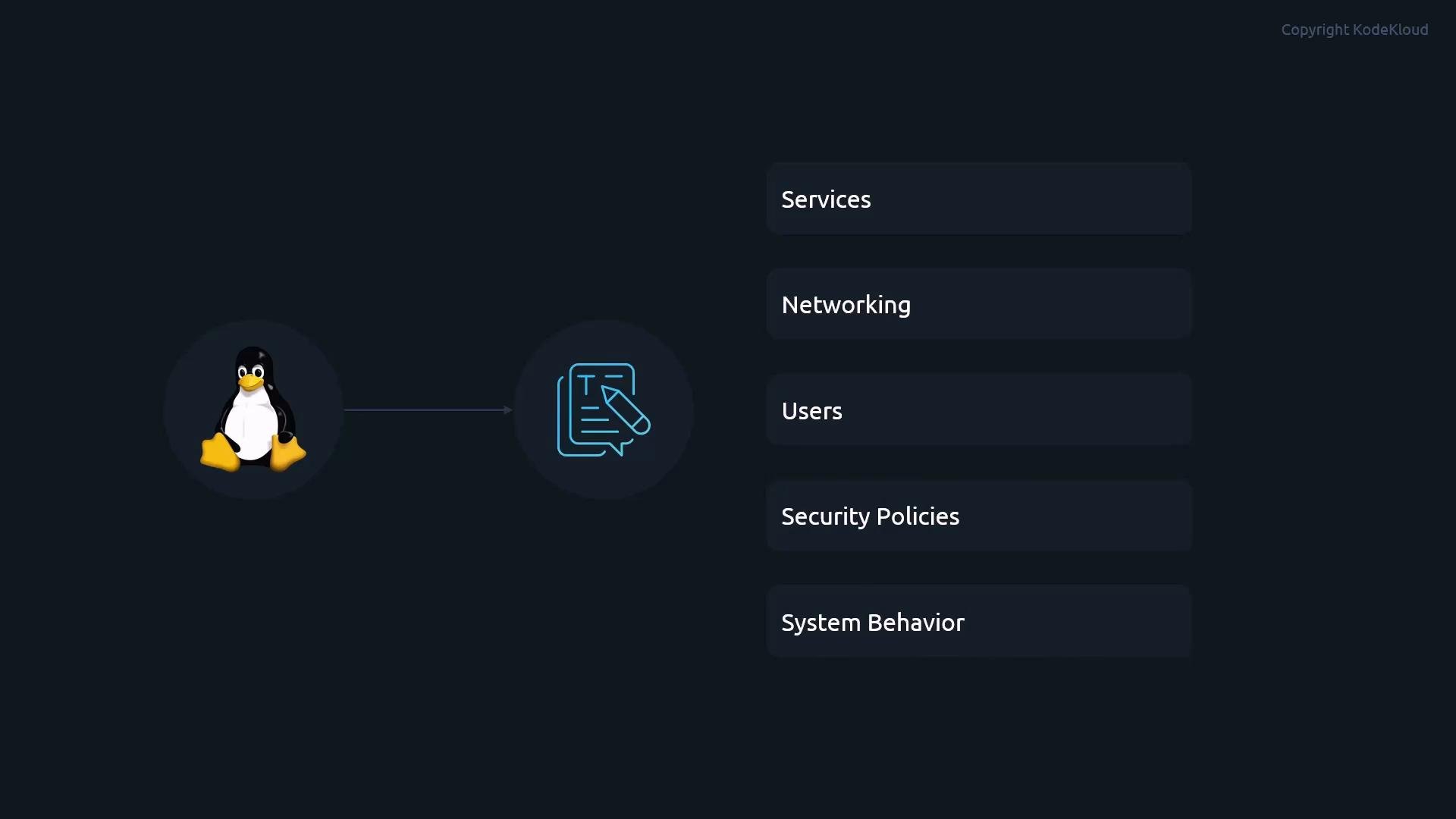
Why Vim?
Vim is the editor you’ll most frequently encounter on RHEL servers because it works reliably in any terminal session (no GUI required). Think of Vim like driving a manual car: the concept is different at first, but once you understand the modes (the “gears”), you gain precise, fast control.
Vim Modes (the core concept)
Vim works by switching between modes. Knowing which mode you are in is essential before you press keys.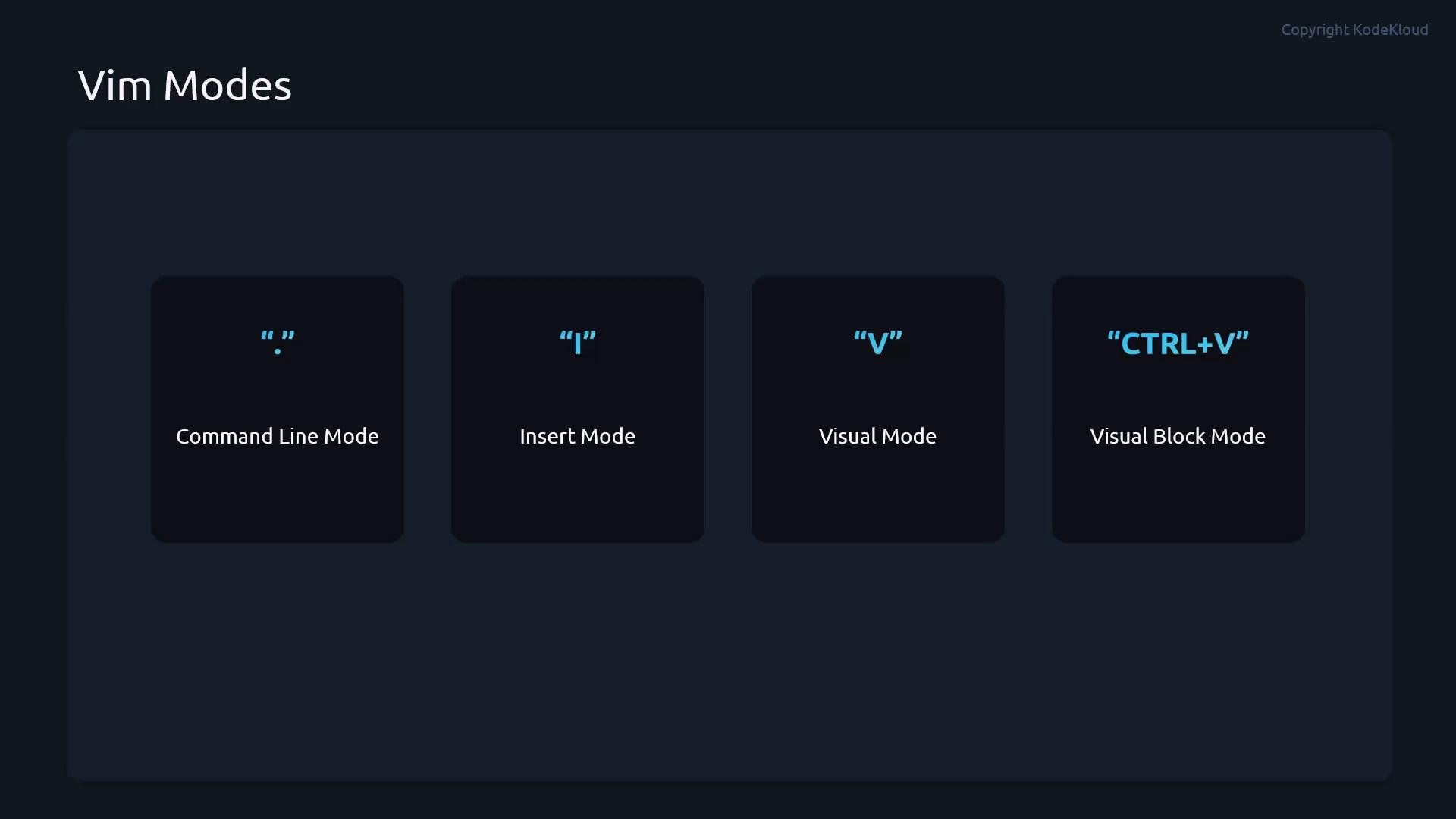
Esc to return to normal mode. Once you understand these modes, Vim becomes fast and predictable for system administration tasks.
Tip: Press
Esc to make sure you’re in normal mode before issuing commands like :wq, dd, or search commands.Essential Normal-Mode Commands
Normal mode is where you control and manipulate the file — navigation, search, delete, copy/paste, and file operations happen here.
Notes:
- Use
ZZ(capital Z twice) in normal mode as a shortcut for save-and-exit. - To view line numbers while editing: enter
:set numberin normal mode. - For syntax highlighting: enter
:syntax on(if supported).
Safe Editing of Configuration Files
Editing system configuration files requires care. Follow these recommended practices to avoid service disruption.Warning: Never edit critical system files without a backup. A syntax error in a config file can prevent services from starting. Use
sudoedit or make a copy before editing, and test changes in a staging environment when possible.- If you can’t save a file because of permissions, either use
sudoeditor save to a temporary path with:w /tmp/yourfileand then move it into place withsudo mv. - Prefer
sudoeditfor safer privilege escalation: it opens the file in your editor but writes as root only after you complete the edit. - When editing remote systems, ensure you have an active secondary connection or a recovery method in case SSH config is accidentally broken.
Hands-on Practice Exercises
Try these short exercises on a non-production system to build muscle memory:- Open a file:
vim /etc/hosts - Ensure you’re in normal mode (
Esc), navigate to a line, pressiand add a comment. - Save:
:wand then quit::q(or:wq). - Practice copy/paste:
yyon a line, move, thenp. - Delete a line with
dd, then undo withu. - Use search:
/localhostthennto jump through matches. - Create and test a backup workflow:
sudo cp /etc/hosts /etc/hosts.bak.
Further Reading and References
- Vim documentation: https://www.vim.org/docs.php
- Red Hat Enterprise Linux documentation: https://access.redhat.com/documentation/en-us/red_hat_enterprise_linux/
- Linux text file and editor basics: https://linux.die.net/man/1/vim