

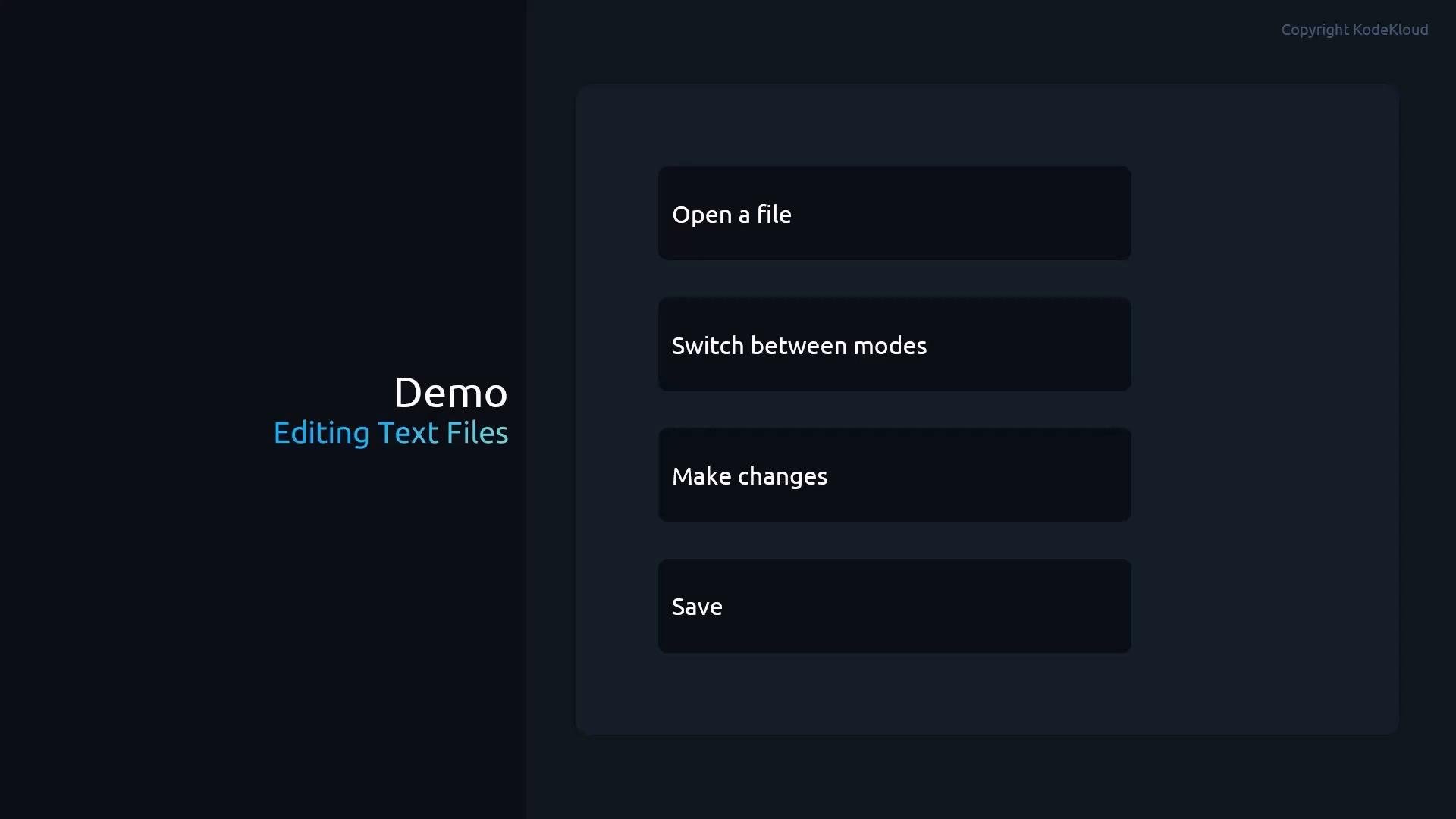
- prepare a working copy of
/etc/passwd, - open it with Vim,
- switch between modes,
- perform common edits,
- save and exit.
- Become root (or use sudo).
- Copy
/etc/passwdto a working file namededitmein the student’s home directory, then open it with Vim:
Be careful when editing system files like
/etc/passwd. Always work on a copy (as shown above) and never edit your live system files unless you know the exact impact. Mistakes can prevent logins or break services.Vim commands are case- and context-sensitive. Press
Esc to ensure Normal mode before using movement or command keys (for example dd, x, /pattern, :wq). If unsure, press Esc a few times to return to Normal mode./home/student/editme). Use this sample to follow along with editing examples:
i— enter Insert mode (insert before cursor).a— enter Insert mode after cursor.o— open a new line below and start Insert mode.Esc— return to Normal mode.
dd— delete the entire current line.x— delete the character under the cursor.- In Visual mode, select then press
dto delete selection.
u— undo last change.Ctrl-r— redo.
yy— yank (copy) the current line.- In Visual mode, highlight and press
yto yank. - Move to target and press
pto paste after the cursor orPto paste before.
v— character-wise selection.V— line-wise selection.Ctrl-v— block (column) selection (useful for column edits).
Step 5 — Searching
Search forward with
/ from Normal mode:
- Press
nto jump to the next match. - Press
Nto jump to the previous match.
:/^student searches for lines starting with student.
Step 6 — Saving and quitting
Use colon commands from Normal mode. Examples:
: to start command-line mode, then type the command and press Enter.
Step 7 — Learn more with vimtutor
For a guided, interactive tutorial run vimtutor:
- Vim Tutor is included with many Linux distributions, including Red Hat Enterprise Linux.
- It provides step-by-step lessons covering insertions, movements, text objects, and more.
i, Esc, v, V, Ctrl-v) and using Normal-mode commands (dd, x, yy, y, p, /pattern, :wq) to build speed and precision. With repeated use, Vim becomes a very fast and powerful editor for terminal-based workflows.
Links and references