- Create and configure a workflow file
- Install Node.js dependencies
- Securely manage environment variables
- Trigger the workflow on feature branches
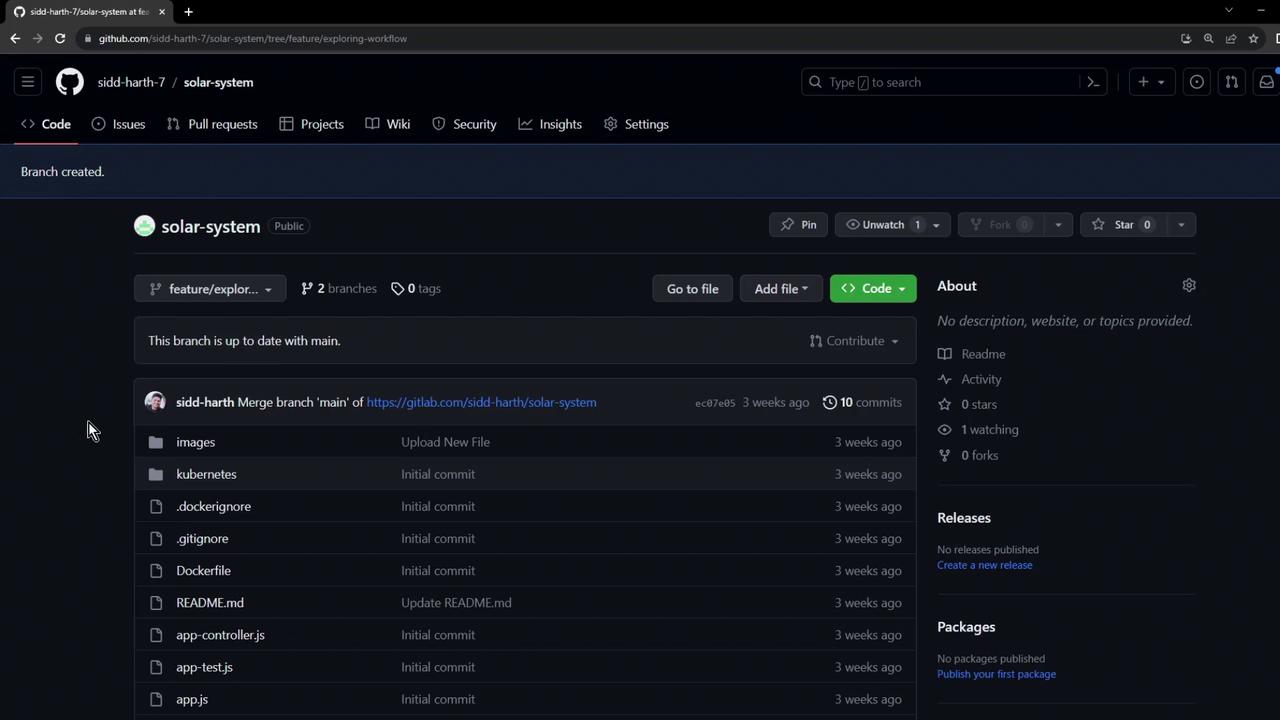
1. Create a Feature Branch
First, clone the repository and switch to a new feature branch to keepmain stable:
2. Open in Visual Studio Code
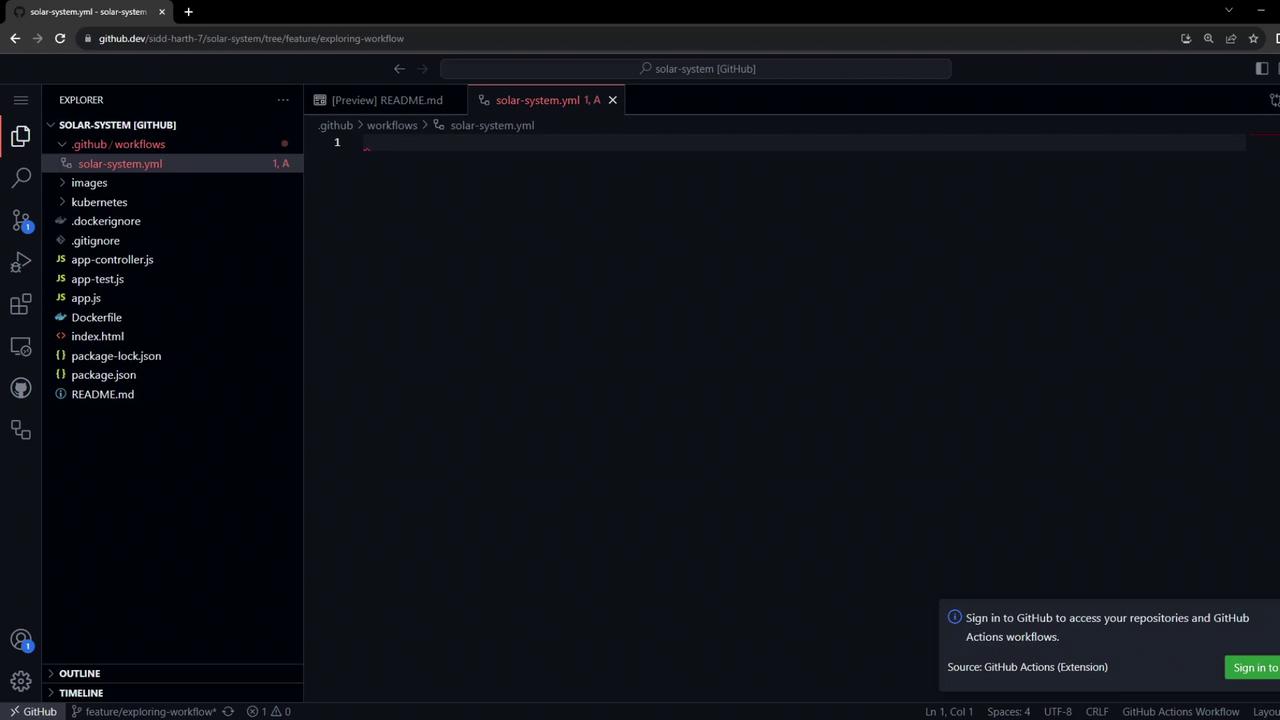
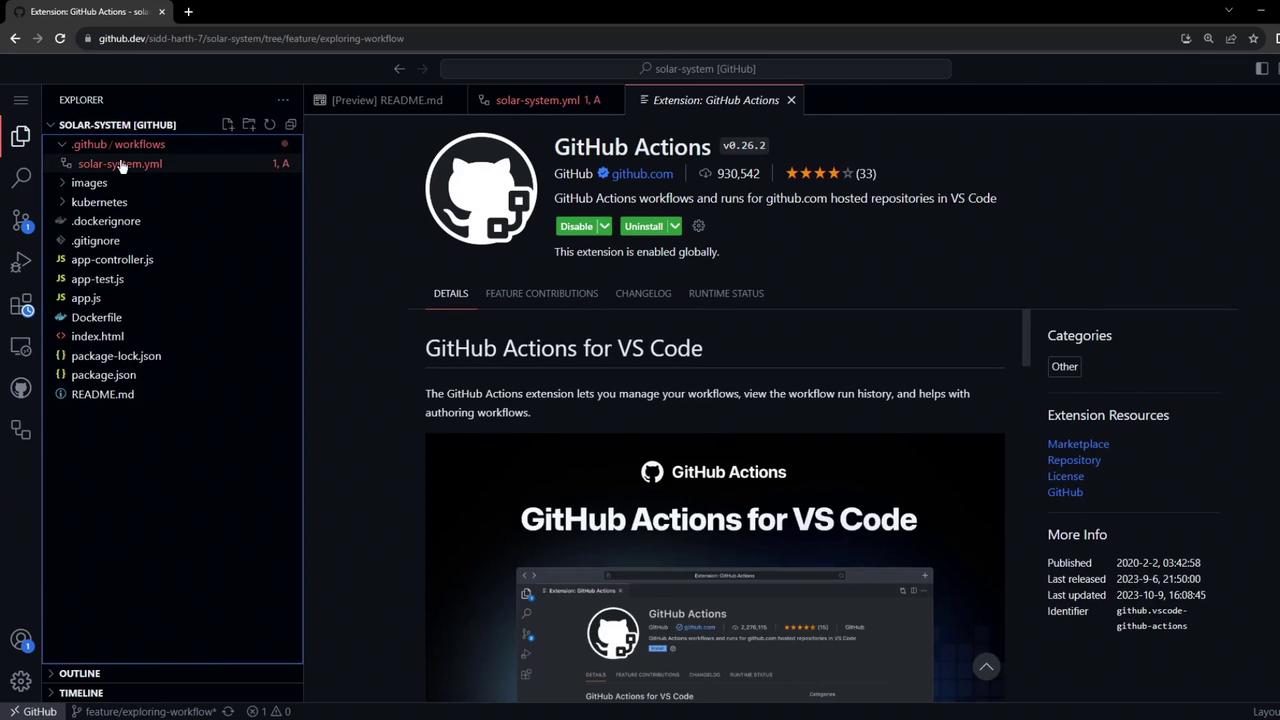
You can launch VS Code locally or use the GitHub.dev web editor by appending.dev to the repo URL.
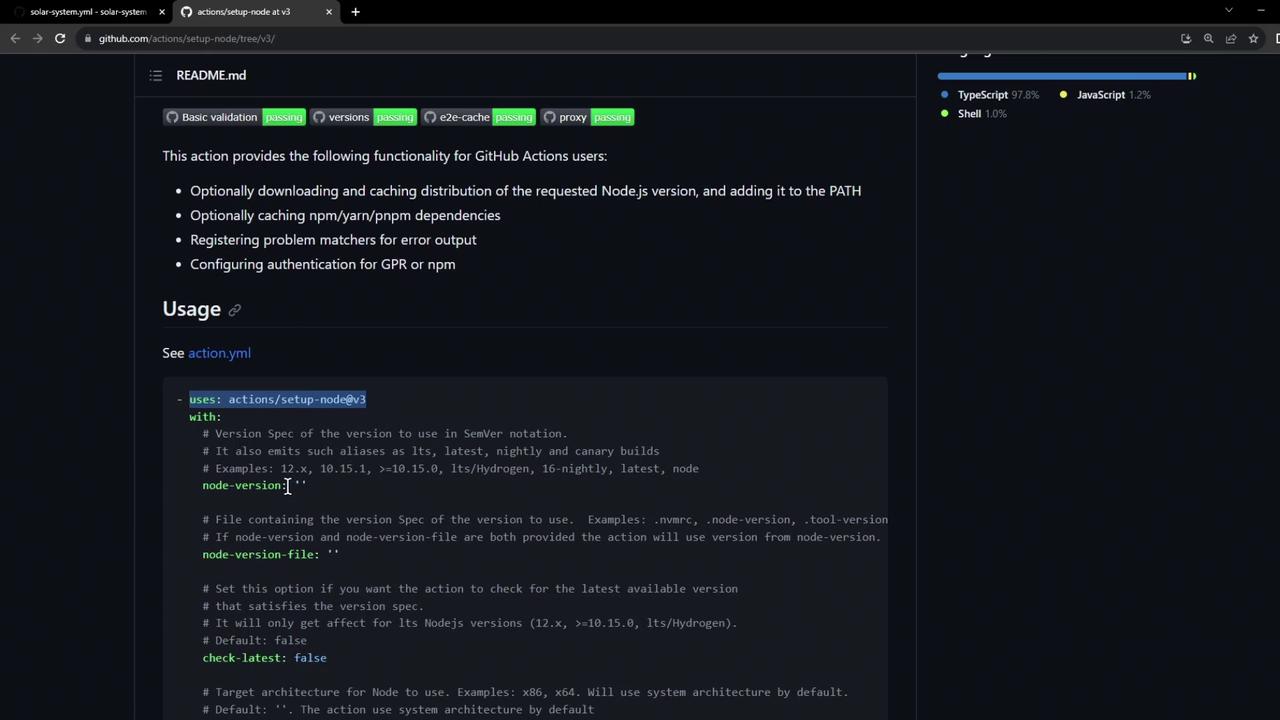
3. Define the Workflow File
Create a new file at.github/workflows/solar-system.yml with the following contents:
- Triggers on manual dispatch and pushes to
mainorfeature/* - Runs on
ubuntu-latest - Checks out the code, sets up Node.js v18, installs dependencies, and runs
npm test
Do not store sensitive credentials directly in the workflow. Use repository secrets and variables for any sensitive data.
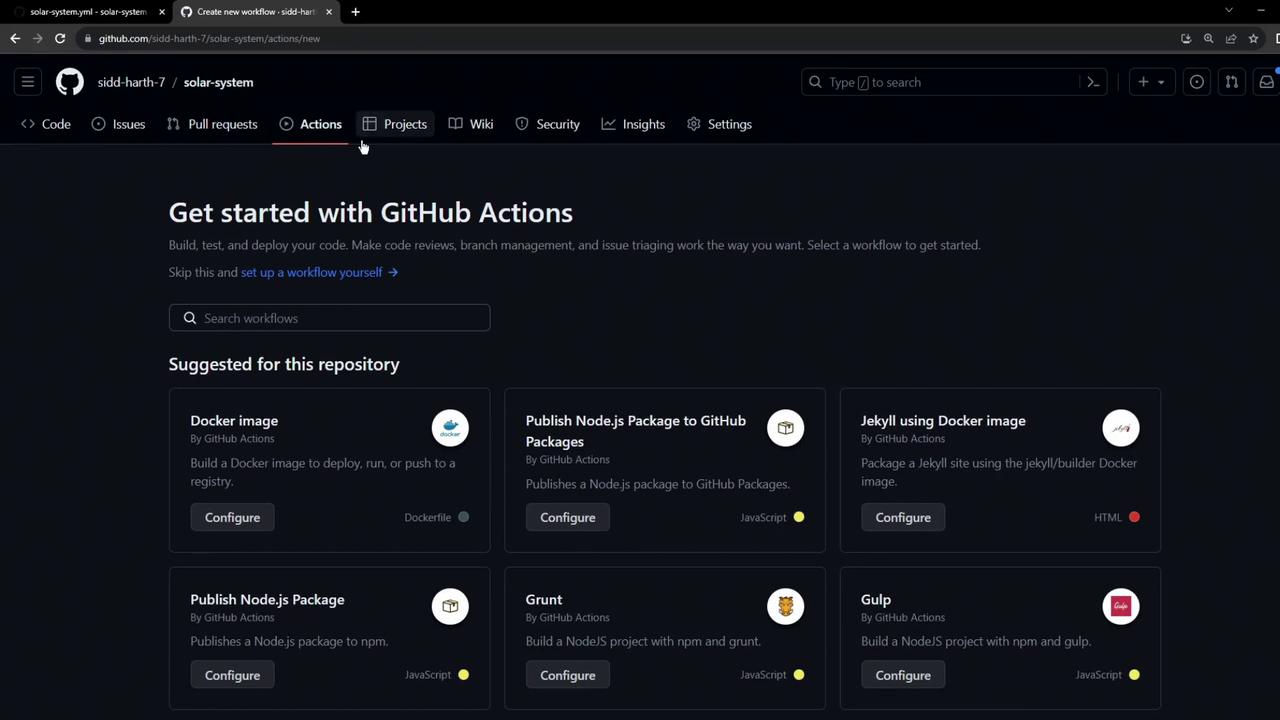
4. Enable GitHub Actions Tab
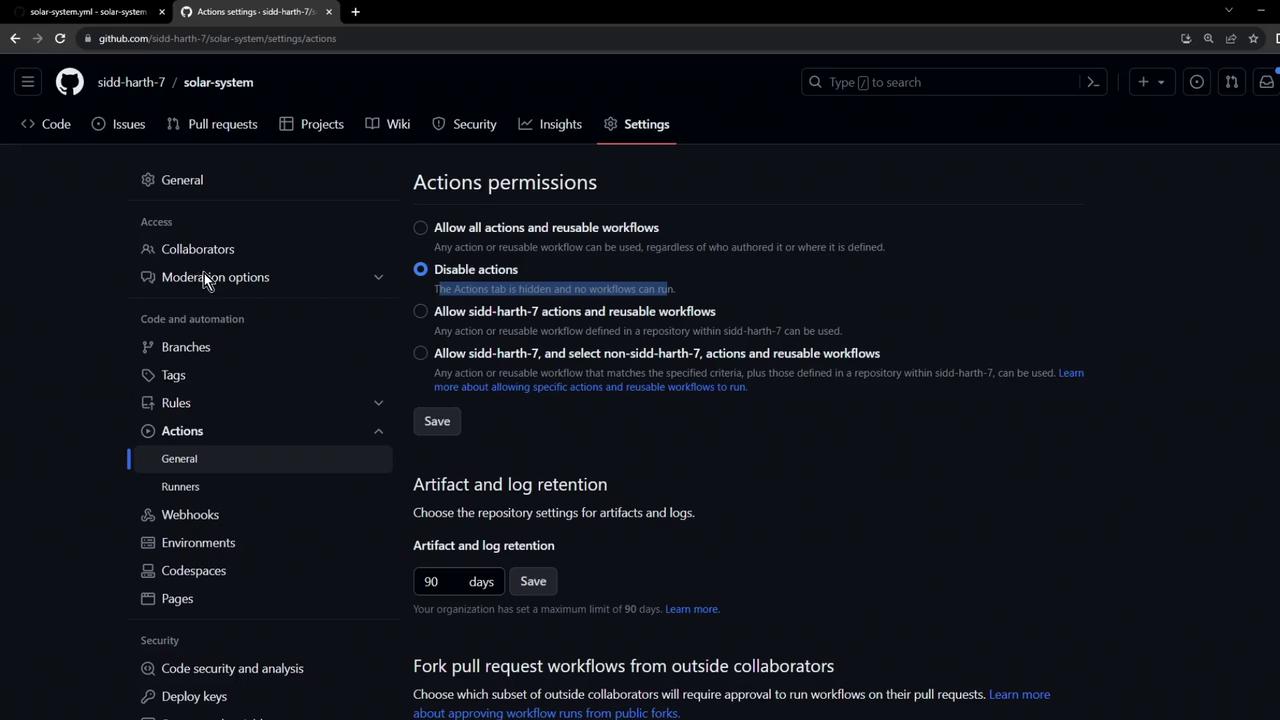
If you cannot see the Actions tab:- Go to Settings > Actions > General
- Select Allow all actions and reusable workflows
- Click Save
5. Commit and Push
Commit your new workflow and push to the feature branch:6. Inspect Workflow Run
Visit the Actions tab to monitor progress. If a unit test fails, you might see an error like: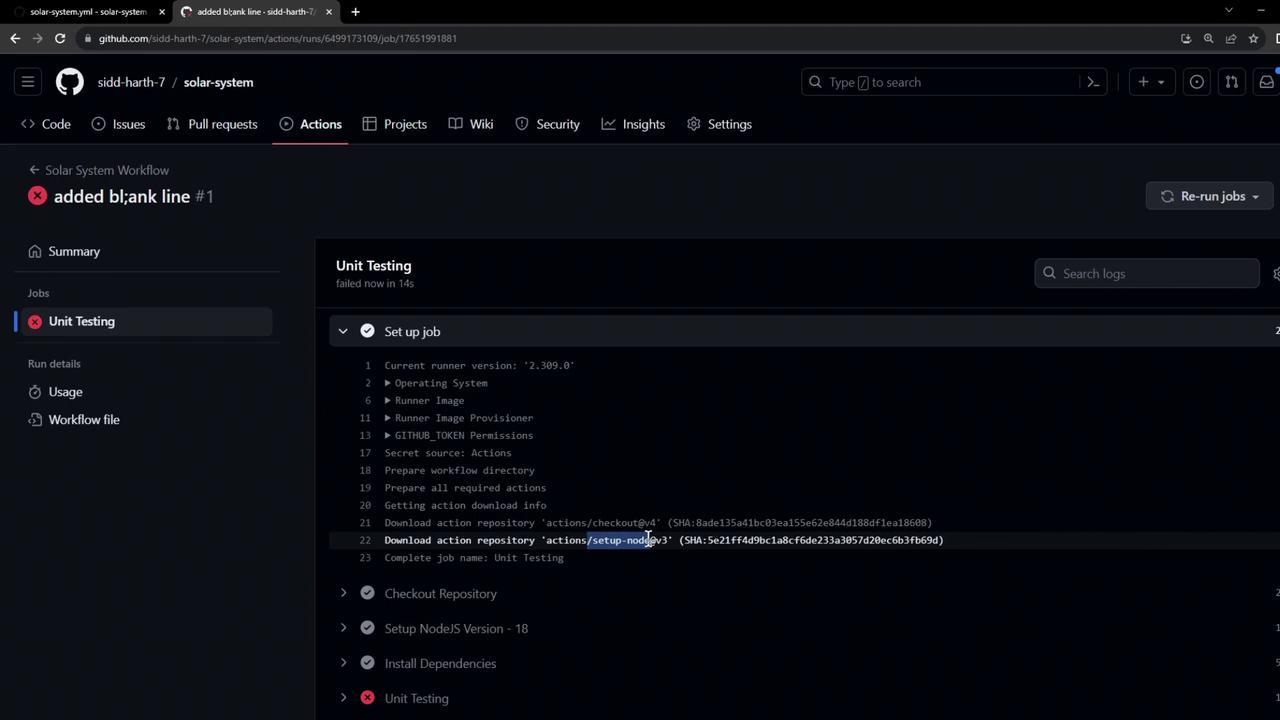
7. Provide Environment Variables
Ourapp.js connects to MongoDB using environment variables:
Best practice is to store connection strings and credentials in secrets and variables. Rotate secrets regularly and grant least-privilege access.
- Name:
MONGO_PASSWORD(Secret)
Value:SuperPassword
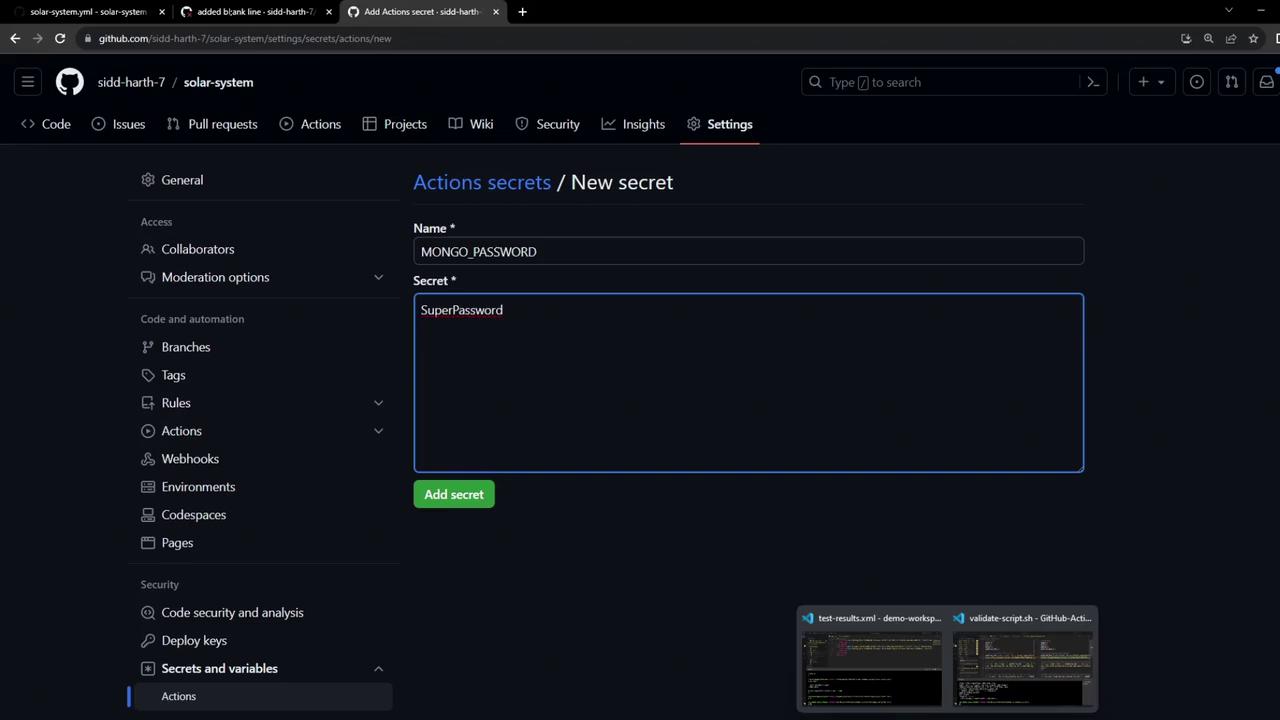
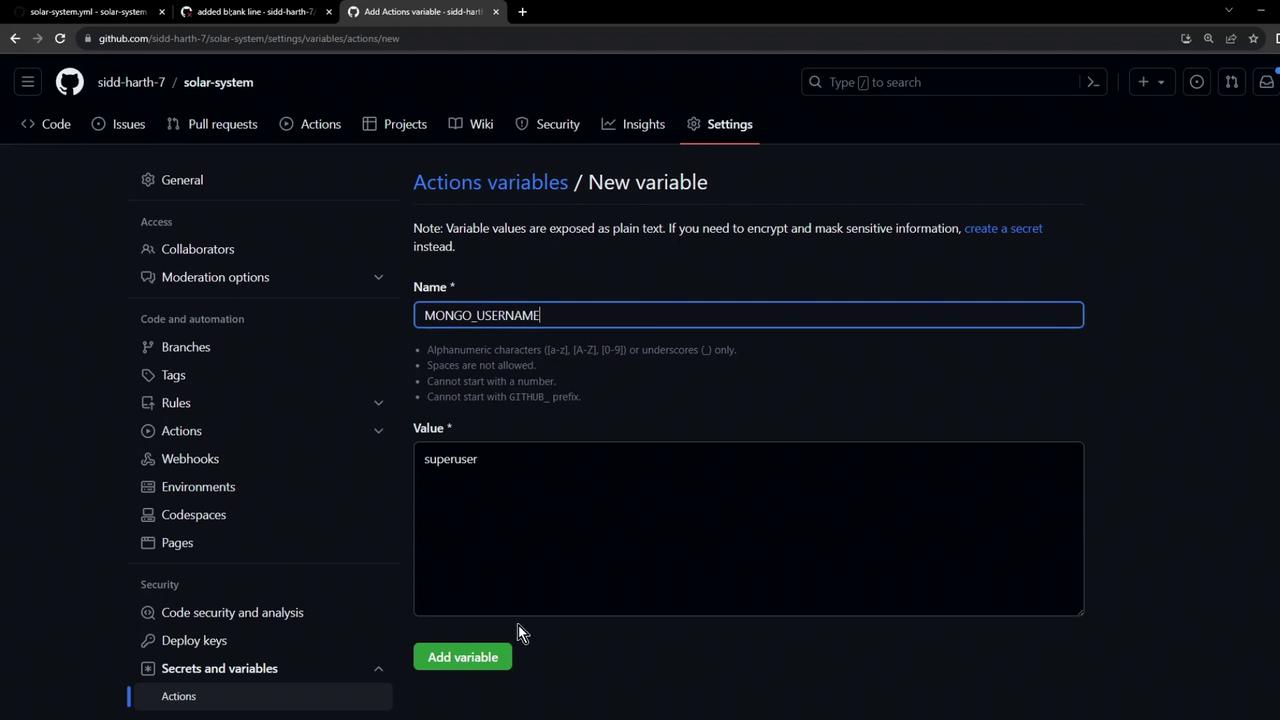
- Name:
MONGO_USERNAME(Variable)
Value:superuser