Learn how to import and run a Docker-based GitHub Action from one repository in another. In this guide, we’ll reuse the docker-action-pr-giphy-comment action in the solar-system project to automatically post a GIF response on pull requests.
The image shows a GitHub repository page for "docker-action-pr-giphy-comment," displaying files and recent commits.

1. Switch to the Target Repository

Open the solar-system repository where you want to integrate the custom action.
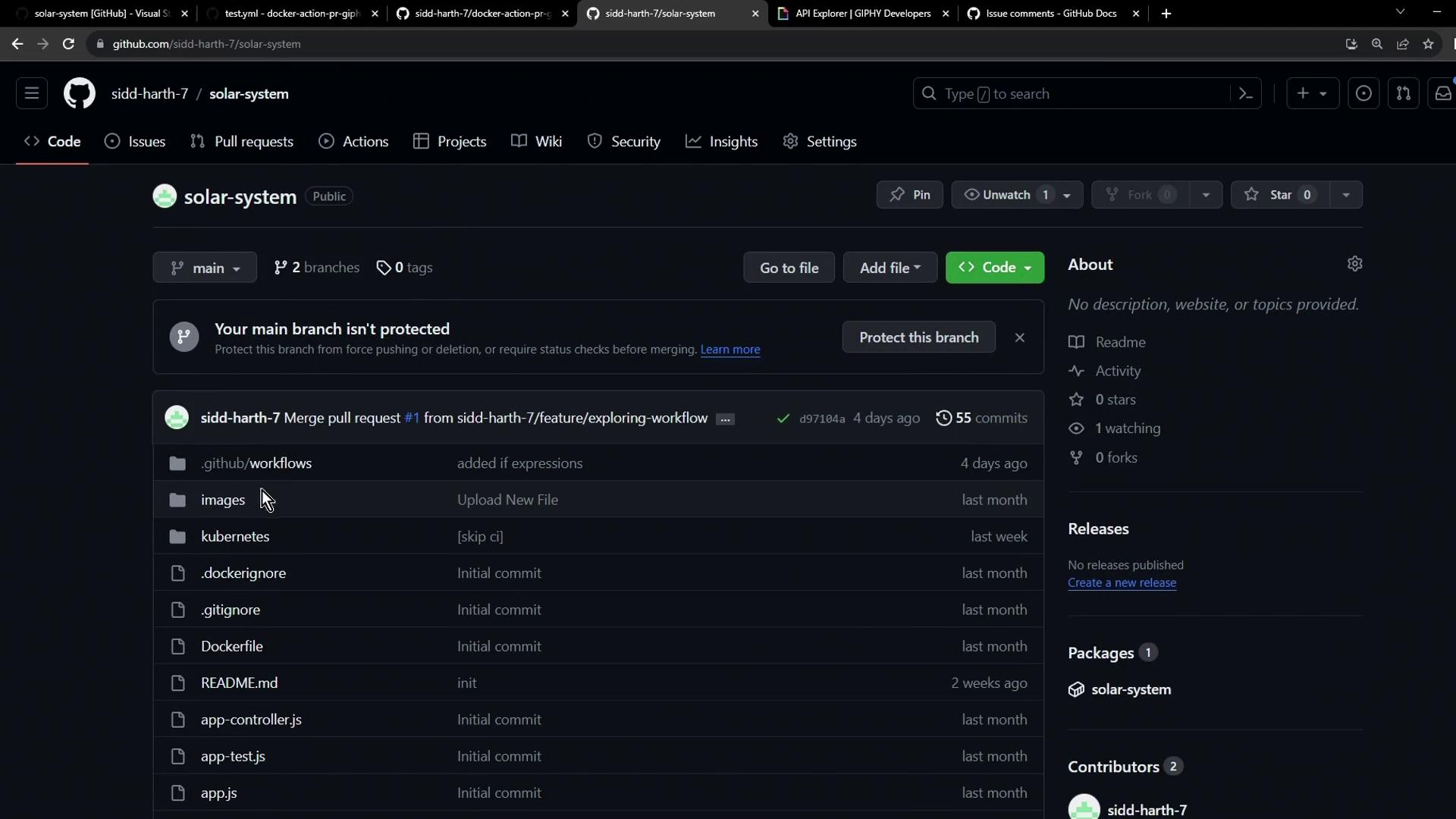
This image shows a GitHub repository page named "solar-system" with various files and folders listed, including workflows, images, and Kubernetes. The repository has 55 commits and a recent pull request merge.

2. Store Your Giphy API Key

To fetch GIFs, the action requires a Giphy API key stored as a secret.
  1. Navigate to Settings → Secrets and variables → Actions.
  2. Click New repository secret.
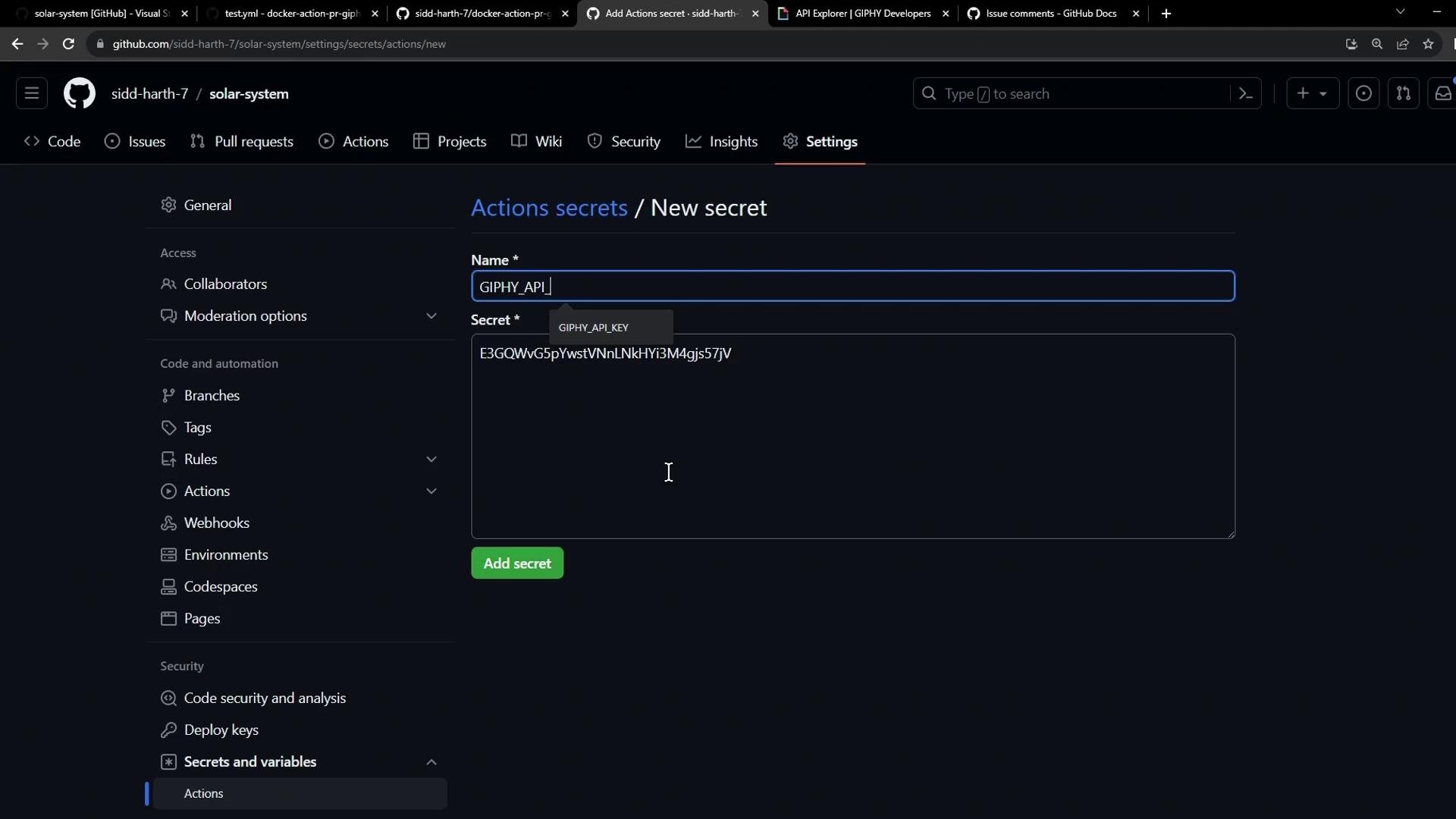
  3. Name it GIPHY_API_KEY and paste your API key.
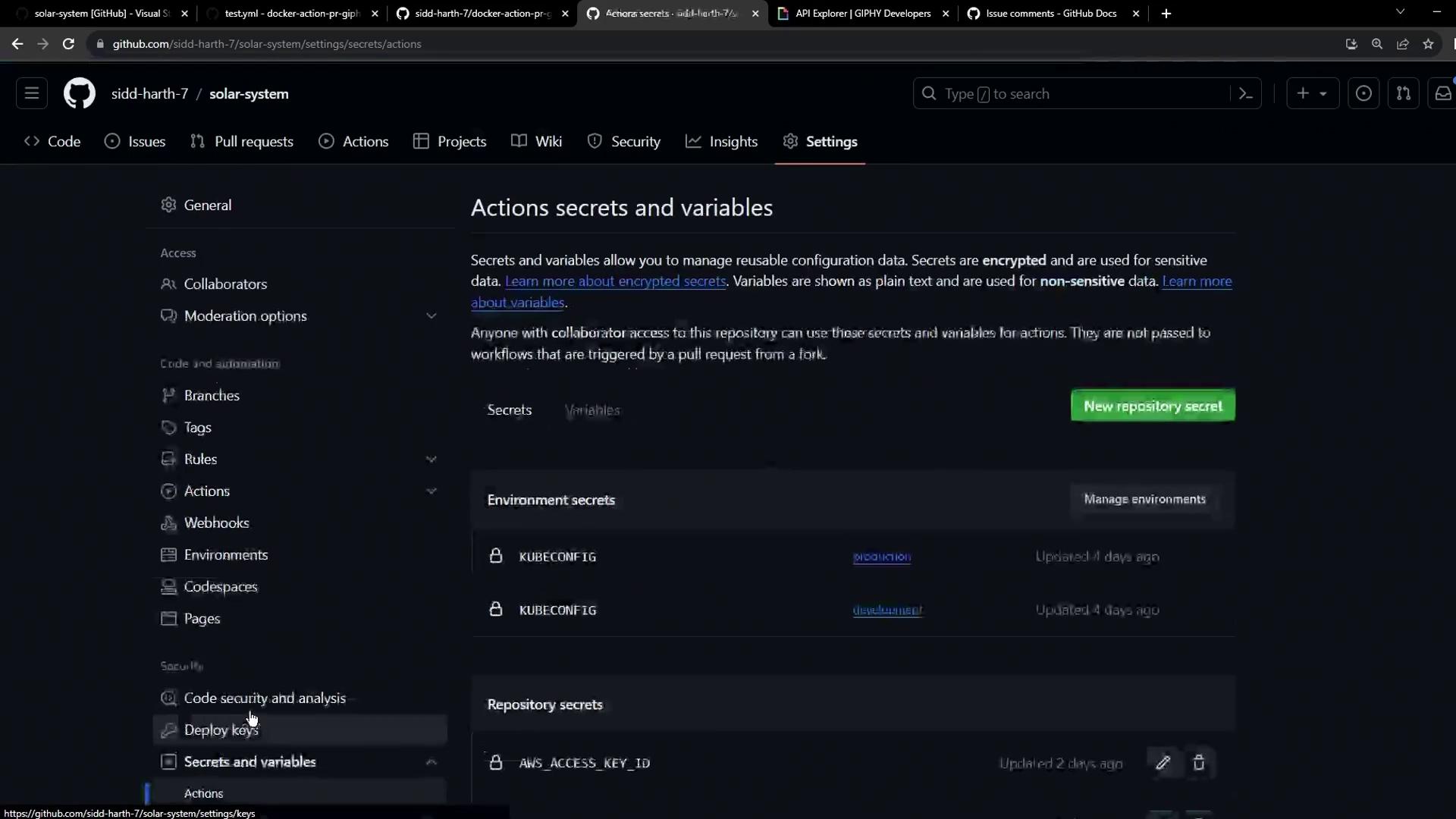
The image shows a GitHub repository settings page focused on "Actions secrets and variables," displaying options for managing environment and repository secrets.
The image shows a GitHub repository settings page where a new secret named "GIPHY_API" is being added, with a secret key entered in the field.
Never expose your API keys in code or logs. Repository secrets are encrypted and only available to workflows.

3. Create a Pull Request Workflow

Under .github/workflows/, add a new file named pr-thank-you-workflow.yml:
on:
  pull_request:
    types:
      - opened

jobs:
  pr-action:
    runs-on: ubuntu-latest
    permissions:
      issues: write
      pull-requests: write
    steps:
      - name: Post GIF Comment
        uses: sidd-harth-7/docker-action-pr-giphy-comment@main
        with:
          github-token: ${{ secrets.GITHUB_TOKEN }}
          giphy-api-key: ${{ secrets.GIPHY_API_KEY }}
Replace sidd-harth-7/docker-action-pr-giphy-comment@main with your own owner/repo@branch reference.

Job Configuration

SettingValue
runs-onubuntu-latest
permissionsissues: write, pull-requests: write
Commit to a new branch and open a pull request:
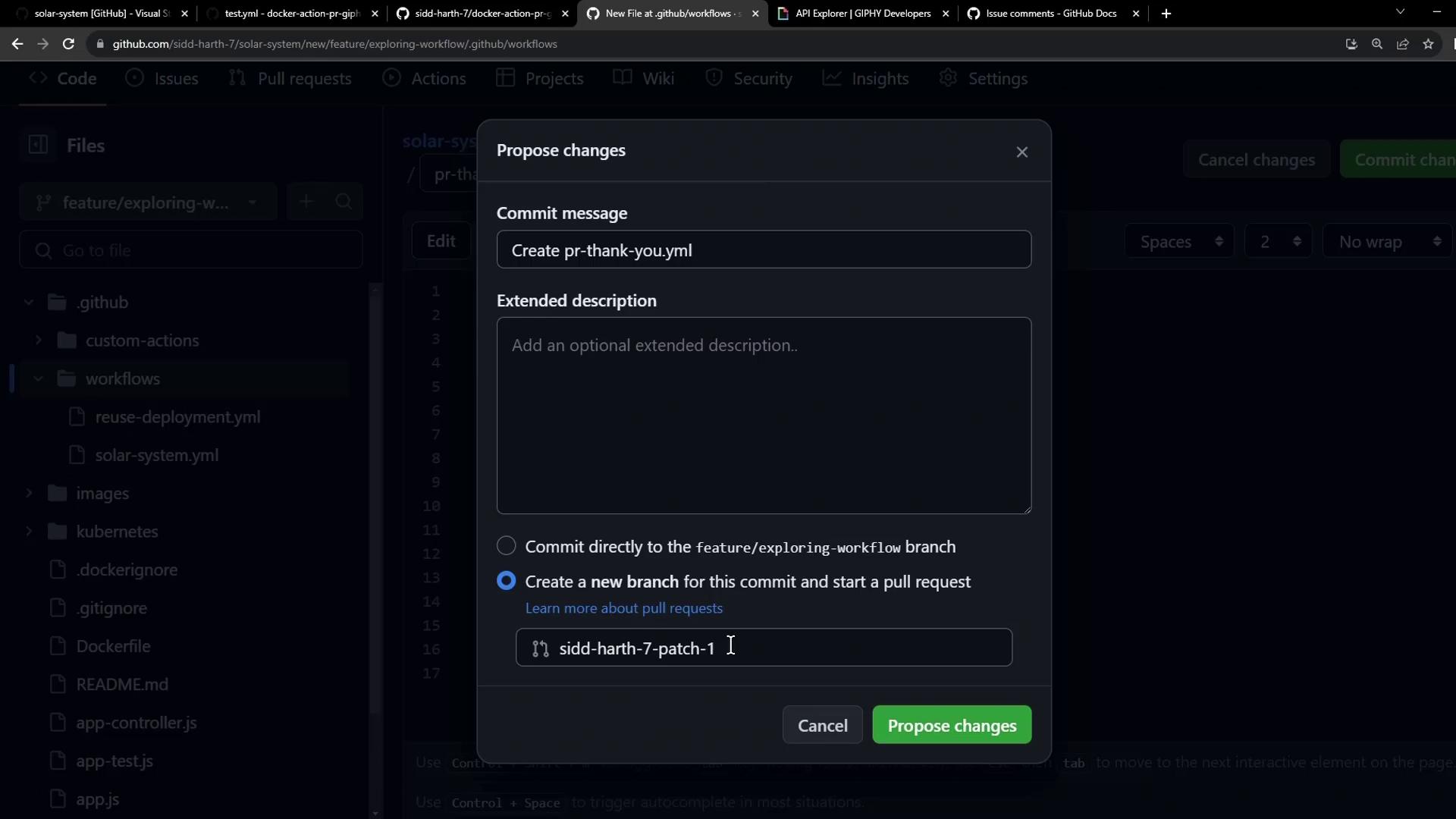
The image shows a GitHub interface where a user is proposing changes with a commit message and options to create a new branch or commit directly to an existing branch.

4. Monitor the Workflow Execution

Head to the Actions tab to see your workflow run.
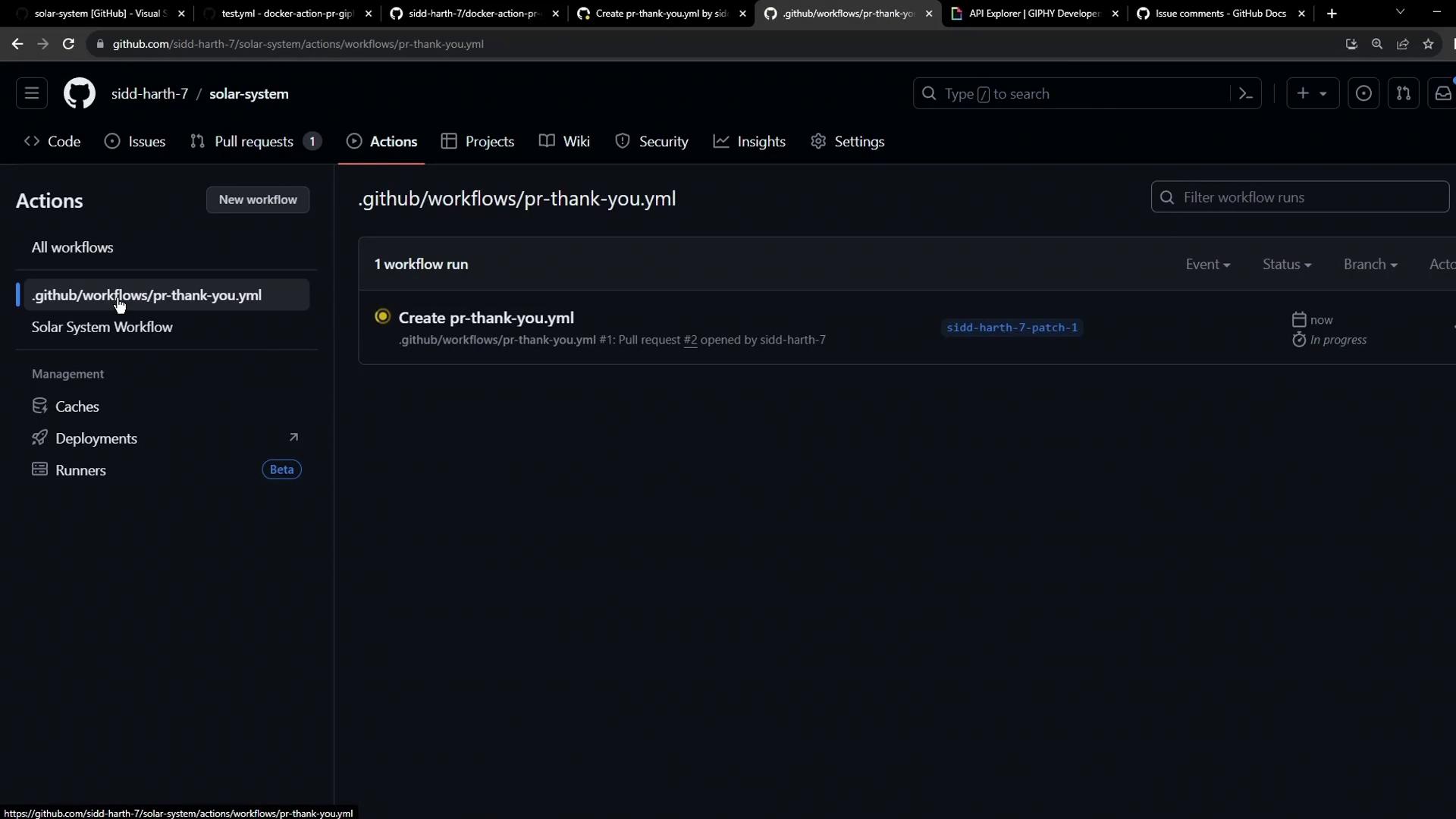
The image shows a GitHub Actions page with a workflow file named "pr-thank-you.yml" in progress. It is part of a repository called "solar-system" under the user "sidd-harth-7".

Example Build Logs

Docker container actions build an image at runtime:
# Build container for action use: '/home/runner/work/_actions/sidd-harth-7/docker-action-pr-giphy-comment/main/Dockerfile'.
#1 [internal] load .dockerignore
#1 transferring context: 2B done
#1 DONE 0.0s
#2 [internal] load build definition from Dockerfile
#2 transferring dockerfile: 448B done
#2 DONE 0.0s
#3 [internal] load metadata for docker.io/library/alpine:3.10
#3 DONE 0.0s
#6 [1/4] FROM docker.io/library/alpine:3.10@sha256:...
#6 DONE 0.1s
#9 [4/4] RUN chmod +x /entrypoint.sh
#9 DONE 0.3s
Then the container runs:
/usr/bin/docker run --name 2d046f464e14829be2791b519b_32bdb \
  --label 461cec \
  --workdir /github/workspace \
  -e "INPUT_GITHUB_TOKEN=" \
  -e "INPUT_GIPHY_API_KEY=" \
  --rm \
  -v /home/runner/work/... \
  ...
Continuous Docker builds can introduce latency. Consider using a JavaScript action for faster startup.

5. Confirm the GIF Comment

After success, your pull request will display a “Thank you” comment with a GIF:
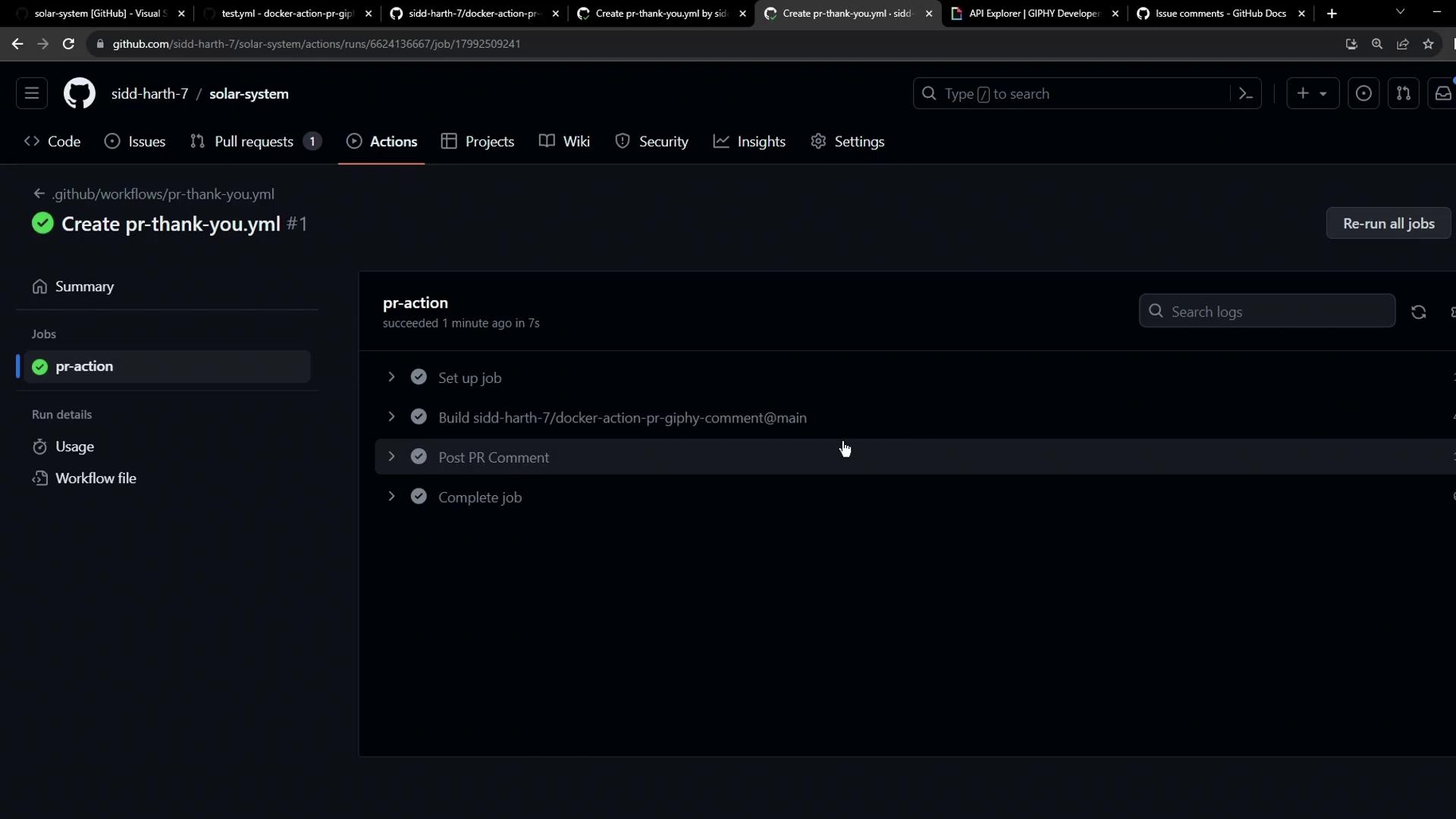
The image shows a GitHub Actions workflow run summary for a repository, indicating that the "pr-action" job has succeeded.